
Why I Switched from Todoist to Amplenote
Why I switched from Todoist to Amplenote
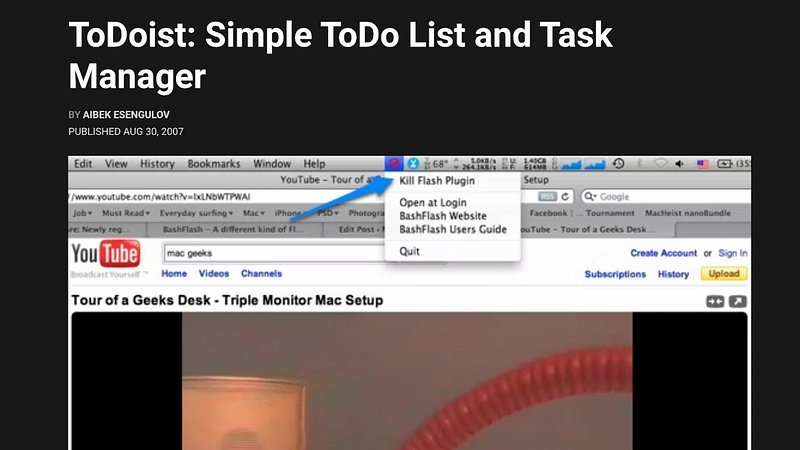
Like many people, I first discovered Todoist ages ago, when it was THE app for anyone serious about todos. Did you know Todoist launched in 2007? That’s the same year that Steve Jobs revealed the first version of the iPhone.

It is truly impressive that Todoist remains one of the most popular todo apps today. But I can see why — it’s fast, easy to use, beautiful design and free. But some may find it too basic and want something a little more advanced with features like calendar, which is why I decided to switch to Ticktick.
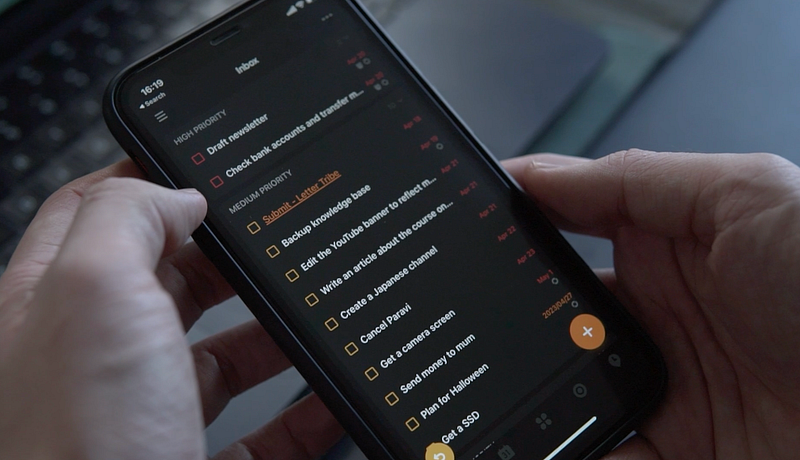
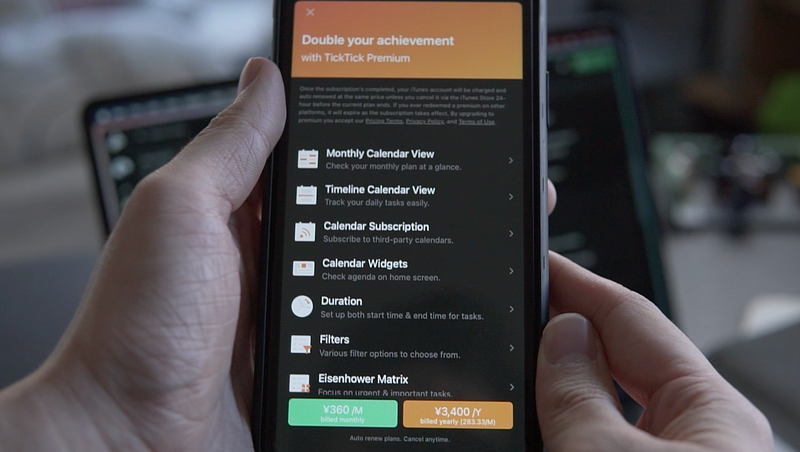
Ticktick is another one of the best todo apps. It’s got calendar mode as well as lots of extra features like Pomodoro timer and Eisenhower matrix. But the problem was that the calendar mode is not free — you have to pay to use it. Also, I wasn’t happy with their note feature which was too basic.
So I tried a bunch of other todo apps, and then I finally settled with Amplenote a few years ago. And I haven’t looked back ever since.
You may think it’s a note app, but it’s actually a great to-do app too.
In this article, I want to give you a guide on how to use Amplenote as your task manager in comparison to Todoist so I can help you make the decision to switch from Todoist or not. And if so, I’m hoping to make the transition easier.
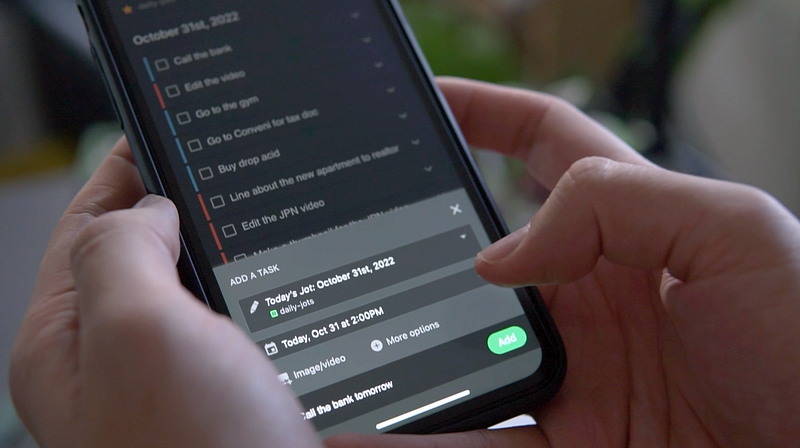
Todoist and Amplenote
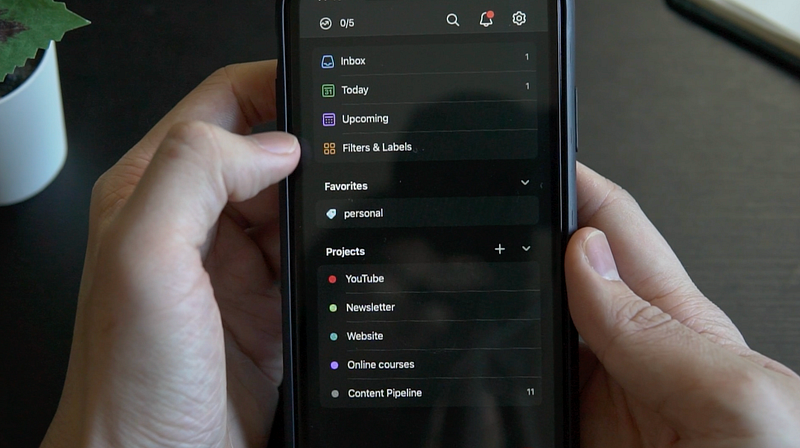
Inbox
The best thing about Todoist is its simplicity. It’s got everything you need for task management right out of the box. You have the inbox, today and upcoming todos, filters and projects.
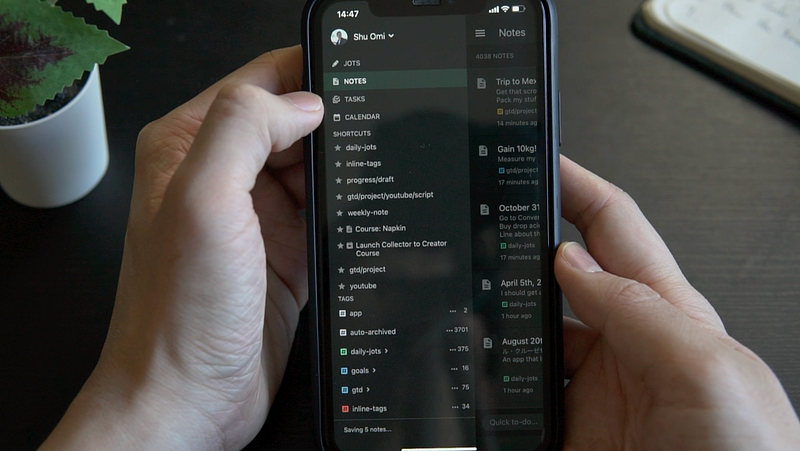
Whereas things are a little different in Amplenote. It’s got four modes — Jots, Notes, Tasks and Calendar. You can think of the Jots as your inbox where you can write down things to do, make reminders and journal, and Notes as your Projects and Lists.
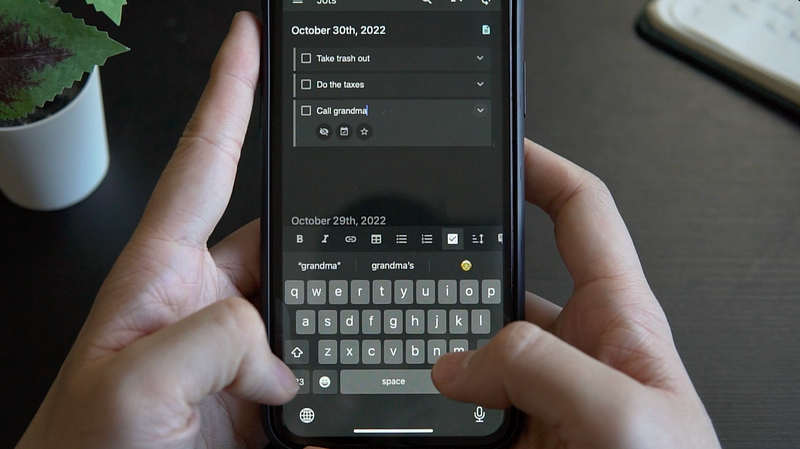
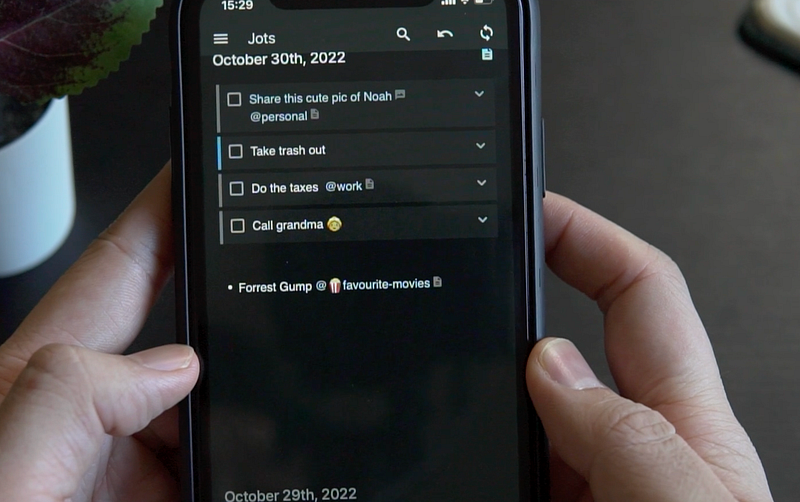
Let’s start with the inbox because this is where most people start their day. Just like in Todoist’s Inbox, write down things you want to do in Jot. It can be anything like taking trash out, do the taxes, call grandma and so on.
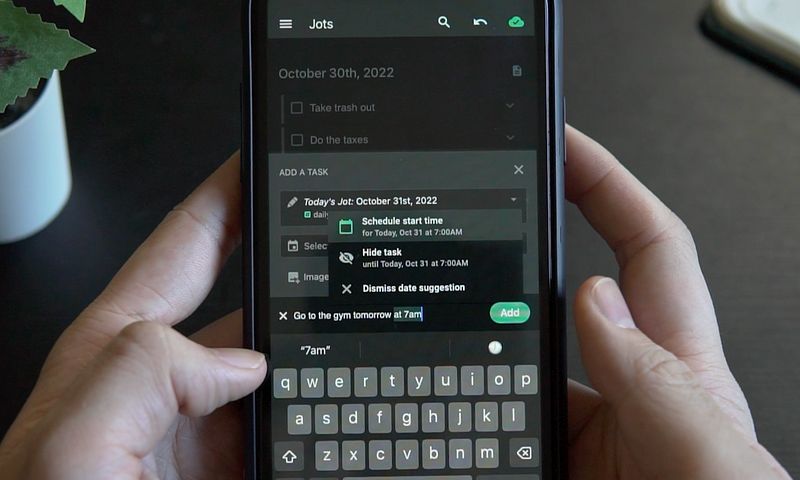
Also, if you think of something you need to do or want to remember, you can use the quick add bar like in Todoist. It’s got natural language processing, which makes it easy to enter the starting date and time. Furthermore, you can attach an image or a video to the task too which is useful because sometimes it’s hard to describe things just with words!
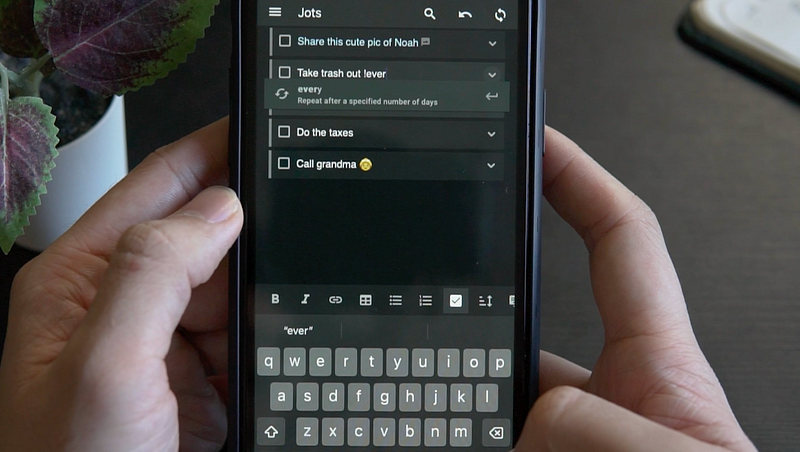
If you want to make a recurring task, you can use the !command menu, find ‘every’ and enter how often you want the task to repeat.
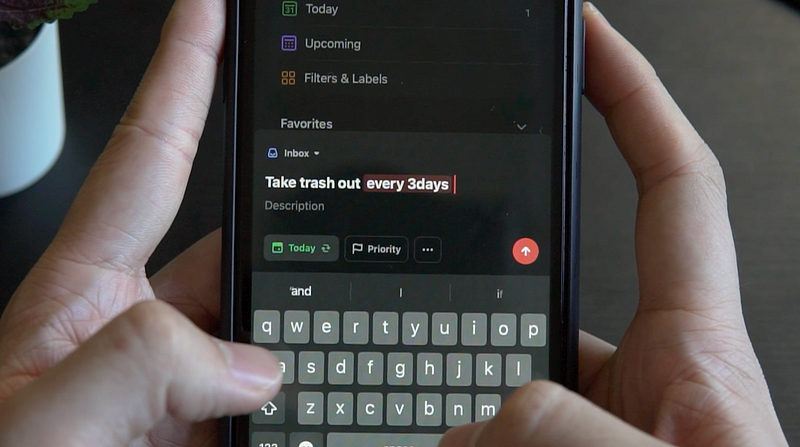
Perhaps this is something Todoist does a little better — their natural language processing is a little more advanced compared to Amplenote’s. You can just type ‘every 3 days’ to make a recurring task instead of using a command menu like in Amplenote. The difference may be small, but I find Todoist’s way slightly easier.
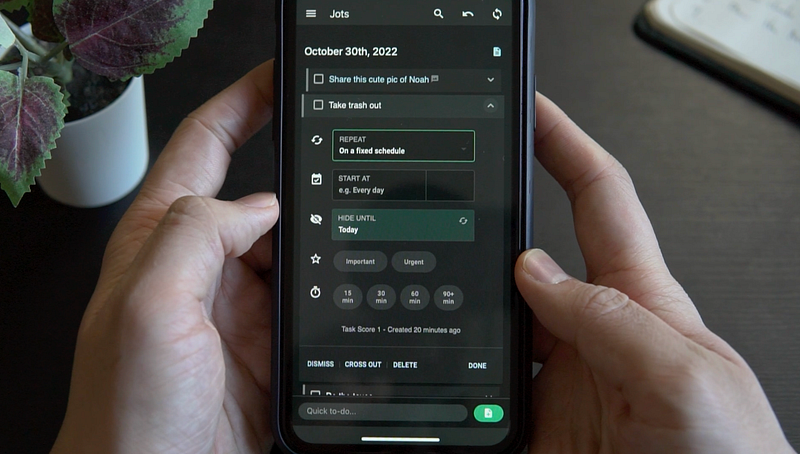
Still, this comes down to personal preference. Amplenote does have a good task detail menu where it’s easy to see the configuration of each todo such as how it’s supposed to recur — does it repeat on a fixed schedule or when task is complete? Also, when it’s going to send you a reminder and how long you need to finish the task.
Lists and Tags (Labels)
If you’ve been using Todoist, you’ve probably used labels before because they are useful to categorise your todos and keep them organised.
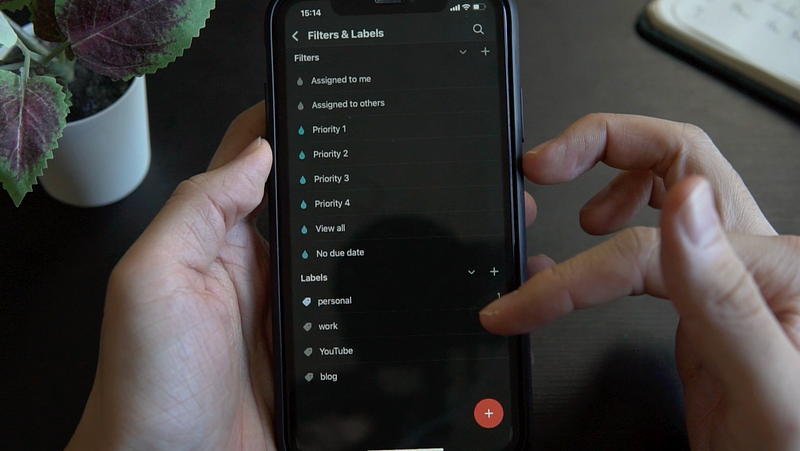
In Amplenote, labels are called inline tags. Like in Todoist, they start with the at-sign so it’s easy to recognise them.
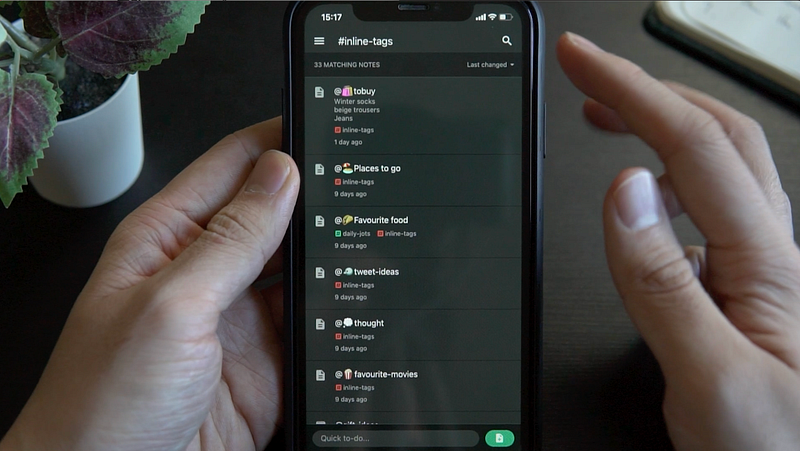
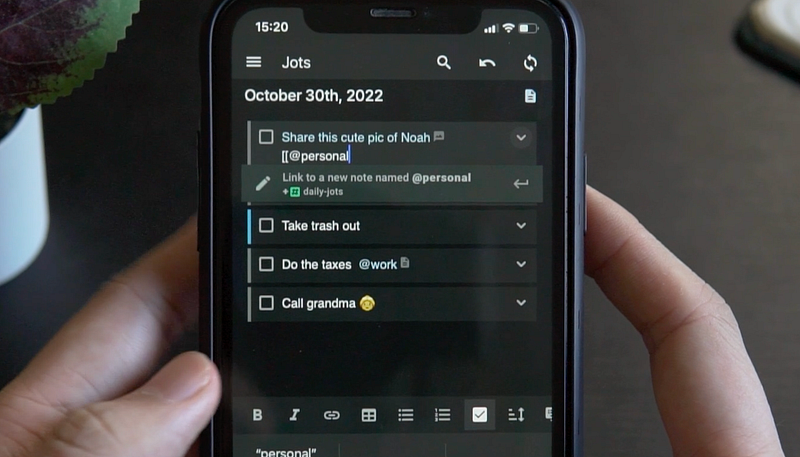
For example, if a task is about your work, you can put the @work to it. Making a new inline tag is easy too. Let’s say you want to make a new one for personal tasks. For that, you can simply add [[@personal]] in the task field.
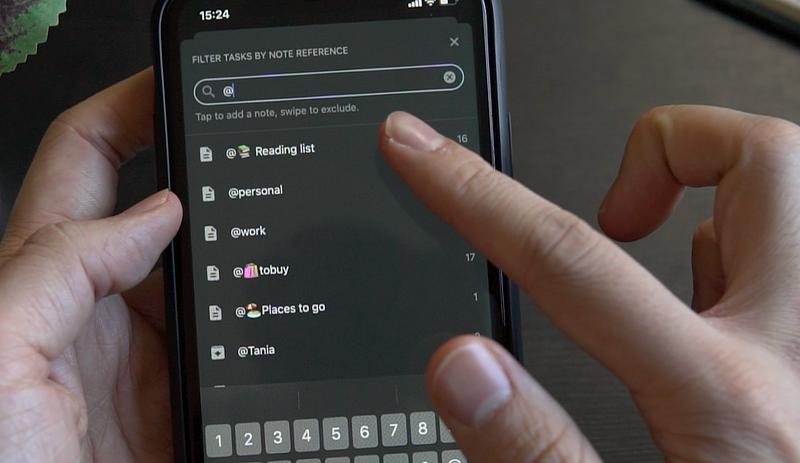
Then if you switch to the task mode which is where you can see all the tasks, you can filter for the inline tag so you can see only the personal todos.
Similarly, you can add more tags to your heart’s content. I have about 20 tags in my Amplenote. For instance, I have a tag for things to buy as well as my reading list.
So, it can be anything you want to organise. Just make a new tag and put it to the thing you want to organise. It doesn’t have to be a task, by the way. You can put a tag on any text or even a photo and a movie.
This is something I love about this app. It lets me organize not just tasks but anything in whatever way I like.
Projects
If you’ve found your way to an article comparing the details of task apps, chances are that you have a busy life juggling multiple projects. Thankfully both Todoist and Amplenote have great options to keep your projects organized.
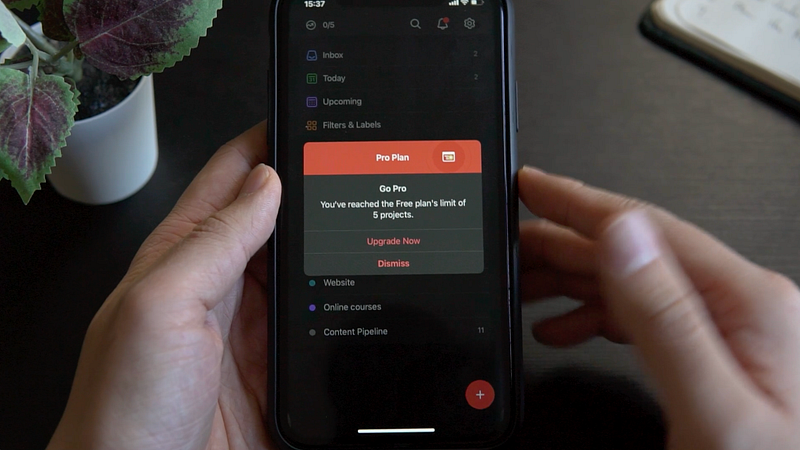
But something I wasn’t happy about Todoist was that it only lets you have 5 projects on their free plan, and you have to pay to have more. Whereas you can make as many projects as you like in Amplenote.
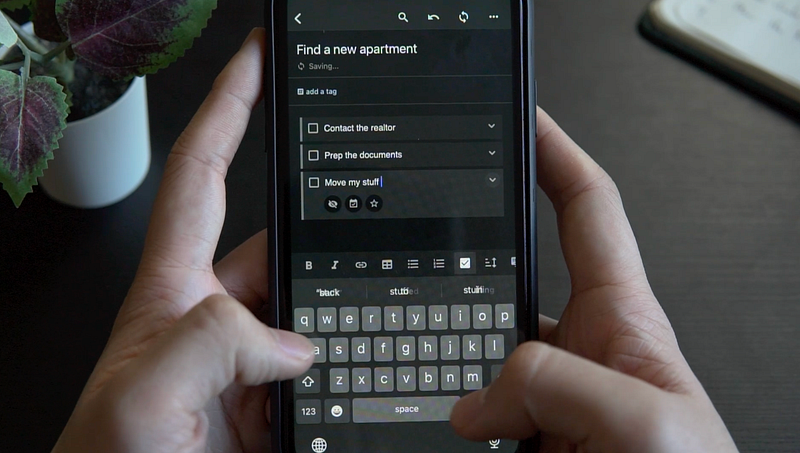
Here, you can think of the Notes mode as your project list. Say, you want to find a new apartment. Simply create a new note, and the title is the name of the project. Then inside, you can make a list of todos such as contact the realtor, Prepare documents, Move your stuff and so on.
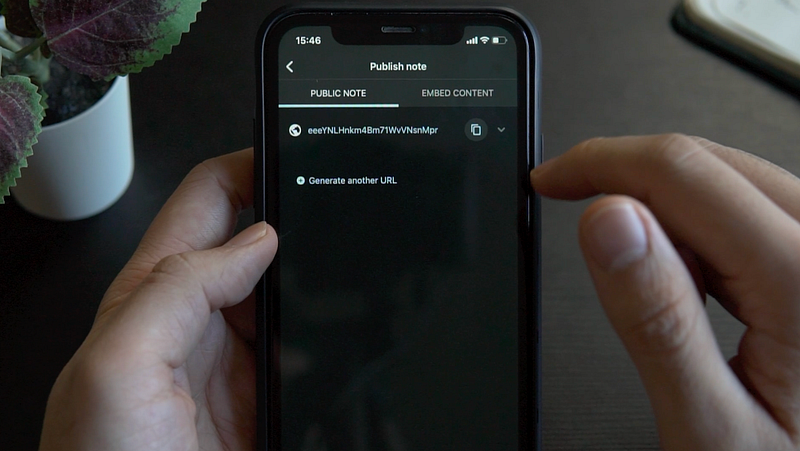
And if this is a group project, you can publish this note so you can share the link with your friends and family.
Now, what’s cool is that you can even make tables as you do in Notion and Excel. This might come in handy when you want to organize lots of items and things. Recently, I actually used this for my apartment hunting.
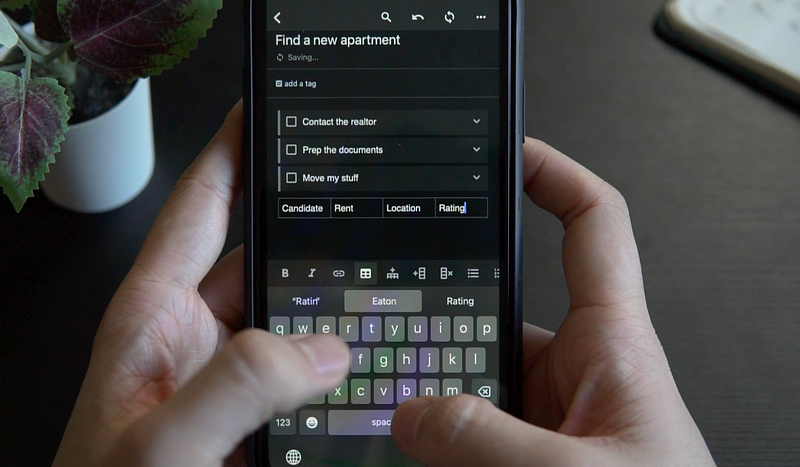
Once you wrote down things to do, you can check your tasks in task mode. Just like you used tags to filter, you can also use projects. So, if you want to see the tasks for that apartment project, just find and select the note. Then it will show you only the todos in it.
Calendar
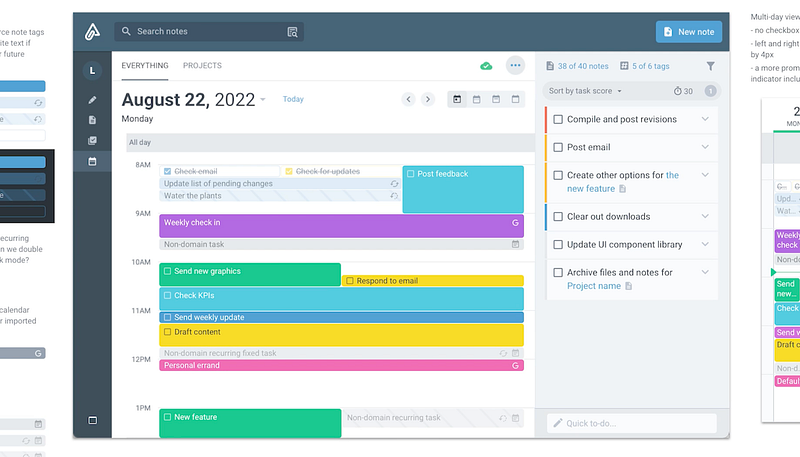
Now here’s my favourite part! Let’s see the calendar mode. This is where you can build your schedule using the time-blocking method.
This is actually why I switched from Todoist because it’s so useful. I know there are lots of Todoist users like me because one of their top-voted features is calendar. This is probably why many users switch to Ticktick because it has calendar view. But the thing is that you have to pay for that, whereas it’s free in Amplenote.
Anyway, you can see your calendar which can be changed to one day, three days, week or monthly view.

Then see the list of todos from this plus button. Now you just have to tap on the task you want to schedule and choose the time. This way, you know what task you’re going to work on and when.

Personally, I like how you can connect your Google and Outlook calendars to Amplenote. It supports 2-way-sync, which means your events in your external calendars automatically show up inside Amplentote calendar, and your scheduled tasks in Amplenote also appear on your external calendars if you want.
I use this calendar mode every single day in the morning so I know what I’m going to do, which is so much less stressful than having a long todo list and helps get more things done.
Summary
There are lots of great alternatives for Todoist. But most of them require a paid subscription. So, if you’re looking for a free todo app with more customizability and features like calendar, Amplenote is a solid option. It has multiple plans, but you can get almost all the productivity features with its free plan. So no need to subscribe to their premium plans unless you want advanced features.
If you’re curious about how I use Amplenote, I have a playlist you can check out.


