
Where To See The Total Downloads On The Google Play Console?
Since the existence of the Android Market (now Google Play), Google has been showing users the number of downloads of each App. This figure, at least up to this moment, is still being used by Google as one of the ways to identify and rank Apps by popularity.
A few years ago, the Google Play Team told the developers that the total number of downloads is ineffective in determining App success. Because of this, they have quietly and gradually hidden this on the Google Play Console. They have introduced many other reporting functions that product owners and developers can use to trace how well their Apps perform.
Wait a minute — Is this something you really want?
The rationale behind this change is not too difficult to explain. It just means nothing for an App to have 100,000,000 downloads since its first release in the past 10 years. Still, most users have already abandoned or uninstalled it, making the developer worthless to maintain the App, or giving a false impression to the product owner that the App is still successful. The Google Play Team tried to shift our focus from the historical figures to the real-time performance of our Apps, so that we could make better decisions on promoting and improving our Apps.
However, no matter how good the intention was, it is a fact that the number of downloads is still being shown to users through the Google Play App, but just not to the product owners/developers under the Google Play Console. I found this confusing and inconsistent.
Can we still compile the number of downloads using the Google Play Console? Yes, but we need to do a few more clicks than before.
So, where can I check the total number of users?
- Log in to the Google Play Console
- Choose an App from the list.
- Choose Statistics on the left navigation panel, you should then see App Statistics showing as the first section of the page.
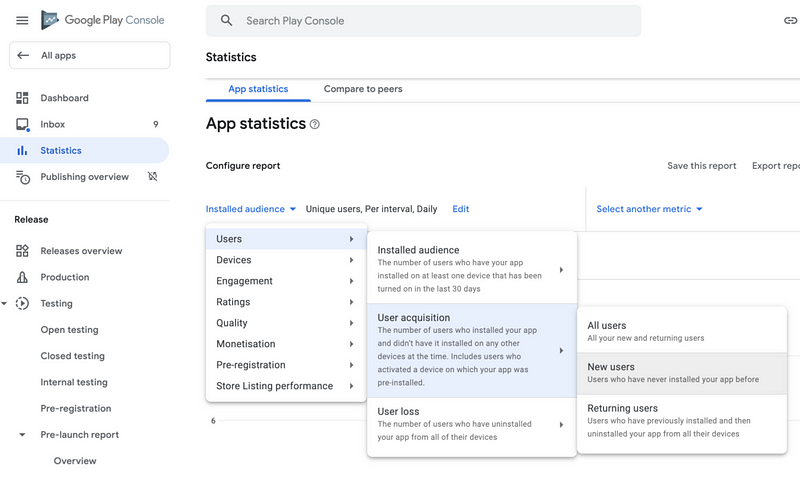
- Under Configure report, there is a drop-down menu you can use to pick Users > User acquisition > New users
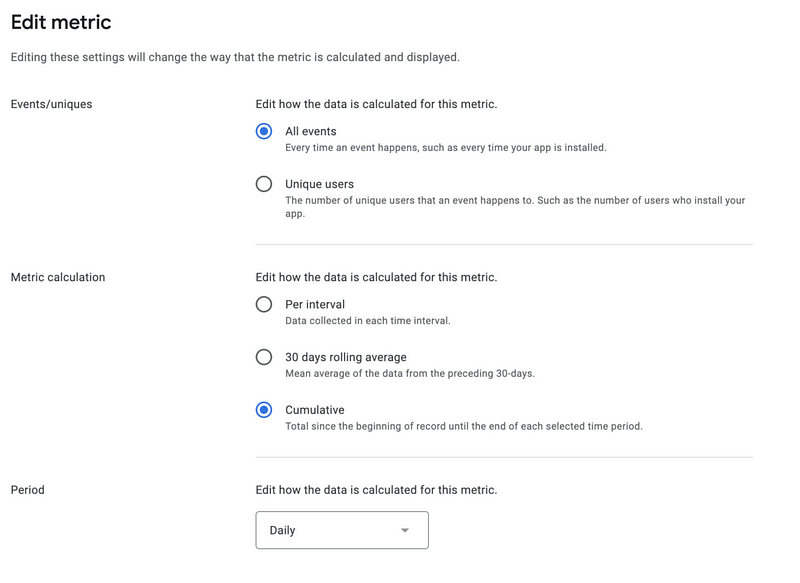
5. Click Edit next to the down-down to invoke the Edit metric dialog. It is up to you to count all events or unique users, but it is essential to pick Cumulative under Metric calculation to make this works.
6. Remember to change the reporting period to All time under the drop-down on the right-hand side.
7. For clarity, you might remove the country groupings under the View by filter.
8. And this is done! Move your mouse cursor on the graph to get the figure you need up to a specific date.
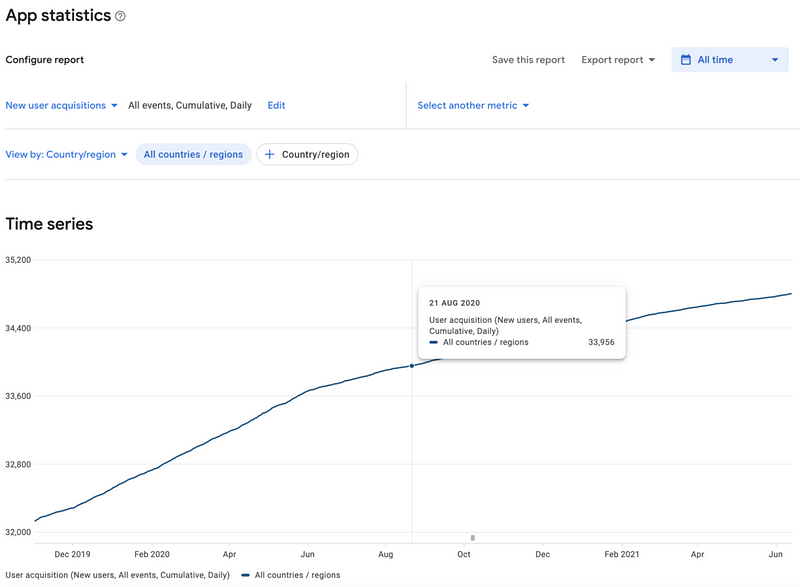
- Please remember that the Google Play Console only keeps the data from 1 November 2019. It is not all time, and they may keep on removing old data from the system.


