
What’s new in Vue Devtools 4.0
A big update was released to the Vue devtools just a few days ago. Let’s dive into the new features and improvements! 🎄
Editable component data
You can now modify the data of your component directly in the Component inspector pane.
- Select a component
- Under the
datasection in the inspector, mouse over a field - Click on the pencil icon
- Submit your changes by clicking on the done icon or by hitting Enter. You can hit Escape to cancel the edition
The content of the field is the serialized JSON value. For example, if you want to enter a string, type "hello" with the double-quotes. An array should look like [1, 2, "bar"] and an object like { "a": 1, "b": "foo" } .
Currently, the values of following types can be edited:
nullandundefinedString- Literal:
Boolean,Number,Infinity,-InfinityandNaN - Arrays
- Plain objects
For the Arrays and Plain objects, you can add and remove items using the dedicated icons. You can also rename object keys.
A warning will be displayed if the input isn’t valid JSON. However, some values like undefined or NaN can be typed directly for more convenience.
More types will be supported in future releases!
Quick Edit
Some types of value can be edited in a single click with the ‘Quick Edit’ feature.
Booleans can be toggled directly with the checkbox icon:
Numbers can be incremented or decremented with the plus or minus icons:
You can use some keyboard modifiers to increment or decrement the value faster.
Open component in editor
If you are using vue-loader or Nuxt in your project, you can now open the selected component in your favorite code editor (provided it is a Single-File Component).
- Follow this setup guide (if you are using Nuxt, you don’t need to do anything)
- In the Component inspector, mouse over the component name — you should see a tooltip with the file path
- Click on the component name and it will open in your editor
Show the original component names
PR by manico
By default, all the component names are formatted into CamelCase. You can disable this by toggling the ‘Format component names’ button in the Components tab. This settings will be remembered and it will also be applied to the Events tab.
Inspecting components just got easier
While you have the Vue devtools open, you can right-click on a component to inspect it:
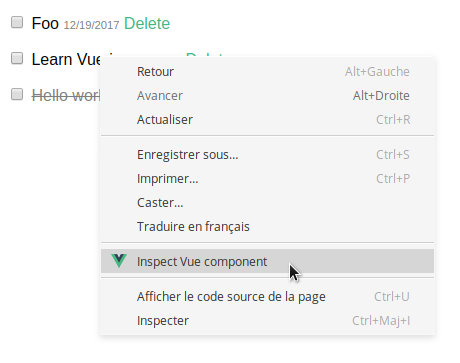
You can also programmatically inspect a component using the $inspect special method:
Either way, the components tree will be expanded to the newly selected component automatically.
Filter events by component
PR by eigan
You can now filter the Events history by the components that emitted the events. Type < followed by the name of the component or part of it:
Vuex inspector filter
PR by bartlomieju
The Vuex inspector has now a filter input:
Vertical layout
PR by crswll
When the devtools are not wide enough, they will now switch to an handy vertical layout. You can move the divider between the top and bottom panes just like in the default horizontal mode.
Improved scroll-to-component
By default, selecting a component will no longer scroll the view to it. Instead, you need to click the new ‘Scroll into view’ icon:
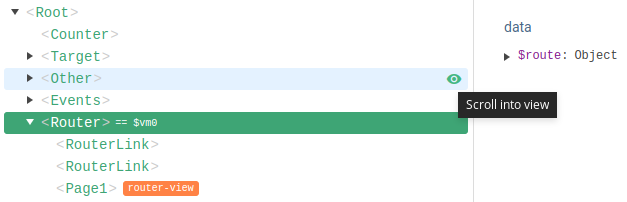
It will now center the component on the screen.
Collapsible inspectors
The sections of the different inspectors can now be collapsed. You can use keyboard modifier to collapse them all or expand them all in one click. This is very useful if you are, let’s say, only interested in the mutations details of the Vuex tab.
And more!
- The ‘Inspect DOM’ button is now hidden if the environment doesn’t have this feature — by michalsnik
-Infinityis now supported — by David-Desmaisons- The event hook had an issue fixed by maxushuang
- Some code was cleaned by anteriovieira
- Date, RegExp, Component support is improved (and time-traveling should work with those types now)
- The devtools are now using v-tooltip for rich tooltips and popovers (also fixing some issues)
If you already have the extension, it should update automatically to 4.0.1 . You can also install it on Chrome and on Firefox.
Thank you for all the contributors that helped make this big update possible!
If you find an issue or have a new feature to suggest, please share it!
What’s next?
A new release should arrive pretty soon with even more features like selecting a component in the page (color picker-style) and some UI improvements.
We also have a few things in the works, like a standalone Vue devtools app that will allow debugging any environment (not just Chrome and Firefox), a brand new Routing tab and an improved support for Set and Map types.
Stay tuned!


