
What’s Docker? And how to start with it
During the last couple of years Docker has became a thing in software developer world. With this post I would like to explain what problem does it solve, how to install it and test on a simple examples. Apart from the technical topics I also would like to elaborate a little bit on the containerization concept of a software.

This blog post is a first one in a series of articles dedicated to Docker. The other entries are:
- How to insert a Spring Boot app that connects to the public REST API to Docker container (COMING SOON)
- Databases in Docker. How to work with them? (COMING SOON)
- Build a portable Spring Boot app with database in a Docker container (COMING SOON)
Container technology. What problem does it solve?
Imagine this scenario. You, as a developer, has finished a new amazing app. Everything was tested and it could be a next big thing. Now your boss is asking you to move it from your development machine (usually local PC) to company’s server (production).
Would it be a simple copy-pasting task? In some cases it might, but what if on this server runs couple of other applications? It might be some conflicts when for instance, a new software you need to have the 8 Java version, but other applications are using older versions. And number of such conflicts may skyrocket with a complexity of installed application on a server. So instead of quickly moving new solution to a production we would need to consume a lot of time to make sure that our new application would run and also make sure that old ones won’t crash after these changes. So here we have the old problem —some software works only on my machine.

Luckily the containers concept was introduced! Instead of moving a finished app from one environment to another we need first to wrap it in a container that handle for us all required dependencies and libraries, so it runs reliably on every machine (Windows, Linux, Mac, cloud, and others)!
But is a the only benefit of the container?
Not at all! Apart from that now every software is portable, their development could be more faster than it was. Especially when we develop a microservices , where each service is a separate part of a bigger solution. With this approach we can split large software into smaller parts and each of it could be written in a different technology (Java, Python, R…), so we are able to choose the best tool for a particular problem.
Moreover the microservice architecture helps with agile approach. For instance if we have an e-commerce website and one of payment method is PayPal, but suddenly customers wants to replace it with another method. Using this approach you won’t need to create a new version of entire app, just the tiny part responsible for payments, which is far less time-consuming.
And finally, containers technology enables some of the cloud features (like scalability, self-healing), it reduce solution’s time to market, reduce IT infrastructure or issue time resolving.
If you want to know more about this concept, watch this video which explains it in a very simple way.
What is a role of Docker?
Ok, so now, what is a role of the Docker in container technology? Basically it’s a tool that allows us to develop, deploy and run software in a container. With Docker we can package up the application with all libraries and dependencies, and unlike virtual machine they don’t require so much resources, so they are faster and more easy to use.
Let’s move on to show you how Docker really works, but first we must install it on your local machine.
How to install Docker?
Depending on the system you have the installation might be a slightly different. If you’re using a Linux, you’ll be able to install Docker in a terminal, but if you’re using Windows or MacOS you will need to install a Docker Desktop app which is a lightweight Linux virtual machine.
Here are the instructions how to install Docker on Ubuntu (Linux), Windows and MacOS.
Running first, hello-world, Docker container
Everything is set up, so open a terminal (on Windows and Macs, first make sure that Docker is up and running) and type following command:
$ docker --versionDocker version 18.09.2, build 6247962If you get similar output as I have it’s installed correctly 💪.
Now let’s try with a first container, to do that run the following:
$ docker run hello-worldUnable to find image 'hello-world:latest' locally
latest: Pulling from library/hello-world
1b930d010525: Pull complete
Digest: sha256:2557e3c07ed1e38f26e389462d03ed943586f744621577a99efb77324b0fe535
Status: Downloaded newer image for hello-world:latestHello from Docker!
This message shows that your installation appears to be working correctly.To generate this message, Docker took the following steps:
1. The Docker client contacted the Docker daemon.
2. The Docker daemon pulled the "hello-world" image from the Docker Hub.(amd64)
3. The Docker daemon created a new container from that image which runs the executable that produces the output you are currently reading.
4. The Docker daemon streamed that output to the Docker client, which sent it to your terminal.To try something more ambitious, you can run an Ubuntu container with:
$ docker run -it ubuntu bashShare images, automate workflows, and more with a free Docker ID:
https://hub.docker.com/For more examples and ideas, visit:
https://docs.docker.com/get-started/So what happens here? First of all, we’ve pulled a “hello-world” image from an official Docker image repository — Docker Hub. A Docker image can be compared to a recipe for a container, it’s an executable file that has all information needed to run an application. Docker Hub is a an official repository, where some of the images are stored and are available for us.
In above print out you could found two other terms — Docker client and Docker daemon. First one is a terminal, command line application that we’re using to communicate with Docker daemon, which is a local background service which is responsible for managing the containers.
Now, after typing docker info we should get some info about current status of container and images.
$ docker infoContainers: 1
Running: 0
Paused: 0
Stopped: 1
Images: 1
....Another command would be docker images which print for us list of locally saved images
$ docker images REPOSITORY TAG IMAGE ID CREATED SIZE
hello-world latest fce289e99eb9 2 months ago 1.84kBLet’s try something different and run another container:
$ docker run busybox echo "Hello Docker funs!"Hello Docker funs!
What happened here? A first part is very similar to what we already had — docker run busybox command pulled an image from Ducker Hub and build it to the container. The second part echo "hello Docker funs!" is a command that was ran inside the container!
Now let’s check out if containers are running.
$ docker ps -aCONTAINER ID IMAGE COMMAND CREATED STATUS
5411cd0e5873 busybox "echo 'Hello …" 3 minutes ago Exited (0)...
abac886c2a2d busybox "sh" 4 minutes ago Exited (0)...
9a1437750643 hello-world "/hello" 40 minutes ago Exited (0)...Column STATUS is showing that all our images are stopped.
But what if we want to run multiple commands? Just add -i flag to run method:
$ docker run -i busybox# ls
bin dev etc home proc root sys tmp usr var
# cd home
/home # echo "Hello World!"
Hello World!Finally let’s do something more complex and run a container with a Tomcat server.
$ docker run -i --name tomcat-server --rm -p 8888:8080 tomcat:8.0Status: Downloaded newer image for tomcat:8.0
Using CATALINA_BASE: /usr/local/tomcat
Using CATALINA_HOME: /usr/local/tomcat
Using CATALINA_TMPDIR: /usr/local/tomcat/temp
Using JRE_HOME: /docker-java-home/jre
.
.
.19-Mar-2019 05:40:43.322 INFO [main] org.apache.coyote.AbstractProtocol.start Starting ProtocolHandler ["http-apr-8080"]
19-Mar-2019 05:40:43.336 INFO [main] org.apache.coyote.AbstractProtocol.start Starting ProtocolHandler ["ajp-apr-8009"]
19-Mar-2019 05:40:43.348 INFO [main] org.apache.catalina.startup.Catalina.start Server startup in 974 msUsing above command with parameters we did certain task:
-i— it keeps the container up and running,--name tomcat-server— in this way we specify the alias (tomcat-server) of the container,--rm— it tells Docker to automatically remove container when it exits-p 8888:8080— it maps the inside port of the container (8080) to the host (outside) port, so when you type http://localhost:8888/ on your local you should get something like this:
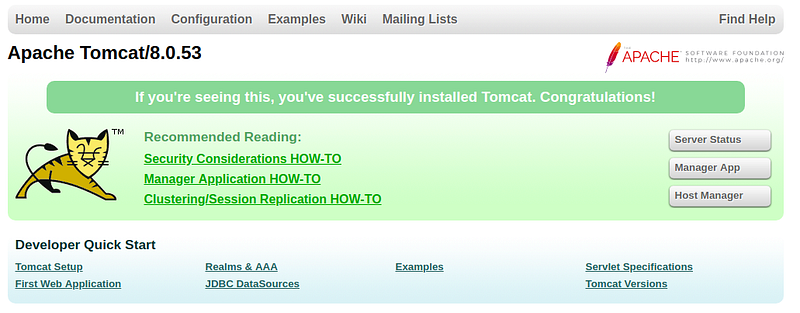
Before we end our work with Docker for today, it’s a good practice to check whether none of the containers is running on the background. To check it use one of already introduces command:
$ docker ps -aCONTAINER ID IMAGE CREATED STATUS
91b2db85e50d tomcat:8.0 8 minutes ago Up 8 minutes
e00541868e30 busybox 16 minutes ago Up 16 minutes As you can see on the STATUS print out two containers are still up and running. To stop both of them use following command:
$ docker stop $(docker ps -a -q)91b2db85e50d
e00541868e30And now when you check again none of them are running:
$ docker ps -aCONTAINER ID IMAGE CREATED STATUS
e00541868e30 busybox 21 minutes ago Exited (137) 6 seconds ago You may wonder why you don’t see the tomcat-server container. It’s because we’ve added a -rm option when it was ran, so it automatically deletes the container to free space.
And it’s everything for today! If you’re want more information about the Docker, please be patient. New stories are coming really soon 🙂!
If you’re interested in Docker topic you can check my other blog posts:
- Database in a Docker container — how to start and what’s it about
- How to put your Java application into Docker container
- Build and run Angular application in a Docker container
References

Follow us on Twitter 🐦 and Facebook 👥 and join our Facebook Group 💬.
To join our community Slack 🗣️ and read our weekly Faun topics 🗞️, click here⬇



