
What is PowerBI Dataflows?
An Introduction to the Concept of Dataflow in Power BI

With the increase in data volume and challenges of wrangling data into well-formed, actionable information, we need to have ready-made data which can be populated into our reports or dashboards. To make this possible, PowerBI Dataflow is needed.
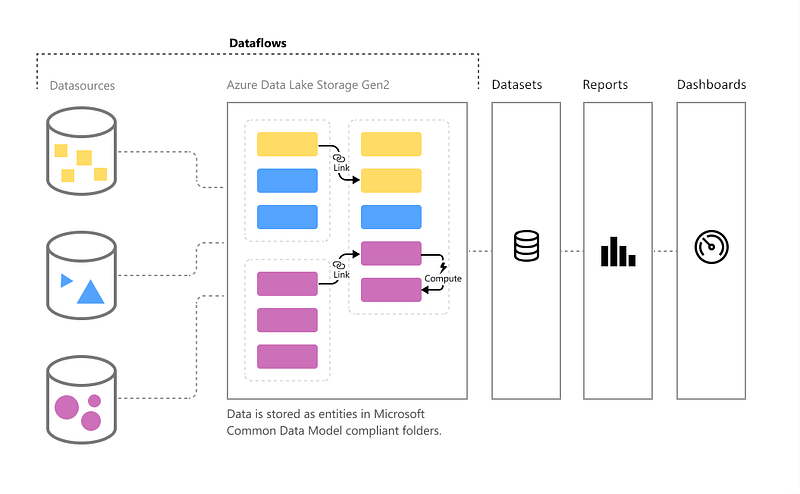
The Power BI Dataflow is regarded as the data transformation component in Power BI. It is a Power Query process that runs in the cloud, independent of Power BI report and dataset, and stores the data into CDM: Common Data Model inside Azure Data Lake storage.
Why Use Power BI Dataflows?
- We use PowerBI Dataflows for reusability purposes. Power BI dataflows can also be shared with other people across the Power BI environment. If you have a library that has many Power Queries (“M” scripts), you should consider creating Power BI dataflows.
- Power BI dataflows is regarded as a low-code/no-code solution. We don’t need to write a single line of code to perform data transformations. Dataflows can be created using Power Query Online, which is a powerful transformation tool.
- Dataflows are also designed to work with very large amounts of data whereby we don’t need the Power BI Desktop client to create a Power BI dataflow. This is because we have the ability to perform the data preparation in the Power BI portal.
- All Dataflows that require different refresh timings can be scheduled individually. Whenever you use the Power BI Premium/Embedded capacity, you can also enable incremental refresh for Power BI dataflows entities that have a DateTime column.
How to use DirectQuery with DataFlows
There are several reasons using DirectQuery with dataflows is useful and helpful. Some of the reasons are listed below;
- Working with large dataflows
- Decreasing orchestration needs for dataflows
- Serving data to customers in a managed and performance-minded way
- Preventing the need to duplicate data in dataflow and an imported dataset
The Configuration of using DirectQuery with DataFlows
When carrying out the configuration, there are four items you must validate if you’re using the original version of Power BI Premium.
These are listed below;
- The enhanced compute engine must be toggled to On in dataflow settings and the specific dataflow.
- You must connect to the data source using the Power BI dataflows connector.
- You must be running the latest version of Power BI Desktop.
- You must also follow the steps below to connect with Power BI Desktop:
a. Sign out of Power BI Desktop
b. Clear the dataflows connection, which requires you to sign in by doing this; Select File > Options and settings > Data source settings > Delete Power BI dataflows
c. Also ensure the enhanced compute engine is on, and the connection has been refreshed whenever your connection is using the Power BI dataflows connector.
For a user using Premium Gen2, you should follow the following steps :
- Navigate to the Premium dataflow and set the enhanced compute engine to On.
- Navigate to the dataflow settings section for the target dataflow and turn on the enhanced compute engine for the dataflow.
- Refresh the dataflow.
Whenever these steps are completed, the dataflows will be accessible in Power BI Desktop with DirectQuery mode.
Thanks for reading.
If you enjoy reading stories like these, and want to support our writers, consider signing up to become a Medium member. It’s $5 per month, giving you unlimited access to stories on Medium. If you sign up using our link, we’ll earn a small commission.