
What Is Microsoft Excel VBA and How Can It Help You Work Smarter?
What is Excel VBA?
VBA stands for Visual Basic Applications. It’s a powerful and built-in programming language that allows you to write your own functions or commands in an Excel spreadsheet.
Advantages of using VBA
Excel VBA helps us automate tedious tasks. For example, it can help you combine multiple workbooks into one workbook. Imagine that you have 10 workbooks in a folder and for each file, you have 3 sheets. You want to copy and paste everything into a new workbook, but it’s time consuming to do it one by one. That’s when Excel VBA comes in handy.

Show the Developer tab
The Developer tab is not displayed by default, but you can add it to the ribbon when you want to write VBA code.
Step 1. Click the File tab.
Step 2. Click Options.
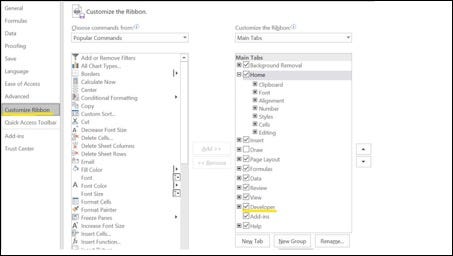
Step 3. Click Customize Ribbon.
Step 4. Under Customize the Ribbon and under Main Tabs, select the Developer check box.
Demonstration
1. Combine different workbooks into one workbook (but in different sheets)
The code below is an example: Sub GetSheets()
‘Combine different workbooks into one workbook(but in different sheets)
Path = “C:\VBA_Practice\Combine_workbooks\”
Filename = Dir(Path & “*.xls”)
Do While Filename <> “”
Workbooks.Open Filename:=Path & Filename, ReadOnly:=True
For Each Sheet In ActiveWorkbook.Sheets
Sheet.Copy After:=ThisWorkbook.Sheets(“Sheet1”)
Next Sheet
Workbooks(Filename).Close
Filename = Dir()
Loop
End Sub
2. Combine different workbooks into one workbook (same header)
The code below is an example:
Sub LoopThroughDirectory()
Dim MyFile As String
Dim erow ‘erow stands for empty row, if I don’t type the data type, Exel will use Variant as the data type
Dim Filepath As String
Filepath = “C:\VBA_Practice\Combine_workbooks_same_header\”
MyFile = Dir(Filepath)
Do While Len(MyFile) > 0
If MyFile = “zmaster.xlsm” Then
Exit Sub
End If
‘the new file (in this case, zmaster.xlsm) needs to be the last file in the folder, if it’s the first file Excel VBA will exit without copying anything
Workbooks.Open (Filepath & MyFile)
Range(“A2:D5”).Copy
ActiveWorkbook.Close
erow = Sheet1.Cells(Rows.Count, 1).End(xlUp).Offset(1, 0).Row ‘the last Row returns the number
ActiveSheet.Paste Destination:=Worksheets(“Sheet1”).Range(Cells(erow, 1), Cells(erow, 4))
MyFile = Dir
Loop
End Sub
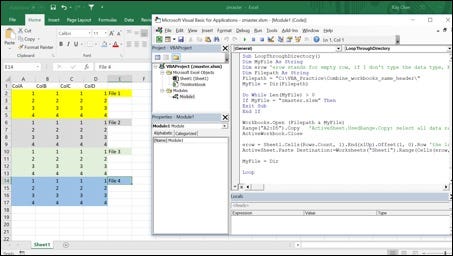
We want to combine the data in File 1 to 4 into zmaster.xlsm.
Note that the above examples only work if you store all the files you want to merge in one folder.
If you are not familiar with VBA and find the coding hard to understand, that’s okay!
You can always find plenty of useful resources online.
Here are some good examples:
http://www.homeandlearn.org/index.html This one is for complete beginners. Its detailed explanations are easy to understand.
http://www.excel-easy.com/vba.html There are 16 categories that can help you learn Excel VBA.
Some useful VBA editor shortcut keys
Alt + F11 Switch between the Visual Basic Editor and the application.
F5 Runs the current procedure
More shortcut keys can be found here:
https://bettersolutions.com/vba/visual-basic-editor/shortcut-keys.htm