
What Is a Twitter List (And How to Create a Twitter List)
An overview of Twitter lists
What is a Twitter List?
A List is a curated group of Twitter accounts. You can create your own Lists or follow Lists created by others. Viewing a List timeline will show you a stream of Tweets from only the accounts on that List.
Twitter allows individual users to create up to 1,000 Lists, each with up to 5,000 users on it. The idea behind Twitter Lists is to manage and guide conversations in the Twitter environment and help people or businesses to follow tweets from particular people.
Each time you put someone on a Twitter list, it could be for a different reason. You can do so to monitor tweets to find content to post yourself or to make sure you regularly engage with certain accounts.
What Are Some Possible Uses for Twitter Lists?
These are the types of Twitter lists that I use for myself or my small business social media clients:
- Current customers
- Past customers
- Prospective customers
- Business competitors
- Local community
- Influencers
- Partners
- Affiliates
- People who retweet you
- Event Attendees
- Resources
- Supporters
- Friends and Family
- Employees
- Twitter chat participants
- Staff directory for your team
- Mini-communities of those with shared interests
- Helpful resources for your customers
- Industry sector
- Thought leaders for your niche
- Customers you’d like to recognize and reward
- Location-based lists
How do I subscribe to a Twitter List?
The most challenging aspect of subscribing to Twitter lists is finding them!
The first place to find lists is to go to the “lists” tab on any user’s page and find the list you want to start following. Be aware that not everyone utilizes this amazing functionality, so you won’t find the lists tab on every profile that you see — it just disappears if a user doesn’t have any public lists. Once you have found one that you want to start following, click on the title of the list where you’ll be taken to its main page. On the left side of the screen you’ll see a button that allows you to subscribe.
You’ll also be able to find the other lists that a user has created by clicking on the side of the list’s main page.
In order to unsubscribe from a list, you’ll need to go to your lists page to find the lists that you’ve subscribed to. Here you can link back to the list’s main page where you’ll find the unsubscribe button right where the subscribe button was previously on the left hand side of the page.
Why are Twitter Lists useful?
Twitter lists are useful primarily because they let you sift through the deluge of Twitter info much more quickly and easily than if you just stick to your Twitter feed or to hashtags.
Many Twitter users follow thousands of other accounts, and seeing all of those accounts in one chaotic timeline can be overwhelming. If you’ve ever wished you could see a limited Twitter timeline made up of only your family’s tweets, the hottest comedians, or fans of your favorite sports team, then Twitter Lists are for you.
A Twitter List is essentially a separate Twitter feed made up only of accounts you’ve selected. If you use Twitter for work, they can also be a useful way to separate colleagues and personal friends into different feeds.
Twitter Lists can be public or private. If you create a public list, other users can see it on your profile and can subscribe to it if they’re also interested in the topic. Only you can see private lists
How To Create A Twitter List
Create a Twitter List in the iPhone or Android Twitter app
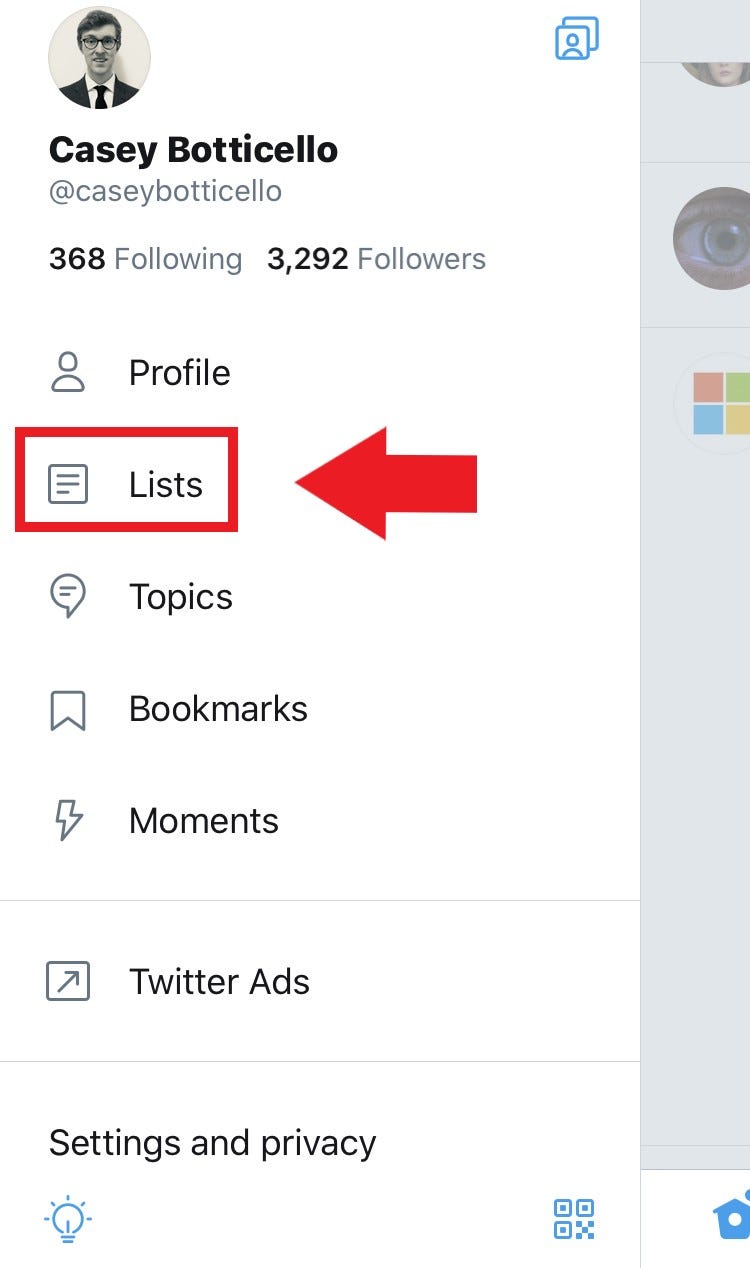
Step 1. Tap your profile’s avatar in the upper-left corner. A menu will pop out. Select “Lists.”
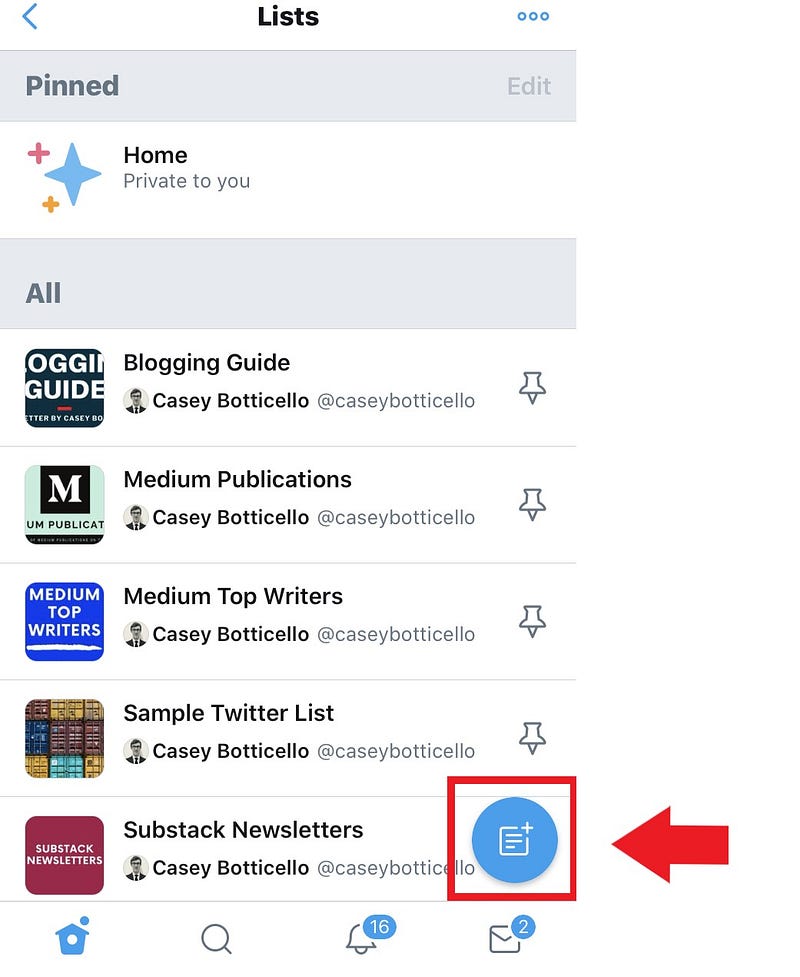
Step 2. Tap the icon with the plus sign in the bottom-right corner
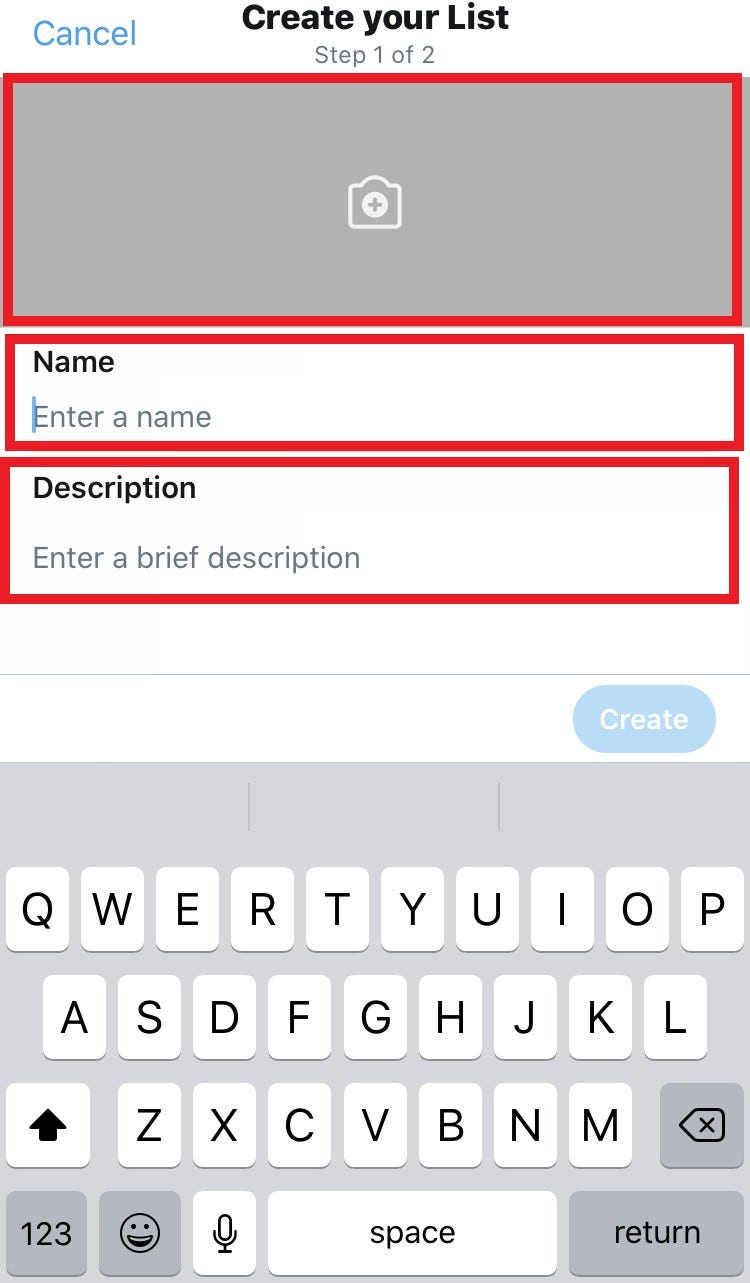
Step 3. Enter the name of your list and a brief description. If you want to make the list private, toggle that option on (in iOS) or check the box that says “Private” (in Android).
Step 4. Click on “Save” (in Android) or “Create” (in iOS)
Step 5. In iOS, you can immediately search for users to add to your list. Press the “Add” button
Step 6. In Android, you will be brought back to the “Lists” page. To add members to your list, go to their profile page, tap the three dots on the top right corner, and select “Add to List.” You can then select which list you want to add them to (if you have more than one).
Step 7. To edit your list at any time, go back to the Lists tab. In iOS, select the list, and tap “Edit List.” In Android, select the list, tap the three dots on the top right, and tap “Edit List.”
Create a Twitter list from your desktop
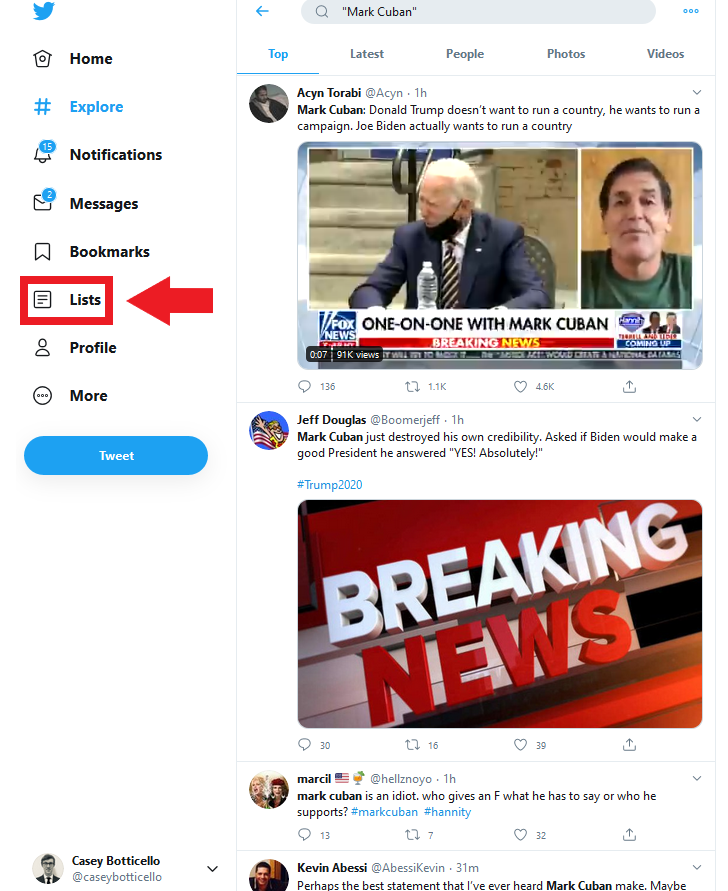
Step 1. From the menu on the left side, click “Lists”
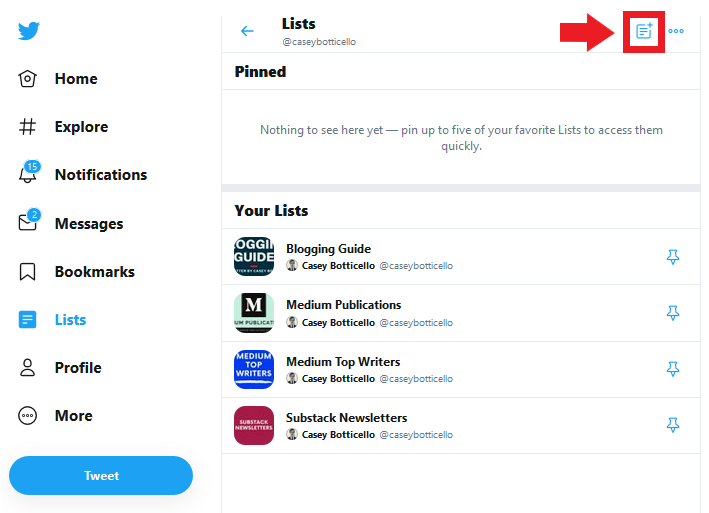
Step 2. Click the icon with the plus sign in the top right
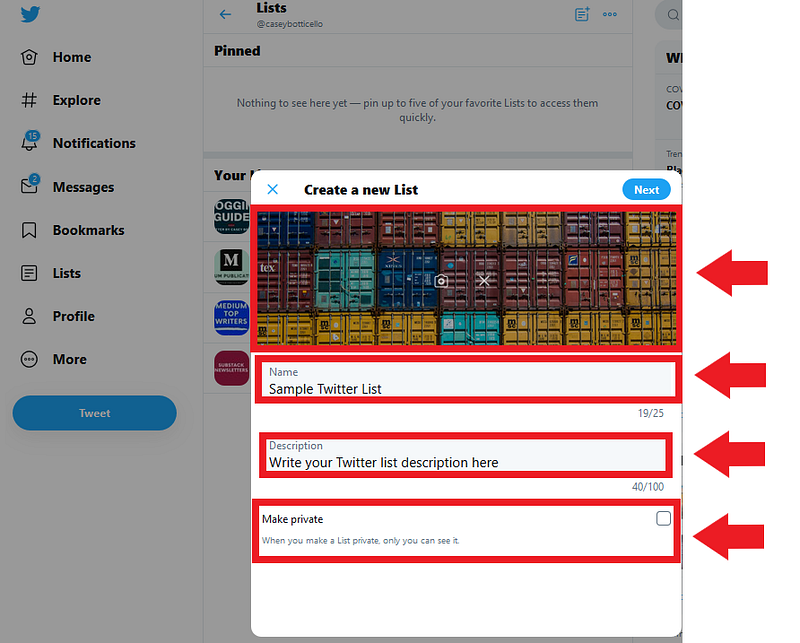
Step 3. Enter the name of your list and a brief description. If you want to make the list private, check the box labeled “Make private.” Select “Next.” You can also upload a banner image for your list by clicking on the “camera” icon.
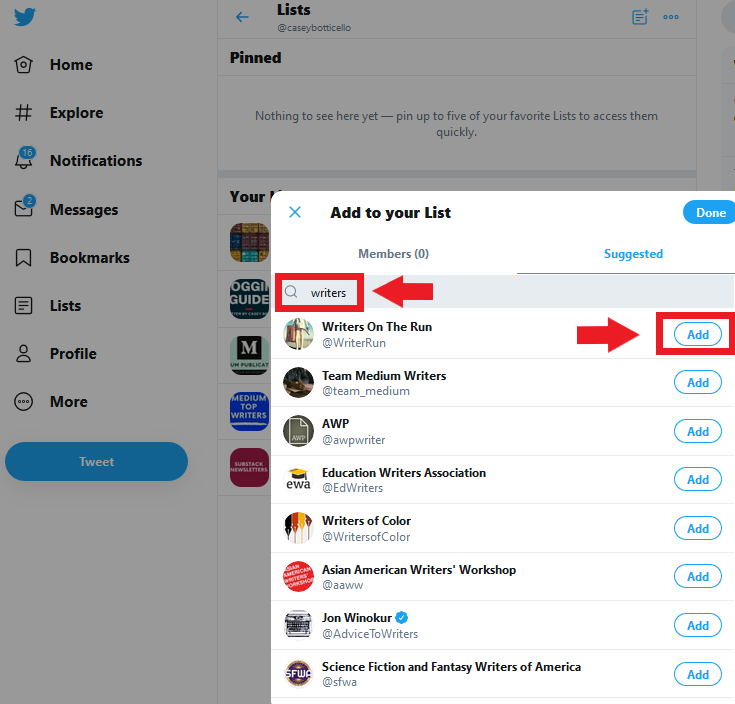
Step 4. Search for the users you want to add to your list, and click on their names. You’ll see a checkmark next to the ones you’ve selected, and their names will appear on top. When you’re finished, click on “Done.”
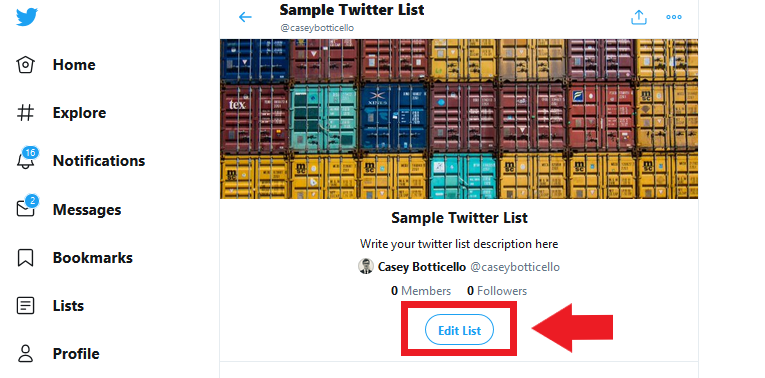
Step 5. To edit your list at any time, go back to the Lists tab, select the list you want to edit, and tap “Edit List.”
Thanks for reading this article! Leave a comment below if you have any questions, and if you want to learn more about blogging, content marketing, and social media strategy, be sure to sign up for the Blogging Guide Newsletter!
If you liked this article, here are some other articles you may enjoy:

Thanks for reading this article! Leave a comment below if you have any questions, and if you want to learn more about blogging, content marketing, or subscription newsletter strategy, be sure to sign up for the Blogging Guide Newsletter!
If you liked this article, here are some other articles you may enjoy:

Casey Botticello is an internet entrepreneur and the founder of Blogging Guide, an online community of writers with an award-winning newsletter. He is also the creator of the popular Medium Writing Course and the Substack Newsletter Course.
Casey previously worked at several tech startups, a lobbying & strategic communications firm, and has created several businesses of his own. He is a graduate of The University of Pennsylvania, where he received his B.A. in Urban Studies.
You can connect with him on LinkedIn, Twitter, Facebook, follow his Medium publications, Digital Marketing Lab and Medium Blogging Guide, or reach out to him directly on his personal website.