avatarTech Notes

Free AI web copilot to create summaries, insights and extended knowledge, download it at here

7223

Abstract

o button, since this is a node that will stick around to be summoned whenever needed.</p><figure id="62c5"><img src="https://cdn-images-1.readmedium.com/v2/resize:fit:800/1*OYGnUoqs8b7WiLdfvDbwWA.png"><figcaption></figcaption></figure><p id="9afb">Click the OK button</p><figure id="40a4"><img src="https://cdn-images-1.readmedium.com/v2/resize:fit:800/1*wYhfX0hN3vQhZ-48qJKiAQ.png"><figcaption>OK</figcaption></figure><p id="7c4c">Fill in a description.</p><figure id="74f3"><img src="https://cdn-images-1.readmedium.com/v2/resize:fit:800/1*3uPqSB9rS1pNAQhRrxyVsQ.png"><figcaption>The Jenkins Windows agent for building on Windows</figcaption></figure><p id="2e5a">Leave number of executors at 1 for most cases. In general number of executors will be the number of CPUs you have available for your machine. Since most VMS, laptops, desktop machines and so on have only one CPU, this is the most common value. In the cloud it is more common to have access to a VM with multiple CPUs but this is also not the common case.</p><figure id="a6b3"><img src="https://cdn-images-1.readmedium.com/v2/resize:fit:800/1*DxoqKxmi-Oelm_F-KxoF1Q.png"><figcaption>Rule of thumb: most machines have 1 CPU, so the number of executors is usually 1</figcaption></figure><p id="773e">Set your “Remote root directory” to “C:\Jenkins\nodes”</p><figure id="ec1b"><img src="https://cdn-images-1.readmedium.com/v2/resize:fit:800/1*uIaRGIueahikpswnogyr_Q.png"><figcaption>C:\Jenkins\nodes</figcaption></figure><p id="5dda">Set your labels. I just made 1 label, “windows”. You can add as many as you like here separated by spaces.</p><figure id="a596"><img src="https://cdn-images-1.readmedium.com/v2/resize:fit:800/1*AXyAbQg-JDjBnRkErumDUw.png"><figcaption></figcaption></figure><p id="d28f">Set your “Launch Method” to “Launch agents via SSH”</p><figure id="4a9a"><img src="https://cdn-images-1.readmedium.com/v2/resize:fit:800/1*vzb_6G69LkLQEOCuI8o1TA.png"><figcaption></figcaption></figure><p id="c311">Set “Host” to localhost or your IP address followed by port number.</p><figure id="adc1"><img src="https://cdn-images-1.readmedium.com/v2/resize:fit:800/1*UqKbP-D-X_v04I19IYfJgg.png"><figcaption></figcaption></figure><p id="ca3e">Click the “Advanced” Button</p><figure id="3572"><img src="https://cdn-images-1.readmedium.com/v2/resize:fit:800/1*Y7m3PnjjBG2EOL2IGqosYA.png"><figcaption></figcaption></figure><p id="aa9c">Check your port number is 22, the default port for ssh.</p><h1 id="b385">In case of Broken: How to Check My Ports?</h1><p id="a623">You can use netstat (in an administrator console on Windows)</p><div id="29ae"><pre><span class="hljs-attribute">netstat -tlpn</span></pre></div><p id="72fd">since I can’t pipe into a grep on Windows I like to output to a text file like this:</p><div id="bb9c"><pre>netstat -tlpn > <span class="hljs-name">C</span>:\Users\ashle\Desktop\ports.txt</pre></div><p id="fa32">and then just open that file in a text editor and search for the port I am interested in. In our case we would want to make sure that port 22 is open, usually this is indicated by the word “LISTENING” as in, the port is open and is “listening” for new commo. Something else could be hogging your port 22, so it doesn’t hurt to check this if stuff goes awry.</p><figure id="e88e"><img src="https://cdn-images-1.readmedium.com/v2/resize:fit:800/1*tMC7qh_Iod33qgtkP1anbw.png"><figcaption>It may be tempting to set the host like this, but “localhost” works for me, while this does not.</figcaption></figure><p id="0416">Set credentials to “jenkins (ssh key for the windows agent)</p><figure id="0575"><img src="https://cdn-images-1.readmedium.com/v2/resize:fit:800/1*Fl_iICcD-9xArqtxCB4c9Q.png"><figcaption>Select ssh credential you recently made</figcaption></figure><p id="be3e">Nothing else needs to be changed, so you can click the “Save” button.</p><figure id="42cf"><img src="https://cdn-images-1.readmedium.com/v2/resize:fit:800/1*um0EDmUs3BUUgssfrh4gIg.png"><figcaption></figcaption></figure><p id="a242">Your agent will be registered, but offline, click on it.</p><figure id="8de9"><img src="https://cdn-images-1.readmedium.com/v2/resize:fit:800/1*66FYqOZ3wgFg7Yt2BIsBxA.png"><figcaption>Your agent is registered, but still offline, so we will click on it to go inside it and edit it.</figcaption></figure><p id="06b6">You will see a message that your agent is being launched, or else you will see a Launch button for launching your agent.</p><figure id="10a3"><img src="https://cdn-images-1.readmedium.com/v2/resize:fit:800/1*Uqpj45ikm-o5266bZj9qnA.png"><figcaption>Agent has been launched already</figcaption></figure><figure id="1b56"><img src="https://cdn-images-1.readmedium.com/v2/resize:fit:800/1*pLs-Xu1bdB9Z6O5Ve_8VrQ.png"><figcaption>Agent has not been launched yet and you need to launch it</figcaption></figure><p id="192c">changed away from ssh mode to “connect to master node” mode.</p><p id="76ba">Here is my output after running:</p><div id="5522"><pre>java -jar agent.jar -jnlpUrl http:<span class="hljs-regexp">//</span>localhost:<span class="hljs-number">8080</span><span class="hljs-regexp">/computer/</span>windows/jenkins-agent.jnlp -workDir <span class="hljs-string">"C:\Jenkins\nodes"</span></pre></div><p id="c243">output:</p><div id="0c52"><pre><span class="hljs-attribute">C</span>:\Users\ashle\Downloads> <span class="hljs-attribute">Apr</span> <span class="hljs-number">08</span>, <span class="hljs-number">2022</span> <span class="hljs-number">7</span>:<span class="hljs-number">15</span>:<span class="hljs-number">46</span> PM org.jenkinsci.remoting.engine.WorkDirManager initializeWorkDir <span class="hljs-attribute">INFO</span>: Using C:\Jenkins\nodes\remoting as a remoting work directory <span class="hljs-attribute">Apr</span> <span class="hljs-number">08</span>, <span class="hljs-number">2022</span> <span class="hljs-number">7</span>:<span class="hljs-number">15</span>:<span class="hljs-number">46</span> PM org.jenkinsci.remoting.engine.WorkDirManager setupLogging <span class="hljs-attribute">INFO</span>: Both error and output logs will be printed to C:\Jenkins\nodes\remoting <span class="hljs-attribute">WARNING</span>: A terminally deprecated method in java.lang.System has been called <span class="hljs-attribute">WARNING</span>: System::setSecurityManager has been called by hudson.remoting.jnlp.Main (file:/C:/Users/ashle/Downloads/agent.jar) <span class="hljs-attribute">WARNING</span>: Please consider reporting this to the maintainers of hudson.remoting.jnlp.Main <span class="hljs-attribute">WARNING</span>: System::setSecurityManager will be removed in a future release <span class="hljs-attribute">Apr</span> <span class="hljs-number">08</span>, <span class="hljs-number">2022</span> <span class="hljs-number">7</span>:<span class="hljs-number">15</span>:<span class="hljs-number">46</span> PM hudson.remoting.jnlp.Main createEngine <span class="hljs-attribute">INFO</span>: Setting up agent: windows <span class="hljs-attribute">Apr</span> <span class="hljs-number">08</span>, <span class="hljs-number">2022</span> <span class="hljs-number">7</span>:<span class="hljs-number">15</span>:<span class="hljs-number">46</span> PM hudson.remoting.jnlp.Main$Cui

Options

Listener <init> <span class="hljs-attribute">INFO</span>: Jenkins agent is running in headless mode. <span class="hljs-attribute">Apr</span> <span class="hljs-number">08</span>, <span class="hljs-number">2022</span> <span class="hljs-number">7</span>:<span class="hljs-number">15</span>:<span class="hljs-number">46</span> PM hudson.remoting.Engine startEngine <span class="hljs-attribute">INFO</span>: Using Remoting version: <span class="hljs-number">4</span>.<span class="hljs-number">7</span> <span class="hljs-attribute">Apr</span> <span class="hljs-number">08</span>, <span class="hljs-number">2022</span> <span class="hljs-number">7</span>:<span class="hljs-number">15</span>:<span class="hljs-number">46</span> PM org.jenkinsci.remoting.engine.WorkDirManager initializeWorkDir <span class="hljs-attribute">INFO</span>: Using C:\Jenkins\nodes\remoting as a remoting work directory <span class="hljs-attribute">Apr</span> <span class="hljs-number">08</span>, <span class="hljs-number">2022</span> <span class="hljs-number">7</span>:<span class="hljs-number">15</span>:<span class="hljs-number">47</span> PM hudson.remoting.jnlp.MainCuiListener status <span class="hljs-attribute">INFO</span>: Locating server among<span class="hljs-meta"> [http://localhost:8080/]</span> <span class="hljs-attribute">Apr</span> <span class="hljs-number">08</span>, <span class="hljs-number">2022</span> <span class="hljs-number">7</span>:<span class="hljs-number">15</span>:<span class="hljs-number">47</span> PM org.jenkinsci.remoting.engine.JnlpAgentEndpointResolver resolve <span class="hljs-attribute">INFO</span>: Remoting server accepts the following protocols:<span class="hljs-meta"> [JNLP4-connect, Ping]</span> <span class="hljs-attribute">Apr</span> <span class="hljs-number">08</span>, <span class="hljs-number">2022</span> <span class="hljs-number">7</span>:<span class="hljs-number">15</span>:<span class="hljs-number">47</span> PM hudson.remoting.jnlp.MainCuiListener status <span class="hljs-attribute">INFO</span>: Agent discovery successful <span class="hljs-attribute">Agent</span> address: localhost <span class="hljs-attribute">Agent</span> port: <span class="hljs-number">22</span> <span class="hljs-attribute">Identity</span>: c1:<span class="hljs-number">07</span>:b2:df:<span class="hljs-number">96</span>:<span class="hljs-number">2</span>f:d7:f3:d9:<span class="hljs-number">22</span>:a1:f5:<span class="hljs-number">9</span>c:<span class="hljs-number">03</span>:f2:<span class="hljs-number">0</span>d <span class="hljs-attribute">Apr</span> <span class="hljs-number">08</span>, <span class="hljs-number">2022</span> <span class="hljs-number">7</span>:<span class="hljs-number">15</span>:<span class="hljs-number">47</span> PM hudson.remoting.jnlp.MainCuiListener status <span class="hljs-attribute">INFO</span>: Handshaking <span class="hljs-attribute">Apr</span> <span class="hljs-number">08</span>, <span class="hljs-number">2022</span> <span class="hljs-number">7</span>:<span class="hljs-number">15</span>:<span class="hljs-number">47</span> PM hudson.remoting.jnlp.MainCuiListener status <span class="hljs-attribute">INFO</span>: Connecting to localhost:<span class="hljs-number">22</span> <span class="hljs-attribute">Apr</span> <span class="hljs-number">08</span>, <span class="hljs-number">2022</span> <span class="hljs-number">7</span>:<span class="hljs-number">15</span>:<span class="hljs-number">47</span> PM hudson.remoting.jnlp.MainCuiListener status <span class="hljs-attribute">INFO</span>: Trying protocol: JNLP4-connect <span class="hljs-attribute">Apr</span> <span class="hljs-number">08</span>, <span class="hljs-number">2022</span> <span class="hljs-number">7</span>:<span class="hljs-number">15</span>:<span class="hljs-number">47</span> PM hudson.remoting.jnlp.MainCuiListener status <span class="hljs-attribute">INFO</span>: Remote identity confirmed: c1:<span class="hljs-number">07</span>:b2:df:<span class="hljs-number">96</span>:<span class="hljs-number">2</span>f:d7:f3:d9:<span class="hljs-number">22</span>:a1:f5:<span class="hljs-number">9</span>c:<span class="hljs-number">03</span>:f2:<span class="hljs-number">0</span>d <span class="hljs-attribute">Apr</span> <span class="hljs-number">08</span>, <span class="hljs-number">2022</span> <span class="hljs-number">7</span>:<span class="hljs-number">15</span>:<span class="hljs-number">47</span> PM hudson.remoting.jnlp.Main$CuiListener status <span class="hljs-attribute">INFO</span>: Connected</pre></div><h2 id="2f45">Possible Error Messages</h2><p id="8b30">Your agent will show an error like this:</p><figure id="c1af"><img src="https://cdn-images-1.readmedium.com/v2/resize:fit:800/1*6YDEbrx2ux6RAHRt6yQPkQ.png"><figcaption></figcaption></figure><p id="398e">Click the “Go to security screen and change it” link.</p><p id="7663">Find the section labelled “Agents”</p><figure id="cf6c"><img src="https://cdn-images-1.readmedium.com/v2/resize:fit:800/1*-nhC80lDNVAzuCCTJgZU-g.png"><figcaption></figcaption></figure><p id="5abe">And change the Radio button from “Disable” to “Random”</p><figure id="1920"><img src="https://cdn-images-1.readmedium.com/v2/resize:fit:800/1*LE8qDuWG4GjwLDKB5k5wJg.png"><figcaption></figcaption></figure><p id="1eae">Click the “Save” button at the bottom.</p><figure id="e0b4"><img src="https://cdn-images-1.readmedium.com/v2/resize:fit:800/1*BzFb1CrttuYpRYHZtW5O3w.png"><figcaption></figcaption></figure><h1 id="3a75">References</h1><p id="9bcc">[1] Using Jenkins Agents. <a href="https://www.jenkins.io/doc/book/using/using-agents/#:~:text=The%20Jenkins%20controller%20is%20the,either%20local%20or%20cloud%20computers">https://www.jenkins.io/doc/book/using/using-agents/#:~:text=The%20Jenkins%20controller%20is%20the,either%20local%20or%20cloud%20computers</a>.</p><p id="d2ca">[2] Node. Jenkins Glossary. <a href="https://www.jenkins.io/doc/book/glossary/#:~:text=synonymous%20with%20Controller.-,Node,a%20piece%20of%20software%2C%20etc">https://www.jenkins.io/doc/book/glossary/#:~:text=synonymous%20with%20Controller.-,Node,a%20piece%20of%20software%2C%20etc</a>.</p><p id="4512">[3] How to Set Up a New Jenkins Build Agent. <a href="https://adamtheautomator.com/jenkins-agent/#Prerequisites">https://adamtheautomator.com/jenkins-agent/#Prerequisites</a></p><p id="b180">[5] Cloud Bees. Video. What is a Jenkins Agent. <a href="https://www.youtube.com/watch?v=4KghHJEz5no">https://www.youtube.com/watch?v=4KghHJEz5no</a></p><p id="f6e7">[6] Cloud Bees. Video. How to Create an Agent Node in Jenkins. <a href="https://www.youtube.com/watch?v=99DddJiH7lM">https://www.youtube.com/watch?v=99DddJiH7lM</a></p><p id="0e23">[7] <a href="https://www.howtogeek.com/762863/how-to-generate-ssh-keys-in-windows-10-and-windows-11/">How to Generate SSH keys in Windows 10 and Windows 11</a>. <a href="https://www.howtogeek.com/762863/how-to-generate-ssh-keys-in-windows-10-and-windows-11/">https://www.howtogeek.com/762863/how-to-generate-ssh-keys-in-windows-10-and-windows-11/</a></p><p id="286b">[8]Jenkins Pipeline Syntax. Agent. <a href="https://www.jenkins.io/doc/book/pipeline/syntax/#agent">https://www.jenkins.io/doc/book/pipeline/syntax/#agent</a></p></article></body>

What is a Jenkins agent? And creating a Jenkins SSH Agent via the GUI

A Jenkins agent is an executable, residing on a node, that is tasked by the controller to run a job. [3] An agent is usually a machine, whether that is a virtual machine, a laptop, a desktop, a server in a data center, or even a rasberry pi, it could even be a container. [5]

Jenkins agents run on a variety of different environments such as physical machines, virtual machines, Kubernetes clusters, and Docker images. [2] An agent can represent a machine on the cloud as well, such as an ec2 instance on AWS.

Agents are controlled by a Jenkins Controller. It is always better to do all your work with an agent and not to do any builds directly on your controller.

The Jenkins controller is the original node in the Jenkins installation. [1] The controller manages the connections and the tooling for agents. [5]

Node: A machine which is part of the Jenkins environment and capable of executing Pipelines or Projects. Both the Controller and Agents are considered to be Nodes. [2]

A core component of Jenkins is the job. Jobs are instances of build automation that run a defined set of tasks. [3]

Managing the different Jenkins agents is the job of the agent controller, also known as the master node. In a single Jenkins node configuration, the controller, can also act as both a Jenkin agent and run build jobs. As environments become more complex, this configuration becomes limiting. [3]

How to Create an Agent

First we will create an ssh credential for our agent to use.

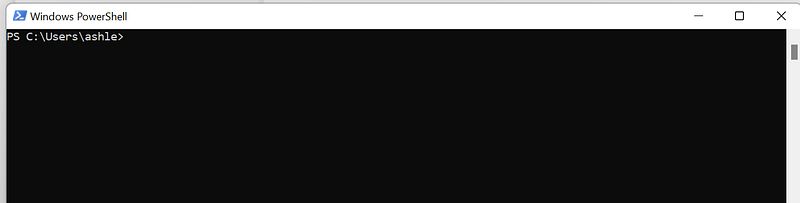
Open a Powershell terminal
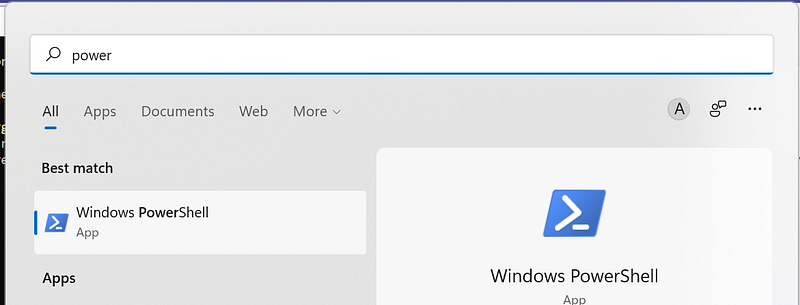
Note: you can use cmd instead if you like

Windows 10 has had a built-in OpenSSH client since the April 2018 update. Windows 11 also comes with this feature built-in.

Type in the command “ssh-keygen”

It will prompt you to enter a filename/filepath.

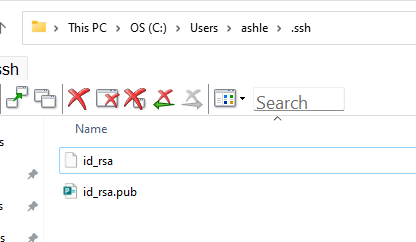
By default it will into the user folder (usually this is on your C:\ drive, at something like: C:\Users\ashle/.ssh/id_rsa. You can see my example in the image above)

I just hit enter and it creates this directory.
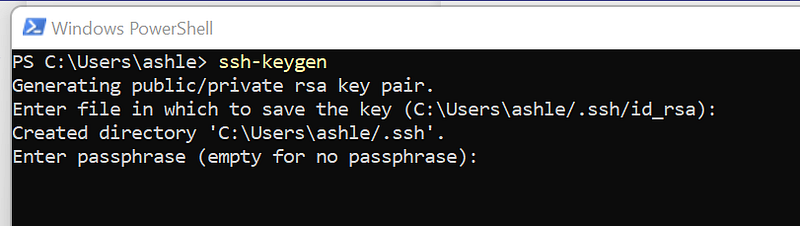
Next enter a passphrase or hit the Enter key for no passphrase.
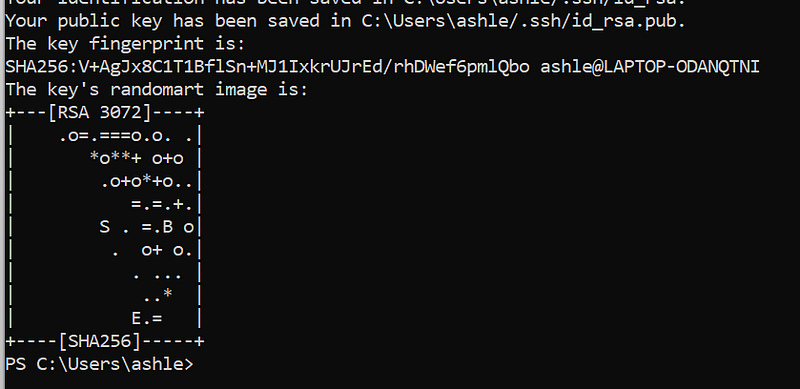
Then it will tell you the file where it put your public key as seen in the screencap above.

That’s it your keys are created, saved, and ready for use. You will see you have two files in your “.ssh” folder: “id_rsa” with no file extension and “id_rsa.pub.” The latter is the key you upload to servers to authenticate while the former is the private key that you don’t share with others. [7]

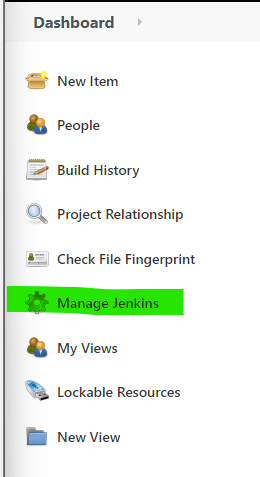
Go to the Jenkins Home Dashboard and Select “Manage Jenkins”
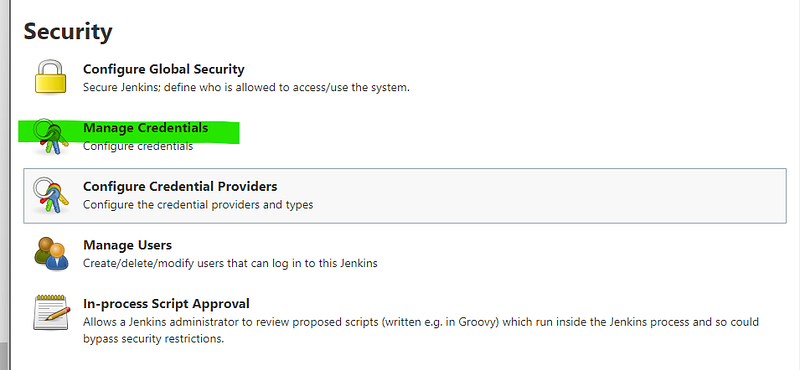
Scroll down to the security section and select “Manage Credentials”
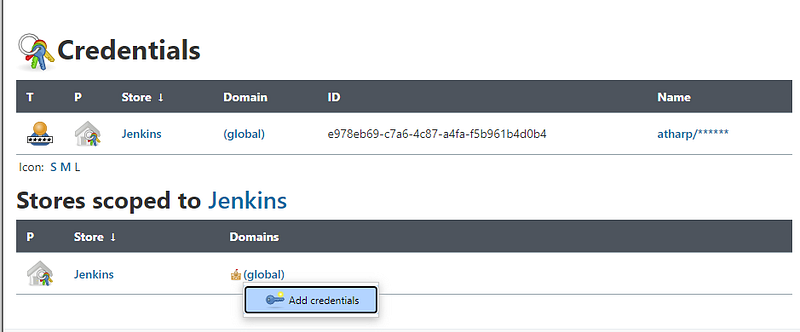
Under “Stores scoped to Jenkins” use the dropdown menu arrow next to “Global” and select “Add credentials”
Set “Kind” to “SSH Username with private key”
Set ID to “windows-agent-ssh”
Set a description
Set the username to jenkins
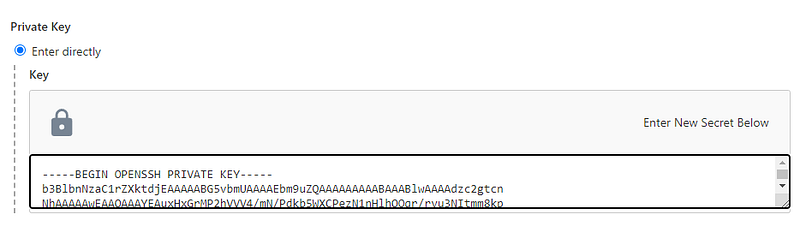
Under “Private Key” in the “Enter Directly” section, paste the private key you recently generated.
It will be in the folder you specified, or the default folder is called “.ssh” in your Username home folder. The .pub file is the public key, and the one with no extension is the private key. You want to copy the private key. Just open “id_rsa” in any text editer and copy all the text.
Click the save button

Go back to the main Dashboard and select “Manage Jenkins”

Manage Jenkins

Under System Configuration select “Manage Nodes and Clouds”
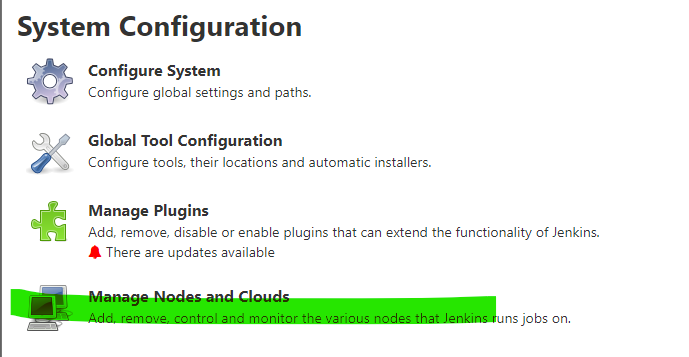
Manage Nodes and Clouds

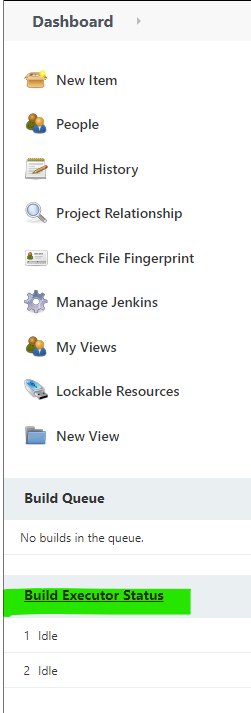
Alternatively you can select “Build Executor Status” on the Home page to get here as well.
Select “New Node”
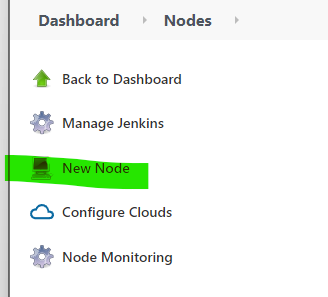
Give your new node a name, I called mine “windows”. I am creating an agent (which is a node) that will basically be my agent for building on Windows.

Enable the “Permanent Agent” radio button, since this is a node that will stick around to be summoned whenever needed.

Click the OK button

OK

Fill in a description.

The Jenkins Windows agent for building on Windows

Leave number of executors at 1 for most cases. In general number of executors will be the number of CPUs you have available for your machine. Since most VMS, laptops, desktop machines and so on have only one CPU, this is the most common value. In the cloud it is more common to have access to a VM with multiple CPUs but this is also not the common case.

Rule of thumb: most machines have 1 CPU, so the number of executors is usually 1

Set your “Remote root directory” to “C:\Jenkins\nodes”

C:\Jenkins\nodes

Set your labels. I just made 1 label, “windows”. You can add as many as you like here separated by spaces.

Set your “Launch Method” to “Launch agents via SSH”

Set “Host” to localhost or your IP address followed by port number.

Click the “Advanced” Button
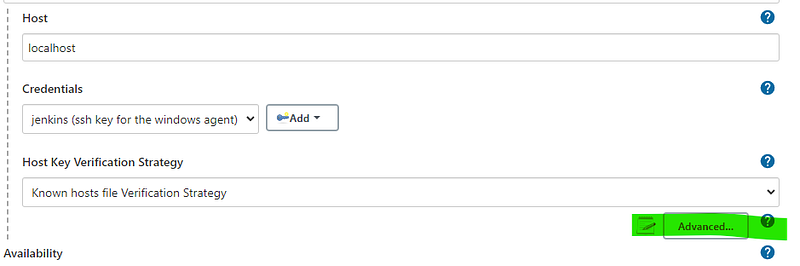
Check your port number is 22, the default port for ssh.

In case of Broken: How to Check My Ports?

You can use netstat (in an administrator console on Windows)

netstat -tlpn

since I can’t pipe into a grep on Windows I like to output to a text file like this:

netstat -tlpn > C:\Users\ashle\Desktop\ports.txt

and then just open that file in a text editor and search for the port I am interested in. In our case we would want to make sure that port 22 is open, usually this is indicated by the word “LISTENING” as in, the port is open and is “listening” for new commo. Something else could be hogging your port 22, so it doesn’t hurt to check this if stuff goes awry.

It may be tempting to set the host like this, but “localhost” works for me, while this does not.

Set credentials to “jenkins (ssh key for the windows agent)
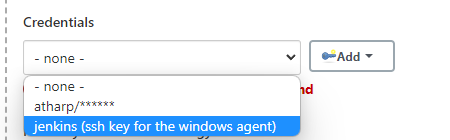
Select ssh credential you recently made

Nothing else needs to be changed, so you can click the “Save” button.

Your agent will be registered, but offline, click on it.
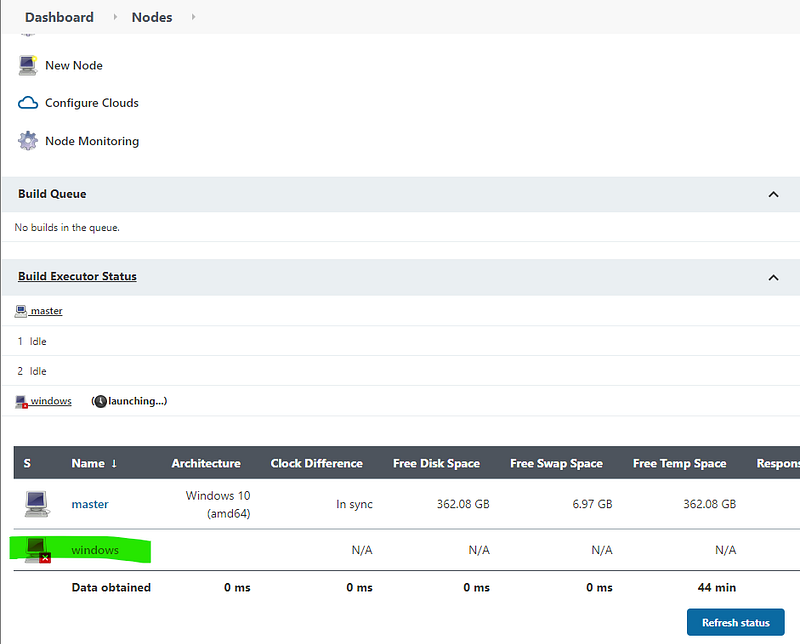
Your agent is registered, but still offline, so we will click on it to go inside it and edit it.

You will see a message that your agent is being launched, or else you will see a Launch button for launching your agent.
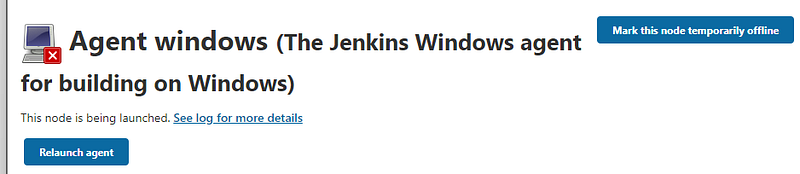
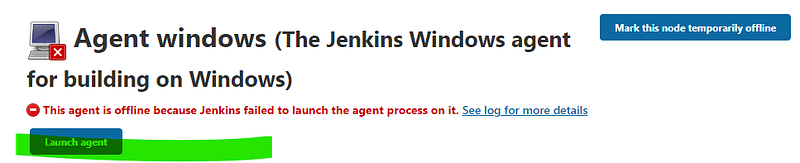
Agent has been launched already
Agent has not been launched yet and you need to launch it

changed away from ssh mode to “connect to master node” mode.

Here is my output after running:

java -jar agent.jar -jnlpUrl http://localhost:8080/computer/windows/jenkins-agent.jnlp -workDir "C:\Jenkins\nodes"

output:

C:\Users\ashle\Downloads>
Apr 08, 2022 7:15:46 PM org.jenkinsci.remoting.engine.WorkDirManager initializeWorkDir
INFO: Using C:\Jenkins\nodes\remoting as a remoting work directory
Apr 08, 2022 7:15:46 PM org.jenkinsci.remoting.engine.WorkDirManager setupLogging
INFO: Both error and output logs will be printed to C:\Jenkins\nodes\remoting
WARNING: A terminally deprecated method in java.lang.System has been called
WARNING: System::setSecurityManager has been called by hudson.remoting.jnlp.Main (file:/C:/Users/ashle/Downloads/agent.jar)
WARNING: Please consider reporting this to the maintainers of hudson.remoting.jnlp.Main
WARNING: System::setSecurityManager will be removed in a future release
Apr 08, 2022 7:15:46 PM hudson.remoting.jnlp.Main createEngine
INFO: Setting up agent: windows
Apr 08, 2022 7:15:46 PM hudson.remoting.jnlp.Main$CuiListener <init>
INFO: Jenkins agent is running in headless mode.
Apr 08, 2022 7:15:46 PM hudson.remoting.Engine startEngine
INFO: Using Remoting version: 4.7
Apr 08, 2022 7:15:46 PM org.jenkinsci.remoting.engine.WorkDirManager initializeWorkDir
INFO: Using C:\Jenkins\nodes\remoting as a remoting work directory
Apr 08, 2022 7:15:47 PM hudson.remoting.jnlp.Main$CuiListener status
INFO: Locating server among [http://localhost:8080/]
Apr 08, 2022 7:15:47 PM org.jenkinsci.remoting.engine.JnlpAgentEndpointResolver resolve
INFO: Remoting server accepts the following protocols: [JNLP4-connect, Ping]
Apr 08, 2022 7:15:47 PM hudson.remoting.jnlp.Main$CuiListener status
INFO: Agent discovery successful
  Agent address: localhost
  Agent port:    22
  Identity:      c1:07:b2:df:96:2f:d7:f3:d9:22:a1:f5:9c:03:f2:0d
Apr 08, 2022 7:15:47 PM hudson.remoting.jnlp.Main$CuiListener status
INFO: Handshaking
Apr 08, 2022 7:15:47 PM hudson.remoting.jnlp.Main$CuiListener status
INFO: Connecting to localhost:22
Apr 08, 2022 7:15:47 PM hudson.remoting.jnlp.Main$CuiListener status
INFO: Trying protocol: JNLP4-connect
Apr 08, 2022 7:15:47 PM hudson.remoting.jnlp.Main$CuiListener status
INFO: Remote identity confirmed: c1:07:b2:df:96:2f:d7:f3:d9:22:a1:f5:9c:03:f2:0d
Apr 08, 2022 7:15:47 PM hudson.remoting.jnlp.Main$CuiListener status
INFO: Connected

Possible Error Messages

Your agent will show an error like this:
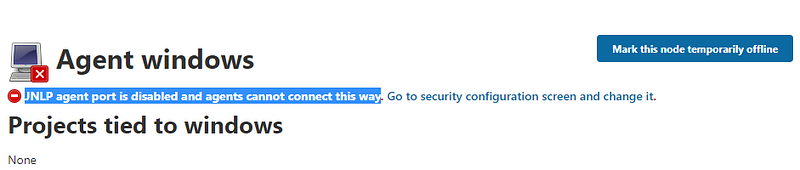
Click the “Go to security screen and change it” link.

Find the section labelled “Agents”
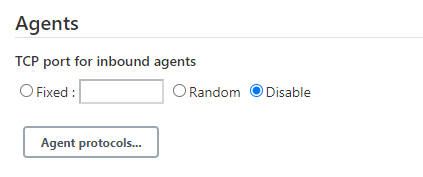
And change the Radio button from “Disable” to “Random”
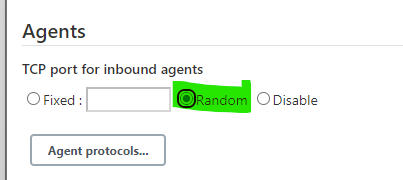
Click the “Save” button at the bottom.

References

[1] Using Jenkins Agents. https://www.jenkins.io/doc/book/using/using-agents/#:~:text=The%20Jenkins%20controller%20is%20the,either%20local%20or%20cloud%20computers.

[2] Node. Jenkins Glossary. https://www.jenkins.io/doc/book/glossary/#:~:text=synonymous%20with%20Controller.-,Node,a%20piece%20of%20software%2C%20etc.

[3] How to Set Up a New Jenkins Build Agent. https://adamtheautomator.com/jenkins-agent/#Prerequisites

[5] Cloud Bees. Video. What is a Jenkins Agent. https://www.youtube.com/watch?v=4KghHJEz5no

[6] Cloud Bees. Video. How to Create an Agent Node in Jenkins. https://www.youtube.com/watch?v=99DddJiH7lM

[7] How to Generate SSH keys in Windows 10 and Windows 11. https://www.howtogeek.com/762863/how-to-generate-ssh-keys-in-windows-10-and-windows-11/

[8]Jenkins Pipeline Syntax. Agent. https://www.jenkins.io/doc/book/pipeline/syntax/#agent

Jenkins
Agent
GUI
Ssh
Automation
Recommended from ReadMedium