VsCode Color Theme: User’s Definitive Guide
Telling everything about VsCode Color Theme in ONE article.
Customizing a VsCode theme might seem straightforward, but tackling the entire theme can be a challenge. Publishing a self-owned theme is a separate matter, and the ultimate challenge lies in automating the process of self-owned theme publication.
I will use this article to address all four aspects outlined below. Hence, I’ve named it the User’s Definitive Guide.

VsCode Theme Introduction
When you start VsCode, you can change the colour theme by the command Preferences: Color Theme — Use the shortcut ctrl+shift+p to show all commands and then filter the target command.
The selected theme name is stored in the settings.json file with the property name workbench.colorTheme [Defined in workbenchThemeService.ts]. So, you can modify it directly in the settings.json file if you know the target colour theme name.
You can also modify the theme within the Settings UI, as illustrated below.

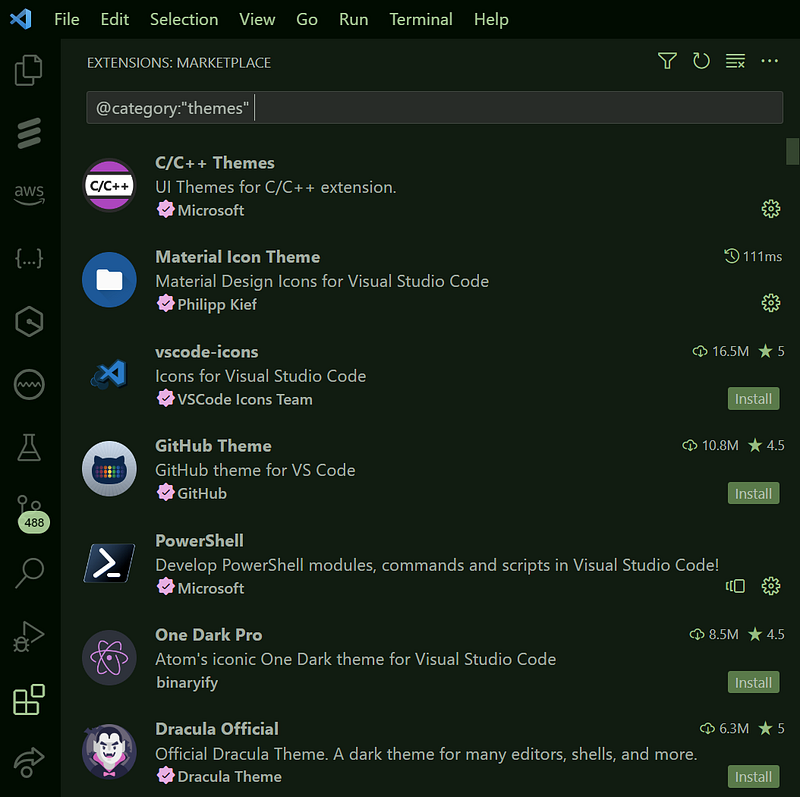
Except for the built-in color themes, you can search and install more color themes from VsCode marketplace by typing @category:"themes" in the input field of extensions view.
If you want, you can ask VsCode to auto-switch the color theme based on OS color theme. It’s controlled by the option window.autoDetectColorScheme
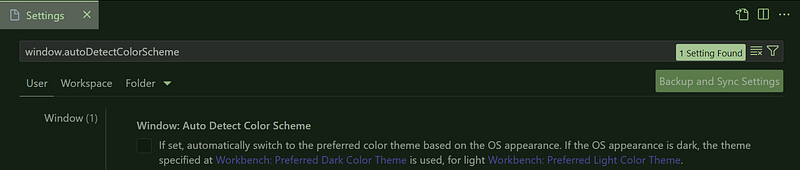
As you see, to make it workable, you need to set Workbench: Preferred Dark Color Theme and Workbench: Preferred Light Color Theme.
Another option is window.autoDetectHighContrast and if it’s enabled, it will automatically change to a high-contrast theme if the OS is using a high-contrast theme.

Similarly, you can set Workbench: Preferred High Contrast Color Theme and Workbench: Preferred High Contrast Light Color Theme.

Except for workbench colors, VsCode color theme also includes Token colors for syntax highlight of the programming languages in the editor.

Some programming languages support semantic tokens which can be enabled and customized by editor.semanticTokenColorCustomizations:

VsCode Theme Customization
General Customization
The VsCode theme customization can be handled by the dict property workbench.colorCustomizations in the settings.json file.
For example, to change the editor background to #132239:
"workbench.colorCustomizations": {
        "editor.background": "#132239"
}
Where to find all supported theme properties like
editor.backgroundthe above?
The basic theme color properties are well organised on the VsCode Theme Color page. VsCode extensions might use the default theme color properties or define new theme color properties. For example, GitLens defines several themeable colors.
The change in the settings.json file is effective in real-time.
Add editor.tokenColorCustomizations in the settings.json file to do the customization for the token colors.
For example, to change comments color to #2F4C55 :
"editor.tokenColorCustomizations":{
  "comments": "#2F4C55"
}
The key/value pairs are used for the most common constructs. To customize the specific token belong to specific programming language, the textMateRules could be used:
"editor.tokenColorCustomizations":{
  "textMateRules":[
   {
        "scope": "comment.block.documentation.c",
        "settings": {
            "foreground": "#2F4C55"
        }
    }
  ]
}
The above example is to change the block comments in the C programming language source code to #2F4C55 .
How to know the scope id of the token in the source code?
In the editor, move the cursor to the target token, and then run the command Developer: Inspect Editor Tokens and Scopes to show the information for the text at the current cursor position. (Click escape to close it)

How to get all the scope ids of all the supported tokens?
It’s hard to get all since we probably only work on some programming languages but not all. To get all the current supported programming languages of the current VsCode theme, we can run the command Developer: Generate Color Theme From Current Settings. It will create a new theme file which contains both colors for workbench properties and tokenColors for token colors definitions where scope ids are used. I will talk more on this in the section Create VsCode Color Theme.
Add editor.semanticTokenColorCustomizations in the settings.json file to do the customization for the semantic token colors.
For example, to enable semantic token color and change the font style for all declaration tokens to bold.
"editor.semanticTokenColorCustomizations": {
    "enabled": true,
    "rules": {
      "method": { "bold": true }
    }
}
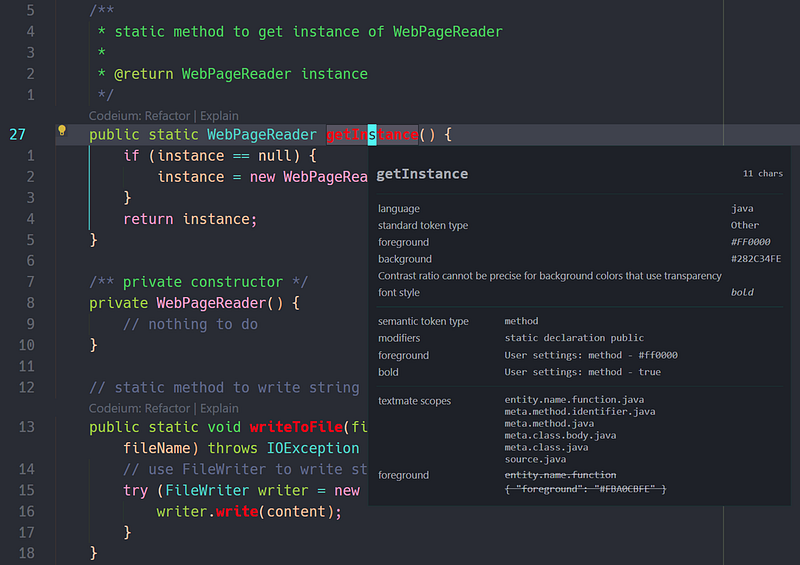
Similarly, we can get semantic token information at the current cursor position by the command Developer: Inspect Editor Tokens and Scopes:
Theme Specific Customization
If you installed a color theme and want to customize part of it. Then add one more layer to tell which theme is to customize.
For example, to change the comment color to #2F4C55 only for the theme Monokai :
"editor.tokenColorCustomizations":{
  [Monokai]:{
    "comments": "#2F4C55"
  }
}
The key [Monokai] could be other formats:
[Monokai][Tokyo Night]— for multiple specific themes[*Dark*]— for multiple themes whose name matches the wildcard.
The format applies to both workbench.colorCustomizations, editor.tokenColorCustomizations and editor.semanticTokenColorCustomizations.
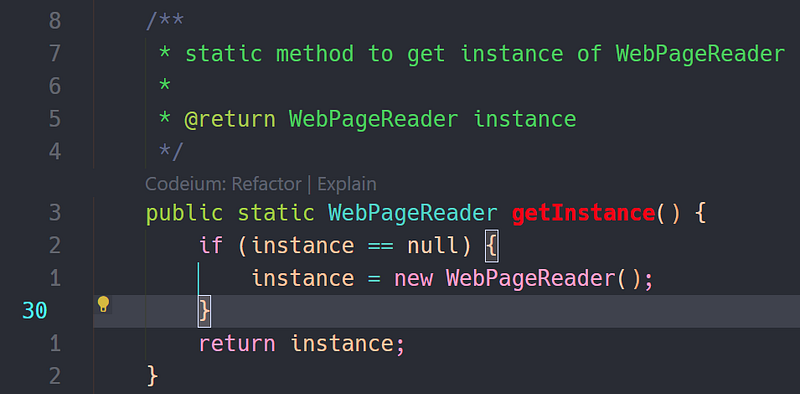
For example, to set javadoc block comment to #2FCC55 and all method semantic tokens to RED(#FF0000) and bold:
"editor.tokenColorCustomizations": {
    "[ViiV-Atom-Dark]": {
        "textMateRules": [
            {
                "scope": "comment.block.documentation.c",
                "settings": {
                    "foreground": "#2FCC55"
                }
            }
        ]
    }
},
"editor.semanticTokenColorCustomizations": {
    "[ViiV-Atom-Dark]": {
        "enabled": true,
        "rules": {
            "method": {
                "foreground": "#FF0000",
                "bold": true
            }
        }
    }
}
The Theme Color Value Format
The theme color value could be RGB or RGBA. RGB format is just like the above example #2F4C55 and RGBA is to append ALPHA part to control the transparency of the color. For example, #2F4C556e is to set the ALPHA of the color #2F4C55 .
Alpha indicates how opaque each pixel is and allows an image to be combined over others using alpha compositing, with transparent areas and anti-aliasing of the edges of opaque regions. — Wikipedia
Alpha value FF means the color is opaque (not transparency at all), and 00 means the color is purely transparent and invisible. Therefore, 00 could be used to hide some workbench properties such as some borders.
The normal format of RGB and RGBA are #RRGGBB and #RRGGBBAA such as #3F658C and #3F658CEF . The value is case-insensitive. Therefore, #3f658c is the same as #3F658C whose F and C are upper case.
When the two digits of R, G, B, or A are the same value, the short format could be used. For example, #368 equals to #336688 and #368f equals to #336688ff .
Create VsCode Color Theme
A VsCode color theme is one kind of VsCode Extension. VsCode and VsCode extensions heavily rely on TypeScript or JavaScript. Therefore, to create a VsCode extension, Nodejs and npm should be installed first. By default, npm is included in Nodejs installer file.
VsCode Color Theme creation process is made simple by the Yeoman generator — generator-code.
Run the command npm install -g yo generator-code to install Yeoman and generator-code. Then run the command yo code to start the generator. Move the cursor downwards to select New Color Theme.

Then, it will provide 3 different options to ask to import or convert an existing TextMate color theme:

1️⃣ The first option is to create a new color theme with default theme file content.
Generally, the new theme file’s initial content is created with the command Developer: Generate Color Theme from Current Settings. If so, we just copy the content of new file created by the command Developer: Generate Color Theme from Current Settings to the default theme JSON file generated by
yo code.
The structure of the output of the command Developer: Generate Color Theme from Current Settings is a little different from the default theme JSON file generated by yo code .
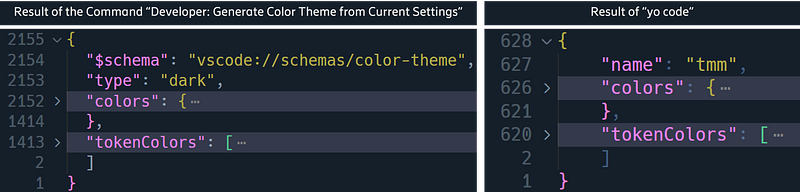
To have $schema makes the JSON file content validatable according to vscode://schemas/color-theme , no matter where and how the JSON file is edited.
For the VsCode Theme project, no difference — even if it has no $schema in the theme JSON file, the content is till validatable.
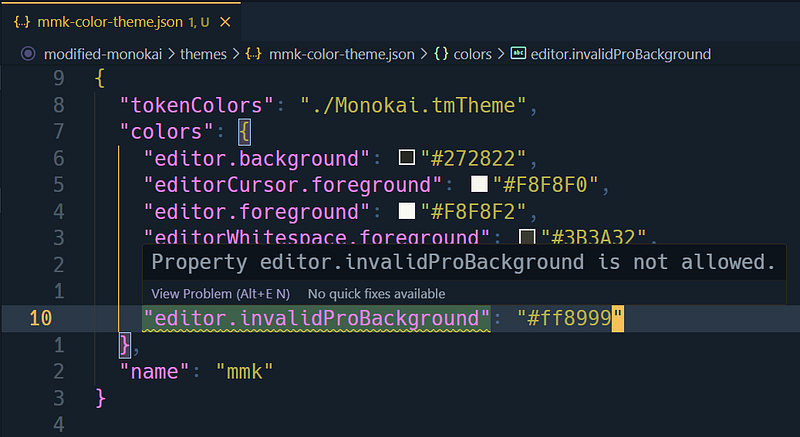
2️⃣ The other 2 options have no obvious difference. They are allowed to download one tmTheme file from the given URL and add it in the new color theme project. The tmTheme file is used for Token Colors and will be linked in the theme JSON file.
For example, if I want to reuse Monokai.tmTheme file for Token Color, then I can set it as the value of the URI.

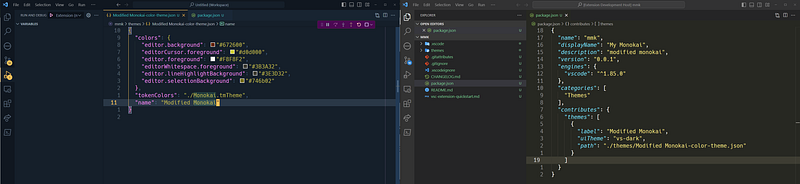
Finally, the generated theme JSON file content would be like:
{
 "tokenColors": "./Monokai.tmTheme",
 "colors": {
  "editor.background": "#272822",
  "editorCursor.foreground": "#F8F8F0",
  "editor.foreground": "#F8F8F2",
  "editorWhitespace.foreground": "#3B3A32",
  "editor.lineHighlightBackground": "#3E3D32",
  "editor.selectionBackground": "#49483E"
 },
 "name": "mmk"
}
The first line is to link the Monokai.tmTheme file is located in the same folder with the theme JSON file.

The tmTheme format was first introduced for TextMate, and has since become one of the standard formats for themes. TextMate is the default text editor for MacOS.
After the VsCode Color Theme project is created, it’s time to improve it until we are satisfied. The main job is to tune the workbench colors and token colors. The workbench colors are mainly about foreground, background, border as such for different workbench components. The token colors are about the foreground of the different programming tokens such as comments, types, variables, etc.
It’s a good practice to tune the color in the Extension Development Host window which is opened by running Extension debug.

The modification in the theme JSON file will be reflected in the Extension Development Host window immediately.
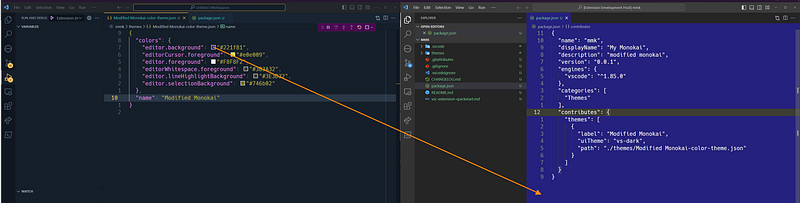
When this article is written, there is one bug in the extension debugging — if tokenColors is linked to tmTheme file, then the change of colors cannot be reflected in the extension development host window in real time.
The challenge 😂
The Theme Color page listed all workbench colour properties. Some of them have screenshots which help developers to know what the colour properties mean in fact.
However, there are still some colour properties hard to know the corresponding workbench components.
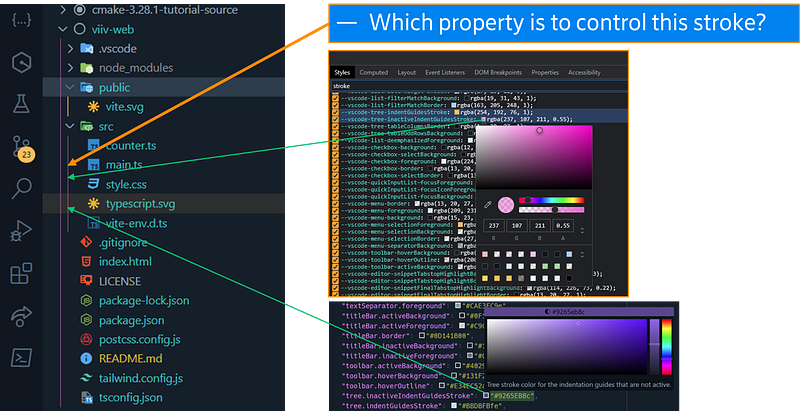
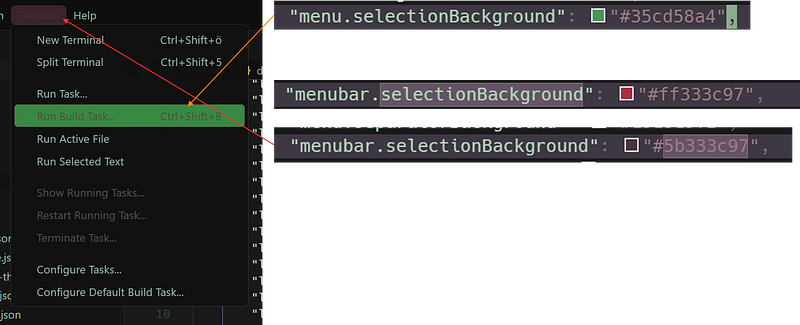
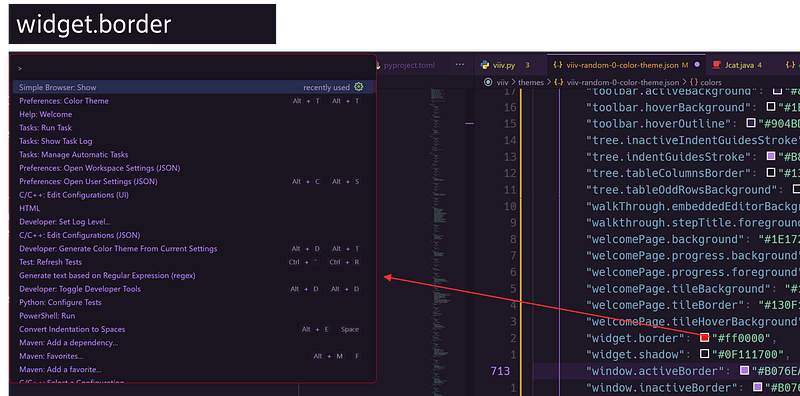
For example, it’s not easy to know which areas the following colour properties control:
- tree.inactiveIndentGuidesStroke
- menubar.selectionBackground
- editorGhostText.background
- quickInput.background
- widget.border
Check the below snapshots to know the answers:

The Trick
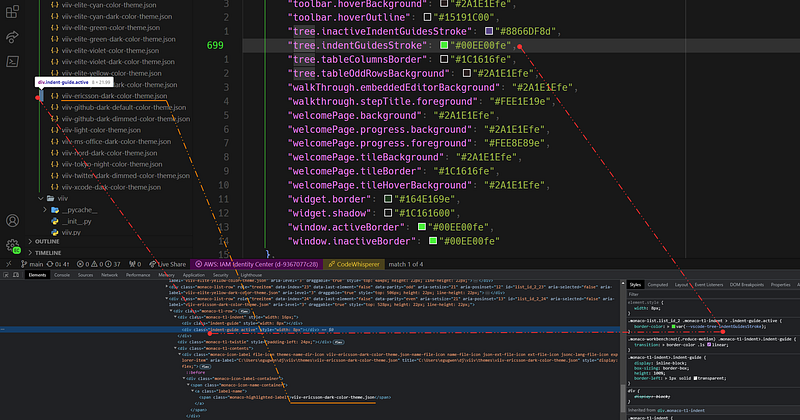
💁 To quickly know the mapping relationship between the workbench component and the color property, developers can use the Developer Tools (Run the command “Developer: Toggle Developer Tools” to show it).

Developer Tools is often used by Web Developers.
Click the icon in the orange circle to inspect the elements in the VsCode Workbench. It can show the element’s name or id, color and other properties.
By checking the element’s name or id and color value, it’s possible to locate the color property in the Color Theme JSON file.
Firstly, move the cursor in the elements tree in Elements of the Developer Tools to accurately locate the element of the workbench component. Secondly, check the color definition in the Style tab. If it defines the CSS class, then the class name is very close to the Color Theme property name.
For example, the snapshot below is to know the mapping relationship between the workbench component and the color property tree.indentGuidesStroke .
Color Selection
To create a nice VsCode Color Theme, it needs a good understanding and feeling of the colors. This is a big topic. I’d like to share some websites I used to choose and tune the colors.
- https://www.colorhexa.com/ — You can provide color by one model and get all other models' values. You can get closer colors and the alternatives of the given color.
- https://coolors.co/ — You can choose colors, generate palette, get list of named colors, check color contrast and so on.
- https://color.adobe.com/ — You can create beautiful palette, choose color, check color contrast and so on.
Manually creating perfect VsCode Color Theme is one time-consuming work, especailly if you are one perfectionist like me. Therefore, I am working on the project to automatically generate VsCode Color Theme. I will share it in a separated article in details. Stay tuned.
Build VsCode Color Theme Package
🍏 When the color theme is ready, it’s the time to build the vscode theme file. The VsCode color theme file is a binary file with extension “.vsix” which is called a package.
The npm package @vscode/vsce is used to package, publish and manage VsCode extensions.
npm install --global @vscode/vsceGo to the VsCode color theme directory, and run the command vsce package to create the VsCode color theme package. When it succeeds, the “.vsix” file will be created in the root folder of the VsCode color theme project.
The command vsce package will validate the integrity of the package.json file and the VsCode color theme project. If something is missed, it will print warning messages.
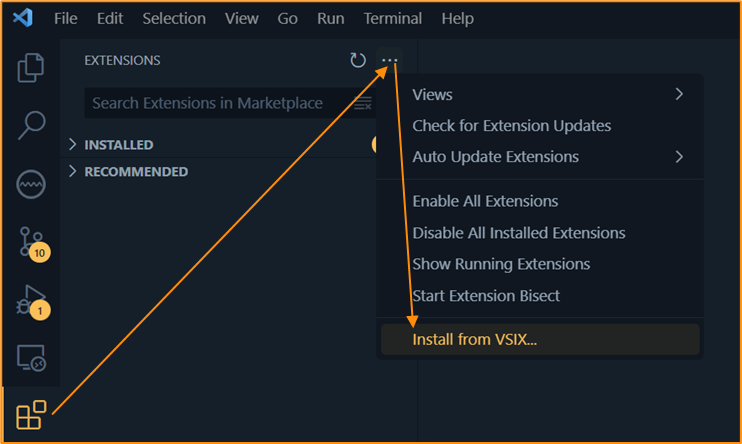
Then, the generated .vsix package file can be installed in VsCode.
Publish VsCode Color Theme
If you want to share the VsCode Theme that you think you are most proud of with the whole world, then you need to publish it to VsCode Marketplace.
📚 The main steps to Publish VsCode Color Theme
- Create an organization
- Get the Personal Access Token
- Create a publisher
- Design and prepare the VsCode Color Theme project
- Run
vsce package && vsce publish
I have to mention that the link “Show all scopes” in the UI of “Create a new personal access token” is at the far bottom and close to the buttons “Create” and “Cancel”. This is a bad design and a bad user experience.

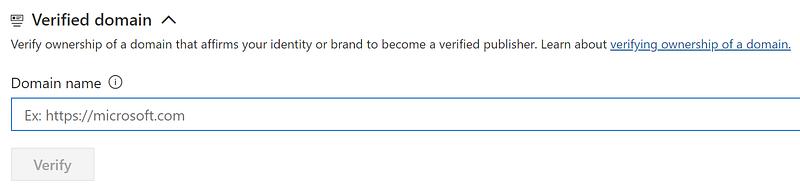
👷 To be a verified publisher, it needs one active domain. The domain can be provided on the publisher creation page.
The publisher ID must be configured in the package.json file in the extension project. The publisher ID can be found in the tab “Details” of the publisher.
"publisher": "wenijinew"After publishing, the extension can be found in the tab “Extensions” and from the VsCode Marketplace. It can also be searched within VsCode for sure.
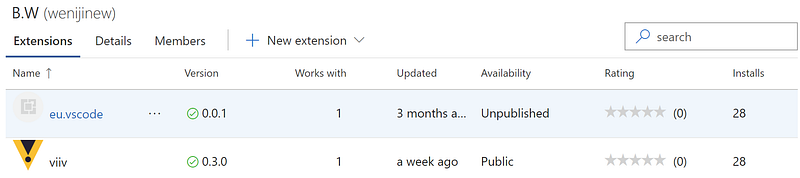

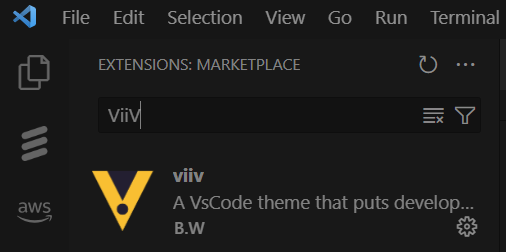
To be honest, I was a bit excited when I published my first version of the VsCode Color Theme — ViiV.
Auto-publish VsCode Color Theme by GitHub Workflow Action
🔆Today, most of us manage our source code in GitHub. With GitHub Actions, it’s possible to make the publishing process automatic. For example, when a new release of the VsCode Color Theme is made on GitHub, one Action can be automatically triggered to publish the new version of the VsCode Color Theme.
To do so, we need to create a workflow YAML file to organize the tasks to publish the VsCode Color Theme.
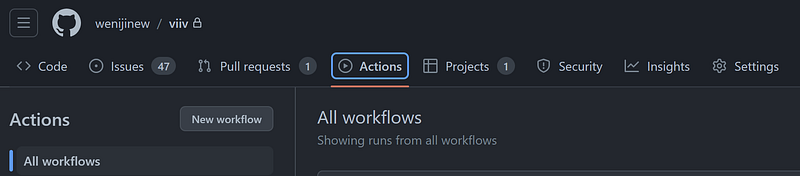
Go to the repository page, and click the “Actions” tab. Click “New workflow” button, and then click “set up a workflow yourself”. (Note: I didn’t find any existing workflow for VsCode Extension publishing)

In the editor of the main.yml file, fill in the content of the workflow.

name: Build and Publish

on:
  release:
    types: [published]

permissions:
  contents: read

jobs:
  deploy:
    runs-on: ubuntu-latest
    steps:
      - uses: actions/checkout@v3
      - run: npm install
      - uses: lannonbr/[email protected]
        with:
          args: "publish -p $VSCE_TOKEN"
        env:
          VSCE_TOKEN: ${{ secrets.VSCE_TOKEN }}
In my case, I used GitHub Action for vsce. Several other actions on GitHub Marketplace could be used.
The VSCE_TOKEN need to be configured in the settings page of the repository. The value of the VSCE_TOKEN is the Personal Access Token created in Azure DevOps organization page. Check the page Get the Personal Access Token and the last section.
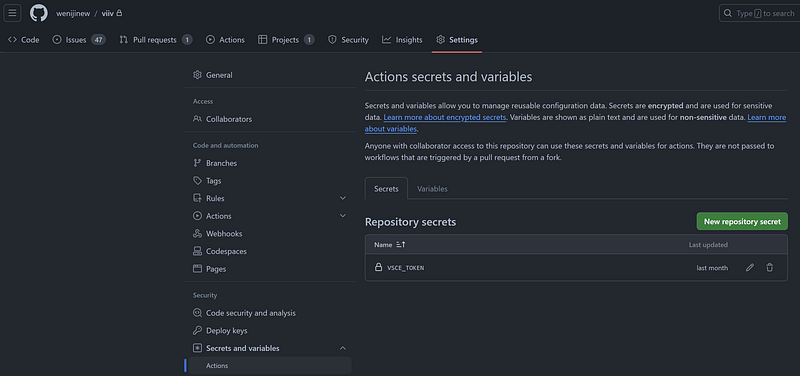
That’s it. Save the change of the main.yml file and commit it. Then, when a new release is made, the Action will be triggered and the new version of the VsCode Color Theme will be published to VsCode Marketplace.
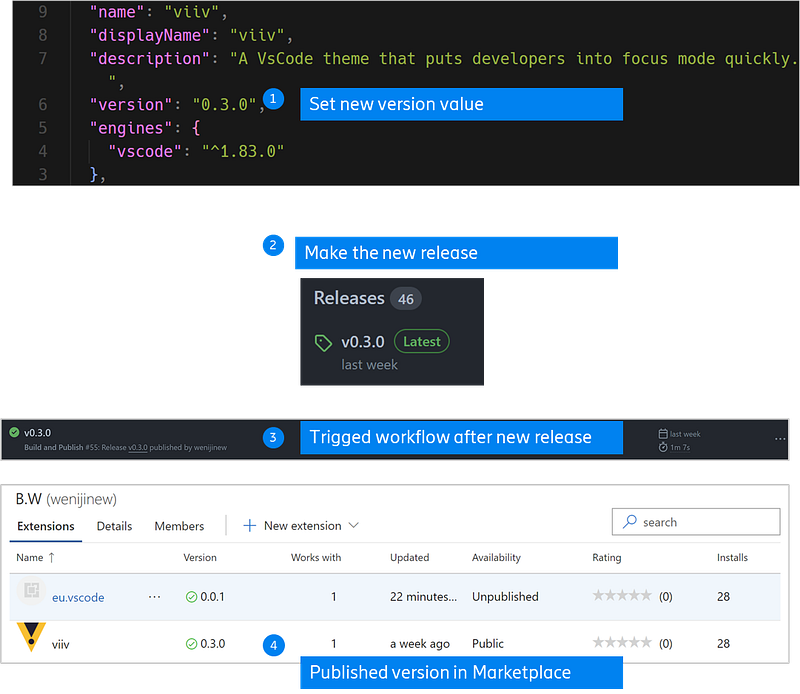
⚠️Keep it in mind to update the version value in the package.json file before making new release, unless you have made it automatic.
Final Words
I felt very happy when I finished this article. I hope it can help you to some degree. Meanwhile, I am so grateful that you read my articles.
Take care, happy coding and stay tuned. 😃