avatarAmy Li

Free AI web copilot to create summaries, insights and extended knowledge, download it at here

4263

Abstract

id="c3eb"><b>Step 2: Import your sites from GSC (Google Search Console)</b></p><p id="0281">Assume you have already set up Google Search Console.</p><figure id="d3df"><img src="https://cdn-images-1.readmedium.com/v2/resize:fit:800/1*MQepjJFD5jfd3n37aajBpg.png"><figcaption>Bing Webmaster Tools page. Screenshot by <a href="undefined">Amy Li</a>.</figcaption></figure><p id="4357"><b>Step 3: Add & verify your website</b></p><p id="209f">Select HTML Meta Tag</p><figure id="ee39"><img src="https://cdn-images-1.readmedium.com/v2/resize:fit:800/1*GTgW-ch50xGDDIZES4SHMg.png"><figcaption>The HTML Meta Tag to connect your site to Bing. Screenshot by <a href="undefined">Amy Li</a>.</figcaption></figure><p id="7c6b"><b>Step 4: Add the verification code to Yoast SEO plugin</b></p><figure id="d6a0"><img src="https://cdn-images-1.readmedium.com/v2/resize:fit:800/1*STFZf5NL-TogSyGc54mm3g.png"><figcaption>Verify a new website at Baidu ziyuan website. Screenshot by <a href="undefined">Amy Li</a>.</figcaption></figure><p id="dade">Now you have added website to Bing using Webmaster Tools:</p><figure id="b792"><img src="https://cdn-images-1.readmedium.com/v2/resize:fit:800/1*x9cbjCj8WFpMnaF-WJAzcg.png"><figcaption>Your website was verified on Bing. Screenshot by <a href="undefined">Amy Li</a>.</figcaption></figure><h2 id="7a20">Verify your site on Google</h2><p id="d64d"><b>Step 1: Go to Google Search console</b></p><p id="c622">Click the link — Google Search console:</p><figure id="ed6d"><img src="https://cdn-images-1.readmedium.com/v2/resize:fit:800/1*YIlfpTPS6tr_ZjYXTCQ7bw.png"><figcaption>Yoast SEO site connections page. Screenshot by <a href="undefined">Amy Li</a>.</figcaption></figure><p id="a4c9"><b>Step 2: Get the verification code on Google Search Console</b></p><p id="4139">Click the link — <b>directly in Search Console:</b></p><figure id="a99a"><img src="https://cdn-images-1.readmedium.com/v2/resize:fit:800/1*QDLqkJ1K6UU2OdzpXfQ0iw.png"><figcaption>The page of Google Webmaster central. Screenshot by <a href="undefined">Amy Li</a>.</figcaption></figure><p id="61d9">Connect with the property you defined for your website:</p><figure id="1e83"><img src="https://cdn-images-1.readmedium.com/v2/resize:fit:800/1*oPkYdQZHmZjdDcsT4OuGHg.png"><figcaption>Select the target property from Google Search Console. Screenshot by <a href="undefined">Amy Li</a>.</figcaption></figure><p id="791f">Click the vertical three dots on the Users panel:</p><figure id="6caf"><img src="https://cdn-images-1.readmedium.com/v2/resize:fit:800/1*QvKzZhbq0NhjlGDVI8ecEw.png"><figcaption>The Users and permissions on Google Search Console. Screenshot by <a href="undefined">Amy Li</a>.</figcaption></figure><p id="2aee">Click <b>Ownership verification details</b></p><figure id="bdce"><img src="https://cdn-images-1.readmedium.com/v2/resize:fit:800/1*rM09if-MVwdpOlHKgW-MoQ.png"><figcaption>Locate the Ownership verification details. Screenshot by <a href="undefined">Amy Li</a>.</figcaption></figure><p id="26f9">Copy the verification code</p><figure id="9c42"><img src="https://cdn-images-1.readmedium.com/v2/resize:fit:800/1*k9qfBcM0xK4Pdqo9YfHlTA.png"><figcaption>Copy the verification code for your website at Google Search Console. Screenshot by <a href="undefined">Amy Li</a>.</figcaption></figure><p id="f855"><b>Step 3: Add the verification code to the Yoast SEO plugin</b></p><figure id="3b1c"><img src="https://cdn-images-1.readmedium.com/v2/resize:fit:800/1*4KaWzVwEAxljCU5Jbl_tzA.png"><figcaption>Add verification code to Google platform on Yoast SEO plugin. Screenshot by <a href="undefined">Amy Li</a>.</figcaption></figure><h2 id="164c">Verify your website on Pinterest</h2><p id="cefa"><b>Step 1: Go to Pinterest</b></p><figure id="ef84"><img src="https://cdn-images-1.readmedium.com/v2/resize:fit:800/1*1PeosiDA2DDaovytAzjMKQ.png"><figcaption>Locate the Pinterest web link on the settings page of the Yoast SEO plugin. Screenshot by <a href="undefined">Amy Li</a>.</figcaption></figure><p id="89f6"><b>Step 2: Create a business Pinterest account</b></p><p id="00c3">Create a business account on Pinterest,</p><p id="72f6"><b>Step 3: Claim your website to get the verification code</b></p><p id="3b52">Go user profile icon -> settings -> C

Options

laimed accounts -> Click the <b>Claim</b> button</p><figure id="86b9"><img src="https://cdn-images-1.readmedium.com/v2/resize:fit:800/1*qNZsV78ztGIDoykyYwfG0w.png"><figcaption>Locate the Claimed accounts section on the Pinterest business account page. Screenshot by <a href="undefined">Amy Li</a>.</figcaption></figure><p id="4ce3">Choose how you want to claim:</p><figure id="009d"><img src="https://cdn-images-1.readmedium.com/v2/resize:fit:800/1*Z0lvK9SdE6XjiJTKmTuxeQ.png"><figcaption>The options of claiming your website on Pinterest. Screenshot by <a href="undefined">Amy Li</a>.</figcaption></figure><p id="6d7b">Click the area of <b>Add HTML tag</b> to copy the verification code.</p><p id="bcd8"><b>Step 4: Add the verification code to the Yoast SEO plugin</b></p><figure id="b4ee"><img src="https://cdn-images-1.readmedium.com/v2/resize:fit:800/1*dDnc7cOy8ZN8yLt8oFpjcw.png"><figcaption>Add verification code to Pinterest platform on Yoast SEO plugin. Screenshot by <a href="undefined">Amy Li</a>.</figcaption></figure><p id="c587"><b>Step 5: Continue with the verification process on Pinterest</b></p><p id="6648">Enter your website URL and click Verify button:</p><figure id="ed3a"><img src="https://cdn-images-1.readmedium.com/v2/resize:fit:800/1*50e9zO4Dah6Al-kDA9a5VQ.png"><figcaption>Enter your website URL to verify it on Pinterest. Screenshot by <a href="undefined">Amy Li</a>.</figcaption></figure><p id="feb5">It’s possible that you will see something like this:</p><figure id="3978"><img src="https://cdn-images-1.readmedium.com/v2/resize:fit:800/1*HqQf24kMpD6NEf0kXPYJvA.png"><figcaption>No relevant meta tag was found for your website. Screenshot by <a href="undefined">Amy Li</a>.</figcaption></figure><p id="2aae">Don’t worry. It may take another few minutes before it takes effect.</p><p id="835d">After a few minutes, come back again, and press <b>Verify</b> button,</p><figure id="495c"><img src="https://cdn-images-1.readmedium.com/v2/resize:fit:800/1*XdRAUZPGgOZOnQLhAM6Ezg.png"><figcaption>Your website was successfully connected to Pinterest. Screenshot by <a href="undefined">Amy Li</a>.</figcaption></figure><h2 id="95c2">Verify your site on Yandex</h2><p id="2165"><b>Step 1: Go to Yandex Webmaster tools page</b></p><p id="c59f">Click the link — Yandex Webmaster tools:</p><figure id="bfbc"><img src="https://cdn-images-1.readmedium.com/v2/resize:fit:800/1*PCDV6EpFPXYsQVFKP2ds3A.png"><figcaption>Locate the link — Yandex Webmaster tools on the settings page of Yoast SEO plugin. Screenshot by <a href="undefined">Amy Li</a>.</figcaption></figure><p id="e1a6"><b>Step 2: Get the verification code for your website</b></p><p id="96ba">After logging into the site, you’re prompted to input your website URL:</p><figure id="6528"><img src="https://cdn-images-1.readmedium.com/v2/resize:fit:800/1*jItm5itodQmvcVbF-cKvGA.png"><figcaption>Enter your site address on the Webmaster tools page of Yandex. Screenshot by <a href="undefined">Amy Li</a>.</figcaption></figure><figure id="75f7"><img src="https://cdn-images-1.readmedium.com/v2/resize:fit:800/1*AYGcOBad_1gBdBx6vXT5Xg.png"><figcaption>Enter your site address on the Webmaster tools page of Yandex. Screenshot by <a href="undefined">Amy Li</a>.</figcaption></figure><p id="5e27">Select the option — <b>Meta tag</b>.</p><figure id="692e"><img src="https://cdn-images-1.readmedium.com/v2/resize:fit:800/1*5ilg9OwpgAlu8wsua-rzbA.png"><figcaption>Get the Meta tag data. Screenshot by <a href="undefined">Amy Li</a>.</figcaption></figure><p id="4df5"><b>Step 3: Add the verification code to the Yoast SEO plugin</b></p><figure id="9efe"><img src="https://cdn-images-1.readmedium.com/v2/resize:fit:800/1*x-3TkvmSx3q32h0GIMk9xQ.png"><figcaption>Add the verification code to Yandex. Screenshot by <a href="undefined">Amy Li</a>.</figcaption></figure><h2 id="cda6">Result</h2><p id="27cc">So far we have verified our website on Baidu, Bing, Google, Pinterest, and Yandex.</p><figure id="adf4"><img src="https://cdn-images-1.readmedium.com/v2/resize:fit:800/1*yMELZVJL5S5OV2jPyNJrNA.png"><figcaption>Verify your website using Yoast SEO by adding the verification code corresponding to each platform. Screenshot by <a href="undefined">Amy Li</a>.</figcaption></figure></article></body>

Verify Your WordPress Website on Different Platforms: Baidu, Bing, Google, Pinterest, and Yandex

Are you looking for a simple way to verify your WordPress site on popular platforms such as Baidu, Bing, and Google?

In this article, I will show you how to easily verify your WordPress site using Yoast SEO plugin.

Go to site connections on Yoast SEO

Navigate via: Yoast SEO -> Settings -> General -> Site connections
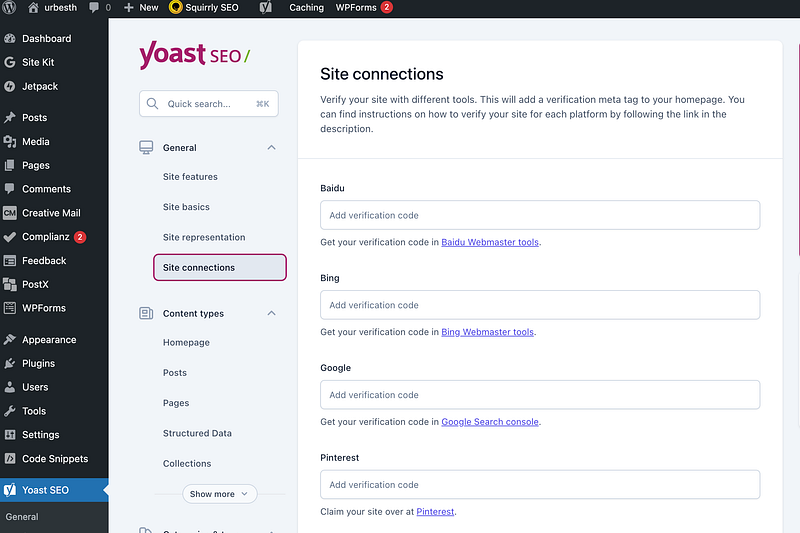
Locate the Site connections on the Yoast SEO plugin. Screenshot by Amy Li.

Now let’s connect our website to each of the platforms.

Verify your website on Baidu

Step 1: Go to Baidu Webmaster tools

Click the link — Baidu Webmaster tools to navigate to the page:
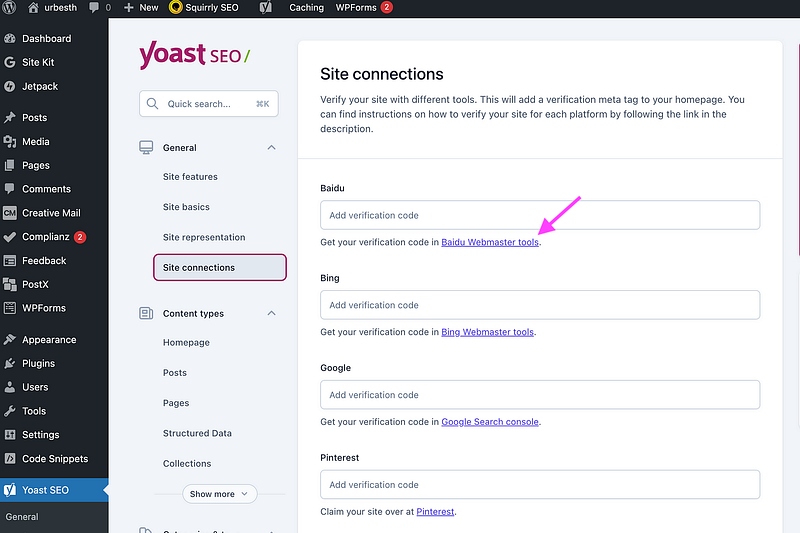
Locate the link — Baidu Webmaster tools on site connectoins page of the Yoast SEO plugin. Screenshot by Amy Li.

and you will be brought to ziyuan.baidu.com/site.
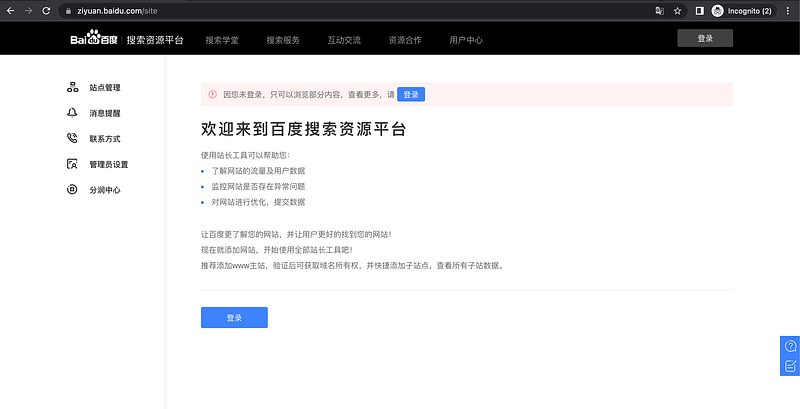
The homepage of ziyuan.baidu.com/site. Screenshot by Amy Li.

Step 2: Create an account to log in

Note: it requires Chinese social accounts and a Chinese mobile number.
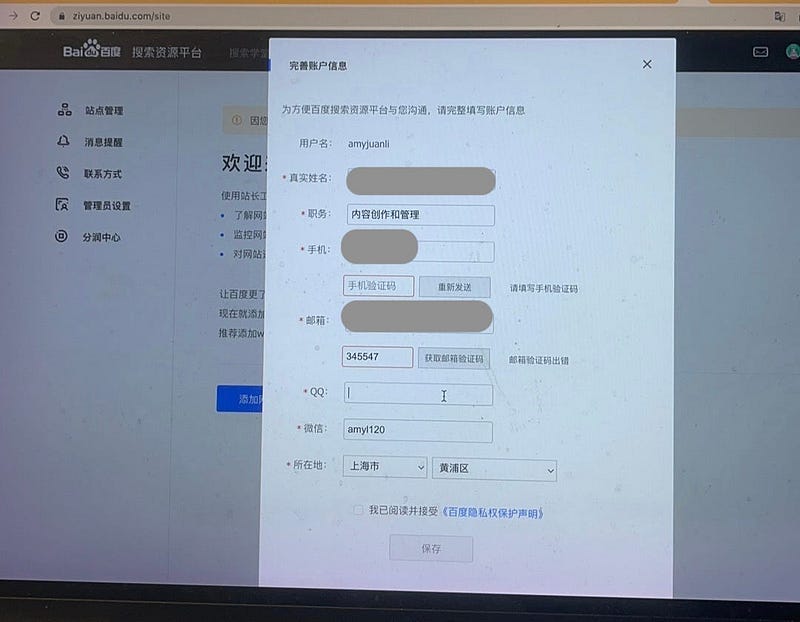
Create an account on Baidu ziyuan website. Screenshot by Amy Li.

Once you enter all the required information and click the Save button to create your account.

Step 3: Add your website

Click the button — 添加网站 (means ‘add a new website’):
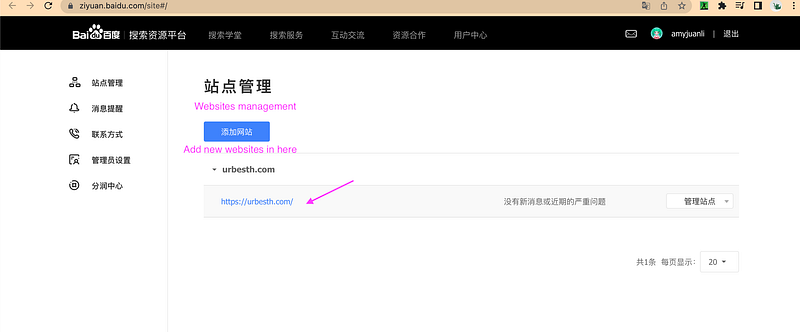
Creating a new website at Baidu ziyuan website. Screenshot by Amy Li.

Finish the three steps to verify your website:
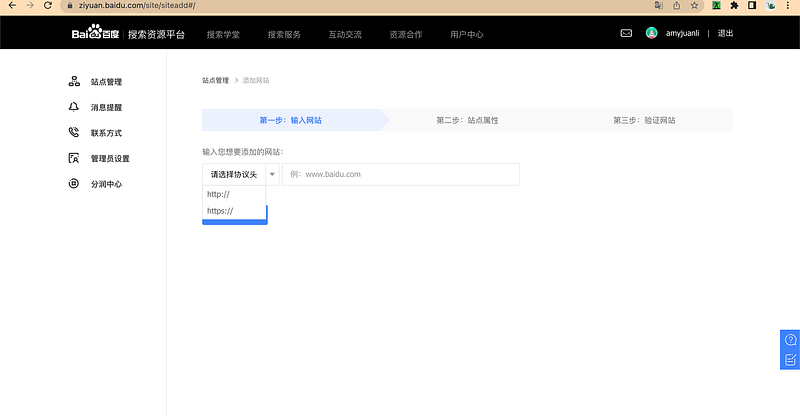
Verify a new website at Baidu ziyuan website. Screenshot by Amy Li.

Step 4: Add the verification code to Yoast SEO plugin
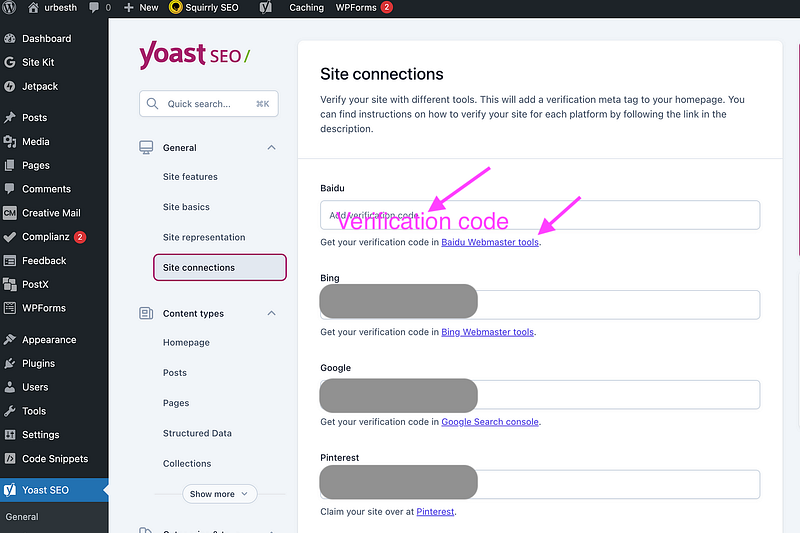
Add verification code to Baidu platform using Yoast SEO. Screenshot by Amy Li.

You will get a success message on ziyuan.baidu.com site:
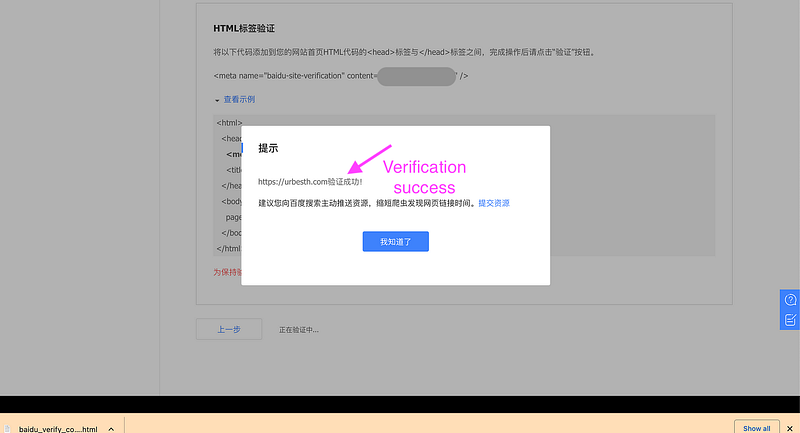
Verify a new website successfully at Baidu ziyuan website. Screenshot by Amy Li.

Here is what does the dashboard page of your verified website look like:
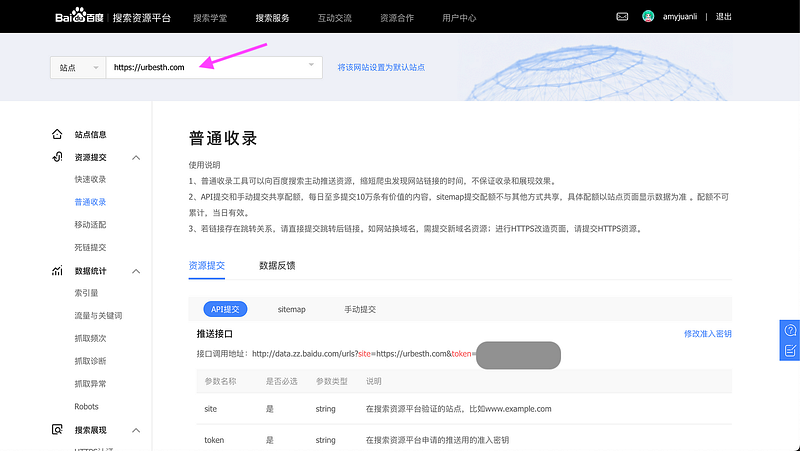
Baidu ziyuan dashboard. Screenshot by Amy Li.

Verify your site on Bing

Step 1: Go to Bing Webmaster tools

Click the link — Bing Webmaster tools to navigate to Bing webmaster tool page:
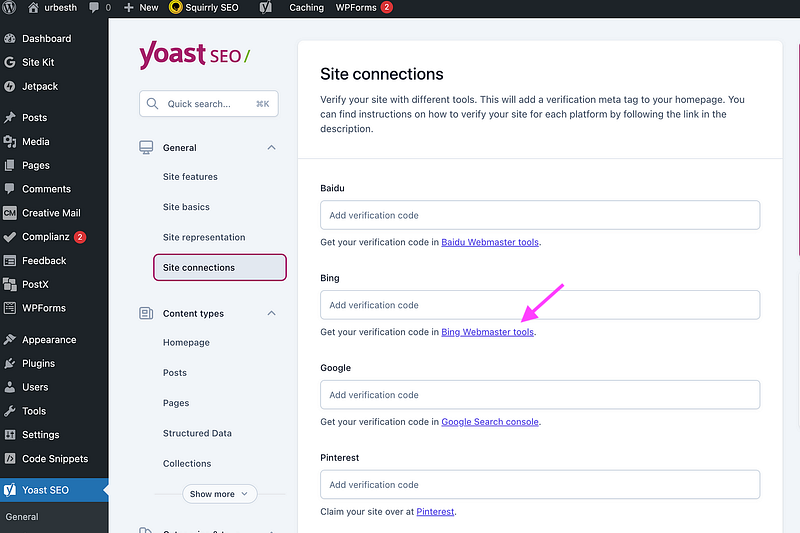
Yoast SEO site connections page. Screenshot by Amy Li.

Step 2: Import your sites from GSC (Google Search Console)

Assume you have already set up Google Search Console.
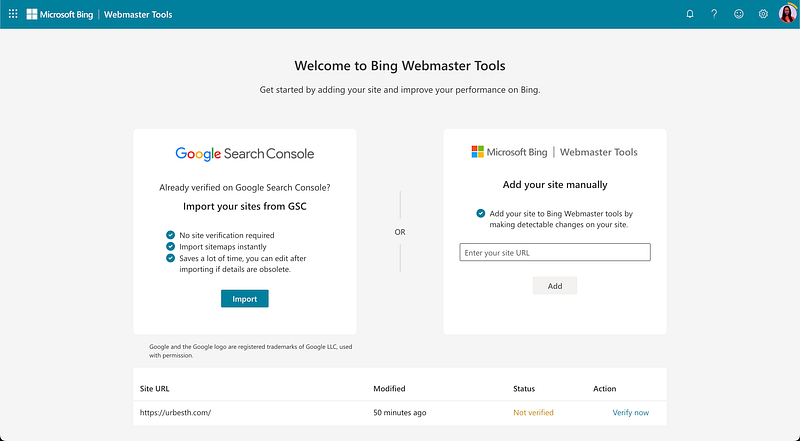
Bing Webmaster Tools page. Screenshot by Amy Li.

Step 3: Add & verify your website

Select HTML Meta Tag
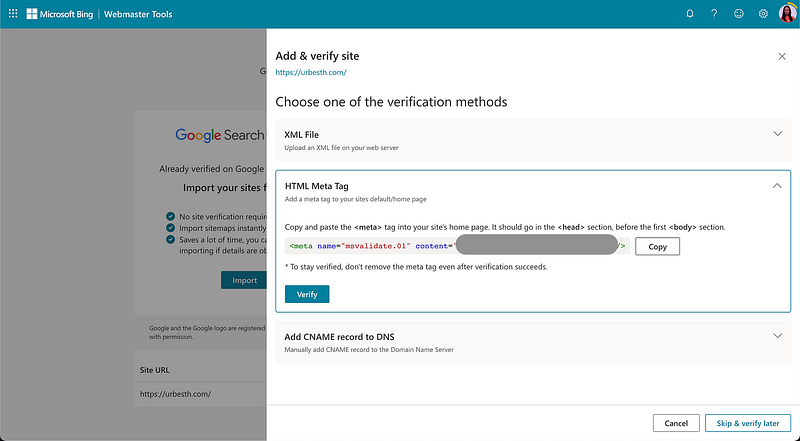
The HTML Meta Tag to connect your site to Bing. Screenshot by Amy Li.

Step 4: Add the verification code to Yoast SEO plugin
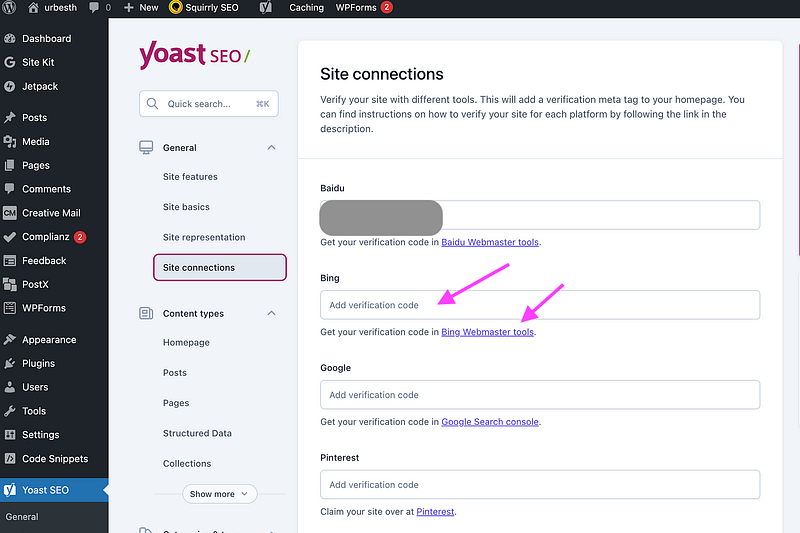
Verify a new website at Baidu ziyuan website. Screenshot by Amy Li.

Now you have added website to Bing using Webmaster Tools:
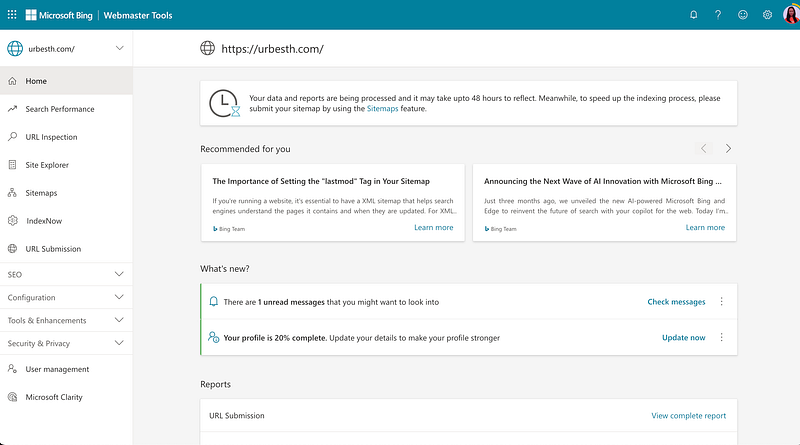
Your website was verified on Bing. Screenshot by Amy Li.

Verify your site on Google

Step 1: Go to Google Search console

Click the link — Google Search console:
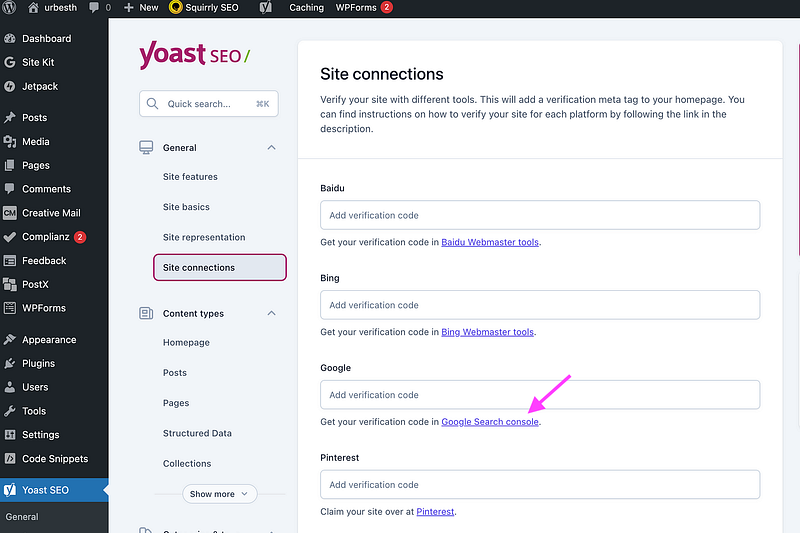
Yoast SEO site connections page. Screenshot by Amy Li.

Step 2: Get the verification code on Google Search Console

Click the link — directly in Search Console:
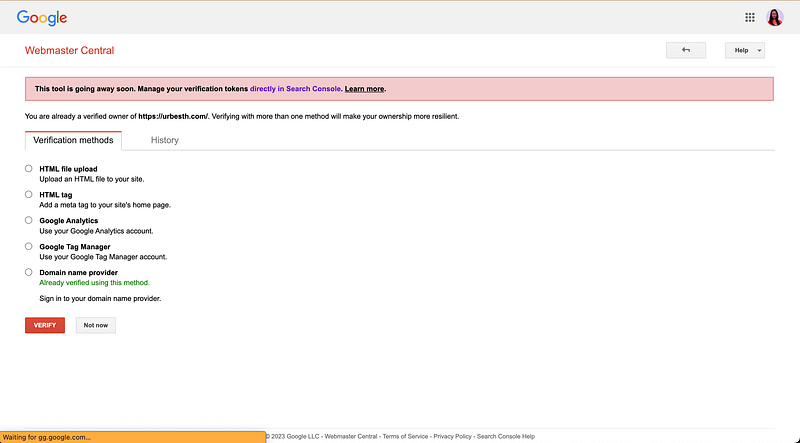
The page of Google Webmaster central. Screenshot by Amy Li.

Connect with the property you defined for your website:
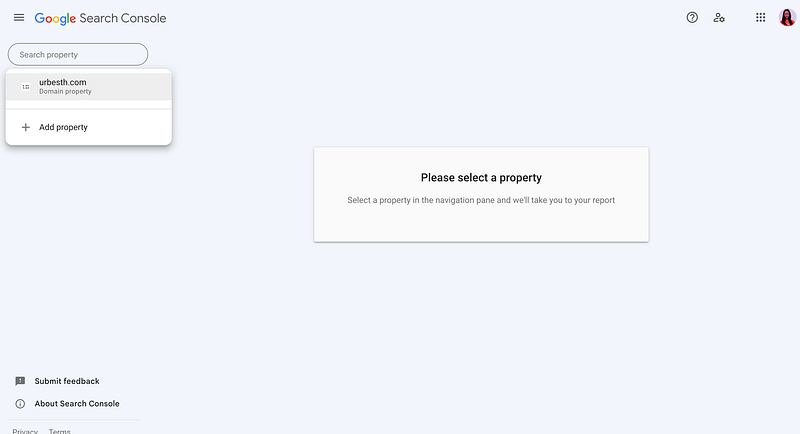
Select the target property from Google Search Console. Screenshot by Amy Li.

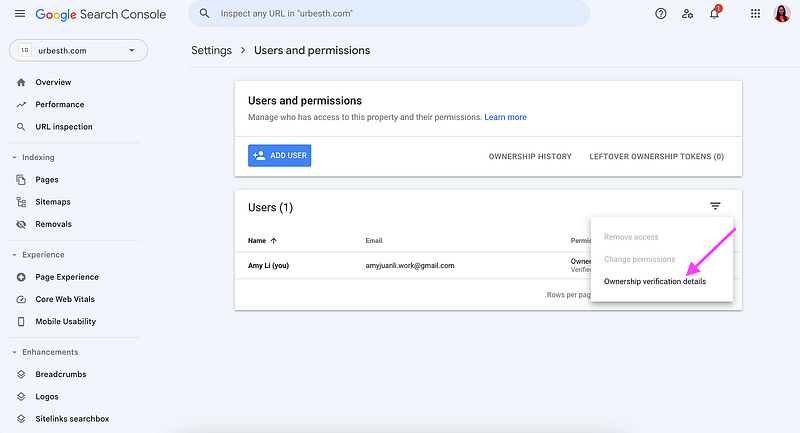
Click the vertical three dots on the Users panel:
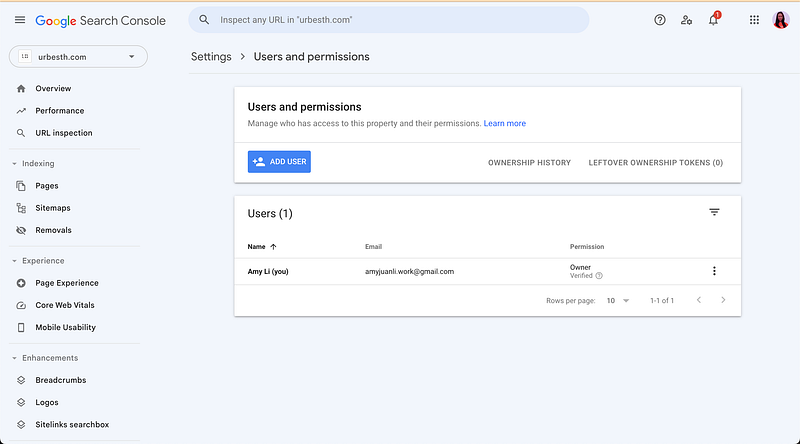
The Users and permissions on Google Search Console. Screenshot by Amy Li.

Click Ownership verification details

Locate the Ownership verification details. Screenshot by Amy Li.

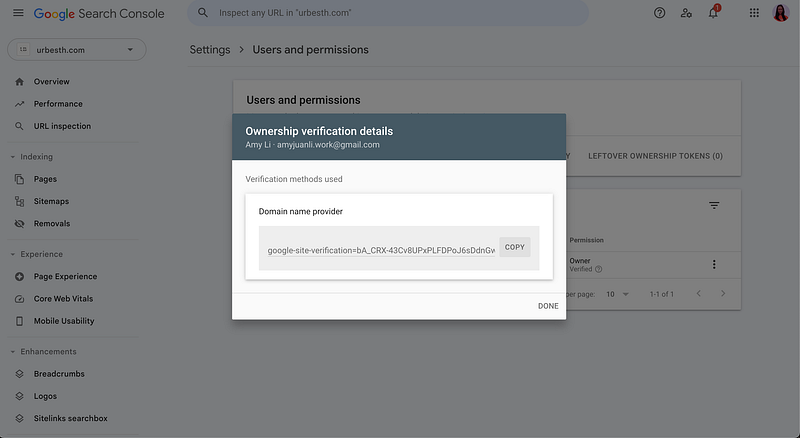
Copy the verification code

Copy the verification code for your website at Google Search Console. Screenshot by Amy Li.

Step 3: Add the verification code to the Yoast SEO plugin
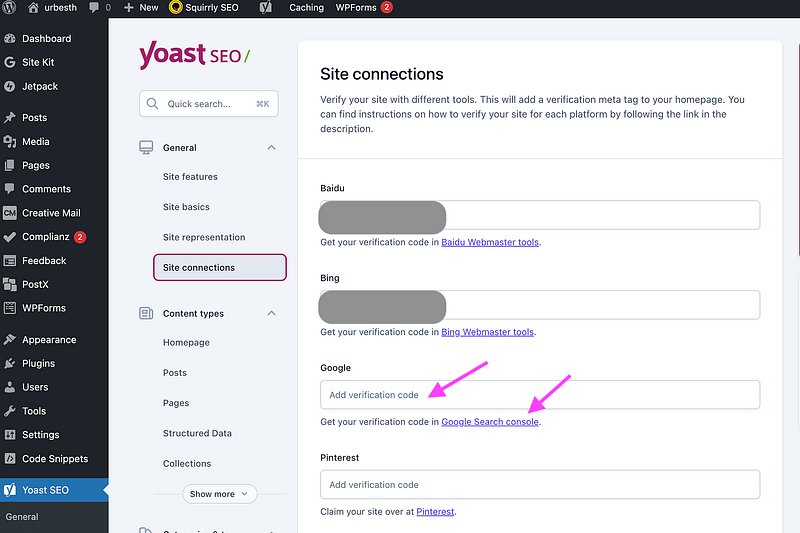
Add verification code to Google platform on Yoast SEO plugin. Screenshot by Amy Li.

Verify your website on Pinterest

Step 1: Go to Pinterest
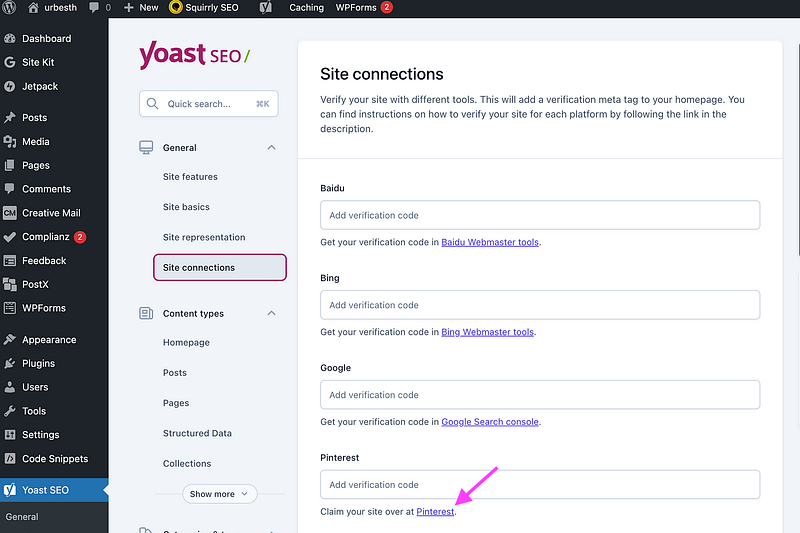
Locate the Pinterest web link on the settings page of the Yoast SEO plugin. Screenshot by Amy Li.

Step 2: Create a business Pinterest account

Create a business account on Pinterest,

Step 3: Claim your website to get the verification code

Go user profile icon -> settings -> Claimed accounts -> Click the Claim button
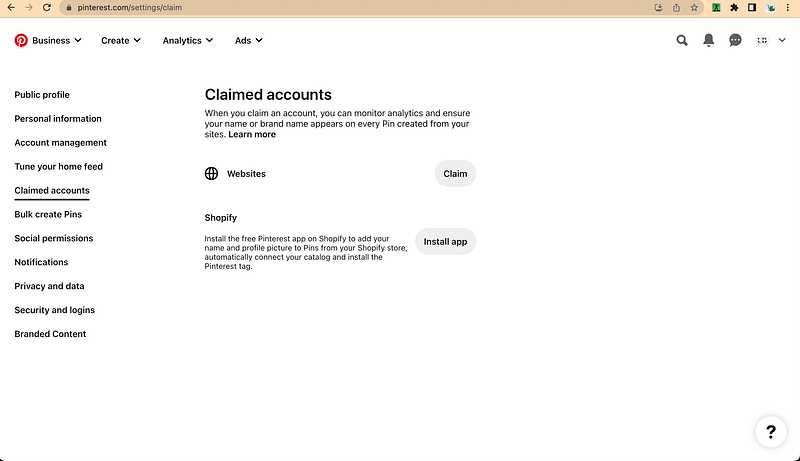
Locate the Claimed accounts section on the Pinterest business account page. Screenshot by Amy Li.

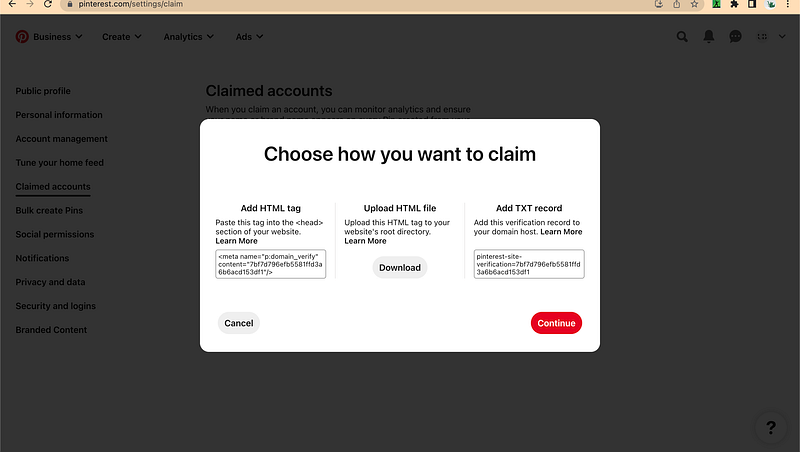
Choose how you want to claim:

The options of claiming your website on Pinterest. Screenshot by Amy Li.

Click the area of Add HTML tag to copy the verification code.

Step 4: Add the verification code to the Yoast SEO plugin
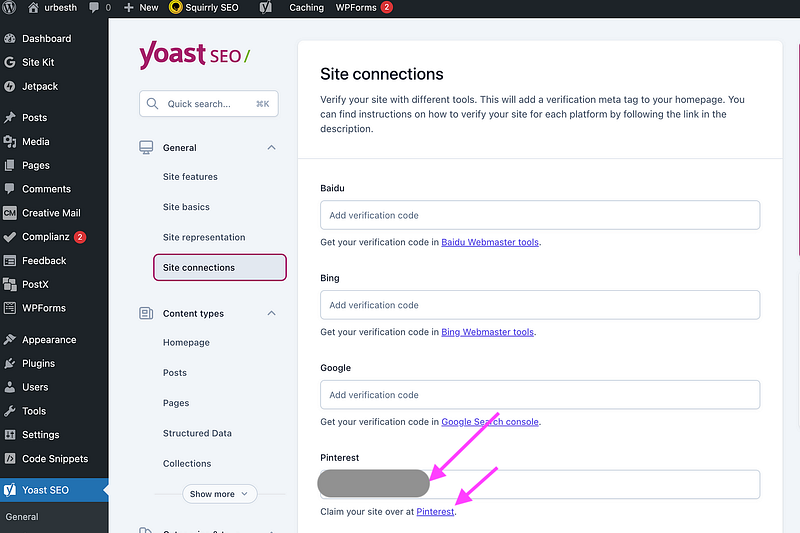
Add verification code to Pinterest platform on Yoast SEO plugin. Screenshot by Amy Li.

Step 5: Continue with the verification process on Pinterest

Enter your website URL and click Verify button:
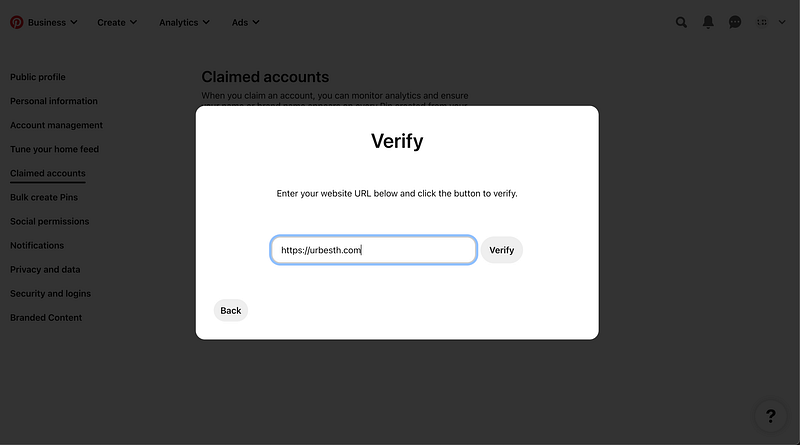
Enter your website URL to verify it on Pinterest. Screenshot by Amy Li.

It’s possible that you will see something like this:
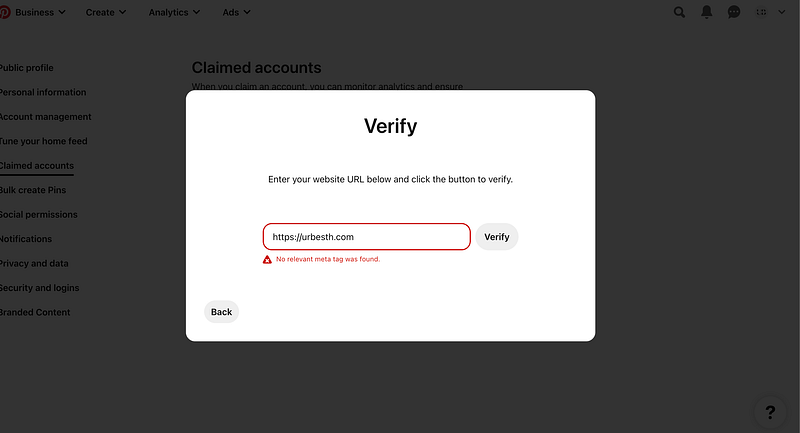
No relevant meta tag was found for your website. Screenshot by Amy Li.

Don’t worry. It may take another few minutes before it takes effect.

After a few minutes, come back again, and press Verify button,
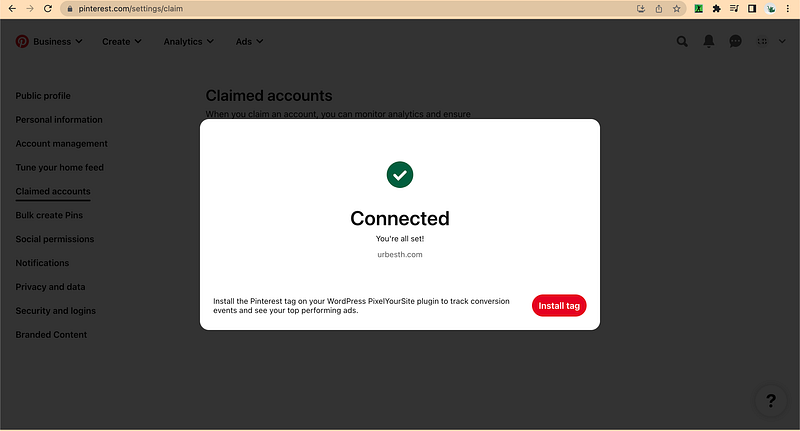
Your website was successfully connected to Pinterest. Screenshot by Amy Li.

Verify your site on Yandex

Step 1: Go to Yandex Webmaster tools page

Click the link — Yandex Webmaster tools:
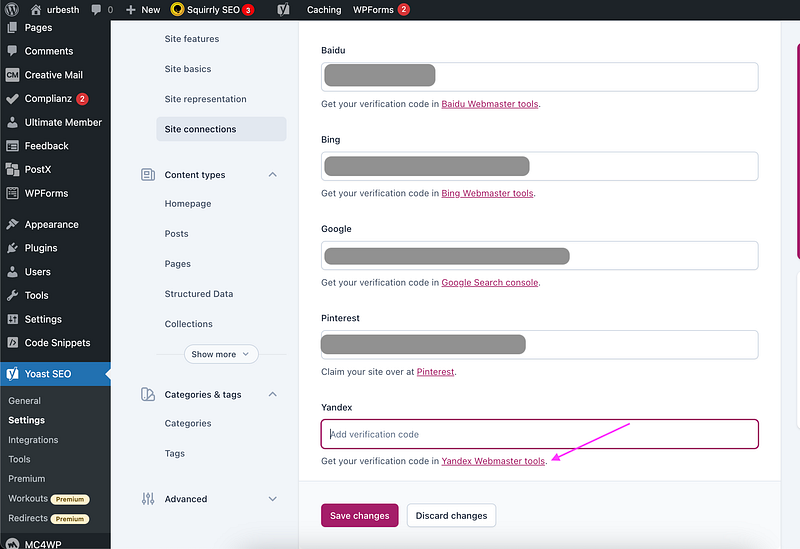
Locate the link — Yandex Webmaster tools on the settings page of Yoast SEO plugin. Screenshot by Amy Li.

Step 2: Get the verification code for your website

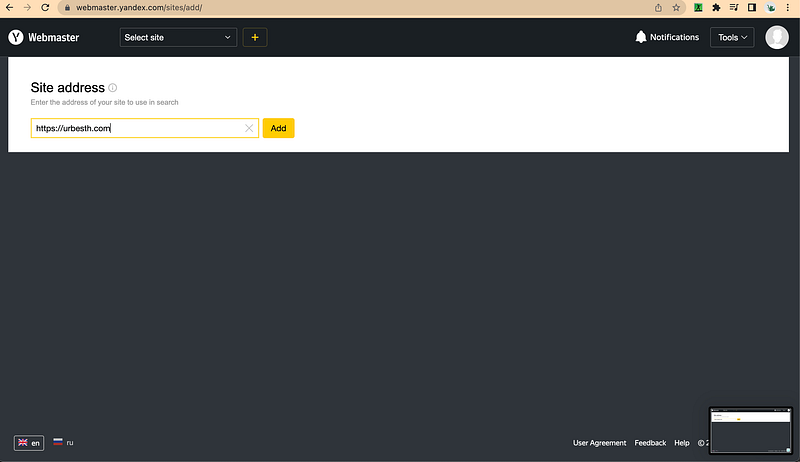
After logging into the site, you’re prompted to input your website URL:
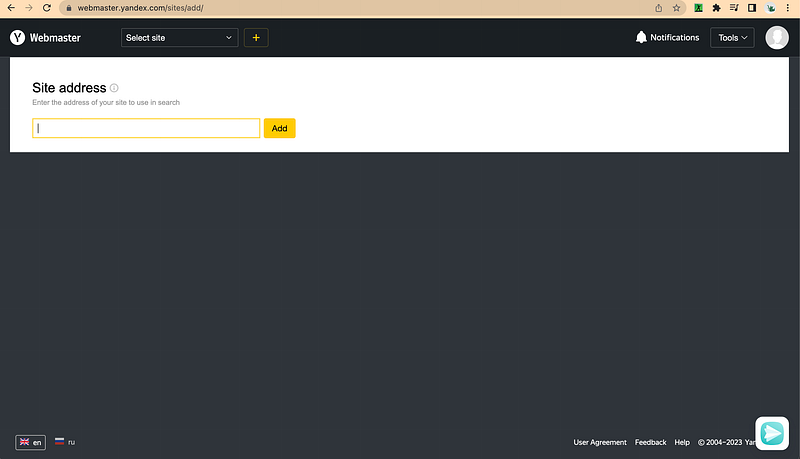
Enter your site address on the Webmaster tools page of Yandex. Screenshot by Amy Li.

Select the option — Meta tag.

Get the Meta tag data. Screenshot by Amy Li.

Step 3: Add the verification code to the Yoast SEO plugin
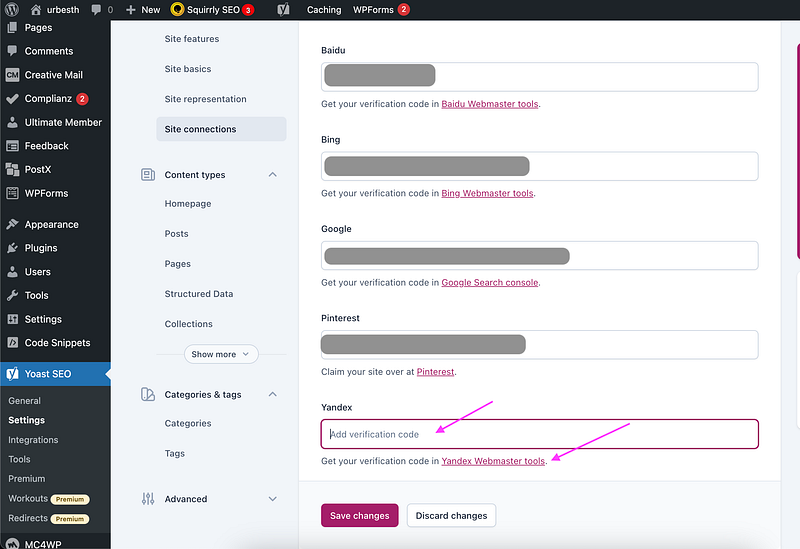
Add the verification code to Yandex. Screenshot by Amy Li.

Result

So far we have verified our website on Baidu, Bing, Google, Pinterest, and Yandex.
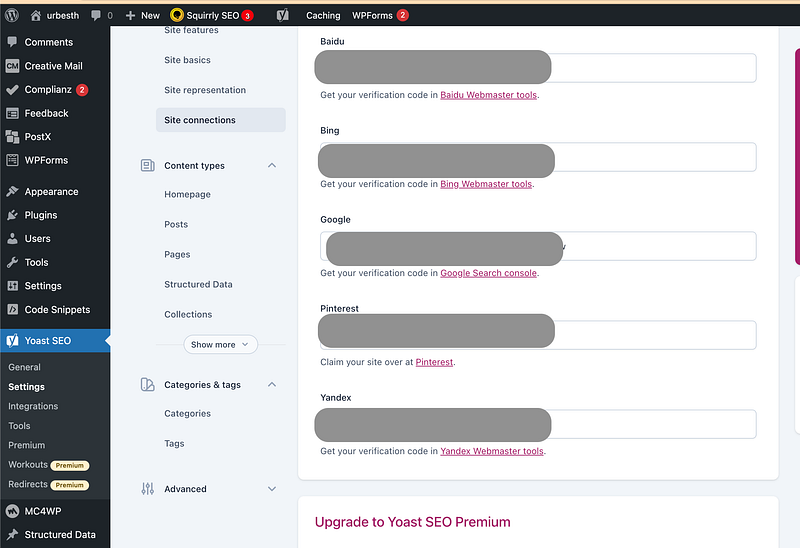
Verify your website using Yoast SEO by adding the verification code corresponding to each platform. Screenshot by Amy Li.
WordPress
Web Development
SEO
Website
Entrepreneurship
Recommended from ReadMedium