
Full Disk Encryption with VeraCrypt

A straightforward guide to getting you working with VeraCrypt. Protect sensitive data on your hard-drive, USB stick, and external drives.
This article serves as a supplement to the Pentester’s Guide to Windows 10 Privacy & Security and helps you avoid any mistakes that could result in 100% data loss — regardless of your preferred platform and filesystem.
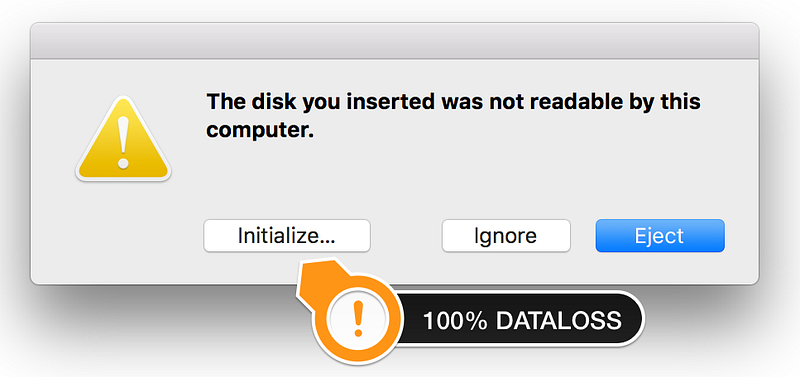
Information loss or theft of trade secrets, application source code, customer- and employee records — can put your startup in an early grave. Private photos can ruin a (political) career.
Better to be safe than sorry? I would say so.
About the Author
Andrew Douma is a vendor-neutral IT Security Professional. He performs professional audits, penetration tests, and risk assessments. He designs secure networks and engineers high-assurance systems in the Cloud.
You can connect with him on GoodReads, LinkedIn, Medium, and Twitter.
More stories by Andrew
Buying a professional penetration testing laptop| Evaluating QubesOS as a Penetration Testing Platform | Finding the right exploit code | Antivirus in 2017: Why? Which? How? | Penetration Testers’ Guide to Windows 10 Privacy & Security | Hacker to Security Pro! On the Shoulders of #InfoSec Giants | Securing an Android Phone or Tablet (LineageOS) | Password (IN)SANITY: Intelligent Password Policy & Best Practices | Security Architecture Patterns I & Patterns II
Backup the Volume Header
If you have one single backup of a file, you do not have a backup. If your backup drive is stored next to your computer and not in a fire-proof safe, you do not have a backup. If you never test your backup, you do not have a backup.
Destructive malware will attempt to encrypt (or erase) every storage device or cloud storage provider your system is linked with.
When you add encryption to the mix, adopting proper backup routines and applying critical thinking is crucial:
- Make sure you have more than two copies of your most critical files.
- Never forget your 64 character passphrase or lose your only copy of the Keyfiles you generated.
- Always generate a copy of your Volume Headers for safekeeping.
- To do so, click Select Device or Select File, select the volume, select Tools -> Backup Volume Header, and then follow the instructions.
Though all created volumes have an embedded backup header at the end of the volume — this is no absolute guarantee. If the header for your VeraCrypt volume is ever damaged, you will be unable to access your encrypted data.
- Always create a VeraCrypt Rescue Disk for encrypted system partitions and drives, as they do not come with an embedded backup header.
No attacker can decrypt your data without the correct password / Keyfiles — even if they have your VeraCrypt backup files.
Installing VeraCrypt
You can download the full user guide [PDF] and the installer for your operating system from their website. Take note of some of the settings related to Favorites and Preferences.
VeraCrypt can create encrypted containers and encrypt partitions on almost all versions of Linux, MacOS, and Windows. It only supports whole disk encryption for Windows.
Make sure to verify the integrity of each update! Users of encryption software have been actively targeted in the past.
The process is like the one documented for verifying the integrity the Qubes OS installation media — except it uses this GPG/PGP key with ID 0x54DDD393 and fingerprint 993B7D7E8E413809828F0F29EB559C7C54DDD393.
VeraCrypt is the preferred replacement for TrueCrypt.
Encrypting External Storage Media
A relatively frequent task for me is encrypting a new ADATA HD720 water/dust/shock proof external hard disk for a new project/client. I also keep my USB sticks encrypted.
I recommend using your favorite partition tool to re-partition the drive as follows. This avoids Windows and MacOS prompts offering to “format” and “initialize” the drive every time you insert it.
If you add a minuscule partition at the end of the drive, with a filesystem, all Operating Systems recognize (exFat/FAT32) you will not get prompted.
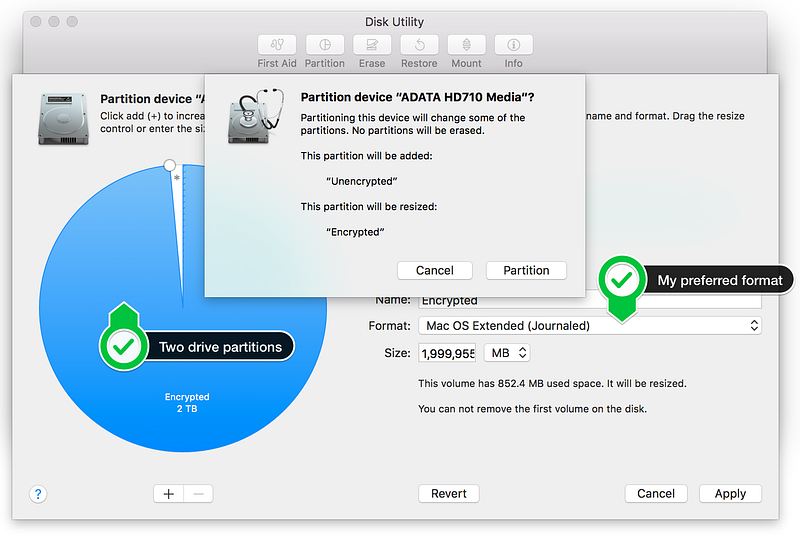
MacOS comes with the Disk Utility and Windows has Disk Manager. To access it open up File Explorer > right click on This PC > click Manage > and select the Storage tab.
Paragon offers an alternative Windows partitioning tool that is free for personal use. If you plan to use your external drive on both MacOS and Windows, I highly recommend purchasing MacDrive Pro or Paragon NTFS.
Using a journaled filesystem reduces recovery time after a crash (and increases the likelihood of a successful recovery!) Mac OS Extended or Windows NTFS are your options.

VeraCrypt’s User Interface is almost identical. Click on “Create Volume” and select “Create a volume within a partition/drive.”
I prefer standard VeraCrypt volumes. A “hidden” volume could provide me with more plausible deniability. However, do not skip over the fine print!
Next, select the first partition on your external hard disk and continue.
I use the AES(256) encryption algorithm and the SHA-512 hash algorithm. You can benchmark the performance for each encryption option on your hardware.
In the future I will address this in greater detail, for now, please accept that:
- Picking a very long passphrase is fundamental. I prefer to memorize completely random passwords and use all 64 available characters.
- I am just as happy with you using a long and disjoined sentence sprinkled with special characters (including spaces!)
- Using Keyfiles besides a password has significant advantages in multi-user environments.
- Spend the max time generating a cryptographically secure pool of “random” data.
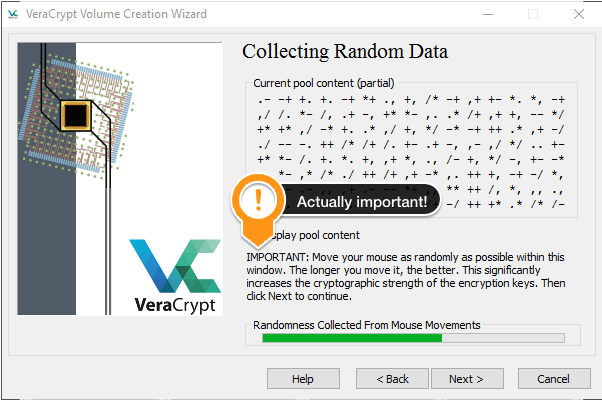
The final step will encrypt and format the drive. Depending on the size and speed of your storage media, this may take a few minutes to an entire night.
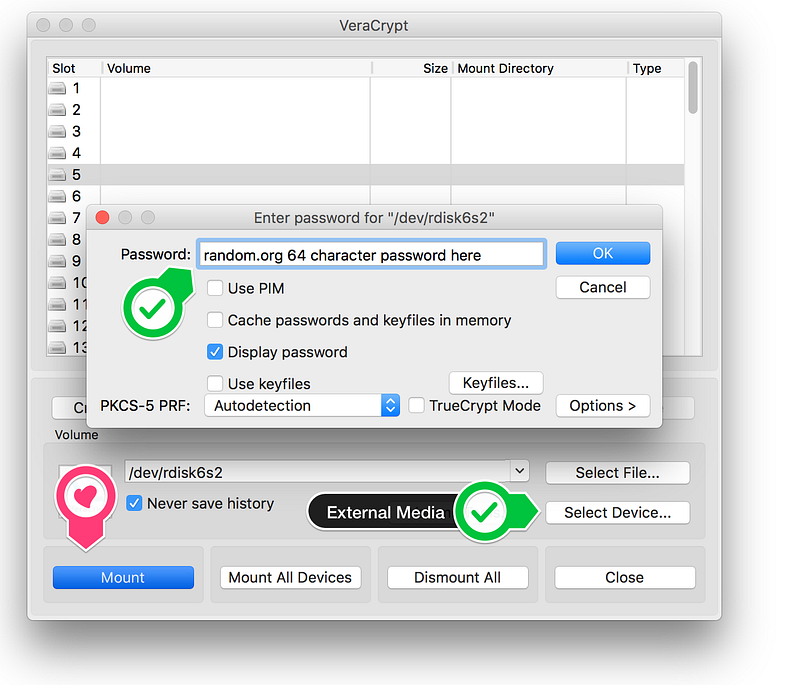
Once complete, you can mount the encrypted volume by choosing a Slot (on MacOS) or a Drive letter (on Windows).
Next, click the “Select Device” button and pick the encrypted partition of your external drive.
Click the “Mount” button and enter your passphrase / Keyfiles before clicking OK.
If you are using a password manager: Copy and pasting the passphrase only works if “Display password” is checked.
Rename it to something fresh and start saving your files on the encrypted partition of your external storage media. Always “safely eject” your disks to ensure all data is written to disk!
Encrypting Windows System Partitions
VeraCrypt supports encrypting non-system GPT (GUID Partition Table) partitions/drives across all platforms. Their security model covers what it does and does not protect you from.
For it to encrypt your boot partitions or entire disk (containing multiple partitions), it requires a legacy MBR disk (Master Boot Record) to encrypt the drive Windows is installed on fully.
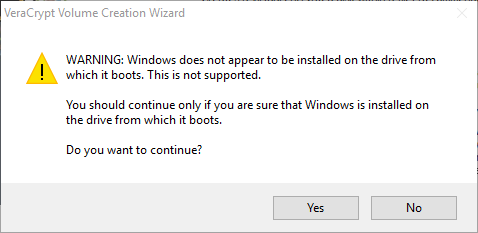
You may need to adjust your Bios configuration and re-install Windows. Commercial partitioning software can convert your existing installation from GPT to MBR format as well.
You can always opt to use a VeraCrypt encrypted file container on top of Windows BitLocker or hardware-based full disk encryption (SSD FDE). Find answers to your questions in this Windows 10 hardening guide.
Having ensured your backups are current and work:
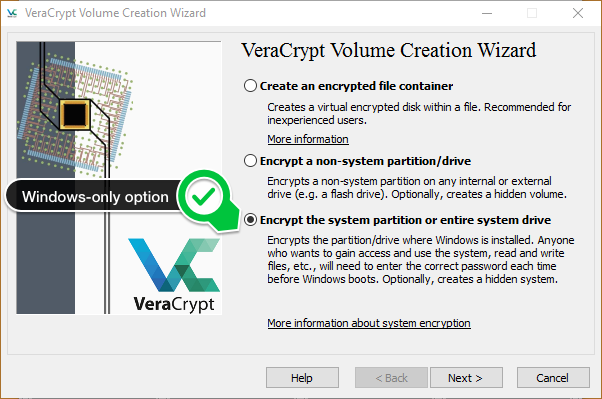
You will find an additional option in the Volume Creation Wizard on the Windows version of VeraCrypt, allowing you to enable full drive encryption.
You will have the option to increase your plausible deniability by installing a decoy operating system — but be mindful of the small print!
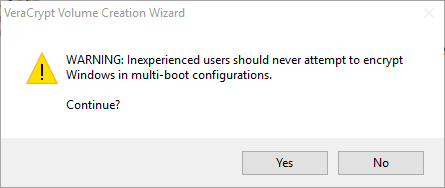
I always opt to encrypt the whole drive as well as the Host Protected Area. I have not tested VeraCrypt FDE on a Multi-boot system because of known issues.
VeraCrypt will install a Boot Loader that handles the pre-boot authentication. If you have an international keyboard, be aware that the pre-boot passphrase is always entered using the US keyboard layout.
You will need to decrypt your drive whenever you want to upgrade to the latest Windows build, for example from Redstone 1: v1607 “Anniversary Update” to Redstone 2: v1703 “Creators Update”.
Creating Encrypted File Containers
VeraCrypt enables you to make, in essence, a large encrypted ZIP file you can use like you would a “virtual” USB stick.
Using the Volume Creation Wizard, try creating a 20 GB top-secret.crypt and a 40 GB work-project.crypt file. You are free to name your container anything you want i.e. pagefile.sys or family-bbq.avi.
You can mount and unmount them as needed. Passing through a dystopian border checkpoint? Best have everything unmounted. Trying to protect data from malicious exfil? Only mount it when needed.
Small containers are easy to transport. They can serve to secure off-site backups long-term or transfer a sensitive pentesting report across an insecure channel. For Turing’s sake, stop using plain-text email!
Do you have any advice? Corrections or additions?
Please do not hesitate to reply! Feel free to share your experiences, advice, and questions in private or through the comments section.
Click the ♡ to recommend this article.


