
VeeValidate 4: How to Disable the Submit Button

Intro
VeeValidate is one of the most popular Vue.js form libraries which helps you to validate form inputs — currently available in version 4. The library makes it easy to validate form input fields when submitting the form. However, sometimes you want to signal the user that the form is not yet completely filled and validated by disabling the submit button.
In This Guide
A Vue 3 project is setup with Vite, before installing VeeValidate 4. While the Composition API with the <script setup> syntax is used for the application itself, a basic form is build with VeeValidate’s <Form /> and <Field /> components, rather than the useForm() and useField() composition functions. The final form will contain a custom submit button component that is disabled as long as the form is not completely filled and validated by using the useIsFormValid() and useIsFormDirty() composition functions.
Note that this solution is only one out of many!
Prerequisites
- Basic understanding of how to work with Vue 3 + Vite, the Composition API and the
<script setup>syntax - Basic understand of how to work with VeeValidate 4, such as the
<Form />,<Field />and<ErrorMessage />components. - node.js is installed on your machine
Install Vue 3 and VeeValidate 4
Open your terminal at the desired working directory and initialize a new Vue 3 application with Vite by executing the following command as described in the documentation:
npm init vue@latestYou might get asked to install create-vue@latest, the official Vue project scaffolding tool. Confirm the installation by typing y and hit enter. Next, you can type a project name and select optional features, which are not needed in the context of this guide. Therefore, answer all of them with No.
Now navigate to the project root folder, add VeeValidate and install all dependencies:
cd vue3_vite_i18n
npm add vee-validate
npm install
Note to avoid confusion: The components and CSS files created by create-vue@latest inside src/components/ and src/assets/ directories are not needed in the context of this guide and can be removed.
Basic Form
For demonstration purposes we replace the content of the App.vue component with the following content:
The <template> contains a form with two input fields, two fields for the error messages and a button component for submitting the form. Instead of using HTML5 <input> elements for the input fields firstName and lastName, we are using <Field /> components from VeeValidate. Both, will be rendered as text input fields as specified by the type attribute.
The rules defined with the :rules attribute are used by VeeValidate to validate the input. In the example above we only check, if the field holds any value (line 9 to 11). If not, we return an error message. The error message is then displayed in the corresponding <ErrorMessage /> component. In order to work correctly, the values of the name attributes of the <Field /> and the corresponding <ErrorMessage /> component must be the same.
Instead of using a HTML5 <button> element to submit the form, we use a <CustomButton /> component, which will be created and explained in the next step.
The elements of the form are wrapped with the VeeValidate <Form /> component, rather than the standard HTML5 <form> element. On submit, VeeValidate validates the input fields of the form according to the defined rules, before calling the onSubmit() function handler function (lines 5 to 7) as defined in the starting tag (line 15). The handler function simply logs the form values in the console.
Submit Button
In src/components/ create a new file CustomButton.vue with the following content:
The template contains a <button> element, whose :disabled attribute is bound to the useIsFormValid() and useIsformDirty() helper functions from VeeValidate via the computed property isDisabled (line 8 to 9). Both helper functions return computed refs to the values of the valid and dirty properties from the form’s meta state, which can be retrieved with valid.value and dirty.value respectively. valid becomes true, when the form has been successfully validated and false otherwise. dirty becomes true if the value of at least one field has been changed. Therefore, isDisabled only returns false if both values isDirty and isValid are true. At this point the form is completely filled and validated and the submit button can be enabled.
The reason for using the valid and the dirty property rather than just valid is that valid could be true in situations where the form has not yet been validated.
From the documentation on useIsFormValid():
Creating disabled buttons based on the
validattribute isn't accurate, because if the form hasn't been validated yet it, thevalidproperty will betruewhich isn't accurate. You should combinevalidchecks withdirtystate to get the most accuracy.
Another thing to point out is that the useIsFormValid() and useIsFormDirty() helper functions are available to a <Form /> component’s child components. That is why the submit button is not implemented in App.vue but in a separate component which in turn is intended to be used as a child of the <Form /> component.
From the documentation:
These functions expose validation state to child components, most of these functions expose 2 variants of each state. On a form level and a field level.
Result
Rebuild the project with
npm run dev
and browse tohttp://localhost1:5173.
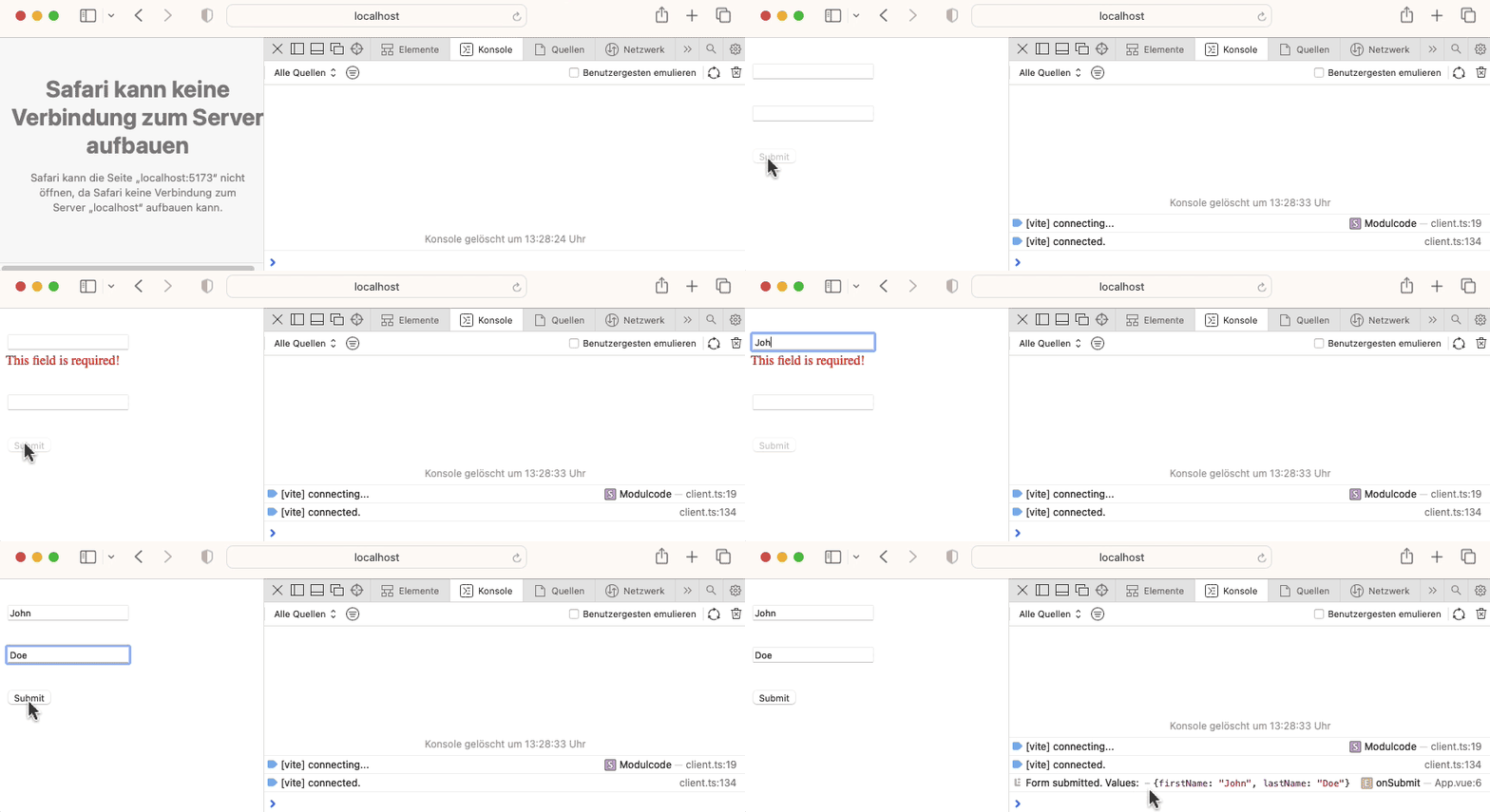
As you can see, the submit button is disabled, as long as both input fields are invalid.
Summary
When using VeeValidate 4 for form validation, the submit button can be disabled for invalid forms in different ways. In this guide, we used the VeeValidate useIsFormDirty() and useIsFormValid() helper functions to enable/disable the submit button. Since the helper functions expose the validation state to <Form /> child components, the submit button is implemented as a separate component, which in turn is used as child component of <Form />.


