avatarCassius

Free AI web copilot to create summaries, insights and extended knowledge, download it at here

1887

Abstract

e the command:</p><div id="7e84"><pre><span class="hljs-keyword">con</span>.<span class="hljs-keyword">close</span>()</pre></div><p id="83c9">Right now, we don’t need to do this, as we’re going to use the connection to create a table in the new database.</p><h2 id="01ea">Creating a new table</h2><p id="5f86">Firstly, let us review the datatypes available to us in SQLite.</p><ul><li><b>NULL</b></li><li><b>INTEGER —</b> the value is a signed integer</li><li><b>REAL — </b>the value is a floating point value</li><li><b>TEXT —</b> the value is a text string</li><li><b>BLOB — </b>the value is a blob of data, stored exactly as it was input</li></ul><p id="adae">In the example below, we create a simple two column table called <code>tab1</code> . One column is called “key” and the other column is called “number”.</p><div id="6969"><pre><span class="hljs-attr">c</span> = con.cursor()

<span class="hljs-attr">sql_create_tab1_table</span> = <span class="hljs-string">""" CREATE TABLE IF NOT EXISTS tab1 ( key integer PRIMARY KEY, number integer) """</span></pre></div><div id="454d"><pre>c.<span class="hljs-built_in">execute</span>(sql_create_tab1_table)</pre></div><h2 id="696a">Converting a Pandas DataFrame to SQL table</h2><p id="2373">Let’s generate some random data to insert into our table <code>tab1</code> .</p><div id="245b"><pre><span class="hljs-keyword">import</span> numpy <span class="hljs-keyword">as</span> np <span class="hljs-keyword">import</span> pandas <span class="hljs-keyword">as</span> pd

df = pd.DataFrame(np.random.randint(<span class="hljs-number">0</span>,<span class="hljs-number">100</span>,size=(<span class="hljs-number">100</span>, <span class="hljs-number">1</span>)), <span class="hljs-keyword">columns</span>=[ <span class="hljs-string">'number'</span>]) df.<span class="hljs-keyword">insert</span>(loc=<span class="hljs-number">0</span>, column=

Options

<span class="hljs-string">'key'</span>, <span class="hljs-keyword">value</span>=np.arange(len(df)))</pre></div><figure id="f03d"><img src="https://cdn-images-1.readmedium.com/v2/resize:fit:800/1*LFQUBI5bms9gcHZXS63wrA.png"><figcaption>Df output</figcaption></figure><p id="15a6">After generating some random numbers, we can insert this into <code>tab1</code> .</p><div id="3a31"><pre>df.to_sql(<span class="hljs-string">'tab1'</span>, con, <span class="hljs-attribute">if_exists</span>=<span class="hljs-string">'append'</span>, <span class="hljs-attribute">index</span>=<span class="hljs-literal">False</span>)</pre></div><figure id="96be"><img src="https://cdn-images-1.readmedium.com/v2/resize:fit:800/1*IBXrl0YWZGT5Tvv6mcUICw.png"><figcaption>Viewing our new data table from DBeaver</figcaption></figure><h2 id="78e8">Extracting data from SQLite back to Pandas dataframe</h2><p id="4881">Next, we show that we can extract data from <code>tab1</code> back into Python. Here we decided to take all the data where the key is greater than 95.</p><div id="6123"><pre>c.execute('<span class="hljs-keyword">select</span> * <span class="hljs-keyword">from</span> tab1 <span class="hljs-keyword">where</span> <span class="hljs-keyword">key</span> > <span class="hljs-number">95</span><span class="hljs-string">') result = pd.DataFrame(c.fetchall())</span></pre></div><p id="b477">The output back is a pandas dataframe shown below.</p><figure id="f5c3"><img src="https://cdn-images-1.readmedium.com/v2/resize:fit:800/1*Jpu49v89Zt32R0DmnVkdiQ.png"><figcaption></figcaption></figure><p id="e332">After you’re done you can close the cursor</p><div id="3f2a"><pre>c.<span class="hljs-keyword">close</span>()</pre></div><p id="b405">And also, close the connection.</p><div id="51f9"><pre><span class="hljs-keyword">con</span>.<span class="hljs-keyword">close</span>()</pre></div></article></body>

Using SQLite with Python

A short tutorial on using sqlite3 in Python

Photo by Lance Anderson on Unsplash

SQLite is a lightweight database that does not require a separate server. SQLite is very popular in web applications and requires no administration. I use SQLite to store structured data that I scrape from the internet, such as cryptocurrency prices.

In this short note, we will go over the key commands to use SQLite with Python.

We will look at:

  1. Creating a new database on disk
  2. Creating a new SQL table
  3. Inserting a Pandas dataframe into the new SQL table
  4. Extracting data from a SQL table back into Pandas dataframe

We will be using sqlite3.

import sqlite3

Creating a new database on disk

First let us create a new SQLite database on disk. This will create a database for you in your current working directory.

con = sqlite3.connect('newDatabase.db')

If the filename is :memory: then it will create a new database that resides in RAM instead of on disk.

con = sqlite3.connect(':memory:')

Now we have opened up a new connection.

If you want to close your connection, you can use the command:

con.close()

Right now, we don’t need to do this, as we’re going to use the connection to create a table in the new database.

Creating a new table

Firstly, let us review the datatypes available to us in SQLite.

  • NULL
  • INTEGER — the value is a signed integer
  • REAL — the value is a floating point value
  • TEXT — the value is a text string
  • BLOB — the value is a blob of data, stored exactly as it was input

In the example below, we create a simple two column table called tab1 . One column is called “key” and the other column is called “number”.

c = con.cursor()

sql_create_tab1_table = """ CREATE TABLE IF NOT EXISTS tab1 (
key integer PRIMARY KEY,
number integer)
"""
c.execute(sql_create_tab1_table)

Converting a Pandas DataFrame to SQL table

Let’s generate some random data to insert into our table tab1 .

import numpy as np
import pandas as pd

df = pd.DataFrame(np.random.randint(0,100,size=(100, 1)), columns=[ 'number'])
df.insert(loc=0, column='key', value=np.arange(len(df)))
Df output

After generating some random numbers, we can insert this into tab1 .

df.to_sql('tab1', con, if_exists='append', index=False)
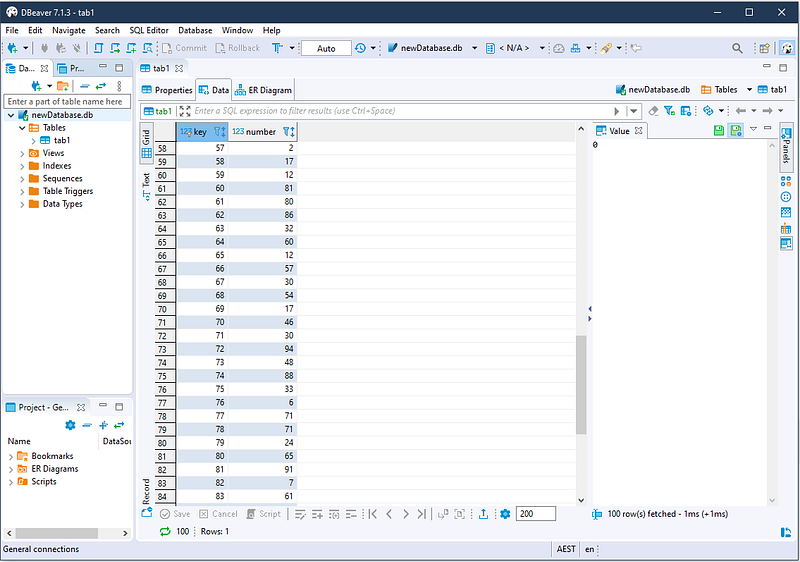
Viewing our new data table from DBeaver

Extracting data from SQLite back to Pandas dataframe

Next, we show that we can extract data from tab1 back into Python. Here we decided to take all the data where the key is greater than 95.

c.execute('select * from tab1 where key > 95')
result = pd.DataFrame(c.fetchall())

The output back is a pandas dataframe shown below.

After you’re done you can close the cursor

c.close()

And also, close the connection.

con.close()
Python
Programming
Database
Data Science
Sqlite
Recommended from ReadMedium