avatarLiu Zuo Lin

Free AI web copilot to create summaries, insights and extended knowledge, download it at here

4053

Abstract

for 1 second</span> sleep(<span class="hljs-number">1</span>)</pre></div><p id="a291">Here, I’ve added a <code>sleep(1)</code> to allow to page to load fully.</p><h1 id="3c3c">3) Opening the inspect panel in the site</h1><p id="046d">We can manually see and find the button that we need to click on, but Python doesn’t know how to do that.</p><p id="01fc">We need to be the ones telling Python how to find our button. And we can do this using the inspect panel.</p><p id="f82e">Open <a href="https://zlliu246.github.io/test-site/">https://zlliu246.github.io/test-site/</a> in another browser. Right click. Then click on “Inspect”. This will open the inspect panel. You should see something like this:</p><figure id="907a"><img src="https://cdn-images-1.readmedium.com/v2/resize:fit:800/1*8DXIQei3pg-WG8XkvVZMaA.png"><figcaption></figcaption></figure><p id="4f99">The funny thing on the right is the inspect panel. Note that yours might be at the bottom, or on the left.</p><h1 id="df34">4) Ensure “Elements” is selected in your inspect panel</h1><figure id="338d"><img src="https://cdn-images-1.readmedium.com/v2/resize:fit:800/1*A9HUxwhQPhwOCyXX5HdSUA.png"><figcaption></figcaption></figure><p id="48cc">The inspect panel has many subpanels that does different magical things. But here, we’re only concerned with the “Elements” tab, which is usually the first tab and selected by default.</p><p id="bba0">The “Elements” tab shows us the raw HTML code that your browser is displaying. Whatever your browser is displaying is actually the HTML code that is present in the “Elements” tab.</p><figure id="42fd"><img src="https://cdn-images-1.readmedium.com/v2/resize:fit:800/1*b7t0082unBe8Qk3F0X0icQ.png"><figcaption></figcaption></figure><p id="e638">^ the stuff circled in red is the raw HTML code that represents your site</p><h1 id="c8f5">5) Finding our desired button</h1><figure id="cc4f"><img src="https://cdn-images-1.readmedium.com/v2/resize:fit:800/1*uYC_MI78TpP-S_WbwWA_hA.png"><figcaption></figcaption></figure><p id="d624">Click on the arrow-like thingy on the top-left of the inspect panel. This will highlight the raw HTML code when our mouse hovers over the equivalent element on the site.</p><p id="2f78">Next, hover your mouse over the button that states “Click Me”. Your inspect panel should look like this:</p><figure id="f0ad"><img src="https://cdn-images-1.readmedium.com/v2/resize:fit:800/1*JqY_QeIYmPMMvzZMNfWVqA.png"><figcaption></figcaption></figure><p id="e118">Because you hover over the button, the raw HTML code that represents that button should be highlighted like in the above picture.</p><h1 id="13c7">6) Identifying our button</h1><p id="3a18">We know how to identify our button because we can see it. But Python doesn’t. So we need to tell Python how exactly to identify and find this exact button.</p><ul><li>If the button HTML has an id, use the id</li><li>If not, we can probably use the class name</li><li>If it has neither id not classname, we have to find a way around this eg. XPATH, identifying parent elements and then getting this current element etc (not gonna go into detail here)</li></ul><p id="da6f">In our case, out HTML code has <code>class="my-button"</code> which Python can use to identify our button exactly.</p><h1 id="91e9">7) Telling Python to identify our button</h1><div id="1515"><pre><span class="hljs-keyword">from</span> time <span class="hljs-keyword">import</span> sleep <span class="hljs-keyword">from</span> selenium <span class="hljs-keyword">import</span> webdriver <span class="hljs-keyword">from</span> selenium.webdriver.common.by <span class="hljs-keyword">import</span> By <span class="hljs-keyword">from</span> selenium.webdriver.chrome.service <span class="hljs-keyword">import</span> Service <span class="hljs-keyword">from</span> webdriver_manager.chrome <span class="hljs-keyword">import</span> ChromeDriverManager

<span class="hljs-comment"># opens a Chrome</span> driver = webdriver.Chrome(service=Service(ChromeDriverManager().install()))

<span class="hljs-comment"># goe

Options

s to the desired site</span> driver.get(<span class="hljs-string">'https://zlliu246.github.io/test-site'</span>)

<span class="hljs-comment"># does nothing for 1 second</span> sleep(<span class="hljs-number">1</span>)

<span class="hljs-comment"># finding our desired button by class_name</span> button = driver.find_element(By.CLASS_NAME, <span class="hljs-string">'my-button'</span>)</pre></div><p id="be4e">The last line of code here tells Python to search through the HTML code to look for our button. If you run this code, no error should appear.</p><h1 id="f66d">8) Telling Python to click our button 5 times</h1><p id="cca9">To click our button, we can simply use <code>button.click()</code>.</p><div id="2e61"><pre><span class="hljs-keyword">from</span> time <span class="hljs-keyword">import</span> sleep <span class="hljs-keyword">from</span> selenium <span class="hljs-keyword">import</span> webdriver <span class="hljs-keyword">from</span> selenium.webdriver.common.by <span class="hljs-keyword">import</span> By <span class="hljs-keyword">from</span> selenium.webdriver.chrome.service <span class="hljs-keyword">import</span> Service <span class="hljs-keyword">from</span> webdriver_manager.chrome <span class="hljs-keyword">import</span> ChromeDriverManager

<span class="hljs-comment"># opens a Chrome</span> driver = webdriver.Chrome(service=Service(ChromeDriverManager().install()))

<span class="hljs-comment"># goes to the desired site</span> driver.get(<span class="hljs-string">'https://zlliu246.github.io/test-site'</span>)

<span class="hljs-comment"># does nothing for 1 second</span> sleep(<span class="hljs-number">1</span>)

<span class="hljs-comment"># finding our desired button by class_name</span> button = driver.find_element(By.CLASS_NAME, <span class="hljs-string">'my-button'</span>)

<span class="hljs-comment"># clicks our button 5 times (1s delay in between)</span> <span class="hljs-keyword">for</span> i <span class="hljs-keyword">in</span> <span class="hljs-built_in">range</span>(<span class="hljs-number">5</span>): button.click() sleep(<span class="hljs-number">1</span>)

<span class="hljs-comment"># does nothing for 5 more seconds</span> sleep(<span class="hljs-number">5</span>)

<span class="hljs-comment"># safely quit our driver</span> driver.quit()</pre></div><p id="379e">We can write a simple for loop that repeats this action 5 times, before adding <code>driver.quit()</code> at the very end.</p><h1 id="0520">Conclusion</h1><p id="ecb8">And there we have it, a step-by-step guide on how to automate clicking a button 5 times. The harder and more complicated part is usually in finding the button based on either id/class/etc, but once you do that a couple of times, you’ll probably get the hang of it.</p><h1 id="e33f">Some Final words</h1><p id="ca05"><i>If this story was helpful and you wish to show a little support, you could:</i></p><ol><li><i>Clap 50 times for this story</i></li><li><i>Leave a comment telling me what you think</i></li><li><i>Highlight the parts in this story that resonate with you</i></li></ol><p id="5dc2"><i>These actions really really help me out, and are much appreciated!</i></p><p id="9652"><b>Ebooks I’ve Written: <a href="https://zlliu.co/books">https://zlliu.co/ebooks</a></b></p><p id="d5d9"><b>LinkedIn: <a href="https://www.linkedin.com/in/zlliu/">https://www.linkedin.com/in/zlliu/</a></b></p><div id="f9be" class="link-block"> <a href="https://zlliu.medium.com/subscribe"> <div> <div> <h2>Get an email whenever Liu Zuo Lin publishes.</h2> <div><h3>Get an email whenever Liu Zuo Lin publishes. By signing up, you will create a Medium account if you don't already have…</h3></div> <div><p>zlliu.medium.com</p></div> </div> <div> <div style="background-image: url(https://miro.readmedium.com/v2/resize:fit:320/0*YrubIh8vKDPqaPON)"></div> </div> </div> </a> </div></article></body>

Using Python To Automate Button Clicks (on a website)

# A Super Step-By-Step Tutorial Using Selenium

Let’s say there’s a website. And on that website there’s a button. And we want to click on this button multiple times for some reason.

And we want to automate this clicking using Python rather than manually clicking it.

The website

I’ve put together a simple (ugly) site with a button. When you click the button, the big number increases by 1.

Link: https://zlliu246.github.io/test-site/

A screenshot of the site

Our Task

Write a Python script to click on the button 5 times

Introducing Selenium

We will be using selenium, which is an external Python library that allows us to do web automation eg. automate clicks.

We first need to install selenium and webdriver_manager.

pip install selenium webdriver_manager

Selenium will automatically open your browser, which is why is needs a driver for your browser. webdriver_manager is another external library that automatically installs this for us so that we don’t have to deal with the headache of manually installing the driver.

1) Testing your installation

from time import sleep
from selenium import webdriver
from selenium.webdriver.common.by import By
from selenium.webdriver.chrome.service import Service
from webdriver_manager.chrome import ChromeDriverManager

driver = webdriver.Chrome(service=Service(ChromeDriverManager().install()))

Copy, paste and run the above code after you’ve installed both selenium and webdriver_manager. Note that I’m assuming you already have Google Chrome installed on your computer.

When you run this, a new instance of Google Chrome (blank) should appear for a short while before disappearing. If this happens, you are ready to move on to the next step.

2) Going to the site

Link: https://zlliu246.github.io/test-site/

We need to tell Python to go to this site so that we can actually start doing stuff. We can do this using the driver.get method.

from time import sleep
from selenium import webdriver
from selenium.webdriver.common.by import By
from selenium.webdriver.chrome.service import Service
from webdriver_manager.chrome import ChromeDriverManager

# opens a Chrome
driver = webdriver.Chrome(service=Service(ChromeDriverManager().install()))

# goes to the desired site
driver.get('https://zlliu246.github.io/test-site')

# does nothing for 1 second
sleep(1)

Here, I’ve added a sleep(1) to allow to page to load fully.

3) Opening the inspect panel in the site

We can manually see and find the button that we need to click on, but Python doesn’t know how to do that.

We need to be the ones telling Python how to find our button. And we can do this using the inspect panel.

Open https://zlliu246.github.io/test-site/ in another browser. Right click. Then click on “Inspect”. This will open the inspect panel. You should see something like this:
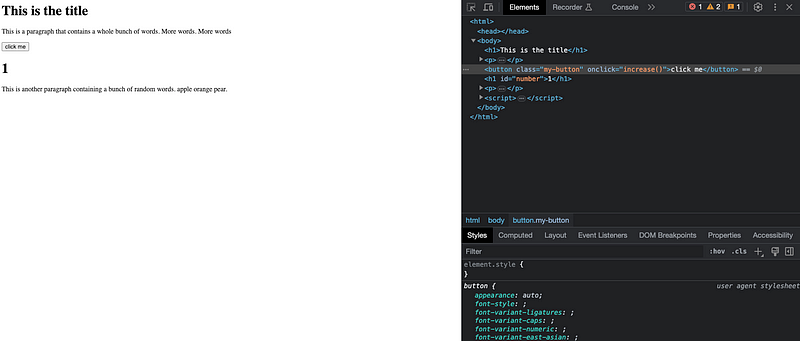
The funny thing on the right is the inspect panel. Note that yours might be at the bottom, or on the left.

4) Ensure “Elements” is selected in your inspect panel

The inspect panel has many subpanels that does different magical things. But here, we’re only concerned with the “Elements” tab, which is usually the first tab and selected by default.

The “Elements” tab shows us the raw HTML code that your browser is displaying. Whatever your browser is displaying is actually the HTML code that is present in the “Elements” tab.

^ the stuff circled in red is the raw HTML code that represents your site

5) Finding our desired button
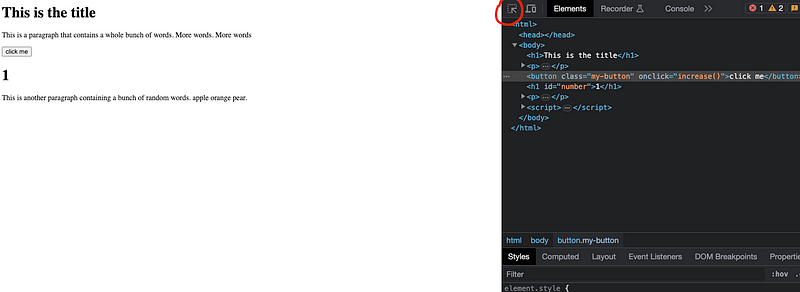
Click on the arrow-like thingy on the top-left of the inspect panel. This will highlight the raw HTML code when our mouse hovers over the equivalent element on the site.

Next, hover your mouse over the button that states “Click Me”. Your inspect panel should look like this:
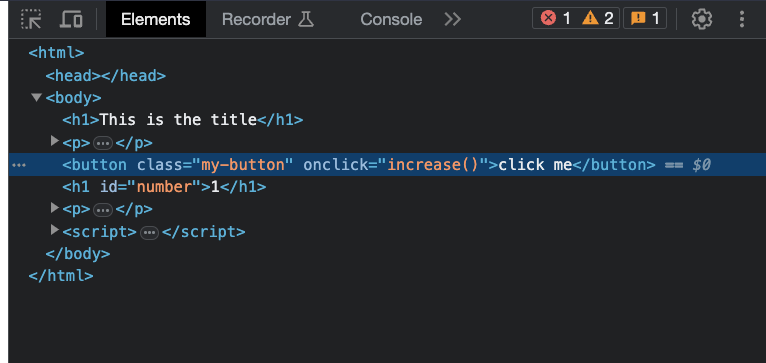
Because you hover over the button, the raw HTML code that represents that button should be highlighted like in the above picture.

6) Identifying our button

We know how to identify our button because we can see it. But Python doesn’t. So we need to tell Python how exactly to identify and find this exact button.

  • If the button HTML has an id, use the id
  • If not, we can probably use the class name
  • If it has neither id not classname, we have to find a way around this eg. XPATH, identifying parent elements and then getting this current element etc (not gonna go into detail here)

In our case, out HTML code has class="my-button" which Python can use to identify our button exactly.

7) Telling Python to identify our button

from time import sleep
from selenium import webdriver
from selenium.webdriver.common.by import By
from selenium.webdriver.chrome.service import Service
from webdriver_manager.chrome import ChromeDriverManager

# opens a Chrome
driver = webdriver.Chrome(service=Service(ChromeDriverManager().install()))

# goes to the desired site
driver.get('https://zlliu246.github.io/test-site')

# does nothing for 1 second
sleep(1)

# finding our desired button by class_name
button = driver.find_element(By.CLASS_NAME, 'my-button')

The last line of code here tells Python to search through the HTML code to look for our button. If you run this code, no error should appear.

8) Telling Python to click our button 5 times

To click our button, we can simply use button.click().

from time import sleep
from selenium import webdriver
from selenium.webdriver.common.by import By
from selenium.webdriver.chrome.service import Service
from webdriver_manager.chrome import ChromeDriverManager

# opens a Chrome
driver = webdriver.Chrome(service=Service(ChromeDriverManager().install()))

# goes to the desired site
driver.get('https://zlliu246.github.io/test-site')

# does nothing for 1 second
sleep(1)

# finding our desired button by class_name
button = driver.find_element(By.CLASS_NAME, 'my-button')

# clicks our button 5 times (1s delay in between)
for i in range(5):
    button.click()
    sleep(1)

# does nothing for 5 more seconds
sleep(5)

# safely quit our driver
driver.quit()

We can write a simple for loop that repeats this action 5 times, before adding driver.quit() at the very end.

Conclusion

And there we have it, a step-by-step guide on how to automate clicking a button 5 times. The harder and more complicated part is usually in finding the button based on either id/class/etc, but once you do that a couple of times, you’ll probably get the hang of it.

Some Final words

If this story was helpful and you wish to show a little support, you could:

  1. Clap 50 times for this story
  2. Leave a comment telling me what you think
  3. Highlight the parts in this story that resonate with you

These actions really really help me out, and are much appreciated!

Ebooks I’ve Written: https://zlliu.co/ebooks

LinkedIn: https://www.linkedin.com/in/zlliu/

Python
Automation
Programming
Selenium
Recommended from ReadMedium