
Using Mind Maps with Obsidian

There is a bit of serendipity at play in the universe around this article. When I added this to my list of four possible articles for Obsidian, I simply wanted to explore a bit more about how to work with mind maps in and out of Obsidian. Perhaps because I put that thought into the universe, the universe gave me some personal experiences with mind maps this past week.
I sat down with my dental hygienist and she started chatting as I sat there with my mouth wide open. She was updating me on her son who was running for student council. He had to give a speech — something the 4th grader had never done before. To help him, she had him make a “bubble diagram”. After a little discussion I realized she was talking about a mind map. She told him to just start making bubbles with things he wanted to talk about on his page and put other related things in other circles connected to those circles.
Then, I pulled up the Bookworm Podcast hosted by Joe Buhlig and Mike Schmitz. They just happened to discuss the book Mind Map Mastery by Tony Buzan in their latest episode. I loved hearing their thoughts on mind maps as well as on the book.
So, with all that serendipity in the universe, it seemed like this was the right topic to be writing about — so let’s dive in to learn more about mind maps — and particularly about how to use them with Obsidian.
What is a Mind Map?
I learned from the Bookworm episode that Tony Buzan — who at least credits himself with inventing mind maps — actually owns the trademark to the phrase mind map in three countries — Germany, U.S. and U.K. Per the Bookworm episode, Buzan has a very, very specific set of rules to define a mind map.
I rarely — and possibly never — follow his rules exactly.
So, I’m going to give you my definition of a mind map with the understanding that what I’m talking about might more appropriately be called a concept map, a visual organizer, a spider diagram, or a bubble diagram.
A mind map is a visual representation of an idea that uses nodes/points and lines to connect ideas together. The mind map primarily uses text inside of a node/point connected by lines. You can use color, images, line style, line weight, symbols, and other things to visualize your idea.
Why should I use a Mind Map?
I’m a huge advocate of lists — I have lists of lists.
A mind map adds an extra dimension to lists.
When I first start a list I often start it as a mind map because in a mind map the organizing happens organically — and it allows me to connect things together across the sub-areas of the list in a way that feels freer than when I am writing a list in a document. Lists start from A and go to Z. Mind maps start at A and go to Z but in the end you might jump around from M to C to Q.
They are two approaches that end at the same goal.
For example, I started this article as that mind map pictured above. Sometimes I start articles as outlines. Obviously, writing an article on mind maps must start as a mind map. That said, you’ll see some of the specific nodes above as headers in this article — just like you might see them as top level headings in an outline. But you might also notice that there are whole sections that didn’t make it. In an outline, I might have pushed through and just kept writing where in a mind map I could easily see this would get far longer than I wanted it to so I framed the idea differently.
Mind maps are a perfect tool for when you aren’t sure of the details or organization of something up front. And, with most digital mind mapping tools, you don’t actually have to choose the “correct” format first as they will let you switch between mind map and list — along with a few other formats — as you work.
I have found over the years that mind maps work best for me in two broad use cases:
- Generating new ideas
- Organizing information
What are some use cases for mind maps?
So, what do these things look like in practice?
Generating Ideas
As I’ve already shown, you can develop the structure — both basic and very complex — of a writing or other creative project — with a mind map.
I love mind maps for any sort of project work. When I am going to start a new project I almost always start with a mind map of ideas I have about what I know about the project and what I need to find out about the project.
I also think mind maps are perfect for planning activities when they aren’t “linear”. For example, my annual planning I do as a mind map first where I write out what I know will happen in that year and then brainstorm things I want to do in the year. I then take what I generate in the mind map and can place it on the calendar.
Organizing Information

When I am learning something new — particularly through reading — I very often start with a mind map. I love the Blank Sheet Method from Farnam Street. If I am starting a book on a topic I’m actively trying to learn, I’ll use a version of this method for my learning sessions. Each starts with a mind map about what I know about the topic and then as I’m reading, watching videos, or consuming other educational content, I’ll add to my mind map in a different color.
As an educator, I’ve found mind maps to be an excellent tool to give students to fill in during a lecture. I can zoom in and out on the mind map as we navigate through a topic and show them how things are related in my mind. I often give them an assignment to create their own mind map of the topic using active recall to start the next class session. It’s a great way to help students thinking critically about what they know about a topic.
I love how Vicky Zhao’s Zettelkasten framework uses a compass to help you connect ideas in your Zettelkasten. The compass metaphor helps you build a mind map of ideas in your Zettelkasten. And, after all, your Obsidian graph is really just a mind map of all of your notes in three dimensions (that idea was in the podcast Bookworm podcast and it resonated so much with me as I thought of the compass idea from Zhao)
Three Ways to Use Mind Maps in Obsidian
There are really three ways to use mind maps in Obsidian.
- Create a mind map directly in your vault with a dedicated Mind Map plug in. We’ll look at my two favorites below.
- Create a mind map directly in your vault with the Excalidraw plug in.
- Create a mind map with an external tool. Link to it and/or import it into your vault.
Each has pros and cons which I’ll do my best to summarize.
Create a mind map directly in your vault
There are an array of plug ins you can use to create a mind map directly in your vault. My favorites are Enhancing Mind Map by Mark and Mind Map by James Lynch. Both are available as Community Plug ins.
Enhancing Mind Map
With Enhancing Mind Map, you create a new mind map using the Command Palette (Ctrl-P on Windows/Command-P on Mac) and selecting one of the options for Enhancing Mind Map.
When you do that, a new untitled window will open that looks like this:

You add nodes using the tab key or a small on screen menu that shows a plus sign where you can add.
Additional menu items also appear that let you do things like shift to a hand drawn mode.
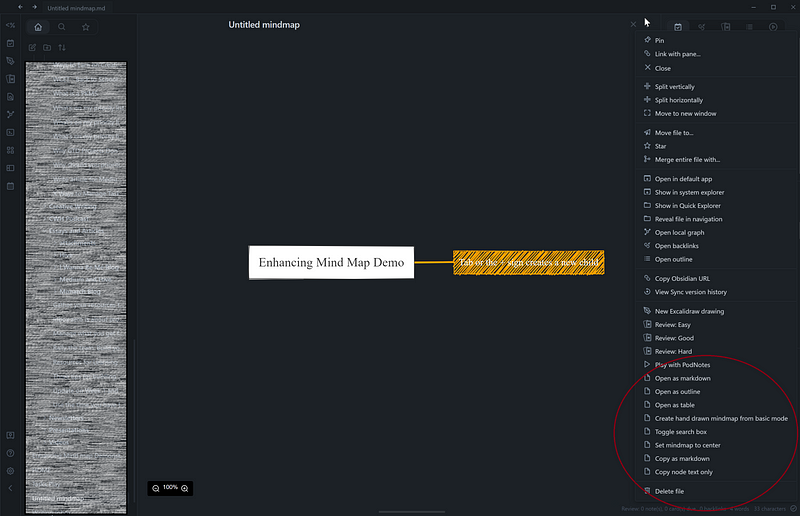
You can also open this file as markdown, outline, or a table so even within Obsidian you have some flexibility as to how you work with the resulting product of your mind map.
Mind maps made with Enhancing Mind Map can also become literal maps of content as the nodes can contain links to pages. At one time, I was fiddling around with implementing Johnny Decimal (which still hasn’t clicked for me) and I made a huge mind map of my file structure using Enhancing Mind Map (see image below). As you can see from the image a few of the nodes are actually links.

Mind Map by James Lynch
Mind Map by James Lynch works a bit differently. You start with a list — using headings to denote node connections and then you can see the note as a mind map.
To do that, just open the command palette and select Mind Map.
A depiction of your current note will open in a separate pane. This was the mind map for the note containing this article at exactly this point:

The screen capture is generated by clicking the three dot menu in the pane showing the mind map and selecting the screen shot option.
It’s also cool that as your primary note is edited, the mind map will continue to update in its pane. Additionally, links in the mind map are functional so you can also use this as an instant visual navigational tool — great for long, highly linked documents.
WHICH SHOULD I CHOOSE?
I actually keep both of these installed in my vault because they serve two complimentary purposes. Mind Map by Lynch is perfect if I started writing in text first and now want a visualization of my idea and Enhancing Mind Map is perfect for when I want to start with a mind map and then translate my work to other formats.
Create a mind map with Excalidraw
Excalidraw is one of my favorite plug ins. I use it for so many purposes. One of my favorites is to make mind maps. Excalidraw isn’t purpose built for mind mapping so it’s a little more work but I love the way Excalidraw integrates with my graph so that small amount of added work is sometimes worth it — Especially if I really want to build out a mind map that uses loads of images. With Excalidraw, I also get the benefit of hand-drawing (using my iPad and Apple Pencil) with all the immediate benefits of digital notes.
While it’s nowhere near done yet, I’ve been building a mind map about Acceptance and Commitment Therapy (ACT) as I’ve been doing more reading on it.

This is a copy of my Map of Content in progress for ACT. The mind map sits at the top of the page — and since it is Excalidraw I can edit it in Obsidian as I work on my graph and I can add links to both pages in my vault and to external resources directly to the mind map. If you also notice those large black boxes in the mind map — those are images copied from another source directly into Excalidraw. Excalidraw is the most flexible tool I can use to create mind maps that work exceedingly well with Obsidian.
Excalidraw offers me the convenience of a visualization tool that integrates fully into my vault — and it’s available at no extra cost, although donating to Zsolt is a great idea which you can do easily using the “Buy Me A Coffee” link on the Community Plug in page for Excalidraw.
Create a mind map with an external tool and link to it
Outside of Obsidian specific tools, there are a wealth of tools that you can use to create mind maps. I believe in using the best tool for the job so in one note I might have:
- the mind map I used to create the project proposal — these are often done in Enhanced Mind Map
- a link to a Miro board for interactive work during the project — sometimes these contain mind maps
- an image of a mind map from a book I consulted while I was working on the project.
My personal tool of choice for dedicated mind maps is xMind. It’s cross platform so it works on my Windows laptop, my iPad, and my Android phone. xMind also has a presentation mode which I’ve used in client work as well. The benefit of many mind maps apps (xMind being one of them) is that you can export the contents of your mind map as markdown so you can also bring it straight into Obsidian and begin working with it. I’m getting ready to launch a podcast called “Book Notes Pod” where I’ll talk about a book I’ve read.

This is an in progress book note from The Seeker and the Monk by Sophfronia Scott that I might cover sometime on the show.
I like a dedicated mind-mapping tool for this purpose for two reasons:
- I’m often making book notes off of physical books I checked out from the library. Being able to easily edit this note from my phone or my iPad means I don’t have to leave the reading context to take notes on a keyboard. I can easily edit these notes with one hand and some voice to text.
- While I’m reading, I don’t have to break my flow of reading by trying to figure out how to align pieces and parts of the mind map. The app will auto-fit everything into the diagram and then I can fuss with flow elements later.
Conclusion
Regardless of what tool or app you choose — I hope that you’ll give mind mapping a try. There was a wonderful idea in a talk by Priya Mohan during Nick Milo’s fall 2022 Linking Your Thinking conference. Priya built a “Mental Gym” in her vault — a page with a variety of thinking tools on it. I think mind maps are an excellent thinking tool to add to your own mental gym.
I’d love to know how you use a mind map. Please add a comment and let me know your favorite tool or use for mind maps.


