avatarJamie Burns

Free AI web copilot to create summaries, insights and extended knowledge, download it at here

2435

Abstract

, but it is great because not only does it reduce the number of braces in the file, but it also eliminates the wasted horizontal space to the left of the class definition, since it no longer needs to be indented. Essentially you now can fit more code on a single line before you have to either wrap the line, or scroll horizontally to see it.</p><h2 id="de39">What limitations are there for File-Scoped Namespaces?</h2><p id="3df4">The main limitation we have when using file-scoped namespace is that a file can only contain a single namespace declaration. This makes sense, because by definition, the file-scoped namespace is declaring the namespace for the whole file.</p><p id="f516">For example, using traditional namespace declarations, it’s possible to declare multiple namespaces in the same file:</p> <figure id="bb44"> <div> <div>

            <iframe class="gist-iframe" src="/gist/jamie-burns/177c397013fe06c7c50a5ff660e985c7.js" allowfullscreen="" frameborder="0" height="undefined" width="undefined">
          </div>
        </div>
    </figure></iframe></div></div></figure><p id="bd51">This is not possible using file-scoped namespaces. If you try, you get an error</p><figure id="0924"><img src="https://cdn-images-1.readmedium.com/v2/resize:fit:800/1*V16PeUYIuUUUJC94SXaAqg.png"><figcaption>Error shown on the second namespace, with the message ‘Source file can only contain one file-scoped namespace declaration’.</figcaption></figure><p id="9da7">It’s also not possible to mix file-scoped namespaces and traditional namespaces in the same file:</p><figure id="b5b2"><img src="https://cdn-images-1.readmedium.com/v2/resize:fit:800/1*X1bT9yi5Zo89kkt4FC4FuQ.png"><figcaption>Error shown on the second namespace, with the message ‘Source file can not contain both file-scoped and normal namespace declarations’.</figcaption></figure><p id="7d75">This shouldn’t be a major issue though — it’s common practice to create a new file for each class you’re writing, so in this case, we’d just move the second class out into a new file.</p><h2 id="dc6f">How do I migrate from traditional namespaces to file-scoped namespaces?</h2><p id="0472">If you would like to use file-scoped namespaces in your existing codebase, you might think it would be a tedious task to manually go through and update everything.</p><p id="170f">You might even be tempted to run a <a

Options

href="https://jamie-burns.medium.com/using-regular-expressions-within-visual-studio-2022-find-replace-cf9a4398c50b">Regex Find and Replace</a> to do it for you.</p><p id="eb14">But if you’re using <a href="https://visualstudio.microsoft.com/vs/">Visual Studio 2022</a>, there is a handy refactoring tool that can do this all for you.</p><p id="8317">Firstly, you need to add a .editorconfig file to your project to indicate that you want to use file-scoped namespaces by default.</p><p id="3a0f">Create a new file in your project root called .editorconfig and add this code style to the contents:</p> <figure id="4933"> <div> <div>

            <iframe class="gist-iframe" src="/gist/jamie-burns/214229555736b219081674e1004deecd.js" allowfullscreen="" frameborder="0" height="undefined" width="undefined">
          </div>
        </div>
    </figure></iframe></div></div></figure><p id="8c70">Now, go to one of your traditional namespace declarations, right-click it and select ‘Quick Actions and Refactorings…’. You will see a list of all refactoring actions available, and one of them will be ‘Convert to file-scoped namespace’. Expand that, and you’ll see a preview of the changes to be made:</p><figure id="1a46"><img src="https://cdn-images-1.readmedium.com/v2/resize:fit:800/1*84ftOq44-siqRG89u6bZzA.png"><figcaption>The refactoring options for converting to a file-scoped namespace</figcaption></figure><p id="3f55">At the bottom of this new window you have some options of where to apply this: Document, Project or Solution. Choosing any of these options opens up another window with the full list of changes that’s going to be made:</p><figure id="283e"><img src="https://cdn-images-1.readmedium.com/v2/resize:fit:800/1*RsZCKITdBRGtbUdowngCMw.png"><figcaption>The proposed changes to be made in the refactoring</figcaption></figure><p id="131f">If you’re happy with these changes, just click ‘Apply’ and everything will get updated.</p><h2 id="7e0d">Summary</h2><p id="a7d7">File-scoped namespaces can reduce wasted whitespace within your files, by removing one level of indentation that’s not really needed.</p><p id="999f">It’s also very easy to apply this change across whole projects or solutions using the refactoring tools within Visual Studio 2022, for when you migrate up to .NET 6 and want to take advantage of this new feature.</p></article></body>

Using File-Scoped Namespaces in .NET 6

A subtle change which can really help with the clarity of your code

Photo by Johannes Plenio on Unsplash

With the release of C# 10 and .NET 6, there have been a few new features that are simple but incredibly useful.

My favourite so far is File-Scoped Namespaces, which we’ll go through in this article.

What are File-Scoped Namespaces?

As its name implies, a file-scoped namespace is a namespace that has the whole file as its scope.

Let’s look at an example.

A traditional way to define a class in a namespace is something like this:

Here we can see that we’re defining the Reader class within the Logic.IO namespace.

However, in .NET 6/C# 10 we can update this to use a file-scoped namespace:

Notice that instead of opening a new set of braces for the namespace, and including the class definition inside it, the namespace is just a declaration at the top of the file.

Why are File-Scoped Namespaces good?

This is a really subtle change, but it is great because not only does it reduce the number of braces in the file, but it also eliminates the wasted horizontal space to the left of the class definition, since it no longer needs to be indented. Essentially you now can fit more code on a single line before you have to either wrap the line, or scroll horizontally to see it.

What limitations are there for File-Scoped Namespaces?

The main limitation we have when using file-scoped namespace is that a file can only contain a single namespace declaration. This makes sense, because by definition, the file-scoped namespace is declaring the namespace for the whole file.

For example, using traditional namespace declarations, it’s possible to declare multiple namespaces in the same file:

This is not possible using file-scoped namespaces. If you try, you get an error
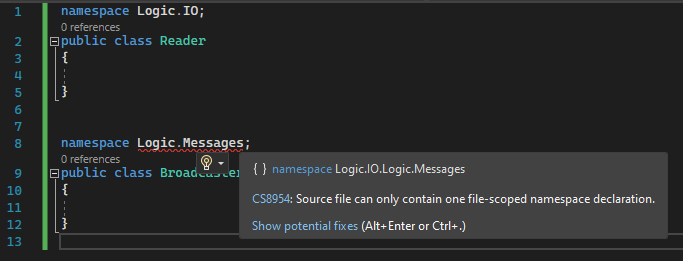
Error shown on the second namespace, with the message ‘Source file can only contain one file-scoped namespace declaration’.

It’s also not possible to mix file-scoped namespaces and traditional namespaces in the same file:
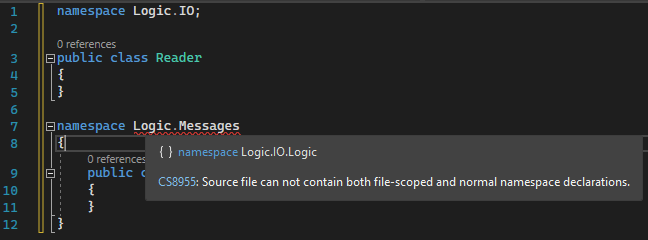
Error shown on the second namespace, with the message ‘Source file can not contain both file-scoped and normal namespace declarations’.

This shouldn’t be a major issue though — it’s common practice to create a new file for each class you’re writing, so in this case, we’d just move the second class out into a new file.

How do I migrate from traditional namespaces to file-scoped namespaces?

If you would like to use file-scoped namespaces in your existing codebase, you might think it would be a tedious task to manually go through and update everything.

You might even be tempted to run a Regex Find and Replace to do it for you.

But if you’re using Visual Studio 2022, there is a handy refactoring tool that can do this all for you.

Firstly, you need to add a .editorconfig file to your project to indicate that you want to use file-scoped namespaces by default.

Create a new file in your project root called .editorconfig and add this code style to the contents:

Now, go to one of your traditional namespace declarations, right-click it and select ‘Quick Actions and Refactorings…’. You will see a list of all refactoring actions available, and one of them will be ‘Convert to file-scoped namespace’. Expand that, and you’ll see a preview of the changes to be made:
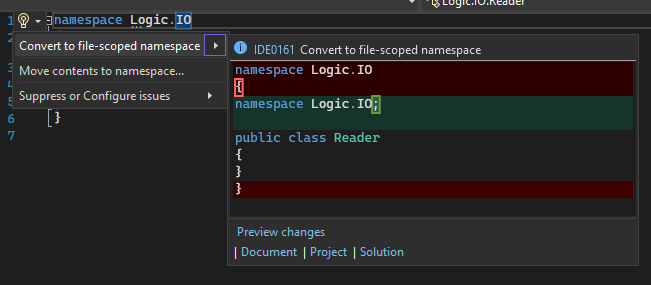
The refactoring options for converting to a file-scoped namespace

At the bottom of this new window you have some options of where to apply this: Document, Project or Solution. Choosing any of these options opens up another window with the full list of changes that’s going to be made:
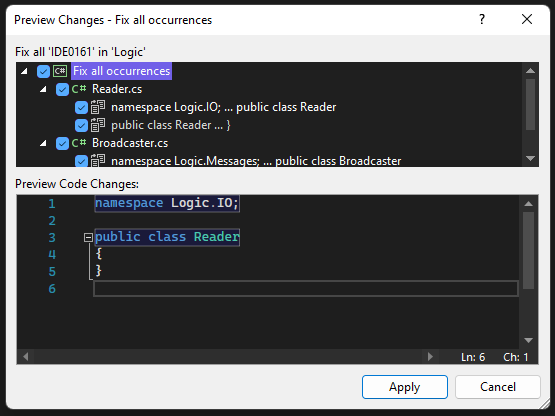
The proposed changes to be made in the refactoring

If you’re happy with these changes, just click ‘Apply’ and everything will get updated.

Summary

File-scoped namespaces can reduce wasted whitespace within your files, by removing one level of indentation that’s not really needed.

It’s also very easy to apply this change across whole projects or solutions using the refactoring tools within Visual Studio 2022, for when you migrate up to .NET 6 and want to take advantage of this new feature.

Csharp
Programming
Dotnet
Refactoring
Namespaces
Recommended from ReadMedium