
Use Your Locally Stored Files To Get Response From GPT like ChatGPT | Python
In this article, I’ll show you how you can use your locally stored text files to get response using GPT-3. You can ask questions and get response like ChatGPT.
On technology front, we will be using:
- OpenAI
- Langchain
- Python
Input files
You can take bunch of text files and store them in a directory on your local machine. I’ve grabbed input data from https://essaypro.com/blog/essay-samples and created 5 text files. My files are all about ‘Cause And Effect Of Homelessness’ and are placed in a directory named Store.
Import Required Packages
As we are using Python, let’s go ahead and import the required packages.
from langchain.embeddings.openai import OpenAIEmbeddings
from langchain.vectorstores import Chroma
from langchain.text_splitter import CharacterTextSplitter
from langchain import OpenAI, VectorDBQA
from langchain.document_loaders import DirectoryLoader
import magic
import os
import nltk
If you do not have above packages installed on your machine, then please go ahead and install these packages before importing.
nltk.download(‘averaged_perceptron_tagger’)
pip install langchain
pip install openai
pip install chromadb
pip install unstructured
pip install beautifulsoup4
pip install python-magic-bin
Once required packages are imported, we need to get OpenAI API key.
Get OpenAI API Key
To get the OpenAI key, you need to go to https://openai.com/, login and then grab the keys using highlighted way:
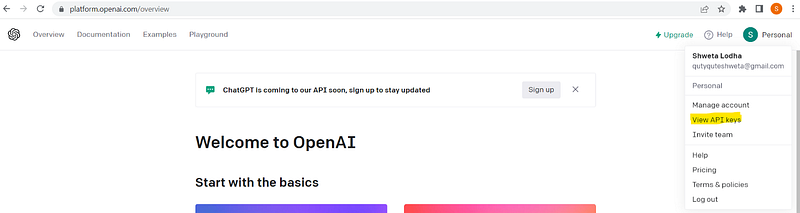
Once you got the key, set that inside an environment variable(I’m using Windows).
os.environ["OPENAI_API_KEY"] = "YOUR_KEY"Load Input Data
In order to load our text files, we need to instantiate DirectoryLoader and that can be done as shown below:
loader = DirectoryLoader(‘Store’, glob=’**/*.txt’)
docs = loader.load()
In above code, glob needs to be mentioned so that it will pick only the text files. This is particularly useful, when your input directory contains mix of different-different types of files.
Split Data
As input data could be very long, we need to split our data into small chunks and here I’m taking chunk size as 1000.
char_text_splitter = CharacterTextSplitter(chunk_size=1000, chunk_overlap=0)
doc_texts = char_text_splitter.split_documents(docs)
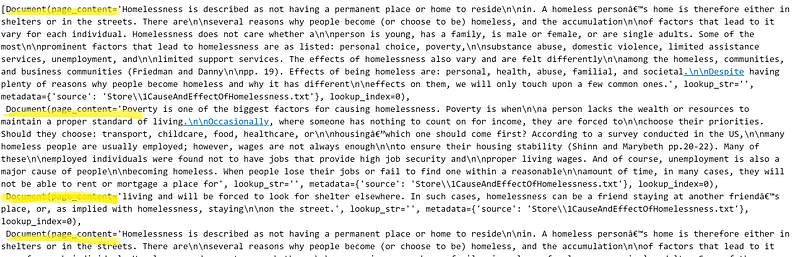
After splitting, this is how the text looks like:
Create Vector Store
Next, we need to create embeddings of it, which means we need to turn our data into a vector space. Let’s do this by instantiating OpenAIEmbeddings object as shown below:
openAI_embeddings = OpenAIEmbeddings(openai_api_key=os.environ[‘OPENAI_API_KEY’])
vStore = Chroma.from_documents(doc_texts, openAI_embeddings)
Create Model
Finally time to create our model. This can be done by passing all the required parameters as shown below:
model = VectorDBQA.from_chain_type(llm=OpenAI(), chain_type=”stuff”, vectorstore=vStore)
Once model is ready, we are good to test it.
Test Model
In order to test the model, we need to ask some questions to it and this can be done as shown below:
question = “What are the effects of homelessness”
model.run(question)
On executing above cell, you will find your response. Here is what I got:

Validate Model
We have created our model and received the response. But how can we make sure that this response is from our data only. To get this assurity, we need to validate our model. You can find those validation lines in my video mentioned below.
If you find anything, which is not clear, I would recommend you to watch my video recording, which demonstrates this flow from end-to-end.


