avatarJosh's Happy, Health, and Wise Digest

Free AI web copilot to create summaries, insights and extended knowledge, download it at here

1681

Abstract

aption></figcaption></figure><h2 id="ae78">Here’s style 200:</h2><figure id="b3d4"><img src="https://cdn-images-1.readmedium.com/v2/resize:fit:800/0*YyFXFAqWqiylBQJR.png"><figcaption></figcaption></figure><h1 id="775f">Tip #2: User Redo Upscale and Vary</h1><p id="f913">Upscalers upscale the image to make it more print friendly.</p><p id="6ded">Here’s Redo Upcscale (Subtle):</p><figure id="6fa8"><img src="https://cdn-images-1.readmedium.com/v2/resize:fit:800/0*joTraethbxMDoWqE.png"><figcaption></figcaption></figure><p id="08fe">Here’s redo upscale creative:</p><figure id="d4fb"><img src="https://cdn-images-1.readmedium.com/v2/resize:fit:800/0*aQpPrm9j1X1gqcrB.png"><figcaption></figcaption></figure><p id="f357">Vary (subtle)</p><figure id="9aff"><img src="https://cdn-images-1.readmedium.com/v2/resize:fit:800/0*fvfvxkany8Hm4GZB.png"><figcaption></figcaption></figure><p id="3fab">Vary (creative):</p><figure id="e3aa"><img src="https://cdn-images-1.readmedium.com/v2/resize:fit:800/0*1n8e-RBiwkFgZcCT.png"><figcaption></figcaption></figure><h1 id="2386">Chaos Mode</h1><blockquote id="4751"><p>The <code>--chaos</code> or <code>--c</code> parameter influences how varied the initial image grids are. High <code>--chaos</code> values will produce more unusual and unexpected results and compositions. Lower <code>--chaos</code> values have more reliable, repeatable results.</p></blockquote><blockquote id="de5f"><p><code><b>--chaos</b></code> accepts values 0–100. The default <code><b>--chaos</b></code> value is 0.</p></blockquote><p id="073f">Here’s chaos at 100:</p><figure id="1f7d"><img src="https://cdn-images-1.readmedium.com/v2/resize:fit:800/0*gHeBH0HimHofifaQ.p

Options

ng"><figcaption></figcaption></figure><p id="2199">The bottom right is pretty cute!</p><p id="2cd7">Here’s chaos @ 10:</p><figure id="867d"><img src="https://cdn-images-1.readmedium.com/v2/resize:fit:800/0*rJR0G2bH-4P4W_Le.png"><figcaption></figcaption></figure><h1 id="97b0">Weird</h1><blockquote id="068f"><p>Explore unconventional aesthetics with the experimental <code>--weird</code> or <code>--w</code> parameter. This parameter introduces quirky and offbeat qualities to your generated images, resulting in unique and unexpected outcomes.</p></blockquote><blockquote id="8ea2"><p><code><b>--weird</b></code> accepts values: 0–3000. The default --weird value is 0. --weird is a highly experimental feature. What's weird may change over time --weird is compatible with <a href="https://docs.midjourney.com/models">Midjourney Model Versions 5, 5.1, 5.2 and niji 5</a> --weird is not fully compatible with <a href="https://docs.midjourney.com/seeds">seeds</a></p></blockquote><p id="b9fd">Here’s weird @ 1000</p><figure id="bda8"><img src="https://cdn-images-1.readmedium.com/v2/resize:fit:800/0*2iqiM1IHYWWflUnZ.png"><figcaption></figcaption></figure><p id="1075">Not really what I’m going for.</p><p id="b24f">Here’s weird @ 3000:</p><figure id="6c70"><img src="https://cdn-images-1.readmedium.com/v2/resize:fit:800/0*7NbZjSi_9LavwkSb.png"><figcaption></figcaption></figure><p id="e90f">Final product in RedBubble store:</p><figure id="6bc4"><img src="https://cdn-images-1.readmedium.com/v2/resize:fit:800/1*c3u-V_ob2Yw1Fs8FIOg9-Q.png"><figcaption></figcaption></figure><p id="cb30">I hope you enjoyed these tips and tricks! Please clap, share, and comment.</p></article></body>

Use these Tricks in Midjourney This Week

Tips, Tricks, and Strategies to use Midjourney Effectively

I’m hoping these tips, tricks, and strategies can help you use Midjourney effectively. Midjourney is by far my favorite generative AI image too.

What’s the difference between --weird, --chaos, and --stylize?

--chaos controls how diverse the initial grid images are from each other. --stylize controls how strongly Midjourney's default aesthetic is applied. --weird controls how unusual an image is compared to previous Midjourney images.

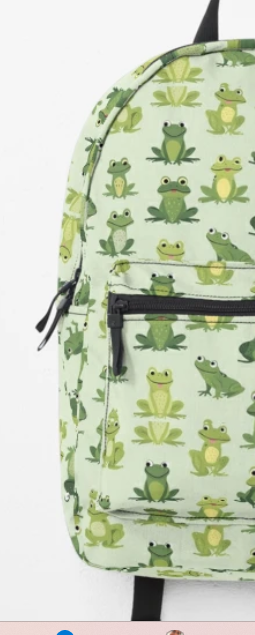
Throughout this guide, I will be using an example of a backpack I want to create for my son who adores frogs.

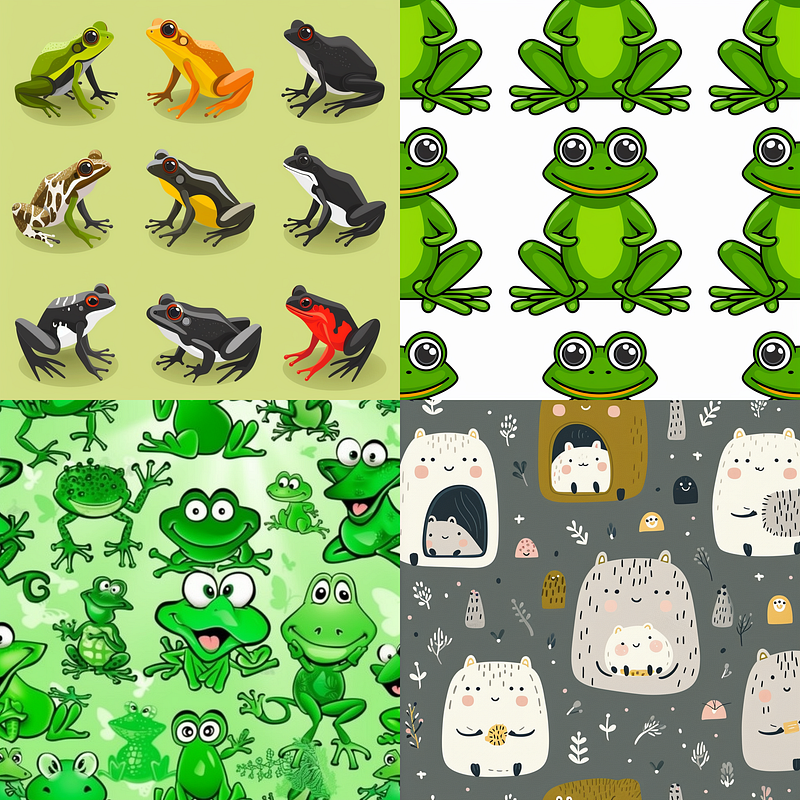
I first started with ChatGPT using a prompt asking for a frog design for a backpack. Midjourney created the following image using ChatGPT’s prompt:
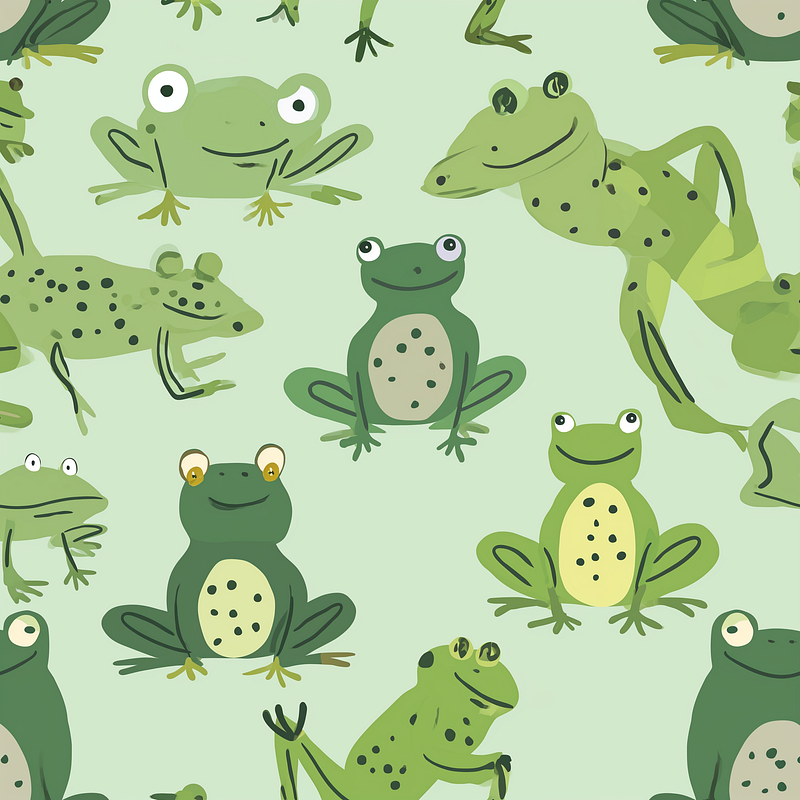
Tip #1: Use style 50 or 100 to create the whimsical illustration look.

Here’s style 100 (Yay!!! Much better) — I really like #4
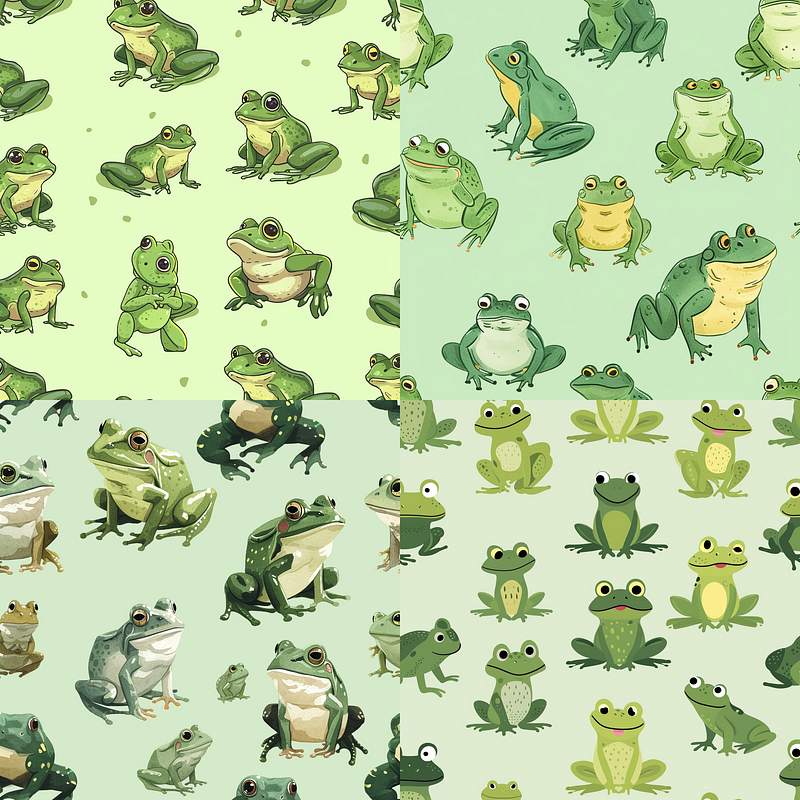
If I used 1000 here’s the output:
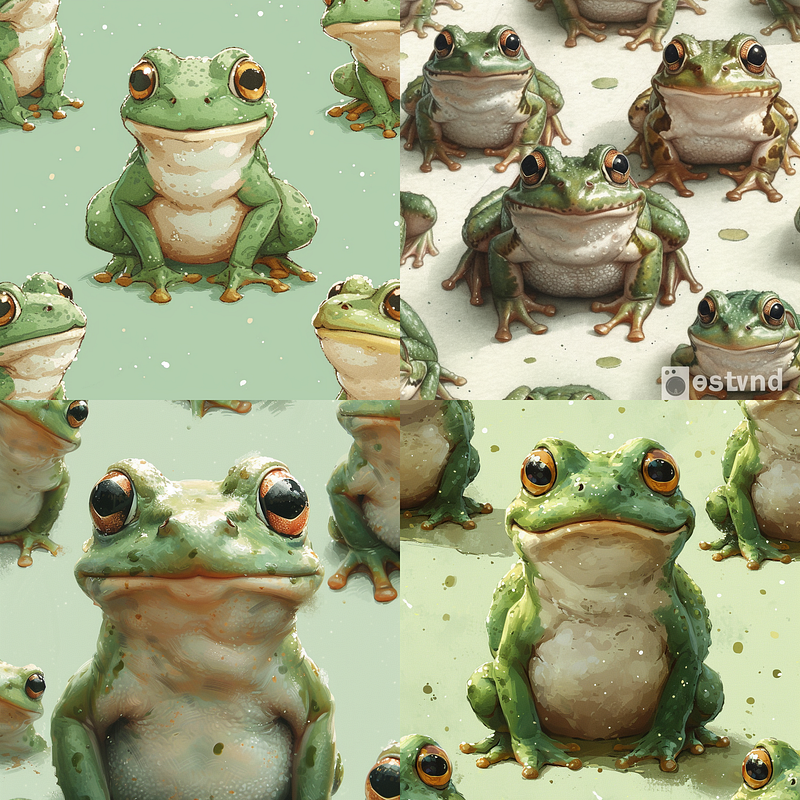
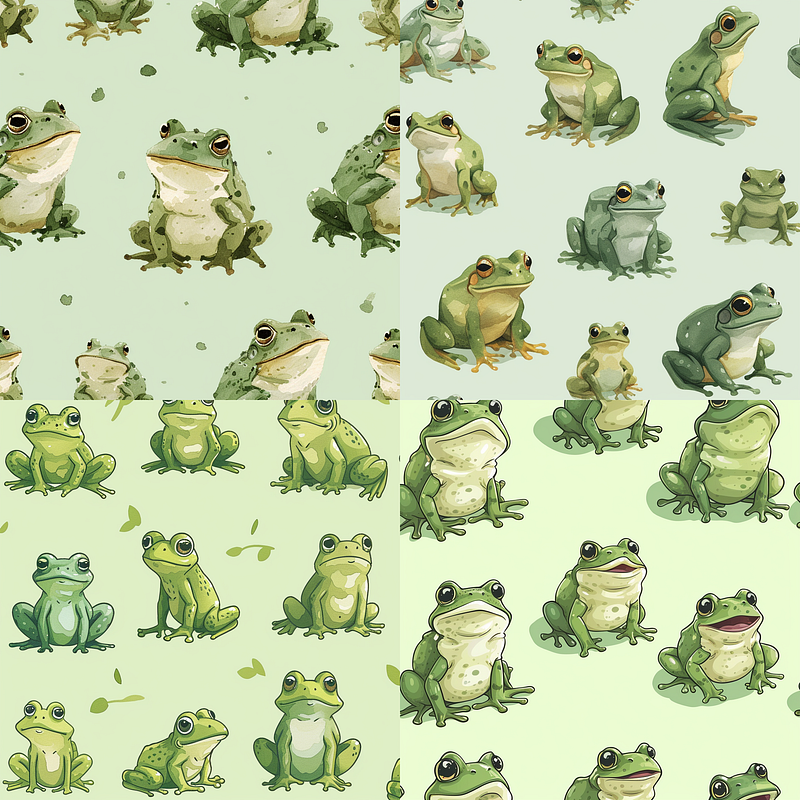
Here’s style 200:
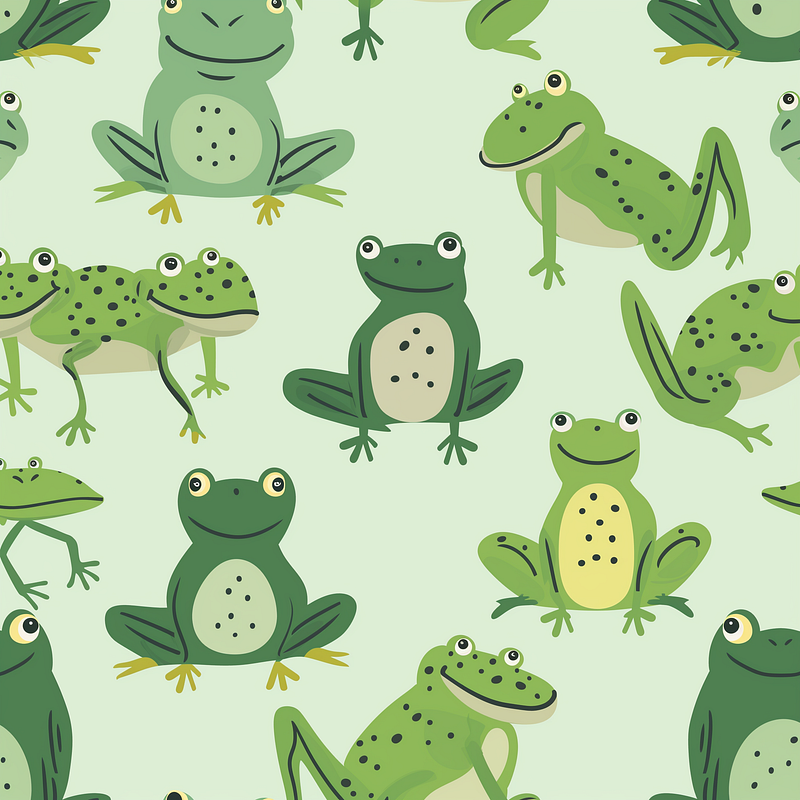
Tip #2: User Redo Upscale and Vary

Upscalers upscale the image to make it more print friendly.

Here’s Redo Upcscale (Subtle):
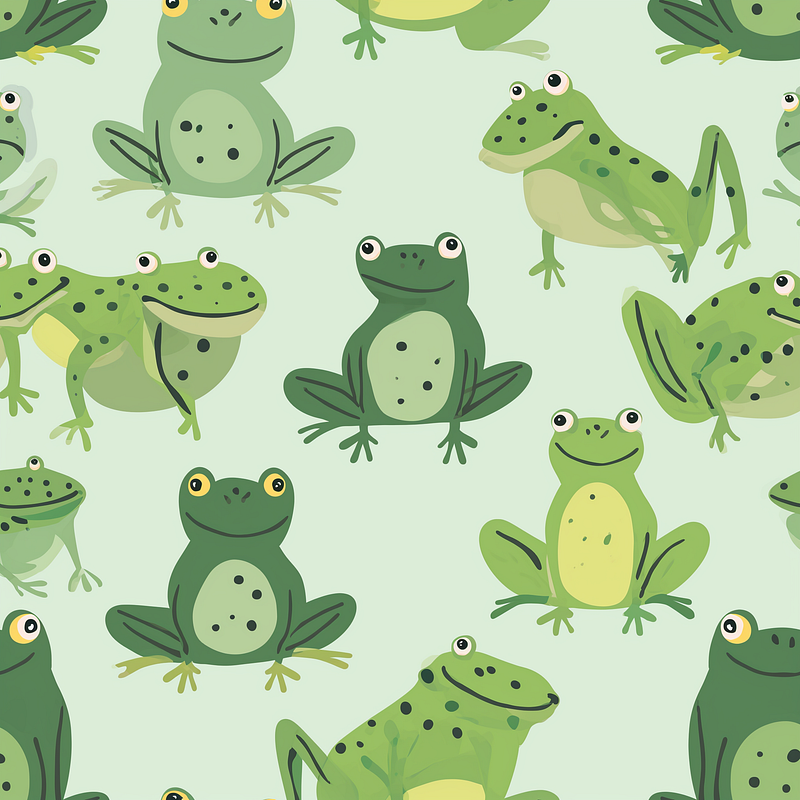
Here’s redo upscale creative:
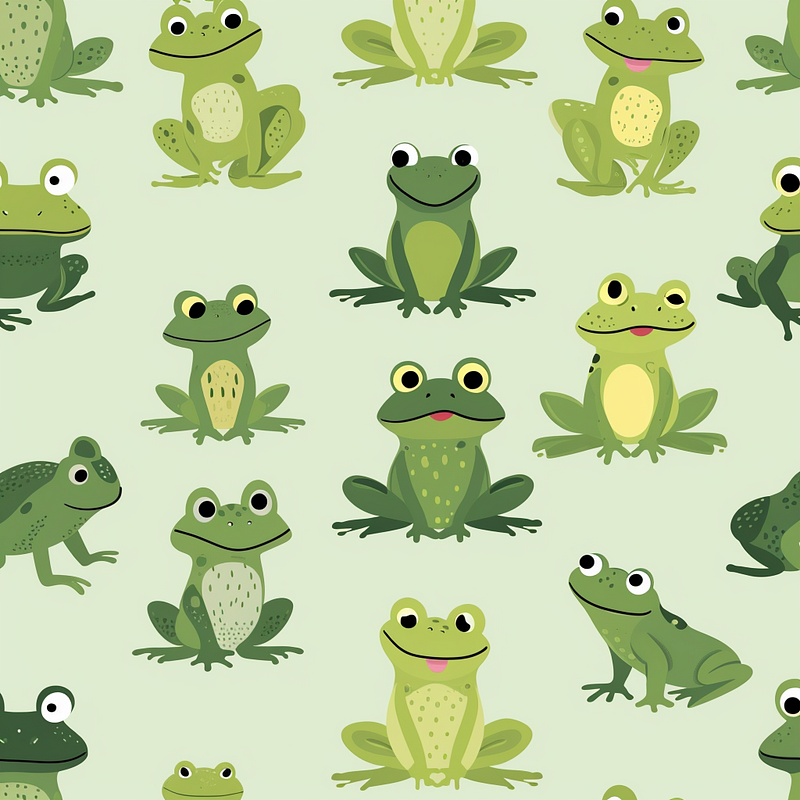
Vary (subtle)
Vary (creative):
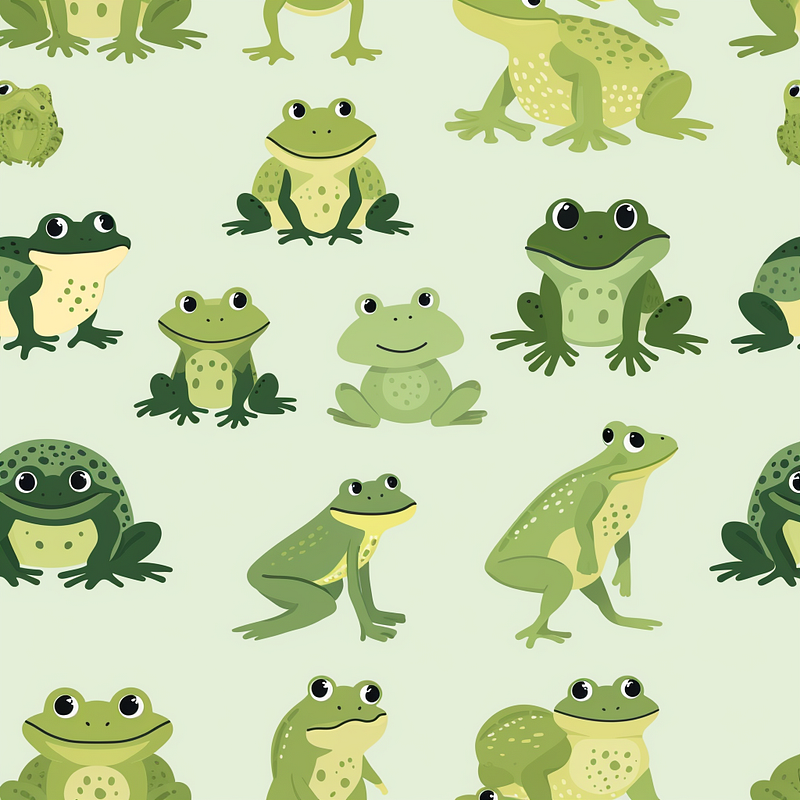
Chaos Mode

The --chaos or --c parameter influences how varied the initial image grids are. High --chaos values will produce more unusual and unexpected results and compositions. Lower --chaos values have more reliable, repeatable results.

--chaos accepts values 0–100. The default --chaos value is 0.

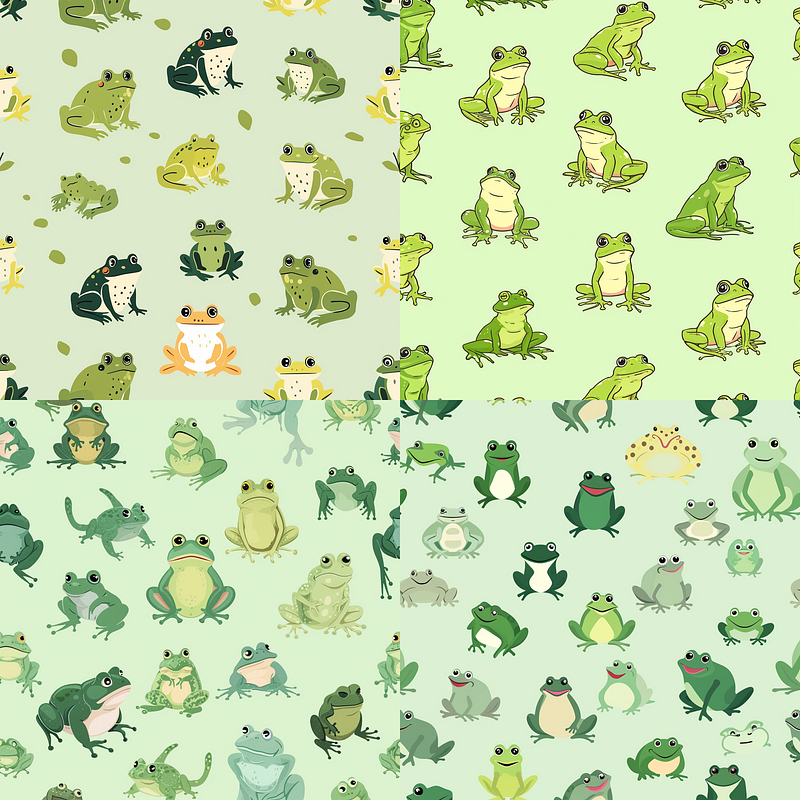
Here’s chaos at 100:

The bottom right is pretty cute!

Here’s chaos @ 10:
Weird

Explore unconventional aesthetics with the experimental --weird or --w parameter. This parameter introduces quirky and offbeat qualities to your generated images, resulting in unique and unexpected outcomes.

--weird accepts values: 0–3000. The default --weird value is 0. --weird is a highly experimental feature. What's weird may change over time --weird is compatible with Midjourney Model Versions 5, 5.1, 5.2 and niji 5 --weird is not fully compatible with seeds

Here’s weird @ 1000
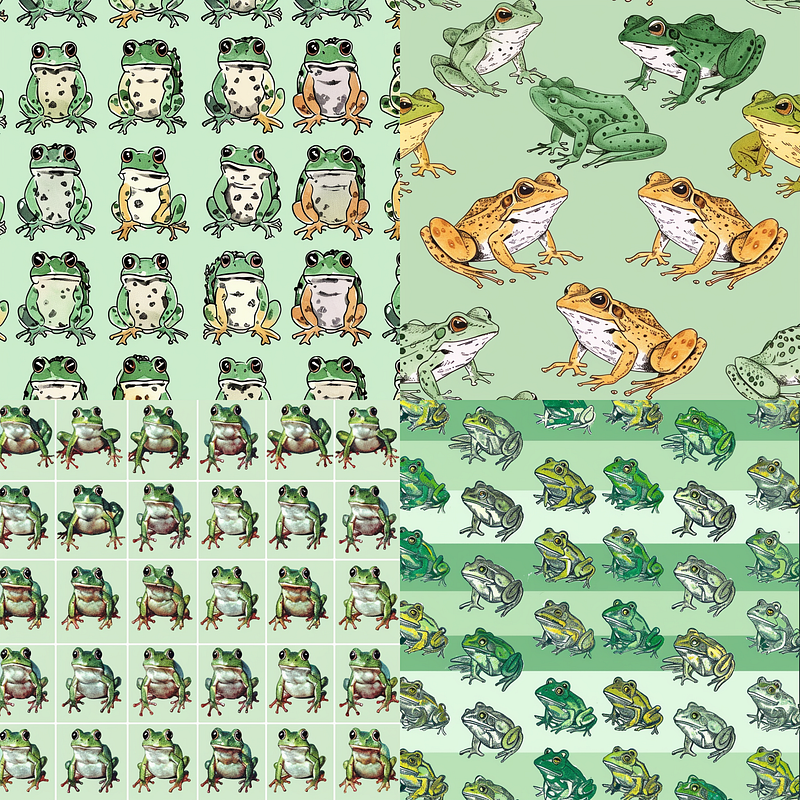
Not really what I’m going for.

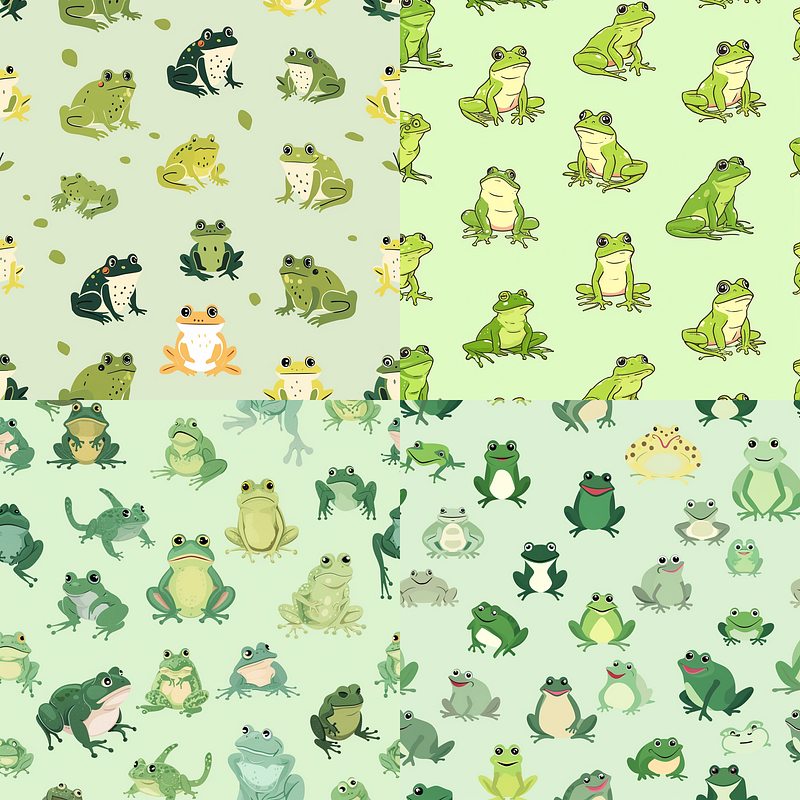
Here’s weird @ 3000:
Final product in RedBubble store:
I hope you enjoyed these tips and tricks! Please clap, share, and comment.

Midjourney
Midjourney Prompts
Redbubble
Canva Pro
Artificial Intelligence
Recommended from ReadMedium