
Use HTML in Folium Maps: A Comprehensive Guide for Data Scientists
Learn Step-by-Step How to Add Dynamic Images, Links, Text, and Tables to Folium Map Pop-ups Using HTML

Table of Contents:
· Introduction · Part I: HTML Basics ∘ What is HTML? ∘ Tags and Attributes ∘ A Simple Construction of an HTML Page ∘ How to Add Text, Links, Images, and Tables in HTML
· Part II: Create Customized Folium Popup Using HTML ∘ Import libraries and Read Data ∘ Create a Basic Folium Map ∘ Create an HTML Page for Each Marker ∘ Pass HTML to Folium Map Markers · Closing Thoughts · References and Data Source
Introduction
You may wonder: as a data scientist, not a web developer, why do I need to learn and understand HTML? Is it beneficial for me to invest my precious time to learn the basics of it? Will I ever come across a situation where I need to use it in my work and be glad for having taken the time to learn it?
I had the same question and doubt until I encountered my first geospatial project a few months ago. In that project, I needed to pass HTML to a Folium map as markers and struggled for making it look and work the way I want. I did extensive research online but couldn’t find a good resource page that puts the core concepts and codes in one place and explains them in detail with the data science context.
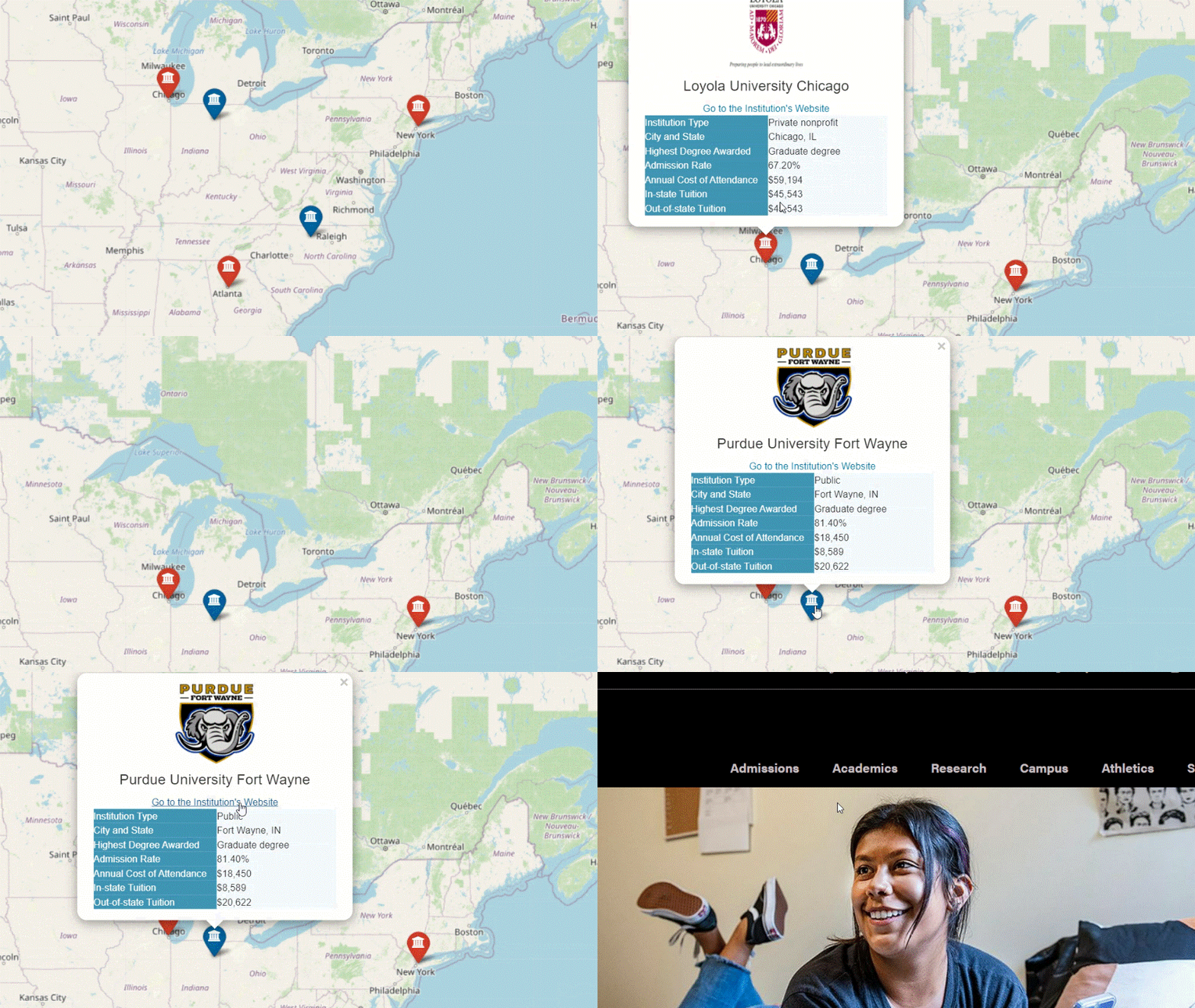
That’s the motivation behind this post. In this post, I want to first walk you through the core concepts of HTML from a complete beginner’s view. Then we will put the knowledge to use and learn how to construct an HTML webpage by adding headings, images, links, and tables to it. Lastly, we will pass the HTML to folium map markers and add it to the pop-up window, as shown in the screenshot below.

Part I: HTML Basics
Before we get hands-on and create a folium map with the pop-ups shown in the image above, let’s first spend some time learning the basics of HTML. By doing so, you will have a much easier time understanding the code written in Part II and be able to make use of them effectively in the future. So if you are completely new to HTML, please don’t skip this section.
What is HTML?
HTML is a language that’s widely used to create web pages. You may also have heard of CSS. CSS is different from HTML. CSS is the code used to assist HTML to make the web pages visually appealing. In this post, we will mainly focus on HTML.
Here is a short description of HTML from Wikipedia:
The HyperText Markup Language, or HTML is the standard markup language for documents designed to be displayed in a web browser. It can be assisted by technologies such as Cascading Style Sheets (CSS) and scripting languages such as JavaScript.
Tags and Attributes
HTML is a markup language that computers use to interpret and control how text, images, or other objects are processed and presented in web browsers. To do this, HTML uses Tags and Attributes - the two most important concepts you need to understand which serve the basis of HTML.
What are Tags?
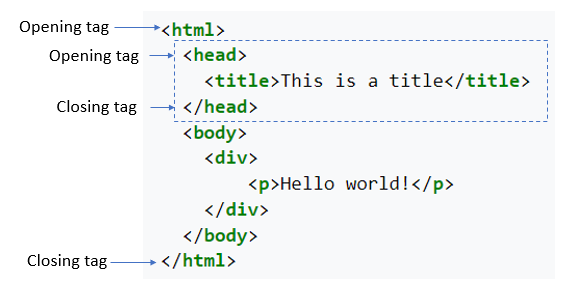
HTML elements are the building blocks of HTML pages and tags are used to mark up the start of an HTML element.
Tags are written in angle brackets and the vast majority of them come in pairs like the example below. It has an opening tag and a closing tag and some element information such as a title placed between the tags. There are some exceptions though: for example, tags are unpaired and do not have the closing tag. Tags can also be nested within tags.
What are Attributes?
Attributes provide additional information for tags and are placed in the opening tag only. Look at the example below in which we created an image tag . Within the tag, image source (src), alt text (alt), width, and height are all the attributes of this tag.

A Simple Construction of an HTML Page
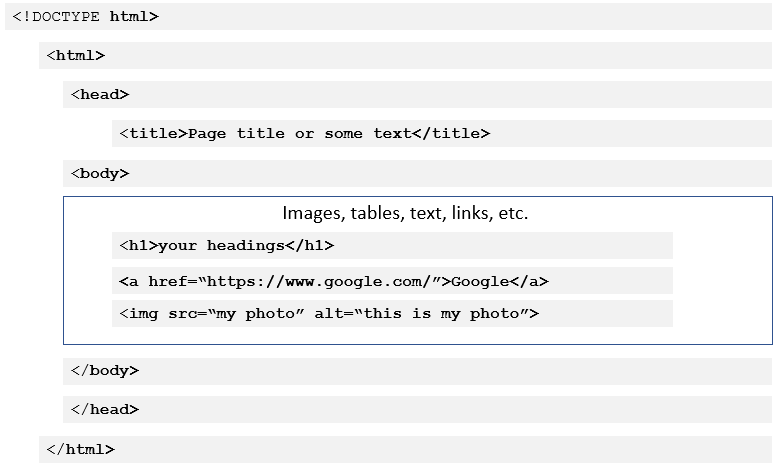
The image below demonstrates a simple construction of an HTML page.
HTML documents are required to start with a Document Type Declaration using the tag, which specifies the language we will write on the page (HTML 5).
The tag indicates where we start to write in HTML code and is used as a container for all of the HTML of an entire document.
The tag is a container for metadata (data about data) such as document titles etc.
The tag contains the content of the web page.
How to Add Text, Links, Images, and Tables in HTML
Add Text in HTML: Use tag
to add text or a paragraph.

Add links in HTML: Use tag to add links

Add images in HTML: Use tag to add images

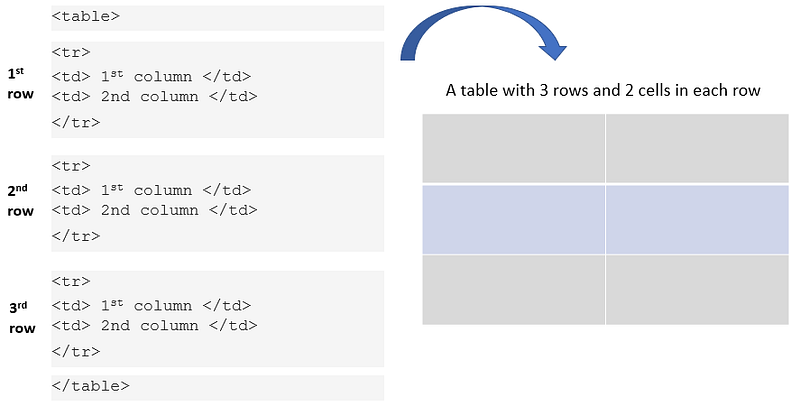
Add tables in HTML:
Adding tables in HTML is slightly more complicated in syntax compared to adding text, links, or images. We use tag to create a table and inside the tag, we specify the number of rows using and columns (cells) using
| . |
Part II: Create Customized Folium Popup Using HTML
Now we have learned the basics of HTML, we are ready to apply what we just learned in a real-world use case. Let’s say we want to build a college selection tool. In the tool, we want to create an interactive map and add markers of the U.S. universities to the map. When a user clicks a marker, a pop-up window appears which displays the university’s logo image, website URL, and some additional information in a table.
Import libraries and Read Data
Let’s first import all the necessary libraries and read the data into a pandas data frame. For ease of demonstration, I created a very small sample dataset that includes only 5 universities, from the original dataset that can be downloaded from DATA.ED.GOV (U.S. Department of Education). This is an open dataset that does not require a license to use. I have also saved all the image files in the same folder of my python code file.
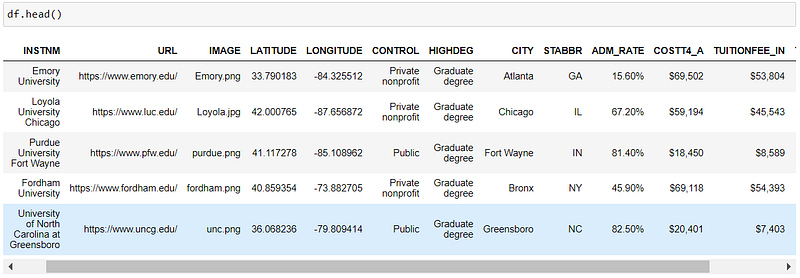
In the data, for each university, we have a URL, an image, geographic information such as latitude and longitude, as well as additional information like state, public or private, tuition, admission rate, etc.
Create a Basic Folium Map
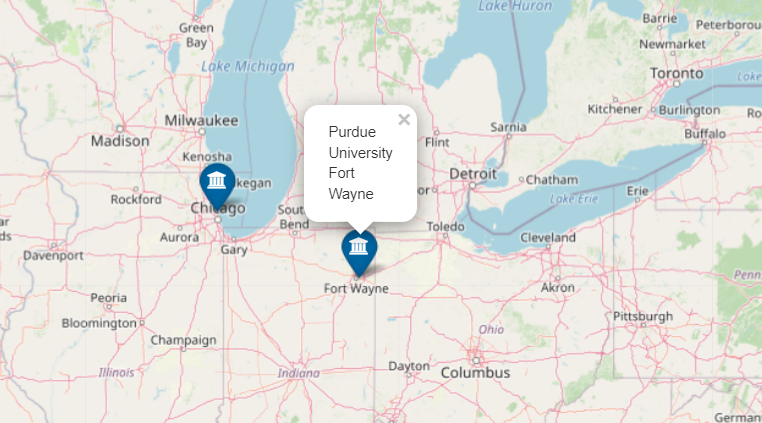
Creating a basic folium map is simple. We first initiate an empty map and then loop through the rows in the data frame to add markers to the map based on each university’s latitude and longitude. Within the folium.Marker() function we can specify what to show in the popup— in this case, the institution name of each university.
Create an HTML Page for Each Marker
The map above is pretty basic. Let’s see how we can include more information in the pop-up using HTML. To do that, we’ll need to first define a function that creates an HTML page for each marker. The HTML page for each marker should show the university’s logo, its website link, and a table that contains additional information about the university.
Let’s examine the code above in detail. Now that you have learned all the basics of HTML in Part I, I hope that you will find the code pretty easy to follow and understand!
Line 18: We start the HTML document with Document Type Declaration using . This specifies the language we will write on the page — in this case, it’s HTML 5.
Line 19: The tag signals that from this line and onwards we are going to write in HTML code.
Line 21: We insert the logo image for each university using the tag. The
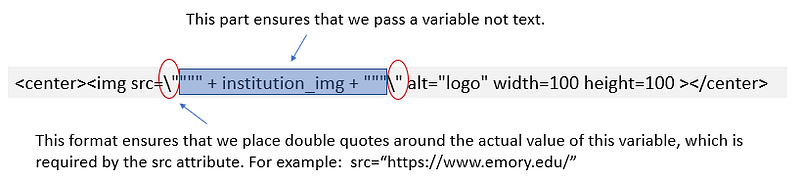
Since each university has its own logo image, we need to create a variable called ‘institution_img’ (line 5) in the for loop to take the logo for each university accordingly. In the tag we also need to use ‘institution_img’ as the value of the src attribute.
In order for the src attribute to take the ‘institution_img’ variable, we can’t just use src=institution_img. This variable needs to be wrapped in the following format:
Line 23 and 25: We create a header that shows the name of each institution. Under the header, we insert a link for each university's website.
Line 27–64: We create a table by using the tag and specifying the table size with the style attribute in the opening tag. From lines 29 to 62 we draw the table with 7 rows and 2 columns by using the and
| tags. Within these tags, we also use the style attribute to specify background colors, cell sizes, font colors, etc. |

Pass HTML to Folium Map Markers
We can now pass the HTML to Folium map markers. In the code below, notice that we created a new variable ‘color’ so that we can pass it to the marker and make the colors of the icons look different for public and private universities.
From lines 12–15, we first create an HTML for each marker using the popup_html function we defined in the previous step. Then we insert each HTML page to its corresponding marker pop-up by using folium.Popup() method. Finally, we pass the popup to the folium markers and add the markers to our map. And there you go! You have created a beautiful Folium map with customized pop-ups, all done using HTML!
Closing Thoughts
Folium is an awesome Python library for plotting maps, and because it can pass rich HTML visualizations as markers on the map it opens endless possibilities to make your map more interactive and informative.
For those who are new to HTML, I hope you find this article helpful in understanding how to use it in leveling up your Folium skills. Learning and understanding HTML is incredibly beneficial for us as data scientists, especially when dealing with Folium. Maybe next time we can try creating some interactive Plotly charts and pass them as HTML to the Folium pop-ups!
References and Data Source
- HTML For Beginners The Easy Way: Start Learning HTML & CSS Today (https://html.com/)
- ‘Fancy Folium’ by David Baker: https://www.kaggle.com/dabaker/fancy-folium
- Data Source: U.S. Department of Education’s College Scorecard open data (https://data.ed.gov/dataset/college-scorecard-all-data-files-through-6-2020). No license is required to use this data.
You can unlock full access to my writing and the rest of Medium by signing up for Medium membership ($5 per month) through this referral link. By signing up through this link, I will receive a portion of your membership fee at no additional cost to you. Thank you!


