avatarNikola Ilic

Free AI web copilot to create summaries, insights and extended knowledge, download it at here

2356

Abstract

figure id="90e4"><img src="https://cdn-images-1.readmedium.com/v2/resize:fit:800/1*3S_3VphNFFNlv-QTQXMs7Q.png"><figcaption></figcaption></figure><p id="429a">As you can see, some customers made a purchase in every single year, some have gaps, some came in later years, etc.</p><p id="d33b">Now, I want to retrieve the earliest date when a customer made a purchase, so I can later perform analysis based on that date (for example, to analyze how many customers made first purchase in February 2017).</p><p id="2eab">I know, most of you would probably go with Power Query transformation and Unpivoting years’ columns, something like this:</p><figure id="c108"><img src="https://cdn-images-1.readmedium.com/v2/resize:fit:800/1*xcMj978cvbqBxlt8JliapQ.png"><figcaption></figcaption></figure><p id="2613">And you get a nice new look of the table, with all dates grouped by customer:</p><figure id="9af4"><img src="https://cdn-images-1.readmedium.com/v2/resize:fit:800/1*zkOucDGrInqUj3mqzjBxCA.png"><figcaption></figcaption></figure><p id="5520">However, an additional workload is necessary to build a separate column which will hold data about the earliest date (or MIN date) for every single customer, so we can later use this column for filtering purposes, or even for building a relationship to a <a href="http://However, an additional workload is necessary to build a separate column which will hold data about the earliest date (or MIN date) for every single customer, so we can later use this column for filtering purposes, or even for building a relationship to a date dimension. What if I tell you that you can do this with a single line of code and without any additional transformations? First, I will close Power Query editor and go straight to Power BI Data view:">date dimension</a>.</p><p id="2b56"><b>What if I tell you that you can do this with a single line of code and without any additional transformations?</b></p><p id="7241">First, I will close the Power Query editor and go straight to the Power BI Data view:</p><figure id="d7b0"><img src="https://cdn-images-1.readmedium.com/v2/resize:fit:800/1*9sBRl22-ERI-EGIwoOL0bg.png"><figcaption></figcaption></figure><p id="66ca">You see that this table looks exactly the same as in Excel. Now, I choose to create a new column and, when prompted, enter following DAX code:</p><div id="8800"><pre

Options

First Purchase Date = <span class="hljs-built_in">MINX</span>({Sheet2<span class="hljs-selector-attr">[2016]</span>,Sheet2<span class="hljs-selector-attr">[2017]</span>,Sheet2<span class="hljs-selector-attr">[2018]</span>,Sheet2<span class="hljs-selector-attr">[2019]</span>},<span class="hljs-selector-attr">[Value]</span>)</pre></div><figure id="c02d"><img src="https://cdn-images-1.readmedium.com/v2/resize:fit:800/1*pvqXMmmGwe60RjthbX_hgg.png"><figcaption></figcaption></figure><p id="8689">Let’s stop here for the moment and explain what we are doing. So, we want to extract the minimum date from every single row. We could do that by using multiple nested IF statements and using MIN aggregate function. Since MIN function accepts only two arguments, we would have multiple levels of nested IF statements, which is quite ugly and pretty much hardly readable.</p><p id="9fbe"><b><i>The magic here is in the curly brackets!</i></b> By using them, we are telling DAX that we want it to create a table from the list within the curly brackets, and using <a href="https://dax.guide/minx/">MINX</a> iterator aggregate function, we are simply iterating through this table and pulling minimum value from it.</p><p id="d59d">How cool and elegant is that! It worked like a charm and here is the resulting column:</p><figure id="db9a"><img src="https://cdn-images-1.readmedium.com/v2/resize:fit:800/1*Cu2Vkt4mOXd8lIw-Rlj3Mg.png"><figcaption></figcaption></figure><p id="5fa4">You can easily spot that DAX returned expected values, so now we can use this column as an axis in our charts, create regular date hierarchies on it, or we can even create a relationship between First Purchase Date and date dimension in our data model if we like to.</p><h2 id="f7ef">Conclusion</h2><p id="f3a2">Power BI and DAX are full of hidden gems. In complete honesty, I have to admit that you might not face a scenario like this every single day, but in some specific situations, it’s good to know that you can perform aggregate functions on row level in a very simple, yet powerful manner — using a literally single line of code!</p><p id="51b4"><a href="https://datamozart.medium.com/membership">Become a member and read every story on Medium!</a></p><p id="a923">Subscribe <a href="http://eepurl.com/gOH8iP">here</a> to get more insightful data articles!</p></article></body>

Use aggregate functions on rows in Power BI

Using aggregate functions on columns is fine, but doing the same on rows is — pure beauty! And all this with a single line of DAX code!

Photo by Joshua Coleman on Unsplash

Aggregate functions are one of the main building blocks in Power BI. Being used explicitly in measures, or implicitly defined by Power BI, there is no single Power BI report which doesn’t use some sort of aggregate functions.

What are the aggregate functions?

Aggregating means combining values in your data performing some mathematical operation. That can be SUM, AVERAGE, MAXIMUM, MINIMUM, COUNT, COUNT DISTINCT, MEAN, STANDARD DEVIATION, etc.

However, in-depth observation of aggregate functions is not in the scope of this article. Here, I wanted to demonstrate how you can use aggregate functions in an unconventional way, since I believe it can be useful in some specific scenarios.

Default behavior of aggregate functions

By default, aggregations are being calculated on columns. Let’s take a look at following basic example:
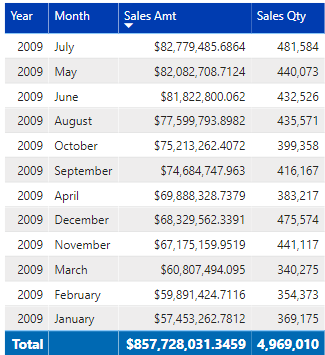
This is a typical example of SUM aggregate function. Numbers are being aggregated on Year and Month level, and finally, in the end, we can see the total of individual values in the table.

We could also perform AVERAGE to find average values, MIN or MAX to find the minimum and maximum values, etc. Pretty straightforward and probably already known for most of the people who ever worked with Power BI or Excel.

Aggregation on rows — without unpivoting!

But, what if we wanted to perform aggregations on rows instead of columns? Is it possible to do that? And if yes, how?

Let’s head over to a Power BI and check immediately. I have an Excel file as a data source and a dummy table which contains data about the customer and first date within a single year when he made a purchase:
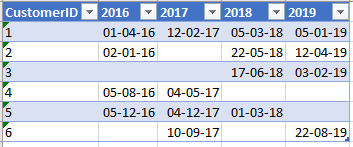
As you can see, some customers made a purchase in every single year, some have gaps, some came in later years, etc.

Now, I want to retrieve the earliest date when a customer made a purchase, so I can later perform analysis based on that date (for example, to analyze how many customers made first purchase in February 2017).

I know, most of you would probably go with Power Query transformation and Unpivoting years’ columns, something like this:
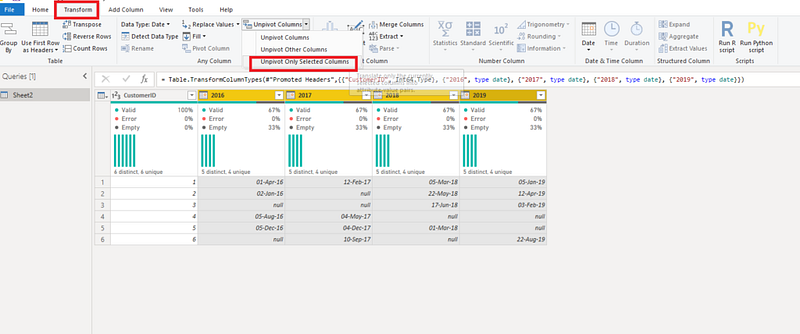
And you get a nice new look of the table, with all dates grouped by customer:
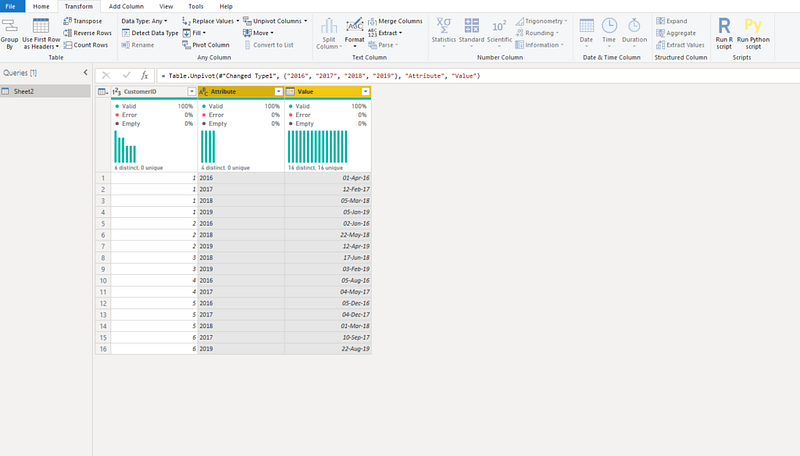
However, an additional workload is necessary to build a separate column which will hold data about the earliest date (or MIN date) for every single customer, so we can later use this column for filtering purposes, or even for building a relationship to a date dimension.

What if I tell you that you can do this with a single line of code and without any additional transformations?

First, I will close the Power Query editor and go straight to the Power BI Data view:
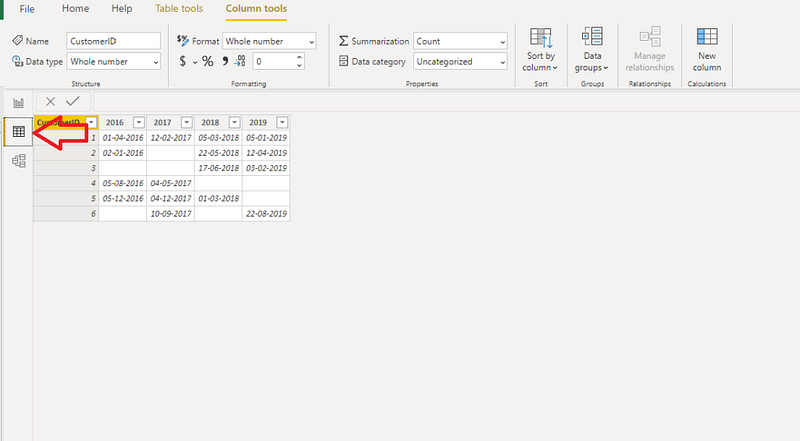
You see that this table looks exactly the same as in Excel. Now, I choose to create a new column and, when prompted, enter following DAX code:

First Purchase Date = MINX({Sheet2[2016],Sheet2[2017],Sheet2[2018],Sheet2[2019]},[Value])
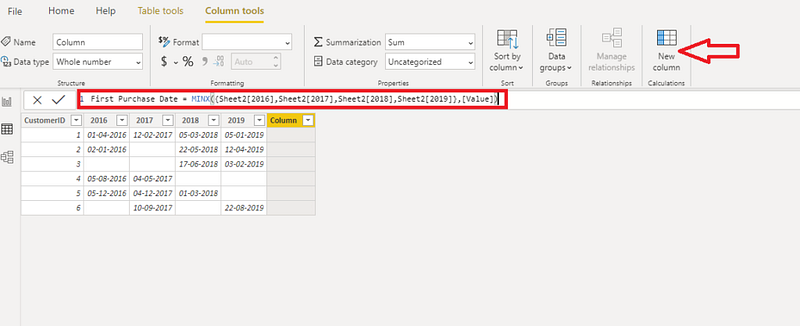
Let’s stop here for the moment and explain what we are doing. So, we want to extract the minimum date from every single row. We could do that by using multiple nested IF statements and using MIN aggregate function. Since MIN function accepts only two arguments, we would have multiple levels of nested IF statements, which is quite ugly and pretty much hardly readable.

The magic here is in the curly brackets! By using them, we are telling DAX that we want it to create a table from the list within the curly brackets, and using MINX iterator aggregate function, we are simply iterating through this table and pulling minimum value from it.

How cool and elegant is that! It worked like a charm and here is the resulting column:
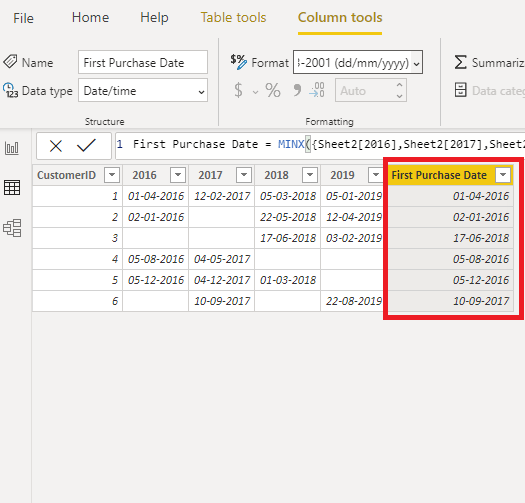
You can easily spot that DAX returned expected values, so now we can use this column as an axis in our charts, create regular date hierarchies on it, or we can even create a relationship between First Purchase Date and date dimension in our data model if we like to.

Conclusion

Power BI and DAX are full of hidden gems. In complete honesty, I have to admit that you might not face a scenario like this every single day, but in some specific situations, it’s good to know that you can perform aggregate functions on row level in a very simple, yet powerful manner — using a literally single line of code!

Become a member and read every story on Medium!

Subscribe here to get more insightful data articles!

Towards Data Science
Data Science
Power Bi
Data Modeling
Data
Recommended from ReadMedium