avatarVenkatakrishnan

Free AI web copilot to create summaries, insights and extended knowledge, download it at here

5792

Abstract

class="hljs-attr">user:</span> <span class="hljs-string"><username></span> <span class="hljs-attr">warehouse:</span> <span class="hljs-string">compute_wh</span> <span class="hljs-attr">dev_tgt:</span> <span class="hljs-attr">account:</span> <span class="hljs-string"><account_name></span> <span class="hljs-attr">database:</span> <span class="hljs-string">vk_project</span> <span class="hljs-attr">password:</span> <span class="hljs-string"><password></span> <span class="hljs-attr">role:</span> <span class="hljs-string">accountadmin</span> <span class="hljs-attr">schema:</span> <span class="hljs-string">DBT_LOAD</span> <span class="hljs-attr">threads:</span> <span class="hljs-number">1</span> <span class="hljs-attr">type:</span> <span class="hljs-string">snowflake</span> <span class="hljs-attr">user:</span> <span class="hljs-string"><username></span> <span class="hljs-attr">warehouse:</span> <span class="hljs-string">compute_wh</span></pre></div><p id="2168">Be sure to replace <code><account_name></code>, <code><username></code>, <code><password></code> with your actual Snowflake details.</p><h1 id="7f26">6. Initialize Your DBT Project</h1><p id="d4ed">In your terminal, navigate to the directory where you want to create your DBT project, and run the following command:</p><div id="e2ef"><pre>dbt <span class="hljs-keyword">init</span> dbt_snowflake_project</pre></div><p id="6b28">Replace <code>dbt_snowflake_project</code>with your desired project name.</p><p id="ef83">Once the above command executed, it will ask for sequence of steps like database to choose, user name, password, role, warehouse, database, schema and thread.</p><p id="c11e">This command will create a new directory with the project name you specified, complete with the basic structure of a DBT project.</p><h1 id="63c6">6. Test Your Setup</h1><p id="b2c6">Navigate into your new project directory and run:</p><div id="9eaa"><pre>dbt <span class="hljs-built_in">debug</span></pre></div><p id="84f4">This command will verify that dbt can connect to your specified data warehouse. If everything is set up correctly, you should see a message saying the connection test passed.</p><p id="21b0">That’s it! You now have DBT set up with Snowflake, and you’re ready to start your first project.</p><h1 id="35eb">Loading Data into Snowflake</h1><p id="2a14">Once DBT and Snowflake are up and running, we’ll load the ‘<a href="https://github.com/vekr1518/dbt-snowflake/tree/main/datasets"><b>titles.csv</b></a>’ file into the Snowflake database. We can do this using Python, pandas, and the Snowflake Connector for Python.</p><div id="fa08"><pre><span class="hljs-keyword">import</span> pandas <span class="hljs-keyword">as</span> pd <span class="hljs-keyword">import</span> snowflake.connector <span class="hljs-keyword">as</span> snow <span class="hljs-keyword">from</span> snowflake.connector.pandas_tools <span class="hljs-keyword">import</span> write_pandas

conn = snow.connect( user=<span class="hljs-string">'your user name'</span>, password=<span class="hljs-string">'your password'</span>, account=<span class="hljs-string">'your account id'</span>, warehouse=<span class="hljs-string">'warehouse name'</span>, database=<span class="hljs-string">'database name'</span>, schema=<span class="hljs-string">'schema name'</span> ) cur=conn.cursor() <span class="hljs-built_in">print</span>(<span class="hljs-string">'Connection Created'</span>)

cur = conn.cursor() sql_titles = <span class="hljs-string">"TRUNCATE TABLE IF EXISTS TITLES_RAW"</span> cur.execute(sql_titles) <span class="hljs-built_in">print</span>(<span class="hljs-string">'Tables truncated'</span>)

cur=conn.cursor() titles_file = <span class="hljs-string">"titles.csv"</span>

titles_df = pd.read_csv(titles_file,sep=<span class="hljs-string">','</span>)

write_pandas(conn, titles_df, <span class="hljs-string">"TITLES"</span>, auto_create_table=<span class="hljs-literal">True</span>) <span class="hljs-built_in">print</span>(<span class="hljs-string">"Title files loaded"</span>)

cur.close() conn.close()</pre></div><p id="882d">When you set <code>auto_create_table=True</code>, the function will automatically create a new table in your Snowflake database if the table you specified in the function call doesn't already exist.</p><p id="b249">This script truncates the ‘TITLES_RAW’ table if it exists, reads the ‘<a href="https://github.com/vekr1518/dbt-snowflake/tree/main/datasets">titles.csv</a>’ file into a pandas DataFrame, and writes the DataFrame to the ‘TITLES’ table in the Snowflake database.</p><p id="bfb3">Let’s query the data:</p><figure id="69ca"><img src="https://cdn-images-1.readmedium.com/v2/resize:fit:800/1*aoH-uwm339U9MS3FvFoMFw.png"><figcaption></figcaption></figure><p id="ebf4">The table <code>TITLE</code> contains various details about different shows and movies such as ID, title, type, description, release year, age certification, runtime, genres, production countries, seasons, IMDB ID, IMDB score, IMDB votes, TMDB popularity, and TMDB score. It serves as the raw data source that we will use to perform transformations using DBT and Snowflake.</p><h1 id="2d7f">Data Transformation</h1><p id="164d">With our raw data in Snowflake, we can begin to transform it using DBT. In this project, we’re focusing on extracting two dimensions from our raw data: show details and scores and votes. We accomplish this by creating two DBT models: <code><b>SHOW_DETAILS_DIM.sql</b></code> and <code><b>SCORES_VOTES_DIM.sql</b></code>.</p><p id="7bdf">Let’s break down what’s happening in these files.</p><ol><li>SHOW_DETAILS_DIM.sql</li></ol><div id="c5ef"><pre>{{ config( pre_h

Options

ook=<span class="hljs-string">"ALTER SESSION SET QUOTED_IDENTIFIERS_IGNORE_CASE = true"</span> ) }}

SELECT ID ,TITLE ,TYPE ,DESCRIPTION ,RELEASE_YEAR ,AGE_CERTIFICATION ,RUNTIME ,GENRES ,PRODUCTION_COUNTRIES ,SEASONS FROM {{ <span class="hljs-keyword">var</span>(<span class="hljs-string">'titles'</span>) }}</pre></div><p id="31f4">2. SCORES_VOTES_DIM.sql</p><div id="7a2d"><pre>{{ config( pre_hook=<span class="hljs-string">"ALTER SESSION SET QUOTED_IDENTIFIERS_IGNORE_CASE = true"</span> ) }}

SELECT ID ,IMDB_ID ,IMDB_SCORE ,IMDB_VOTES ,TMDB_POPULARITY ,TMDB_SCORE FROM {{ <span class="hljs-keyword">var</span>(<span class="hljs-string">'titles'</span>) }}</pre></div><p id="572d">The <code>config</code> block at the top of each file sets some configurations for the SQL that follows. The <code>pre_hook</code> setting runs a piece of SQL before the main query, which is used here to alter the session setting <code>QUOTED_IDENTIFIERS_IGNORE_CASE = true</code>. This setting ensures that Snowflake ignores the case of identifiers in queries, which can be useful when dealing with mixed-case identifiers.</p><p id="816e">The <code>SELECT</code> statement that follows the <code>config</code> block is where the actual transformation happens. It selects the columns we're interested in from our raw data.</p><p id="ca58">The <code>{{ var('titles') }}</code> piece is a DBT variable that references our raw data. In our <code>dbt_project.yml</code> file, we've set this variable to point to the Snowflake table that holds our raw data:</p><div id="c094"><pre><span class="hljs-built_in">vars</span>: titles: <span class="hljs-string">'VK_PROJECT.DBT_RAW.TITLES'</span> credits: <span class="hljs-string">'VK_PROJECT.DBT_RAW.CREDITS'</span></pre></div><p id="562e">With these two SQL files, we can now transform our raw data into more meaningful dimensions, enabling us to gain better insights from the data.</p><h1 id="92d8">Data Analysis</h1><p id="268c">After transforming our raw data into two meaningful dimensions, the next step is to perform data analysis. For this project, we’re interested in identifying the popularity of the movies and shows. We’ll leverage both our transformed tables to create a data view that can be used for this analysis.</p><p id="118b">Here is the SQL code for creating the table:</p><div id="e1a9"><pre>{{ config( pre_hook=<span class="hljs-string">"ALTER SESSION SET QUOTED_IDENTIFIERS_IGNORE_CASE = true"</span> ) }}

<span class="hljs-function">WITH VOTES <span class="hljs-title">AS</span> (<span class="hljs-params"> SELECT ID ,NVL(IMDB_ID,<span class="hljs-string">'N/A'</span></span>) AS IMDB_ID ,<span class="hljs-title">NVL</span>(<span class="hljs-params">IMDB_SCORE,<span class="hljs-number">0</span></span>) AS IMDB_SCORE ,<span class="hljs-title">NVL</span>(<span class="hljs-params">IMDB_VOTES,<span class="hljs-number">0</span></span>) AS IMDB_VOTES ,<span class="hljs-title">NVL</span>(<span class="hljs-params">TMDB_POPULARITY,<span class="hljs-number">0</span></span>) AS TMDB_POPULARITY ,<span class="hljs-title">NVL</span>(<span class="hljs-params">TMDB_SCORE,<span class="hljs-number">0</span></span>) AS TMDB_SCORE FROM VK_PROJECT.DBT_TRANSFORM.SCORES_VOTES_DIM )

SELECT TITLE ,TYPE ,DESCRIPTION ,RELEASE_YEAR ,VOTES.* FROM VK_PROJECT.DBT_TRANSFORM.SHOW_DETAILS_DIM DETAILS LEFT JOIN VOTES ON DETAILS.ID</span>=VOTES.ID</pre></div><p id="fb0d">This query first generates a ‘VOTES’ temporary table that fetches data from the ‘SCORES_VOTES_DIM’ dimension. Here, <code>NVL()</code> function is used to replace NULL values with a default value. The temporary table includes columns like IMDB ID, IMDB Score, IMDB Votes, TMDB Popularity, and TMDB Score.</p><p id="6870">Next, we join this ‘VOTES’ table with the ‘SHOW_DETAILS_DIM’ dimension on the ‘ID’ field to create a combined view of our data. This final table provides us with a unified view that includes the details of each show, along with their respective scores and votes from IMDB and TMDB.</p><p id="39f5">Through this data view, we can analyze various attributes like which show has the highest IMDB score, the correlation between the number of votes and scores, how the popularity of shows has evolved over the years, and much more.</p><h2 id="1485">Conclusion</h2><p id="21c0">This project demonstrates the power of DBT and Snowflake in handling and processing large datasets efficiently. It shows how you can transform raw data into meaningful insights using the capabilities of these tools.</p><p id="f4ff">Feel free to clone my Github repository to explore further.</p><div id="5b9f" class="link-block"> <a href="https://github.com/vekr1518/dbt-snowflake/tree/main"> <div> <div> <h2>GitHub - vekr1518/dbt-snowflake</h2> <div><h3>Welcome to the new dbt project! This project aims to provide a comprehensive understanding of the DBT (Data Build…</h3></div> <div><p>github.com</p></div> </div> <div> <div style="background-image: url(https://miro.readmedium.com/v2/resize:fit:320/0*bWcW10--JGM8wgXf)"></div> </div> </div> </a> </div><p id="5f09">Happy data pipelining!</p><p id="c45f">If you found this article useful, please consider sharing it with your friends and colleagues. Your support helps others discover valuable content and encourages me to continue writing. Don’t forget to follow me for more insightful articles, and if you enjoyed reading this piece, kindly show your appreciation by giving it a <b>clap!</b></p><p id="f19e">Your feedback is vital in helping me understand how helpful my articles are to you.</p><p id="37ad">Thank you for your support!</p></article></body>

Maximizing Data Pipelining Efficiency with DBT-Snowflake: A Netflix Use Case

Introduction

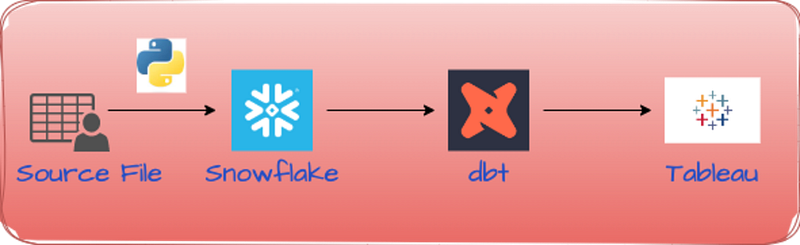
With an overwhelming growth in data, there’s an increasing need for powerful tools to handle and draw insights from this data. This is where technologies like DBT (Data Build Tool) and Snowflake come in. Our goal in this article is to guide you through a DBT-Snowflake project setup using Netflix movies and series data as our case study, providing a hands-on understanding of DBT’s functionality and its role in the ETL process.

The Tech Stack

Our toolkit for this project includes:

Language: Python, SQL

Tool: DBT

Database: Snowflake

Architecture Diagram:
Setting Up DBT with Snowflake

The first step in our journey is to set up DBT with Snowflake. This involves creating a Snowflake instance, installing DBT, and configuring the DBT profiles.yml file to connect with our Snowflake database. This setup will allow us to run DBT commands on our data stored in Snowflake.

1. Install DBT

First, you need to install DBT. If you are using pip, you can install it with the following command:

pip3 install dbt-snowflake

2. Check the Version

After installation, check the version of DBT and Snowflake using below,

dbt --version

This will output the following:

Core:
  - installed: 1.5.0
  - latest:    1.5.0 - Up to date!

Plugins:
  - snowflake: 1.5.0 - Up to date!
  - postgres:  1.5.0 - Up to date!

3. Create a Snowflake Account

If you haven’t already, sign up for a Snowflake account. They offer a free trial period, which can be useful for initial setup and testing.

4. Create a Snowflake Database and Warehouse

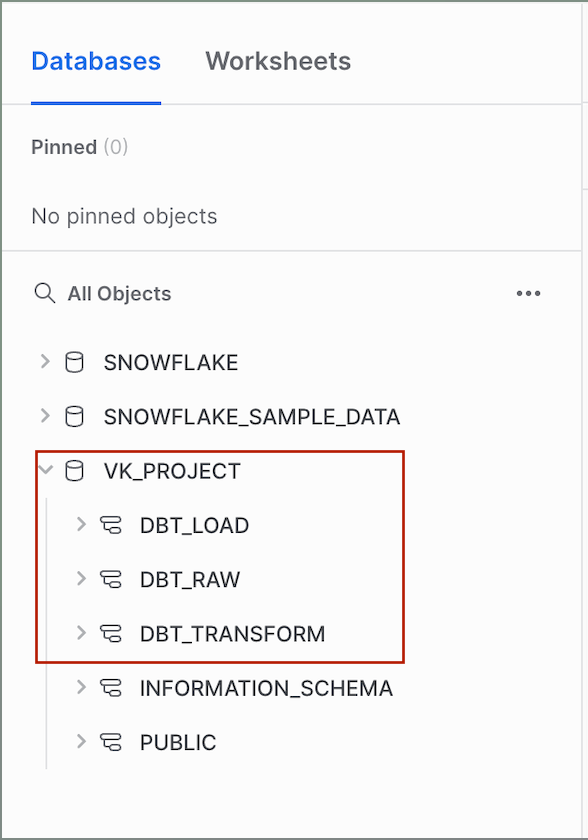
Once you have a Snowflake account, log into the Snowflake Web Interface. Create a new database and warehouse for your DBT project.In this case, we have created a database called VK_PROJECT and three schemas namely DBT_RAW , DBT_TRANSFORM, and DBT_LOAD to store and manage our data.
5. Set Up DBT Profile

Next, you need to set up a DBT profile. DBT uses profiles to define connection information. Create a new file called profiles.yml in the ~/.dbt/ directory.

The .dbt directory is a hidden folder that usually resides within the home directory of your user profile on your computer. The purpose of this directory is to house the profiles.yml file which is used by DBT (Data Build Tool) to manage and store connection details for the various databases you interact with.

Here’s an example of what the profiles.yml file should look like for Snowflake:

dbt_snowflake_project:
  outputs:
    dev:
      account: <account_name>
      database: vk_project
      password: <password>
      role: accountadmin
      schema: DBT_RAW
      threads: 1
      type: snowflake
      user: <username>
      warehouse: compute_wh
    dev_stg: 
      account: <account_name>
      database: vk_project
      password: <password>
      role: accountadmin
      schema: DBT_TRANSFORM
      threads: 1   
      type: snowflake
      user: <username>
      warehouse: compute_wh
    dev_tgt:
      account: <account_name>
      database: vk_project
      password: <password>
      role: accountadmin
      schema: DBT_LOAD
      threads: 1
      type: snowflake
      user: <username>
      warehouse: compute_wh

Be sure to replace <account_name>, <username>, <password> with your actual Snowflake details.

6. Initialize Your DBT Project

In your terminal, navigate to the directory where you want to create your DBT project, and run the following command:

dbt init dbt_snowflake_project

Replace dbt_snowflake_projectwith your desired project name.

Once the above command executed, it will ask for sequence of steps like database to choose, user name, password, role, warehouse, database, schema and thread.

This command will create a new directory with the project name you specified, complete with the basic structure of a DBT project.

6. Test Your Setup

Navigate into your new project directory and run:

dbt debug

This command will verify that dbt can connect to your specified data warehouse. If everything is set up correctly, you should see a message saying the connection test passed.

That’s it! You now have DBT set up with Snowflake, and you’re ready to start your first project.

Loading Data into Snowflake

Once DBT and Snowflake are up and running, we’ll load the ‘titles.csv’ file into the Snowflake database. We can do this using Python, pandas, and the Snowflake Connector for Python.

import pandas as pd
import snowflake.connector as snow
from snowflake.connector.pandas_tools import write_pandas

conn = snow.connect(
    user='your user name',
    password='your password',
    account='your account id',
    warehouse='warehouse name',
    database='database name',
    schema='schema name'
)
cur=conn.cursor()
print('Connection Created')

cur = conn.cursor()
sql_titles = "TRUNCATE TABLE IF EXISTS TITLES_RAW"
cur.execute(sql_titles)
print('Tables truncated')
   
cur=conn.cursor()
titles_file = "titles.csv"

titles_df = pd.read_csv(titles_file,sep=',')

write_pandas(conn, titles_df, "TITLES",  auto_create_table=True)
print("Title files loaded")

cur.close()
conn.close()

When you set auto_create_table=True, the function will automatically create a new table in your Snowflake database if the table you specified in the function call doesn't already exist.

This script truncates the ‘TITLES_RAW’ table if it exists, reads the ‘titles.csv’ file into a pandas DataFrame, and writes the DataFrame to the ‘TITLES’ table in the Snowflake database.

Let’s query the data:
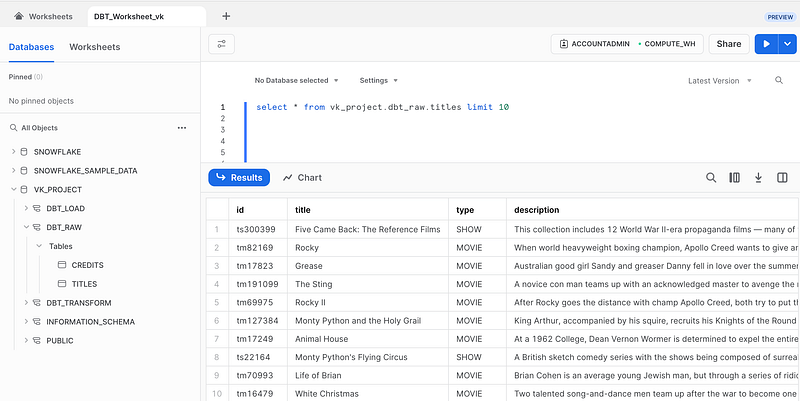
The table TITLE contains various details about different shows and movies such as ID, title, type, description, release year, age certification, runtime, genres, production countries, seasons, IMDB ID, IMDB score, IMDB votes, TMDB popularity, and TMDB score. It serves as the raw data source that we will use to perform transformations using DBT and Snowflake.

Data Transformation

With our raw data in Snowflake, we can begin to transform it using DBT. In this project, we’re focusing on extracting two dimensions from our raw data: show details and scores and votes. We accomplish this by creating two DBT models: SHOW_DETAILS_DIM.sql and SCORES_VOTES_DIM.sql.

Let’s break down what’s happening in these files.

  1. SHOW_DETAILS_DIM.sql
{{ config(
    pre_hook="ALTER SESSION SET QUOTED_IDENTIFIERS_IGNORE_CASE = true"
) }}

SELECT
ID
,TITLE
,TYPE
,DESCRIPTION
,RELEASE_YEAR
,AGE_CERTIFICATION
,RUNTIME
,GENRES
,PRODUCTION_COUNTRIES
,SEASONS
FROM
{{ var('titles') }}

2. SCORES_VOTES_DIM.sql

{{ config(
    pre_hook="ALTER SESSION SET QUOTED_IDENTIFIERS_IGNORE_CASE = true"
) }}

SELECT
ID
,IMDB_ID
,IMDB_SCORE
,IMDB_VOTES
,TMDB_POPULARITY
,TMDB_SCORE
FROM
{{ var('titles') }}

The config block at the top of each file sets some configurations for the SQL that follows. The pre_hook setting runs a piece of SQL before the main query, which is used here to alter the session setting QUOTED_IDENTIFIERS_IGNORE_CASE = true. This setting ensures that Snowflake ignores the case of identifiers in queries, which can be useful when dealing with mixed-case identifiers.

The SELECT statement that follows the config block is where the actual transformation happens. It selects the columns we're interested in from our raw data.

The {{ var('titles') }} piece is a DBT variable that references our raw data. In our dbt_project.yml file, we've set this variable to point to the Snowflake table that holds our raw data:

vars:
  titles: 'VK_PROJECT.DBT_RAW.TITLES'
  credits: 'VK_PROJECT.DBT_RAW.CREDITS'

With these two SQL files, we can now transform our raw data into more meaningful dimensions, enabling us to gain better insights from the data.

Data Analysis

After transforming our raw data into two meaningful dimensions, the next step is to perform data analysis. For this project, we’re interested in identifying the popularity of the movies and shows. We’ll leverage both our transformed tables to create a data view that can be used for this analysis.

Here is the SQL code for creating the table:

{{ config(
    pre_hook="ALTER SESSION SET QUOTED_IDENTIFIERS_IGNORE_CASE = true"
) }}

WITH VOTES AS
(
SELECT ID
,NVL(IMDB_ID,'N/A') AS IMDB_ID
,NVL(IMDB_SCORE,0) AS IMDB_SCORE
,NVL(IMDB_VOTES,0) AS IMDB_VOTES
,NVL(TMDB_POPULARITY,0) AS TMDB_POPULARITY
,NVL(TMDB_SCORE,0) AS TMDB_SCORE
FROM
VK_PROJECT.DBT_TRANSFORM.SCORES_VOTES_DIM
)

SELECT
TITLE
,TYPE
,DESCRIPTION
,RELEASE_YEAR
,VOTES.*
FROM VK_PROJECT.DBT_TRANSFORM.SHOW_DETAILS_DIM DETAILS
LEFT JOIN
VOTES
ON
DETAILS.ID=VOTES.ID

This query first generates a ‘VOTES’ temporary table that fetches data from the ‘SCORES_VOTES_DIM’ dimension. Here, NVL() function is used to replace NULL values with a default value. The temporary table includes columns like IMDB ID, IMDB Score, IMDB Votes, TMDB Popularity, and TMDB Score.

Next, we join this ‘VOTES’ table with the ‘SHOW_DETAILS_DIM’ dimension on the ‘ID’ field to create a combined view of our data. This final table provides us with a unified view that includes the details of each show, along with their respective scores and votes from IMDB and TMDB.

Through this data view, we can analyze various attributes like which show has the highest IMDB score, the correlation between the number of votes and scores, how the popularity of shows has evolved over the years, and much more.

Conclusion

This project demonstrates the power of DBT and Snowflake in handling and processing large datasets efficiently. It shows how you can transform raw data into meaningful insights using the capabilities of these tools.

Feel free to clone my Github repository to explore further.

Happy data pipelining!

If you found this article useful, please consider sharing it with your friends and colleagues. Your support helps others discover valuable content and encourages me to continue writing. Don’t forget to follow me for more insightful articles, and if you enjoyed reading this piece, kindly show your appreciation by giving it a clap!

Your feedback is vital in helping me understand how helpful my articles are to you.

Thank you for your support!

Dbt
Snowflake
Data Pipeline
Data Engineering
Recommended from ReadMedium