avatarDaniele Quero, PhD

Summary

The web content explains how to implement the "First Selected" feature in Unity's UI EventSystem to enable keyboard or gamepad navigation without the need for mouse clicks or screen taps, enhancing accessibility and user experience.

Abstract

The article on the undefined website discusses the importance of setting up button navigation in Unity UI for games that rely solely on keyboard or gamepad inputs. It highlights the "First Selected" feature within Unity's EventSystem, which allows developers to specify a default selected UI element when a canvas is displayed. This is crucial for accessibility, ensuring that users without mouse or touch screen capabilities can navigate the UI effectively. The article provides a step-by-step guide on how to link a button to be the first selected element, demonstrating the feature's practical application with visual examples. The author also encourages readers to support their work by becoming Medium members or subscribing to their newsletter.

Opinions

  • The author believes that the "First Selected" feature is essential for accessibility, particularly for users who cannot use a mouse or touch screen.
  • They emphasize the feature's utility in improving overall usability and user experience by providing a clear UI focus.
  • The author suggests that implementing button navigation via keyboard or gamepad is not only beneficial for accessibility but also enhances the game's usability for all players.
  • By guiding readers through the process and showcasing the results, the author implies that this feature is easy to implement and can significantly improve the player's experience.
  • The author values community engagement and support, inviting readers to clap for the article, share it, and consider becoming a Medium member or subscribing to their newsletter to receive updates on new content.

How to Unity

Unity UI — First Selected

Make navigation available without clicks or taps

In this article, I showed how to set up button navigation via arrow keys or gamepad. In the end, I pointed out how buttons need to be selected in order to be navigated.

Selection is usually carried out by mouse click or tap (with touchscreens) on the button.

But what if non of that is possible? What if the game is being developed with only a keyboard or gamepad input in mind? Buttons will never be selected, thus never be navigated!!

There’s a solution, though.

In Unity’s EventSystem, the “First Selected” feature allows you to specify which UI element should be initially selected when appearing on the canvas.
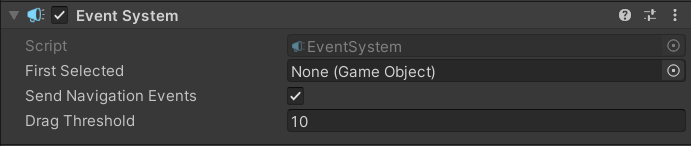
When you created a canvas, an “EventSystem” game object was created along. In its inspector view, there is a cool option named “First Selected”, which can be populated by dropping the button you want to have selected by default.

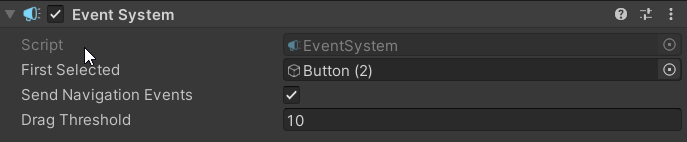
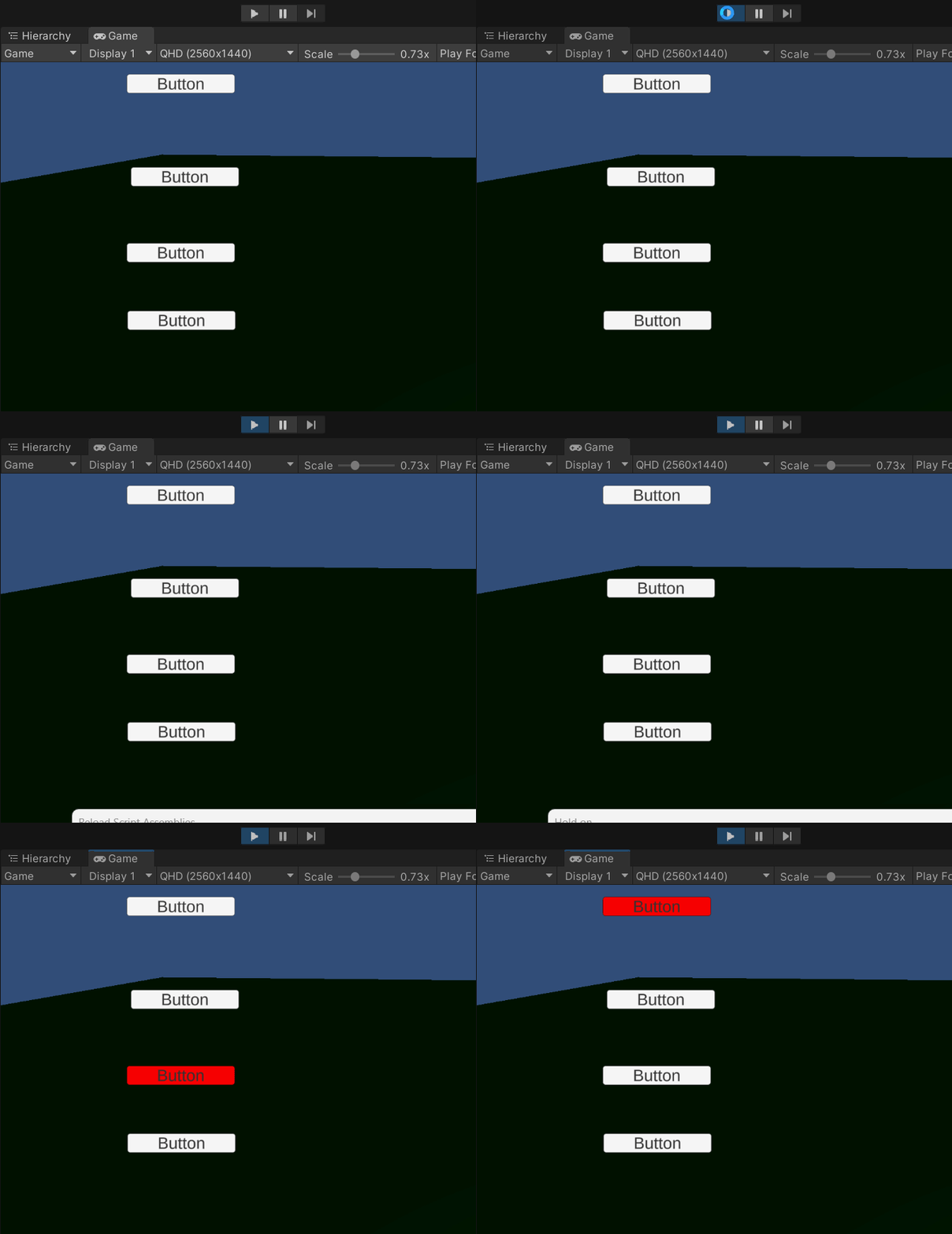
This feature is handy for accessibility purposes, as it allows users who may not be able to use a mouse or touch screen to navigate your UI with ease. It also provides a clear indication to all users of the UI's focus, improving overall usability and user experience. Let’s see an example, let’s link the third button to be the First Selected, then start the game:
If you liked the article, please clap to it and share it! Also, take a look at my games!

Get access to my stories and those of other Medium writers for just $5 a month. With no additional cost to you, I will receive half of your payments as a commission: it’s a great way to support me!

Join my newsletter and receive regular notifications when I post.

Unity
Unity Ui
Unity3d
Unity2d
Recommended from ReadMedium