
Unity Shader Graph: Getting Started
Shaders are the backbone to displaying everything. The Shader Graph is Unity’s answer to creating a visual and intuitive way to create shaders quickly and efficiently.
This article is going to walk you through:
- Setting up the shader graph in a Unity 2022.2 URP project
- Explain the different parts of the Shader Graph Editor
- Create a variable within the Shader Graph Editor
First we are going to create a new project. If you haven’t already, be sure to install the 2022.2 version of Unity. Any number after the last “2” will be okay. If you want to be on the exact same version you can install 2022.2.18 but as I said, any minor version will be okay. If you use a 2021 or 2023 version then these articles may still help you but the Unity usually makes some big UI/UX change between these versions so things might look different.
Now that we are set, lets create a new project using the URP template and making sure we are on the 2022.2 version.

The shader graph should already be installed, but you can always check your package manager. So since we should already be good to go, lets make a blank shader graph.
To make a blank shader graph, we just need to right click in our project window and then go to Create -> Shader Graph -> Blank Shader Graph.
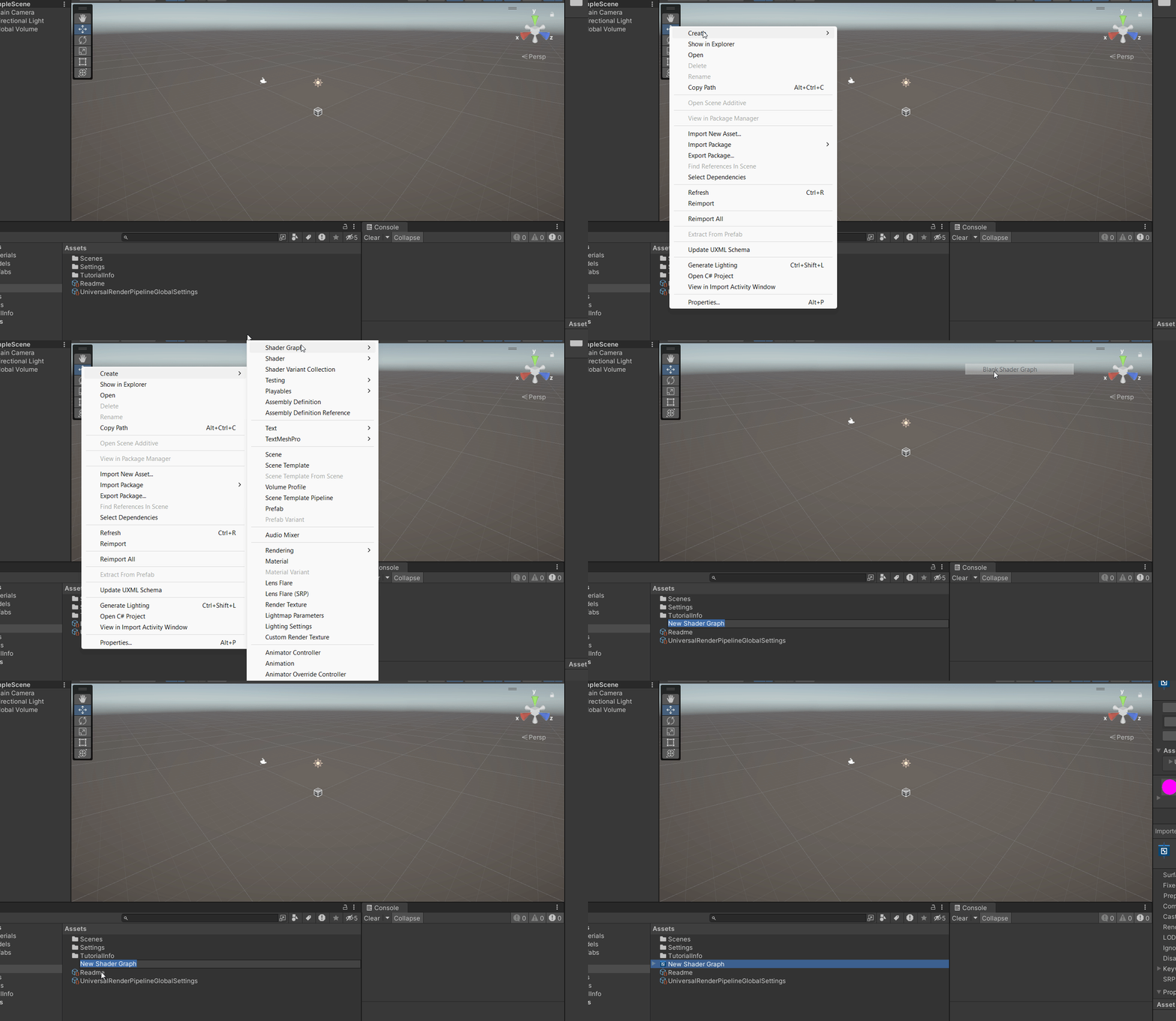
You can now open the shader graph window by double clicking the shader graph, or selecting the shader graph and then in the inspector window selecting the “Open Shader Editor” button.
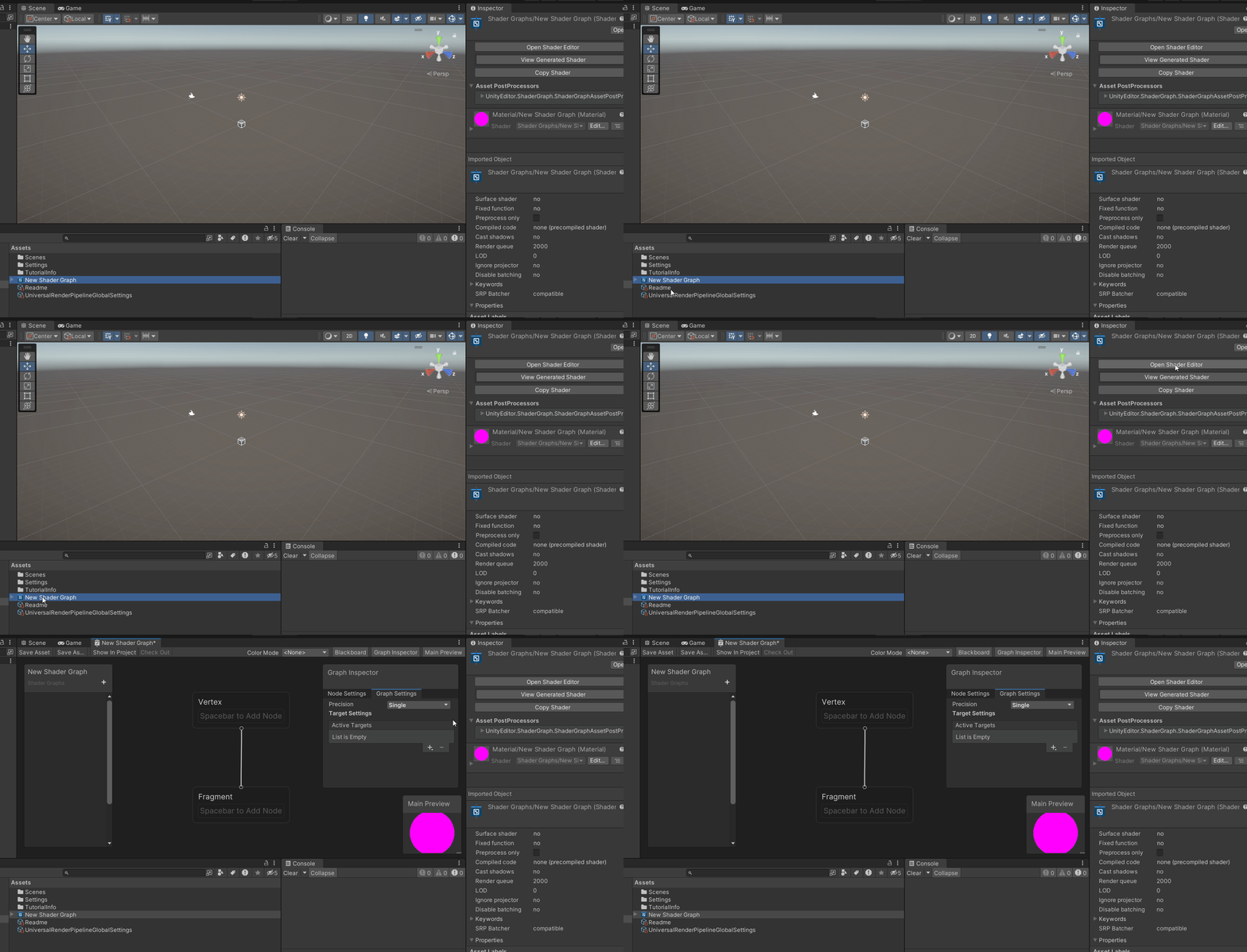
Breaking Down the Shader Graph Editor
I’m going to start by removing all the extra parts and then introducing each one at a time.
The Master Stack
After removing all the extra pieces we have the options menu buttons up at the top and what is called the Master Stack (previous version had a “Master Node” but that is deprecated). The master stack is the final point in the shader before the image is passed to the back-buffer.
If you need a refresher, checkout the previous article.
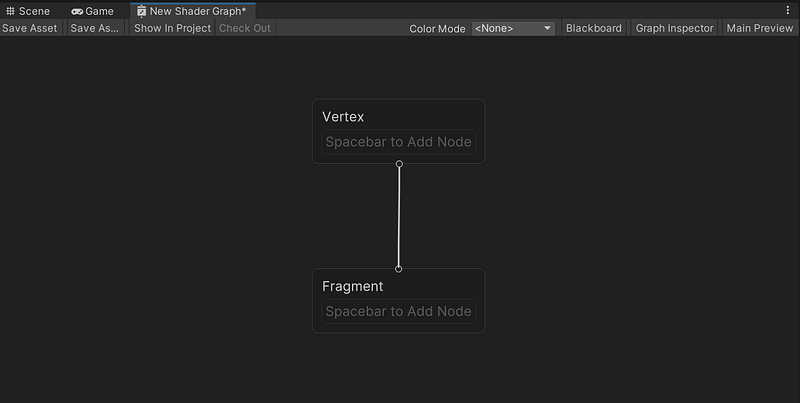
The master stack currently only has two nodes, but as continue the master stack will grow. No matter what size the master stack is, you should only ever have one master stack.
The Blackboard
On the top right side, we can see a menu button labeled “Blackboard” which will enable the blackboard window. Once we enable the blackboard we will be able to see that this is where we can create variables. You will be able to move and adjust the blackboard window.
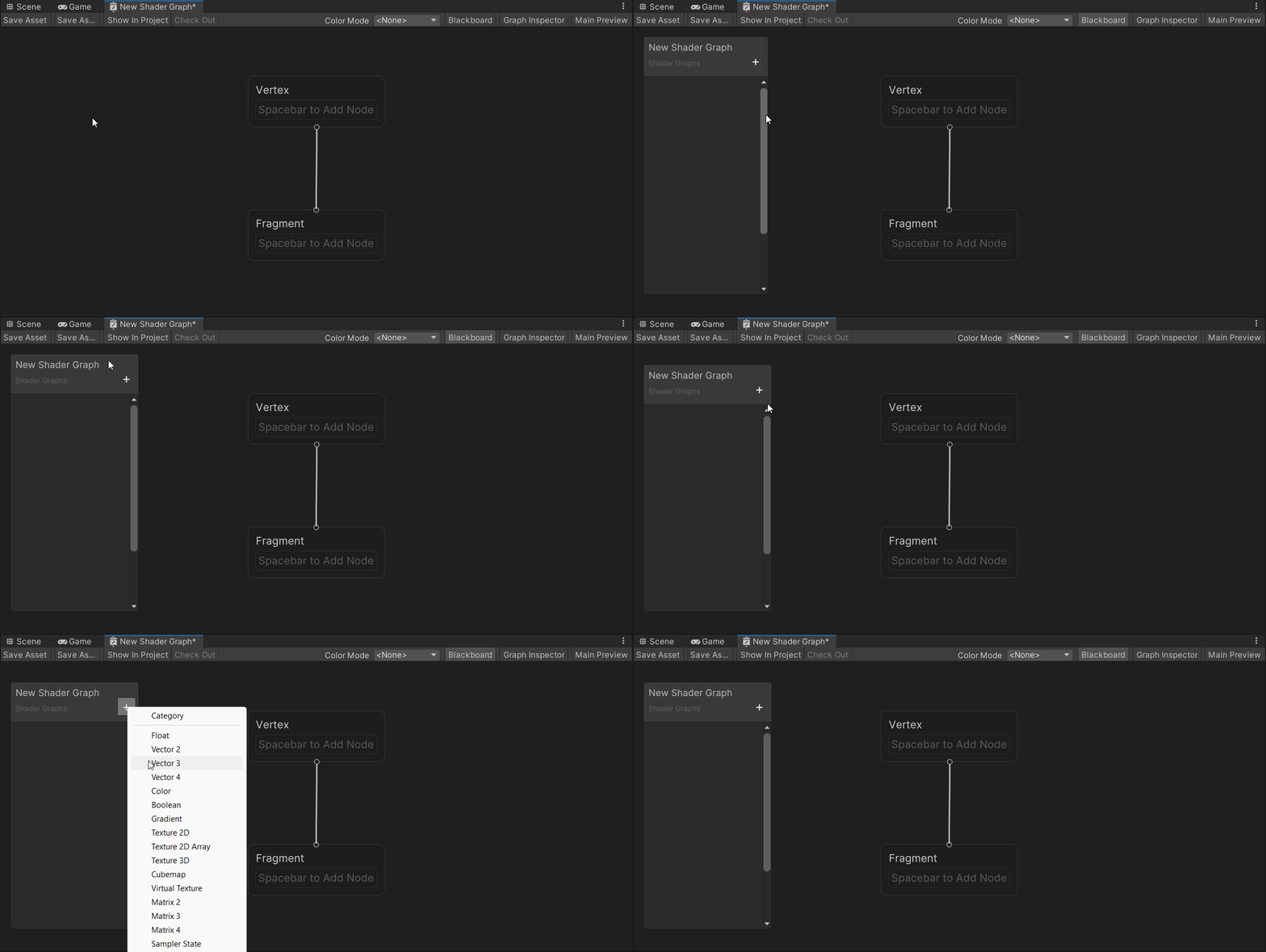
So lets make a variable just as an example. Click the plus button on the right of the blackboard window. You are going to see all the different data types that you can choose from to create a variable.
Lets select the data type “Color” and then feel free to name it whatever you like.
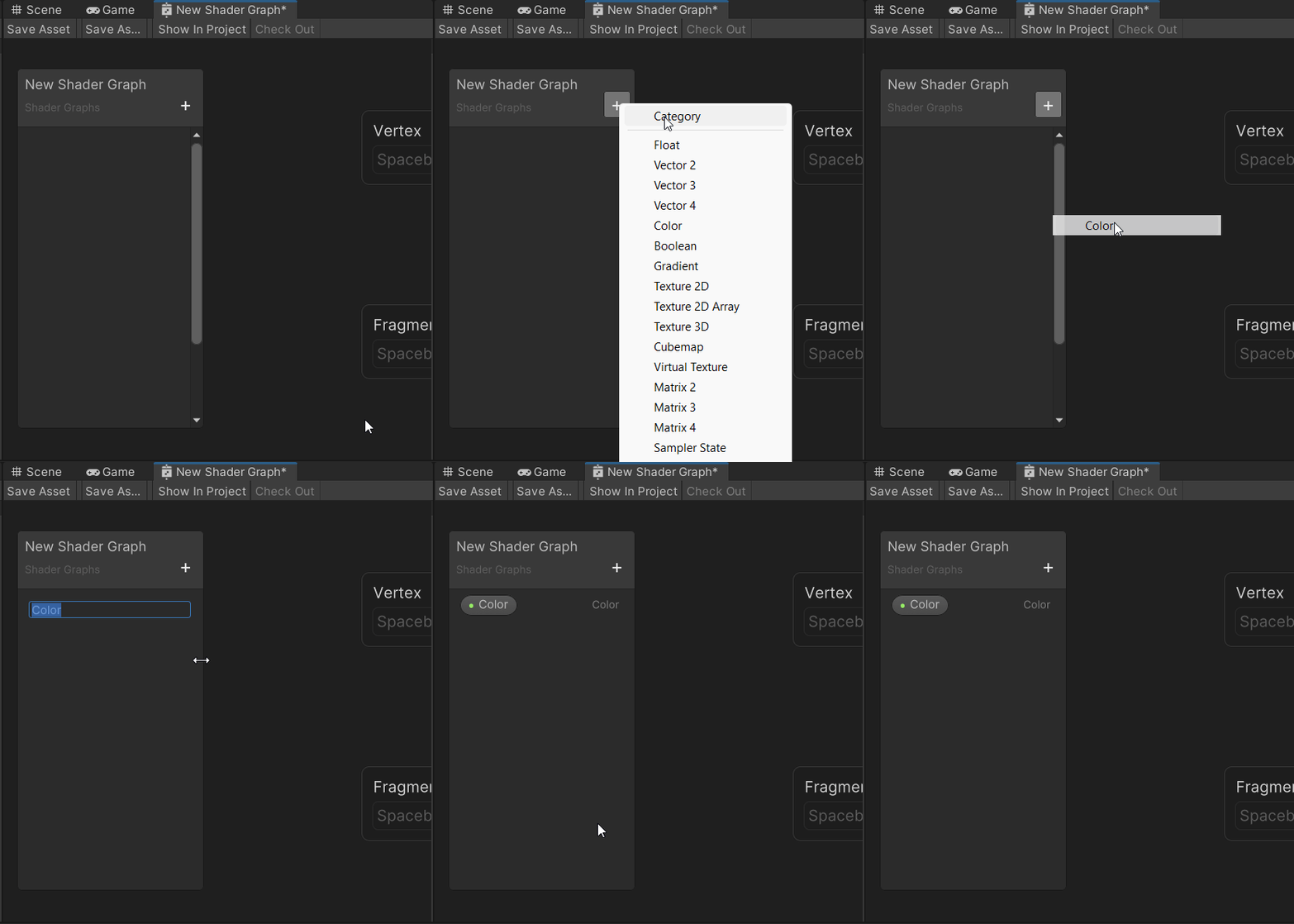
The Graph Inspector
Next to the Blackboard button is a button labeled “Graph Inspector” that once clicked will enable the graph inspector window. Just like the blackboard window, the graph inspector can be moved and the size can be adjusted.
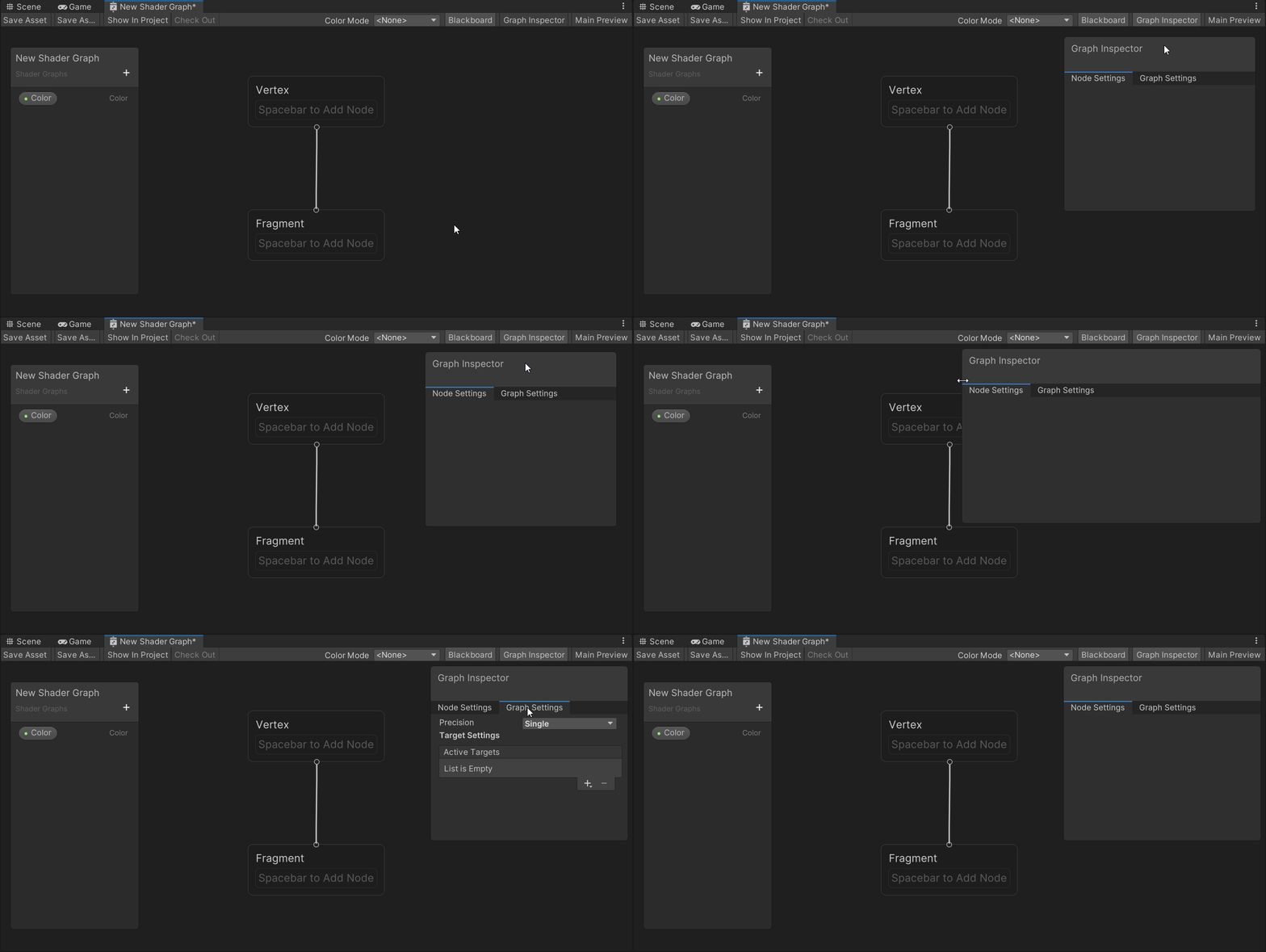
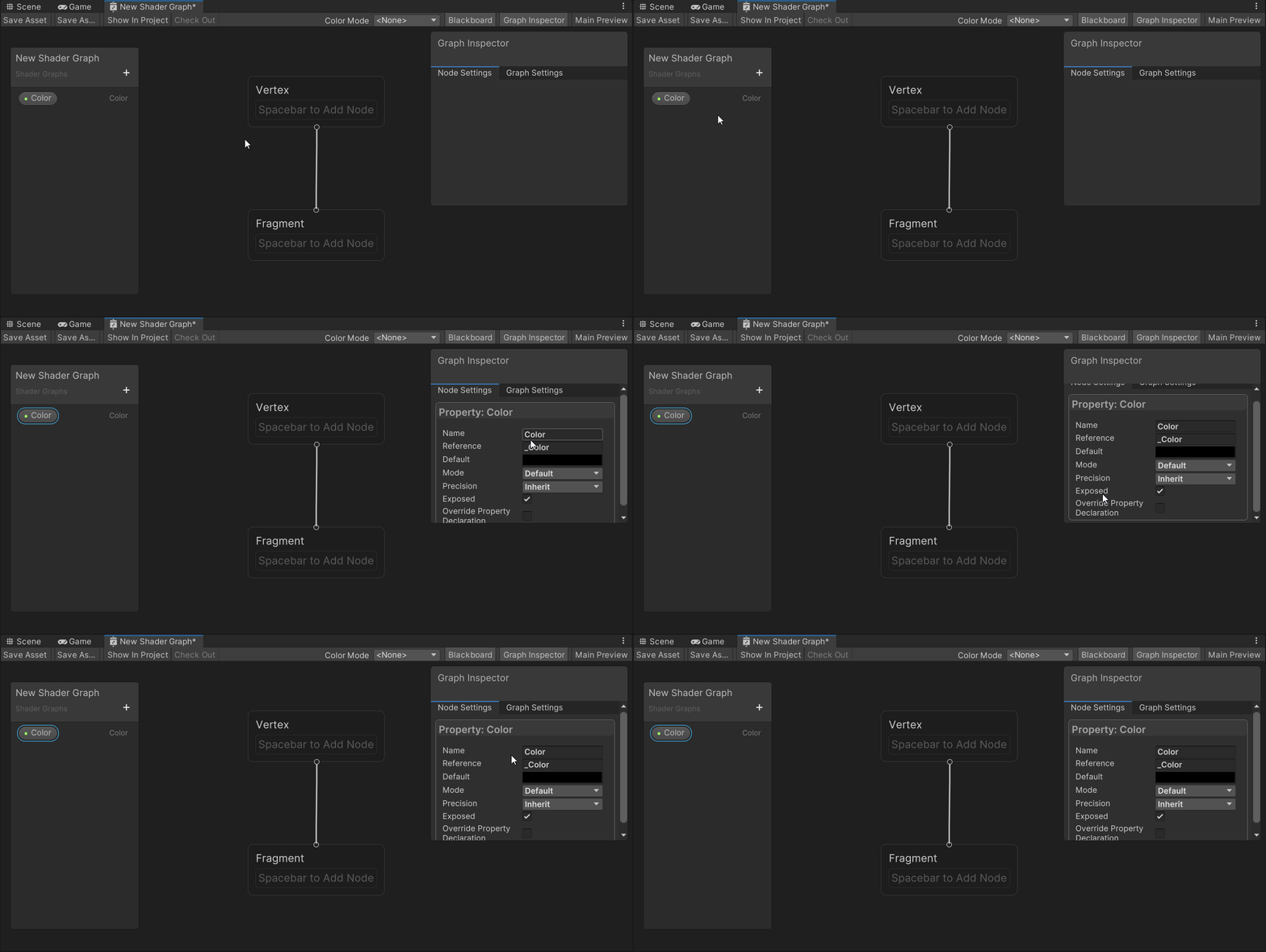
You will see that there are two tabs, one for node settings and the other for graph settings. This acts like the inspector for normal Unity development and allows you to change variable settings as well. As an example, select the Color variable and see what settings we can change. We will dive into this more in another article so don’t worry about trying to fully understand all the settings.
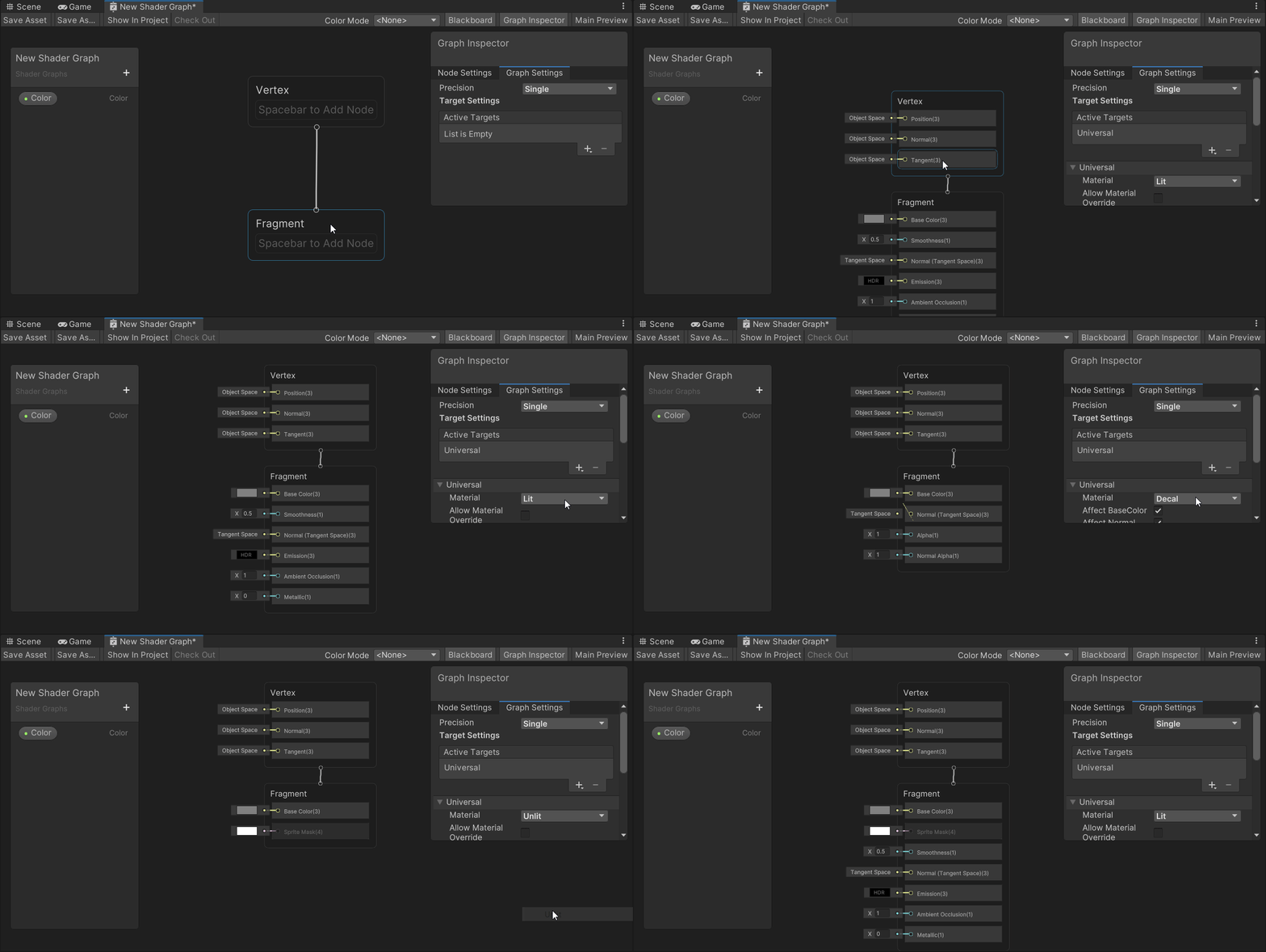
Inside the graph settings tab of the Graph Inspector there is an “Active Targets” section. Here we can select Universal and change the blank shader graph to a URP shader graph. Doing this will also update the Master Stack of one of the URP shaders that come with Unity.
How to Move Withing the Shader Graph Editor
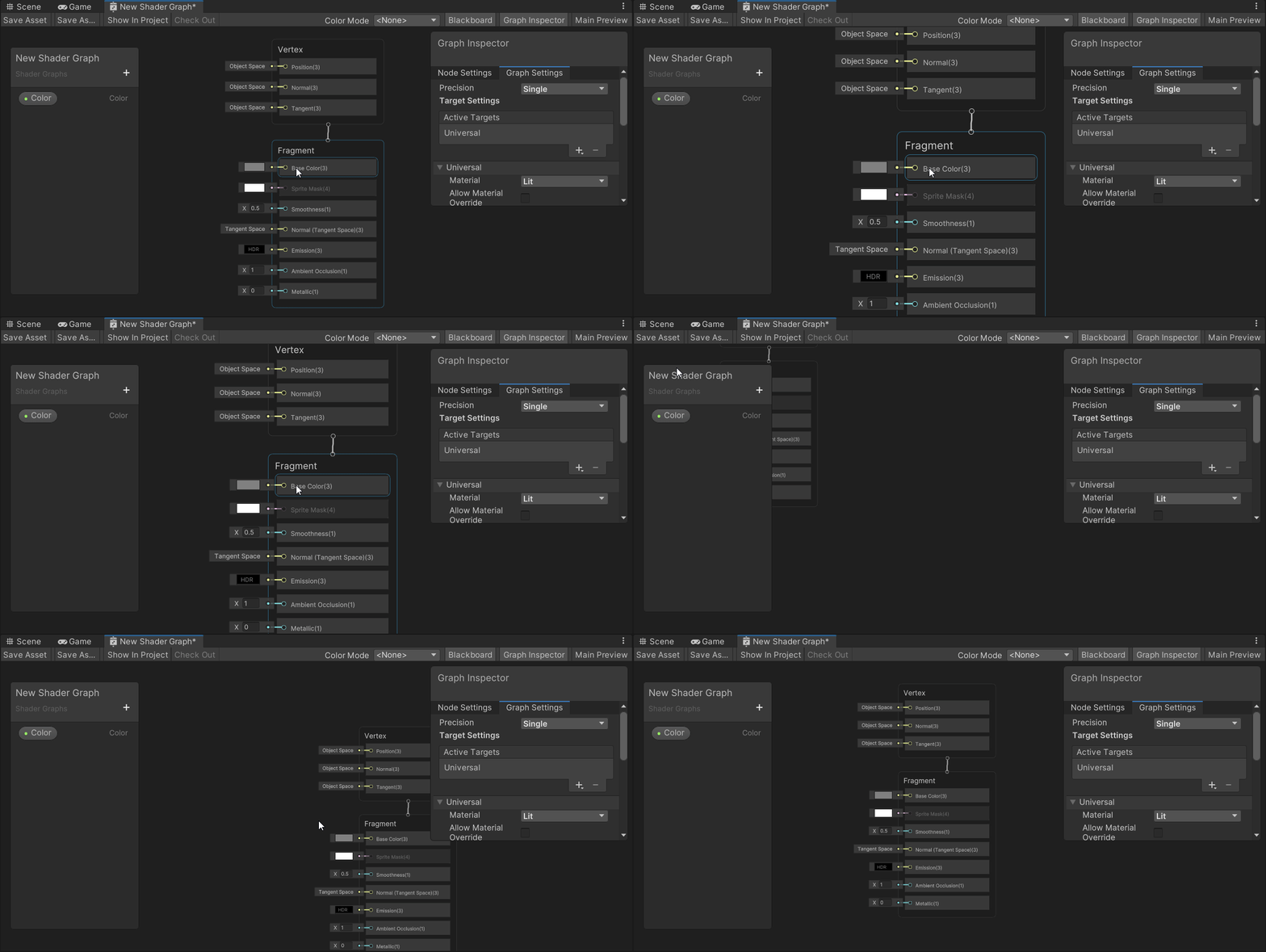
Using the scroll wheel on the mouse will allow you to zoom in and out. If you want to pan the graph right, left, up, or down you need to hold the mouse scroll button down.
The Main Preview
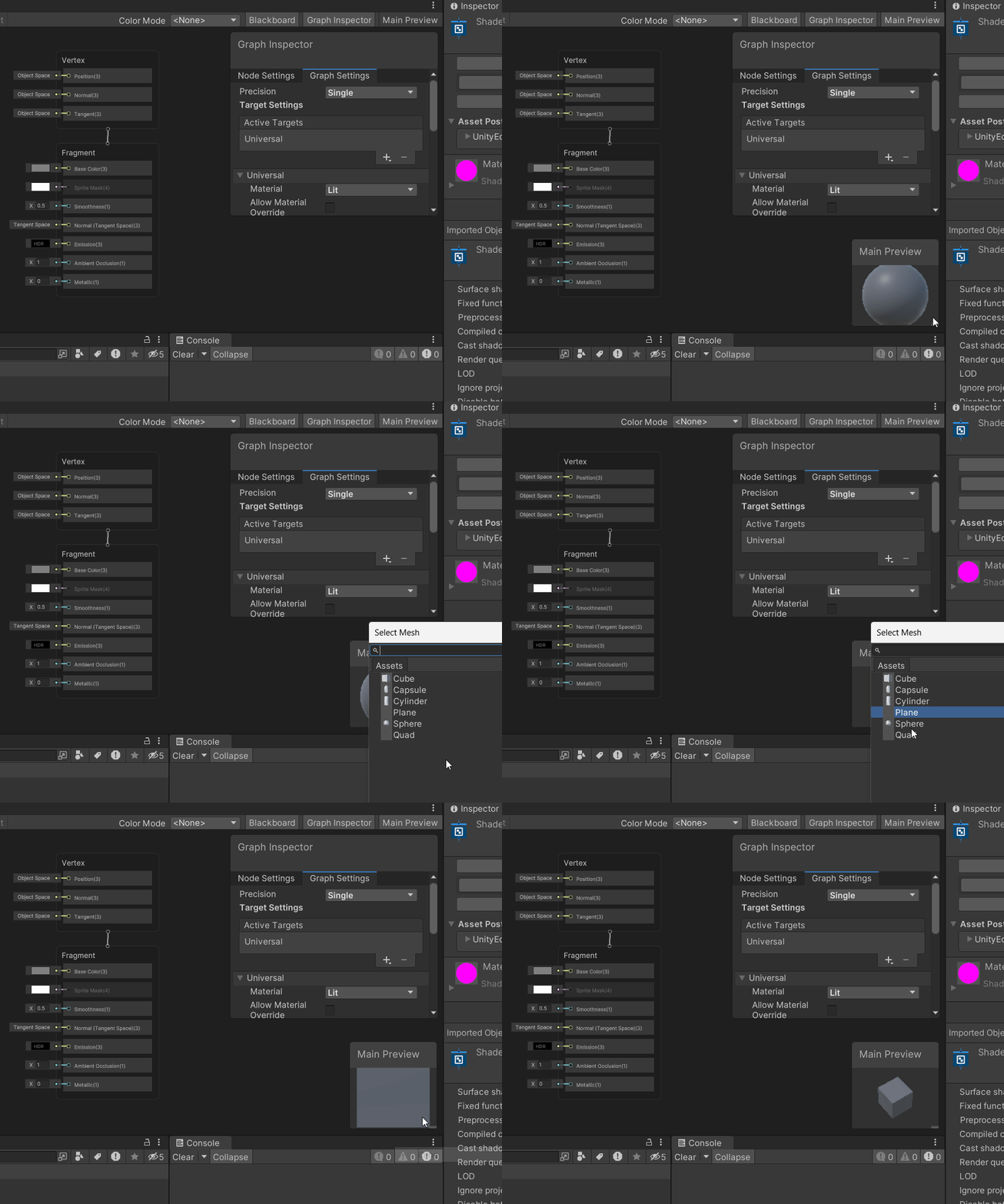
The last button in the row enables the Main Preview window which allows you to see an example of what the shader will look like. For now, because we aren’t doing anything, the preview will just show the basic unity grey color.
If you right click the main preview window you can choose what object you want displayed in the window so if you are developing a shader for a certain object or character then you can see exactly how it will look before you test it in the scene window. You can use the mouse scroll wheel to zoom in and out and you can hold the right mouse button to rotate the object.
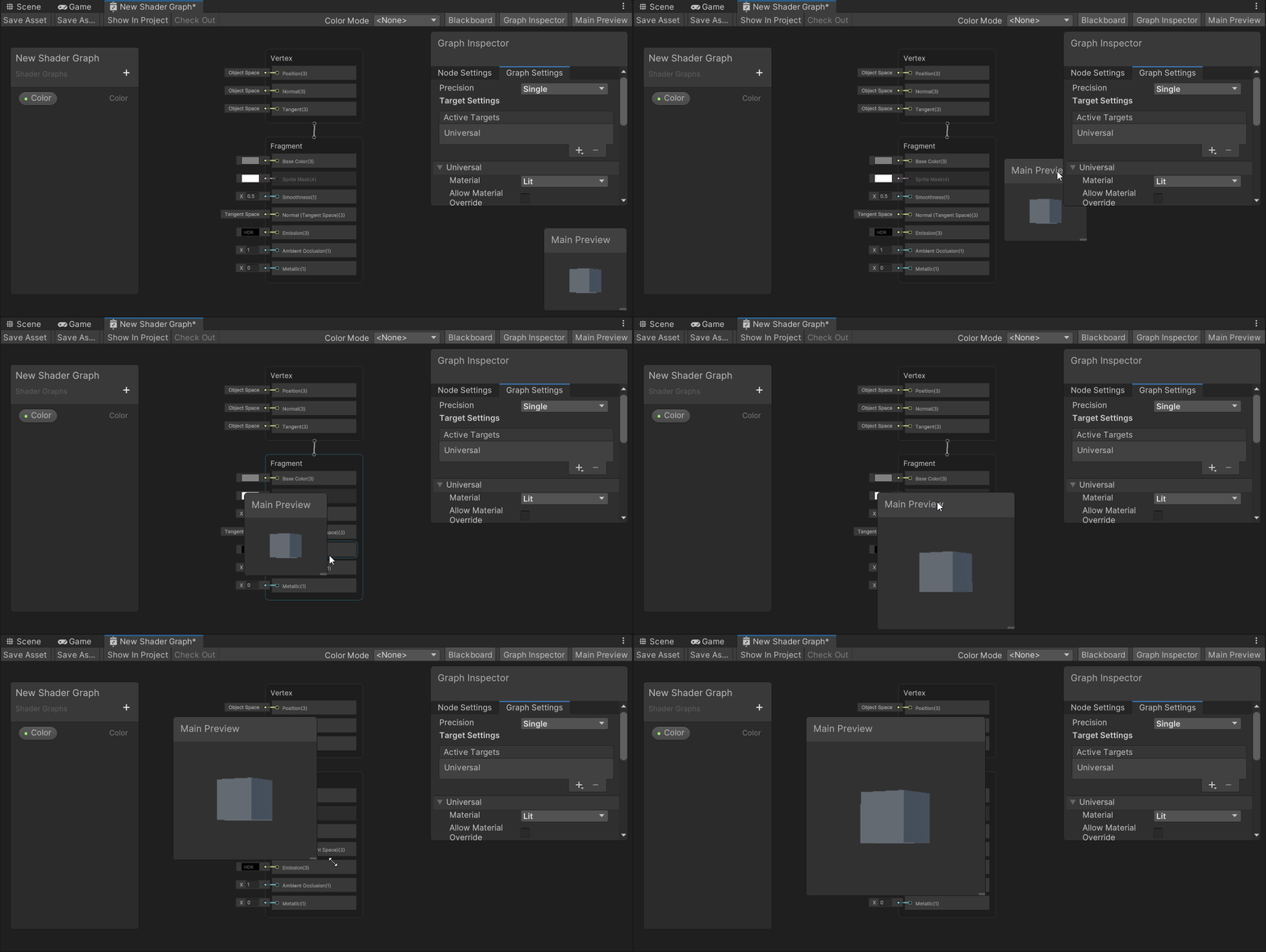
As with all the other windows, you can also move this one around and adjust the size as you like.
This hopefully gave you a good breakdown of the shader graph editor window. In the next article we are going to create our very first shader using the shader graph.
The Author
If you would like to support me so that I can continue putting out articles and videos please consider becoming a member. If you would like to give a more direct donation, feel free to buy me a coffee Ko-Fi/MikeQ. If you have any questions, complaints, or funny jokes, be sure to throw them in the comments.
Want to know more about me? Feel free to checkout my latest interview with BadVR or connect with me on LinkedIn.


