avatarHarsh Maheshwari

Free AI web copilot to create summaries, insights and extended knowledge, download it at here

7066

Abstract

ass="hljs-number">11</span>,<span class="hljs-number">12</span>,<span class="hljs-number">9</span>,<span class="hljs-number">6</span>]) <span class="hljs-attribute">variable_b</span> = np.array([<span class="hljs-number">99</span>,<span class="hljs-number">86</span>,<span class="hljs-number">87</span>,<span class="hljs-number">88</span>,<span class="hljs-number">111</span>,<span class="hljs-number">86</span>,<span class="hljs-number">103</span>,<span class="hljs-number">87</span>,<span class="hljs-number">94</span>,<span class="hljs-number">78</span>,<span class="hljs-number">77</span>,<span class="hljs-number">85</span>,<span class="hljs-number">86</span>])</pre></div><div id="b602"><pre>plt.scatter(<span class="hljs-keyword">variable</span><span class="hljs-number"></span>a, <span class="hljs-keyword">variable</span><span class="hljs-number"></span>b) plt.show()</pre></div><figure id="c0d9"><img src="https://cdn-images-1.readmedium.com/v2/resize:fit:800/1*wKY4QPTUoeYqWz9DiOwwig.png"><figcaption>Image by Author</figcaption></figure><p id="b23a">From the above graph, we can conclude that when <i>variable_a </i>increases,<i> variable_b </i>decreases.</p><h2 id="92d7">Formatting Style of Plots</h2><p id="82cd">This is one of the important ones. Here we will see all kinds of beautification we can add to a plot. We will see how to add the following things here-:</p><ul><li>Axis label — Helps in describing what the x-axis and y-axis represent on the plot.</li><li>Legend — Useful when we plot multiple plots in a graph. It tells which color represents which data in the plot.</li><li>Title — Title of the plot</li><li>Grid — Adding a grid in graph helps get better inference</li><li>Color —Setting the color of the curve as per your requirement.</li><li>Dashed lines — Setting if the curve should be a solid line or a dashed line</li><li>Marker — Setting how to represent each data point</li></ul><p id="fa49">So a lot of new features are getting introduced. To understand the effect of each one, I have plotted multiple plots on different lines of code as commented in the snippet below.</p><p id="b574"><b>Note — </b>I have used only one type of marker or one type of color for illustration purposes. You can check out what other options are available for each type.</p><div id="ab35"><pre><span class="hljs-attribute">import</span> matplotlib.pyplot as plt <span class="hljs-attribute">import</span> numpy as np <span class="hljs-attribute">loss</span> = np.array([<span class="hljs-number">1</span>, <span class="hljs-number">0</span>.<span class="hljs-number">95</span>, <span class="hljs-number">0</span>.<span class="hljs-number">92</span>, <span class="hljs-number">0</span>.<span class="hljs-number">89</span>, <span class="hljs-number">0</span>.<span class="hljs-number">83</span>, <span class="hljs-number">0</span>.<span class="hljs-number">76</span>, <span class="hljs-number">0</span>.<span class="hljs-number">70</span>, <span class="hljs-number">0</span>.<span class="hljs-number">63</span>, <span class="hljs-number">0</span>.<span class="hljs-number">54</span>, <span class="hljs-number">0</span>.<span class="hljs-number">48</span>]) <span class="hljs-attribute">epochs</span> = np.array(list(range(<span class="hljs-number">10</span>))) <span class="hljs-attribute">plt</span>.plot(loss, epochs, label=<span class="hljs-string">"Loss Curve 1"</span>, linestyle=<span class="hljs-string">"dashed"</span>, marker='*', color='red')</pre></div><div id="8670"><pre><span class="hljs-selector-id">#Plot</span> <span class="hljs-number">1</span> plt<span class="hljs-selector-class">.xlabel</span>(<span class="hljs-string">"Epochs"</span>) plt<span class="hljs-selector-class">.ylabel</span>(<span class="hljs-string">"Loss"</span>) </pre></div><div id="3fab"><pre><span class="hljs-selector-id">#Plot</span> <span class="hljs-number">2</span> plt<span class="hljs-selector-class">.title</span>(<span class="hljs-string">"Loss - Epoch Curve"</span>)</pre></div><div id="1ed2"><pre><span class="hljs-selector-id">#Plot</span> <span class="hljs-number">3</span> plt<span class="hljs-selector-class">.grid</span>(<span class="hljs-string">"on"</span>) </pre></div><div id="92c4"><pre><span class="hljs-selector-id">#Plot</span> <span class="hljs-number">4</span> plt<span class="hljs-selector-class">.legend</span>()</pre></div><div id="f98c"><pre><span class="hljs-attr">#Plot 5</span> plt.show<span class="hljs-comment">()</span></pre></div><figure id="12b7"><img src="https://cdn-images-1.readmedium.com/v2/resize:fit:800/1*2ATaBpHOY-gWF8yirwgbuA.png"><figcaption>Image By Author</figcaption></figure><p id="603a">For comparison, I have also shown a plot from the first snippet (Plot 6). Now, for our understanding, Plot 6 is enough as we only need to see how the loss varies with each epoch. Still, for anyone new, Plot 5 is more appropriate to represent all the necessary information.</p><h2 id="9f04">Creating a figure comprising of multiple graphs</h2><p id="5e88">When we need to plot multiple subplots, we can use the below snippet. I have also added different examples of formatting styles so that you can get more clarity.</p><div id="8086"><pre><span class="hljs-keyword">import</span> matplotlib.pyplot <span class="hljs-keyword">as</span> plt <span class="hljs-keyword">import</span> numpy <span class="hljs-keyword">as</span> np</pre></div><div id="9fe6"><pre><span class="hljs-attribute">t1</span> = np.arange(<span class="hljs-number">0</span>.<span class="hljs-number">0</span>, <span class="hljs-number">5</span>.<span class="hljs-number">0</span>, <span class="hljs-number">0</span>.<span class="hljs-number">1</span>) <span class="hljs-attribute">t2</span> = np.arange(<span class="hljs-number">0</span>.<span class="hljs-number">0</span>, <span class="hljs-number">5</span>.<span class="hljs-number">0</span>, <span class="hljs-number">0</span>.<span class="hljs-number">2</span>)</pre></div><div id="e0a8"><pre>plt<span class="hljs-selector-class">.figure</span>() plt<span class="hljs-selector-class">.subplot</span>(<span class="hljs-number">2</span>,<span class="hljs-number">2</span>,<span class="hljs-number">1</span>) plt<span class="hljs-selector-class">.plot</span>(t1, np<span class="hljs-selector-class">.sin</span>(<span class="hljs-number">2</span>np.pit1), <span class="hljs-attribute">color</span> = <span class="hljs-string">'black'</span>, marker=<span class="hljs-string">'^'</span>, linestyle=<span class="hljs-string">'solid'</span>) plt<span class="hljs-selector-class">.title</span>(<span class="hljs-string">"Sin Curve"</span>) plt<span class="hljs-selector-class">.grid</span>(<span class="hljs-string">"on"</span>)</pre></div><div id="2a62"><pre>plt<span class="hljs-selector-class">.subplot</span>(<span class="hljs-number">2</span>,<span class="hljs-number">2</span>,<span class="hljs-number">2</span>) plt<span class="hljs-selector-class">.plot</span>(t2, np<span class="hljs-selector-class">.tan</span>(<span class="hljs-number">2</span>np.pit2), <span class="hljs-attribute">col

Options

or</span> = <span class="hljs-string">'blue'</span>, marker=<span class="hljs-string">''</span>, linestyle=<span class="hljs-string">'dashed'</span>) plt<span class="hljs-selector-class">.title</span>(<span class="hljs-string">"Tan Curve"</span>) plt<span class="hljs-selector-class">.grid</span>(<span class="hljs-string">"on"</span>)</pre></div><div id="89b6"><pre>plt<span class="hljs-selector-class">.subplot</span>(<span class="hljs-number">2</span>,<span class="hljs-number">2</span>,<span class="hljs-number">3</span>) plt<span class="hljs-selector-class">.plot</span>(t1, np<span class="hljs-selector-class">.cos</span>(<span class="hljs-number">2</span>np.pit1), <span class="hljs-attribute">color</span> = <span class="hljs-string">'green'</span>, marker=<span class="hljs-string">'o'</span>, linestyle=<span class="hljs-string">'dotted'</span>) plt<span class="hljs-selector-class">.title</span>(<span class="hljs-string">"Cos Curve"</span>) plt<span class="hljs-selector-class">.grid</span>(<span class="hljs-string">"on"</span>)</pre></div><div id="5e64"><pre>plt<span class="hljs-selector-class">.subplot</span>(<span class="hljs-number">2</span>,<span class="hljs-number">2</span>,<span class="hljs-number">4</span>) plt<span class="hljs-selector-class">.plot</span>(t2, np<span class="hljs-selector-class">.exp</span>(t2), <span class="hljs-attribute">color</span> = <span class="hljs-string">'red'</span>, marker=<span class="hljs-string">''</span>, linestyle=<span class="hljs-string">'dashdot'</span>) plt<span class="hljs-selector-class">.title</span>(<span class="hljs-string">"Exponential Curve"</span>) plt<span class="hljs-selector-class">.grid</span>(<span class="hljs-string">"on"</span>) plt<span class="hljs-selector-class">.show</span>()</pre></div><figure id="8473"><img src="https://cdn-images-1.readmedium.com/v2/resize:fit:800/1*BSy5YLXK54pA0Wim1IjGYQ.png"><figcaption>Image By Author</figcaption></figure><p id="3cd2">When multiple curves are required in the same plot then we can use the below snippet.</p><div id="b7d1"><pre><span class="hljs-keyword">import</span> matplotlib.pyplot <span class="hljs-keyword">as</span> plt <span class="hljs-keyword">import</span> numpy <span class="hljs-keyword">as</span> np</pre></div><div id="200f"><pre><span class="hljs-attribute">t1</span> = np.arange(<span class="hljs-number">0</span>.<span class="hljs-number">0</span>, <span class="hljs-number">5</span>.<span class="hljs-number">0</span>, <span class="hljs-number">0</span>.<span class="hljs-number">1</span>) <span class="hljs-attribute">t2</span> = np.arange(<span class="hljs-number">0</span>.<span class="hljs-number">0</span>, <span class="hljs-number">5</span>.<span class="hljs-number">0</span>, <span class="hljs-number">0</span>.<span class="hljs-number">2</span>)</pre></div><div id="1554"><pre>plt.plot(t1, np.sin(2np.pit1), color = <span class="hljs-string">'black'</span>, <span class="hljs-attribute">marker</span>=<span class="hljs-string">'^'</span>, <span class="hljs-attribute">linestyle</span>=<span class="hljs-string">'solid'</span>, label = <span class="hljs-string">"Sin Curve"</span>) plt.plot(t1, np.cos(2np.pit1), color = <span class="hljs-string">'green'</span>, <span class="hljs-attribute">marker</span>=<span class="hljs-string">'o'</span>, <span class="hljs-attribute">linestyle</span>=<span class="hljs-string">'dashed'</span>, <span class="hljs-attribute">label</span>=<span class="hljs-string">"Cos Curve"</span>) plt.legend() plt.grid(<span class="hljs-string">"on"</span>) plt.show()</pre></div><figure id="a82f"><img src="https://cdn-images-1.readmedium.com/v2/resize:fit:800/1*2GlPyu729ndHlXcJF9IMIw.png"><figcaption>Image By Author</figcaption></figure><p id="5923">As we can see here, a legend is instrumental in visualizing which curve corresponds to which function, i.e., sin or cos.</p><h2 id="be5c">Work with text annotation in graphs.</h2><p id="4443">We can use test annotation to point out a particular point in the graph and describe what that point means. For example, I have annotated the maxima of the sin curve and the cos curve in the code below.</p><div id="b817"><pre><span class="hljs-keyword">import</span> matplotlib.pyplot <span class="hljs-keyword">as</span> plt <span class="hljs-keyword">import</span> numpy <span class="hljs-keyword">as</span> np</pre></div><div id="8bb7"><pre><span class="hljs-attribute">t1</span> = np.arange(<span class="hljs-number">0</span>.<span class="hljs-number">0</span>, <span class="hljs-number">5</span>.<span class="hljs-number">0</span>, <span class="hljs-number">0</span>.<span class="hljs-number">1</span>) <span class="hljs-attribute">t2</span> = np.arange(<span class="hljs-number">0</span>.<span class="hljs-number">0</span>, <span class="hljs-number">5</span>.<span class="hljs-number">0</span>, <span class="hljs-number">0</span>.<span class="hljs-number">2</span>)</pre></div><div id="ea60"><pre>plt.plot(t1, np.sin(2np.pit1), color = <span class="hljs-string">'blue'</span>, <span class="hljs-attribute">marker</span>=<span class="hljs-string">'^'</span>, <span class="hljs-attribute">linestyle</span>=<span class="hljs-string">'solid'</span>, label = <span class="hljs-string">"Sin Curve"</span>) plt.plot(t1, np.cos(2np.pit1), color = <span class="hljs-string">'green'</span>, <span class="hljs-attribute">marker</span>=<span class="hljs-string">'o'</span>, <span class="hljs-attribute">linestyle</span>=<span class="hljs-string">'dashed'</span>, <span class="hljs-attribute">label</span>=<span class="hljs-string">"Cos Curve"</span>) plt.annotate(<span class="hljs-string">'Sin max'</span>, xy=(1.25, 1), xytext=(1.5, 1.15), <span class="hljs-attribute">arrowprops</span>=dict(facecolor='black', <span class="hljs-attribute">shrink</span>=0.05), ) plt.annotate(<span class="hljs-string">'Cos max'</span>, xy=(2, 1), xytext=(2.25, 1.15), <span class="hljs-attribute">arrowprops</span>=dict(facecolor='black', <span class="hljs-attribute">shrink</span>=0.05), ) plt.ylim([-1.5, 1.5]) plt.legend() plt.grid(<span class="hljs-string">"on"</span>) plt.show()</pre></div><figure id="7d54"><img src="https://cdn-images-1.readmedium.com/v2/resize:fit:800/1*apsH-jr3-1zMsF8FjorraA.png"><figcaption></figcaption></figure><p id="da8e">One more thing which I have added here is defining the limit of the y-axis. Similarly, you can change the limits for the x-axis.</p><h1 id="1030">Conclusion</h1><p id="3df4">Above are just a few examples using which I tried to cover as much breadth as possible. Now you can use multiple tools together to create a great visualization. If I have missed any important examples, please let me know so that I can add them here.</p><p id="4440">Thanks for dropping by!</p><p id="ed22">Follow us on <a href="https://medium.com/@AnveeNaik">medium</a> for more such content.</p><p id="f941"><i>Become a <a href="https://medium.com/@AnveeNaik/membership">Medium member</a> to unlock and read many other stories on medium.</i></p></article></body>

Understanding Matplotlib in 6 Code snippets

Matplotlib is a go-to library in python for data visualization. Have you explored all functions that this library offers? If not, let me help you!

Photo by Adeolu Eletu on Unsplash

I work as an Applied scientist at Amazon. Believe me or not, I don’t recollect any week in which I haven’t used this library for my work. Sometimes we need to visualize data for our understanding, and sometimes visualizations are required in presentations/documents. Hence depending on the need, we also have to worry about the intuition and beautification of visualization. Now, matplotlib, my friends, is my go-to library for all these tasks. In this blog, we will understand how to use matplotlib to plot the following variations:

  • Plot a normal graph with an array of continuous data
  • Plot categorical variable
  • Plot graph to find the relation between two variables using scatter plot
  • Plot graphs with the different formatting style
  • Create figures comprising of multiple graphs — One graph with multiple curves or different graphs having different curves
  • Work with text annotation in graphs.

The above is not an exhaustive list, but they should be good enough to understand the library. Let’s start!!!

Normal graph with an array of continuous data

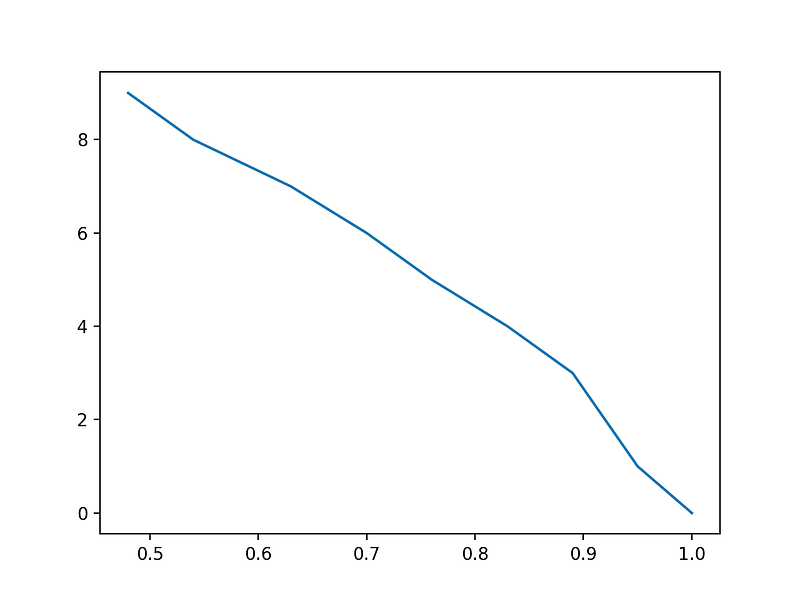
One of the most straightforward use cases is understanding the behavior of loss with epochs/iteration while training a machine learning model.

import matplotlib.pyplot as plt
import numpy as np
loss = np.array([1, 0.95, 0.92, 0.89, 0.83, 0.76, 0.70, 0.63, 0.54, 0.48])
epochs = np.array(list(range(10)))
plt.plot(loss, epochs)
plt.show()
Image By Author

Yeah, I know the above graph looks pretty standard. Don’t worry, we will beautify it in the “Formatting styles” section.

Plot categorical variables/data

First of all, what are categorical variables? These variables take up discrete and finite numbers of values. For example, in a classification task, the variable describing the classes is a categorical variable. One tangible example is considering an image classification problem where we have to classify if the image has a dog (1) or not (0). Then this variable representing the number of images that had a dog present or not is a categorical variable. Such variables can be represented, say, using bar graphs or pie charts.

Bar graph-:

import matplotlib.pyplot as plt
import numpy as np
class_variable = ["dog", "cat", "cow", "fish"]
number_of_image = [10, 15, 8, 20]
plt.bar(class_variable, number_of_image)
plt.show()

Pie Chart-:

import matplotlib.pyplot as plt
import numpy as np
class_variable = ["dog", "cat", "cow", "fish"]
number_of_image = [10, 15, 8, 20]
plt.pie(number_of_image, labels = class_variable)
plt.show()
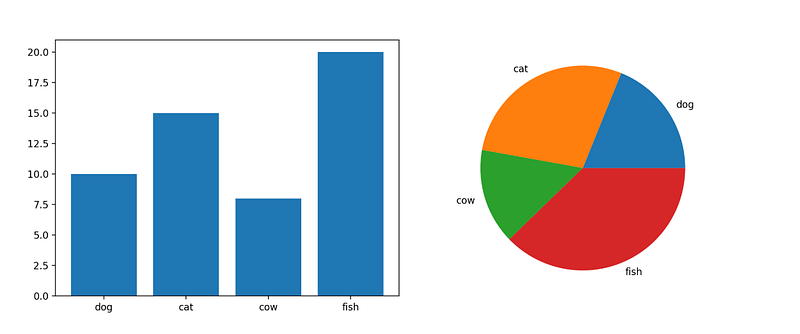
Visualization of the above two snippets (Image by Author)

Plot graph to find the relation between two variables using scatter plot

As you might have guessed, a scatter plot is used to find the relation between two variables. Here we visualize how a change in one variable affects another variable, or in other words, we try to understand the correlation between two variables.

import matplotlib.pyplot as plt
import numpy as np
variable_a = np.array([5,7,8,7,2,17,2,9,4,11,12,9,6])
variable_b = np.array([99,86,87,88,111,86,103,87,94,78,77,85,86])
plt.scatter(variable_a, variable_b)
plt.show()
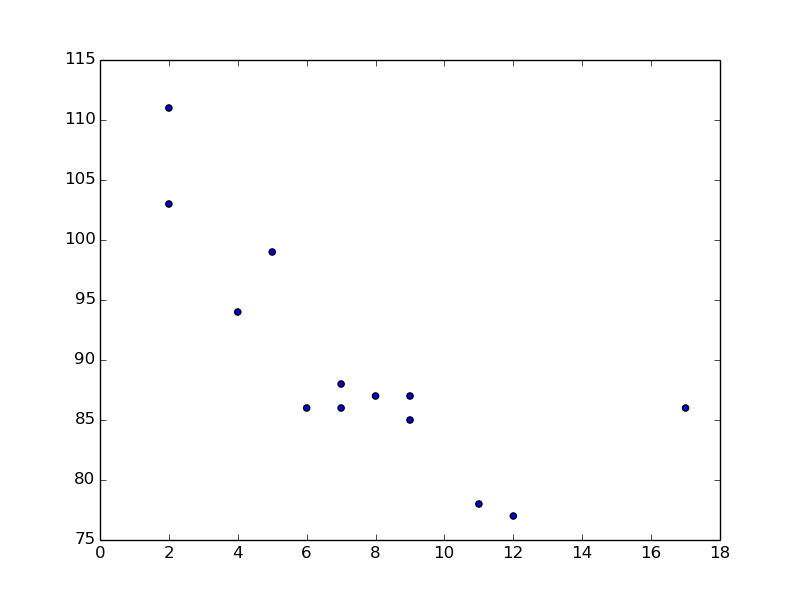
Image by Author

From the above graph, we can conclude that when variable_a increases, variable_b decreases.

Formatting Style of Plots

This is one of the important ones. Here we will see all kinds of beautification we can add to a plot. We will see how to add the following things here-:

  • Axis label — Helps in describing what the x-axis and y-axis represent on the plot.
  • Legend — Useful when we plot multiple plots in a graph. It tells which color represents which data in the plot.
  • Title — Title of the plot
  • Grid — Adding a grid in graph helps get better inference
  • Color —Setting the color of the curve as per your requirement.
  • Dashed lines — Setting if the curve should be a solid line or a dashed line
  • Marker — Setting how to represent each data point

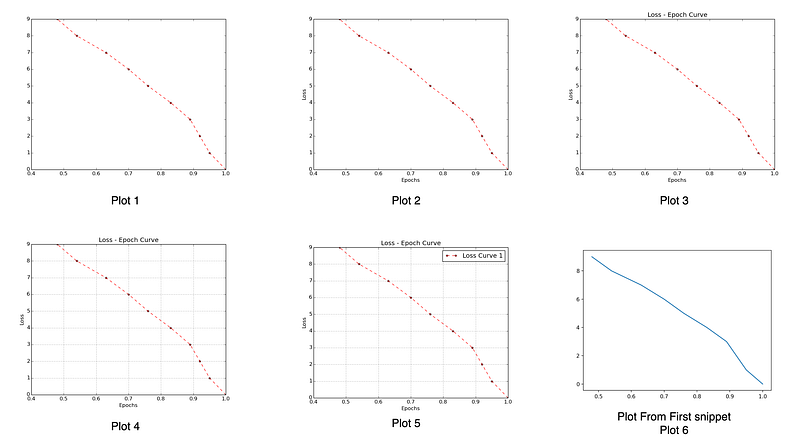
So a lot of new features are getting introduced. To understand the effect of each one, I have plotted multiple plots on different lines of code as commented in the snippet below.

Note — I have used only one type of marker or one type of color for illustration purposes. You can check out what other options are available for each type.

import matplotlib.pyplot as plt
import numpy as np
loss = np.array([1, 0.95, 0.92, 0.89, 0.83, 0.76, 0.70, 0.63, 0.54, 0.48])
epochs = np.array(list(range(10)))
plt.plot(loss, epochs, label="Loss Curve 1", linestyle="dashed", marker='*', color='red')
#Plot 1
plt.xlabel("Epochs")
plt.ylabel("Loss") 
#Plot 2
plt.title("Loss - Epoch Curve")
#Plot 3
plt.grid("on") 
#Plot 4
plt.legend()
#Plot 5
plt.show()
Image By Author

For comparison, I have also shown a plot from the first snippet (Plot 6). Now, for our understanding, Plot 6 is enough as we only need to see how the loss varies with each epoch. Still, for anyone new, Plot 5 is more appropriate to represent all the necessary information.

Creating a figure comprising of multiple graphs

When we need to plot multiple subplots, we can use the below snippet. I have also added different examples of formatting styles so that you can get more clarity.

import matplotlib.pyplot as plt
import numpy as np
t1 = np.arange(0.0, 5.0, 0.1)
t2 = np.arange(0.0, 5.0, 0.2)
plt.figure()
plt.subplot(2,2,1)
plt.plot(t1, np.sin(2*np.pi*t1), color = 'black', marker='^', linestyle='solid')
plt.title("Sin Curve")
plt.grid("on")
plt.subplot(2,2,2)
plt.plot(t2, np.tan(2*np.pi*t2), color = 'blue', marker='*', linestyle='dashed')
plt.title("Tan Curve")
plt.grid("on")
plt.subplot(2,2,3)
plt.plot(t1, np.cos(2*np.pi*t1), color = 'green', marker='o', linestyle='dotted')
plt.title("Cos Curve")
plt.grid("on")
plt.subplot(2,2,4)
plt.plot(t2, np.exp(t2), color = 'red', marker='*', linestyle='dashdot')
plt.title("Exponential Curve")
plt.grid("on")
plt.show()
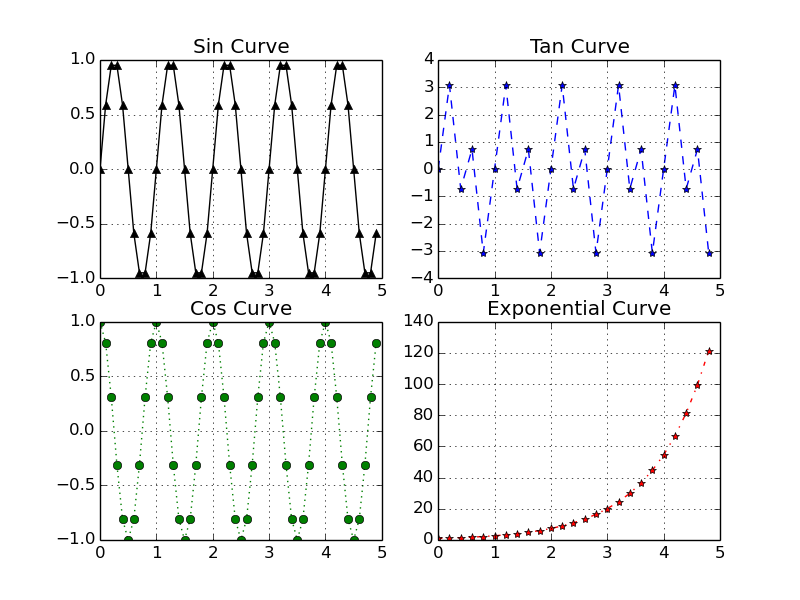
Image By Author

When multiple curves are required in the same plot then we can use the below snippet.

import matplotlib.pyplot as plt
import numpy as np
t1 = np.arange(0.0, 5.0, 0.1)
t2 = np.arange(0.0, 5.0, 0.2)
plt.plot(t1, np.sin(2*np.pi*t1), color = 'black', marker='^', linestyle='solid', label = "Sin Curve")
plt.plot(t1, np.cos(2*np.pi*t1), color = 'green', marker='o', linestyle='dashed', label="Cos Curve")
plt.legend()
plt.grid("on")
plt.show()
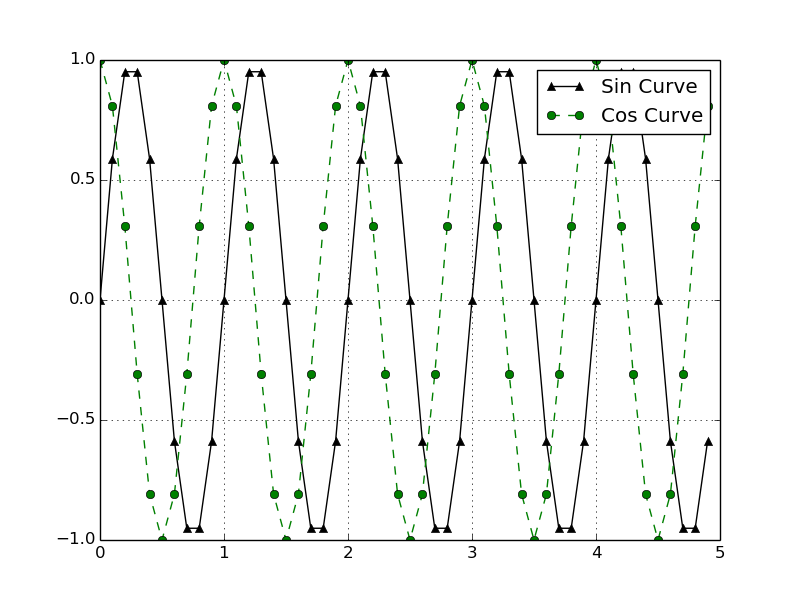
Image By Author

As we can see here, a legend is instrumental in visualizing which curve corresponds to which function, i.e., sin or cos.

Work with text annotation in graphs.

We can use test annotation to point out a particular point in the graph and describe what that point means. For example, I have annotated the maxima of the sin curve and the cos curve in the code below.

import matplotlib.pyplot as plt
import numpy as np
t1 = np.arange(0.0, 5.0, 0.1)
t2 = np.arange(0.0, 5.0, 0.2)
plt.plot(t1, np.sin(2*np.pi*t1), color = 'blue', marker='^', linestyle='solid', label = "Sin Curve")
plt.plot(t1, np.cos(2*np.pi*t1), color = 'green', marker='o', linestyle='dashed', label="Cos Curve")
plt.annotate('Sin max', xy=(1.25, 1), xytext=(1.5, 1.15),
             arrowprops=dict(facecolor='black', shrink=0.05),
             )
plt.annotate('Cos max', xy=(2, 1), xytext=(2.25, 1.15),
             arrowprops=dict(facecolor='black', shrink=0.05),
             )
plt.ylim([-1.5, 1.5])
plt.legend()
plt.grid("on")
plt.show()
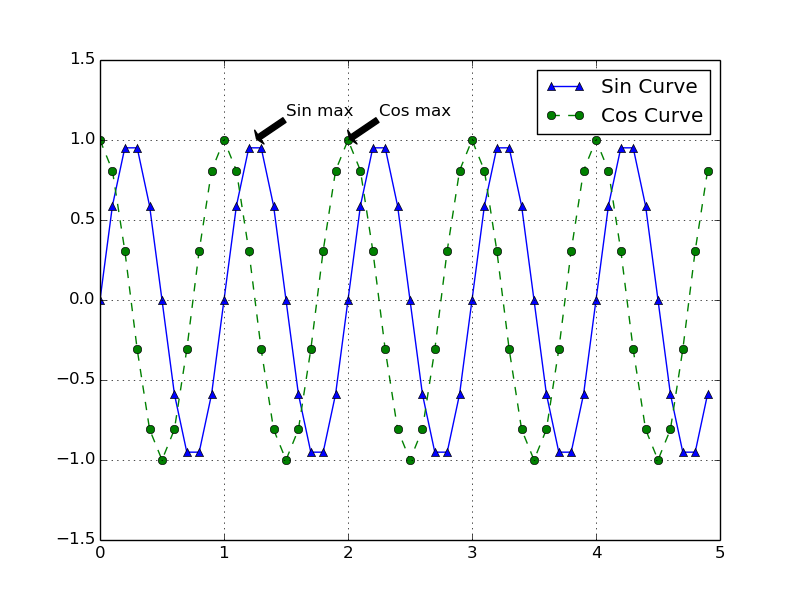
One more thing which I have added here is defining the limit of the y-axis. Similarly, you can change the limits for the x-axis.

Conclusion

Above are just a few examples using which I tried to cover as much breadth as possible. Now you can use multiple tools together to create a great visualization. If I have missed any important examples, please let me know so that I can add them here.

Thanks for dropping by!

Follow us on medium for more such content.

Become a Medium member to unlock and read many other stories on medium.

Matplotlib
Artificial Intelligence
Data Science
Python
Data Analysis
Recommended from ReadMedium