
Ubuntu Commands for Beginners
Ubuntu is most popular Debian-based distribution of Linux Operating System initially released in 2014. This article summarizes the use of basic commands for 10 common tasks that beginners might find useful.
1. Current Directory 2. Change Directory 3. Create New Directory 4. Remove Directories 5. Create New Files 6. List All Files and Directories 7. Read Files 8. Edit Files (Insert/Save/Quit/…) 9. Copy/Move Files 10. Zip/Unzip Files
1. Current Directory
Get the current working directory using command pwd , abbreviation of “print working directory”, you should see something like /home/user_name

2. Change Directory
One of the most used commands in Ubuntu: cd to change directories.
- Change to root directory:
cd / - Change to home directory:
cd
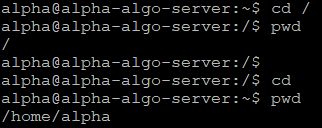
After the root directory command is run, the working directory changes from /home/alpha to / and after command cd it changed back to the initial home directory again.
- Go to the parent directory
There is the special syntax .. that refers to the parent directory, hence cd .. to change to the parent directory
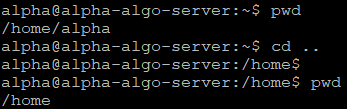
You could also use ../.. , ../../.. and so on if you want to move up through multiple levels of parent directories.
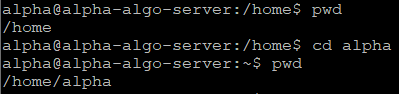
- Go to a directory in the working directory
Use cd command followed by the directory name. For example, to go from /home to /home/alpha :
3. Create New Directory
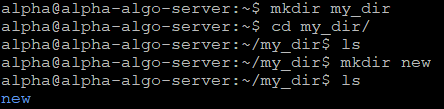
To make a directory in the current working directory, use command mkdir . For example, to create a directory my_dir and another directory new under my_dir :
4. Remove Directories
- Command
rmdirorrm -dfor removal of empty directories:
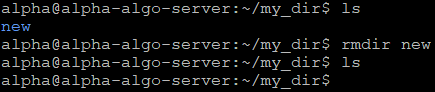
The command won’t work on a non-empty directory:

- To remove non-empty directories: use
rm -rto delete all its contents at once

5. Create New Files
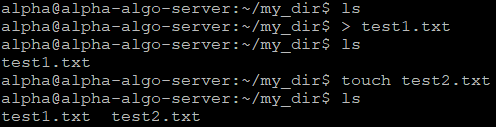
- Create an empty file:
> filenameortouch filename
- Create a text file and enter the texts:
cat > filename

Press Ctrl + D at the end of the file to store the file.
6. List All Files and Directories
- Simply listing down all files and directories in working directory: use command
ls

- Listing down detailed information of the files and directories: use
ls -alor its common aliasll
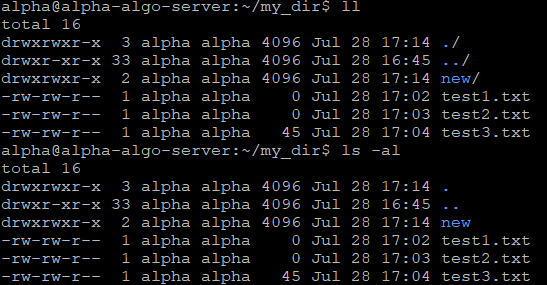
The 10 letters at the start of the rows for each files represents its permissions. There are three basic actions you could perform to a file or directory:
- Read: listings the contents
- Write: change the contents, and creation/deletion of file
- Execute: run a program or script; or access files of a folder
The letters drwxrwxrwx has the following meanings:
- First letter
dto indicate whether it is a directory - Three sets of
rwxcorresponding to read, write and execute right for owner, group and other.
So for example, -rw-rw-rw- means the file can be read and written by anyone, but not executable; -rw-r--r-- means the file can be read and written by the user, but only read by the group and anyone else.
7. Read Files
head filenameto get the first 10 lines of a text filetail filenameto get the last 10 lines of a text filecat filenameto show the full content of a file;cat filename | grep keywordto only print the lines containing the specific keyword
8. Edit Files (Insert/Save/Quit/…)
Use vi filename to view the file in text editor.
- To insert: type
i - To exit: press
Escto exit edit mode, followed by:wqto save and exit, or:q!to exit without saving.
For example, to edit the previously created text file, save and exit:
9. Copy/Move Files
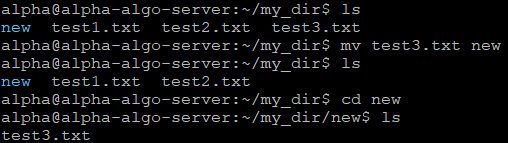
Use mv filename directory to move the specified file to the specified directory:
10. Zip/Unzip Files
- To zip:
gzip filename

- To unzip:
gunzip filename

Thanks for reading, hope this helps!😃 For more of my articles on Python and Cryptocurrency, kindly refer to:


