avatarKaori Mitsui

Free AI web copilot to create summaries, insights and extended knowledge, download it at here

2522

Abstract

age Texture, <span class="hljs-number">2</span>) Select <span class="hljs-keyword">the</span> image you want <span class="hljs-built_in">to</span> use, <span class="hljs-number">3</span>) Then connect <span class="hljs-built_in">to</span> <span class="hljs-keyword">the</span> Principled BSDF Node. </pre></div><figure id="26d1"><img src="https://cdn-images-1.readmedium.com/v2/resize:fit:800/1*bYHmo4AHb7EVT2zkvO2QFw.png"><figcaption>Image Texture Node (far left). Screenshot by author</figcaption></figure><p id="3334">Unlike the image shown above, the image was cropped and didn’t reveal the whole after using Image Texture, so <b>I added one more Node, Texture Coordinate (see below)</b>.</p><p id="a1cd">I then connected the Generated in the Texture Coordinate to the Image Texture Node.</p><p id="440c">Then I added two more lights.</p><figure id="637e"><img src="https://cdn-images-1.readmedium.com/v2/resize:fit:800/1*2ie8izlsPdg9W7-FA5CaYQ.png"><figcaption>Screenshot by author</figcaption></figure><p id="b648">Render Properties — Render Engine — select Cycles</p><figure id="7014"><img src="https://cdn-images-1.readmedium.com/v2/resize:fit:800/1*bTZXYem_a2PdozqcDGbOcg.png"><figcaption>Below the image Blackbody Node is added. Screenshot by author</figcaption></figure><p id="d7bf">Light on the top</p><figure id="b980"><img src="https://cdn-images-1.readmedium.com/v2/resize:fit:800/1*akeuYFKvFC2vSencm-FNDQ.png"><figcaption>(right side) Distance of the light. Screenshot by author.</figcaption></figure><p id="7649">Light on the right bottom</p><figure id="c8f6"><img src="https://cdn-images-1.readmedium.com/v2/resize:fit:800/1*i_NYh5Ja0CC4wDuLvbG8oQ.png"><figcaption>(right side) Distance of the light. Screenshot by author.</figcaption></figure><p id="1eb1">Light on the left side</p><figure id="7929"><img src="https://cdn-images-1.readmedium.com/v2/resize:fit:800/1*IYMcOJyvOf28zb6godf8Lw.png"><figcaption>Temperature value 1000 and the reddish light. Screenshot by author.</figcaption></figure><p id="26db"><b>Add a Node, Blackbody.</b> <i>Note: At first I couldn’t use the Nodes function for the lights, so I changed the rendering engine from Evee to Cycles.</i></p><p id="0dd0">If the (temper) value is 1000, as you see above, it becomes reddish.</p><p id="e1aa">The type of all three Lights is Point (you can change it under the data object properties).</p><figure id="836e"><img src="https://cdn-images-1.readmedium.com/v2/resize:fit:800/1*IuAb8WPzY2tvLVJH6--ycw.png"><figcaption>Point Light. Sc

Options

reenshot by author.</figcaption></figure><p id="86d6">After changing the temperature value to 6000, it becomes white and brighter, leaving only the closer bottom light noticeable.</p><figure id="fb3c"><img src="https://cdn-images-1.readmedium.com/v2/resize:fit:800/1*56qTQvaThecX8YcPyigcag.png"><figcaption>Screenshot by the author</figcaption></figure><h1 id="0110">Summing-Up This Article</h1><p id="936a">I wrote a flash fiction along with an image. I formed light warmth and modified it using <a href="https://www.blender.org/">Blender</a>.</p><p id="3d3e">Using <i>the Shading</i> window (see the red circle on the top) to add an image on an object/Mesh, add new Nodes, and change the values of Nodes.</p><p id="7ef4">To add and search for a Node I want, I clicked Add (see the red circle right below the image).</p><p id="0801"><i>When I wanted to add the Node, Blackbody, I had to change the rendering engine from Evee to Cycles</i> by clicking a camera/microwave-like icon on the left (see the second top icon in the red circle on your right side).</p><figure id="7c73"><img src="https://cdn-images-1.readmedium.com/v2/resize:fit:800/1*udgQlRJb632lM6BxaJfU0w.png"><figcaption>Screenshot by author</figcaption></figure><p id="02fd"><i>Thank you for reading and listening!</i></p><p id="ad93"><i>Becoming a Medium member?</i> <a href="https://kmitsui2018.medium.com/membership"><b><i>Here is the link</i></b></a><b><i> </i></b><i>to support me and other writers with a portion of your membership fee.</i></p><p id="0c29"><i>If you enjoy writing using prompts, check this out. I made a web application, <a href="https://writing-prompts.bubbleapps.io/"><b>Writing Prompts & Tips</b></a>. It offers free “Easy” and “Medium” difficulties.</i></p><p id="337a"><i>I use Blender to create images for readers to spot differences. If you haven’t tried it, try it. See how many you can spot!</i></p><div id="1490" class="link-block"> <a href="https://readmedium.com/can-you-find-differences-between-the-two-rendered-images-c93d59e0a70d"> <div> <div> <h2>Can You Find the Differences between the Two?</h2> <div><h3>“More coffee, please.”</h3></div> <div><p>medium.com</p></div> </div> <div> <div style="background-image: url(https://miro.readmedium.com/v2/resize:fit:320/1*W4YG6GF3orW16UuxGbNojA.jpeg)"></div> </div> </div> </a> </div></article></body>

Two kids caught in the camera — How to use the light warmth in Blender

Use Blackbody Node
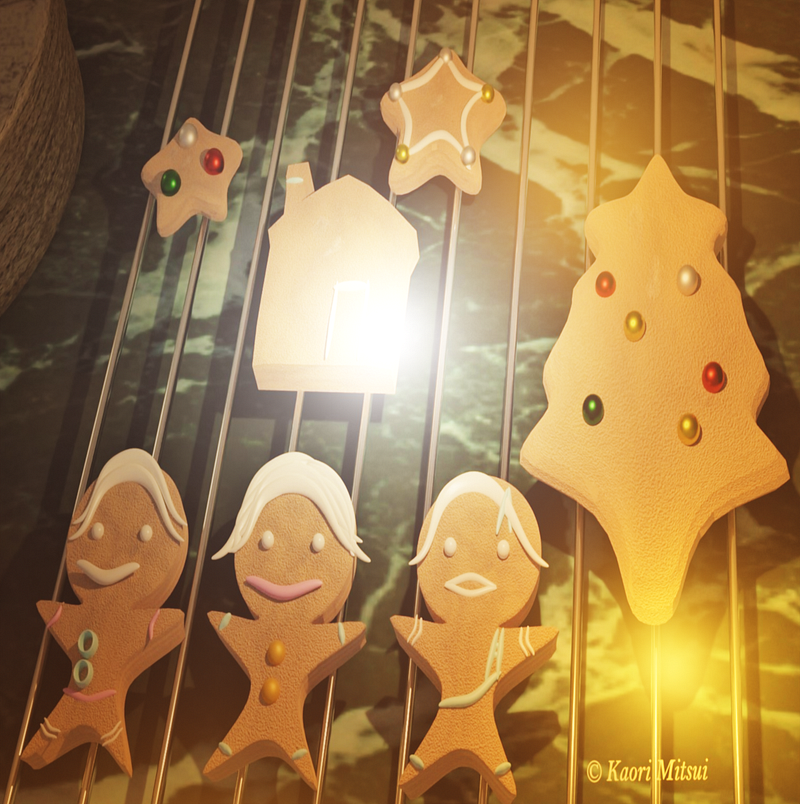
Created by author

Some gingerbread cookies were missing.

Some cupcakes were also missing between the end of last year and the beginning of this year.

The worst thing was a spider hidden in the paper bag where precious foods were stored.

The careless acts must be the Kids.

Finally, the videotape was reviewed.

Which one of them?

The surveillance camera set in the kitchen area caught the actions.

The white and the orange flashlights

It was apparent.

A taller one had the white flashlight, and a shorter one had the other.

Culprits were caught in the camera!

They worked together and behaved like they didn’t know a thing afterward.

There were 10 Kids around the house during that time.

While reviewing the videotape, a sheet of paper was pulled out from the drawer and placed on the table — the list of their gifts from 2020. They found who were the sneaky ones.

The Two were the A and J.

And you know what happened to those two afterward after they came home.

They learned to apologize.

Their Time Outs — come back home by 5 p.m., no treats or sweets, relearn cleaning (their room, living room floor, and small places like everyone’s PC keyboards), help mom’s cooking for the next three months, and so on.

Both actually enjoyed helping with their mom’s cooking.

A and J felt their lax behaviors gradually descended and ceased.

Their grades and room teachers’ impressions of their behaviors at school meticulously improved.

So that was a story.

For the featured image, I used the image I created last year and added the flashlights.

Here is how I did:

Find the image I created before and attach it to a flattened cube.

Recap Attaching an Image:
  1) Add a Node called Image Texture,
  2) Select the image you want to use,
  3) Then connect to the Principled BSDF Node.
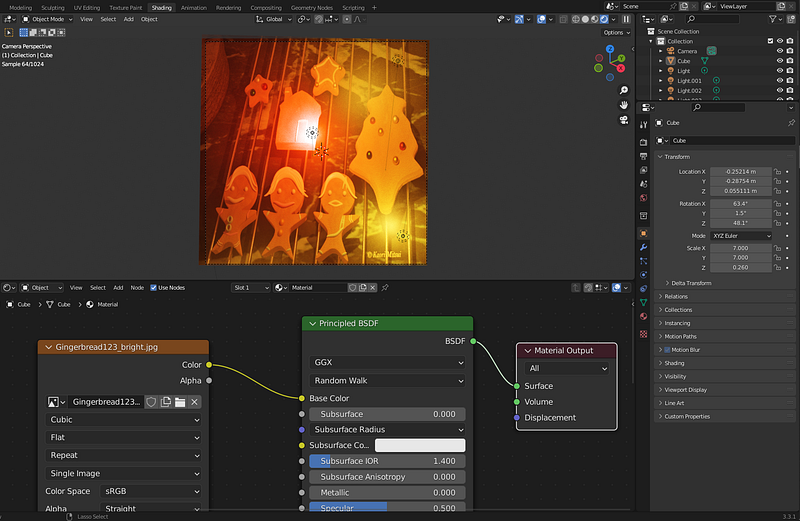
Image Texture Node (far left). Screenshot by author

Unlike the image shown above, the image was cropped and didn’t reveal the whole after using Image Texture, so I added one more Node, Texture Coordinate (see below).

I then connected the Generated in the Texture Coordinate to the Image Texture Node.

Then I added two more lights.
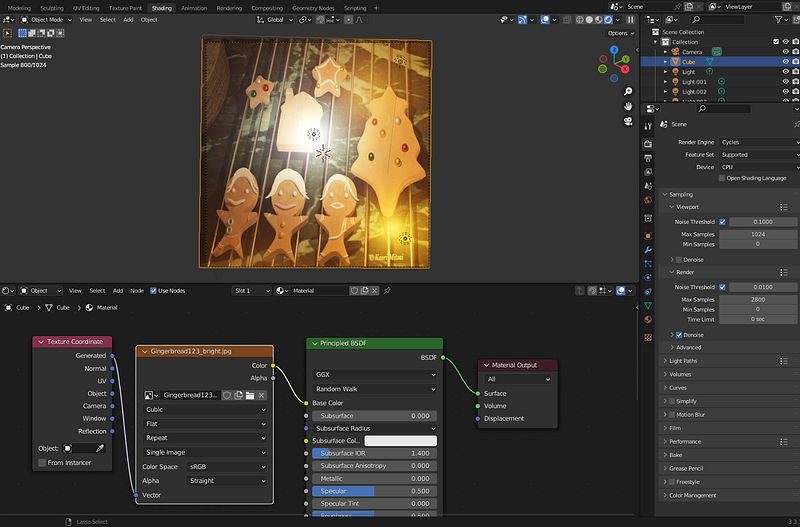
Screenshot by author

Render Properties — Render Engine — select Cycles
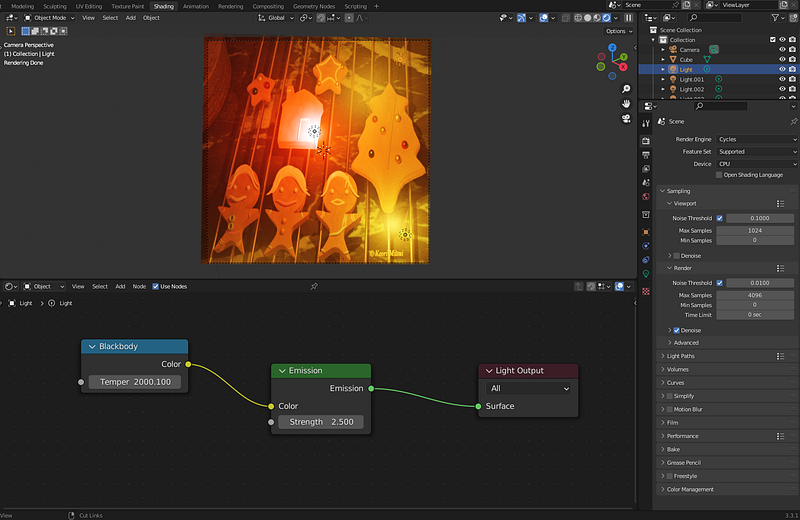
Below the image Blackbody Node is added. Screenshot by author

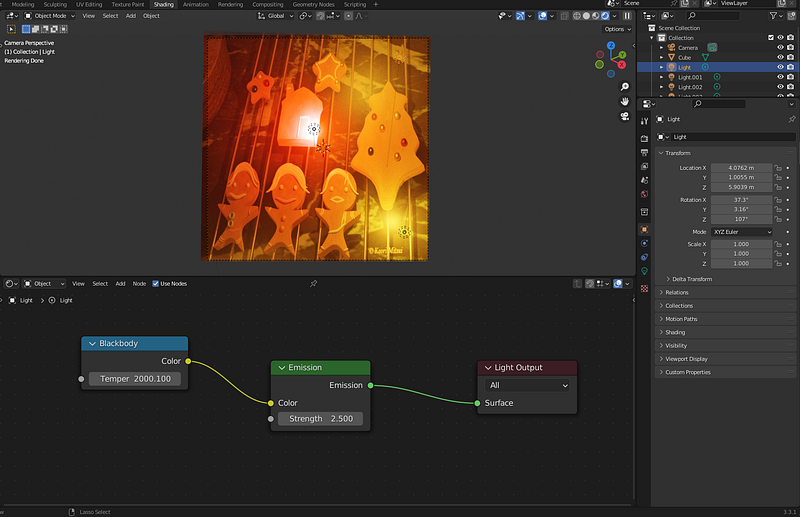
Light on the top

(right side) Distance of the light. Screenshot by author.

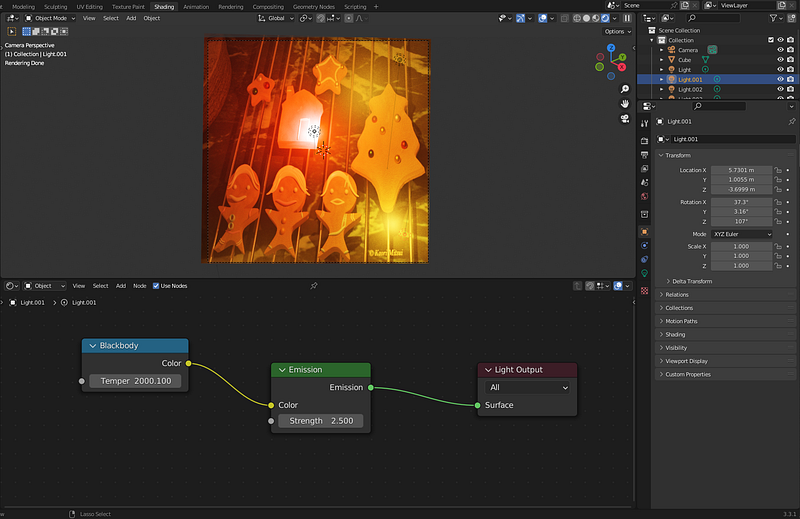
Light on the right bottom

(right side) Distance of the light. Screenshot by author.

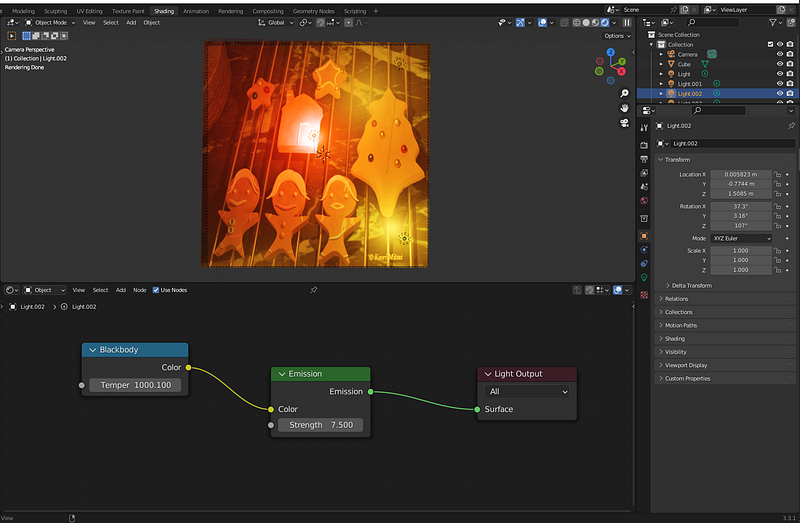
Light on the left side

Temperature value 1000 and the reddish light. Screenshot by author.

Add a Node, Blackbody. Note: At first I couldn’t use the Nodes function for the lights, so I changed the rendering engine from Evee to Cycles.

If the (temper) value is 1000, as you see above, it becomes reddish.

The type of all three Lights is Point (you can change it under the data object properties).
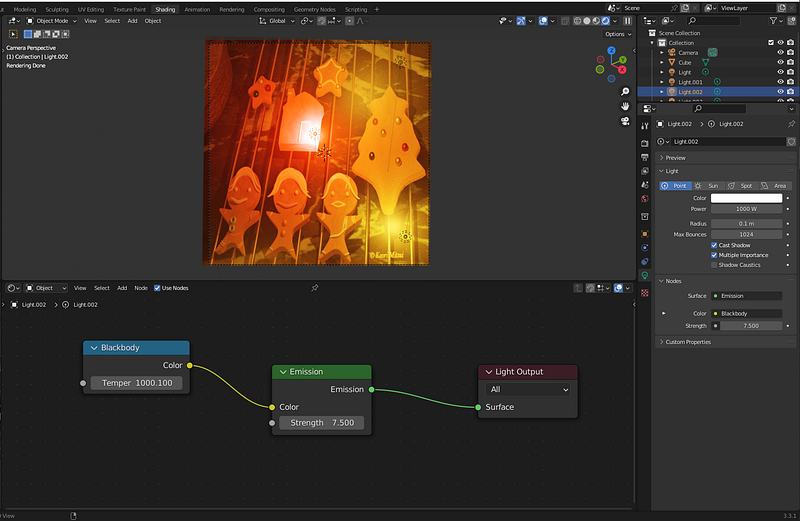
Point Light. Screenshot by author.

After changing the temperature value to 6000, it becomes white and brighter, leaving only the closer bottom light noticeable.
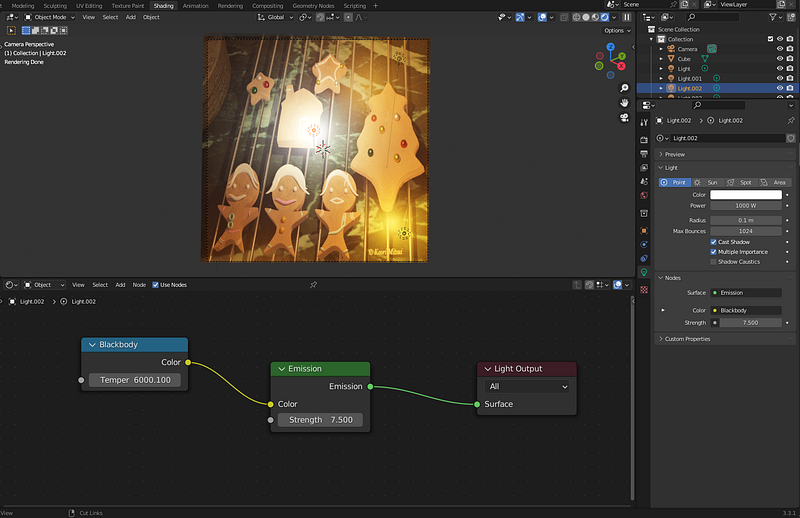
Screenshot by the author

Summing-Up This Article

I wrote a flash fiction along with an image. I formed light warmth and modified it using Blender.

Using the Shading window (see the red circle on the top) to add an image on an object/Mesh, add new Nodes, and change the values of Nodes.

To add and search for a Node I want, I clicked Add (see the red circle right below the image).

When I wanted to add the Node, Blackbody, I had to change the rendering engine from Evee to Cycles by clicking a camera/microwave-like icon on the left (see the second top icon in the red circle on your right side).
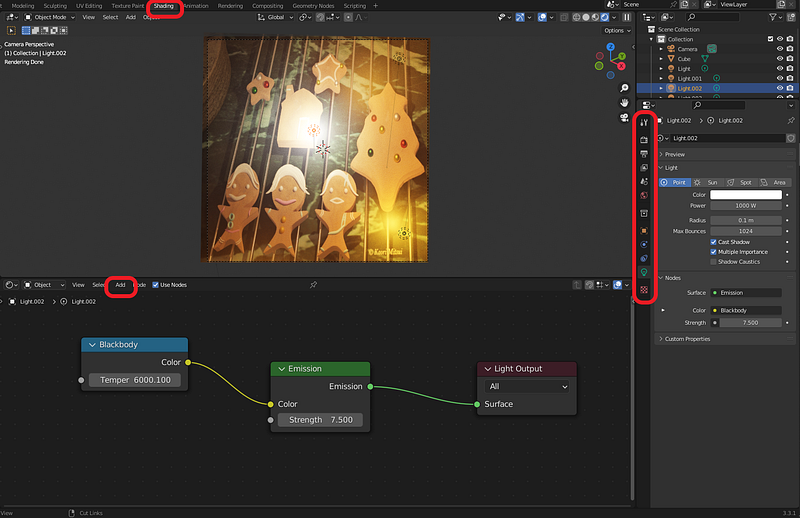
Screenshot by author

Thank you for reading and listening!

Becoming a Medium member? Here is the link to support me and other writers with a portion of your membership fee.

If you enjoy writing using prompts, check this out. I made a web application, Writing Prompts & Tips. It offers free “Easy” and “Medium” difficulties.

I use Blender to create images for readers to spot differences. If you haven’t tried it, try it. See how many you can spot!

Software
Creativity
Ideas
Writing
Technology
Recommended from ReadMedium