avatarHrishikesh Patel

Free AI web copilot to create summaries, insights and extended knowledge, download it at here

3167

Abstract

y</b></p><p id="bd5a">You can customize the number of columns to show while printing the data frame by setting <code>display.max_columns</code>.</p><figure id="2012"><img src="https://cdn-images-1.readmedium.com/v2/resize:fit:800/1*Eig8fL_D1RW9crTWI5S8qg.png"><figcaption>Displays 6 columns by setting `display.max_columns’ to 6 (image by author)</figcaption></figure><p id="faf7">Like previous, you can also reset this option using <code>pd.reset_option("display.max_columns")</code> to return to the default behavior.</p><p id="5dc8"><b>3. Customize column width</b></p><p id="0f38">In the following image, we cannot see the full text for the first two rows as their character length exceeds 50.</p><figure id="01f8"><img src="https://cdn-images-1.readmedium.com/v2/resize:fit:800/1*6DN0HUnPiJ--j_wZM5YP8g.png"><figcaption>Lengthy text gets shortened in Pandas (image by author)</figcaption></figure><p id="4126">However, after setting <code>display.max_colwidth</code> it to 70, we can see the entire text. You can choose a different number based on your data.</p><figure id="fbf4"><img src="https://cdn-images-1.readmedium.com/v2/resize:fit:800/1*5X0eYulbjqsGSo1JqUR77g.png"><figcaption>Displays full text by setting ‘display.max_colwidth’ to 70</figcaption></figure><p id="cf0c">This option can also be reset by using <code>pd.reset_option("display.max_colwidth")</code> .</p><p id="4911"><b>4. Make decimal place accuracy consistent among float columns</b></p><p id="ebbc">Currently, col_1 and col_2 have inconsistent decimal place accuracy as depicted below.</p><figure id="91f4"><img src="https://cdn-images-1.readmedium.com/v2/resize:fit:800/1*dVKa-gZtcgYagdkxHdfpRg.png"><figcaption>Inconsistent decimal accuracy among float columns (image by author)</figcaption></figure><p id="5e92">By setting <code>display.float_format</code> to <code>"{:.2f}".format</code> we can make the format consistent. As shown in the image below, the option will only affect the float columns, not the integer columns.</p><figure id="313f"><img src="https://cdn-images-1.readmedium.com/v2/resize:fit:800/1*aTlE6HP6HgUHu0rgx7Jqog.png"><figcaption>Making decimal place accuracy consistent among float columns by setting ‘display.float_format’ to “{:.2f}”.format (image by author)</figcaption></figure><p id="8972">This option can be reset using <code>pd.reset_option("display.float_format")</code></p><p id="bdae"><b>5. Disable the scientific notation</b></p><p id="e491">Pandas by default show large float values in the scientific notation.</p><figure id="b523"><img src="https://cdn-images-1.readmedium.com/v2/resize:fit:800/1*RDZu8QlMADR9m3kLfQqtwA.png"><figcaption>Large floating-point numbers are displayed in scientific notation (image by author)</figcaption></figure><p id="b0a8">By setting <code>display.float_format</code> to <code>"{:,.2f}".format</code> , we can add a separator for thousands and also set decimal place accuracy to two decimals.</p><figure id="5626"><img src="https://cdn-images-1.readmedium.com/v2/resize:fit:800/1*riQn5BvIX6uliq8gXNmshg.png"><figcaption>Add thousands separator by setting “display.float_format” to “{:,.2f}”.format (image by author)</

Options

figcaption></figure><p id="d982">You can also add a <code></code> sign before the numbers to show currency by setting <code>display.float_format</code> to <code>" {:,.2f}".format</code>.</p><figure id="3fb7"><img src="https://cdn-images-1.readmedium.com/v2/resize:fit:800/1*sObwy15dte3yA84e5m6WUQ.png"><figcaption>Add before a number by setting “display.float_format” to “ {:,.2f}”.format (image by author)</figcaption></figure><p id="009f"><b>6. Bonus</b></p><p id="024c">How to find all such useful display options when you are working offline? The trick is to use <code>pd.describe_option()</code> and you’ll get a list of all available options.</p><p id="2b7f">However, if you are looking for a specific option, you can type the option name as an argument in <code>pd.describe_option()</code> . For example, <code>pd.describe_option("max_rows")</code> will print the description of <code>display.max_rows</code> the option.</p><figure id="64e5"><img src="https://cdn-images-1.readmedium.com/v2/resize:fit:800/1*pBC0f1yvv_QEz12Tdc-lHQ.png"><figcaption>Get the description of “display.max_rows” option using ‘pd.describe_option(“max_rows”)’ (image by author)</figcaption></figure><p id="d17a"><b>Reference <a href="https://pandas.pydata.org/docs/user_guide/options.html"></a></b><a href="https://pandas.pydata.org/docs/user_guide/options.html">Pandas Options and Settings</a></p><p id="c1b3"><b>Before you go!</b></p><p id="6d31">I hope you have enjoyed the story and found it useful. Follow me on <a href="https://medium.com/@hrishikesh.pe">Medium</a> if you’d like more stories like this and feel free to <a href="https://www.buymeacoffee.com/hrishikeshds">buy me a coffee</a> 😊.</p><p id="bc48"><i>My other stories you might enjoy…</i></p><div id="dc63" class="link-block"> <a href="https://medium.com/@hrishikesh.pe/improve-your-analytical-report-with-conditional-formatting-in-pandas-76039fd3ccb5"> <div> <div> <h2>How to Improve Your Analytical Report With Conditional Formatting In Pandas</h2> <div><h3>Excel-like Conditional Formatting in Pandas Using Styler API</h3></div> <div><p>medium.com</p></div> </div> <div> <div style="background-image: url(https://miro.readmedium.com/v2/resize:fit:320/1*LuirGXJAD1GzSOdXELcjfw.png)"></div> </div> </div> </a> </div><div id="775c" class="link-block"> <a href="https://pub.towardsai.net/regular-expression-regex-in-python-the-basics-b8f2cd041bdb"> <div> <div> <h2>Regular Expression (RegEx) in Python : The Basics</h2> <div><h3>RegEx allows you to extract important information from text. Check out this medium story to learn basics of RegEx in…</h3></div> <div><p>pub.towardsai.net</p></div> </div> <div> <div style="background-image: url(https://miro.readmedium.com/v2/resize:fit:320/1*u4NbHgv-TzEE5G6xXnHCbQ.png)"></div> </div> </div> </a> </div></article></body>

Try These Pandas Display Configurations in Your Next Analysis

Make your Jupyter notebook more presentable with these useful Pandas display customizations
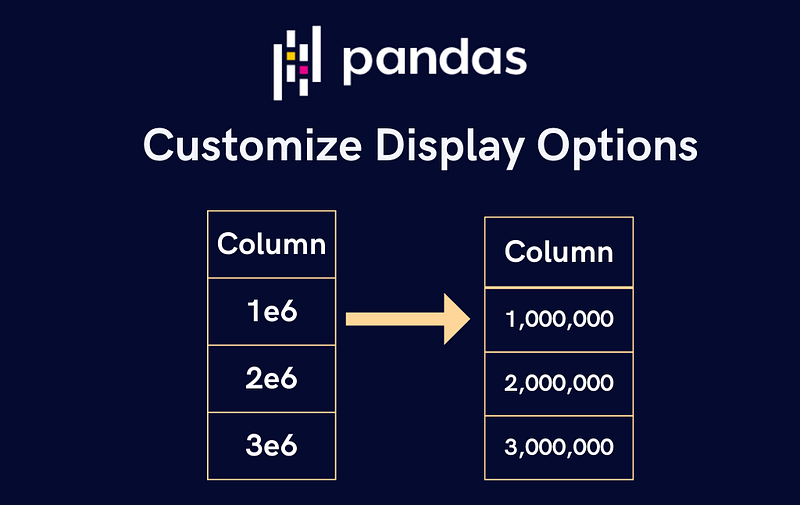
Image by author

While analyzing data using Pandas, you might have faced the following display-related issues:

  1. Unable to see the entire text if they are lengthy. In the following image, URLs get shortened.
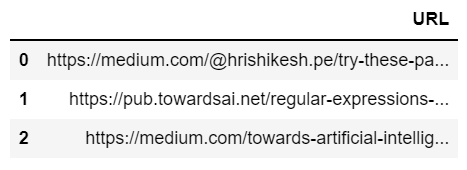
Lengthy text gets truncated in Pandas (image by author)

2. Pandas by default show large floating-point numbers using scientific notation, e.g. 1,000,000.5 is shown as 1.000e+06
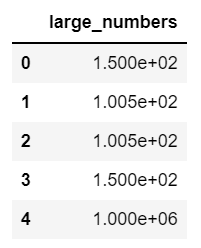
Large floats are shown using scientific notation (image by author)

3. Inconsistent decimal place accuracy among float type columns. E.g, in the following figure, col_1 has one digit after decimal point whereas col_2 has three digits post decimal point. Though this will not affect your analysis, it might not look good while sharing your notebook with others.
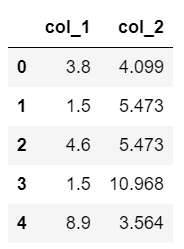
Inconsistent precision among columns (image by author)

In this story, I am going to cover how to solve these issues using the following common Pandas display customizations.

List of contents

  1. Customize how many rows to display
  2. Customize how many columns to display
  3. Customize column width
  4. Make decimal place accuracy consistent among float columns
  5. Disable the scientific notation
  6. Bonus!

Note: These options only change how data will be displayed. It does not affect underlying data.

  1. Customize how many rows to display

When you print a large data frame, pandas display the first 5 and last 5 rows by default as illustrated below.
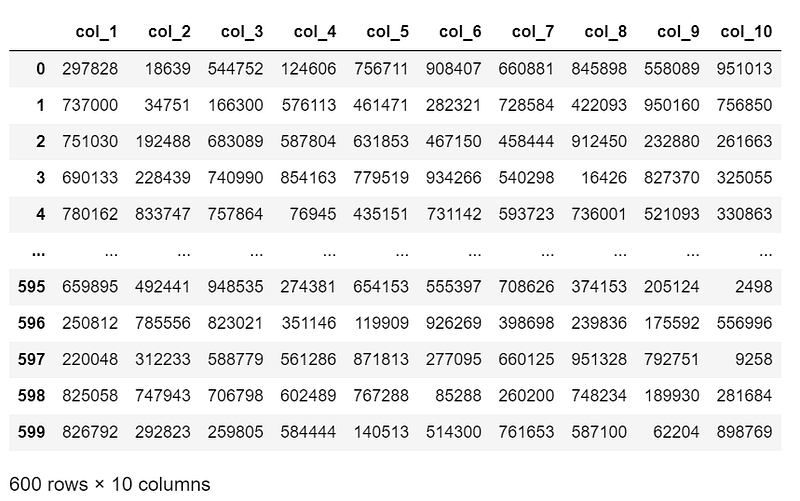
Pandas by default display 10 rows (image by author)

However, we can change how many rows to display by setting a value for the display option display.max_rows. Let’s set it to 4.
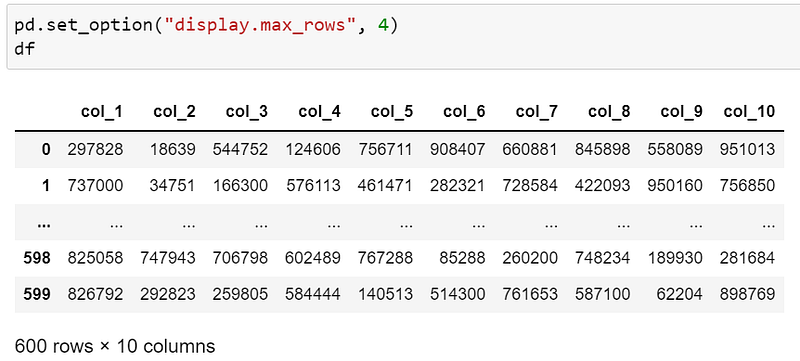
Displays 4 rows after setting ‘display.max_rows’ to 4 (image by author)

You can also reset the option using pd.reset_option("display.max_rows") to return to the default behavior.

2. Customize how many columns to display

You can customize the number of columns to show while printing the data frame by setting display.max_columns.
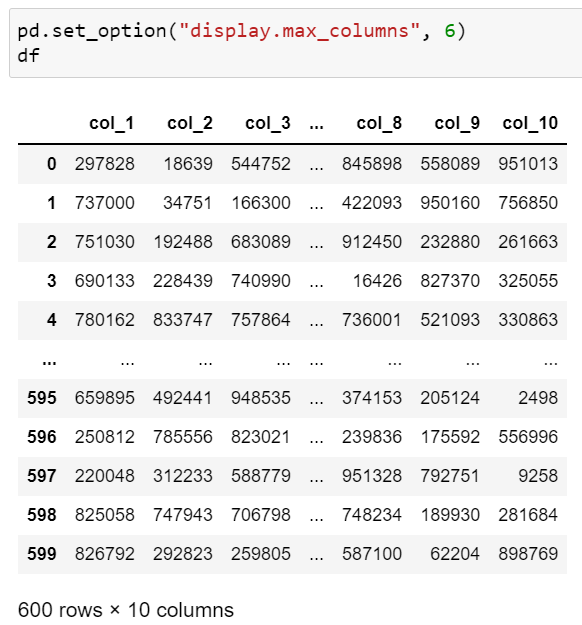
Displays 6 columns by setting `display.max_columns’ to 6 (image by author)

Like previous, you can also reset this option using pd.reset_option("display.max_columns") to return to the default behavior.

3. Customize column width

In the following image, we cannot see the full text for the first two rows as their character length exceeds 50.
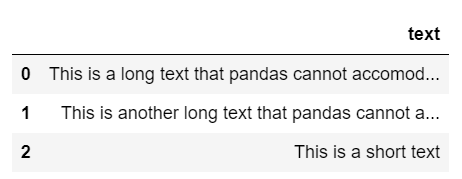
Lengthy text gets shortened in Pandas (image by author)

However, after setting display.max_colwidth it to 70, we can see the entire text. You can choose a different number based on your data.
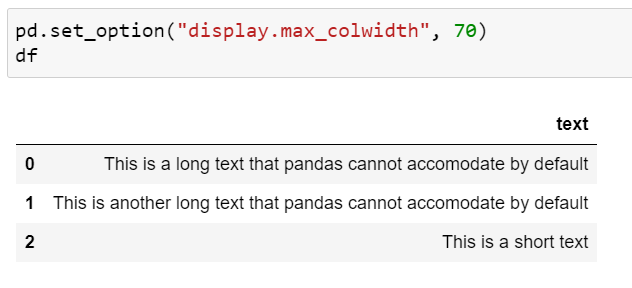
Displays full text by setting ‘display.max_colwidth’ to 70

This option can also be reset by using pd.reset_option("display.max_colwidth") .

4. Make decimal place accuracy consistent among float columns

Currently, col_1 and col_2 have inconsistent decimal place accuracy as depicted below.
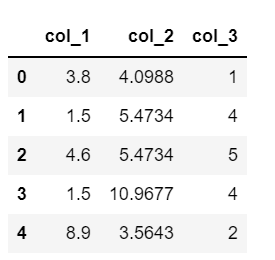
Inconsistent decimal accuracy among float columns (image by author)

By setting display.float_format to "{:.2f}".format we can make the format consistent. As shown in the image below, the option will only affect the float columns, not the integer columns.
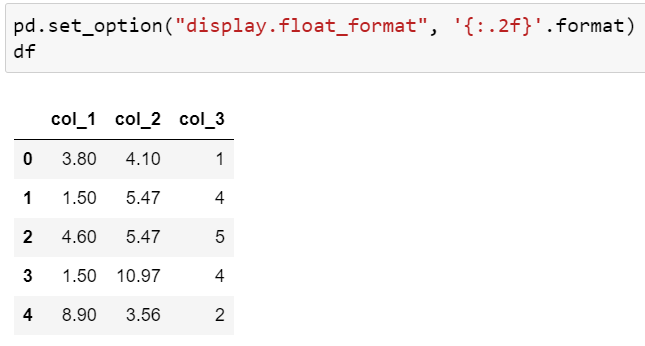
Making decimal place accuracy consistent among float columns by setting ‘display.float_format’ to “{:.2f}”.format (image by author)

This option can be reset using pd.reset_option("display.float_format")

5. Disable the scientific notation

Pandas by default show large float values in the scientific notation.
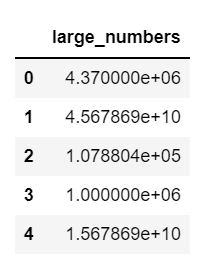
Large floating-point numbers are displayed in scientific notation (image by author)

By setting display.float_format to "{:,.2f}".format , we can add a separator for thousands and also set decimal place accuracy to two decimals.
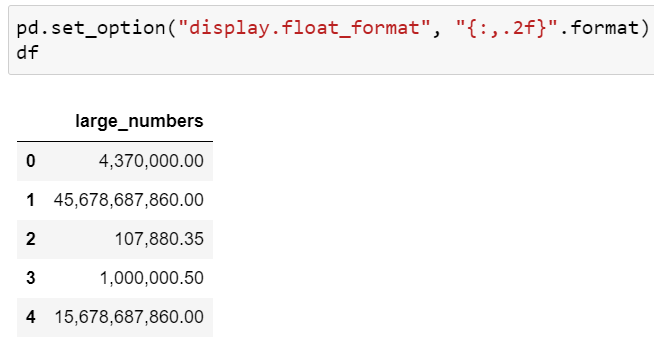
Add thousands separator by setting “display.float_format” to “{:,.2f}”.format (image by author)

You can also add a $ sign before the numbers to show currency by setting display.float_format to "$ {:,.2f}".format.
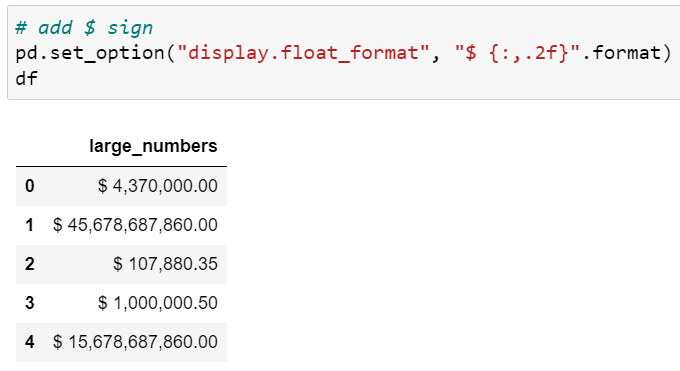
Add $ before a number by setting “display.float_format” to “$ {:,.2f}”.format (image by author)

6. Bonus

How to find all such useful display options when you are working offline? The trick is to use pd.describe_option() and you’ll get a list of all available options.

However, if you are looking for a specific option, you can type the option name as an argument in pd.describe_option() . For example, pd.describe_option("max_rows") will print the description of display.max_rows the option.
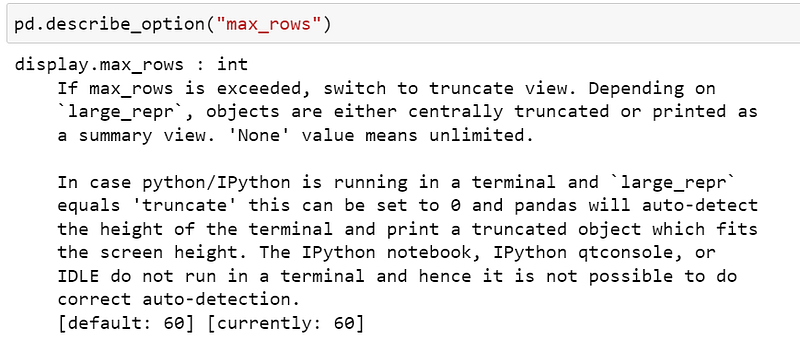
Get the description of “display.max_rows” option using ‘pd.describe_option(“max_rows”)’ (image by author)

Reference Pandas Options and Settings

Before you go!

I hope you have enjoyed the story and found it useful. Follow me on Medium if you’d like more stories like this and feel free to buy me a coffee 😊.

My other stories you might enjoy…

Data Science
Machine Learning
Python
Technology
Data Visualization
Recommended from ReadMedium