
Try Deep Learning in Python now with a fully pre-configured VM
New VM image — updated March 2018!
I love to write about face recognition, image recognition and all the other cool things you can build with machine learning. Whenever possible, I try to include code examples or even write libraries/APIs to make it as easy as possible for a developer to play around with these fun technologies.
But the number one question I get asked is “How in the world do I get all these open source libraries installed and working on my computer?”
If you aren’t a long-time Linux user, it can be really hard to figure out how to get a system fully configured with all the required machine learning libraries and tools like TensorFlow, Keras, OpenCV, and dlib. The majority of the issues that get filed on my own open source projects are about how to install these tools. A lot of people get stuck while installing everything and give up before ever getting to play around with any code. That’s a shame!
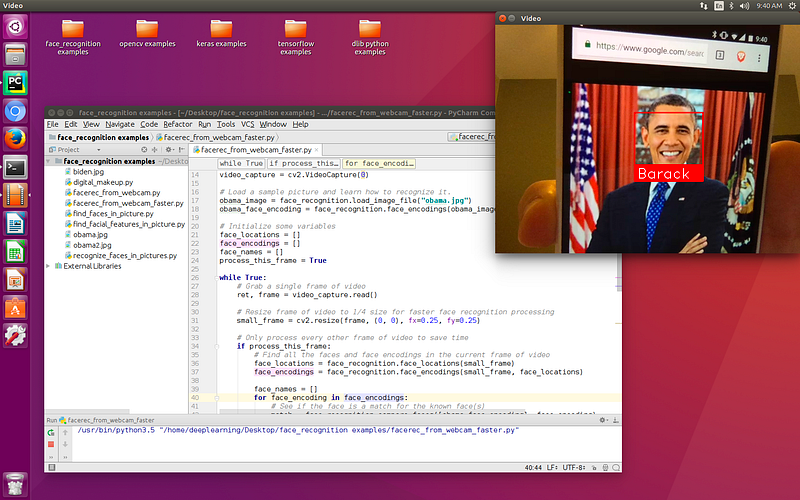
There’s no reason it should be so hard to try things out in 2017. To make it simple for anyone to play around with machine learning, I’ve put together a simple virtual machine image that you can download and run without any complicated installation steps.
The virtual machine image has Ubuntu Linux Desktop 16.04 LTS 64-bit pre-installed with the following machine learning tools:
- Python 3.5
- OpenCV 3.2 with Python 3 bindings
- dlib 19.9 with Python 3 bindings
- TensorFlow 1.5 for Python 3
- Keras 2 for Python 3
- face_recognition for Python 3 (for playing around with face recognition)
- PyCharm Community Edition already set up and ready to go for all these libraries
- Convenient code examples ready to run, right on the desktop!
- Even the webcam is preconfigured to work inside the Linux VM for OpenCV / face_recognition examples (as long as you set up your webcam to be accessible in the VMware settings).
Note: This is a desktop VM meant for educational purposes, not a VM meant for use on a server. Due to licensing and installation complications, there’s no GPU acceleration / CUDA support provided. So you don’t need an Nvidia GPU to try this out, but it also won’t take advantage of a GPU if you have one.
How to download and run the Deep Learning VM in 3 simple steps:
- Download the 7.7GB VM .tar.gz file (hosted on a fast connection thanks to the fine people at CYDNE!). Uncompress the file when it’s complete. A VM for VirtualBox is also available, but the performance in VirtualBox can be pretty bad. So don’t the VirtualBox version unless you don’t have any other choice.
- You need VMware to run this virtual machine image. If you don’t already have VMware installed, download the appropriate version for your operating system. Windows or Linux users should download the free VMware Workstation Player. Mac users can grab the free VMWare Fusion 30-day demo.
- Launch VMware, open the VM image and run it! Linux should boot right up. See below for the user account password.
Tips
- The username is ‘deeplearning’ and the password is ‘deeplearning’. You might want to change the password after you log in.
- This is a 64-bit virtual machine. You’ll need a 64-bit CPU, circa 2011 or newer to run it. Sorry, but it won’t work if you have an older CPU in your computer.
- If you launch PyCharm Community Edition from the left sidebar, there are several pre-created projects you can open. Try the face_recognition, OpenCV or Keras projects and run some of the demos. Right-click on the code window and choose “Run” to run the current file in PyCharm.
- If you configure your webcam in VMware settings, you can access your webcam from inside the Linux virtual machine! Try running one of the face_recognition webcam demos after setting it up.
Have fun!
If you are new to machine learning, you might enjoy my Machine Learning is Fun series. Try starting with Part 1.
If you liked this article, please consider signing up for my Machine Learning is Fun! email list. I’ll only email you when I have something new and awesome to share. It’s the best way to find out when I write new articles.
You can also follow me on Twitter at @ageitgey, email me directly or find me on linkedin. I’d love to hear from you if I can help you or your team with machine learning.


