
Transforming Photos into Cartoons with Midjourney
Creating Fun and Unique Cartoon Versions of Your Favorite Photos with Midjourney
Cartoonifying photos has become a popular trend on social media, and many people are using this technique to create unique and entertaining content. Midjourney is one of the most used AI-powered tools to transform photos into cartoons in just a few clicks.
In this article, we will explore how to use Midjourney to transform a photo into a cartoon…Let’s dive in!
Activate the Remix Mode
Firstly, we need to activate the Remix mode in Midjourney. Remix takes the core elements of your original image and incorporates them into the new project. So, if we upload an image and change the /imagine prompt, we can expect to see familiar elements from your starting image in the final result. Great!
To activate it, we can do one of the either options:
- Use the /prefer remix command.

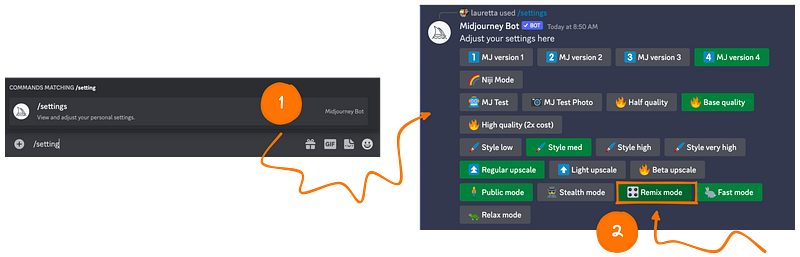
2. Use the /setting command and choose Remix mode.
Upload an Image
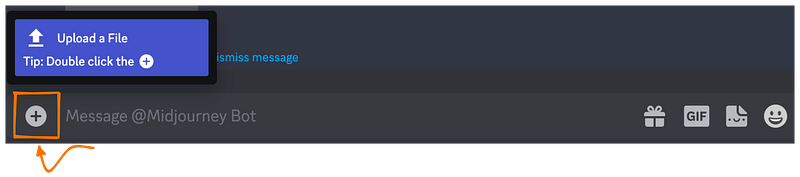
We now want to upload the image we want to modify. To do that, we can press the plus (+) button next to the text box and choose Upload a File.
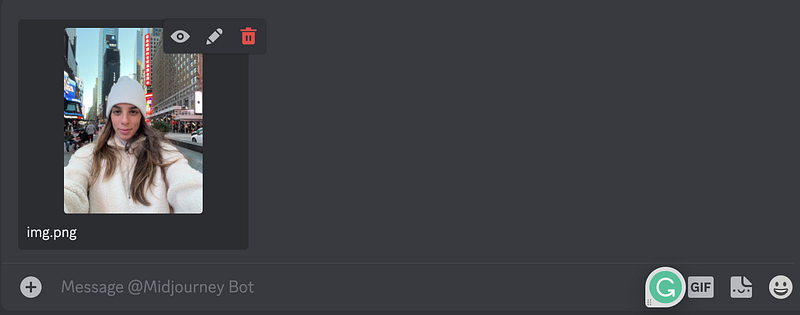
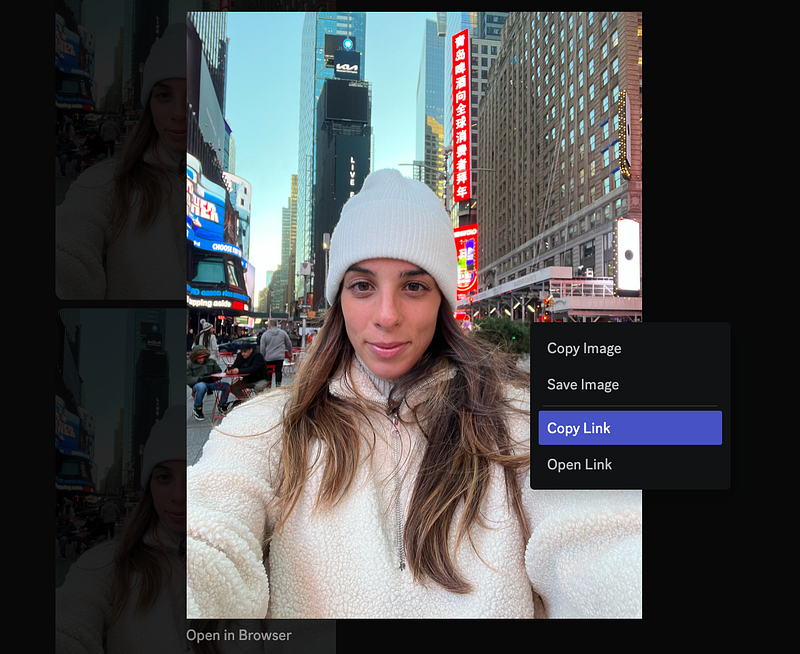
I have used one of my pictures from when I was in NY. Once uploaded, we press enter.
Now, we can click on the same uploaded picture, right-click, and choose Copy Link.
Customize Your Prompt Description
Almost there…we can now type /imagine into the Midjourney text box to start our prompt. Then (1) paste the link copied, and (2) type the changes you want to apply to the image.
Let’s first try with a cartoon style.

Press enter and see the result!
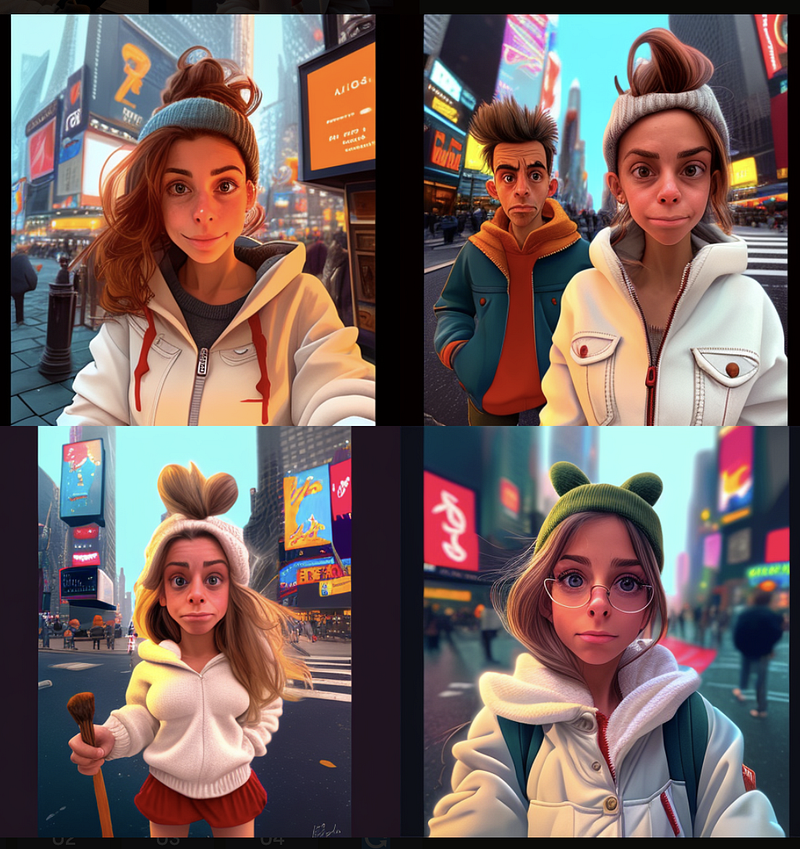
Not always the first attempt is the best one. My first one wasn't very good… even though I can see there is something related to my original picture, maybe the background? Maybe the eyes?
With Mudjourney, we usually need to re-run our prompt more than once to get what we would expect.
In addition, if there is at least one of the outputs close to the expected, with the Remix mode, you can create variations of that output by changing the prompt. How? Let’s assume we are relatively happy with output number 1 (top-left). We can then press the V1 button. You will see this button turning green (when we are not in Remix mode, this would turn blue).
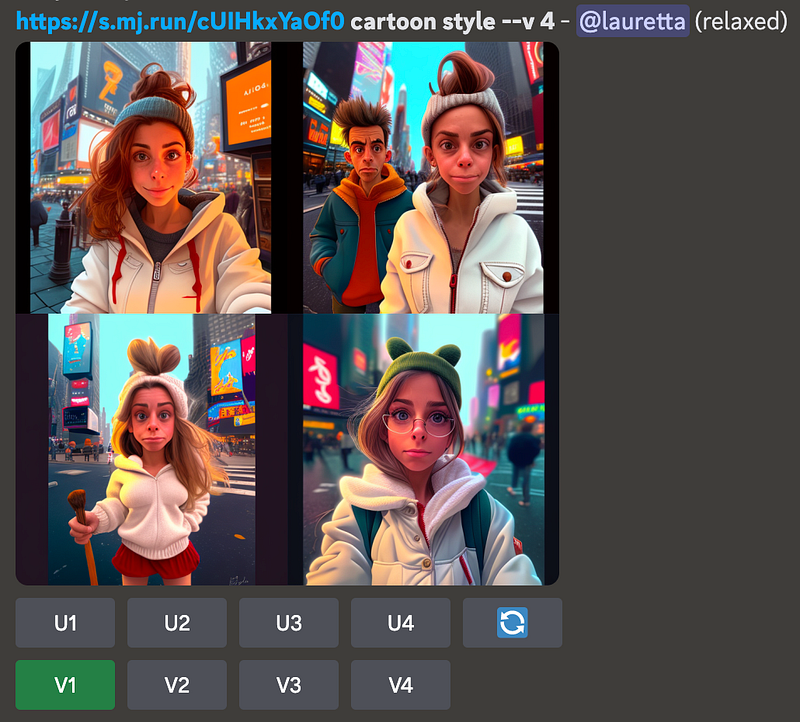
The below window will pop up…
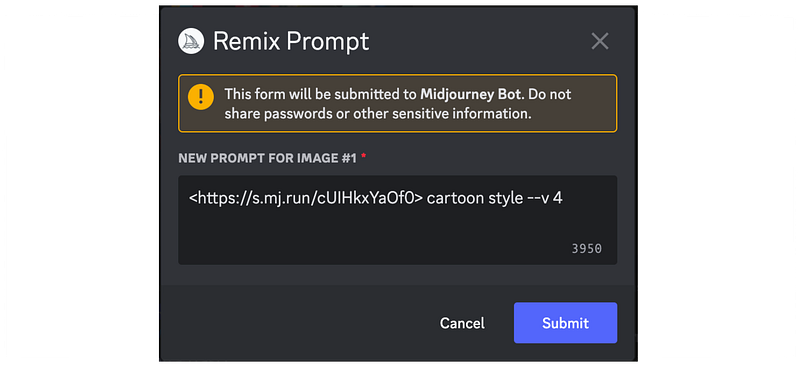
…and we can change the prompt text! Let’s try with a more detailed description, such as “as a brunette female cartoon face with a white hat and jumper”.
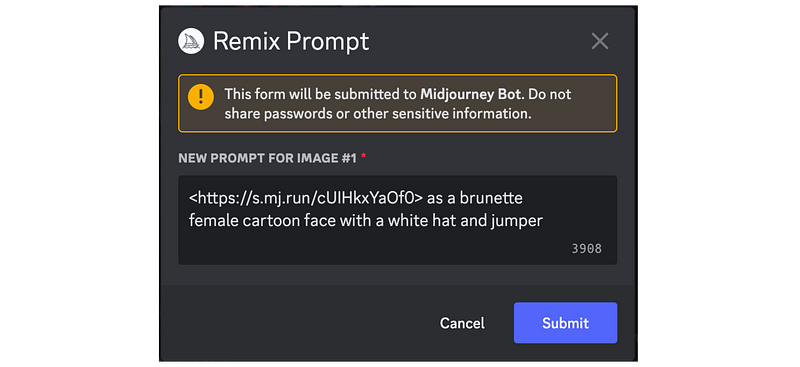
Once happy with the updated prompt description, press Submit.
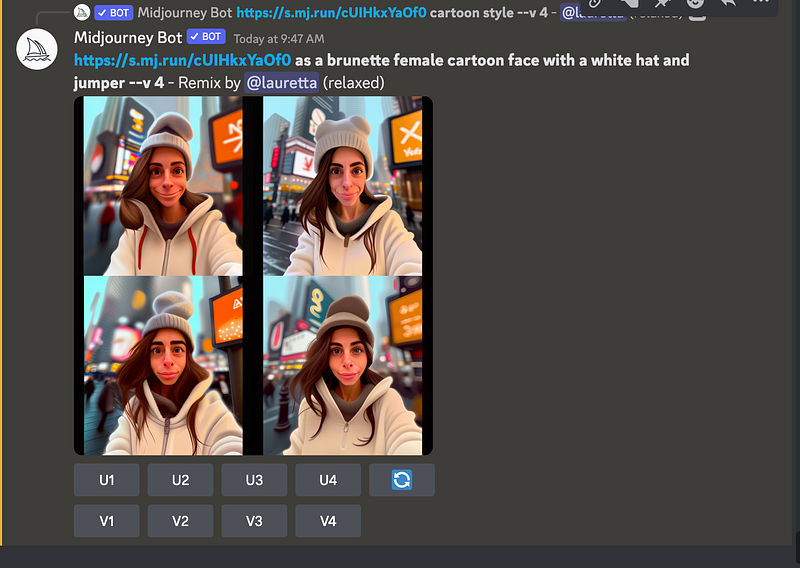
And WOW. The output is way better than the first one. It’s not quite perfect yet, but it’s definitely getting closer to what I had in mind.
So, you can now use your creativity, upload your favorite picture, and become a Disney cartoon… or a vampire!
Enjoy, and thank you!


