Transform Jupyter Notebook to an Ebook
Few tips to transform your Jupyter Notebook to a beautifully formatted Ebook in PDF, EPUB and AWZ3. Don’t spend hours researching as I did!

A month ago, I’ve decided to start working on an online course focusing on the practical aspects of Data Science. Writing an Ebook in a Jupyter Notebook seemed a way to go because it offers a nice mixture of text, visualizations and code. While writing an Ebook is already a challenge by itself, I had a lot of problems when transforming a Notebook to an Ebook format. These tips are useful for technical writers and also for Data Scientists who wish to review a Notebook on their e-reader. Follow these tips so that you don’t spend hours researching as I did!
Here are a few links that might interest you:
- Labeling and Data Engineering for Conversational AI and Analytics- Data Science for Business Leaders [Course]- Intro to Machine Learning with PyTorch [Course]- Become a Growth Product Manager [Course]- Deep Learning (Adaptive Computation and ML series) [Ebook]- Free skill tests for Data Scientists & Machine Learning EngineersSome of the links above are affiliate links and if you go through them to make a purchase I’ll earn a commission. Keep in mind that I link courses because of their quality and not because of the commission I receive from your purchases.
1. Create a Github repository
I would suggest you start with a dedicated Github repository that will help you track versions of your Ebook. Github offers private repositories for free so there is no reason not to use it. JupyterLab also has an extension for Git that will help you track your changes between versions:
Make sure you add following to .gitignore so that you don’t accidentally push unnecessary files to your Git repository:
*.csv
.DS_Store
.ipynb_checkpoints/
*.mov
*.pdf
*.html
*.azw3
*.epub
cpdf
2. Organize each chapter in its own Notebook
Organizing content in Notebooks by chapters makes it easier to focus on a certain topic when writing. It creates fewer distractions and it also simplifies reviewing differences in version control.
There is another benefit to organizing an Ebook this way, which becomes apparent in the end. Each chapter in the Ebook should start on a new page, not in the middle of the previous page.
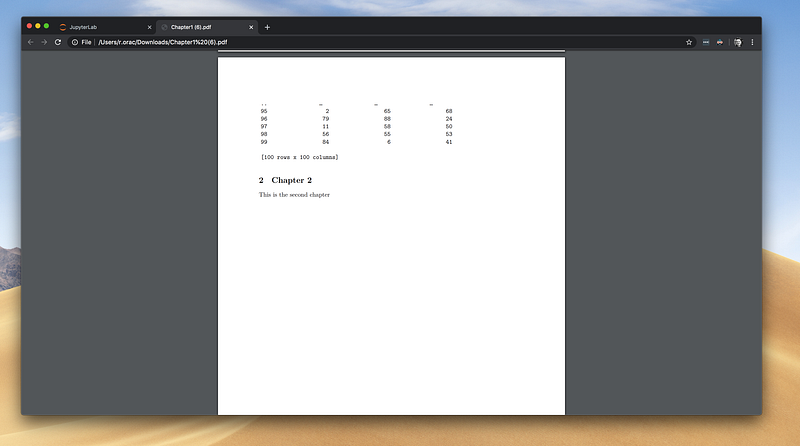
I’ve spent hours looking for a solution to add a page break between chapters when exporting a Jupyter Notebook to HTML or PDF with no luck.
Then I got an idea! Covert each chapter in a Jupyter Notebook to a PDF and then merge them together to a final PDF.
3. Don’t use Jupyter’s Export Notebook as PDF
JupyterLab has a neat “Export Notebook as PDF” feature, which seems like a time-saver at first. The JupyterLab’s export feature doesn’t take CSS into account, so pandas DataFrames get a plain format in the PDF.
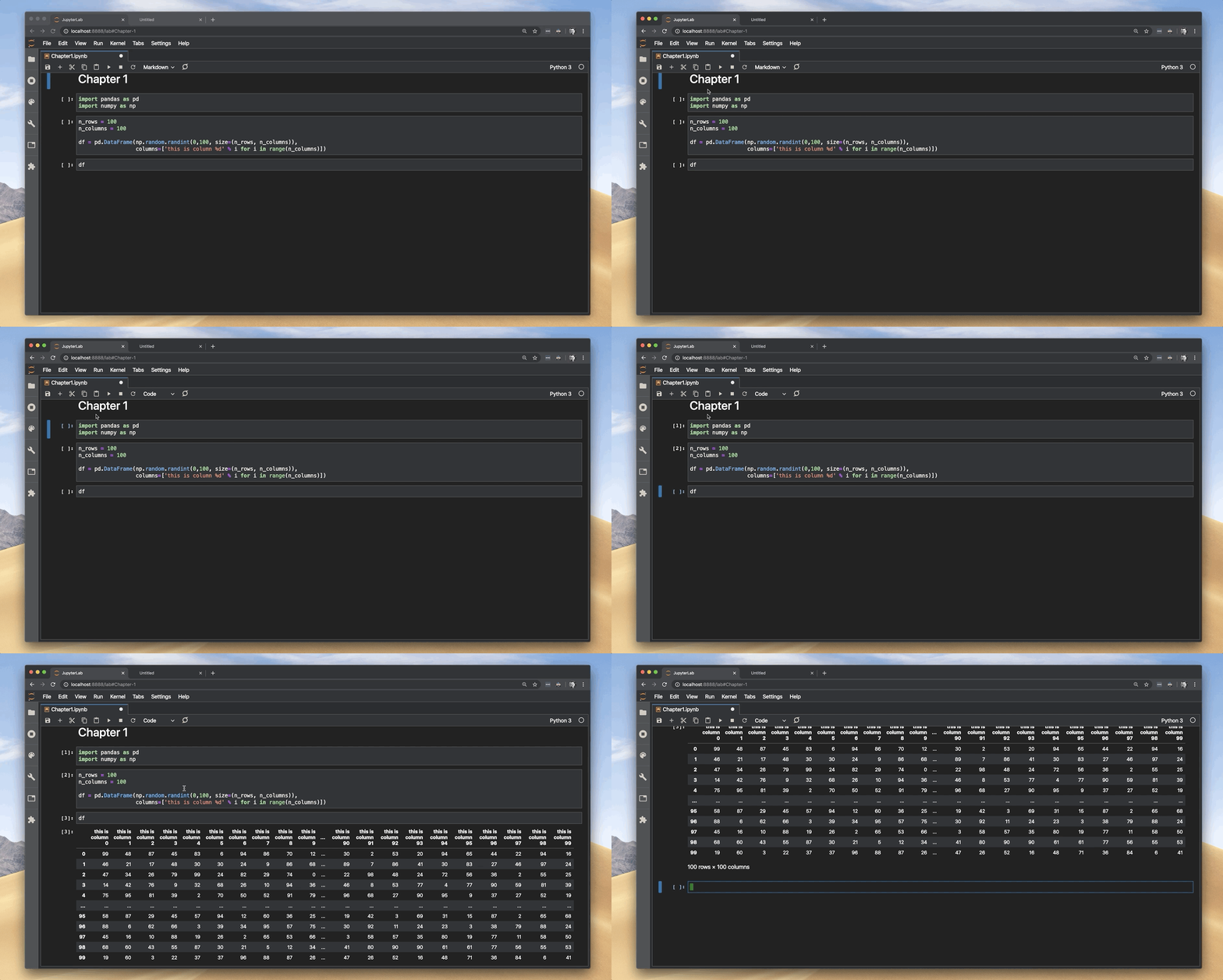
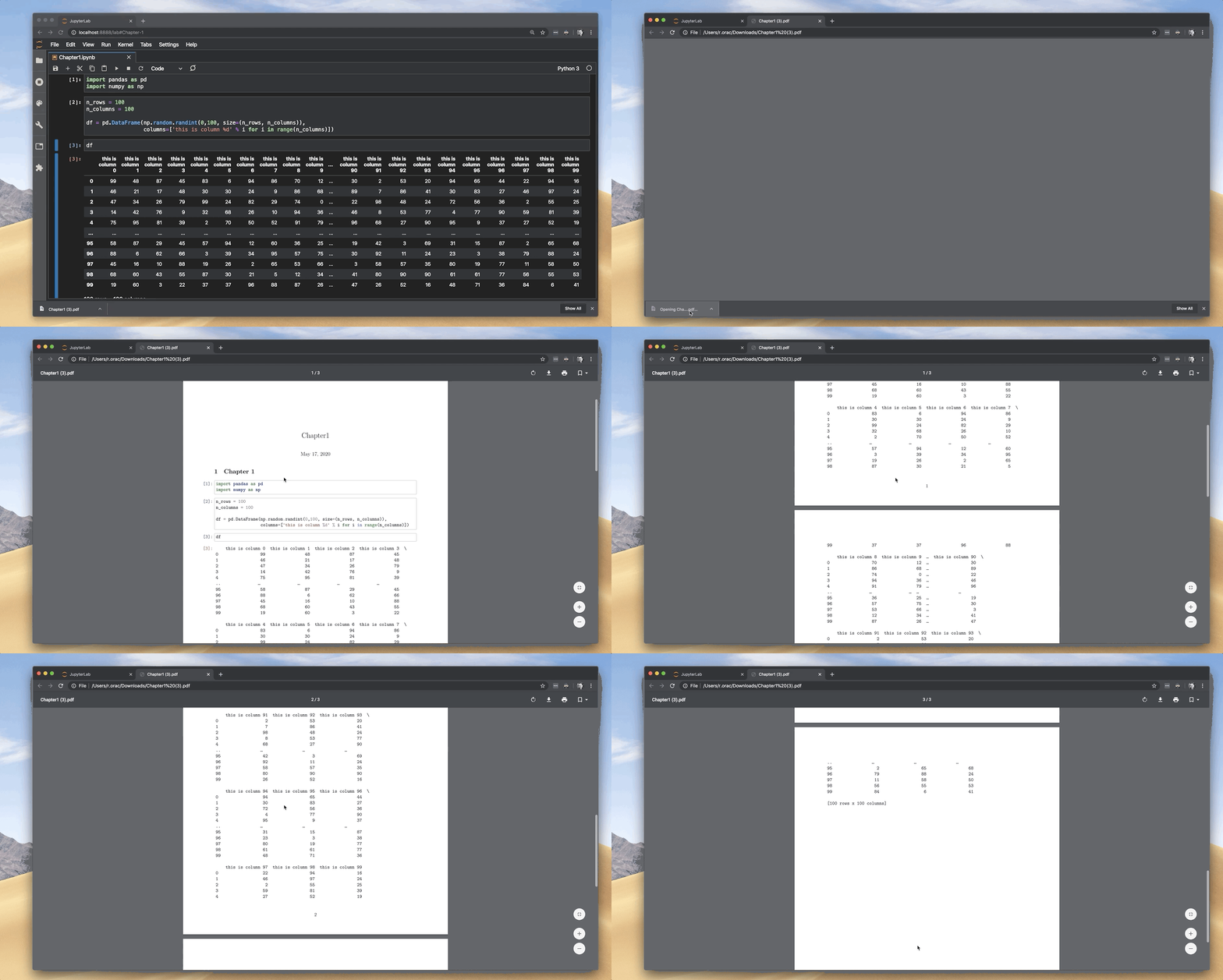
I’ve tried to convince myself that “the export” doesn't look so bad, but I still wasn’t satisfied. After spending some time researching, I’ve tried to export the Notebook to HTML, opening it in Chrome browser, and using Chrome’s save to PDF feature.
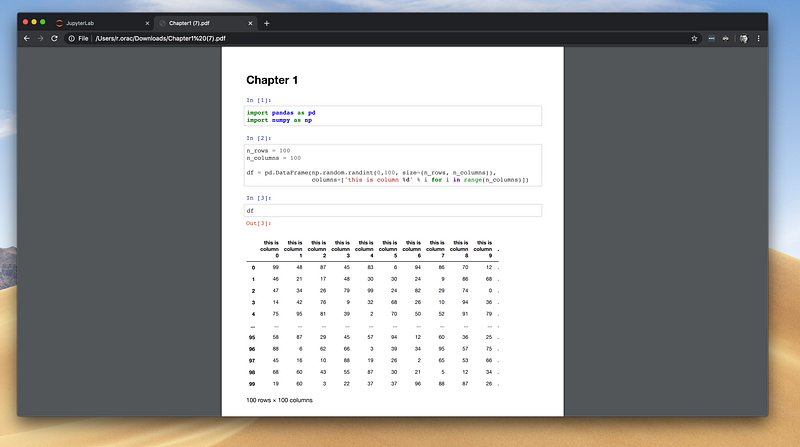
Aha! Dataframe formatting looks much nicer now.
4. Don’t manually save to PDF
Having multiple chapters and exporting each one to HTML and saving it to PDF is a cumbersome process. Can we automate it?
Chrome has a headless mode so we can save an HTML to PDF from a command line. This should work in theory, but it didn’t work for me.
chrome --headless --print-to-pdf=Chapter1.pdf --print-to-pdf-no-header Chapter1.htmlExported PDF with Chrome had headers and footers filled despite using — print-to-pdf-no-header flag.
After researching, I found wkhtmltopdf tool which renders HTML into PDF and various image formats using the Qt WebKit rendering engine. On a macOS you can install it with Brew. The tool enables us to customize the CSS and margins.
Chrome browser produces a nice PDF, so I took the CSS formatting from Chrome and saved it into a custom.css file, which wkhtmltopdf tool takes by default:
div#notebook {
    font-size: 18px;
    line-height: 26px;
}
img {
max-width: 100% !important;
page-break-inside: avoid;
}tr, img {
page-break-inside: avoid;
}*, *:before, *:after {
background: transparent !important;
box-shadow: none !important;
text-shadow: none !important;
}p, h2, h3 {
orphans: 3;
widows: 3;
page-break-inside: avoid;
}*, *:before, *:after {
page-break-inside: avoid;
background: transparent !important;
box-shadow: none !important;
text-shadow: none !important;
}*, *:before, *:after {
page-break-inside: avoid;
background: transparent !important;
box-shadow: none !important;
text-shadow: none !important;
}The command for wkhtmltopdf that takes the HTML and outputs a PDF:
wkhtmltopdf — enable-internal-links -L 10mm -R 9.5mm -T 10mm -B 9.5mm Chapter1.html Chapter1.pdf5. Merge PDFs
I use cpdf tool to merge PDFs to the final PDF. I downloaded the cpdf tool and put it in the folder with Jupyter Notebooks. To merge PDFs use the following command:
./cpdf Chapter1.pdf Chapter2.pdf -o Ebook.pdf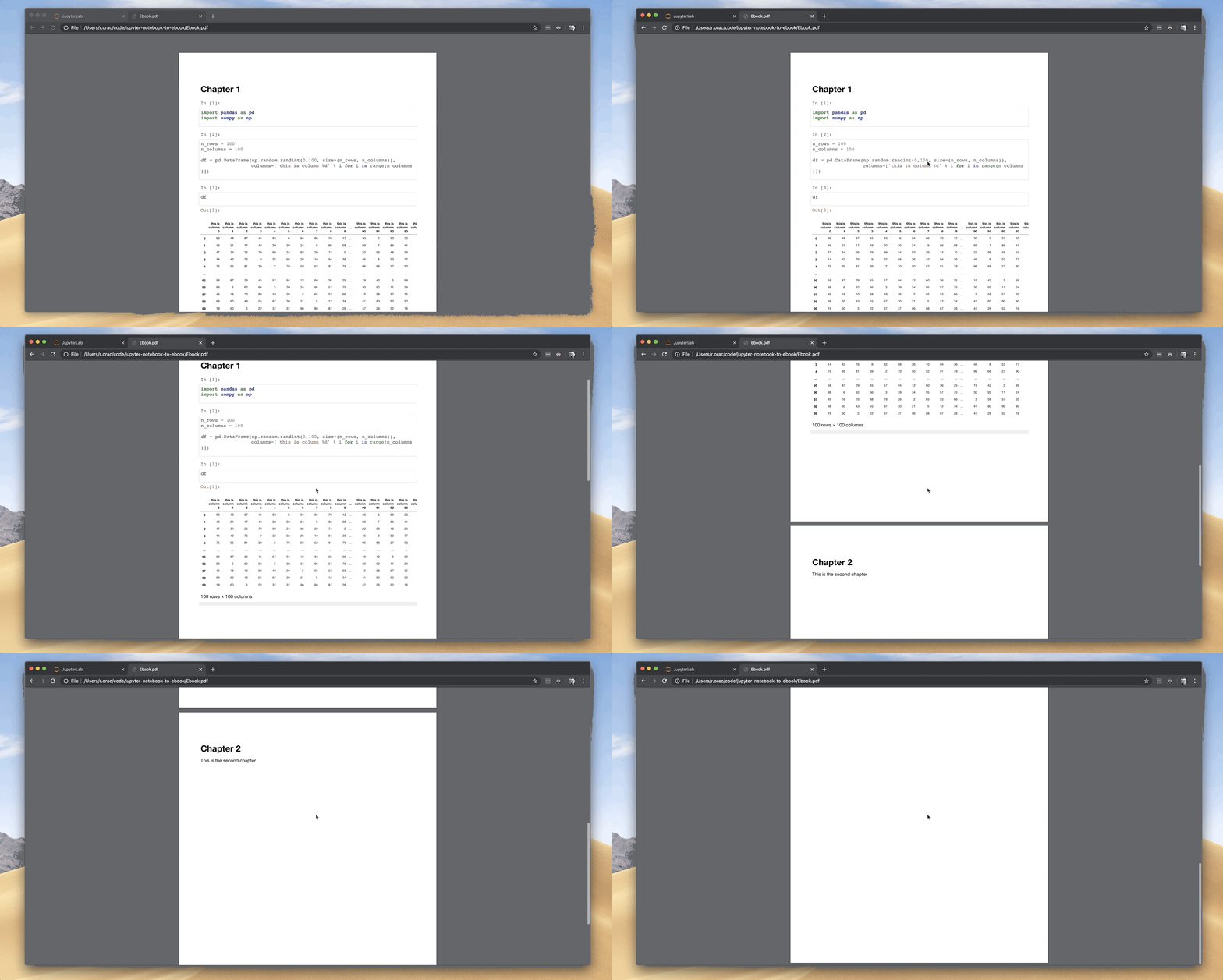
6. Convert Jupyter Notebook to EPUB format
We have each chapter in a separate Jupyter Notebook. Let’s merge the Notebooks with nbmerge tool. You can install it with pip: pip install nbmerge.
nbmerge Chapter1.ipynb Chapter2.ipynb > Ebook.ipynbJupyterLab’s “export to HTML” command also exports CSS, which is great for PDF, but it is problematic for Ebooks as it is too complex. Jupyter comes with nbconvert tool that powers exporting to different formats. To export the Notebook to HTML without the CSS:
jupyter nbconvert --to html Ebook.ipynb --template=basicWe need to install Calibre, to convert the HTML to EPUB. If you are an avid Ebook reader, I am sure you met Calibre before. Calibre is a cross-platform open-source suite for Ebook management.
Run the commands below to convert HTML to EPUB and AWZ3 (commands work on macOS):
/Applications/calibre.app/Contents/MacOS/ebook-convert Ebook.html Ebook.epub
/Applications/calibre.app/Contents/MacOS/ebook-convert Ebook.html Ebook.azw3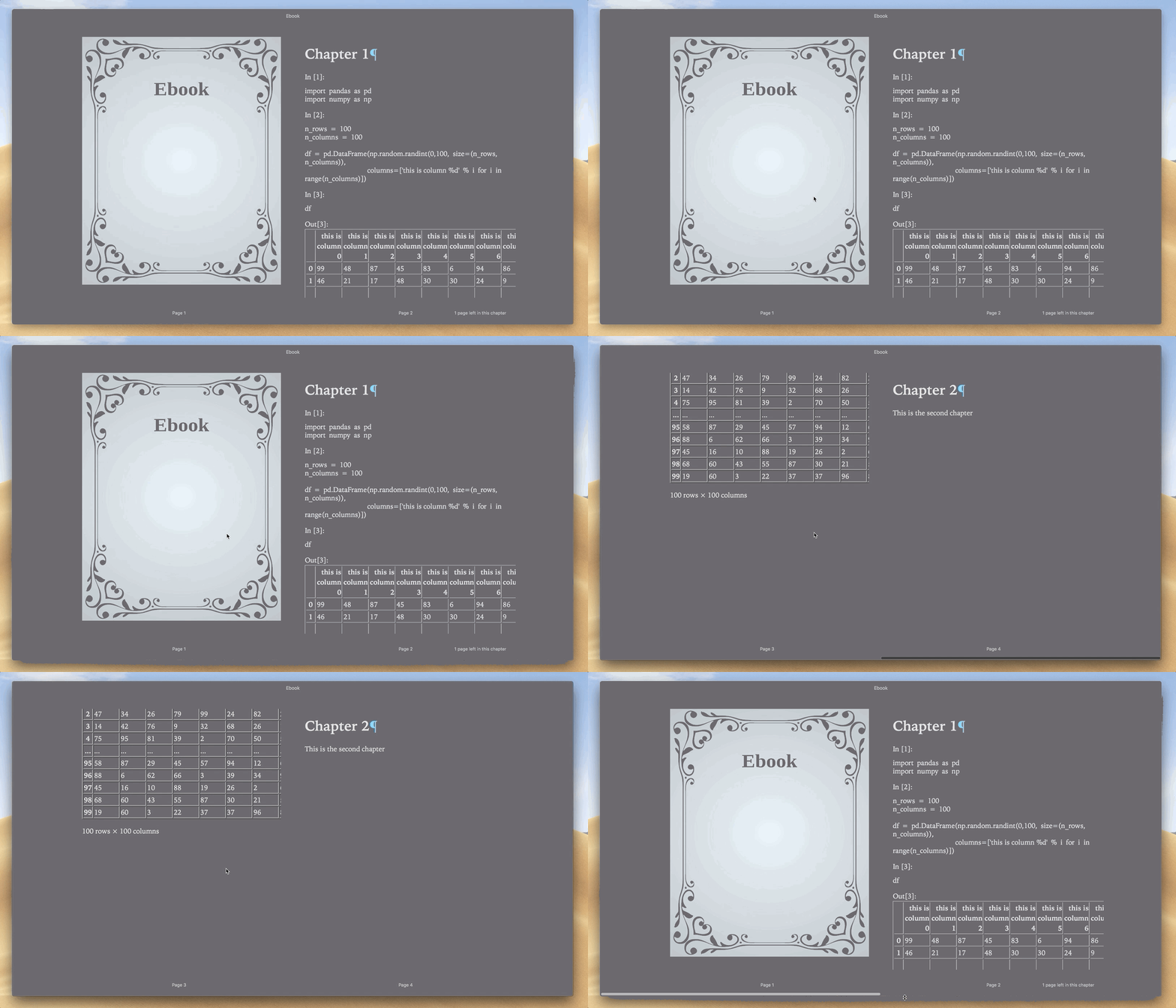
7. Let’s put everything together
As software developers, we automate things. I wrote a bunch of commands that can be nicely packed into a bash script. So that whenever I make a change in Jupyter Notebooks, I can run the compile script that creates a new version of the Ebook:
#!/bin/bashnbmerge Chapter1.ipynb Chapter2.ipynb > Ebook.ipynbjupyter nbconvert --to html Ebook.ipynb --template=basic/Applications/calibre.app/Contents/MacOS/ebook-convert Ebook.html Ebook.epub/Applications/calibre.app/Contents/MacOS/ebook-convert Ebook.html Ebook.azw3jupyter nbconvert --to html Chapter1.ipynbjupyter nbconvert --to html Chapter2.ipynbwkhtmltopdf --enable-internal-links -L 10mm -R 9.5mm -T 10mm -B 9.5mm Chapter1.html Chapter1.pdfwkhtmltopdf --enable-internal-links -L 10mm -R 9.5mm -T 10mm -B 9.5mm Chapter2.html Chapter2.pdf./cpdf Chapter1.pdf Chapter2.pdf -o Ebook.pdfI also created a Git repository with the commands mentioned above:
Before you go
Follow me on Twitter, where I regularly tweet about Data Science and Machine Learning.