
Track Your Weight With Python
You cannot improve what you cannot measure.

Some people want to gain weight while others want to lose it. I have been in the former group for as long as I can remember myself. Even after learning martial arts for about 10 years, my weight did not increase drastically. It made my body fitter and my mind stronger. But still, it was not enough to increase my Body Mass Index. I have always been in the lower limit of the “healthy” BMI range.
There might be many reasons for that. Maybe, my love for sweets and snacks (fast energy). Perhaps, my high metabolic rate. Maybe, something else. Or, most probably, everything altogether. Who knows but the fact is the fact.
Looking years back, the only thing left is my memory that I have been somewhat underweight and no data to support or track down the weight changes over the years.
I often say that when you can measure what you are speaking about, and express it in numbers, you know something about it; but when you cannot measure it, when you cannot express it in numbers, your knowledge is of a meager and unsatisfactory kind. - Lord Kelvin, 3 May 1883
In Data Science, we know that the most time-consuming part of data analysis is data collection and preparation. Because without (good) data, there is no analysis. So, I got an idea of picking up on my weight and improving some Python skills down the road. Besides, this might be an interesting project to keep sanity while staying indoors due to the horrific pandemic. This post is meant to encourage people to use Python in day-to-day life.
Let us begin.
The idea
We want to record the data of our weight measurements on a specific day (ideally, every day). We take the measurement, then write it down in a simple manner to save it in a tabular/table format (or something similar to that). In other words, we want the code to generate the output file for us and append its content with a given input. So, we would do as minimum work as possible in the long run.
Let us break down the process into objectives — what we need (and will) to learn in this post step by step.
The objectives
By the end of this article, you will learn how to:
- interact with the python code using command-line arguments
sys.argv; - check if the file already exists using the operating system
OSmodule; - manipulate files using
with open(); - handle some errors using
try-catchblock (bonus); - add your own documentation (docstring) to any function (bonus);
The code
We want to call the code with some additional (command-line) arguments to input the measured weight. The easiest way would be to work with the raw python code with .py extension (instead of an alternative interactive notebook).
We start by creating a text document with the extension .py, for example, WeightTracker.py.
Let us dive in!
First of all, we import some libraries
import numpy as np
import datetime
import os, sys
Get today’s date/time. Remove a comment # if you want only a date value (without a time)
currentDT = datetime.datetime.now()#.date()Part 1 (sys.argv)
Typically, when we run the python code from a command line (terminal) it looks like python WeightTracker.py if the code is called “WeightTracker.py”. By default, the name of the code is assigned to the zeroth system’s argument sys.argv[0] — zero, because in Python indices start from 0, not from 1. In this case, sys.argv[0] = WeightTracker.py. To check it out, you can print itprint(sys.argv[0]).
If we want to supply a list of additional arguments we could run the code as following python WeightTracker.py arg1 arg2 arg3 …. In the simplest case, we want to get only our own weight, e.g., use only one additional argument. Thus, for example, to run our code and record a weight of 68.4 (units, e.g., kg), we will type python WeightTracker.py 68.4 in the terminal.
We read that value and append it to the empty array. Then, we define the filename to save the date and weight measurement
daily_kg = sys.argv[1]mass_array = []
mass_array.append(daily_kg)filename = “My_weight_gain.txt”Part 2 (os module)
The module os allows us to use our operating system functionalities. Such as getting a current working directory with os.getcwd(), or displaying a list of files in the directory with os.listdir(<directory>), etc.
Here, we are interested in checking if a given file exists with os.path.isfile(<file>). If it does (which might be because we ran this code before) we just update that file with today’s values. Otherwise, we need to create a new file. This is a simple if-else statement
if os.path.isfile(filename):
   print("\n file exists \n appending with provided data ... ")
# append an existing fileelse:
print("\n file does not exists \n creating {}".format(filename))
# create a new filePart 3 (creating files)
In Python, we can write (create) or read files using the built-in open function. In short, it provides a file object that contains the methods and attributes for reading, saving, and manipulating the files. The function open takes two parameters: filename (or path+filename) and the mode argument (reading "r", writing "w", or appending "a").
Note: it is always important to close a file after opening because every open file keeps eating resources.
A way around it is to us the with statement. It automatically closes the file even if the code encounters an error. The code runs everything in the indented block, then closes the file object.
For example, to create (write) a file called “Hello.txt” and write down a line “Hello World!”, we can use the statement with as follows
with open('Hello.txt', 'w') as file:
    file.write("Hello World!")
So, back to our code. We modify our if-else statement as
if os.path.isfile(filename):
   print("\n file exists \n appending with provided data ... ")
   with open(filename, "a") as file:
      file.write("{:>20} {:>20}\n".format(str(currentDT), daily_kg))
else:
   print("\n file does not exists \n creating {}".format(filename))
with open(filename, "w") as file:
file.write("{:>20} {:>20}\n".format("Time", "Mass (kg)"))
file.write("{:>20} {:>10}\n".format(str(currentDT), daily_kg))In principle, this tutorial can be finished here because our program works. It records today’s date and our weight measurement.
But we are not quite happy yet. We want to be able to handle the rising exception(s). For instance, when the user does not provide any weight value — we want to exit a program nicely and give a short clear message on what should be done (part 4). Also, we want to give a user some hints on how to run the program correctly or just describe the program in general (part 5).
Part 4 (try-catch block)
The topic of rising and handling exceptions deserves its own article. What are exceptions and why should we care about them?
Very briefly and simply, exceptions are detected errors during the execution of the program. To handle them it is common to use a try-catch block. Inside a try: block, we run the code. If it fails, the program goes to except: block, where we decide what to do next.
Let us see how it works by calling a simple function, which divides one variable by another. We will on purpose divide a number by zero to create an error — and we will catch it.
Here is a function. We define and call it. In the second case, we divide by zero.
def div(x, y):
    result = x / y
return resultdiv(5,6) # result => 0.8333333333333334div(5,0) # result => ZeroDivisionError: division by zeroWe know that the operation of division by zero is not defined. Here, we can easily see where the error occurred. But what if our program has dozens of definitions and is separated into different files? Then, it might be not so easy to find what caused the error. It might be wise to think about it in advance.
Besides, a given block of code might perform some additional operation, so the whole result of the program does not strongly depend on it. Then, even if a given block fails and returns a None (empty) value or NaN (not a number) value, the whole program still will be executed.
In general, learning how to handle exceptions is a good idea. In our example of div function, it might look like
def div(x, y):
    try:
        result = x / y
    except:
        print('Division by zero is not allowed! Exiting ...')
        result = None

    return result
Calling this function now will give us a personal message, which explains what happened and returns theNone object. We do not get the result but our program does not crush either.
There is much more to this. Such as, what types of exceptions exist, how to rise and re-rise exceptions, etc. These questions are beyond the scope of this article. If you want to learn more about it, please visit my short tutorial on GitHub.
In my opinion, the most essential part of handling exceptions is to always provide some information on the spot and never pass the exception. Otherwise, it might not be possible to trace back to the cause of the error.
Coming back to our program, we want to accommodate it by putting all of the previous code in the try: indented block. And inside the except: block, we will print out the error name and a short instruction on how to write a program correctly, such as
try:
except Exception as e:
  # in case an Exception/Error arises, do the following:
  print("\nError: {}\n".format(e))

  messageFromDeveloper = "You need to provide the weight measurement as the first argument as following \npython <this code>.py <weight> \n for example \npython WeightTracker.py 75"
  print(messageFromDeveloper.ljust(40, '-'))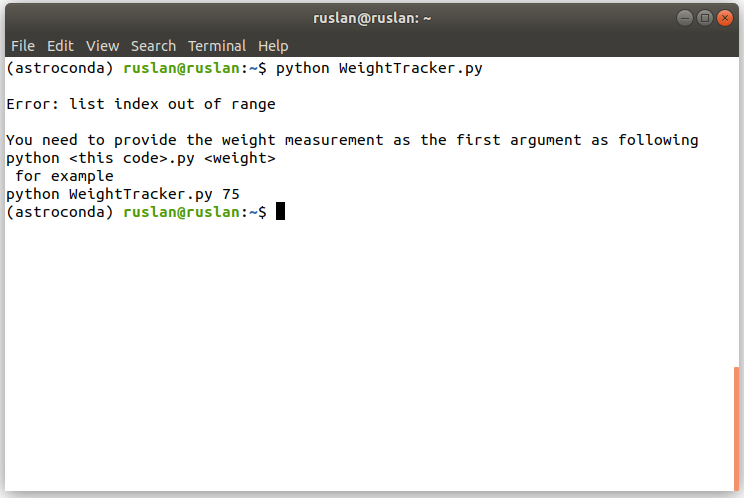
If we want to get a general idea about a given function/method, we usually use help() method. Let us see how we can manually define ourselves what is shown upon calling a help function.
Part 5 (creating our docstring)
In principle, every class, module, or function should have a documentation string (docstring). The docstring describes what the function does and it looks like a comment, inside triple-single or triple-double quotes.
Again, there is a lot of information to this, from the exact format of the string to the common styles of the documentation. Here, we want to see how to create a simple docstring for our function. Even if it might not correspond to a global format of docstrings, you can do this as follows
"""
 This is a help doc

 To EXIT/QUIT interactive mode - press "q"

 This function is waiting for additional
 command-line (terminal) argument upon call.

 python <this code>.py <weight>
 e.g.,
 python WeightTracker.py 75.0

 Otherwise an exception is thrown.
 ~~~
 Good luck and have a nice day!
 """
To see this in action, you can call either print(WeightTracker.__doc__) or help(WeightTracker). In the last case, we will enter some kind of interactive shell, which we can quit by pressing ‘q’.
Congratulations! Now, our program is finished. We can happily record our weight for future reference. The next part would be to read that file and analyze the weight changes. For example, using visualization and maybe even predict our future weight with machine learning.
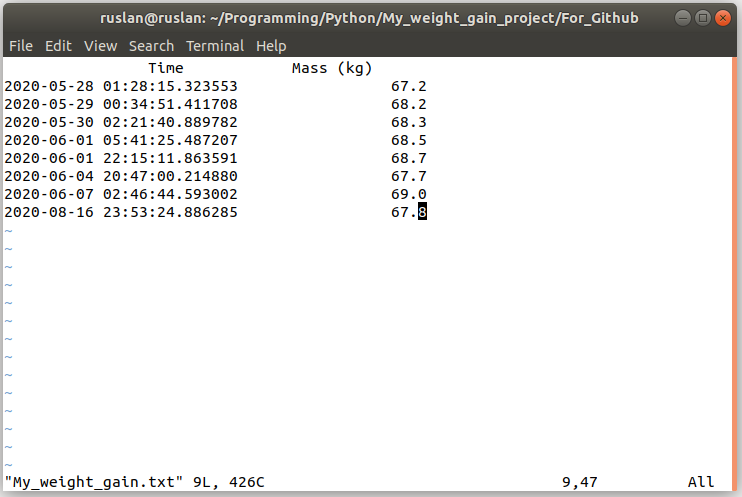
To find the complete code of this program, please visit my GitHub page. The resulting output .txt file looks like
Thanks for your attention and reading until the end.
References
There is a number of good resources on Python, for example, docs.python.org realpython.com
Are you curious about the emerging field of Prompt Engineering? Grab my new e-book! You will learn and master everything from fundamental concepts to practical tips and real-world applications. Additionally, you will receive a bonus of 300 prompts and some of the free resources to kick-start your AI-driven journey. With all this value packed into one e-book, what is the price? The cost of a cup of coffee! Do not miss out on this opportunity to take your skills to the next level!
Contact
I recently started a YouTube channel where I talk about different topics, including data science and AI news, research, and tools among others. It is a steep learning curve for me but I invite you to check it out here.
Never miss a story, join my mailing list!


