
Todoist — The Best Task Manager and Why You Should Be Using It
My memory is terrible.
To-do lists are the only way that I can remember how to get anything done.
I have used many to-do apps over the years, like 2Do, Microsoft To-Do, OmniFocus, Remember The Milk, Things 3, and Wunderlist. (I know that this became Microsoft To-Do) After trying all of these task managers, I believe Todoist is the best task manager on the market today.
Platforms
Like numerous people, I use Apple devices for all my personal / side hustle projects, but I also have a day job that pays the bills. In that day job, I am forced to use a Lenovo Windows laptop.
I was a user of Things 3 for the longest time, but it only works on iOs and macOS devices. I really did love using Things, but it just didn’t work when I was at my desk during the day. Not only that, but I just love having the ability to add tasks and view my to-do list without having to pull out my phone. We all know the phone can become very distracting.
Enter Todoist.
Todoist is the best cross-platform to-do list app on the market. I love it for its simplicity, natural language support, and the fact that it can be integrated with Google Calendar.
How I Use Todoist
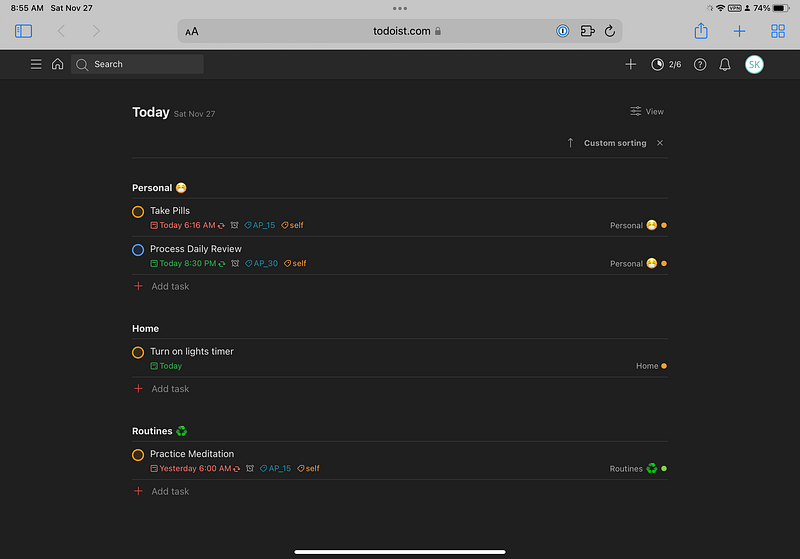
Like most people, I have many projects that need to be done daily. These projects fall into different areas of my life. In those areas, I place the projects I need to get done.
These are the areas in my life:
- Personal: The projects that fall into this area are Autos, Home tasks, and Family tasks.
- Work: This area contains anything that relates to my day job.
- Blog: I think that this one is fairly self-explanatory.
- Recurring: These are where anything that is a repeating task goes.
I do it this way because in the Today view, Todoist has the ability to customize how you view your to-do items. Instead of all my tasks being mixed, I am able to view them under their areas.
Inbox
This is a feature of Todoist that I do not use that often, but occasionally, I do use it. The Inbox is an area that you can add your tasks easily, and then come back to organize them later.
This is a feature that I do not use regularly. I tend to organize my tasks at the time I enter them.
I do use it for emails that I want to remember and couldn’t respond at that time, or I want to give some thought to my response. Todoist allows me to copy a unique email address that I use to forward my email to the Inbox. I do this because Todoist only allows the unique address to be linked to a project, and I send it to the Inbox where I will sort it to the correct project later.
Natural Language Support
Natural language is the killer feature when it comes to creating tasks. There are other apps that have this capability, but I just find that it makes entering tasks so much easier. I don’t have to click through so many menus just to enter days and time.
All I have to do is write “Meeting today 2pm” and Todoist will take care of the rest.
Furthermore, I can add other information like, “Meeting today 2pm #work”, and Todoist will create the task and place it in my Work Area.
You will be amazed how much time this actually saves.
Priorities
When entering a task, you can assign levels of priority to each one.
When adding a task like, ”Meeting today 2pm P1”, the P1 portion of the entry will give it a priority one status. The levels that you can give a task are P1, P2, P3, and P4. The P4 status is given to any task that did not get assigned a priority of P1-P3.
I like the way that Todoist handles priorities. It will place all the tasks you gave a P1 status at the top of your list, P2 would be next, then P3, and so forth.
Filters & Labels
Filters and labels is another great feature of Todoist. I use the filter function more than I do the labels function. I just find labeling (what others also call tagging)a process that doesn’t resonate with me. Not only that, but I struggle to remember what tag I assigned to tasks.
Filters are the way Todoist lets you find exactly what you are looking for. It is completely customizable using a syntax that you can find on Todoist’s website.
Simply write, ”#home & p1”, and Todoist will show you all the tasks in your home project that are a priority one status.
This is the one feature that I find Todoist has over most other task managers.
Repetitive Tasks
I have tasks that need to be done every week. Some I need to do every day, some every other day, and some are done weekly. I can either have these tasks repeat regularly, or repeat after completed.
Regularly repeating tasks will show up again in your list, giving you two entries if you failed to complete the previous task. After completion tasks, will just show up as overdue in your to-do list and once it is completed, they will not show up until it is due to appear in your list again.
The tasks can be entered through the natural language feature, but they can also be added through scheduling menus that are easy to navigate.
Conclusion
Todoist is simply the best to-do list app for me. It is just an app that gets out of the way and allows me to keep my life in order.
If you are looking for a task manager and are not exactly sure which one to use, give Todoist a try. It will not cost you anything to start out. All the features are available to you, Todoist Pro just unlocks that caps that they have on the free plan.
If you enjoy my content here on Medium, it’s only the beginning of what’s available. I am a paying member and I highly recommend joining. If you decide to join, a portion of your membership fee will be sent my way and therefore will directly support my work.