
span class="hljs-type">THREE</span>.Scene();</pre></div><p id="1583">And by last we create a <b>camera</b>, passing as parameters the <a href="https://en.wikipedia.org/wiki/Field_of_view">FOV</a>, the <a href="https://en.wikipedia.org/wiki/Aspect_ratio_%28image%29">Aspect ratio</a> and the <a href="https://en.wikipedia.org/wiki/Viewing_frustum">near plane and far plane</a> :</p><div id="6dc2"><pre><span class="hljs-attribute">var</span> camera = new THREE.PerspectiveCamera( <span class="hljs-number">75</span>, window.innerWidth/window.innerHeight, <span class="hljs-number">0</span>.<span class="hljs-number">1</span>, <span class="hljs-number">1000</span> );</pre></div><p id="64c8">Once this is done we have the 3 fundamental elements of a Three.js application.</p><h1 id="c6d4">Geometry, Material and Mesh</h1><p id="a453">The <b>second common pattern</b> is adding objects to the scene:</p><ol><li>Create a Geometry</li><li>Create a Material</li><li>Create a Mesh.</li><li>Add mesh to scene.</li></ol><p id="a43b">In Three.js a Mesh is the composition of a Geometry with a Material.</p><figure id="2a4b"><img src="https://cdn-images-1.readmedium.com/v2/resize:fit:800/1*2EVr-S4tzNjA5rpBpOmC5A.png"><figcaption></figcaption></figure><p id="9749">A Geometry <b>is the mathematical formula of an object</b>, in Three.js we have many geometries, we’ll explore it in future chapters. A Geometry give us the vertices of the object we want to add to the scene.</p><figure id="f428"><img src="https://cdn-images-1.readmedium.com/v2/resize:fit:800/1*NDFRP-A0Y3c4cmq2FiHOWQ.png"><figcaption>You can see all the geometries in the <a href="https://threejs.org/docs/">documentation</a>.</figcaption></figure><p id="ba0c">A Material can be defined as <b>the properties of an object and its behavior with the light sources of the scene</b>. As you can see in the following image there are different types of materials.</p><figure id="1982"><img src="https://cdn-images-1.readmedium.com/v2/resize:fit:800/1*naw3hZIVvoXcbnybhDGt6w.png"><figcaption>You can see all materials in the <a href="https://threejs.org/docs/">documentation</a>.</figcaption></figure><p id="a983">Now that we know what a mesh, a geometry and a material are, we are going to add them to the scene. In this case we are creating a cube with basic Material:</p><div id="859b"><pre><span class="hljs-comment">// Create the Geometry passing the size</span>
<span class="hljs-keyword">var</span> <span class="hljs-built_in">geometry</span> = <span class="hljs-keyword">new</span> THREE.BoxGeometry( <span class="hljs-number">1</span>, <span class="hljs-number">1</span>, <span class="hljs-number">1</span> );</pre></div><div id="73fa"><pre><span class="hljs-comment">// Create the Material passing the color</span>
<span class="hljs-keyword">var</span> material = <span class="hljs-keyword">new</span> <span class="hljs-type">THREE</span>.MeshBasicMaterial( { color: <span class="hljs-type"></span>"<span class="hljs-meta">#433F81" } );</span></pre></div><div id="d5be"><pre><span class="hljs-comment">// Create the Mesh</span>
<span class="hljs-keyword">var</span> cube = <span class="hljs-keyword">new</span> THREE.Mesh( <span class="hljs-built_in">geometry</span>, material );</pre></div><div id="659c"><pre>// Add the <span class="hljs-built_in">mesh</span> to the <span class="hljs-built_in">scene</span>
<span class="hljs-built_in">scene</span>.add( <span class="hljs-built_in">cube</span> );</pre></div><h1 id="a0b1">RequestAnimationFrame</h1><p id="1873">The last piece of code is the one that allows us to animate the scene, for this purpose we use <a href="https://developer.mozilla.org/en-US/docs/Web/API/window/requestAnimationFrame">requestAnimationFrame</a>, which allows us to have a function that runs at 60 frames per second (at best).</p><div id="3bd5"><pre><span class="hljs-comment">// Render Loop</span>
var <span class="hljs-built_in">render</span> = <span class="hljs-function"><span class="hljs-keyword">function</span> <span class="hljs-params">()</span> {</span>
requestAnimationFrame( <span class="hljs-built_in">render</span> );</pre></div><div id="0e4e"><pre><span class="hljs-comment">// Your animated code goes here</span></pre></div><div id="4ee4"><pre><span class="hljs-keyword">renderer</span>.<span class="hljs-keyword">render</span>(scene, <span class="hljs-keyword">camera</span>);
};</pre></div><div id="b950"><pre><span class="hljs-built_in">render</span>();</pre></div><h1 id="98b0">Animating the cube</h1><p id="ea16">In order to animate the cube inside our render loop, we need to change it’s properties. When we create a Mesh we have access to a gr0up of properties that are very useful at the moment of animating.</p><div id="85f2"><pre><span class="hljs-comment">// Rotation (XYZ) in radians. </span>
cube<span class="hljs-selector-class">.rotation</span><span class="hljs-selector-class">.x</span>
cube<span class="hljs-selector-class">.rotation<
Options
/span><span class="hljs-selector-class">.y</span>
cube<span class="hljs-selector-class">.rotation</span>.z</pre></div><div id="ea9f"><pre>// Position (XYZ)
<span class="hljs-built_in">cube</span>.<span class="hljs-built_in">position</span>.x
<span class="hljs-built_in">cube</span>.<span class="hljs-built_in">position</span>.y
<span class="hljs-built_in">cube</span>.<span class="hljs-built_in">position</span>.z</pre></div><div id="2248"><pre><span class="hljs-comment">// Scale (XYZ) </span>
<span class="hljs-built_in">cube</span>.<span class="hljs-built_in">scale</span>.x
<span class="hljs-built_in">cube</span>.<span class="hljs-built_in">scale</span>.y
<span class="hljs-built_in">cube</span>.<span class="hljs-built_in">scale</span>.z</pre></div><p id="5f89">In our example we animate the X and Y rotation of the cube:</p><div id="09a5"><pre><span class="hljs-attribute">cube</span>.rotation.x += <span class="hljs-number">0</span>.<span class="hljs-number">01</span>;
<span class="hljs-attribute">cube</span>.rotation.y += <span class="hljs-number">0</span>.<span class="hljs-number">01</span>;</pre></div><h1 id="882f">The console is your friend</h1><p id="f3dc">The console is an essential tool when we are working with Three.js, I prefer to use Chrome’s, but today all the browsers have a decent one.</p><p id="64ef">To finish understanding how the Mesh properties work I think the best way is to do it with the console in real time.</p>
<figure id="6074">
<div>
<div>
<img class="ratio" src="http://placehold.it/16x9">
<iframe class="" src="https://cdn.embedly.com/widgets/media.html?src=https%3A%2F%2Fwww.youtube.com%2Fembed%2FtlJDpqtrojU%3Ffeature%3Doembed&url=http%3A%2F%2Fwww.youtube.com%2Fwatch%3Fv%3DtlJDpqtrojU&image=https%3A%2F%2Fi.ytimg.com%2Fvi%2FtlJDpqtrojU%2Fhqdefault.jpg&key=d04bfffea46d4aeda930ec88cc64b87c&type=text%2Fhtml&schema=youtube" allowfullscreen="" frameborder="0" height="480" width="640">
</div>
</div>
</figure></iframe></div></div></figure><h1 id="d137">Let’s improve our code</h1><p id="d02c">Now that we understand the logic of the example, I’m going to add more pieces to the scene, with the purpose of generate a more complex one..</p><p id="333e">As an exercise from this example try to create your own alternative. Don’t be afraid of break the code, fork it and share it! I would love to see your versions.</p>
<figure id="51c3">
<div>
<div>
<img class="ratio" src="http://placehold.it/16x9">
<iframe class="" src="https://cdn.embedly.com/widgets/media.html?src=https%3A%2F%2Fcodepen.io%2Fnecsoft%2Fembed%2Fpreview%2FQdNKQV%3Fheight%3D600%26amp%3Bslug-hash%3DQdNKQV%26amp%3Bdefault-tabs%3Djs%2Cresult%26amp%3Bhost%3Dhttp%253A%252F%252Fcodepen.io%26amp%3Bembed-version%3D2&url=https%3A%2F%2Fcodepen.io%2Fnecsoft%2Fpen%2FQdNKQV&image=https%3A%2F%2Fs3-us-west-2.amazonaws.com%2Fi.cdpn.io%2F58568.QdNKQV.small.c231f2d4-0f95-47e4-8283-f477db41f206.png&key=d04bfffea46d4aeda930ec88cc64b87c&type=text%2Fhtml&schema=codepen" allowfullscreen="" frameborder="0" height="600" width="800">
</div>
</div>
</figure></iframe></div></div></figure><h1 id="bcc1">Give Me Feedback</h1><p id="df31">I have in mind keep writing these articles, I would love to know if these are useful and if you want me to write about an specific theme. Please don’t hesitate to write me a comment or send me a message.</p><p id="5a17">I invite you to check out <a href="http://hinecsoft.com"><b>my personal web page</b></a> and <a href="http://instagram.com/necsoft"><b>following me on Instagram</b></a> to see more projects created with Three.js, it would help me a lot ❤.</p><h2 id="8fd0">Amazing Three.js Projects</h2><ul><li><a href="http://codeology.braintreepayments.com/facebook">http://codeology.braintreepayments.com</a></li><li><a href="https://avseoul.github.io/particleEqualizer/index.html">https://avseoul.github.io/particleEqualizer/index.html</a></li><li><a href="http://www.cryptarismission.com/#!/training-room/4">http://www.cryptarismission.com/#!/training-room/4</a></li><li><a href="https://kuva.io/hair-simulation/">https://kuva.io/hair-simulation/</a></li><li><a href="http://www.bjork.com/">http://www.bjork.com/</a></li><li><a href="http://tympanus.net/codrops/2016/04/26/the-aviator-animating-basic-3d-scene-threejs/">http://tympanus.net/codrops/2016/04/26/the-aviator-animating-basic-3d-scene-threejs/</a></li><li><a href="http://www.dennis.video/">http://www.dennis.video/</a></li><li><a href="http://unseen-music.com/yume/">http://unseen-music.com/yume/</a></li><li><a href="http://www.onformative.com/work/porsche-blackbox">http://www.onformative.com/work/porsche-blackbox</a></li><li><a href="http://audiograph.xyz/">http://audiograph.xyz/</a></li></ul></article></body>
Three.js 101 : Hello World! (Part 1)
An introduction to Three.js from a Creative Coder perspective.
I’ve been using Three.js since a year ago, creating artistic projects. I don’t consider myself an expert, these articles are just for share my struggles. I hope it helps you!
What is Three.js?
Three.js is a Javascript library developed by Ricardo Cabello (@mrdoob) in 2010 (today it has many contributors on Github). This incredible tool let us work with 3D graphics on the browser, using WebGL in a very simple and intuitive way. This explanation could be more extensive, but to sum up, Three.js is an excellent way to bring Creative Coding to the browser.
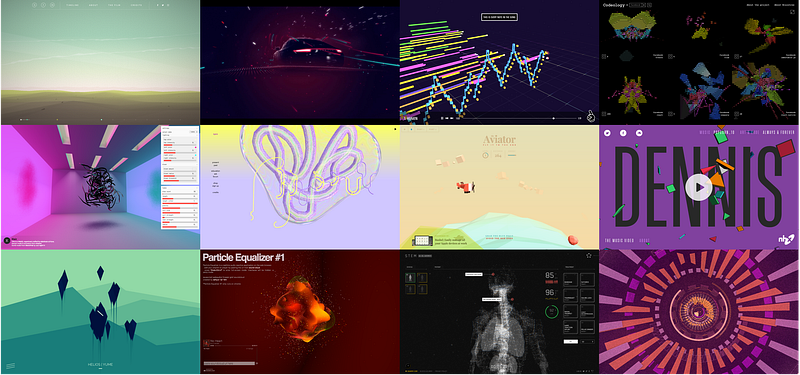
Some incredible projects created with Three.js (Links at the end of the article)
WebGL let us create rich interactive experiences in a lot of devices and browsers.
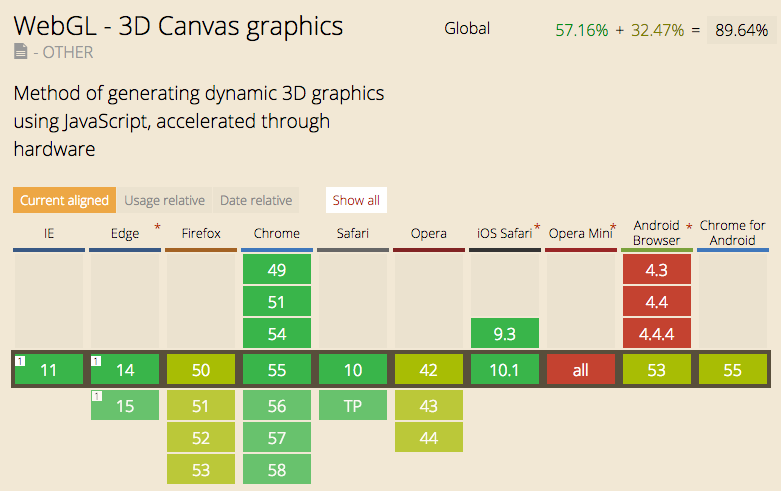
Soporte actual de WebGL
What do you need?
An up to date browser (I prefer to use Google Chrome).
Well it’s time to start, take a deep breath and open your favorite editor. We’ll create two files (for better readability).
index.html (here we import Three.js from a CDN).
script.js (here goes our code).
That looks like a lot of code, but it isn’t, let’s analyze it part by part. If everything is fine you should see this:
To be honest, that’s not a very exciting example, but we will spice it up in a moment, let’s analyze what is happening behind.
WebGlRenderer, Scene and Camera
This is the first common pattern we are going to see in every Three.js app.
Create a Renderer.
Create a Scene.
Create a Camera.
The renderer is the place where we are going to put the result of our scene. In Three.js we can have multiple scenes and each one can have different objects.
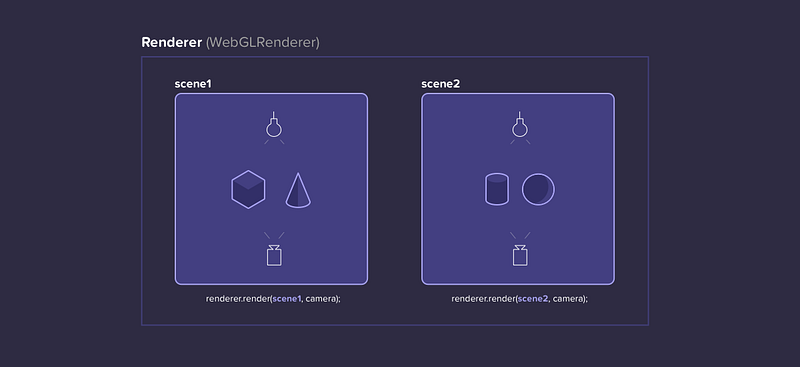
Here we create our WebGLRenderer, we pass it the size of the window as a parameter and then append it to the DOM.
var renderer = new THREE.WebGLRenderer({antialias:true});
renderer.setSize( window.innerWidth, window.innerHeight );
document.body.appendChild( renderer.domElement );
Create an empty scene where we are going to add our objects:
var camera = new THREE.PerspectiveCamera( 75, window.innerWidth/window.innerHeight, 0.1, 1000 );
Once this is done we have the 3 fundamental elements of a Three.js application.
Geometry, Material and Mesh
The second common pattern is adding objects to the scene:
Create a Geometry
Create a Material
Create a Mesh.
Add mesh to scene.
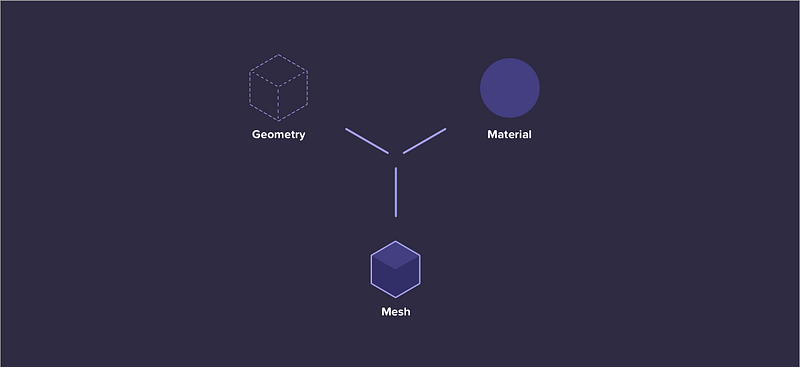
In Three.js a Mesh is the composition of a Geometry with a Material.
A Geometry is the mathematical formula of an object, in Three.js we have many geometries, we’ll explore it in future chapters. A Geometry give us the vertices of the object we want to add to the scene.
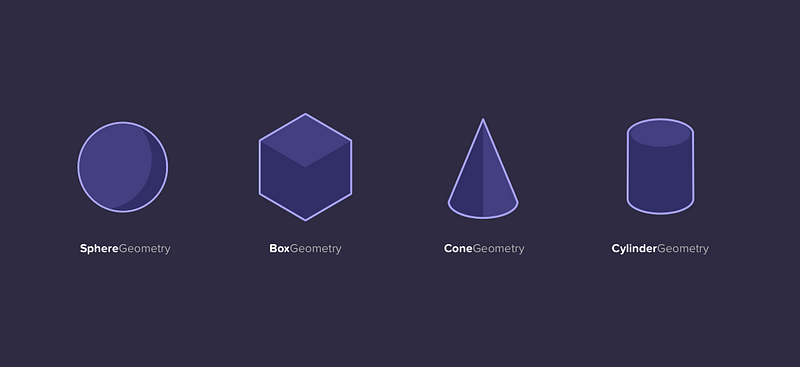
You can see all the geometries in the documentation.
A Material can be defined as the properties of an object and its behavior with the light sources of the scene. As you can see in the following image there are different types of materials.
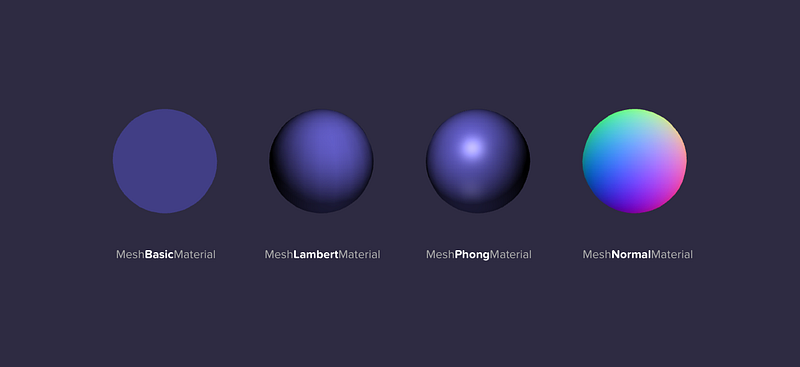
Now that we know what a mesh, a geometry and a material are, we are going to add them to the scene. In this case we are creating a cube with basic Material:
// Create the Geometry passing the sizevargeometry = new THREE.BoxGeometry( 1, 1, 1 );
// Create the Material passing the colorvar material = newTHREE.MeshBasicMaterial( { color: "#433F81" } );
// Create the Meshvar cube = new THREE.Mesh( geometry, material );
// Add the mesh to the scenescene.add( cube );
RequestAnimationFrame
The last piece of code is the one that allows us to animate the scene, for this purpose we use requestAnimationFrame, which allows us to have a function that runs at 60 frames per second (at best).
In order to animate the cube inside our render loop, we need to change it’s properties. When we create a Mesh we have access to a gr0up of properties that are very useful at the moment of animating.
// Rotation (XYZ) in radians.
cube.rotation.x
cube.rotation.y
cube.rotation.z
// Position (XYZ)
cube.position.x
cube.position.y
cube.position.z
In our example we animate the X and Y rotation of the cube:
cube.rotation.x += 0.01;
cube.rotation.y += 0.01;
The console is your friend
The console is an essential tool when we are working with Three.js, I prefer to use Chrome’s, but today all the browsers have a decent one.
To finish understanding how the Mesh properties work I think the best way is to do it with the console in real time.
Let’s improve our code
Now that we understand the logic of the example, I’m going to add more pieces to the scene, with the purpose of generate a more complex one..
As an exercise from this example try to create your own alternative. Don’t be afraid of break the code, fork it and share it! I would love to see your versions.
Give Me Feedback
I have in mind keep writing these articles, I would love to know if these are useful and if you want me to write about an specific theme. Please don’t hesitate to write me a comment or send me a message.