
Three Approaches to Task Management in Obsidian
I am falling more in love with Obsidian every day. It has really helped me organize my thoughts and increase my productive output. I’ve also been using it for task and project management. Today, I want to share three different approaches you can take, along with some pros and cons for each, to task management in Obsidian.
Approach 1: Core Features Only
Without adding any plug-ins or additional applications, you an manage projects and tasks in Obsidian. Obsidian’s markdown allows you to type dash, space, left bracket, space, right bracket and it will create a check box.

becomes

With just this feature and the inline search feature (query) of Obsidian you can pull together a completely functional task management system.
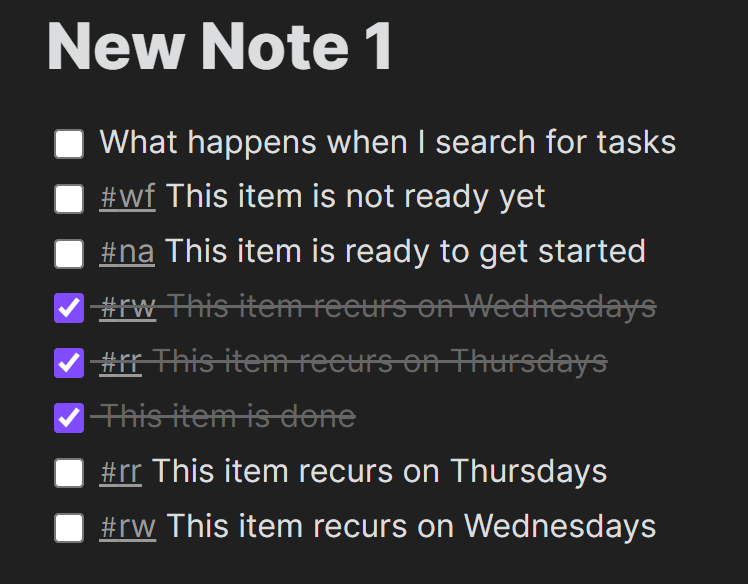
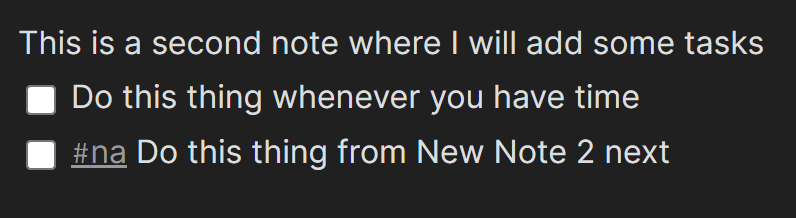
I’ve created a simple test vault (a collection of Obsidian files) that contains two sample task lists and a page with queries on it. On the two task pages, I’ve used a bit of syntax to demonstrate some of the ways you could make this system work for you.
Here is note 1
And here is Note 2
With notes across two different pages we can demonstrate a little of the functionality of the search feature. Before we dive in, I want to share the hashtags I’m using for demo purposes here:
- #na represents a next action
- #rr is a task that recurs on Thursdays
- #rw is a tasks that recurs on Wednesdays
While it would be a relatively high-friction system, it’s one that you can design and customize to your specific way of doing things. After all, this is a personal productivity system you are building.
Let’s take a look at searching for tasks. I created a simple page called Tasks where I’ve rounded up a few different searches.
Next Actions
You can find tasks that contain essentially an tag or specific text field using the task-todo:”” query. Just put the specific text you are searching for inside the quotes.

Recurring Tasks
For recurring tasks you could use the same search methodology above and simply enter a query for the specific recurrence tag. So, if it was Wednesday, I could just add a query to search for
task-todo:”#rw”
This would show me my Wednesday tasks. In this system, the only way I could figure out to make the tasks keep showing up is either to never check them off or, my method which is to copy the task before checking it off and adding it back to the list of tasks.
So, let’s summarize how this method of task management might fit in for your life:
The Pros - Simple and lightweight - Relies ONLY on core functionality. No plug ins needed. Less susceptible to forking issues and a developer who decides to abandon the project.
The Cons - Results of the queries are not clickable. A lot of clicking to go into the proper note, check off the tasks. Cumbersome. - Does not handle recurring tasks easily. - Requires knowledge and application of query language (learn more at https://help.obsidian.md/Plugins/Search)
Approach 2: The Obsidian Tasks Plug In
I decided to write this post mostly because the Obsidian Tasks Plug In has recently forked which always concerns me about what the future will be for a specific app or plug-in.
The Obsidian Tasks Plug In is a feature rich plug in designed specifically for managing tasks in Obsidian. You can do a lot with it and if you haven’t checked it out yet, I recommend you take a look at the Github repository and the Documentation.
Just like the core tasks functionality you can embed searches anywhere in your Obsidian vault so you can bring tasks to whatever page you want to list them in. You can also, just like the core functions, embed searches in your templates. The difference here is that searches using the tasks plugin can be dynamic (a search for today will always show today’s tasks).
The query language with the tasks plug in is also quite rich and allows you to specify sorting, grouping, and even develop a bit of a weighting system for you tasks to help with priority. When combined with a tagging system that you design, the tasks plug in can become a very dynamic tasks app.
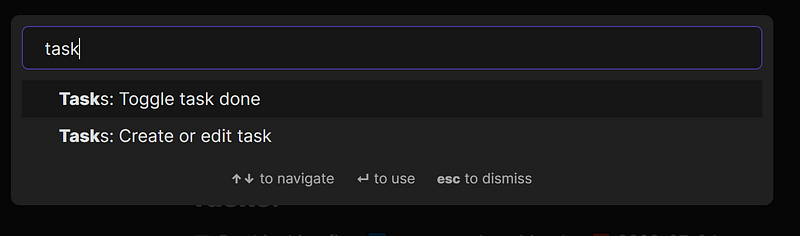
Create Task by Command Palette or Hot Key
One of the advantages of the tasks plug in is you can create and edit tasks from the command palette (which you can attach to a specific hot key). I’ve not added a hot key to my demo vault but in my main vault the function to Create or Edit a Task is assigned to Ctrl+t.
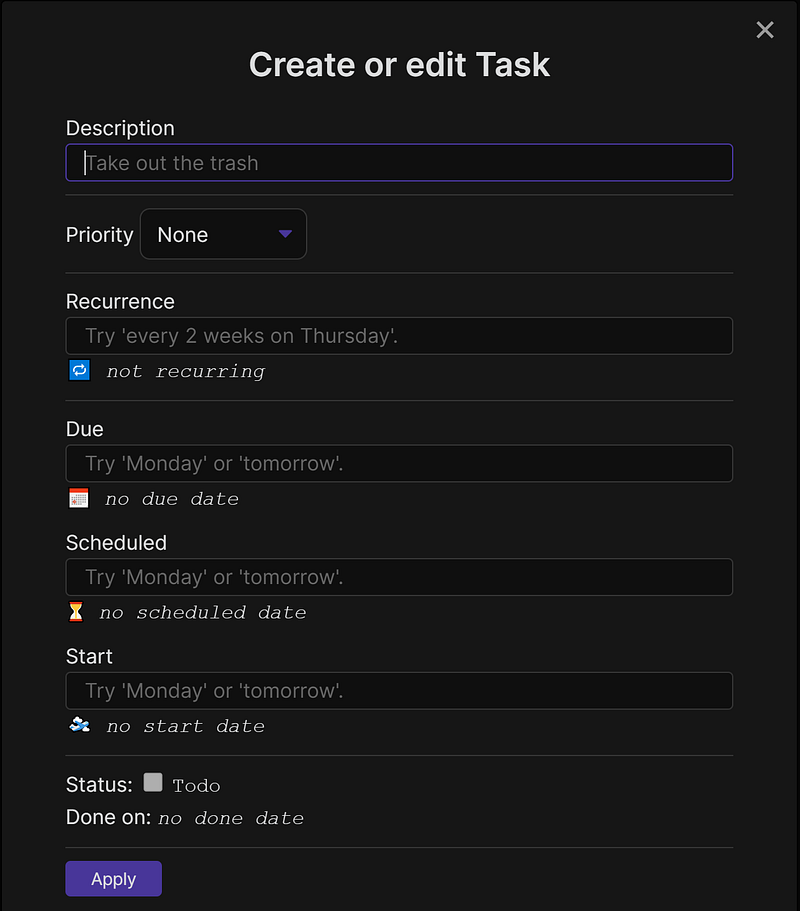
Recurrence
The tasks plug in also handles recurrence well as features like scheduled and start date. The scheduled feature allows you to make use of the August Bradley concept of “Do” dates which I find valuable in some contexts.
Query/Search
Using all of the built in settings of the tasks plug in also allows you to do some pretty powerful searches. My examples here only scratch the surface but they give you an idea of what is possible — but there is oh, so much more.
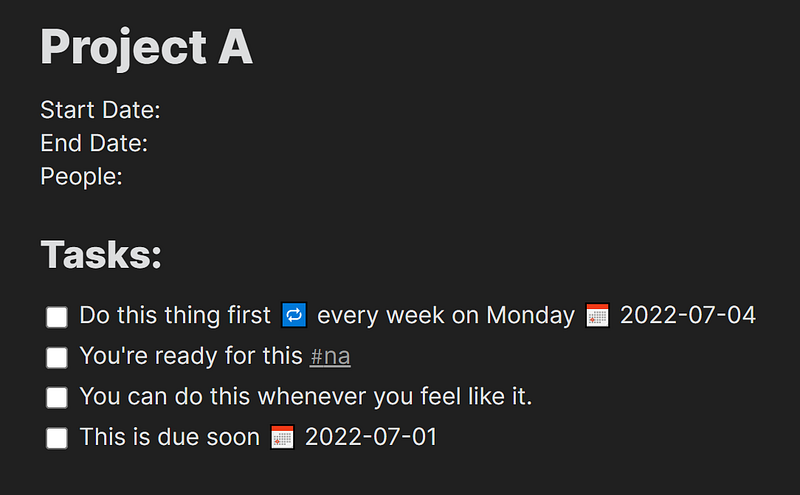
Here is Project A
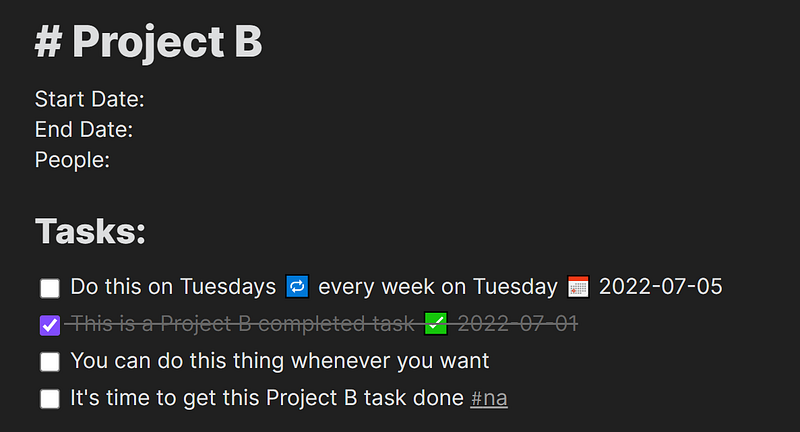
And here is Project B
Here are a small sample of possible queries and their results
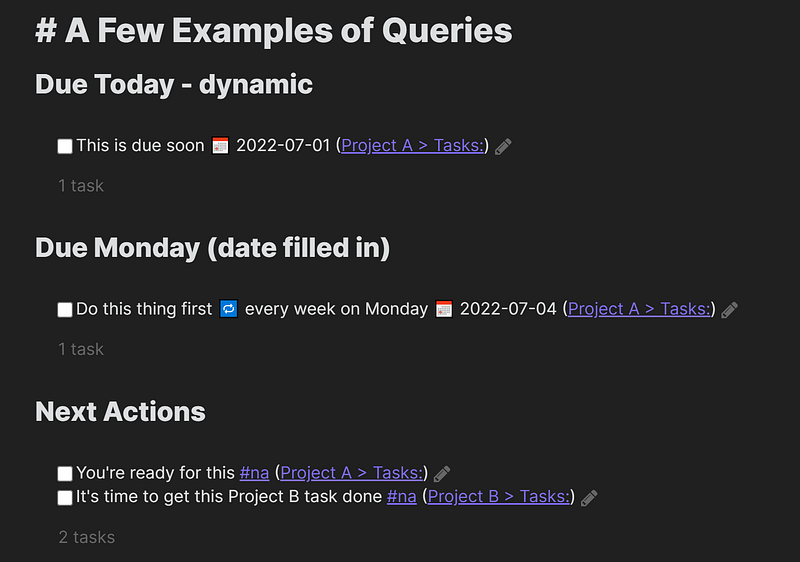
And here are each of those queries



Again, just like with using the included tasks in markdown and Obsidian’s onboard search tool, there are pro’s and con’s with using the Tasks Plug In. Here are a few that come to mind:
Pros - Relatively simple to use. Allows you to add a hotkey to create a new tasks. - Handles recurring tasks reasonably well - Allows for a fairly extensive query language that is actually pretty simple to learn to use across your vault (See https://obsidian-tasks-group.github.io/obsidian-tasks/queries/)
Cons - Just forked so development may have issues in the future - Doesn’t handle some logic of more complex task managers (parallel vs serial projects ala OmniFocus, OR logic, etc.)
Approach 3: The Todoist Plug In
The final approach I’m going to discuss here is also a plug in. That said, it’s a plug in that actually houses your tasks in another third party application — Todoist. The plug in then references the tasks for you in Obsidian.
Of the three approaches we’ve covered so far, using the todoist plug in is, in my mind, the most complex. That said, it also gives you some features that you can’t get with the other two options. So, as always — pros and cons. Let’s again start by looking at how it works.
After you install and enable the plug in in the Community Plug In’s area of your Obsidian Settings, you’ll need to add your API token from Todoist into the specified location in the Obsidian plug in. Keep in mind that you NEVER want to share your API token with ANY app, person, etc. that you don’t trust.
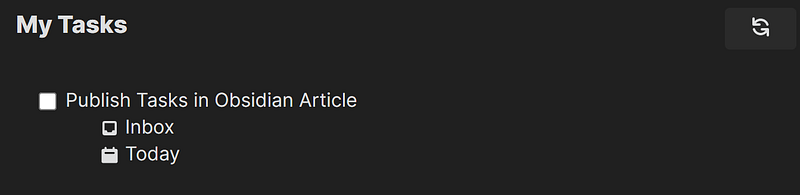
Once installed, you can now insert a call to your Todoist app on any page in your vault. Here is a look at what’s in my Todoist list for today.

gives you
The Todoist plug in also adds some functionality to the Command Palette.
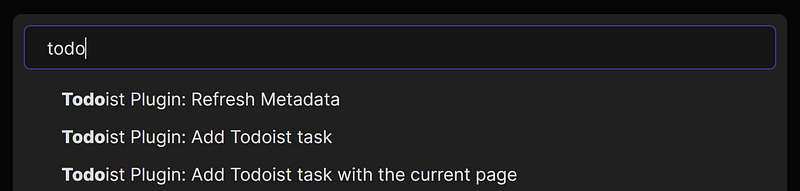
When you add a todoist task from Obsidian, you can set the task name, the project, any labels, a due date, and the priority right from the included interface.
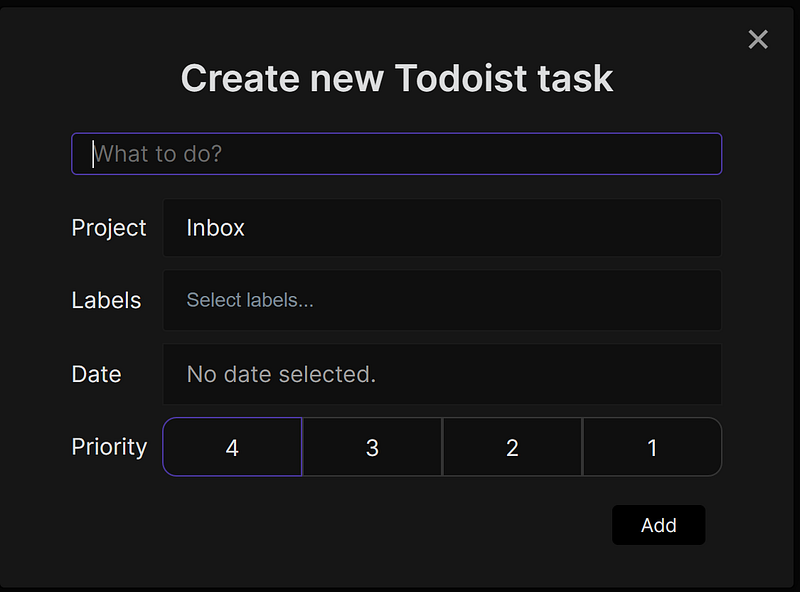
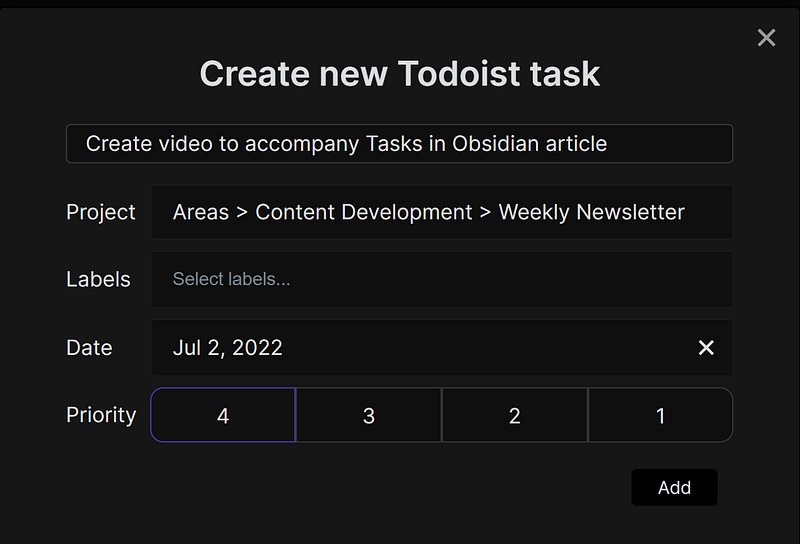
This is what a task with all of those parameters looks like just before you click Add. I do think it’s important to note here that you can only add to existing projects and you can only select existing labels. You have to go into Todoist to add/edit projects and to add/edit labels. Additionally, I haven’t been able to get adding labels or projects via the # and @ symbols in the name to work from Todoist so you have to use the provided drop downs to add these items.
You can see what that task looks like in Todoist after it is added. Addition in To

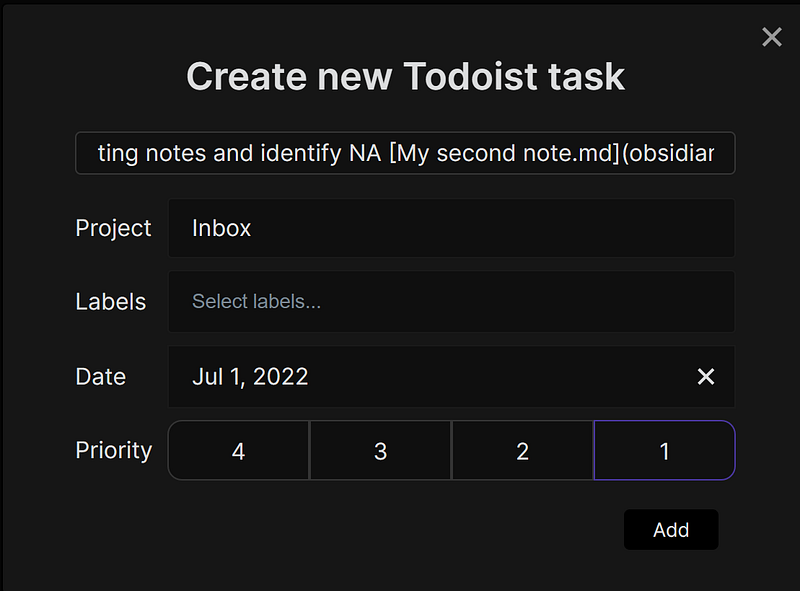
This plug in will accept any valid Todoist Filter as its search parameter so you can, again, set up some pretty specific task searches on individual pages. You also have the added benefit of linking directly to a vault page from a task.
Again, there are some pros and cons to using the Todoist Task Plug In.
Pros
- You get to continue using Todoist as a task manager in addition to Obsidian if you’re comfortable with that (this is also the first corresponding con)
- You can link directly to Obsidian pages from your Todoist tasks easily.
- Flexible search lets you add tasks pretty much anywhere you want to look at them in a lot of different views.
- While you are relying on a plug in, all of your tasks are still in Todoist so if anything ever happens with the plug in, your tasks are still safe and sound.
Cons
- You are still using Todoist which is another app, another cost, another complication that can go wrong.
- Todoist isn’t free (although the cost is minimal and I value paying for products I enjoy using)
- You have to keep track of the development of three things — Obsidian, the todoist plug in and todoist to stay on top of any changes or updates that you might want to use or avoid in keeping your personal productivity system up to date.
Concluding Thoughts
There is no one right way to manage tasks — particularly if you are choosing to manage tasks in Obsidian. In this article I’ve barely touched on collecting tasks let alone getting the work done that’s housed in them. After all, that is the most important part. I hope at least one of the thoughts was helpful in helping you decide which option you might want to use.
If you want to dig even more deeply into this, I’d urge you to sign up for R.J. Nestor’s AP Productivity Course. As of July 8, 2022, I’ll be serving as an Obsidian Mentor for Cohort 5. If you join us, it will give you 8 weeks to talk with me, R.J. and other like minded folks about all things productivity for the sake of living the life you want to live by getting more of what you want to get done accomplished.


