avatarEleanor Annay

Summary

Canva's new Quick Create feature significantly streamlines the design process for content creators and social media managers, allowing for rapid creation of social media content like Pinterest Pins.

Abstract

Canva has introduced a game-changing feature called Quick Create, which simplifies and expedites the content creation process. This feature is particularly beneficial for those managing social media, as it enables the swift production of high-quality visuals. For instance, the author reports creating five Pinterest Pins in under five minutes, touting the tool's efficiency compared to Tailwind Create. The Quick Create process involves selecting a social media design template, choosing a format, customizing with text, images, and branding elements, and finalizing the design for immediate use across social media platforms. The feature is praised for its ease of use, speed, and the ability to maintain brand consistency with minimal effort.

Opinions

  • The author highly recommends the new Quick Create feature, emphasizing its time-saving benefits.
  • Canva's Quick Create is considered more efficient than Tailwind Create for making Pinterest Pins.
  • The author expresses satisfaction with the ease of matching templates to branding within the feature.
  • The feature is seen as an opportunity to enhance content creation skills and elevate one's social media presence.
  • The author suggests that the new feature removes the 'chore factor' from content creation, implying that it makes the process more enjoyable.
  • A subscription to Medium is promoted as a way to access more stories like this one, with a disclosure that the author will receive a commission through the provided affiliate link.
  • Readers are invited to subscribe to the author's email list for updates on new content.

This New Canva Feature Is a Game Changer for Content Creators and Social Media Managers

Here’s how to use it

Photo by Mia Baker on Unsplash

Canva, the popular online design app has just made life a lot easier for content creators and social media managers. The new feature that Canva launched recently is going to make a huge impact in boosting your content marketing strategy. Canva is one of the most popular tools on the market for non-designers when creating social media posts, infographics or even full content pieces such as blog posts and landing pages.

I just made 5 new pins in less than 5 minutes for one of my products. It’s so much easier and faster to use than Tailwind Create.

Here’s how to use the new Quick Create feature

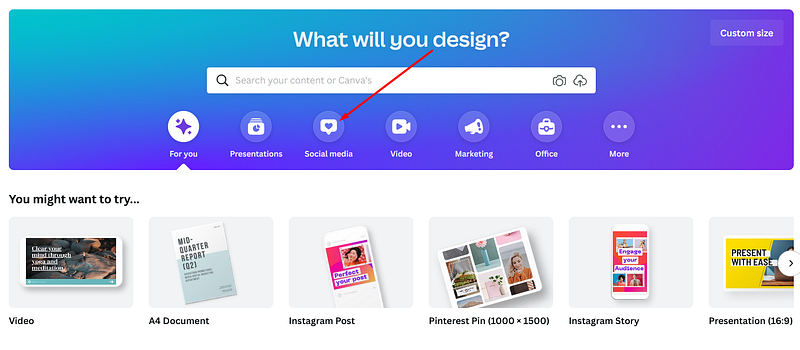
1.When you land on your Canva homepage choose the “social media” design, as shown below.
Screenshot by author

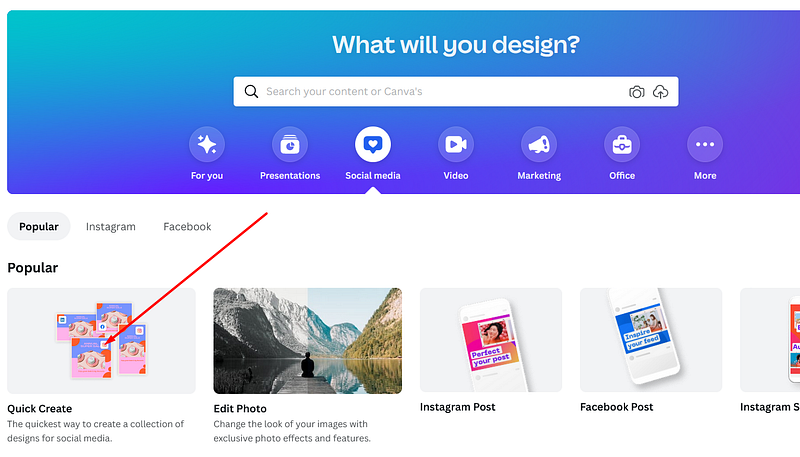
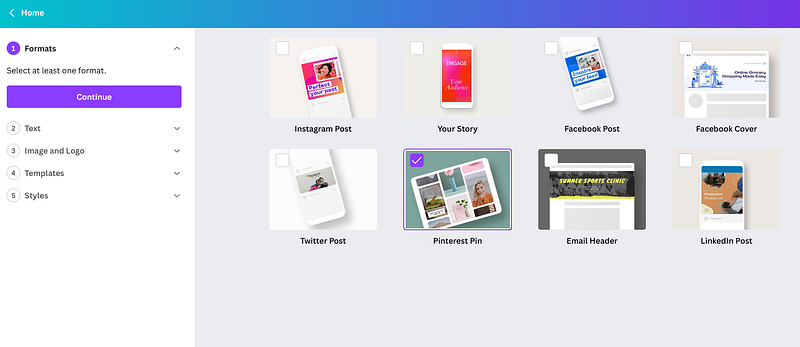
2. Then choose Quick create, chose the format and start designing. I needed some new Pinterest Pins to promote my Etsy products so that’s what I chose and will show you how to create.
Screenshot by author

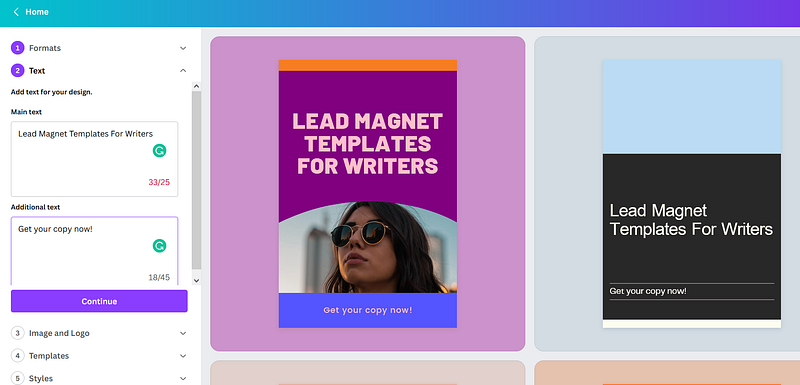
Click continue and add text, as I did.
Screenshot by author

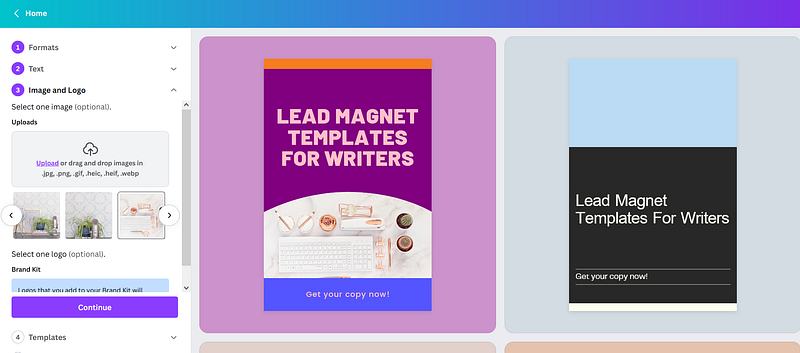
The next step is to add a logo and image. You can choose between what you have already uploaded to Canva or add a new pic.
Screenshot by author

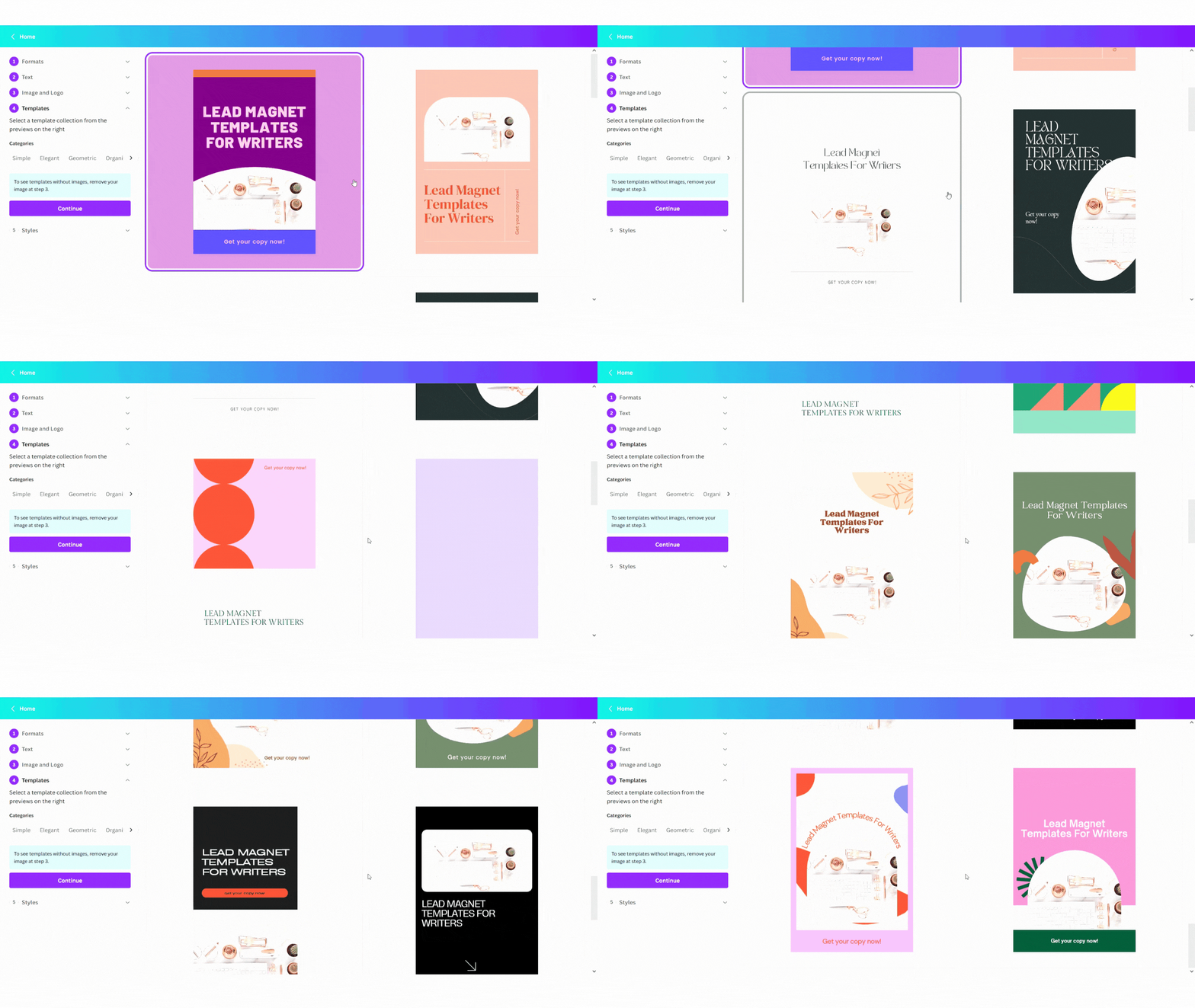
After this, you start choosing between different templates.
Video by author

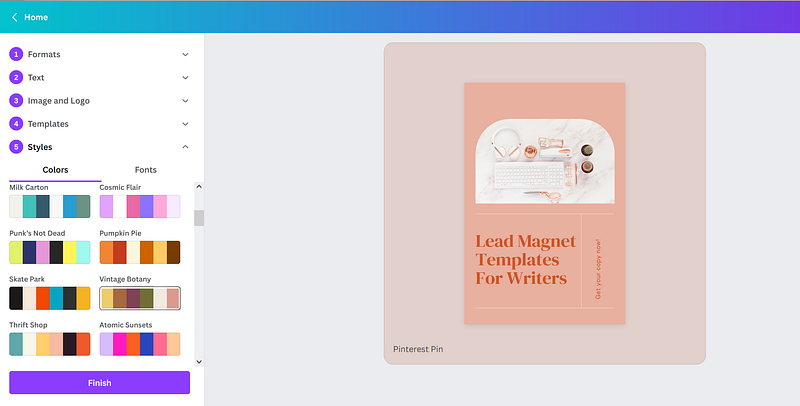
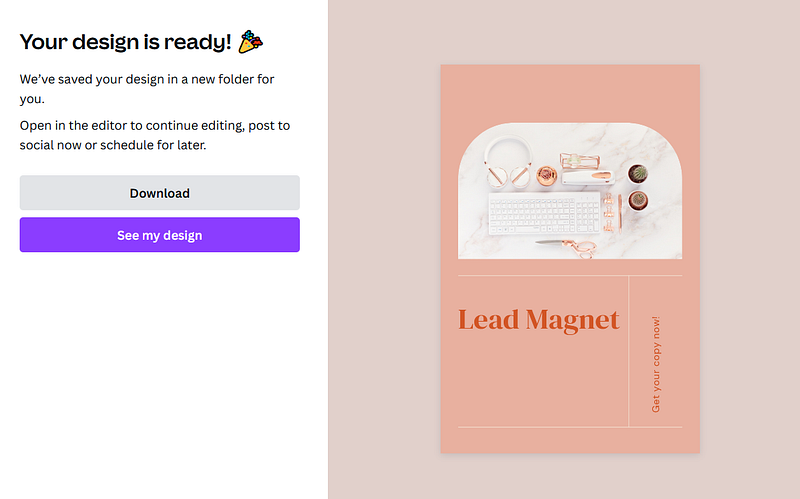
Now comes the best part, matching your template to your branding. I liked how the pin looked as suggested by Canva so I didn’t make any changes. As you can see below, you can change colors (add your own) and fonts. When you’re done just click finish, download and upload to your social media profile.
Screenshot by author

With this tool, Canva has taken the chore factor out of the equation. So, the next time you have a social media post to create, consider taking advantage of this new feature. It’s an excellent opportunity to improve your content creation abilities and take your social media game to the next level.

Hope you find this quick guide useful.

For $5 a month you can get access to every story published here on Medium. Just a heads up, this is an affiliate link and I will receive half of that payment as a commission.

If you would like to receive an email with my newest stories, you can subscribe here.

Step By Step Guide
Tutorial
Canva Design
Illumination
Canva
Recommended from ReadMedium