avatarDeepLCH

Free AI web copilot to create summaries, insights and extended knowledge, download it at here

8482

Abstract

[y]<i> </i>for everything else.</li></ul><p id="1de6">Reboot</p><div id="614e"><pre><span class="hljs-attribute">sudo reboot</span></pre></div><p id="3269">Now your screen resolution should be in HD. Check this in the terminal</p><div id="bfe0"><pre><span class="hljs-attribute">nvidia-smi</span></pre></div><figure id="8718"><img src="https://cdn-images-1.readmedium.com/v2/resize:fit:800/1*Zqg5li8TAVfbsts5NN5KMw.png"><figcaption></figcaption></figure><p id="abf3"><b>Note:</b> It does say “CUDA Version: 10.1”, we actually have 10.0. We know this from the previous section.</p><h2 id="d36d">Install cuDNN</h2><p id="8bff">This is the NVIDIA CUDA® Deep Neural Network library. It will be used for installing the gpu-accelerated libraries (eg. opencv)</p><p id="412a"><b>Signup & download cuDNN:</b> <a href="https://developer.nvidia.com/cudnn">https://developer.nvidia.com/cudnn</a></p><figure id="e89a"><img src="https://cdn-images-1.readmedium.com/v2/resize:fit:800/1*WcHc9dQ7TDKpBi8DLVUf1w.png"><figcaption></figcaption></figure><p id="a441">After the download, rename (if needed) the file extension to “.tgz”</p><div id="37a7"><pre>tar -zxf cudnn-<span class="hljs-number">10.0</span>-linux-x64-v7.<span class="hljs-number">6.1</span>.<span class="hljs-number">34</span>.tgz cd cuda sudo cp -P lib64<span class="hljs-regexp">/* /u</span>sr<span class="hljs-regexp">/local/</span>cuda<span class="hljs-regexp">/lib64/</span> sudo cp -P include<span class="hljs-regexp">/* /u</span>sr<span class="hljs-regexp">/local/</span>cuda<span class="hljs-regexp">/include/</span> cd ~</pre></div><h1 id="4a20">3. Virtual Environment (VE)</h1><figure id="bc76"><img src="https://cdn-images-1.readmedium.com/v2/resize:fit:800/0*qNjrp6ZB6ZB8Znao.jpeg"><figcaption></figcaption></figure><p id="d509">Virtual environment is useful when one of your AIs requires opencv4.0.1, while another requires opencv3.4.6. In this case, if you created two python virtual environments, namely “cv3” and “cv4”, then you wouldn’t have to reinstall opencv versions everytime; Instead, you could just type:</p><div id="84ea"><pre><span class="hljs-attribute">workon</span> cv3</pre></div><p id="c6e9">or</p><div id="80e5"><pre><span class="hljs-attribute">workon</span> cv4</pre></div><p id="974f"><b>Install Virtual Environment (VE)</b></p><div id="6ea6"><pre>sudo apt <span class="hljs-keyword">install</span> python3-testresources</pre></div><div id="3e41"><pre><span class="hljs-string">wget</span> <span class="hljs-string">https</span>://<span class="hljs-string">bootstrap</span>.<span class="hljs-string">pypa</span>.<span class="hljs-string">io</span>/<span class="hljs-built_in">get-pip.py</span> <span class="hljs-string">sudo</span> <span class="hljs-string">python3</span> <span class="hljs-built_in">get-pip.py</span> <span class="hljs-string">sudo</span> <span class="hljs-string">pip</span> <span class="hljs-string">install</span> <span class="hljs-string">virtualenv</span> <span class="hljs-string">virtualenvwrapper</span> <span class="hljs-string">sudo</span> <span class="hljs-string">rm</span> -<span class="hljs-string">rf</span> ~/<span class="hljs-built_in">get-pip.py</span> ~/.<span class="hljs-string">cache</span>/<span class="hljs-string">pip</span></pre></div><p id="5c72"><b>Add VE to System Environment Path (like CUDA)</b></p><div id="51cf"><pre>nano ~/.bashrc</pre></div><p id="303c">Scroll to the bottom and add:</p><figure id="e928"><img src="https://cdn-images-1.readmedium.com/v2/resize:fit:800/1*3cUJqNOI4WOA2Jd3cWxzDQ.png"><figcaption></figcaption></figure><div id="71a9"><pre><span class="hljs-comment"># virtualenv and virtualenvwrapper</span> <span class="hljs-built_in">export</span> <span class="hljs-attribute">WORKON_HOME</span>=<span class="hljs-variable">$HOME</span>/.virtualenvs <span class="hljs-built_in">export</span> <span class="hljs-attribute">VIRTUALENVWRAPPER_PYTHON</span>=/usr/bin/python3 source /usr/local/bin/virtualenvwrapper.sh</pre></div><p id="d675">Save and exit the<i> ~/.bashrc</i> file</p><div id="8739"><pre>crtl + o <span class="hljs-string">[enter]</span> crtl + x</pre></div><p id="3db8">Update the system file</p><div id="9273"><pre><span class="hljs-built_in">source</span> ~/.bashrc</pre></div><p id="dfb2"><b>Create VE</b></p><p id="6b79">Let’s create a virtual environment called “cv4”<i> that uses python3</i></p><div id="2f48"><pre>mkvirtualenv cv4 -<span class="hljs-selector-tag">p</span> python3</pre></div><p id="1520">DONE! Just write “<i>workon cv4</i>” whenever you want to activate this environment.</p><h1 id="aa80">4. Tensorflow-gpu + Keras (GPU accelerated)</h1><figure id="5d46"><img src="https://cdn-images-1.readmedium.com/v2/resize:fit:800/1*7VPlGThbuTaOVe1sq5zZWg.png"><figcaption></figcaption></figure><p id="0d0b">Go to your newly created environment. Only <i>pip</i> install everything after the VE is activated, using the following command:</p><div id="de9c"><pre><span class="hljs-attribute">workon</span> cv4</pre></div><h2 id="4e52">Pip Install Python libraries</h2><p id="6e25"><b><i>Note:</i></b><i> we’ll be using tensorflow1.14.0</i></p><div id="b6de"><pre>pip <span class="hljs-keyword">install </span>numpy pip <span class="hljs-keyword">install </span>pandas <span class="hljs-keyword">scipy </span>matplotlib pillow pip <span class="hljs-keyword">install </span><span class="hljs-keyword">scikit-learn </span><span class="hljs-keyword">scikit-image </span>pip <span class="hljs-keyword">install </span>tensorflow-gpu==<span class="hljs-number">1</span>.<span class="hljs-number">14</span>.<span class="hljs-number">0</span> pip <span class="hljs-keyword">install </span>keras pip <span class="hljs-keyword">install </span>imutils h5py requests progressbar2</pre></div><p id="872f">Feel free to pip install your other usual python packages, <b>EXCEPT </b>for <i>opencv </i>and <i>pytorch. W</i>e will be “compiling” them instead of “pip-install”-ing later.</p><p id="3a33"><b>How to know if the installation worked:</b></p><p id="b4cd">In your virtual environment, open python and write</p><div id="a8ef"><pre><span class="hljs-keyword">python</span> import tensorflow <span class="hljs-keyword">as</span> <span class="hljs-keyword">tf</span> <span class="hljs-keyword">tf</span>.test.is_gpu_available() <span class="hljs-keyword">tf</span>.test.is_built_with_cuda()</pre></div><p id="9720">It should print your GPU details and a true/false for CUDA capabilities, respectively.</p><p id="0be2"><b>Keras’ Saving Error:</b> It’s possible that when you save your Keras model weight an issue would occur. Here’s the fix, go to “site-packages/keras/engine/saving.py”. Find the lines with “raise TypeError(‘Not JSON Serializable:’, obj)”, around line 120.</p><p id="b95b">Add this import to the file</p><div id="4653"><pre>from tensorflow<span class="hljs-selector-class">.python</span><span class="hljs-selector-class">.framework</span><span class="hljs-selector-class">.tensor_shape</span> import Dimension</pre></div><p id="e861">Modify the codes to (with [tab] before “return”):</p><div id="5404"><pre># <span class="hljs-keyword">if</span> obj <span class="hljs-keyword">is</span> <span class="hljs-keyword">a</span> <span class="hljs-keyword">python</span><span class="hljs-built_in">type</span><span class="hljs-keyword">if</span> <span class="hljs-built_in">type</span>(obj) == Dimension: <span class="hljs-keyword">return</span> <span class="hljs-keyword">int</span>(obj.value <span class="hljs-built_in">or</span> <span class="hljs-number">0</span>)</pre></div><h1 id="1cc5">5. Opencv (w/ GPU)</h1><figure id="604e"><img src="https://cdn-images-1.readmedium.com/v2/resize:fit:800/1*_D-MSuYdxVZfE5dN63DfNw.png"><figcaption></figcaption></figure><p id="6cc0">This is the most time-consuming part of the guide. Instead of using “pip”, we will be compiling the python library from it’s sources code. So that we can add the opencv “contrib” capabilities to it.</p><p id="2f02"><b>Why not “pip install”:</b> You don’t get the CUDA capabilities. And compiling allows you to accommodate different opencv (and contrib) versions’s built-in functions.</p><p id="d1e9"><b>If you have already “pip install”-ed, run this before proceeding</b></p><div id="77ad"><pre><span class="hljs-attribute">pip uninstall opencv-python</span></pre></div><p id="f9af">We will be using the opencv4.0.1 (if you needed other versions, just change 4.0.1 => [your version #])</p><p id="fbe7">Let install some mor

Options

e dependencies</p><div id="4167"><pre>sudo <span class="hljs-built_in">add</span>-apt-repository “<span class="hljs-keyword">deb</span> http://security.ubuntu.<span class="hljs-keyword">com</span> ubuntu xenial-security main” sudo apt <span class="hljs-keyword">update</span> sudo apt install libjasper1 libjasper-dev sudo apt-<span class="hljs-built_in">get</span> <span class="hljs-keyword">update</span> && sudo apt-<span class="hljs-built_in">get</span> upgrade — <span class="hljs-keyword">fix</span>-missing — <span class="hljs-keyword">fix</span>-broken sudo apt-<span class="hljs-built_in">get</span> install libgtk2.<span class="hljs-number">0</span>-dev sudo apt-<span class="hljs-built_in">get</span> install qtcreator sudo apt-<span class="hljs-built_in">get</span> install qtdeclarative5-dev</pre></div><p id="cacd">Use commands to download 2 files from the official opencv github</p><div id="fd32"><pre><span class="hljs-attribute">wget</span> -O opencv.zip https://github.com/opencv/opencv/archive/<span class="hljs-number">4</span>.<span class="hljs-number">0</span>.<span class="hljs-number">1</span>.zip</pre></div><div id="b11c"><pre><span class="hljs-attribute">wget</span> -O opencv_contrib.zip https://github.com/opencv/opencv_contrib/archive/<span class="hljs-number">4</span>.<span class="hljs-number">0</span>.<span class="hljs-number">1</span>.zip</pre></div><div id="f11f"><pre><span class="hljs-attribute">unzip</span> opencv.zip <span class="hljs-attribute">unzip</span> opencv_contrib.zip <span class="hljs-attribute">mv</span> opencv-<span class="hljs-number">4</span>.<span class="hljs-number">0</span>.<span class="hljs-number">1</span> opencv <span class="hljs-attribute">mv</span> opencv_contrib-<span class="hljs-number">4</span>.<span class="hljs-number">0</span>.<span class="hljs-number">1</span> opencv_contrib</pre></div><div id="4759"><pre><span class="hljs-built_in">cd</span> /opencv <span class="hljs-built_in">mkdir</span> build <span class="hljs-built_in">cd</span> build</pre></div><h2 id="c80f">Prepare to compile</h2><p id="7415"><b>Note: </b>If your VE name is not “cv4”, please change the last line</p><div id="c09a"><pre>cmake -D <span class="hljs-attribute">CMAKE_BUILD_TYPE</span>=RELEASE
-D <span class="hljs-attribute">CMAKE_INSTALL_PREFIX</span>=/usr/local
-D <span class="hljs-attribute">OPENCV_EXTRA_MODULES_PATH</span>=
/opencv_contrib/modules
-D <span class="hljs-attribute">WITH_CUDA</span>=ON
-D <span class="hljs-attribute">BUILD_NEW_PYTHON_SUPPORT</span>=ON
-D <span class="hljs-attribute">BUILD_PYTHON_SUPPORT</span>=ON
-D <span class="hljs-attribute">INSTALL_PYTHON_EXAMPLES</span>=ON
-D <span class="hljs-attribute">INSTALL_C_EXAMPLES</span>=ON
-D <span class="hljs-attribute">BUILD_EXAMPLES</span>=ON
-D <span class="hljs-attribute">OPENCV_ENABLE_NONFREE</span>=ON
-D <span class="hljs-attribute">BUILD_opencv_cudacodec</span>=OFF
-D <span class="hljs-attribute">ENABLE_FAST_MATH</span>=1
-D <span class="hljs-attribute">CUDA_FAST_MATH</span>=1
-D <span class="hljs-attribute">WITH_OPENGL</span>=ON
-D <span class="hljs-attribute">WITH_TBB</span>=ON
-D <span class="hljs-attribute">WITH_V4L</span>=ON
-D <span class="hljs-attribute">WITH_QT</span>=ON
-D <span class="hljs-attribute">WITH_GTK</span>=ON
-D <span class="hljs-attribute">BUILD_opencv_python3</span>=ON
-D <span class="hljs-attribute">PYTHON3_PACKAGES_PATH</span>=/home/dev/.virtualenvs/cv4/lib/python3.6/site-packages
-D <span class="hljs-attribute">PYTHON3_NUMPY_INCLUDE_DIRS</span>=/home/dev/.local/lib/python3.6/site-packages/numpy/core/include
-D <span class="hljs-attribute">PYTHON_EXECUTABLE</span>=/.virtualenvs/cv4/bin/python3.6 <span class="hljs-built_in">..</span></pre></div><p id="afdc"><b>Potential Error1: </b>If it says it cannot locate the python3 directory, please remove the “ ..” at the end and retype it yourself.</p><p id="1954"><b>Potential Error2: </b>If the numpy version (my version is 1.17.4 ,see the second image below) is blank, that means your compiler cannot find the numpy directory. Either find it yourself somewhere inside “…/dist-packages/…” or try</p><div id="907f"><pre><span class="hljs-attribute">sudo pip uninstall numpy</span></pre></div><p id="d151">It will show similar output as below, then you will see that the numpy folder might be in “<i>/.local</i>”. Edit your “<i>-D PYTHON3_NUMPY_INCLUDE_DIRS=</i>” accordingly and cmake again</p><figure id="1211"><img src="https://cdn-images-1.readmedium.com/v2/resize:fit:800/1*5iWTXd7OcnlOYq7F2TWUhw.png"><figcaption></figcaption></figure><p id="5059">The image below is what a successful cmake should look like.</p><figure id="6d80"><img src="https://cdn-images-1.readmedium.com/v2/resize:fit:800/1*LA8mGeZ9POqlHO4Q0mjkGw.png"><figcaption></figcaption></figure><p id="e06c"><b>Important: </b>DO NOT PROCEED if you can’t see a reasonable path for “numpy” & “install path”. Otherwise, it won’t work with python.</p><h2 id="8827">Compilation</h2><p id="b89b"><b>Note: </b><i>-j16</i>” means your cpu has 16 threads (change this accordingly). The “make-j16” could take up to an hour to finish.</p><div id="d9af"><pre><span class="hljs-built_in">make</span> -j16</pre></div><p id="217e"><b>Important: </b>Last chance to check, take note of the last line of output, it will tell you part of the path to the final .so file (cv2.cpython-36m-x86_64-linux-gnu.so).</p><div id="0f0e"><pre>sudo make <span class="hljs-keyword">install</span> sudo ldconfig</pre></div><p id="b2b1">Go to the folder in the terminal, and rename the file</p><div id="7394"><pre><span class="hljs-built_in">cd</span> /usr/local/lib/python3.6/site-packages/cv2/python-3.6 sudo <span class="hljs-built_in">mv</span> cv2.cpython-36m-x86_64-linux-gnu.so cv2.so</pre></div><p id="a7a5"><b>In case of file not found: </b>Check the partial path you read from the “make -j16” output, and manually find the file from guesstimation. Here are some possible locations:</p><div id="4768"><pre><span class="hljs-regexp">/usr/</span>local<span class="hljs-regexp">/python/</span>cv2/python-<span class="hljs-number">3.6</span> ~<span class="hljs-regexp">/opencv/</span>build<span class="hljs-regexp">/lib/</span>python3</pre></div><p id="d7da">If you still can’t find the file try:</p><div id="da49"><pre>sudo <span class="hljs-built_in">find</span> / -name <span class="hljs-string">"cv2.cpython-36m-x86_64-linux-gnu.so"</span></pre></div><p id="81f9">Go to your virtual environment python site-packages folder, and sym-link the compiled cv2.so file</p><p id="627a"><b>Note: </b>if your VE name is not “cv4<i></i>, modify the first line below, where …/cv4/…</p><div id="db01"><pre><span class="hljs-built_in">cd</span> ~/.virtualenvs/cv4/lib/python3.6/site-packages/ <span class="hljs-built_in">ln</span> -s /usr/local/python/cv2/python-3.6/cv2.so cv2.so</pre></div><p id="14b9"><b>How to know if the installation worked:</b></p><div id="c9df"><pre>workon cv4 python import cv2 cv2.version</pre></div><p id="1550">The final command should output ‘4.0.1’ (your compiled version)</p><h1 id="4d49">6. Pytorch (w/ GPU)</h1><figure id="def9"><img src="https://cdn-images-1.readmedium.com/v2/resize:fit:800/1*JP3YTRIok73SjPRpIRaynw.png"><figcaption></figcaption></figure><p id="93cf">Finally, I recommend pytorch1.2.0 (known as “torch” in “pip install”) with torchvision0.4.0.</p><div id="a82f"><pre><span class="hljs-attribute">pip</span> install torch==<span class="hljs-number">1</span>.<span class="hljs-number">2</span>.<span class="hljs-number">0</span> <span class="hljs-attribute">pip</span> install torchvision==<span class="hljs-number">0</span>.<span class="hljs-number">4</span>.<span class="hljs-number">0</span></pre></div><p id="67cc"><b>Updated 2023: </b>As this article assumes you are using the RTX 20## series GPU and Tensorflow GPU v1.14. Therefore your CUDA version should be v10.1</p><p id="5f1c">Please run the installation code below for compatibility (if you do not want a separate virtual environment):</p><div id="fd76"><pre><span class="hljs-comment"># To be compatible with TF1.14 w/GPU</span> pip install torch==1.8.1+cu101 torchvision==0.9.1+cu101 -f https://download.pytorch.org/whl/torch_stable.html</pre></div><p id="2b46">— END —</p><figure id="cc16"><img src="https://cdn-images-1.readmedium.com/v2/resize:fit:800/1*bufMAiAEPmOtPYhoJTILOA.png"><figcaption></figcaption></figure></article></body>

The Ultimate Guide: Ubuntu 18.04 GPU Deep Learning Installation (CUDA, cuDNN, Tensorflow, Keras, Opencv, PyTorch)

Last update: 1st March 2023

This tutorial is tested on multiple 18.04.2 and 18.04.3 PCs with RTX2080ti. All the commands in this tutorial will be done inside the “terminal”.

Purpose: A robust and all-in-one deep-learning Ubuntu setup guide with Python3.6 (beginner friendly).

GPU Requirement: Nvidia cards (G8-series onward).

Recommended Hardware: RAM (DDR3/4, 16GB+), CPU (2.9Ghz+ @ turbo), GPU style (open-air for 1*GPU; blower for 2+GPUs), PSU (750w for 1*GPU; 1000w+ for 2*GPU).

ML Package Focus: CUDA10, cuDNN7.5, Tensorflow-gpu1.14, Keras, Opencv3.4.6 (4.0.1), PyTorch1.2.

Side Note: Anaconda is not recommended, Python3.6 (or older) is preferred.

Installation Content

  1. Ubuntu Setup
  2. Nvidia (Driver, CUDA, cuDNN)
  3. Virtual Environment
  4. Tensorflow-gpu + Keras (GPU accelerated)
  5. Opencv (ditto)
  6. Pytorch (ditto)

1. Ubuntu Setup

This is step gets your system ready for the following installations. Just copy & paste the codes, it’s a lot easier. “sudo” gives you command the admin right, doing things without restrictions.

Note: At this point, it’s possible that your screen resolution is low and the system seems lagging. This is normal, just make your browser window smaller before we install the Nvidia driver.

sudo apt-get update
sudo apt-get upgrade -y
sudo apt-get install -y build-essential cmake unzip pkg-config
sudo apt-get install -y libxmu-dev libxi-dev libglu1-mesa libglu1-mesa-dev
sudo apt-get install -y libjpeg-dev libpng-dev libtiff-dev
sudo apt-get install -y libavcodec-dev libavformat-dev libswscale-dev libv4l-dev
sudo apt-get install -y libxvidcore-dev libx264-dev
sudo apt-get install -y libgtk-3-dev
sudo apt-get install -y libopenblas-dev libatlas-base-dev liblapack-dev gfortran
sudo apt-get install -y libhdf5-serial-dev graphviz
sudo apt-get install -y python3-dev python3-tk python-imaging-tk
sudo apt-get install -y linux-image-generic linux-image-extra-virtual
sudo apt-get install -y linux-source linux-headers-generic

A nice hack: copy&paste the code above and save as a xxxxx.sh file, then run them all in one go.

2. Nvidia (Driver, CUDA, cuDnn)
It’s better to install CUDA before the display driver; otherwise, CUDA installation error might occur. We’ll not be using CUDA 10.1 because of its incompatibility with some deep learning packages.

sudo add-apt-repository ppa:graphics-drivers/ppa
sudo apt-get update

Install CUDA Toolkit
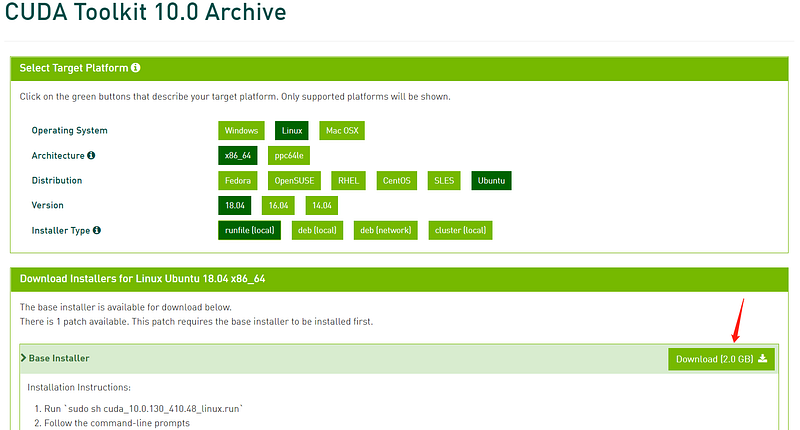
CUDA 10.0: https://developer.nvidia.com/cuda-10.0-download-archive (download)

Go to the folder where your file is downloaded, right click in the empty space, and choose “open in terminal”.

Filename: cuda_10.0.130_410.48_linux.run

chmod +x cuda_10.0.130_410.48_linux.run 
sudo ./cuda_10.0.130_410.48_linux.run — override

Answering the installer:

  • Press [space-bar] to scroll down to the bottom and accept Terms.
  • Press [n] for “Install NVIDIA Accelerated Graphics Driver” (we’ll install manually later).
  • Press [y] for everything else.

Add CUDA to Environment Path

“nano” is a text-editor within the “terminal”. “~/.bashrc” is the path and filename. The file is a shell script for Bash (or the Linux Shell) to run.

nano ~/.bashrc

Scroll to the bottom and add:
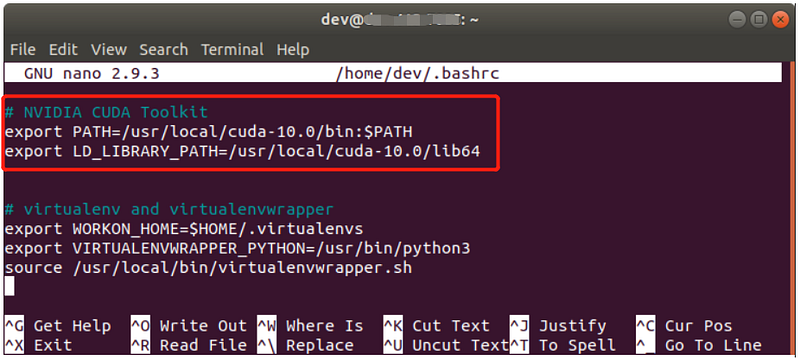
# NVIDIA CUDA Toolkit
export PATH=/usr/local/cuda-10.0/bin:$PATH
export LD_LIBRARY_PATH=/usr/local/cuda-10.0/lib64

Save and exit the ~/.bashrc file by typing

crtl + o
[enter]
crtl + x

Update the system path file

source ~/.bashrc

Check that CUDA is properly installed

nvcc -V

How to know if the installation worked:
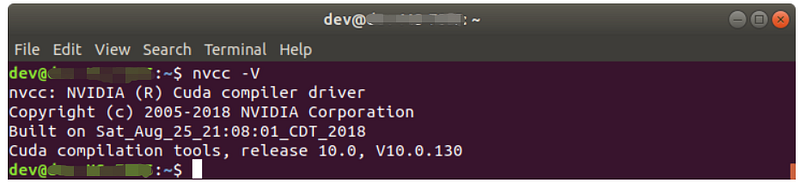
Install Nvidia Driver

Before finishing this step, your computer display should not be able to have HD resolution. If you do, that’s because your Ubuntu automatically installed the Nouveu driver for you (Not a good thing)

The fix: https://linuxconfig.org/how-to-disable-nouveau-nvidia-driver-on-ubuntu-18-04-bionic-beaver-linux
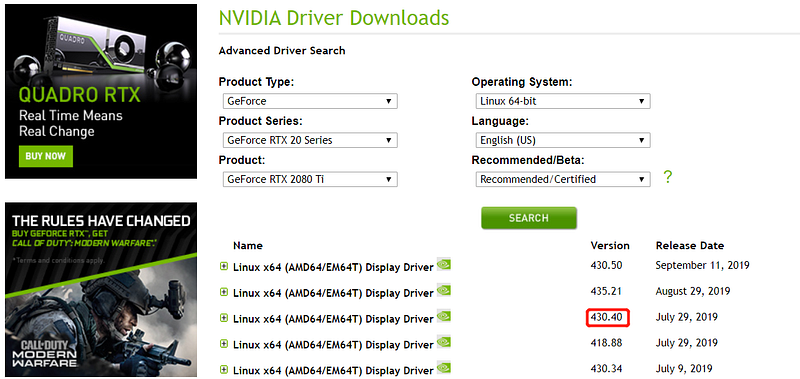
Nvidia driver: https://www.nvidia.com/Download/Find.aspx (download)

I recommend version 430.4 because I haven’t ran into any compatibility issues with it so far.

Filename: cuda_10.0.130_410.48_linux.run

chmod +x NVIDIA-Linux-x86_64–430.40.run
sudo ./NVIDIA-Linux-x86_64–430.40.run

Answering the installer: It might alert you pre-installation/GCC version/32bit-installation errors. These aren’t serious alerts, so just answer to ignore them and proceed.

  • Press [n] for “X config” (last question).
  • Press [y] for everything else.

Reboot

sudo reboot

Now your screen resolution should be in HD. Check this in the terminal

nvidia-smi
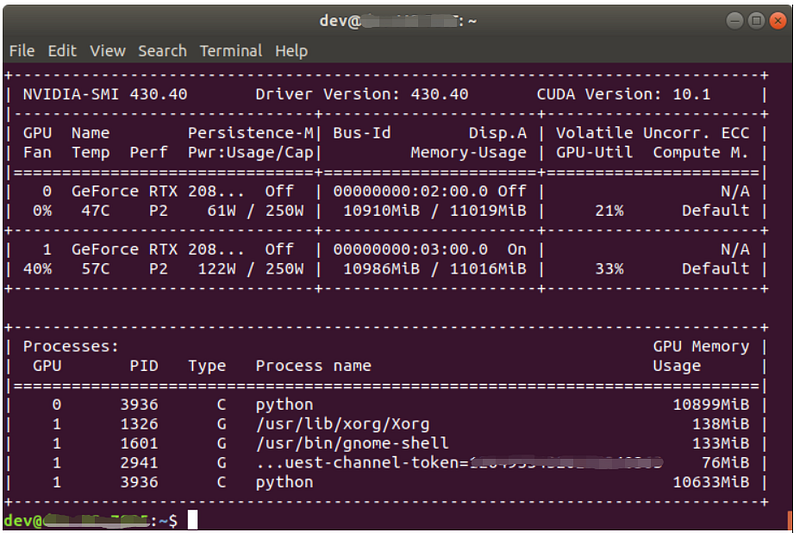
Note: It does say “CUDA Version: 10.1”, we actually have 10.0. We know this from the previous section.

Install cuDNN

This is the NVIDIA CUDA® Deep Neural Network library. It will be used for installing the gpu-accelerated libraries (eg. opencv)

Signup & download cuDNN: https://developer.nvidia.com/cudnn
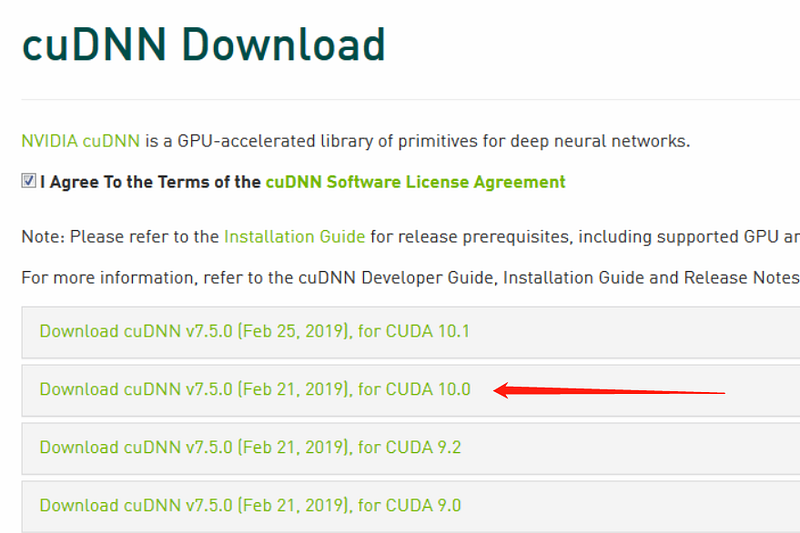
After the download, rename (if needed) the file extension to “.tgz”

tar -zxf cudnn-10.0-linux-x64-v7.6.1.34.tgz
cd cuda
sudo cp -P lib64/* /usr/local/cuda/lib64/
sudo cp -P include/* /usr/local/cuda/include/
cd ~

3. Virtual Environment (VE)
Virtual environment is useful when one of your AIs requires opencv4.0.1, while another requires opencv3.4.6. In this case, if you created two python virtual environments, namely “cv3” and “cv4”, then you wouldn’t have to reinstall opencv versions everytime; Instead, you could just type:

workon cv3

or

workon cv4

Install Virtual Environment (VE)

sudo apt install python3-testresources
wget https://bootstrap.pypa.io/get-pip.py
sudo python3 get-pip.py
sudo pip install virtualenv virtualenvwrapper
sudo rm -rf ~/get-pip.py ~/.cache/pip

Add VE to System Environment Path (like CUDA)

nano ~/.bashrc

Scroll to the bottom and add:
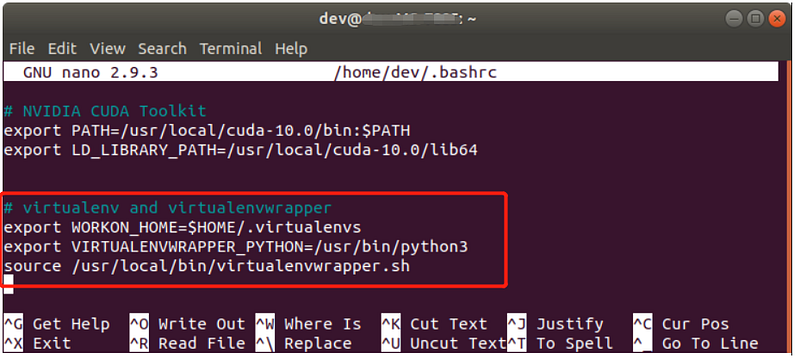
# virtualenv and virtualenvwrapper
export WORKON_HOME=$HOME/.virtualenvs
export VIRTUALENVWRAPPER_PYTHON=/usr/bin/python3
source /usr/local/bin/virtualenvwrapper.sh

Save and exit the ~/.bashrc file

crtl + o
[enter]
crtl + x

Update the system file

source ~/.bashrc

Create VE

Let’s create a virtual environment called “cv4” that uses python3

mkvirtualenv cv4 -p python3

DONE! Just write “workon cv4” whenever you want to activate this environment.

4. Tensorflow-gpu + Keras (GPU accelerated)

Go to your newly created environment. Only pip install everything after the VE is activated, using the following command:

workon cv4

Pip Install Python libraries

Note: we’ll be using tensorflow1.14.0

pip install numpy
pip install pandas scipy matplotlib pillow
pip install scikit-learn scikit-image
pip install tensorflow-gpu==1.14.0
pip install keras
pip install imutils h5py requests progressbar2

Feel free to pip install your other usual python packages, EXCEPT for opencv and pytorch. We will be “compiling” them instead of “pip-install”-ing later.

How to know if the installation worked:

In your virtual environment, open python and write

python
import tensorflow as tf
tf.test.is_gpu_available()
tf.test.is_built_with_cuda()

It should print your GPU details and a true/false for CUDA capabilities, respectively.

Keras’ Saving Error: It’s possible that when you save your Keras model weight an issue would occur. Here’s the fix, go to “site-packages/keras/engine/saving.py”. Find the lines with “raise TypeError(‘Not JSON Serializable:’, obj)”, around line 120.

Add this import to the file

from tensorflow.python.framework.tensor_shape import Dimension

Modify the codes to (with [tab] before “return”):

# if obj is a pythontypeif type(obj) == Dimension: 
return int(obj.value or 0)

5. Opencv (w/ GPU)

This is the most time-consuming part of the guide. Instead of using “pip”, we will be compiling the python library from it’s sources code. So that we can add the opencv “contrib” capabilities to it.

Why not “pip install”: You don’t get the CUDA capabilities. And compiling allows you to accommodate different opencv (and contrib) versions’s built-in functions.

If you have already “pip install”-ed, run this before proceeding

pip uninstall opencv-python

We will be using the opencv4.0.1 (if you needed other versions, just change 4.0.1 => [your version #])

Let install some more dependencies

sudo add-apt-repository “deb http://security.ubuntu.com ubuntu xenial-security main”
sudo apt update
sudo apt install libjasper1 libjasper-dev
sudo apt-get update && sudo apt-get upgrade — fix-missing — fix-broken
sudo apt-get install libgtk2.0-dev
sudo apt-get install qtcreator
sudo apt-get install qtdeclarative5-dev

Use commands to download 2 files from the official opencv github

wget -O opencv.zip https://github.com/opencv/opencv/archive/4.0.1.zip
wget -O opencv_contrib.zip https://github.com/opencv/opencv_contrib/archive/4.0.1.zip
unzip opencv.zip
unzip opencv_contrib.zip
mv opencv-4.0.1 opencv
mv opencv_contrib-4.0.1 opencv_contrib
cd ~/opencv
mkdir build
cd build

Prepare to compile

Note: If your VE name is not “cv4”, please change the last line

cmake -D CMAKE_BUILD_TYPE=RELEASE \
 -D CMAKE_INSTALL_PREFIX=/usr/local \
 -D OPENCV_EXTRA_MODULES_PATH=~/opencv_contrib/modules \
 -D WITH_CUDA=ON \
 -D BUILD_NEW_PYTHON_SUPPORT=ON \
 -D BUILD_PYTHON_SUPPORT=ON \
 -D INSTALL_PYTHON_EXAMPLES=ON \
 -D INSTALL_C_EXAMPLES=ON \
 -D BUILD_EXAMPLES=ON \
 -D OPENCV_ENABLE_NONFREE=ON \
 -D BUILD_opencv_cudacodec=OFF \
 -D ENABLE_FAST_MATH=1 \
 -D CUDA_FAST_MATH=1 \
 -D WITH_OPENGL=ON \
 -D WITH_TBB=ON \
 -D WITH_V4L=ON \
 -D WITH_QT=ON \
 -D WITH_GTK=ON \
 -D BUILD_opencv_python3=ON \
 -D PYTHON3_PACKAGES_PATH=/home/dev/.virtualenvs/cv4/lib/python3.6/site-packages \
 -D PYTHON3_NUMPY_INCLUDE_DIRS=/home/dev/.local/lib/python3.6/site-packages/numpy/core/include \
 -D PYTHON_EXECUTABLE=~/.virtualenvs/cv4/bin/python3.6 ..

Potential Error1: If it says it cannot locate the python3 directory, please remove the “ ..” at the end and retype it yourself.

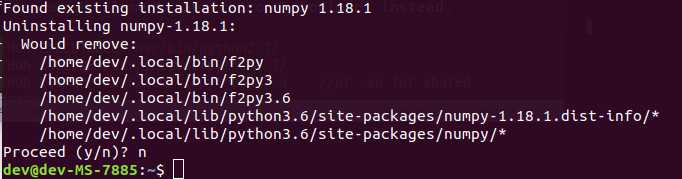
Potential Error2: If the numpy version (my version is 1.17.4 ,see the second image below) is blank, that means your compiler cannot find the numpy directory. Either find it yourself somewhere inside “…/dist-packages/…” or try

sudo pip uninstall numpy

It will show similar output as below, then you will see that the numpy folder might be in “~/.local”. Edit your “-D PYTHON3_NUMPY_INCLUDE_DIRS=” accordingly and cmake again
The image below is what a successful cmake should look like.
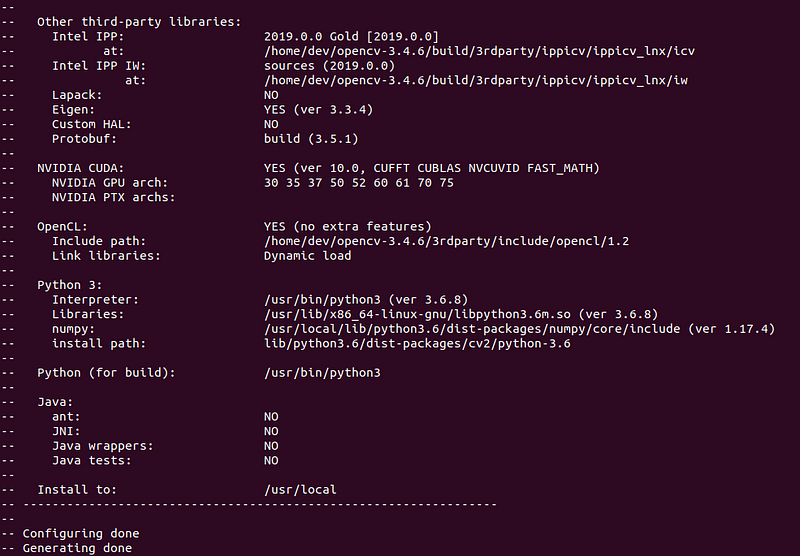
Important: DO NOT PROCEED if you can’t see a reasonable path for “numpy” & “install path”. Otherwise, it won’t work with python.

Compilation

Note: -j16” means your cpu has 16 threads (change this accordingly). The “make-j16” could take up to an hour to finish.

make -j16

Important: Last chance to check, take note of the last line of output, it will tell you part of the path to the final .so file (cv2.cpython-36m-x86_64-linux-gnu.so).

sudo make install
sudo ldconfig

Go to the folder in the terminal, and rename the file

cd /usr/local/lib/python3.6/site-packages/cv2/python-3.6
sudo mv cv2.cpython-36m-x86_64-linux-gnu.so cv2.so

In case of file not found: Check the partial path you read from the “make -j16” output, and manually find the file from guesstimation. Here are some possible locations:

/usr/local/python/cv2/python-3.6
~/opencv/build/lib/python3

If you still can’t find the file try:

sudo find / -name "cv2.cpython-36m-x86_64-linux-gnu.so"

Go to your virtual environment python site-packages folder, and sym-link the compiled cv2.so file

Note: if your VE name is not “cv4, modify the first line below, where …/cv4/…

cd ~/.virtualenvs/cv4/lib/python3.6/site-packages/
ln -s /usr/local/python/cv2/python-3.6/cv2.so cv2.so

How to know if the installation worked:

workon cv4
python
import cv2
cv2.__version__

The final command should output ‘4.0.1’ (your compiled version)

6. Pytorch (w/ GPU)

Finally, I recommend pytorch1.2.0 (known as “torch” in “pip install”) with torchvision0.4.0.

pip install torch==1.2.0 
pip install torchvision==0.4.0

Updated 2023: As this article assumes you are using the RTX 20## series GPU and Tensorflow GPU v1.14. Therefore your CUDA version should be v10.1

Please run the installation code below for compatibility (if you do not want a separate virtual environment):

# To be compatible with TF1.14 w/GPU
pip install torch==1.8.1+cu101 torchvision==0.9.1+cu101 -f https://download.pytorch.org/whl/torch_stable.html

— END —
Python
Cuda
Ubuntu
Deep Learning
TensorFlow
Recommended from ReadMedium