avatarHenrique Centieiro & Bee Lee

Free AI web copilot to create summaries, insights and extended knowledge, download it at here

6727

Abstract

<p>bootcamp.uxdesign.cc</p></div> </div> <div> <div style="background-image: url(https://miro.readmedium.com/v2/resize:fit:320/1*7xPU0YgpyAgCa4R9t9ZNNA.png)"></div> </div> </div> </a> </div><p id="d4a5"><i>And this one will teach you 50+ cheat codes to unleash your creativity on MidJourney!</i></p><div id="2980" class="link-block"> <a href="https://levelup.gitconnected.com/50-inspiring-cheat-codes-to-boost-your-creativity-on-midjourney-part-1-2755f69468ea"> <div> <div> <h2>50+ Inspiring Cheat Codes to Boost Your Creativity on MidJourney – Part 1</h2> <div><h3>Unveiling 50+ Cheat Codes to Unique Art Styles, Paint Mediums &amp; Textured Backgrounds on MidJourney &amp; Let Your…</h3></div> <div><p>levelup.gitconnected.com</p></div> </div> <div> <div style="background-image: url(https://miro.readmedium.com/v2/resize:fit:320/0*vdL4DdGii48buMQW)"></div> </div> </div> </a> </div><h1 id="f44a">— Cheat Code: Mixing 2 images together</h1><p id="0409">You can upload 2 images and blend them together!</p><p id="ec2f">1. First, upload 2 images.</p><p id="428e">2. Copy both of their image links as mentioned in the previous cheat code.</p><p id="8059">3. Paste them both together in the prompt and enjoy the result!</p><p id="6b99"><b>📌 Example 1:</b></p><p id="a499">These are the 2 images I’ve uploaded and copied the image links of:</p><figure id="092a"><img src="https://cdn-images-1.readmedium.com/v2/resize:fit:800/1*-j1DYUBVYv5hSz7sCK2pzA.png"><figcaption></figcaption></figure><p id="f248">This is the prompt I’ve entered: (pasting 2 image links together)</p><figure id="122c"><img src="https://cdn-images-1.readmedium.com/v2/resize:fit:800/0*25DXpXBRWZsi4AtU"><figcaption></figcaption></figure><p id="54db"><b>Result:</b></p><figure id="5cd0"><img src="https://cdn-images-1.readmedium.com/v2/resize:fit:800/0*02DXE5R4JpwjoZfs"><figcaption></figcaption></figure><p id="2b77">I had a good laugh on this one… 😂</p><p id="5404"><b>📌 Example 2:</b></p><p id="f9d5">These are the 2 images I’ve uploaded and copied the image links of:</p><figure id="9d06"><img src="https://cdn-images-1.readmedium.com/v2/resize:fit:800/1*Rl7Ztg_3adRdJ2nCnOs2Vw.png"><figcaption></figcaption></figure><p id="d247"><b>Result:</b></p><figure id="5280"><img src="https://cdn-images-1.readmedium.com/v2/resize:fit:800/0*avMtUZ0gpAIf0ZtF"><figcaption></figcaption></figure><p id="d668">Not bad eh? Lol.</p><h1 id="2965">— Cheat Code: --seed</h1><p id="a9ec">If you really like specific images that you have generated and want to use the same seed for future MidJourney prompt images that will have a similar-looking style, you can use the seed parameter.</p><p id="b19f"><b>📌 How to retrieve the MidJourney image seed:</b></p><p id="7a0d">1. First, you need to make sure your privacy setting allows direct messages from server members:</p><figure id="c3d0"><img src="https://cdn-images-1.readmedium.com/v2/resize:fit:800/0*0z71L7vLMkqwzv_3"><figcaption></figcaption></figure><p id="8510">2. Click “<i>Add reaction</i>” on the right side of the images you’d like to retrieve the seed of:</p><figure id="e703"><img src="https://cdn-images-1.readmedium.com/v2/resize:fit:800/0*mpxeoem5kqIRRWpc"><figcaption></figcaption></figure><p id="679a">3. Click the ✉️ emoji / type “<i>:envelope:</i>”:</p><figure id="0fdf"><img src="https://cdn-images-1.readmedium.com/v2/resize:fit:800/0*EbQViBYAYD4VkKih"><figcaption></figcaption></figure><p id="3ffb">4. A new message will be sent to you from the MidJourney Bot which tells you the seed:</p><figure id="d050"><img src="https://cdn-images-1.readmedium.com/v2/resize:fit:800/0*90wy-E_hq4N7mytr"><figcaption></figcaption></figure><p id="e907">5. Copy the seed and paste it at the end of the prompt:</p><figure id="8f55"><img src="https://cdn-images-1.readmedium.com/v2/resize:fit:800/0*P5etrI3L9JuU8iTT"><figcaption></figcaption></figure><p id="f922">6. Result — A new image is generated based on the seed (style) of your chosen image:</p><figure id="e69d"><img src="https://cdn-images-1.readmedium.com/v2/resize:fit:800/0*-WTuqd9sk1xrQX95"><figcaption></figcaption></figure><h1 id="4b2e">— Cheat Code: --no</h1><p id="83f7">This is what’s called <b>Negative Prompts </b>by using this cheat code <code>--no</code>, it will tell MidJourney to remove certain content of an image.</p><p id="d1d8">1. First you need to make sure you have activated “<i>Remix Mode</i>”: (You can find details on how to activate that in <a href="https://levelup.gitconnected.com/the-ultimate-cheat-codes-to-midjourney-prompting-part-1-ed44aca3cab6">Part 1 of this article</a>)</p><figure id="33ac"><img src="https://cdn-images-1.readmedium.com/v2/resize:fit:800/0*y2ZWzCkrWoCMAEuv"><figcaption></figcaption></figure><p id="8776">Make sure you have selected “<b><i>MJ version 4</i></b>” (<i>*update on Oct 2023: You can select any latest available MidJourney version!</i>) and “<b><i>Remix mode</i></b>” to enjoy the latest features: (They’re not selected by default)</p><p id="c501">2. Let’s say I really like this image on the top left corner but I don’t want to see the tiger there, go ahead and click “<i>V1</i>”:</p><figure id="6a5a"><img src="https://cdn-images-1.readmedium.com/v2/resize:fit:800/0*sCxK1iL0MjU7YXrb"><figcaption></figcaption></figure><p id="9b7f">3. After you click “<i>V1</i>”, a “<i>Remix Prompt</i>” will prompt. I’ll then add “<code>--no tiger</code>” at the end of the original prompt and click “<i>Submit</i>”:</p><figure id="973f"><img src="https://cdn-images-1.readmedium.com/v2/resize:fit:800/0*x5pTX_fhk5DfZh1j"><figcaption></figcaption></figure><p id="6ecb">4. A new set of images based on the image I chose will be generated, but this time without the tiger as I instructed:</p><figure id="5ebf"><img src="https://cdn-images-1.readmedium.com/v2/resize:fit:800/0*y93P8S1ZTf7-uZA7"><figcaption></figcaption></figure><h1 id="9ec6">— Cheat Code: Add content and remove content on an image at the same time</h1><p id="d586">Based on what I’ve taught you on how to use <code>--no</code> to remove certain content on an image, you can also add certain content at the same time.</p><p id="ea27">1. Let’s use the same previous image as an example. Click “<i>V1</i>”:</p><figure id="4f37"><img src="https://cdn-images-1.readmedium.com/v2/resize:fit:800/0*gm5yStYJhStIt82i"><figcaption></figcaption></figure><p id="ed97">2. This time, other than not wanting to see the tiger, I also want to see some plants in the image so I add “<code>with pla # Options nts --no tiger</code>” to the end of the original prompt:</p><figure id="7102"><img src="https://cdn-images-1.readmedium.com/v2/resize:fit:800/0*0nRJxtKuVikwjHPV"><figcaption></figcaption></figure><p id="c9d1">3. A new set of images based on the image I chose will be generated, but this time without the tiger, and plants are also added as I instructed:</p><figure id="f1b6"><img src="https://cdn-images-1.readmedium.com/v2/resize:fit:800/0*dA2mE9dGQM8yQtgB"><figcaption></figcaption></figure><h1 id="9279">— Cheat Code: “::” (prompt weight)</h1><p id="166a">Do you know you can add prompt weight to your MidJourney prompt? If you want certain content on an image to be more emphasized, you can add the ratio you want to see of that content by using “::” in your prompt.</p><p id="ddc9">Use that with caution, though, as the images can go completely off-scale if you put extreme ratios.</p><p id="7e7c">Confused?! Let’s check out some of these examples if I want to generate an image of a cat eating ice-cream on the beach.</p><p id="0b0c"><b>📌 Example 1:</b></p><p id="0c3a"><b>Prompt used: “<i>cat::1 eating ice-cream::1 beach::1</i>”</b></p><p id="7e84">By using the same ratio for all 3 contents, the images will be generated with all 3 contents in equal proportion like this:</p><figure id="0347"><img src="https://cdn-images-1.readmedium.com/v2/resize:fit:800/0*YUltIJxbLMuXFdoE"><figcaption></figcaption></figure><p id="1ebc"><b>📌 Example 2:</b></p><p id="119e"><b>Prompt used: “<i>cat::3 eating ice-cream::1 beach::1</i>”</b></p><p id="fd08">This time I want the image to emphasize more on the cat so I put a “3” for the cat. However, MidJourney has generated an image that focuses solely on the cat (as instructed) and threw the other 2 elements “eating ice-cream” and “beach” away:</p><figure id="aeab"><img src="https://cdn-images-1.readmedium.com/v2/resize:fit:800/0*4fyPwaM1zXHnjDMe"><figcaption></figcaption></figure><p id="ecf3">A couple more examples to show you that went off-scale based on the extreme ratio I provided:</p><p id="92c9"><b>Prompt used: “<i>cat::1 eating ice-cream::3 beach::1</i>”</b></p><figure id="f1b5"><img src="https://cdn-images-1.readmedium.com/v2/resize:fit:800/0*jRmt8rqgKO9_O-9-"><figcaption></figcaption></figure><p id="8ac6"><b>Prompt used: “<i>cat::1 eating ice-cream::2 beach::3</i>”</b></p><figure id="08d3"><img src="https://cdn-images-1.readmedium.com/v2/resize:fit:800/0*rr3HY3tz6ENqYFAo"><figcaption></figcaption></figure><h1 id="a425">📦 To Wrap Up…</h1><p id="1f5e">I hope you’ve enjoyed this Part 2 of the article and learned some new tricks when prompting on MidJourney! Do share with me other cheat codes you use that I haven’t covered!</p><p id="55e8">Oh and don’t forget to check Part 1 of this article:</p><div id="df8f" class="link-block"> <a href="https://levelup.gitconnected.com/the-ultimate-cheat-codes-to-midjourney-prompting-part-1-ed44aca3cab6"> <div> <div> <h2>The Ultimate Cheat Codes to MidJourney Prompting — Part 1</h2> <div><h3>Without a doubt, AI Text to Image Generators are really AMAZING!</h3></div> <div><p>levelup.gitconnected.com</p></div> </div> <div> <div style="background-image: url(https://miro.readmedium.com/v2/resize:fit:320/0*kamQPzNknzCH2MTm)"></div> </div> </div> </a> </div><p id="043d">Last but not least, let’s look at these few images I have generated using the picture of my cats which I had a good laugh of. Enjoy!</p><p id="4822">— Original image that I uploaded:</p><figure id="84a1"><img src="https://cdn-images-1.readmedium.com/v2/resize:fit:800/0*qNQhH-ooef3qClKM"><figcaption></figcaption></figure><p id="8425"><b>Prompt: “<i>(image link) as last cat gang on earth</i>”:</b></p><figure id="5105"><img src="https://cdn-images-1.readmedium.com/v2/resize:fit:800/0*eqCK2TcmGrTDd4_B"><figcaption></figcaption></figure><p id="8ac8"><b>Prompt: “<i>(image link) as Egypt prince </i>”:</b></p><figure id="061b"><img src="https://cdn-images-1.readmedium.com/v2/resize:fit:800/0*0K91Nys02AkNgMiW"><figcaption></figcaption></figure><p id="28bb"><b>Prompt: “<i>(image link) as superhero</i>”:</b></p><figure id="97b3"><img src="https://cdn-images-1.readmedium.com/v2/resize:fit:800/0*h534WvcW8TQkfwo-"><figcaption></figcaption></figure><p id="1968"><a href="https://henriquecentieiro.medium.com/subscribe"><b>Stay tuned for any latest MidJourney updates and more MidJourney Tips &amp; Tricks!</b></a></p><blockquote id="20fe"><p><i>If you found this article valuable, why not throw me some Medium love? 🥰</i> What you can do to support me:<i> <b>Claps up to 50, leave a message, highlight some text if you see fit &amp; <a href="https://henriquecentieiro.medium.com/subscribe">be sure to follow</a>. 💌</b></i></p></blockquote><p id="fab4">Meanwhile, feel free to check out all my other articles here to learn more Tips and Tricks on using MidJourney:</p><div id="661c" class="link-block"> <a href="https://henriquecentieiro.medium.com/list/47509142d455"> <div> <div> <h2>All About A.I. (and MidJourney!)</h2> <div><h3>Comprehensive Guides to different MidJourney versions, Tips &amp; Tricks and Cheat Codes on how to generate the best images…</h3></div> <div><p>henriquecentieiro.medium.com</p></div> </div> <div> <div style="background-image: url(https://miro.readmedium.com/v2/resize:fit:320/0*a1a79b36fe75f156e2471d48435460b5c691623c.jpeg)"></div> </div> </div> </a> </div><p id="7f41">Here’s a special shoutout to <a href="https://twitter.com/BeeCryptoGirl">Ms. Bee Lee</a> for the crucial effort that contributed to creating this article.<b> <a href="https://twitter.com/BeeCryptoGirl">Follow her Twitter</a> for her “Daily Dose of AI Art”!</b></p><p id="c7c7">🌞<b> Stay in touch with me:</b></p><div id="2abe" class="link-block"> <a href="https://linktr.ee/cryptohenri"> <div> <div> <h2>Your place for Crypto, Blockchain, AI, DeFi &amp; Investment Knowledge | Linktree</h2> <div><h3>Click to check *Limited Discount Vouchers* for all my online courses where I have over 53,000 students, my social media…</h3></div> <div><p>linktr.ee</p></div> </div> <div> <div style="background-image: url(https://miro.readmedium.com/v2/resize:fit:320/0*0KKsyW-OwsuaPWQd)"></div> </div> </div> </a> </div></article></body>

The Ultimate Cheat Codes to MidJourney Prompting — Part 2

Here comes Part 2 of “The Ultimate Cheat Codes to MidJourney Prompting” — I promise it’s going to be even more exciting than Part 1!
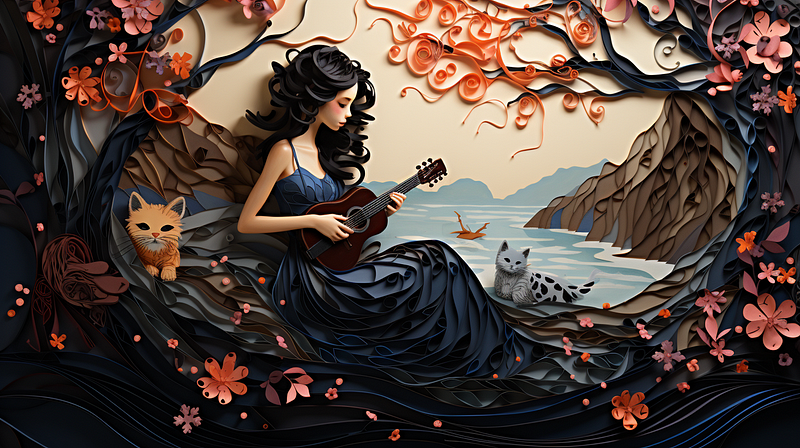
Paper quilling of a woman with her cats playing guitar under the tree

If later you find this article valuable, throw me some Medium love! 🥰 What you can do to support me: Claps up to 50, leave a message, highlight some text if you see fit & be sure to follow. 💌

In Part 1 of the article, I have received lots of positive feedback, and readers are hungry for more juicy cheat codes. Let’s be honest, who doesn’t want to save some effort on prompting and, most importantly, be able to bring out the best of the best of MidJourney?

The huge varieties and art styles of the images MidJourney is capable of generating still had me in awe. These cheat codes and tricks I’m going to share with you in this article are going to help you achieve that in a smart way, without having to create prompts that contain hundreds of words with the hope that the AI is able to catch what you want… Remember, lengthy and complicated prompts are not necessary to generate high-quality images!

I guess most of us have been there, done that:
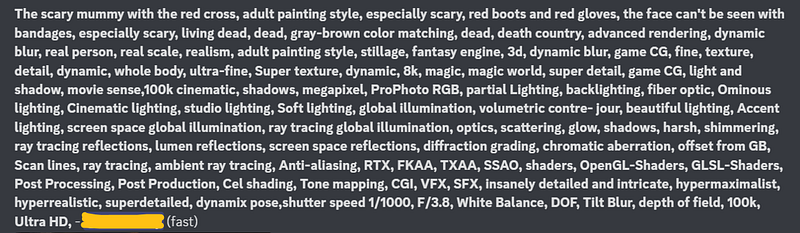
Looks painful to create such a lengthy prompt just to generate an image… 😅

In case you are new to MidJourney and not sure where to start, check out Part 1 of this article where I explain the initial steps and settings needed to get ready for MidJourney step-by-step:

Don’t forget to check these out if you want to learn more about MidJourney Tips & Tricks and Updates:

Let’s dive right in!

— Cheat Code: “as xxx”

If you have a specific character/ style in mind and want to generate some images based on that, you can use “as xxx”.
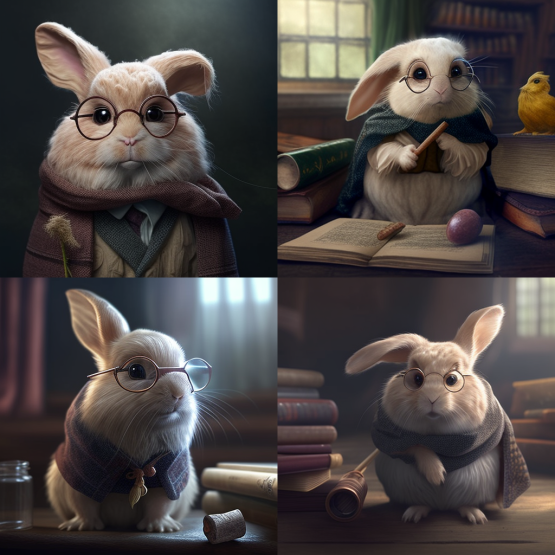
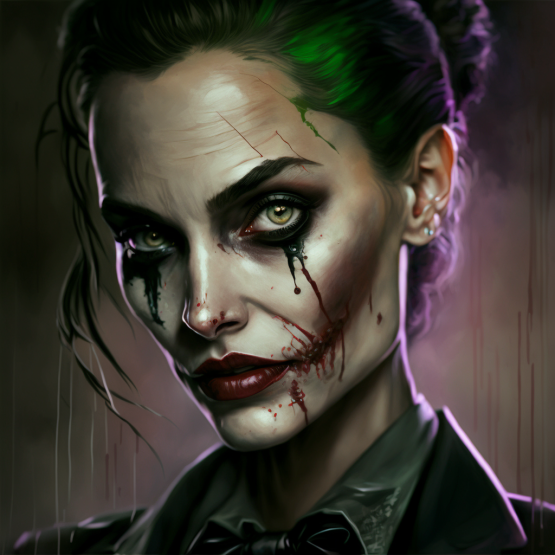
Prompt: “A rabbit as Harry Potter”
Prompt: “Angelina Jolie as Joker” 🤯

— Cheat Code: Generate new images based on your own images

1. First, you need to upload your own image in the chat box by double-clicking the “+”:
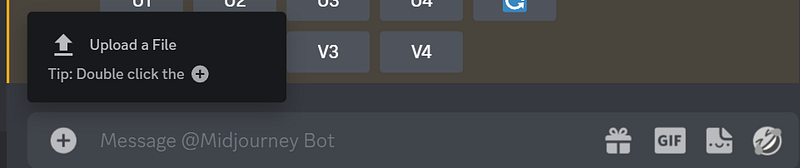
2. After uploading your image, right-click that image and click “Copy Link” at the bottom. (don’t confuse it with “Copy Message Link”):
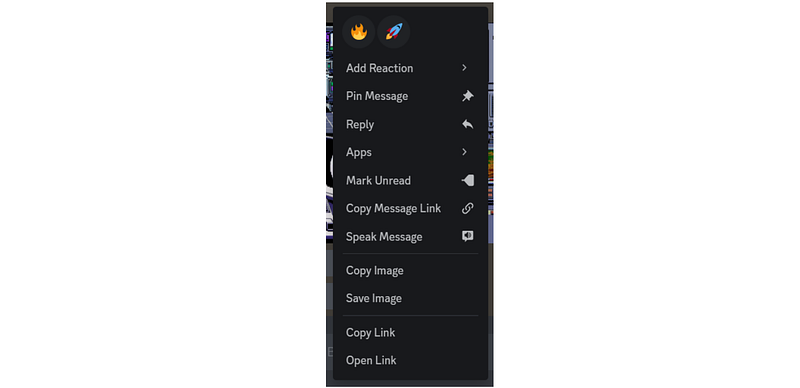
3. Paste the image link to your prompt:

/imagine (image link) (your prompt)

📌 Example 1:

This is the image of Keanu Reeves that I’ve uploaded and copied the image link of:
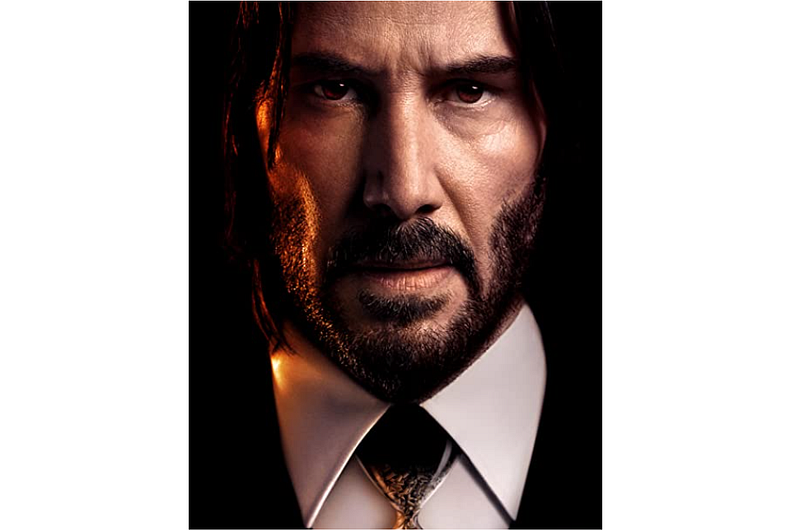
This is the prompt I’ve used:

“(image link) as Mona Lisa”

Result:
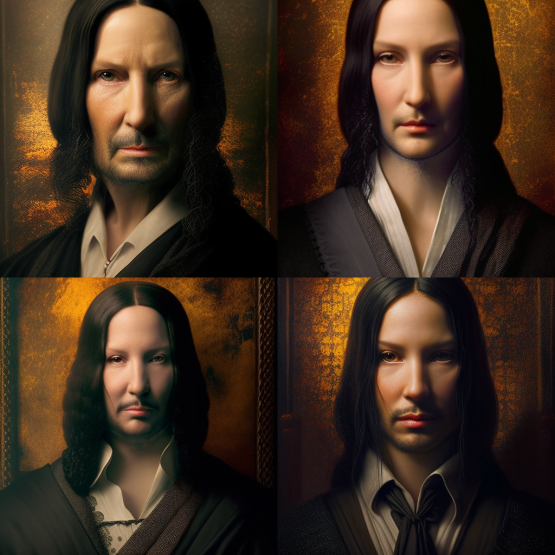
As you can see these 4 images are generated based on the image that I’ve uploaded!

📌 Example 2:

This is the image that I’ve uploaded and copied the image link of:
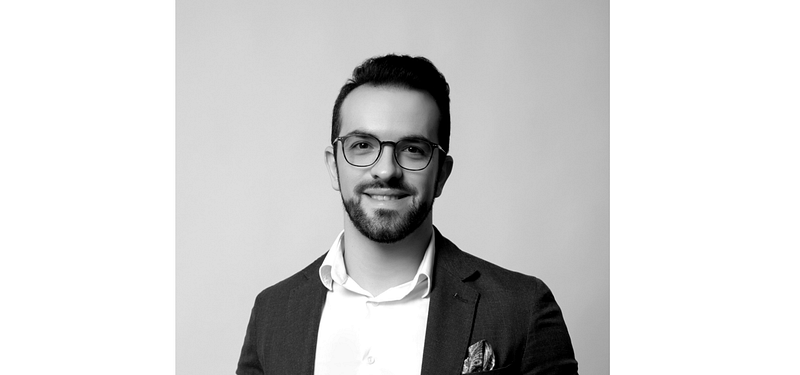
The prompt I’ve entered:

(image link) as The Dark Knight”

Result:
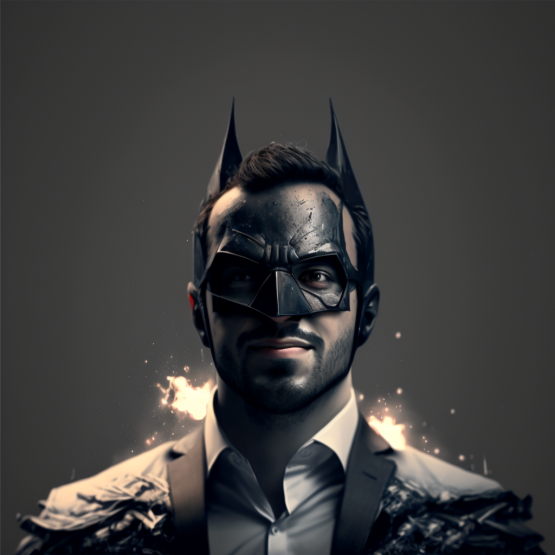
Pretty cool, isn’t it?!

If you also want to learn how to create unique images with different artist styles, you’ll find this article helpful too:

And this one will teach you 50+ cheat codes to unleash your creativity on MidJourney!

— Cheat Code: Mixing 2 images together

You can upload 2 images and blend them together!

1. First, upload 2 images.

2. Copy both of their image links as mentioned in the previous cheat code.

3. Paste them both together in the prompt and enjoy the result!

📌 Example 1:

These are the 2 images I’ve uploaded and copied the image links of:
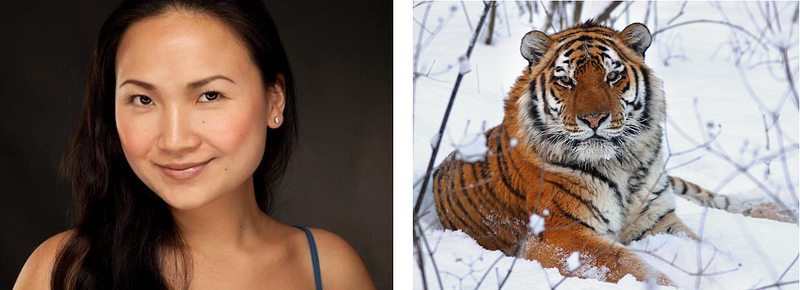
This is the prompt I’ve entered: (pasting 2 image links together)

Result:
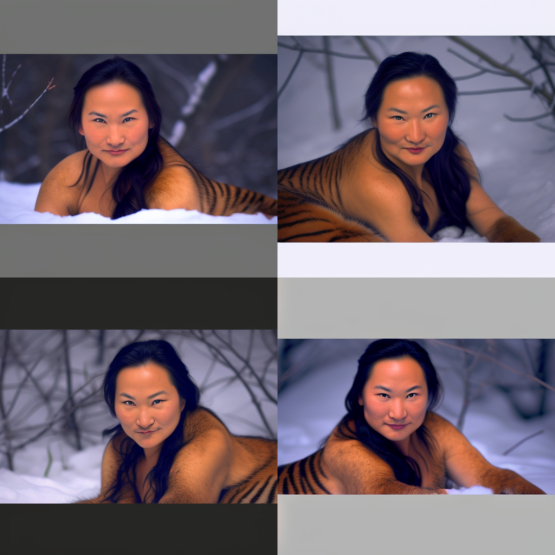
I had a good laugh on this one… 😂

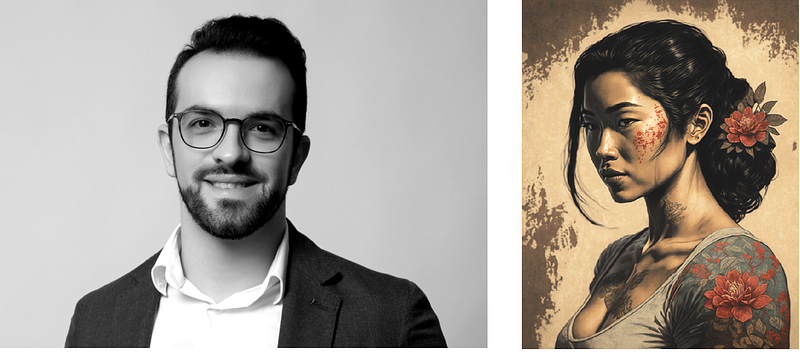
📌 Example 2:

These are the 2 images I’ve uploaded and copied the image links of:
Result:
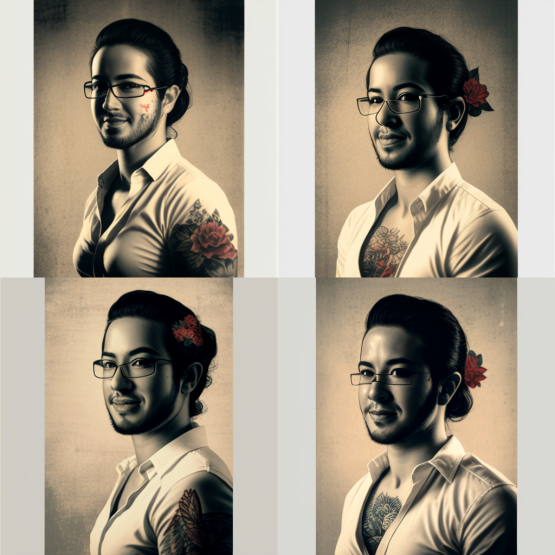
Not bad eh? Lol.

— Cheat Code: --seed

If you really like specific images that you have generated and want to use the same seed for future MidJourney prompt images that will have a similar-looking style, you can use the seed parameter.

📌 How to retrieve the MidJourney image seed:

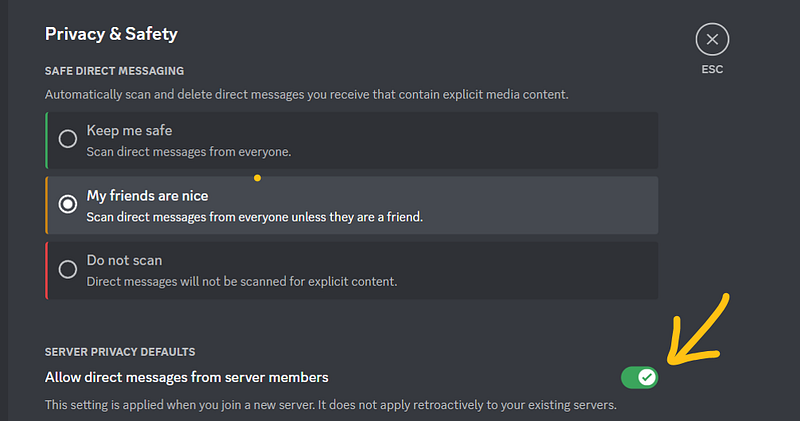
1. First, you need to make sure your privacy setting allows direct messages from server members:
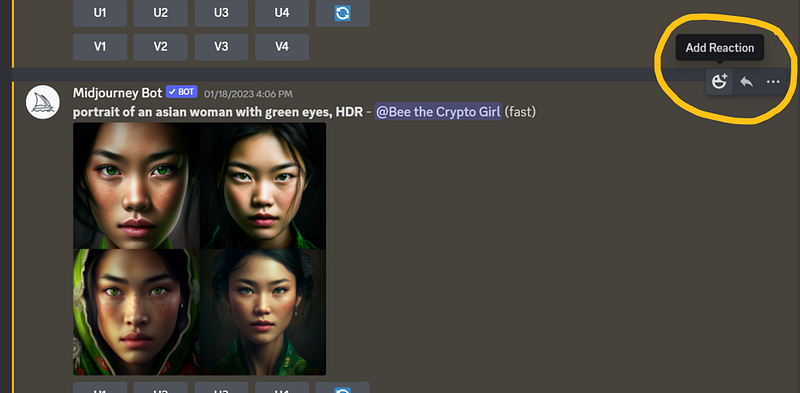
2. Click “Add reaction” on the right side of the images you’d like to retrieve the seed of:
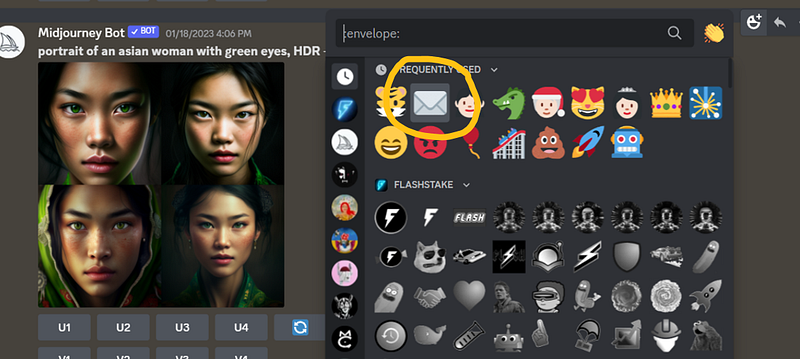
3. Click the ✉️ emoji / type “:envelope:”:
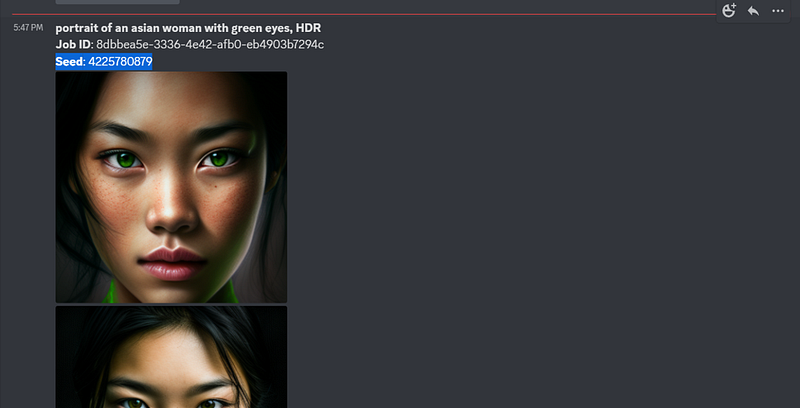
4. A new message will be sent to you from the MidJourney Bot which tells you the seed:
5. Copy the seed and paste it at the end of the prompt:

6. Result — A new image is generated based on the seed (style) of your chosen image:
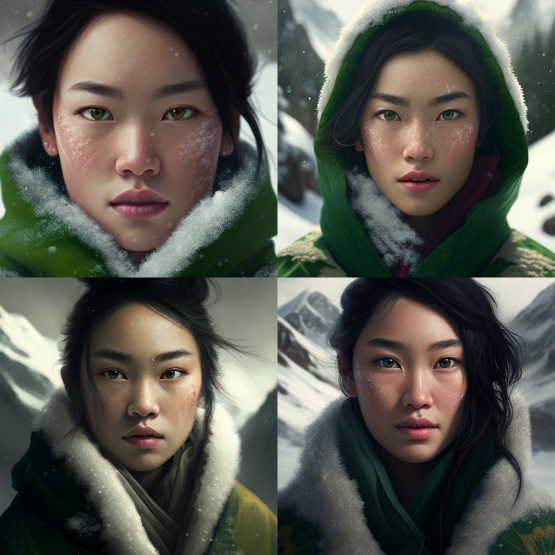
— Cheat Code: --no

This is what’s called Negative Prompts by using this cheat code --no, it will tell MidJourney to remove certain content of an image.

1. First you need to make sure you have activated “Remix Mode”: (You can find details on how to activate that in Part 1 of this article)
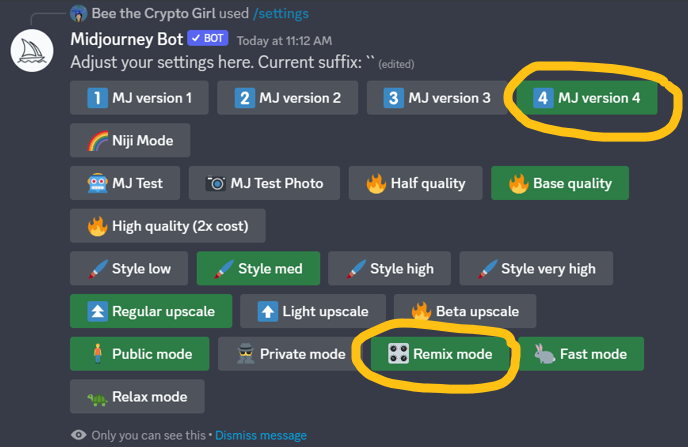
Make sure you have selected “MJ version 4” (*update on Oct 2023: You can select any latest available MidJourney version!) and “Remix mode” to enjoy the latest features: (They’re not selected by default)

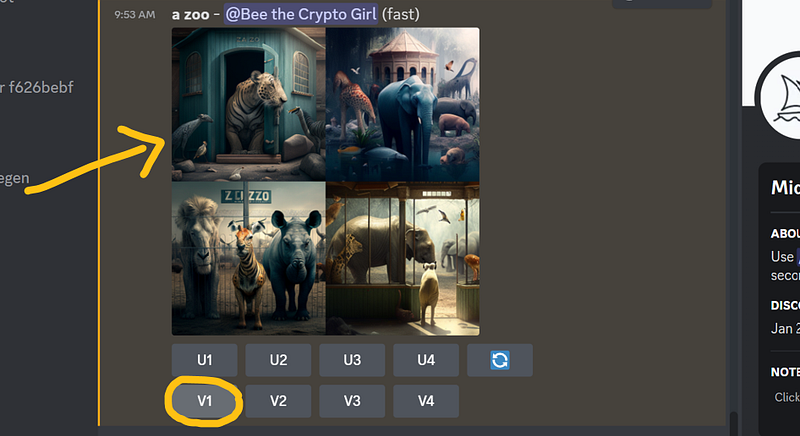
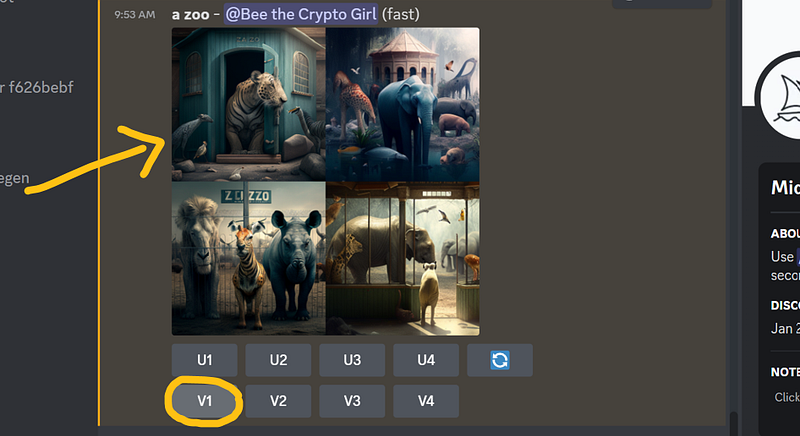
2. Let’s say I really like this image on the top left corner but I don’t want to see the tiger there, go ahead and click “V1”:
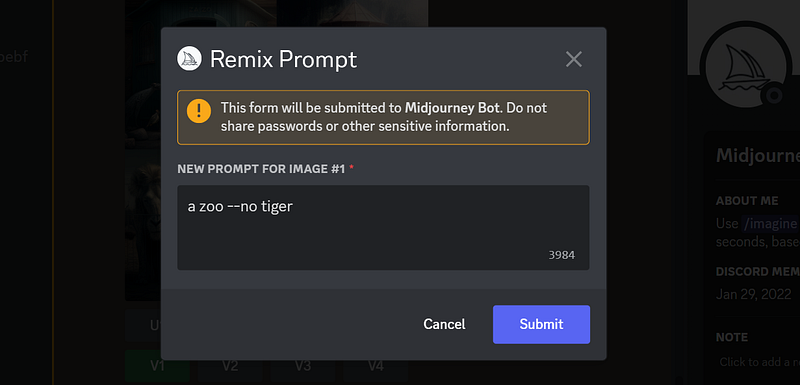
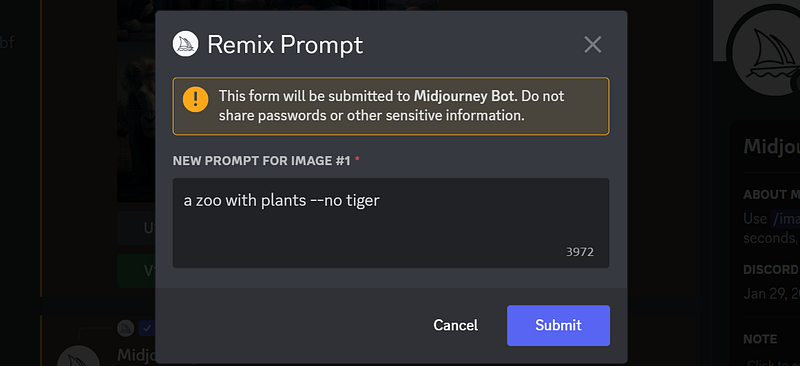
3. After you click “V1”, a “Remix Prompt” will prompt. I’ll then add “--no tiger” at the end of the original prompt and click “Submit”:
4. A new set of images based on the image I chose will be generated, but this time without the tiger as I instructed:
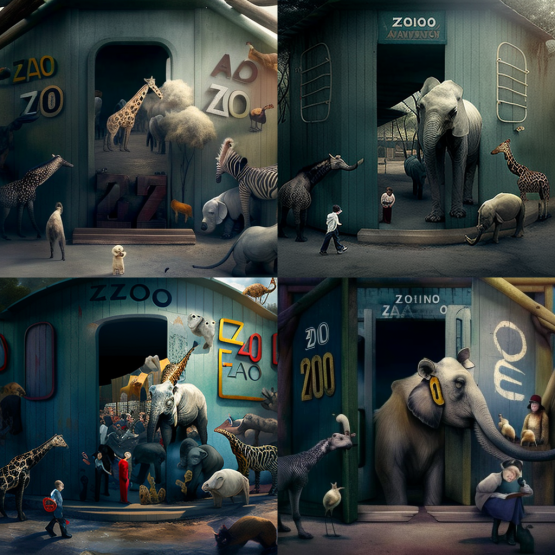
— Cheat Code: Add content and remove content on an image at the same time

Based on what I’ve taught you on how to use --no to remove certain content on an image, you can also add certain content at the same time.

1. Let’s use the same previous image as an example. Click “V1”:
2. This time, other than not wanting to see the tiger, I also want to see some plants in the image so I add “with plants --no tiger” to the end of the original prompt:
3. A new set of images based on the image I chose will be generated, but this time without the tiger, and plants are also added as I instructed:
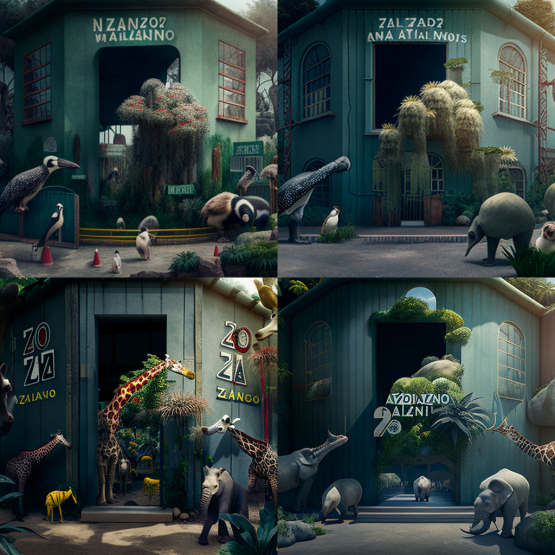
— Cheat Code: “::” (prompt weight)

Do you know you can add prompt weight to your MidJourney prompt? If you want certain content on an image to be more emphasized, you can add the ratio you want to see of that content by using “::” in your prompt.

Use that with caution, though, as the images can go completely off-scale if you put extreme ratios.

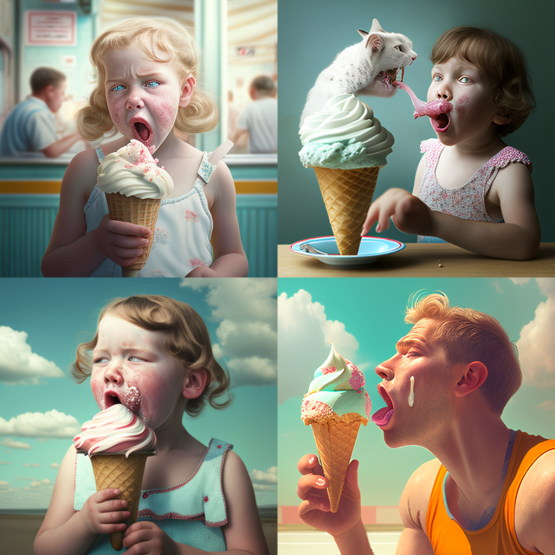
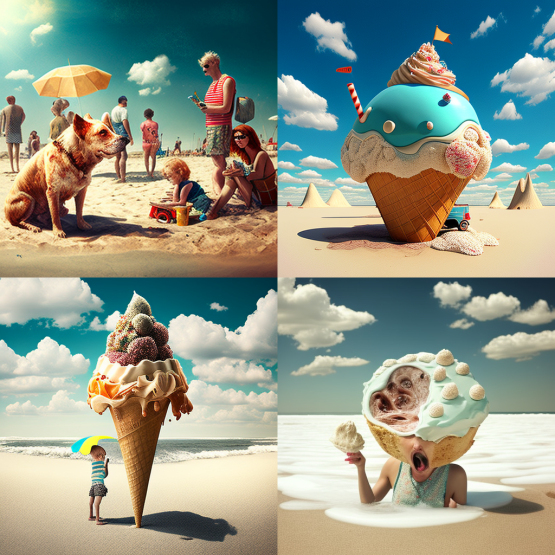
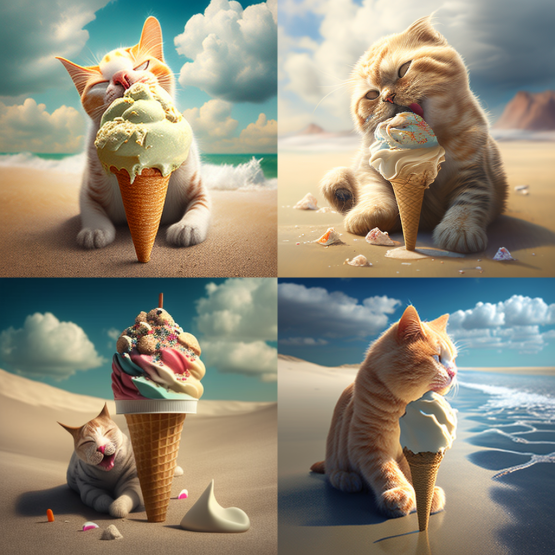
Confused?! Let’s check out some of these examples if I want to generate an image of a cat eating ice-cream on the beach.

📌 Example 1:

Prompt used: “cat::1 eating ice-cream::1 beach::1

By using the same ratio for all 3 contents, the images will be generated with all 3 contents in equal proportion like this:
📌 Example 2:

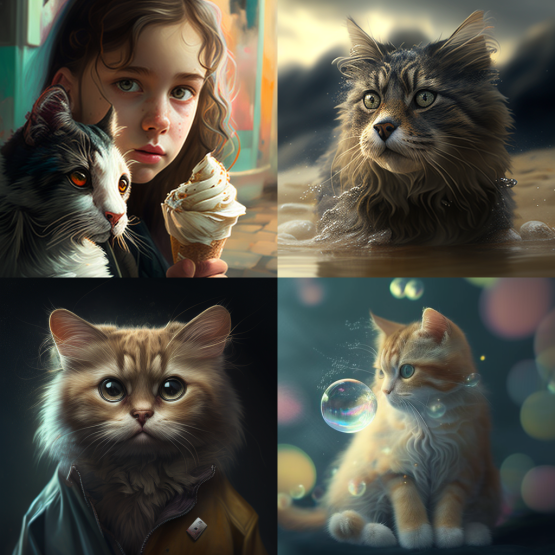
Prompt used: “cat::3 eating ice-cream::1 beach::1

This time I want the image to emphasize more on the cat so I put a “3” for the cat. However, MidJourney has generated an image that focuses solely on the cat (as instructed) and threw the other 2 elements “eating ice-cream” and “beach” away:
A couple more examples to show you that went off-scale based on the extreme ratio I provided:

Prompt used: “cat::1 eating ice-cream::3 beach::1

Prompt used: “cat::1 eating ice-cream::2 beach::3

📦 To Wrap Up…

I hope you’ve enjoyed this Part 2 of the article and learned some new tricks when prompting on MidJourney! Do share with me other cheat codes you use that I haven’t covered!

Oh and don’t forget to check Part 1 of this article:

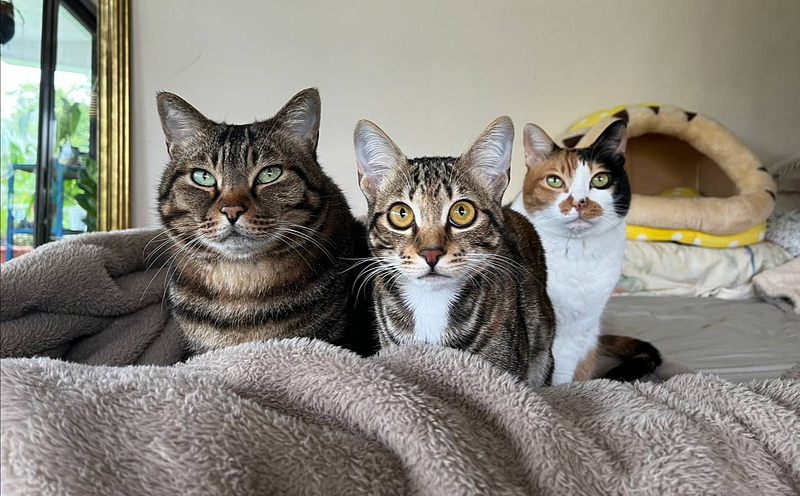
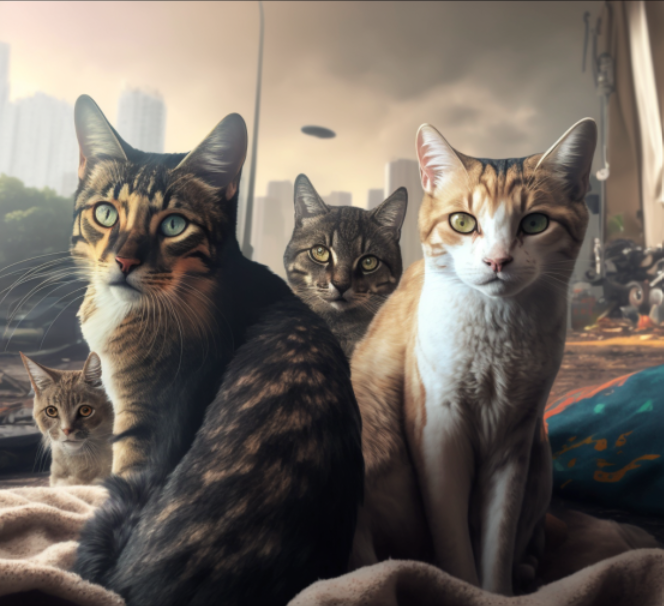
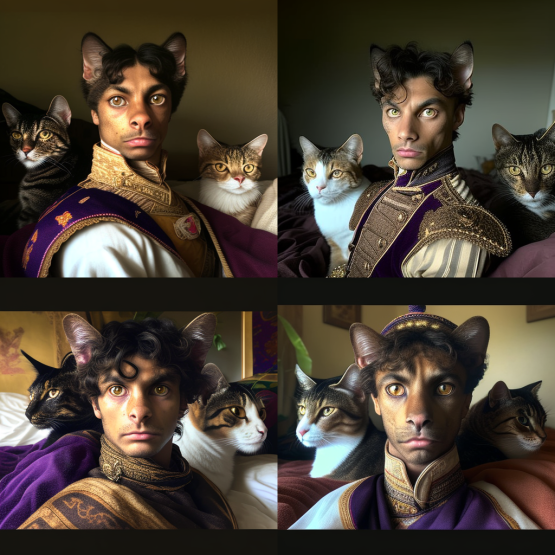
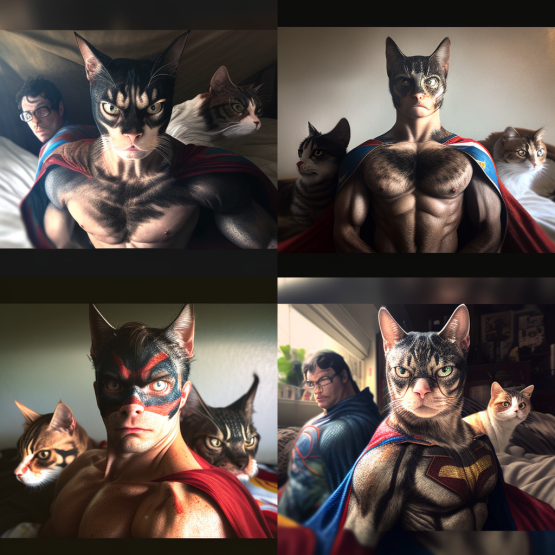
Last but not least, let’s look at these few images I have generated using the picture of my cats which I had a good laugh of. Enjoy!

— Original image that I uploaded:
Prompt: “(image link) as last cat gang on earth”:
Prompt: “(image link) as Egypt prince ”:
Prompt: “(image link) as superhero”:
Stay tuned for any latest MidJourney updates and more MidJourney Tips & Tricks!

If you found this article valuable, why not throw me some Medium love? 🥰 What you can do to support me: Claps up to 50, leave a message, highlight some text if you see fit & be sure to follow. 💌

Meanwhile, feel free to check out all my other articles here to learn more Tips and Tricks on using MidJourney:

Here’s a special shoutout to Ms. Bee Lee for the crucial effort that contributed to creating this article. Follow her Twitter for her “Daily Dose of AI Art”!

🌞 Stay in touch with me:

Midjourney
AI
Ai Image Generator
Artificial Intelligence
Prompt
Recommended from ReadMedium