
The Simple Chrome Extension to Supercharge Your Stats Page
Complete guide to upgrade the Medium stats page
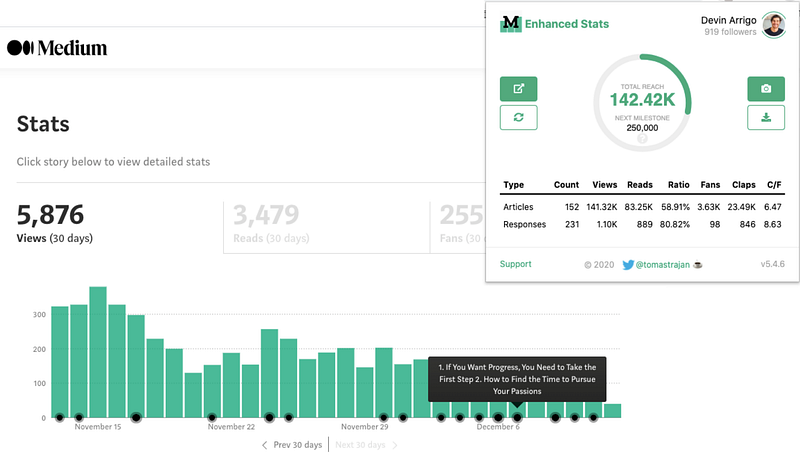
Medium’s current Stats Page is somewhat helpful, but in general, it has left me searching for more — more data, more insights, and a better understanding of the impact of my writing.
While it does provide some useful information, there are several key features that it’s lacking — total reach, views and reads, enhanced publication stats, and the ability to download all of this data.
After perusing through a few Google Chrome extensions, I stumbled upon Medium Enhanced Stats by Tomas Trajan and was absolutely blown away. The extension is flawless, incredibly useful, and helps me better understand my overall impact as a writer. As a bonus, the browser extension doesn’t slow my computer or browser down at all.
Tomas notes that there are four main features of the Medium Enhanced Stats browser extension:
- Total reach indicator
- Bar chart article markers
- Stats table summary row and extra information
- Support for users and publications
Each one of these features is housed within either the Extension Popup in Google Chrome or the normal Medium Stats Page that you’re already using. Let’s take a look at both and review the functionality and usefulness of each.
Table of Contents:
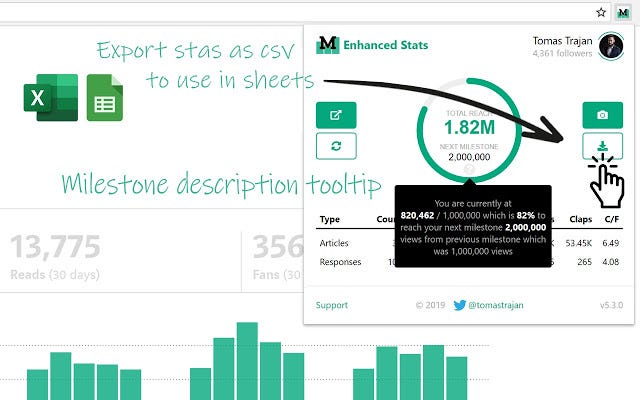
A. Enhanced Stats Popup (in Chrome Toolbar)
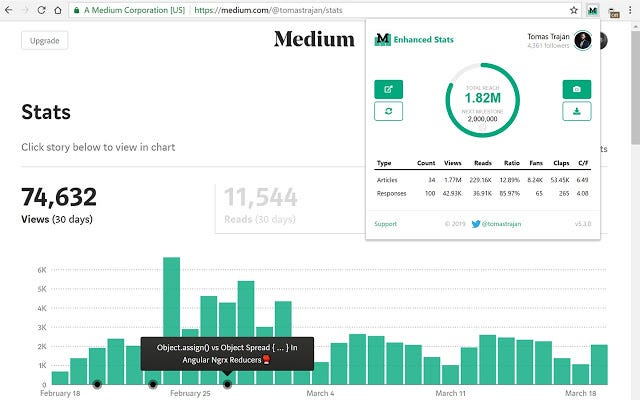
Once installed, you will see the “M” logo in the list of browser extensions. Click on it, and a small screen will pop up displaying tons of never before seen Medium information.
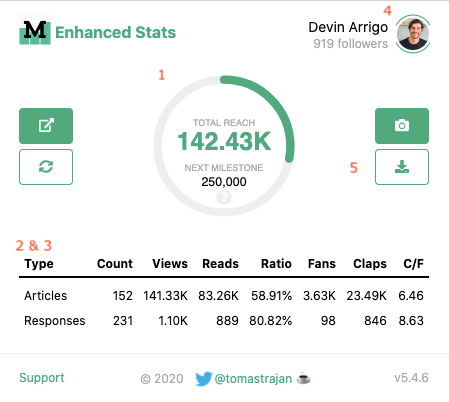
Here’s what you’ll find in the popup:
1. Total reach indicator and milestones:
Sum of views from your articles and responses (aka comments).
2. Summary article and responses table:
Easy-to-read table summarizing key metrics for articles and responses/comments.
3. Total article count, views, reads, fans, claps, and claps per fan:
Metrics included for both articles and responses/comments.
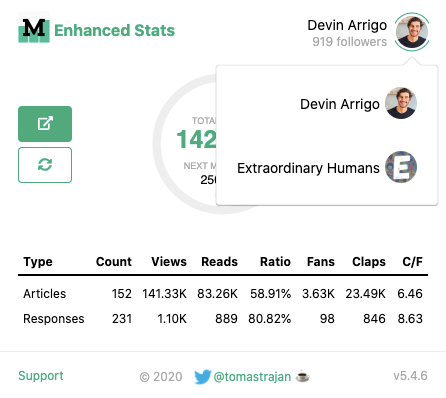
4. Toggle between user and publication stats:
If you run a publication, you can view all of the same metrics for your publication. Do so by double-clicking your profile picture in the popup, then selecting your publication.
5. Export and download Medium data as a CSV file:
- This is, by far, one of my favorite features of the Medium Enhanced Stats extension. Previously, there was never an easy way to export data to investigate outside of the stats page. Now I’m able to pull all my Medium data into excel and dive deep on my own.
B. Enhanced Medium Stats Page
Not only does this extension give you unprecedented insight into your views, but it also provides the Medium Stats Page a much-needed facelift. Once you install the browser extension, you will see several new features on your Medium bar chart.
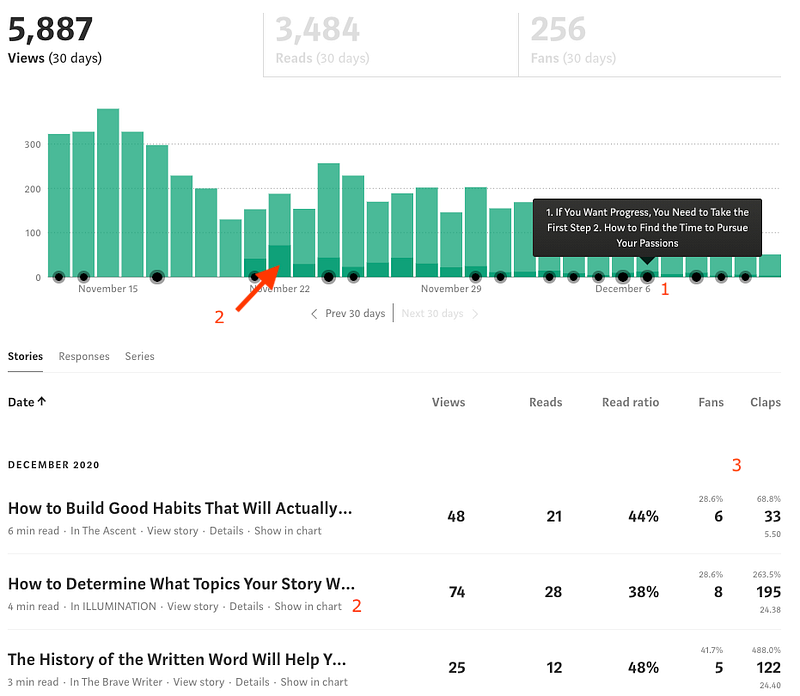
Here’s what you’ll notice is different on the Medium Stats Page:
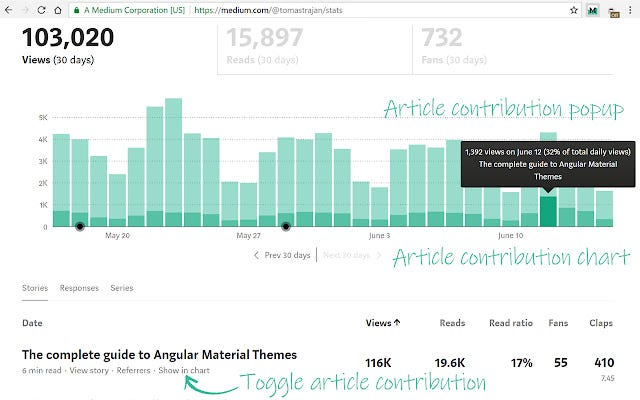
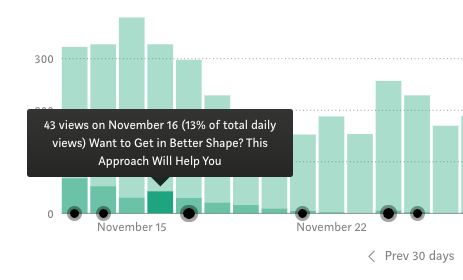
1. Bar chart article and response markers:
Each black dot on the stats graph represents a published article or response/comment. If you hover over it, you will see the names of the articles you published on that day.
2. Bar chart article contribution to daily total:
If you select the “Show in chart” button next to any article (#2 in the above screenshot), the chart will reload and you’ll notice a darker shade of green on each bar. Hover over that, and you’ll get an in-depth analysis of the % of views that came from that article on that specific day.
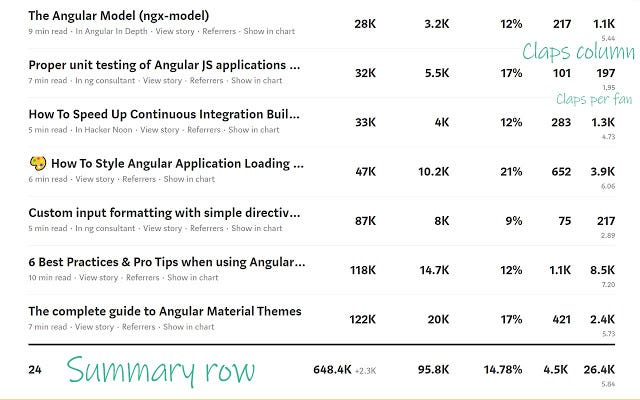
3. Claps per article and claps per fan for every article:
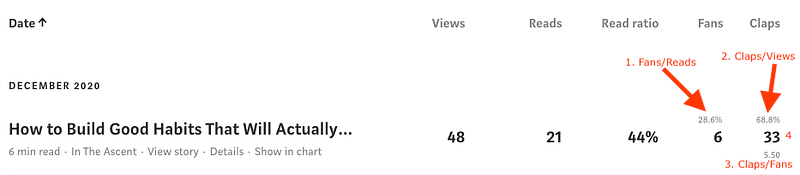
Within the individual article line, you’ll notice four new stats:
- Fans Per Read Ratio (fans/reads)
- Clap Per View Ratio (claps/views)
- Claps per Fan Ratio (claps/fans)
- Number of Claps
4. Upgraded Summary Row:
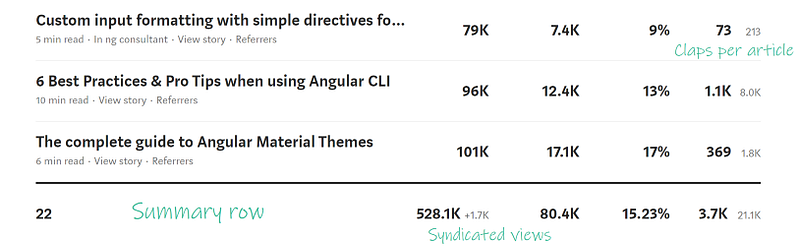
If you scroll to the bottom of your stats page, you’ll now see a summary row that displays the sum of the values per column — total views, reads, read ratio, fans, and claps.
How to Set Up the Browser Extension
- Download the Chrome Extension for Medium Enhanced Stats from Google Web Store.
- Once you’ve successfully installed the extension, you should see the small “M” logo appear in the browser's top right. Click on the “M” logo, and the popup should appear with all your Medium stats. After installation, you’ll also see your upgraded stats page with all the new features noted above.

- If you don’t see the extension in your toolbar, select the puzzle piece icon in the top right of your screen. Then, select the blue pin next to Medium Enhanced Stats so that the extension stays pinned to your toolbar.
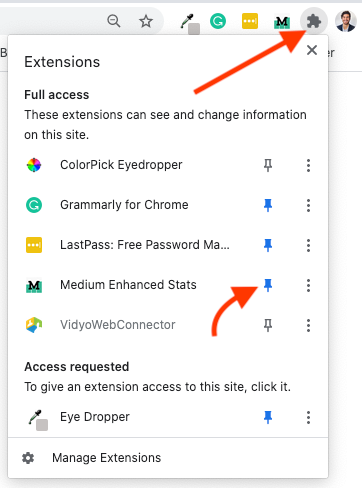
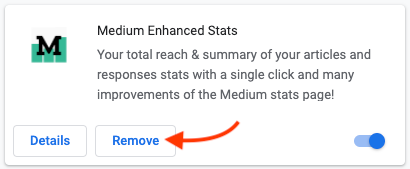
- If you want to remove the browser extension, select “Manage Extensions” from the screenshot above, and then select “Remove” on the Medium Enhanced Stats box.
And that’s pretty much it! HUGE props to Tomas Trajan for developing this powerful browser extension. Not only is it simple, clean, and user-friendly, but it’s finally given us creators the data we need to understand the impact of our work better.
Ready to level-up?
If you want to learn how to leverage technology to improve your freelance writing business, check out the free ebook I made for you!