avatarZahra Ahmad

Free AI web copilot to create summaries, insights and extended knowledge, download it at here

4490

Abstract

of users'</span>) plt<span class="hljs-selector-class">.axis</span>(<span class="hljs-string">'equal'</span>) plt<span class="hljs-selector-class">.show</span>()</pre></div><figure id="ea1a"><img src="https://cdn-images-1.readmedium.com/v2/resize:fit:800/0*F4QnELqOvi7TGkch.png"><figcaption></figcaption></figure><p id="6e5d">Also, the bars can be drawn horizontally using the following code:</p><div id="ebbb"><pre>import matplotlib<span class="hljs-selector-class">.pyplot</span> as plt

y = <span class="hljs-selector-attr">[-4,0,4,8,12]</span> heigh = <span class="hljs-selector-attr">[22, 14, 18,9,5]</span> <span class="hljs-attribute">width</span>=<span class="hljs-number">3</span> colors = <span class="hljs-selector-attr">[<span class="hljs-string">'gold'</span>, <span class="hljs-string">'yellowgreen'</span>, <span class="hljs-string">'lightcoral'</span>, <span class="hljs-string">'lightskyblue'</span>,<span class="hljs-string">'orange'</span>]</span> labels = <span class="hljs-string">'R'</span>,<span class="hljs-string">'Python'</span>, <span class="hljs-string">'SPSS'</span>, <span class="hljs-string">'SAS'</span>, <span class="hljs-string">'Excel'</span>

plt<span class="hljs-selector-class">.barh</span>(y,heigh,<span class="hljs-attribute">width</span>,align=<span class="hljs-string">'center'</span>,color=colors) plt<span class="hljs-selector-class">.yticks</span>(y,labels) plt<span class="hljs-selector-class">.xlabel</span>(<span class="hljs-string">'The number of users'</span>) plt<span class="hljs-selector-class">.axis</span>(<span class="hljs-string">'equal'</span>) plt<span class="hljs-selector-class">.show</span>()</pre></div><figure id="2189"><img src="https://cdn-images-1.readmedium.com/v2/resize:fit:800/0*VyIFbSQ6jrJgAPJZ.png"><figcaption></figcaption></figure><h1 id="0de2">Line Plot in Python using matplotlib</h1><p id="ef19">Let us assume the number of students admitted to a college during 5 years is shown in this Table:</p><figure id="ae15"><img src="https://cdn-images-1.readmedium.com/v2/resize:fit:800/1*AV03EsLGb1Y7M3e5Dl1hQw.png"><figcaption>Total number of admitted students from 2014 to 2018</figcaption></figure><p id="45d4">We can use the function <i>plot </i>to plot a line plot as follows:</p><div id="fff7"><pre>import matplotlib<span class="hljs-selector-class">.pyplot</span> as plt

years=<span class="hljs-selector-attr">[2014,2015,2016,2017,2018]</span> Numbers=<span class="hljs-selector-attr">[702,650,585,740,810]</span>

plt<span class="hljs-selector-class">.plot</span>(years,Numbers, linestyle=<span class="hljs-string">'solid'</span>, <span class="hljs-attribute">color</span>=<span class="hljs-string">'blue'</span>) plt<span class="hljs-selector-class">.xticks</span>(years,years) plt<span class="hljs-selector-class">.ylabel</span>(<span class="hljs-string">'The number of students'</span>) plt<span class="hljs-selector-class">.xlabel</span>(<span class="hljs-string">'Year'</span>) plt<span class="hljs-selector-class">.show</span>()</pre></div><figure id="7f91"><img src="https://cdn-images-1.readmedium.com/v2/resize:fit:800/0*qjLPDmzH1b2ufrPa.png"><figcaption></figcaption></figure><p id="91bf">If we do not like the line, you can apply some styling by replacing the following line:</p><div id="3e75"><pre><span class="hljs-attribute">linestyle</span>=’solid’, <span class="hljs-attribute">color</span>=’blue’</pre></div><p id="2711">with multiple options for formatting and coloring as follows:</p><div id="3101"><pre>plt.<span class="hljs-built_in">plot</span>(years,Numbers, <span class="hljs-string">'--b'</span>)</pre></div><figure id="6019"><img src="https://cdn-images-1.readmedium.com/v2/resize:fit:800/0*9usq-bYpnHeU5kRi.png"><figcaption></figcaption></figure><div id="50ec"><pre>plt.<span class="hljs-built_in">plot</span>(years,Numbers, <span class="hljs-string">'-.g'</span>)</pre></div><figure id="bbda"><img src="https://cdn-images-1.readmedium.com/v2/resize:fit:800/0*OzrU2gMUqLpsr-ZV.png"><figcaption></figcaption></figure><div id="f333"><pre>plt.<span class="hljs-built_in">plot</span>(years,Numbers, <span class="hljs-string">':r'</span>)</pre></div><figure id="6bc7"><img src="https://cdn-images-1.readmedium.com/v2/resize:fit:800/0*qlHlc0gGRMt89-Cs.png"><figcaption></figcaption></figure><p id="8e93"><b>Plot Data from CSV in Python using Matplotlib and Pandas</b></p><p id="ed5e">Now we will draw some advanced plots, where we will use <a href="https://github.com/zahrasyria/data/b

Options

lob/main/mydata.csv">mydata</a> data, which can be obtained from the following link:</p><p id="1b0d"><a href="https://github.com/zahrasyria/data/blob/main/mydata.csv">https://github.com/zahrasyria/data/blob/main/mydata.csv</a></p><p id="4ef2">Then you can load it to a data frame in pandas as follows:</p><div id="331f"><pre><span class="hljs-keyword">import</span> pandas <span class="hljs-keyword">as</span> pd mydata = pd.read_csv(<span class="hljs-string">'mydata.csv'</span>,sep=<span class="hljs-string">','</span>)</pre></div><p id="bb6e">The data contains four variables: y, x1, x2, x3.</p><p id="2aab">To facilitate accessing those features (or variables) from the data, the following code can be used:</p><div id="97b7"><pre>def attach(df): <span class="hljs-keyword">for</span> <span class="hljs-built_in">col</span> <span class="hljs-keyword">in</span> df.<span class="hljs-built_in">columns</span>: globals()[<span class="hljs-built_in">col</span>] = df[<span class="hljs-built_in">col</span>]

attach(mydata)</pre></div><p id="56ef">To represent the probability distribution of the variable <i>y </i>we can use the function:</p><div id="52b9"><pre><span class="hljs-keyword">import</span> seaborn <span class="hljs-keyword">as</span> sns <span class="hljs-keyword">import</span> matplotlib.pyplot <span class="hljs-keyword">as</span> plt <span class="hljs-title">sns</span>.distplot(y,kde_kws={<span class="hljs-string">"color"</span>: <span class="hljs-string">"black"</span>},hist_kws={<span class="hljs-string">"color"</span>: <span class="hljs-string">"skyblue"</span>}) <span class="hljs-title">plt</span>.ylabel('<span class="hljs-type">Probability</span> <span class="hljs-type">Density'</span>)</pre></div><figure id="b713"><img src="https://cdn-images-1.readmedium.com/v2/resize:fit:800/0*oXrS1vXY6E_Qv8sP.png"><figcaption></figcaption></figure><p id="f2ed">Or using different style:</p><div id="50e4"><pre>sns.kdeplot(y, <span class="hljs-attribute">color</span>=<span class="hljs-string">"r"</span>, <span class="hljs-attribute">shade</span>=<span class="hljs-literal">True</span>,legend=False) plt.xlabel(<span class="hljs-string">'y'</span>) plt.ylabel(<span class="hljs-string">'Probability Density'</span>)</pre></div><figure id="baef"><img src="https://cdn-images-1.readmedium.com/v2/resize:fit:800/0*Ntr6Hvc-c5Lcha5P.png"><figcaption></figcaption></figure><p id="f064">Also we can use boxplot</p><div id="695f"><pre>sns<span class="hljs-selector-class">.boxplot</span>(y, orient=<span class="hljs-string">'v'</span>,<span class="hljs-attribute">color</span>=<span class="hljs-string">'skyblue'</span>)</pre></div><figure id="9b2f"><img src="https://cdn-images-1.readmedium.com/v2/resize:fit:800/0*FADUKxF5ZQt4d6P9.png"><figcaption></figcaption></figure><p id="4282">To compare more than one distribution:</p><div id="239a"><pre>sns.kdeplot(x1, <span class="hljs-attribute">label</span>=<span class="hljs-string">"x1"</span>) sns.kdeplot(x2, <span class="hljs-attribute">label</span>=<span class="hljs-string">"x2"</span>) sns.kdeplot(x3, <span class="hljs-attribute">label</span>=<span class="hljs-string">"x3"</span>) plt.xlabel(<span class="hljs-string">'features'</span>) plt.ylabel(<span class="hljs-string">'Probability Density'</span>)</pre></div><figure id="17db"><img src="https://cdn-images-1.readmedium.com/v2/resize:fit:800/0*Cb99EV3FAKg1TDXv.png"><figcaption></figcaption></figure><h1 id="40dd">Plot the Correlation Between Multiple Variables in Python Using Scatter</h1><p id="0f69">To plot the correlation between two variables (if it exists),</p><div id="4222"><pre><span class="hljs-symbol">sns.scatterplot</span>(<span class="hljs-built_in">x1</span>,y)</pre></div><figure id="4bd1"><img src="https://cdn-images-1.readmedium.com/v2/resize:fit:800/0*P6dcCC9TLelpnebO.png"><figcaption></figcaption></figure><h1 id="6d5a">Conclusion</h1><p id="d01b">I have presented in this article a quick overview of almost everything I have been using in matplotlib to plot awesome figures in my recent 2 years career as a Data Scientist.</p><p id="2da7">Of course there are more advanced plots, but mastering what I have presented in this article will secure you a nice and representatives plots for your data exploration task.</p><p id="2456">If you liked my article, applauding it will encourage me to contribute and share more :)</p><p id="cc7d">And as usual, your questions and comments help me to provide better content.</p></article></body>

The Quickest Guide to Data Visualization in Python using Matplotlib

Photo by Isaac Smith on Unsplash

Data Visualization is very important in data analysis and machine learning, it allows us to have a better understanding about the pattern of some variables in our data, conclude some correlation between multiple variables, and eventually we can take the right decision based on that.

In this story, I will present how to create basic diagrams in Python. I will use the Matplotlib package, which is a 2D graphical library in Python language, it supports plotting graphics and images of the data in an attractive way.

If you want to know more about interesting packages in python, including matplotlib itself, check my previous story on medium:

Getting Started

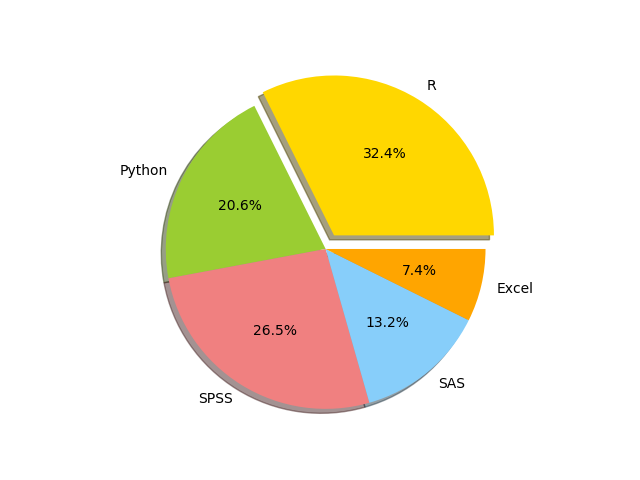
In order to plot something, we need data, let’s start with the following data for demonstration:

Percentages in market-share

Plot a 3D Pie Chart using matplotlib

import matplotlib.pyplot as plt

labels = 'R','Python', 'SPSS', 'SAS', 'Excel'
sizes = [22, 14, 18,9,5]
colors = ['gold', 'yellowgreen', 'lightcoral', 'lightskyblue','orange']
explode = (0.1, 0, 0, 0,0)
 
plt.pie(sizes, explode=explode, labels=labels, colors=colors,
        autopct='%1.1f%%', shadow=True)
 
plt.axis('equal')
plt.show()
Plot Bar Charts in Python using matplotlib

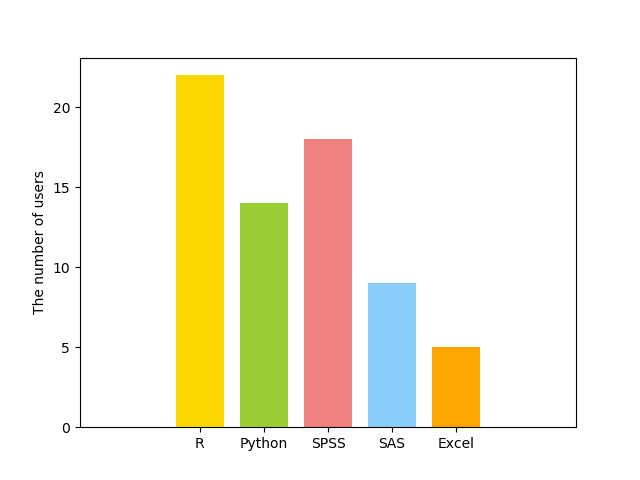
This data can also be represented using bar charts as follows:

import matplotlib.pyplot as plt

x = [-4,0,4,8,12] 
heigh = [22, 14, 18,9,5]
width=3
colors = ['gold', 'yellowgreen', 'lightcoral', 'lightskyblue','orange']
labels = 'R','Python', 'SPSS', 'SAS', 'Excel'
 
plt.bar(x,heigh,width,align='center',color=colors)
plt.xticks(x,labels)
plt.ylabel('The number of users')
plt.axis('equal')
plt.show()
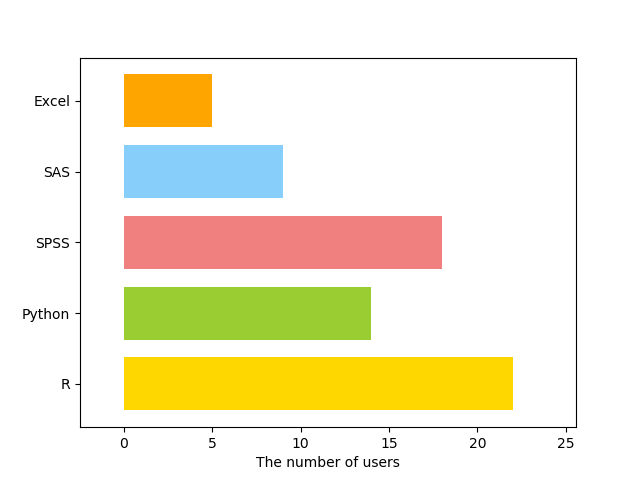
Also, the bars can be drawn horizontally using the following code:

import matplotlib.pyplot as plt

y = [-4,0,4,8,12] 
heigh = [22, 14, 18,9,5]
width=3
colors = ['gold', 'yellowgreen', 'lightcoral', 'lightskyblue','orange']
labels = 'R','Python', 'SPSS', 'SAS', 'Excel'
 
plt.barh(y,heigh,width,align='center',color=colors)
plt.yticks(y,labels)
plt.xlabel('The number of users')
plt.axis('equal')
plt.show()
Line Plot in Python using matplotlib

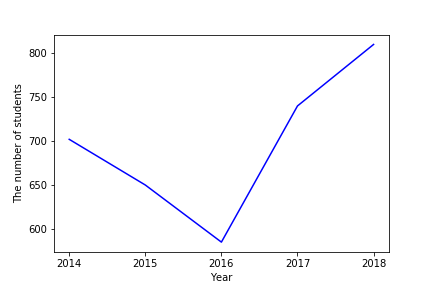
Let us assume the number of students admitted to a college during 5 years is shown in this Table:

Total number of admitted students from 2014 to 2018

We can use the function plot to plot a line plot as follows:

import matplotlib.pyplot as plt

years=[2014,2015,2016,2017,2018]
Numbers=[702,650,585,740,810]

plt.plot(years,Numbers, linestyle='solid', color='blue')
plt.xticks(years,years) 
plt.ylabel('The number of students')
plt.xlabel('Year')
plt.show()
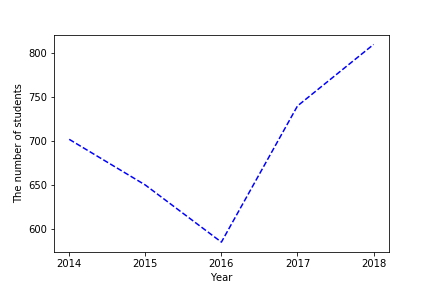
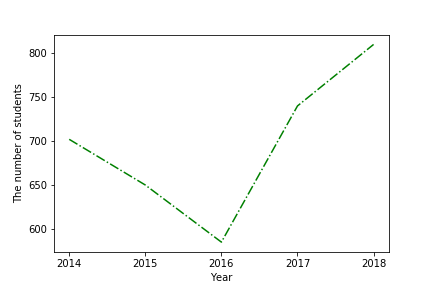
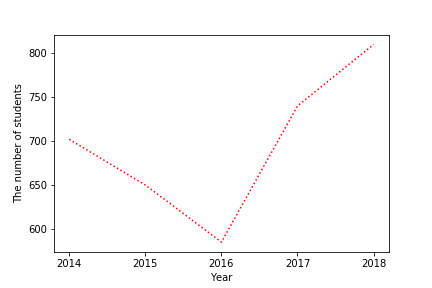
If we do not like the line, you can apply some styling by replacing the following line:

linestyle=’solid’, color=’blue’

with multiple options for formatting and coloring as follows:

plt.plot(years,Numbers, '--b')
plt.plot(years,Numbers, '-.g')
plt.plot(years,Numbers, ':r')
Plot Data from CSV in Python using Matplotlib and Pandas

Now we will draw some advanced plots, where we will use mydata data, which can be obtained from the following link:

https://github.com/zahrasyria/data/blob/main/mydata.csv

Then you can load it to a data frame in pandas as follows:

import pandas as pd
mydata = pd.read_csv('mydata.csv',sep=',')

The data contains four variables: y, x1, x2, x3.

To facilitate accessing those features (or variables) from the data, the following code can be used:

def attach(df):
    for col in df.columns:
        globals()[col] = df[col]

attach(mydata)

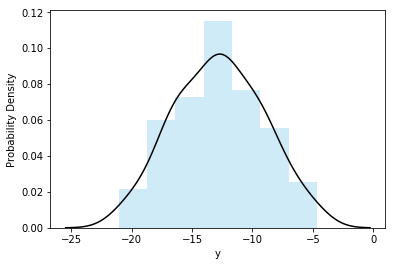
To represent the probability distribution of the variable y we can use the function:

import seaborn as sns
import matplotlib.pyplot as plt
sns.distplot(y,kde_kws={"color": "black"},hist_kws={"color": "skyblue"})
plt.ylabel('Probability Density')
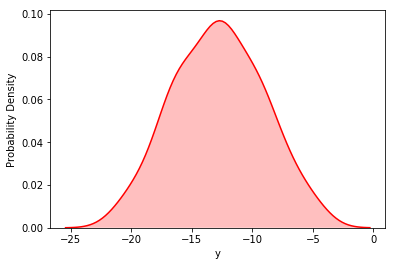
Or using different style:

sns.kdeplot(y, color="r", shade=True,legend=False)
plt.xlabel('y')
plt.ylabel('Probability Density')
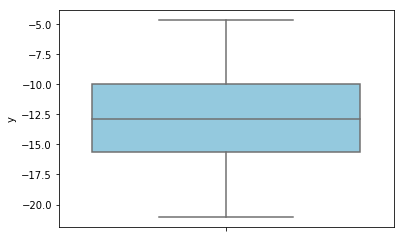
Also we can use boxplot

sns.boxplot(y, orient='v',color='skyblue')
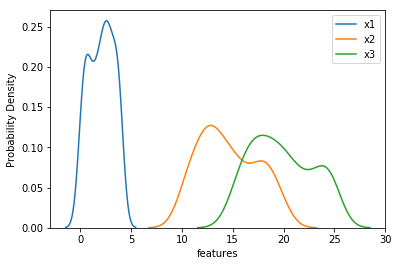
To compare more than one distribution:

sns.kdeplot(x1, label="x1")
sns.kdeplot(x2, label="x2")
sns.kdeplot(x3, label="x3")
plt.xlabel('features')
plt.ylabel('Probability Density')
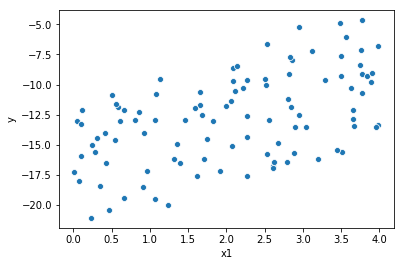
Plot the Correlation Between Multiple Variables in Python Using Scatter

To plot the correlation between two variables (if it exists),

sns.scatterplot(x1,y)
Conclusion

I have presented in this article a quick overview of almost everything I have been using in matplotlib to plot awesome figures in my recent 2 years career as a Data Scientist.

Of course there are more advanced plots, but mastering what I have presented in this article will secure you a nice and representatives plots for your data exploration task.

If you liked my article, applauding it will encourage me to contribute and share more :)

And as usual, your questions and comments help me to provide better content.

Python
Data Science
Data Analysis
Machine Learning
Matplotlib
Recommended from ReadMedium