
The Productivity App that Will Make Your Android Phone A Time-Tracking Beast
How to use Boosted to keep track of your projects.

For a long time, I was looking for a way to keep track of where and how I allocate my time throughout the week. I also looked for a timer that reminds me to take a break. I also wanted an overview of my weekly and monthly activity.
I tried tracking with Evernote and regular timers to no avail. I know I’d look in Evernote to check my stats, but I just didn’t find the motivation to fill the times in.
This was the state of things for a long time until I stumbled upon Boosted.
What follows is an overview of the features that I found most useful and some initial thoughts to get you started with the app.
Let’s get into it, shall we?
The Idea behind Boosted
The entire principle of Boosted is simple: it tracks your projects. After the initial setup which takes a couple of minutes (the app guides you through), you can already start tracking your stuff. The beauty of the app is its simplicity: a single tap and you’re already tracking. Nothing more, nothing less.
I recommend you start by adding the projects you want to keep track of. As you can see below, I’ve created multiple ones.
What I don’t track are sports and my free time, but that definitely ranks high on the list of the stuff I want to implement as I go.
Productivity Goodies, Served Hot
What are some goodies Boosted offers? Well, my friend, here are some screenshots to make your productivity-crazed brain salivate:
1. Timeline
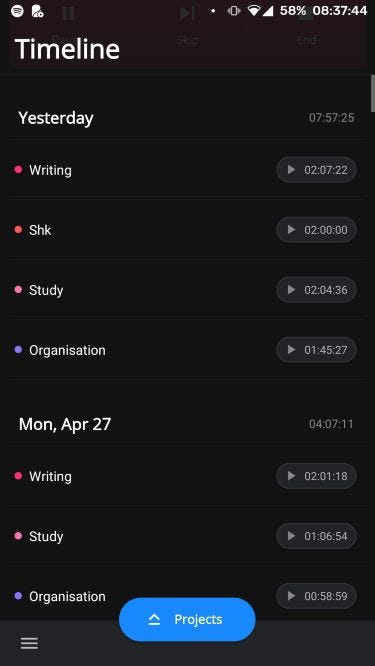
The screen that you’ll see 99% of times. It shows the projects you track and how much time you’ve sunk into them each day. You can easily start projects from this screen, which is the bulk of what you’ll do.
It also gives you a handy overview of what you’ve done recently. Hey, I was quite productive yesterday!
By the way, you can start and stop activities right from the notification tray, no need to go into the app itself.
2. Reports
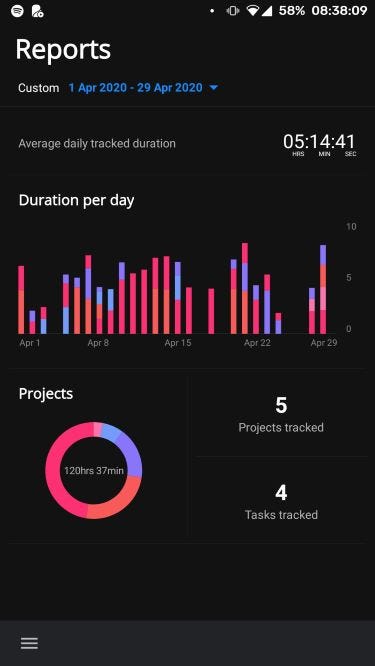
The productivity maniac’s wet dream.
When I feel like I need an ego-boost (or a surefire way to get depressed), I look at reports.
The beauty of reports? When you tap on the bars, you’ll see how much time you’ve spent each day working on your projects. Top right is your average tracked time per day (you’ll get a comparison with the previous month when you tap it). And when you tap on the pie chart, the heavenly nectar of Gods, it shows you which projects devour your time like rabid rabbits and which, well, demand a bit more attention.
3. Timers
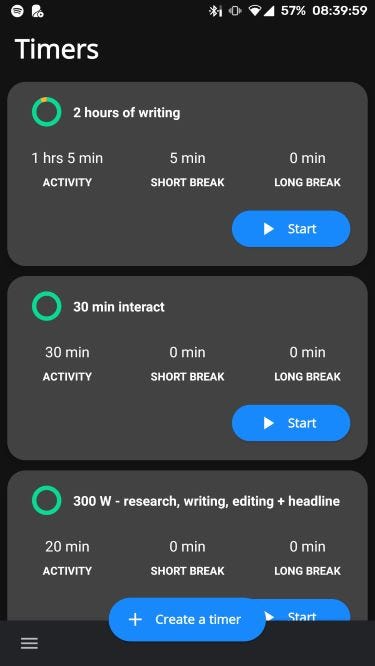
Full disclosure, this is a premium feature. And it’s exactly what it sounds like. It’s a jacked-up timer with breaks (short and long — whoa), automatic rules, and an adjustable number of rounds. For example, when I have time for a longer writing session, I’ll fire up the “2 hours of writing”. When one hour is over, I get a nice jingly-bell-dingity-dong sound signifying my remarkable achievement (and the start of a 5-minute break). When the break is over, the app tells me to get back to work, again with a Pavlovian jingle.
The automaticity of the process makes it easier for me not to overstep and take a longer break than needed.
A handy way to use Boosted: Starting ritual
Rafael Nadal, a famous tennis player, has several rituals, each with a goal to get him into playing mode.
Michael Phelps, the 8 time Olympian, has been following a simple ritual since his teens. Listening to a specific mixtape, visualizing, and swimming a set amount of meters. This was followed by 3 arm swings after which he assumed his starting position.
You can use Boosted with the same goal in mind — as a cue to initiate flow.
What do I mean?
Putting myself in the same company as the guys above (so humble), I:
- fire up Boosted,
- start tracking whichever project steals my time in the next hour(s)
- put on my headphones and start a Spotify playlist.
I make sure I do this every time I start working.
When you do the same ritual for a couple of days, you’re associating the triggers from the environment with the desired state. This makes flow a predictable occurrence.
Summing up
If you had similar trouble to mine, you know how difficult it is to find a single solution that fits. What usually happens is that you scramble together a patchwork of apps designed with a single purpose.
For the Android minimalists among us, this is unacceptable. Boosted is a simple solution that lives up to the promise.
It tracks your projects, gives you an overview of how you spend your time, and you can use it as a building block of your starting ritual.
I hope it can help your daily routine just as it helped me.


