
The Obsidian Vault Rebuild — Geeking Out on Folder Structures and the First Plugin — Excalidraw

One of the brilliant things about Obsidian is that you can use a combination of files and folders. Folders in most applications are limiting to you. However, in Obsidian, they are simply organizers. You can search across your entire vault using attributes and tags (which we’ll talk about in future posts) and build powerful database-esque functionality right into your vault of what are simply plain text markdown files.
If you let all your files just exist as individual pages in your vault and don’t use any folders, you may find that your vault becomes very difficult to navigate through (unless you are EXPERT LEVEL at both linking and searching). Today, I’m going to share four approaches to file folders (at a very high level) and then walk through how I set up my vault using one of those four systems.
File System Method Option 1 — Organic
If you’ve never given much thought to your file system organization then you probably use an organic structure. I used an organic structure for far more years than I have used the methods I’ll talk about in the next few sections.
In an organic arrangement you might start with a folder for Work and a folder for Personal. Inside of each of those you might have folders for things like Work/Meetings, Work/Project A, Work/Committee B, etc. and in personal you might have folders for things like Personal/Spouse, Personal/Home, Personal/Medical, etc.
When you aren’t organizing many files and folders, this system works really well. However, the system can become challenging when life happens — say you change jobs and have a bunch of additional responsibilities or you are dealing with a chronic medical condition and have lots of different doctors to go to (do I make a folder by doctor or leave it all in medical?), etc. It can also become really unwieldy because you don’t necessarily want to have a folder by each and every topic in your life so then you have to group things. The challenge when you start to group things is that something might fit into more than one group.
Let’s use a common example to illustrate this. You work on Project X. You create a folder called Project X. You attend a lot of meetings in your job and so you have a folder called Meeting Notes.
Do you create a subfolder in Meetings called Project X? Do you put Project X’s meeting notes in the Project X folder?
Every time you have to remember this structure in your head and save documents in the right place you’re using up the decision energy your brain has to use in a day. This also doesn’t invite opportunities for automation (which we’ll talk a great deal about in future articles and videos) because automation works most easily when there is a clear and specific process followed for all like items.
File System Method Option 2 — Johnny Decimal
I am not an expert on Johnny Decimal so I won’t attempt to explain it to you. For people that love it, they truly love it and they swear by it. If you read the source information about Johnny Decimal here or read this great explainer and it resonates with you, then by all means, give it a try. I love the idea of using a numerical system (and somewhere I read that one person who used it even used those numbers in email subject lines so that they could easily track all of their emails by JD categories — very cool!). Sadly, this system has always frustrated me when I’ve tried it. Remember though — what works for you may be very different than what works for me. That is absolutely okay!
File System Method Option 3 — Tiago Forte’s PARA
Tiago Forte wrote a book called Building A Second Brain and he runs a (very expensive) course by the same name. If you must do something, read the book — get it from your library if you can. The course is NOT worth the money in my opinion. I think five years ago his ideas were novel but now they are pretty standard. That said, I do give him credit for PARA because it has a couple of useful elements that I borrow.
PARA is an acronym for Projects, Areas, Resources, and Archives. I have used PARA as a folder structure for about three years in Google Drive and in Gmail. It’s not bad but I end up using the built in search functionality in Google Drive and Gmail far more often than I actually navigate using my folders. The image below shows my Gmail folder structure (with Areas expanded) showing PARA in use.
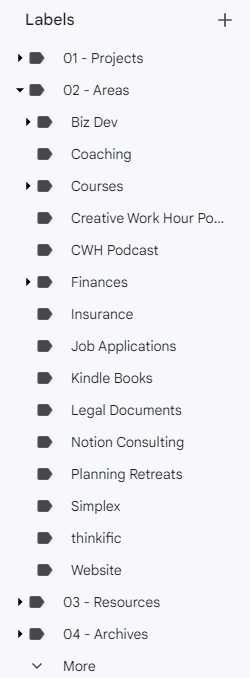
You can see that under “Areas” I have things like Business Development (Biz Dev), Coaching, Courses, etc. Just these three items already show one of the challenges you run into with PARA and a traditional folder only structure. Do coaching client inquiries go in a coaching folder or do I treat them like a potential project like a do a confirmed coaching client? While I’m taking a course, is it an active project or is it an area?
In Gmail it’s easy to tag something with two different tags (labels is their official name in Gmail) and I do make use of that all the time so the same email might show up in different places. In that environment PARA works pretty well. However, something like a course I’m taking and whether it should be a project while I’m taking it (yes) means that I have to do a lot of bulk moving around of things when the project is over. That’s inefficient at best and easy to procrastinate and never do at worst. That is my biggest complaint about PARA — there is just so much moving around of files at times that don’t work in the way I work.
File System Method Option 4 — ACCESS by Nick Milo
Nick Milo teaches a course called Linking Your Thinking — also expensive but less than Building A Second Brain. Nick introduced the ACCESS folder structure in his Obsidian vault and it has become a good tool for me — although I’ve modified the words that accompany the letters to better suit my own personality. In Nick’s system, these are the letters and their meanings: A — Atlas C — Calendar C — Cards E — Extra S — Sources S — Spaces
Grant you — this system works beautifully for Obsidian. I’ve NEVER tried it in traditional folder structures like Google Drive or One Drive and as I think about those tools, I don’t think it would work well in those structures because it is really built to house atomic (small, single topic) notes (often residing in Sources, Cards, and Calendar) that then get mixed together into other bigger notes (often residing in Atlas and Spaces).
What File Structure Am I Using in my Vault
My base folder structure is based on ACCESS by Nick Milo but I am using different words that have more meaning to me. Underneath each specific ACCESS folder there will be some folders for specific purposes which I’ll likely cover in later articles/videos.
I added an emoji to the end of each word because I like the look (although as I’m using the vault now a bit more as I keep working on getting this series out to you, I will say that trying to do queries with those emojis in the names was a bit of a challenge until I built a copy/paste and TextExpander list for myself so that I don’t have to go look up the emoji each time).
So, I have six base folders in my vault: About 🗺️ Chronos ⌚ Commonplace 🗃️ Excalidraw 🎨 Salon 📙 Shine ⭐
I changed to these words (from Nick’s original) because they still kept things in the order I wanted them in AND they have meaning to me. So let’s go through what is in each one.
About 🗺️ — templates, maps of content and indexes, all of my process and system documentation
Chronos ⌚ — all time based notes (daily, weekly, monthly, quarterly, and yearly) currently organized by year (more on that definitely in the article/video about my Chronos system.
Commonplace 🗃️ — all individual notes that don’t fit in one of the other folders. Any subfolders in this specific area should have a template built specifically for information of that type. (I’ll cover this in a later video) While I don’t show this in the video I don’t think, I currently have subfolders under this for Cards, Meetings, People, and Recipes. I’m sure I’ll add more later.
Excalidraw 🎨 — all drawings generated by Excalidraw go here
Salon 📙 — think of this like a reading room. All of my notes from articles, books, podcasts, shows, films, and classes go in here. When I start importing Readwise (big article and video on that coming soon) in to this vault, then those notes will go here as well.
Shine ⭐ — many years ago, I adopted the mantra for my work of “Show Up and Shine” so Shine is particularly meaningful to me so this folder houses all of my “work”. For example, every article I write and YouTube that I specifically script, starts out here as a note.
Building Your Own Folder Structure
I thought I’d share some of the insights I gained from all my experiments with Obsidian that I am trying to incorporate into this vault: 1. Use as many folders as you need, but as few as possible. I have six top level folders and within each of those my aim is to have no more than 6–10 second level folders and not to go much beyond second level except perhaps in Salon where there will be an immense amount of information to use. 2. Spend 10 minutes writing out for yourself the function of each folder. That’s essentially waht I did in the paragraph just above this section. It was immensely helpful for me when I first started using the vault that I’m building. It has come in handy already. They don’t have to be long prose paragraphs — just enough of a reminder to yourself of what goes in each folder. I save this in my “About” folder in my System Documentation note.
The Video
I walk through what’s above at a high level and what’s below in more depth in this video if you’d like to watch and listen!
Installing a Plugin
The “E” in the Access pneumonic device for my folder structure is for Excalidraw. This is a free community plugin that I happily support the development of each month with a few dollars.
To install a Community Plugin, go to Settings > Community Plugins and click browse. (Note that you’ll need to turn on community plugins if you’ve not done so — I walk you through this step by step in the video)
Search for the plugin you want to install — in this case Excalidraw. Once you locate that plugin, click Install.
Now that you’ve installed the plugin, you need to Enable it and then review the settings and customize to your liking. Here are the settings I decided to use:
I leave “Display Release Notes after update” on I leave “Plugin update notification” on I customized my Excalidraw folder to Excalidraw 🎨 I turned on “Use Excalidraw folder when embedding a drawing into the active document”
In the video I scroll through all of the other settings so there are many, many more things you can customize but these are the only changes I’m suggesting for now.
Now that we’ve installed our plugin, it is time for us to add in the rest of the folders.
To add a folder, you simply click the folder icon in your vault. This will insert a new folder named “Untitled” and highlight that new folder.
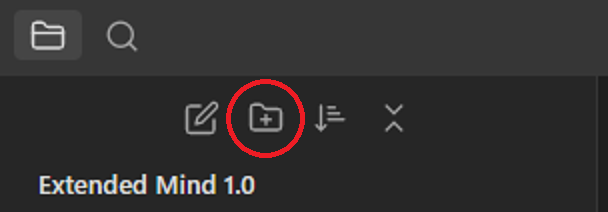
Just start typing your new folder name and press enter when you’re done.

After adding all of my folders in that way, this is what my vault’s explorer pane looks like.
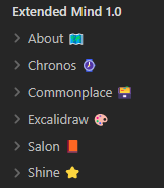
If you accidentally spell something or hit enter before you have a chance to name the folder (as I did in the video with the Shine folder) or later decide you want to rename a folder, you can just right click on the folder and select Rename and you can enter or change the name that way as well.
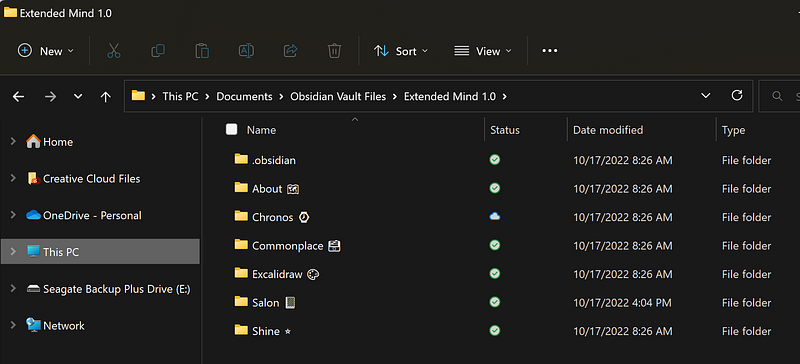
I didn’t discuss this in the video, but this is a good place to remind you that Obsidian is simply a front end for a specific set of folders and files on your computer. So, I used Obsidian to create this structure in Windows. You could add a folder here and it would also show up in Obsidian.
Conclusion
I hope this in-depth thought process on creating a meaningful folder structure that fits the way you work was valuable to you. I’d love to hear what your folder structure is and how you’ve arrived at it.


