
The Next Page: Building Infinite Scroll with SwiftUI
How we built infinite scroll on iOS with SwiftUI & async/await for the Whatnot Feeds

This is part of the “Feeds with GraphQL” series. Rami has written a great article about the inspiration here.
At Whatnot we are guided by our core principles and one of our principles is moving uncomfortably fast. The tools we use should reflect our principles so we decided to use SwiftUI to build the Whatnot homefeed on iOS. Our goal was to rebuild a home feed that could be dynamically driven and personalized from the backend with infinite scroll. In this post we will be diving into how we built the core models for infinite scroll.
Pageable Protocol
Before we can start doing anything with paging, we have to define what a page is. At its simplest, a page is a partial list of content (array of values) and metadata about that partial list (PageInfo). Our backend uses a GraphQL api, so this metadata is defined using the Relay’s PageInfo specification. For our use case, PageInfo tells us where our current page ends (endCursor) and if there is a next page (hasNextPage).
Now that we know what a page is, we can request one. There are two key parameters that our page requests need: The size of the page, and where the page should start (the current page’s endCursor). Both of these parameters are typically optional, so if neither are provided, the first page at a default size will be fetched. Knowing which information is needed to request a page, we can now define a generic interface to power the fetching portion of our paged UI. This brings us to the Pageable protocol.
There is only one function in the Pageable Protocol which ties together everything we have discussed so far.
loadPage takes the current page (we use its endCursor value to specify where the next page starts) and a page size (size), returning the next slice of values and its corresponding PageInfo.
In addition to the loadPage function, Pageable also specifies `Value` as an associatedType conforming to Identifiable and Hashable. The Identifiable and Hashable constraints allow the page’s content to be diffed and easily rendered in a list withinin SwiftUI.
Paging View Model
The next part is building our view model for our SwiftUI view. This will encapsulate the following properties:
source(Pageable)pageSize(number of objects to fetch)threshold(position of the last object where the next page fetch will be triggered)pageInfo(details of the current page and next)state(an enum to hold the the current state of the view model)items(the source of truth for all our objects)
Paging View Model: PagingState
We also need to know the internal state of the view model to prevent fetching the same page multiple times. We can use an enum to manage the internal state of the paging view model to prevent this.
Paging View Model: onAppear
The next part is defining how our view model fetches the next page from SwiftUI. We first need to know where the user is in the current items array. We can use the onAppear SwiftUI view modifier to notify our view model when an item is currently visible, this will help us understand the position and allow us to kick off a request for the next page if necessary.
In our view model we define our onItemAppear function with a series of early returns before kicking off a request for the next page.
Let’s break this down:
- We’ve reached the end of the page and can no longer page
- We are currently loading the next or first page
- No index is found
- The index of the our model has not reached our threshold
- Requirements have been met; kick off a request for the next page 🎉
Paging View Model: loadMoreItems
Let’s now define our loadMoreItems function.
Let’s break this down:
- Ask the source for the page given the
pageInfoandpageSize - If we’ve set a new
currentTaskwe shouldn’t continue here - We have our new items set our items based on the state of the view model
- Publish our changes to SwiftUI and reset our state so we fetch the next page if needed
- Publish any errors back to SwiftUI
Recap
We’ve defined a protocol Pageable that provides a source for our PagingViewModel. Our PagingViewModel gets triggered by the onAppear SwiftUI view modifier. We check the index of the item from the view modifier and determine if the item has met our threshold requirement and if the state is ready to make a page request. Once we have a page response we publish the set of items back into SwiftUI and wait for the next request.
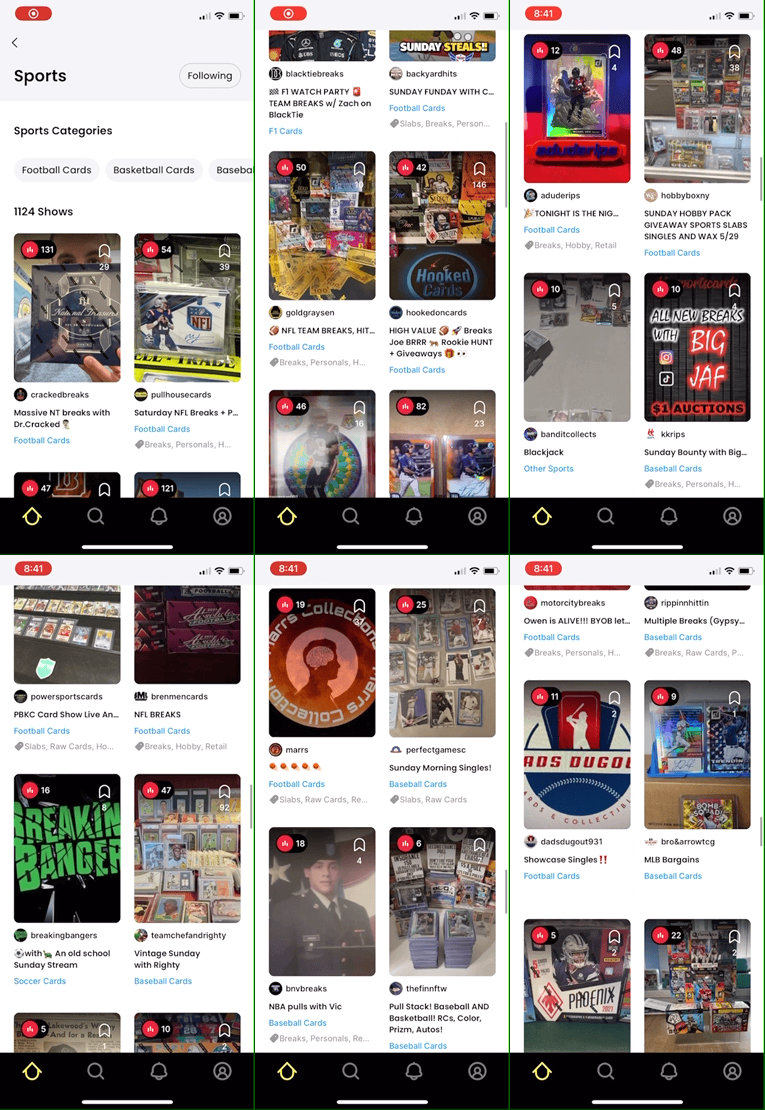
Here is a demo of what that looks like:
Key Takeaways
Pageablehas allowed us to create many sources that can be paged- updating state to SwiftUI views is as simple as setting a property
PagingStatemakes ourPagingViewModeleasy to reason with
We’re just getting started on our iOS journey. Interested in building with us? We’re hiring!
Special Thanks to Alex Chase and Rami Khalaf