
The ‘Luggable’ laptop, how does it look today? Part II — Toshiba T3200 from 1989
Nowadays everybody can afford a laptop. But how did this era begin? Let’s travel back to the time when portable computers were large, heavy and expensive. This is the Toshiba T3200SX from 1989 — a ‘luggable’ computer with 1MB of RAM, 40 MB HDD and a gorgeous 640x480 16-grey-shade gas plasma screen:
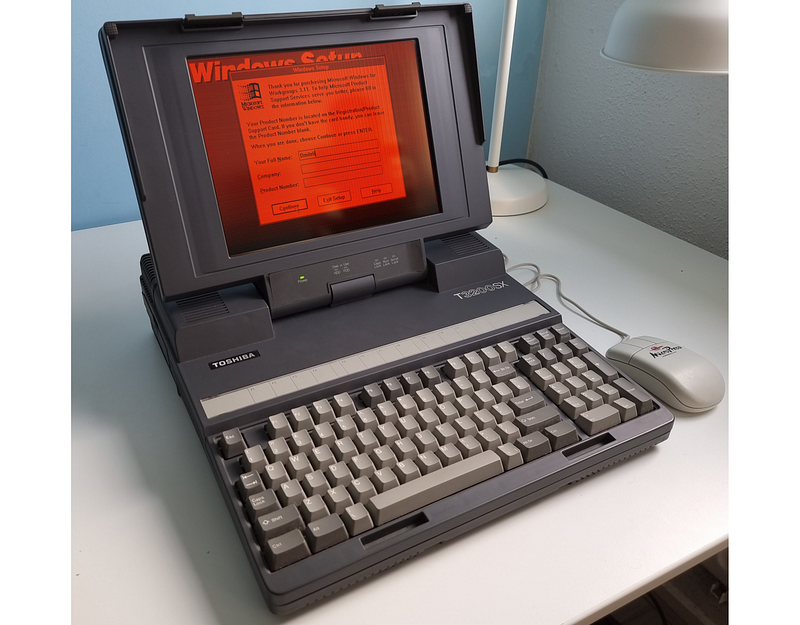
As I wrote in my previous articles, almost any specs, images and datasheets can be easily found online. But this will not help to get the feeling of the real use of this or that device. And finally, testing the real computer is just fun. So, when I saw this machine on a local market for only 100 Euros, I immediately decided to try it on my own.
Firstly, I will check the hardware, in the second part I will install the OS and some software, and finally, I can run some code on this laptop. Let’s see how it works.
Specs
The review of the previous model, Toshiba T3100 from 1986, was published in the first part, and as we can see, within several years Toshiba did enough improvements. Let’s check what hardware do we have:
CPU: 16 MHz 80386SX RAM: 1 MB (640 KB standard + 384 KB extended), expandable up to 13MB Video RAM: 256 KB, 640x480 VGA HDD: 40 MB or 80 MB IDE OS: MS-DOS 3.3 or higher Extensions: two (8 bit and 16 bit) ISA slots Price: $6,299 ($13,896 in 2021) Weight: 7.9 kg
Just for the comparison, the previous model, Toshiba T3100, which was released only 3 years earlier in 1986, has the 80286 CPU, an MFM hard disk drive (which is almost impossible to find nowadays) and an RGB port instead of VGA. The VGA screen resolution 640x480 on the Toshiba T3200 is also much more “standard” and compatible with different apps than the monochrome 640x400 screen on the T3100. The RAM can be expanded much more easily — from the proprietary RAM extension board Toshiba switched to standard SIMM slots. In general, the Toshiba T3200SX is a nice compromise for those who want to test on their own how vintage computers work but does not want to spend too much time and money on the restoration of really old machines like Osborne 1 or Compaq 8088. Toshiba’s specs are even good enough to run Windows, which is also fun.
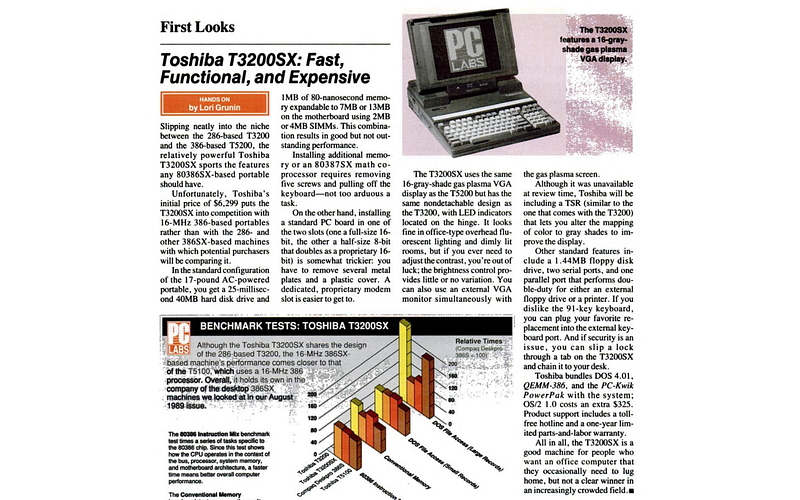
Nowadays 80386SX processor and 1MB of RAM looks like something ancient from the previous century era (and it actually is), but at that time these machines were at the cutting edge of progress:
Hardware
I am absolutely aware that 95% of readers will not be interested in the details of the 32-year-old hardware, they can just skip this part and go to the next chapter. I am aware, just because my previous story about the restoration of the Compaq LTE laptop from 1997 got the minimum number of reads compared to other stories, but I still think, it is important to publish this data. Firstly, it can be a starting point for others who will decide to repeat the process on their own. Secondly, sometimes it can be hard to find information about vintage hardware — old web pages are often closing, images on free hosting are becoming unavailable, and so on. Thus it is important to keep this heritage and this information, and maybe our children or grandchildren will be able to see these old machines not only on the Wikipedia pages but also in the working condition.
Disassembly
When we buy an old machine like this, there are several things that can be wrong, but in most cases, it is not so hard to fix them. Alas, Toshiba’s design from that era is not upgrade-friendly. There are many components inside most of them cover each other, and for example, to remove the hard drive you need to disassemble most of the parts including the monitor. I recommend downloading the “Toshiba T3200SX Maintenance Manual” first, it’s a nice document that describes all steps required to disassemble the laptop. At least, there are no proprietary screws or glued components, all can be done using a screwdriver. I tried to use my iFixit tools set, but the machine is so big that you will probably need a screwdriver from the local furniture shop instead of modern tools designed for modern laptops. But anyway, after the disassembly we can finally see the motherboard, which looks like this:
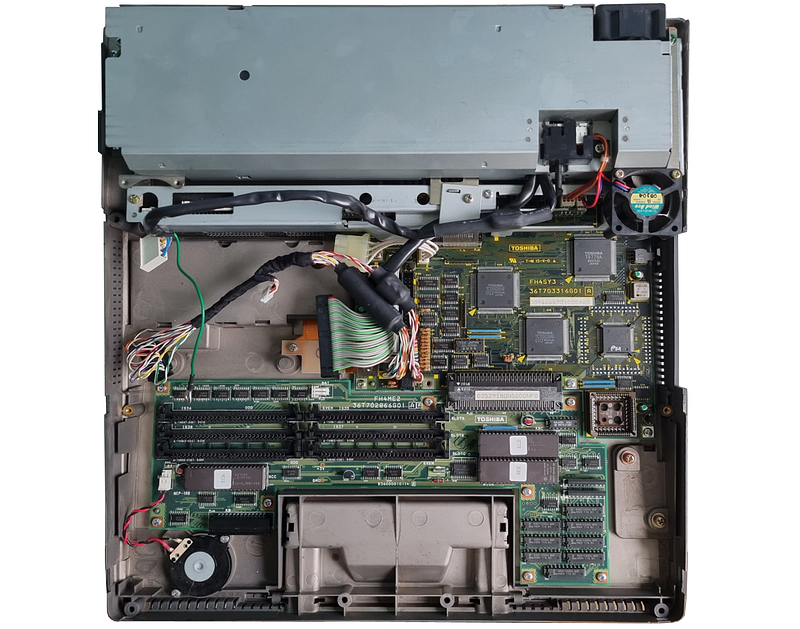
As we can see, the Toshiba T3200’s design is much better compared to the previous model T3100/20. The RAM can be expanded using SIMM slots, the 80387 math coprocessor can also be installed. The hard disk connector is IDE compatible, there is no Winchester hard disk controller on the separated board anymore.
Ports
Luckily, the ports on this machine are also more or less “standard”. On the T3100SX we can see two COM ports, one parallel port, and an “RGB” port, which is actually (hurray!), VGA-compatible.
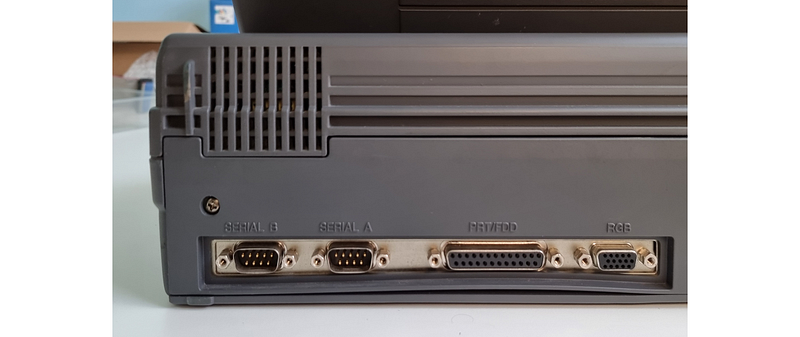
This laptop is 32 years old, but surprisingly, I can connect it to my AOC IPS monitor without any adapters!
RAM
The first tricky part is memory. The Toshiba T3200SX has 1 MB RAM soldered, and up to 14 MB can be added using 30 pin SIMM modules. 1 MB will be enough to run MS-DOS, but this computer was definitely designed for more. The memory can be upgraded, and it was actually far from cheap:
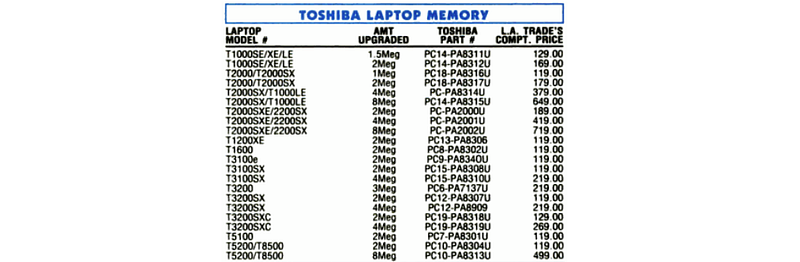
On the other side, if somebody was able to spend $6,299 for a laptop, paying $238 extra for an additional 4 MB of RAM probably was not a problem. The problem is that the T3200SX was designed to work only with genuine Toshiba RAM modules, which are nearly impossible to find nowadays. I think it was done intentionally, and in most cases, the laptop does not work with RAM from other manufacturers — it will show a “Memory parity failure” error because one of the control lines is missing on the mainboard. Luckily, the solution was found by enthusiasts. It is enough to cut the trace on the SIMM module that is connected to pin 28 (CASP line) and reconnect it to pin 2 (CAS line). The mod is pretty easy to do with a multimeter, soldering iron and a piece of thin AWG 30 wire. The process should be done at least twice (these modules can work only in pairs), on my RAM modules it looks like this:
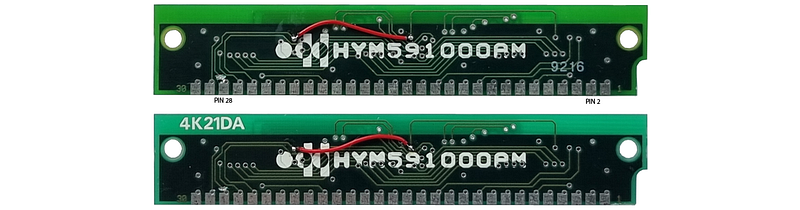
The price of each module nowadays is about 10$ on eBay, so it is not too expensive to make a nice upgrade. I bought 3 pairs of SIMMs from different manufacturers, which gave me 6MB of RAM in total:
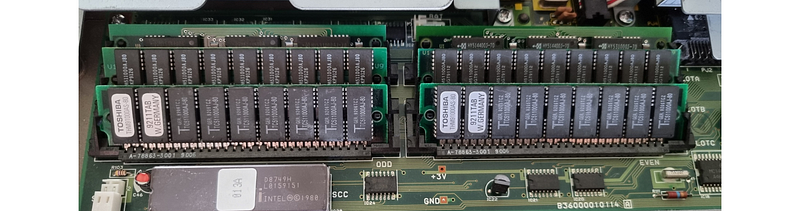
The RAM soldered on the mainboard, consists of eight MB81C4256–80 chips, which have an 80ns access time. So, with this mod, you can use any 30-pin SIMM which has an access time of 80ns or smaller. In theory, 2MB modules can also be installed instead of 1MB ones, which will double the total memory size, but I don’t see a big reason for that — 6 MB is enough for the software from the early 90s like Windows 3.1.
CMOS Battery
Most of the newer motherboards use the standard 3V CR2032 battery. But Toshiba T3200 was using the ER14505 3.6V lithium battery, which is connected in series with a 330 Ohm resistor:
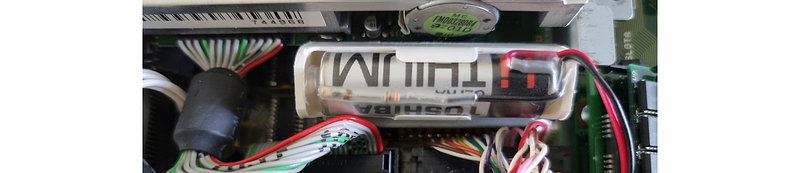
These batteries are still on sale, and it is easy to buy a new one.
HDD
The next tricky part is the hard disk drive. Technically, the T3200SX has a standard IDE interface, so installing a new disk drive or CF/SD emulator should not be a problem. But for unknown reasons, Toshiba decided to restrict the IDE usage to these Conner drives only (SD card here is only for size comparison):
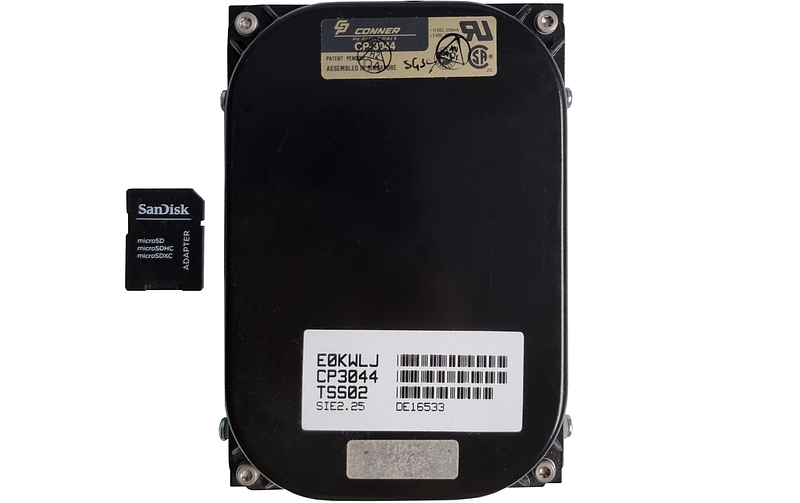
I don’t know if was it made for marketing reasons, or just because Toshiba’s BIOS did not work properly with other hard drive manufacturers. Anyway, the Toshiba T3200SX will not detect the disk drive if its name does not start with “CP” (Conner Peripherals). This limitation was added to the BIOS version higher than “003C” (the version number can be found on the BIOS chip, in my case, it was “003E”):
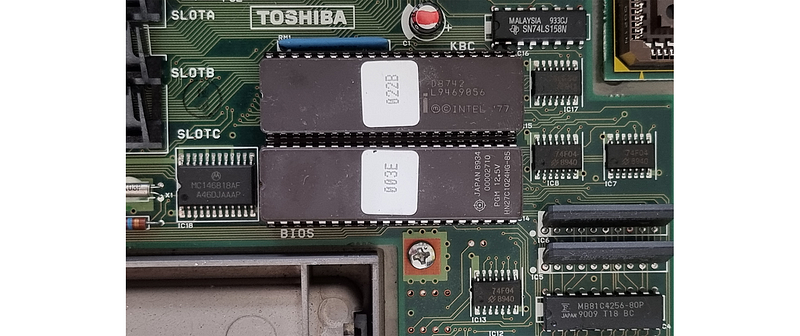
Most of the old Conner drives from the 80s are not working anymore. Luckily enthusiasts have found the solution — the BIOS can be replaced with an older “003C” version or with another BIOS based on open-source XT-IDE. The second solution is better because the old 003C version will detect any disk as a 40 MB drive regardless of the real size, these values were probably just hardcoded. To update a BIOS to the latest one, you will need a fresh AT27C102470PU ROM chip and an EEPROM programmer, the proper BIOS image can be downloaded from the steptail.com website. I programmed the new BIOS chip using the TL866II Plus programmer:
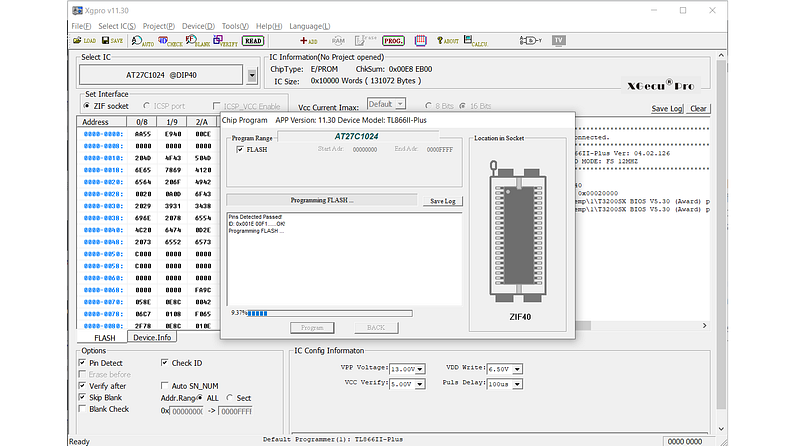
These chips can be programmed only once, so it makes sense to have 2–3 of them, just in case if something will be wrong. Buying an EEPROM chip was also a bit tricky because of the well-known 2021 chip shortage problem — the AT27C1024 itself costs only 3.35$ but the delivery time was almost a year:
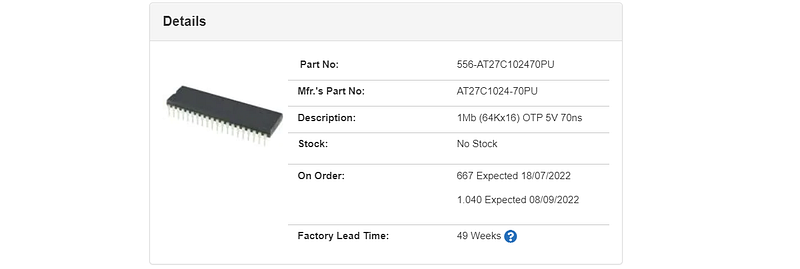
Finally, I’ve found another chip from an eBay seller, but the cost was about 4x higher. These sellers are definitely aware of the shortage problem and making a profit on it, but it was easier to pay 15$ instead of waiting for such a long time.
With the replaced BIOS I can use any HDD, and also the IDE to Compact Flash adapter:
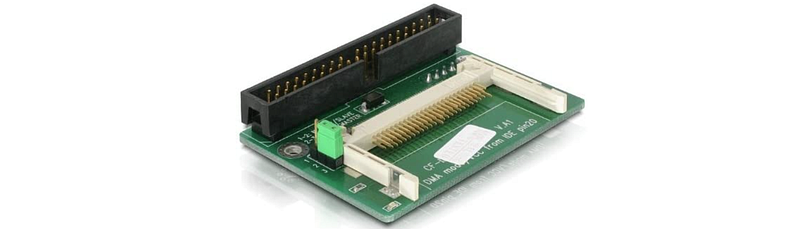
Compact Flash is logically and electrically compatible with IDE, so these adapters are pretty cheap and straightforward in design. Replacing and upgrading the system using the CF card is also easy and convenient, so this type of upgrade can definitely be recommended.
Now we are ready with the hardware, let’s check the software.
MS-DOS
The Toshiba T3200SX was released in 1989, and the logical choice for the system will be MS-DOS. I’ve installed the MS-DOS 5.0 Toshiba OEM version, the process was described in the first part.
The DOS window looks almost the same on T3200, but comparing to the T3100/20, which was reviewed in the first part, this computer is much more powerful.
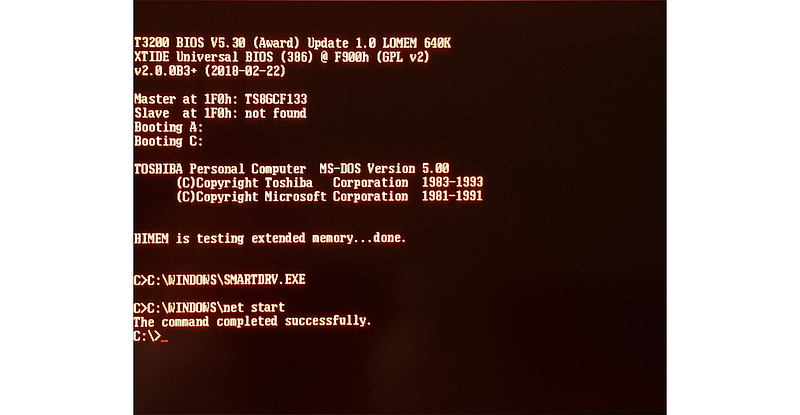
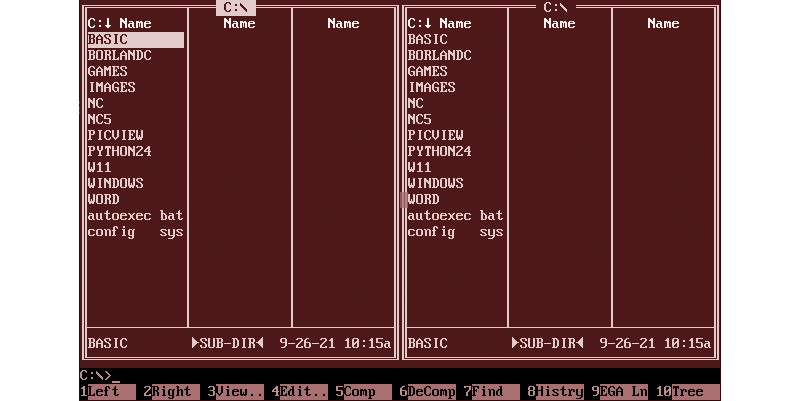
This machine has 6MB of RAM compared to 640KB on T3100, some apps were not able to run on the 80286 CPU, but with the 80386, the situation is much better. For example, the Norton Commander 5.0 was not working on the T3100, but it works well on the T3200:
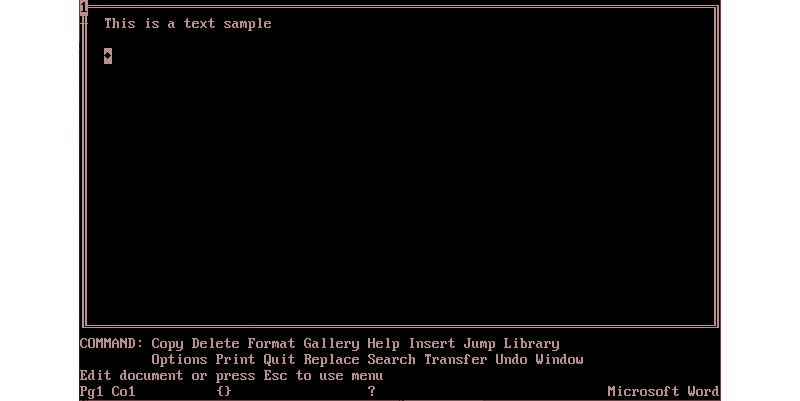
We can also use some productivity software like Microsoft Word for DOS:
Let’s try to connect T3200 to the outside world. Norton Commander 5.0 has the terminal application included, which allows to make a serial port connection and even exchange small files:
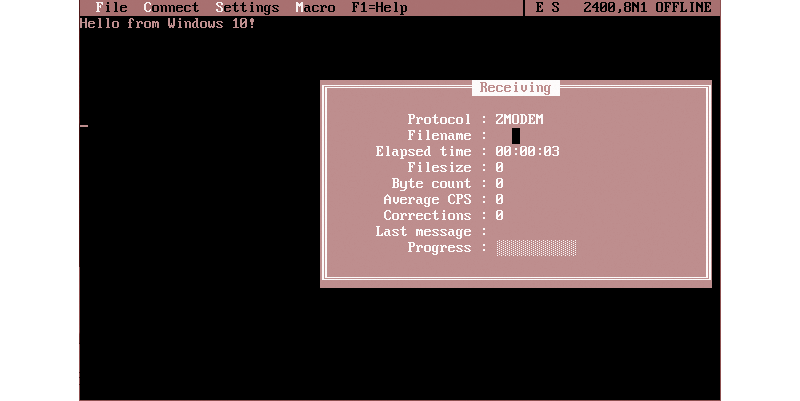
I was able to send files from my Windows 10 PC — this is actually amazing, considering that these machines were built in different centuries. It is even possible to use T3200 as a remote terminal for a Linux machine like a Raspberry Pi. To do this we need to connect a serial cable to the Raspberry Pi and run the TTY service in Linux:
sudo systemctl start serial-getty@ttyUSB0.serviceThen we should see the Linux login on Toshiba’s screen:
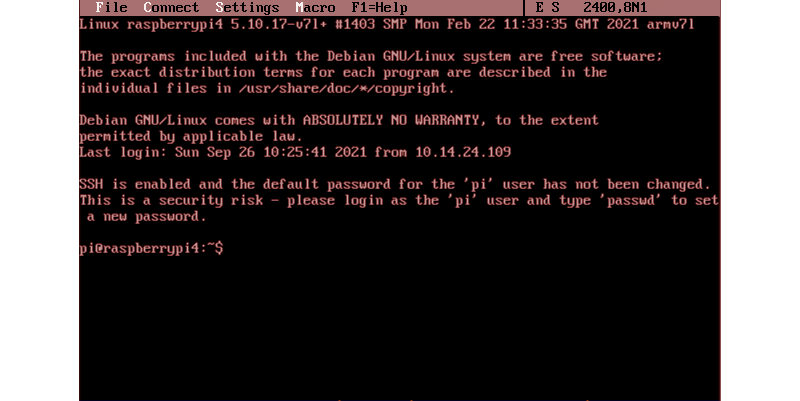
Using the Raspbian login, we can make some fun, for example, log in to the BBS. Before the widespread use of the internet connection, it was the only way to exchange files and messages. Surprisingly, some BBS are still running and supported by enthusiasts. But first I need to build syncterm terminal app from sources on the Raspberry Pi:
sudo apt-get install libncurses5-dev libsdl1.2-dev
wget http://syncterm.bbsdev.net/syncterm-src.tgz
tar -xvzf syncterm-src.tgz
cd syncterm-20210925/src/syncterm/
make -j4
sudo make install
Then we are ready to login. In the 80s, the connection was made via the dial-up modem, now it’s even easier — using the telnet protocol, any BBS from any part of the world can be available. I’ve found the “Synchronet BBS List” list on this page, let’s try one of the addresses:
syncterm telnet://frugalbbs.comThe ASCII graphics is not working 100% properly, but we can at least get the feeling, how people were communicating and exchanging files in the pre-internet era:
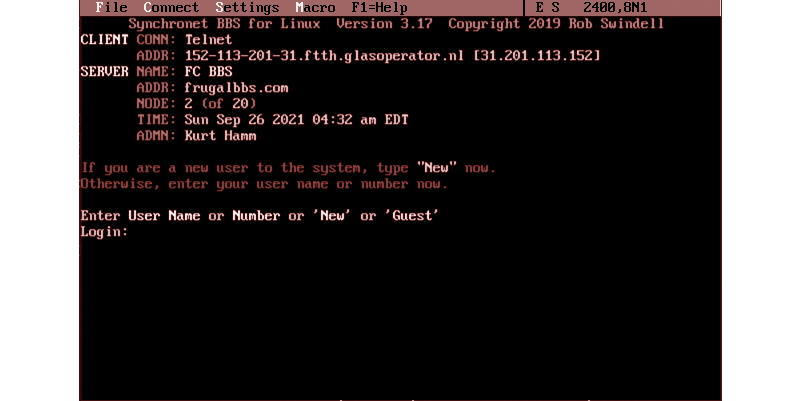
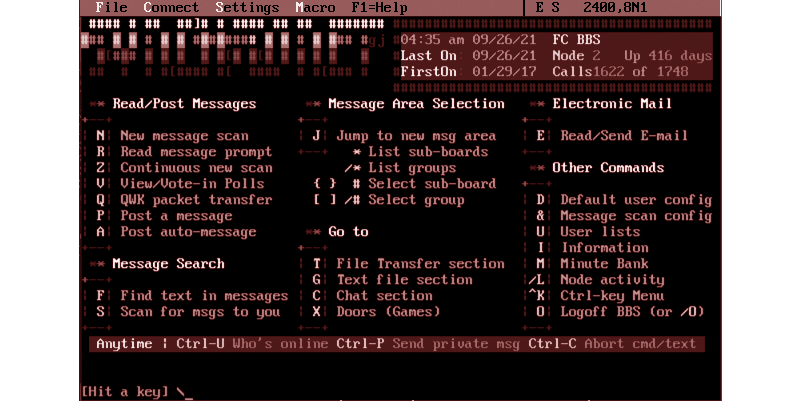
As we can see, the interface is plain-text only. All actions like downloading the files were also made via the text interface:
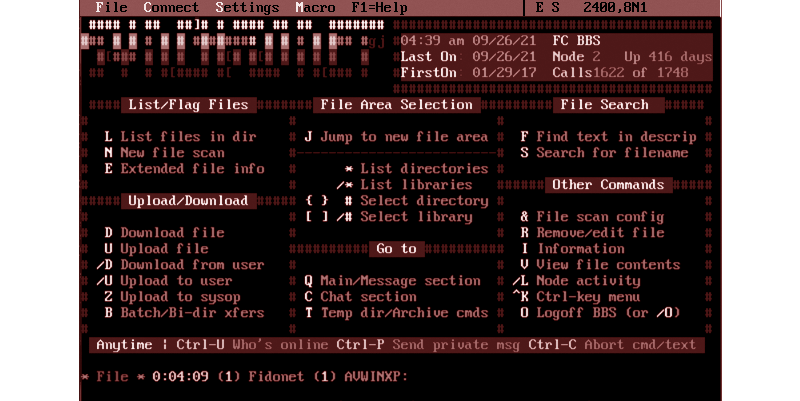
At least, there were no Adobe Flash, no annoying banners, no ad popups and google analytics at all.
After ending the connection, we can stop the TTY service on the Raspberry Pi:
sudo systemctl stop serial-getty@ttyUSB0.serviceAnd finally, let’s try to run some MS-DOS games:
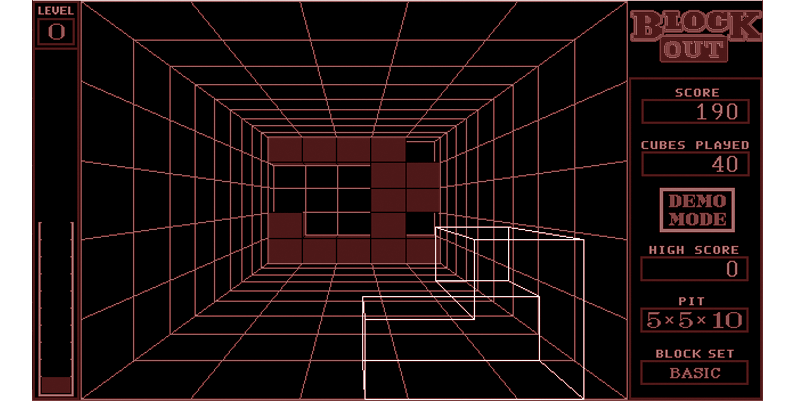
The black&red gas-plasma screen is not the best choice for 3D shooters like Doom, the picture is barely visible:
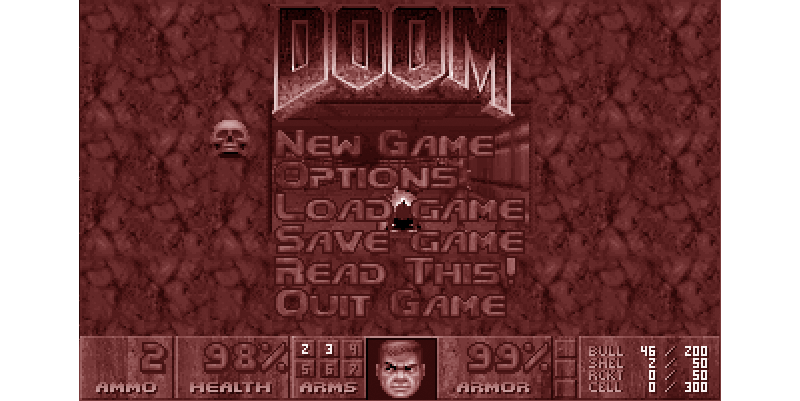
And the 16 MHz 80386SX CPU is not powerful enough for this game anyway, even using the small screen area the frame rate is too low.
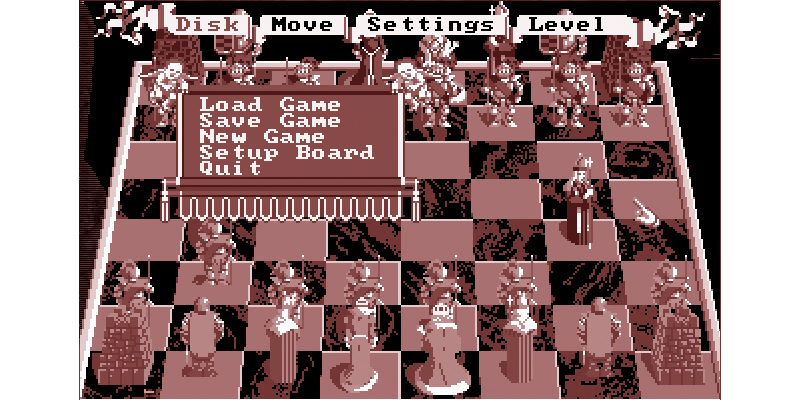
Other games, like Battle Chess or Lemmings, are playable good enough:
Windows
The next thing, we should try, is Windows. The Toshiba T3200 was released in 1989, and Windows 95 did not exist yet. But we can try Windows 3.1 — it was made in 1992, and was an obvious choice for the laptop owner.
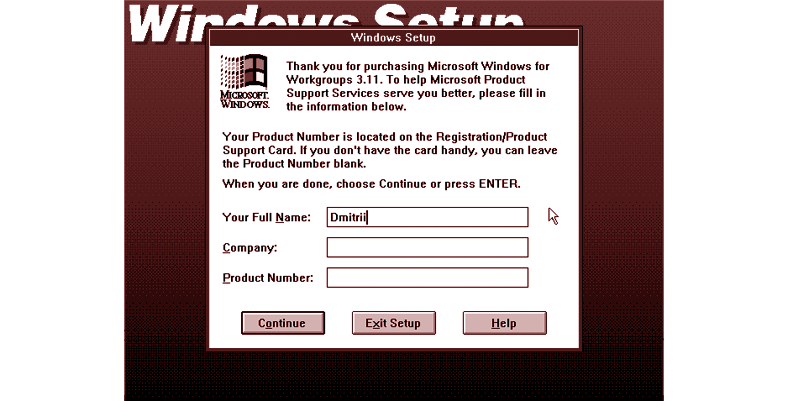
Surprisingly, the installation files have only 11 MBytes of size — and we get a fully-fledged operation system, even with some network capabilities:
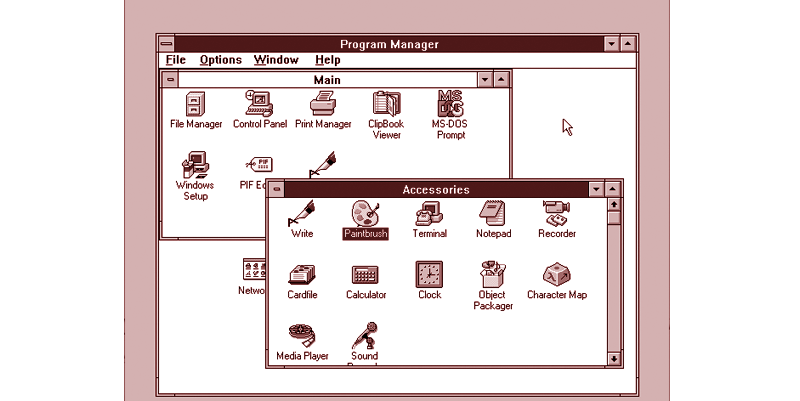
Toshiba T3100 does not have the Ethernet adapter anyway, though it is possible to install an ISA network card.
Different applications can be installed, for example, Microsoft Word 2.0:
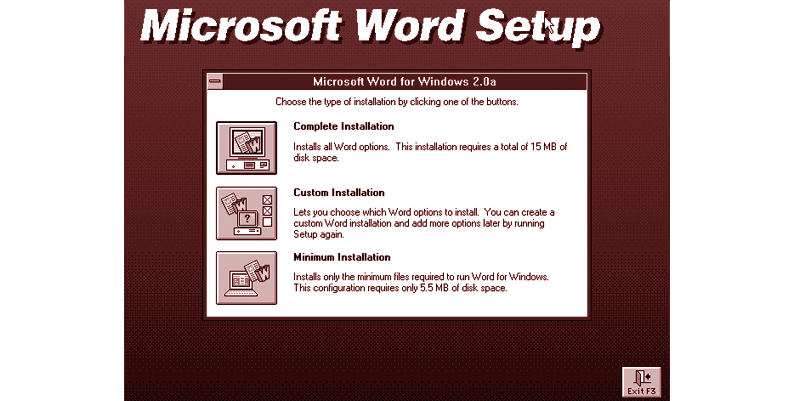
A question to the attentive readers — do you see something ‘weird’ on this screenshot? The complete installation of Microsoft Word requires only 15 MB of disk space! Maybe something is wrong with the modern app's size? The text editor itself works good enough, the WYSIWYG (What You See Is What You Get) technology allows to use of fonts, formatting, and even paste images:
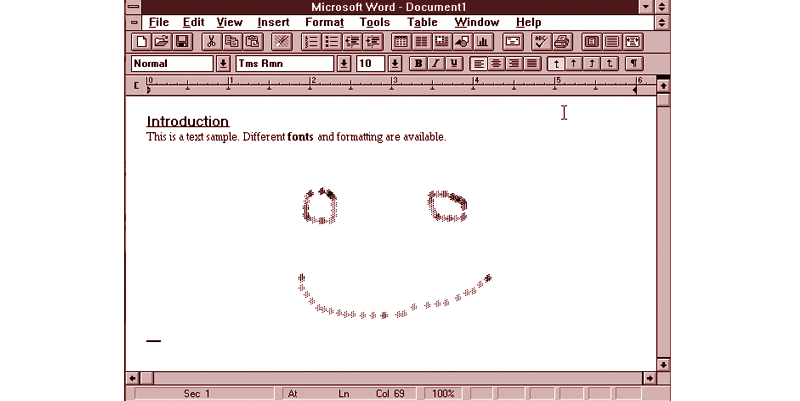
It is a big step forward comparing to the MS-DOS text editing, and in general, not too bad for the editor which requires only 15 MB of disk space, isn’t it?
Programming
Now let's try to run some code on Toshiba T3200. The BASIC program for calculating the PI number was published in the first part. This example is good enough to see how BASIC works and to compare the calculation speed on two machines. Historically, BASIC was the first language, available for personal computers, and in the MS-DOS time it “evolved” into a pretty nice text-mode IDE:
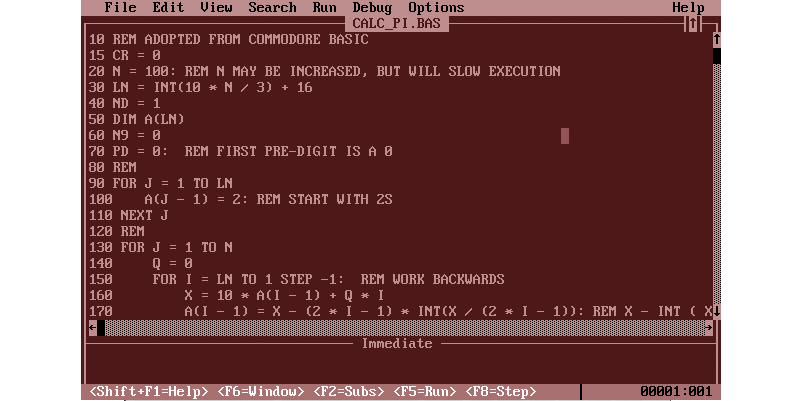
Alas, BASIC is the interpreter, and the program execution is painfully slow. On the 8MHz 80286 CPU, this code is executing 4 minutes and 39 seconds. Toshiba T3200 has an 80386SX CPU, running on 16 MHz, and the calculation is obviously faster — it takes only 2 minutes and 20 seconds to get the results:
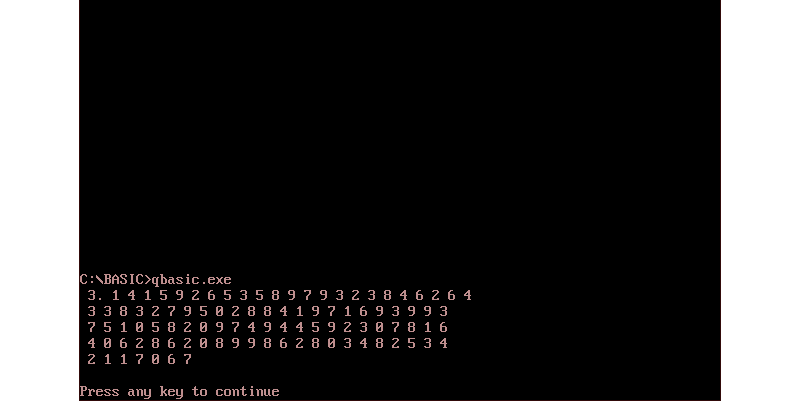
We can see that the 16 MHz 80386SX processor is about 2 times faster than the 8 MHz 80286. I was expecting a bigger difference, but maybe this BASIC interpreter is not using new 80386 CPU commands at all.
Now, let's see, how it works on Windows. But first, we need to install Visual Basic — a new tool that Microsoft had created for BASIC developers:
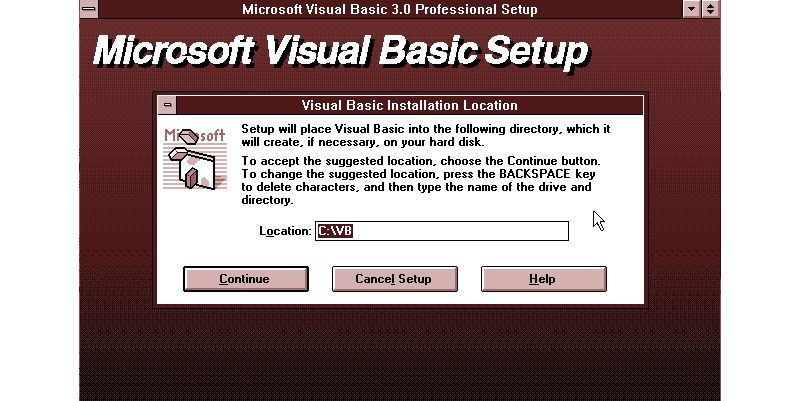
As we can see, BASIC evolved into a full-fledged IDE, which can support all Windows controls — a big step further compared to the MS-DOS version.
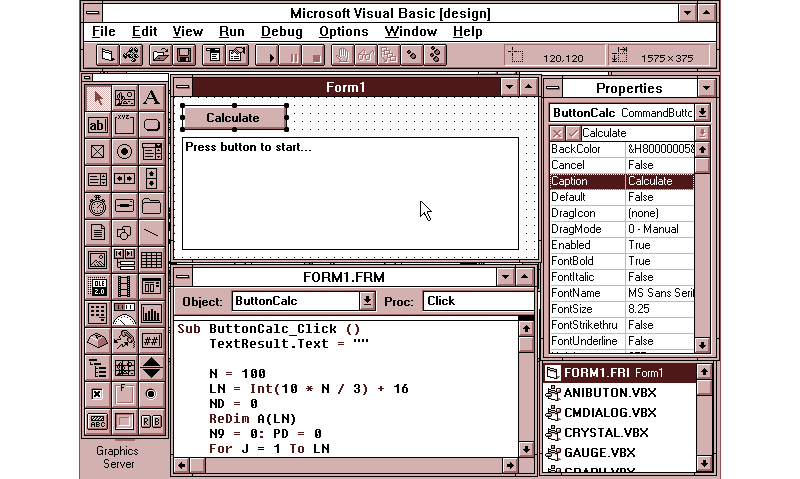
I changed the Pi calculation code from the “original” to the Visual Basic format. The logic was the same but instead of the console output, the data is just adding to the text control, all UI and messages processing is hidden from the user and working “under the hood” of the VB app.
Sub ButtonCalc_Click ()
    TextResult.Text = ""

    N = 100
    LN = Int(10 * N / 3) + 16
    ND = 0
    ReDim A(LN)
    N9 = 0: PD = 0
    For J = 1 To LN
       A(J - 1) = 2
    Next J
For J = 1 To N
Q = 0
For I = LN To 1 Step -1:
X = 10 * A(I - 1) + Q * I
A(I - 1) = X - (2 * I - 1) * Int(X / (2 * I - 1))
Q = Int(X / (2 * I - 1))
Next I A(0) = Q - 10 * Int(Q / 10)
Q = Int(Q / 10)
If Q = 9 Then
N9 = N9 + 1
ElseIf Q = 10 Then
TextResult.Text = TextResult.Text & PD + 1
For K = 1 To N9
TextResult.Text = TextResult.Text + "0"
Next K
PD = 0: N9 = 0
Else
Rem Ignore the first digit during the output
If ND > 0 Then
TextResult.Text = TextResult.Text & PD
End If
If ND = 1 Then
TextResult.Text = TextResult.Text + "."
End If
ND = ND + 1 PD = Q
For K = 1 To N9
TextResult.Text = TextResult.Text + "9"
Next K
N9 = 0
End If
Next J
End SubThis is not the best code sample, and it will probably not pass the code review nowadays, but anyway it is a big step further in readability compared to the original version (source can be seen in the first part). And as a next nice improvement, Visual Basic allows to make an EXE file, which can be run standalone like any other Windows app:
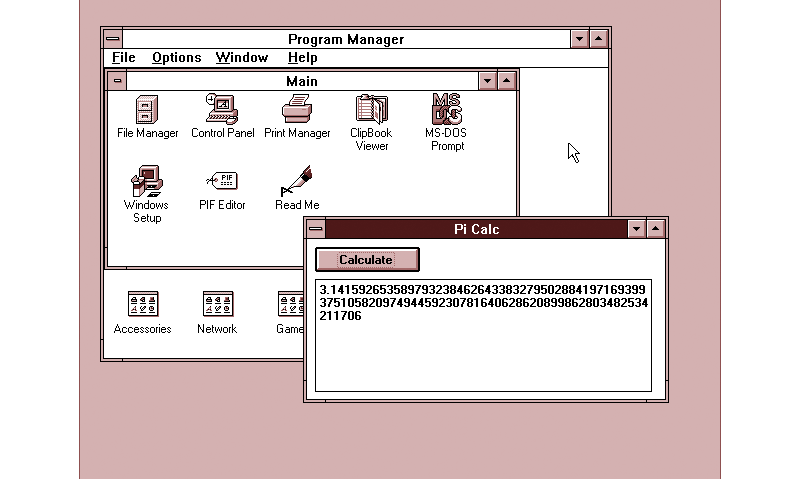
The execution time was also improved — it is “only” 41 seconds, almost 3 times faster compared to the QBasic code running in MS-DOS. Let’s say, it is far from perfect — the same C-program (listing is in the 1st part of the article) is executing only 0.5s on the same laptop. But Visual Basic was probably not intended for math and heavy calculations at all, for simple apps and forms it should be more than enough. And as I can see, Visual Basic still exist nowadays as a part of Microsoft Visual Studio — a pretty long lifespan for a programming language.
Conclusion
It was fun to test the laptop and to see how this stuff works. As I wrote before, there are several reasons for that.
- When using the real thing, you’ll get the feeling, you’ll never get by reading any kind of article or watching any video. If you are interested in how old stuff works, it’s absolutely worth doing it at least once, and it is not too expensive. Trust me, even carrying this 8kg laptop from the post will give you a much better feeling of how people were using portables in the 90s ;)
- Ergonomics. Vintage laptops, even from the 90s, usually have nice mechanical keyboards, and it is also interesting to test it. Nowadays, when manufacturers trying to make a laptop 1mm thinner than competitors, the comfort of typing is actually just getting worse. I hope, someday this will return — technically there is no problem to make a modern laptop with a good keyboard. Even if the laptop will be 1 cm thicker, it is actually not a problem, some company just needs to get up the courage to do so.
- Testing and restoration of the vintage hardware giving some challenges, like investigating the hardware and software, need of some soldering skills and patience to find missing parts. It is also a good opportunity to learn something new, and the ‘vintage’ market is surprisingly big — enthusiasts are still making some parts for vintage XT machines, Macs or old Amigas.
- It is interesting to see that top specs are not so often required for work and productivity. This laptop has only 16 MHz CPU and 6 MB RAM, and I can work with texts and code on it, the lags are not drastically longer than on my current desktop with many gigabytes and CPU cores. What’s wrong with processors performance today? This question is not so straightforward and maybe requires another, even bigger, article…
- It is interesting to compare the lifespan of different tech brands — 30 years ago markets shares were drastically different. How many people are using Toshiba, Zenith or Compaq laptops today? How many people remember Commodore? These popular and top brands almost completely disappear in history, and I have a feeling that within the next 30 years, the same will happen with brands that we respect as “iconic” nowadays.
As always, thanks for reading. In the next article, I will run some code on the vintage Compaq Portable XT machine with CRT display, stay tuned.


