
The Literal Key to Your Online Safety
How a small USB key can change your life
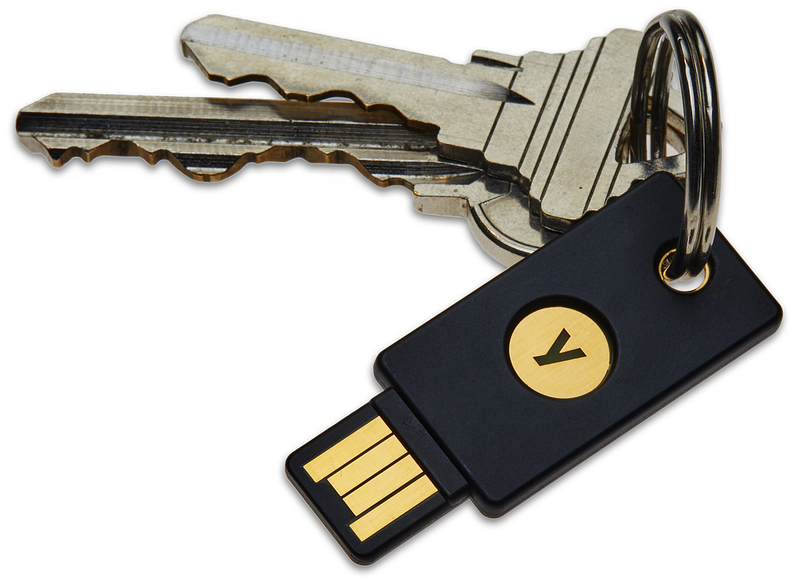
For over a year, I’ve written extensively about how using a handful of simple, free and powerful tools can help make our online life safer and more secure. While no tool that can guarantee 100% online safety, I focus on those tools which — when used individually or together — can make getting hacked significantly less likely. Even better, I try to spotlight those tools which are easy to use — even for a novice — and don’t add much complication for the extra security they provide.
Today, I’d like to talk about one of those tools: a security key.
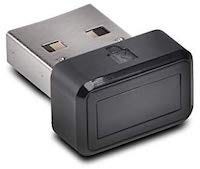
A security key is a physical device that looks similar to a USB thumb drive. If you look at the picture above, you’ll notice the resemblance immediately. Just like a USB drive, a security key plugs into the USB port of your computer but once inserted, it provides something that no USB drive can provide: the ability to validate your identity.
It’s insanely cool, but before we dive into the details, let’s review some security basics, OK?
Security At Home
To get into my home, I need to have something: a key. When I insert my key into the front door lock and turn it, I’m granted entry into my home. Simple and effective! One locked door protecting my home means that I have exactly one layer of security between me and the outside world. While that level of security is enough for some people, many don’t see it as adequate. As a result, they add a second level of security: an alarm system.
To bypass an alarm system, I need to know something: a password. An alarm system requires a deactivation code which I must remember to be granted safe entry into my home. Slightly more effort required than a key, but doubly effective! One locked door plus one alarm system protecting my home means I have two layers of security between me and the outside world. While that level of security is enough for most people, some — perhaps those with extremely large or valuable homes — don’t see it as adequate. As a result, they add a third level of security: gated access to their property and a remote mechanism to open the gate once guests are properly identified.
Security in Technology
Just like we can always add extra layers of security to better protect our homes, we can — and should — do the very same thing with our most vulnerable technology: our email, social media accounts, bank accounts, and online shopping accounts. We accomplish through repeated requests for proper authentication. “Authentication” is a fancy word that just means “proving your identity”. It turns out, there are only three methods of proving your identity:
- Something you have: like a passport, drivers license or a house key from our home security example.
- Something you know: like a username, a government ID number or the alarm passcode from our home security example.
- Something you are: a part of your body that no one else on the planet has, like your fingerprints, your iris, or your voice.
USB security keys focus on the first two kinds of authentication: something you know and something you have.
Using Multiple Kinds Of Authentication
It’s well-established that logging in to any website with only a username and password to protect you is incredibly dangerous. That’s because most passwords can be hacked in seconds. Or less. Instead, what’s recommended by security professionals is to use two or more forms of authentication. However, we want that second layer of authentication to be so easy to use, that it feels effortless! And that’s where a security key comes in handy. After setting up your various accounts for security key access — something we’ll discuss shortly — you’ll still enter your username/password for a particular website. However, once you’ve done that, you’ll then be prompted on screen to insert your USB security key.
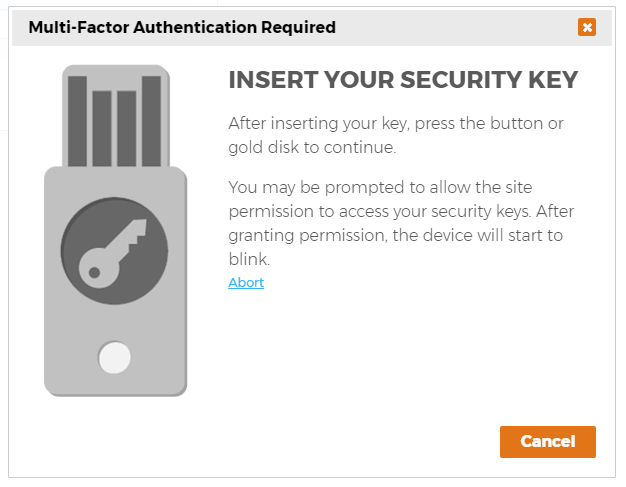
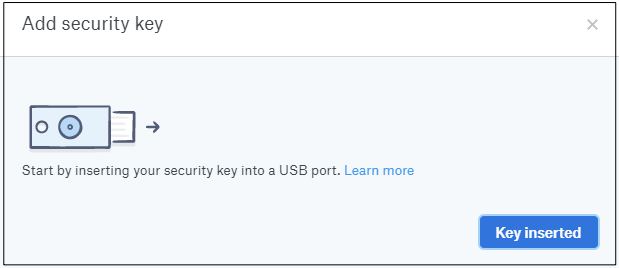
Plugging your USB security key into the computer you’re using is quick, simple and it makes it nearly impossible for your account to be hacked, even if your username and password are stolen. I don’t say that lightly, so I’ll just let the company known as Google speak for me:
“We have had no reported or confirmed account takeovers since implementing security keys at Google.” — a Google spokesperson.
You read correctly. After over one year of requiring all of its 85,000+ employees and contractors to use security keys, the company wasn’t able to report even one, simple account breach. Google designed and implemented their own security keys and, as you’ve just read, it was so successful, they’ve begun selling those devices to the general public, something I’ll cover in a bit.
Purchasing the Right Security Key
While the cost of a USB security key isn’t expensive — they cost about $25 on average — you’ll want to purchase something that will work now as well as the future. There is an international alliance of companies and security professionals who help set the global standards for how this amazing technology works. It’s known as FIDO. No, it’s not the name of your neighbor’s dog from back in 1945, but an acronym for “Fast Identity Online”. FIDO has thrown their weight behind two protocols:
- UAF, or Universal Authentication Framework. This framework uses your biometric data — your fingerprints, voice, facial or eye scan — in the place of passwords. This is why it’s sometimes called “passwordless”.
- U2F, or Universal Second Factor. This framework uses hardware chips — Bluetooth, NFC chips (used for smartphone payments), and USB security keys — to help verify your identity.
FIDO is built on “open standards”, which means no one company controls the technology. For example, WiFi and USB are other open standards that you probably recognize. When purchasing a USB security key, purchase one with the FIDO “stamp of approval on it”. Those stamps look like this:
Although you can comparison shop on Amazon, let me just break down your choices down into four options.
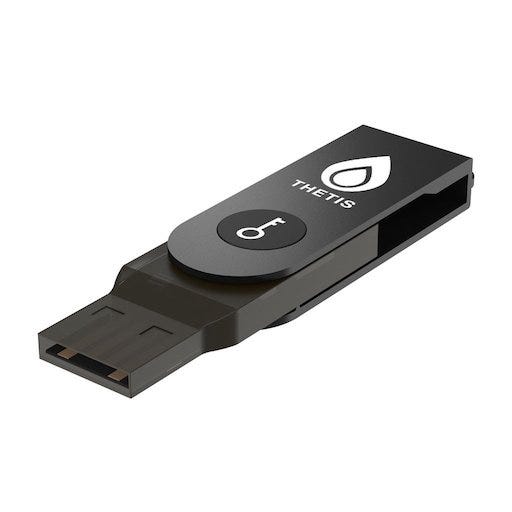
For those on a budget: grab the FIDO U2F Key from Thetis: it sells for under $20, comes in three different colors and includes a 1-year warranty! It’s got a protective aluminum shell and the key swivels out when needed. There’s a small place a the top where you can add the Thetis to a keyring for easy transport.
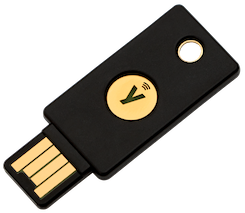
For those wanting security on both a computer and an NFC-enabled smartphone: grab the Yubikey 5 NFC. It’s more expensive at $45 but has more uses than the Thetis. Please note: as of November, 2018, the current wait times for this popular product is up to 4 weeks, so be patient! If you just can’t wait, you can always grab the Google product I mention in two paragraphs! By the way, for those who are curious, NFC smartphones are those which can use Pay, Samsung Pay or Google Wallet to make purchases at stores.
For those with a Windows computer who want fingerprint tech: get the Kensington Verimark. It’s the only solution on this list that uses your fingerprint to unlock your accounts. Incredibly, this tiny USB device can detect your fingerprints from ANY direction (neato!) and also works with the comically-named Windows Hello technology.
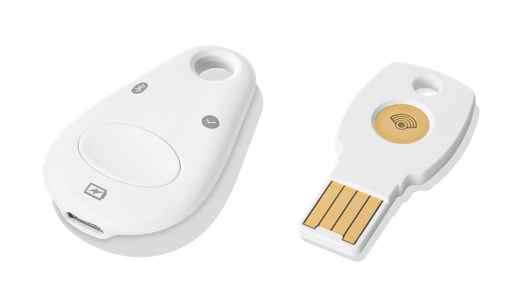
For those who like matching Google-branded tech: Google staffers have been using these devices internally for some time, but the company decided to sell the Titan kit to the rest of the world starting in 2018. At $50, it includes BOTH a USB security key and a Bluetooth security key, made to work with mobile devices.
Setting It Up
First, you’ll want to discover if your service provider offers this kind of security. TwoFactorAuth.org is the best resource to discover if the website you frequent offers this service or ANY two-factor-authentication service. If your service or company has a check mark in the “Hardware Token” category, then the service is offered! Click on the “Docs” link to open the webpage on the providers website to learn how to set up and use your USB security key.
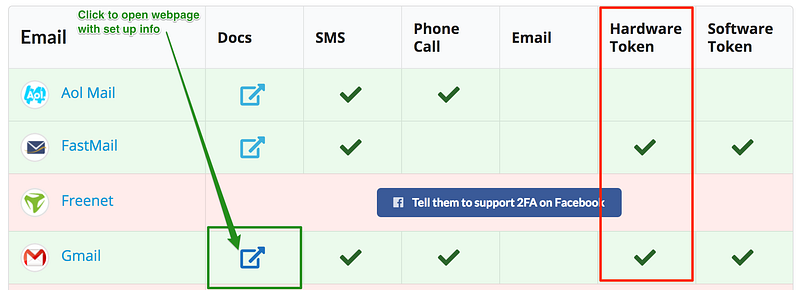
Pro tip: if the only option offered is a “Software Token”, please take it! Use the guide I wrote at this link to learn how. Any form of two-factor-authentication is better than having only one factor.
In general, every member company in the FIDO alliance offers the hardware token service including: Google, Dropbox, Microsoft, Facebook, Twitter, GitHub, PayPal, Bank of America, Salesforce, and many, many more. In the future, I’d expect this service to be added to many more thousands of services and providers. I’M LOOKING AT YOU APPLE.
Now, on to two specific examples…
Gmail: Most folks simply log in to Gmail with a username and password to check email. As a member of the FIDO Alliance, Google maintains an info page which walks you through how to activate and then use a USB security key in conjunction with your Google account. Here’s a brief video demonstrating what this process looks like if you’re signing in to Gmail with a Yubikey product.
Facebook: even though Facebook is a truly awful company, everyone on the planet uses their service including, I’m told, unborn children. As a member of the FIDO Alliance, they support hardware tokens and maintain an info page on how to set up using a USB security key with your account. But who likes reading?!? Here’s a one-minute video that explains how to use your new USB security key with your Facebook account:
The Caveats
As always, there are some caveats and conditions, so let’s dive into the most glaring ones so you’ll be best prepared for using your new technology.
- Browser brinkmanship. As of November 2018, the USB security key is supported on Google Chrome, Opera and Mozilla’s Firefox. Notice any one missing from this party? I’M LOOKING AT YOU APPLE AND MICROSOFT. #Sheesh
- Have a back-up plan. If you lose your USB security key, you’ll need a get-out-of-jail card. Your best bet is to buy and register a second security key or use the backup codes that each service also provides. Store those codes and/or your backup security key in a safe place, please.
- iOS headaches. While I expect Apple to eventually support the FIDO Alliance, right now they don’t. Therefore, using a security key with your iOS device take a few extra steps, like downloading a special Google app. Although Google outlines what to do at the bottom of this page here, I’d instead check out the very thorough write-up that Guillaume Ross provides in his article.
- Avoid Google’s “Advanced Protection Program”. Unless you’re a security professional or someone who requires top-tier security, I’d avoid using this Google program. It’s powerful but creates many restrictions which, in turn, cause other changes and problems that most folks might wish to avoid.
Otherwise, if you’ve got solutions that I’ve missed or need to know about, please share in the comments section. I always remind myself and others that we all learn much better as a community than as individuals. I try to respond to everyone who writes because, well, it’s the nice thing to do, so don’t be shy. Otherwise, as always:
…surf safe!

This story is published in The Startup, Medium’s largest entrepreneurship publication followed by +390,426 people.
Subscribe to receive our top stories here.


