
The Game-Changing Feature of 1password 8’s — Mac and iPhone
This feature SAVES time all the time.
One of the best features Apple’s added to the iPhone and iPad in the last couple of years is the ability to use a third-party password manager anywhere in the system.
This doesn’t just mean logging into websites. It means logging into any app on your iPhone or iPad.
That’s super awesome.
But it’s something that’s never come to the Mac. Apple just hasn’t added this to Mac OS in any real way.
So if you have a password to log into an app like Sketch, you’ll have to copy and paste your password to make everything work.
But 1Password has a solution.
There’s one gotcha that I’m going to address to ensure that you have everything set up correctly so it works smoothly for you.
But yeah, it’s fantastic.
Meet universal autofill.
So basically, it lets you log in to apps with 1Password automatically without having to copy-paste anything.
This is one of the examples.
Here’s Zoom.
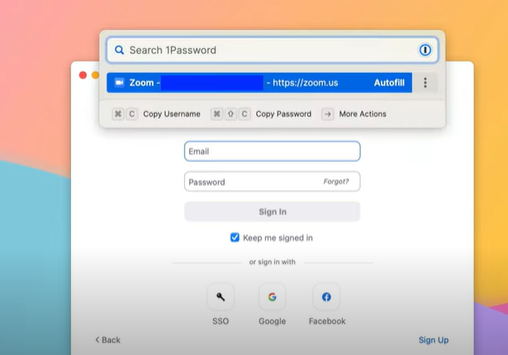
I’m going to use the command shift+spacebar to pull the popup.
You can see that my Zoom account is already pulled up. And there’s auto-fill there.
So if I just hit enter, it’s going to auto-fill my username and password, and it’s even going to do my two-factor code.
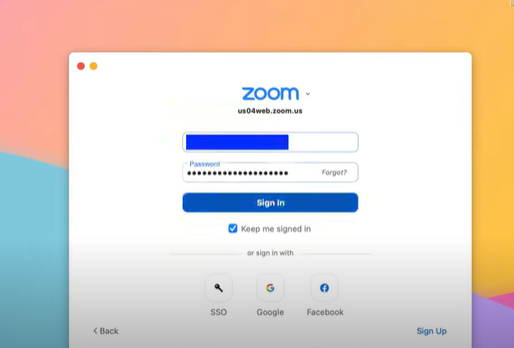
And now I’m in Zoom.
I’m just into the app with no trouble at all.
A new "universal autofill" feature means you can automatically enter passwords into apps the same as you can in browser tabs.
The universal autofill feature is a game changer.
Once upon a time, using a password manager was as simple as loading a webpage, clicking an icon, and having your password automatically filled in.
However, if you’re using a native application, you must open your password manager, look for the account, and then copy and paste your data into the application.
The universal keyboard shortcut in 1Password launches Universal Autofill, an overlay menu that automatically completes app passwords.Despite being available for Windows for months, 1Password 8 does not offer a feature similar to Universal Autofill.
In my limited experience, it performs admirably and is remarkably quick, especially if Touch ID is enabled.
I’ve been using 1Password for the past few months, and I can honestly say that the experience is far better now.
There are fewer instances of 1Password taking an eternity to load or not loading at all, fewer memory-hogging issues, and the interface is modern.
Password managers can succeed or fail based on features like Universal Autofill, though.
As a result, most people don’t utilize a password manager, even though doing so is an undeniably, without a doubt, no-brainer good idea.
Using password managers is annoying. On the other hand, password managers are a no-brainer on iOS and Android, where entering your long hexadecimal password is a pain.
Both operating systems have done a decent job of simplifying the procedure into two taps.
However, typing is quicker, and browsing your password manager is more bothersome on a desktop. So with 1Password, you’ll have even less of an excuse not to use it.
Summing Up.
One of the characteristics that 1Password might employ for various additional purposes is Universal Autofill.
The service has evolved from “password manager” to “important-information-of-all-kinds manager,” storing your cryptocurrency wallets and hiding your email and other information.
Users may be encouraged to use 1Password more frequently and eventually store more data if they have access to a function like Universal Autofill.
Did you try 1Password 8’s universal autofill feature? What have been your experiences so far with password management apps? Let me know in the comments.