
The full-stack repository for mobile application
Getting started with Firebase in React Native

Firebase is a good choice for developing the MVP of any idea you want to pursue. It fast, easy to integrate and free of cost initially. I’ve already covered tonnes of articles on working with Firebase and its authentication process in Frontend using React. In today’s story, we will cover another story of installing a firebase in the react-native project.
Getting started
Reach this website to understand the methods react-native-firebase provides. It's almost the same but some methods are quite useful only in the case of the mobile application.
Steps
- Install react-native in you your repository.
- Add react-native-firebase package.
- Add google-services JSON file with firebase credentials.
- Add configurations in the manifest file to load firebase npm
Installing repository
This is the overview but we will do everything in detail one by one. You can download the react-native repository directly using this command.
npx react-native init AwesomeProjectPlease make sure you have already installed Node JS, npm and the basic setup are completed for running react-native successfully. If not follow the instructions mentioned here.
Adding firebase
Once the repository is ready to use and running successfully in an emulator or physical device install the react-native-firebase npm package using the below command.
This single command will install all firebase methods and sub-packages such as storage, authentication and so on.
yarn add @react-native-firebase/app
or
npm install --save @react-native-firebase/app
Make sure you follow only one package manager between yarn and npm.
Add google-service JSON
This file can de be downloaded from your Firebase project console. This file actually consists of all your firebase credentials same as the credentials you can find in the console under project settings.
How to download the google service json file?
- Go to your firebase project open the project settings by clicking the settings button in the left sidebar.
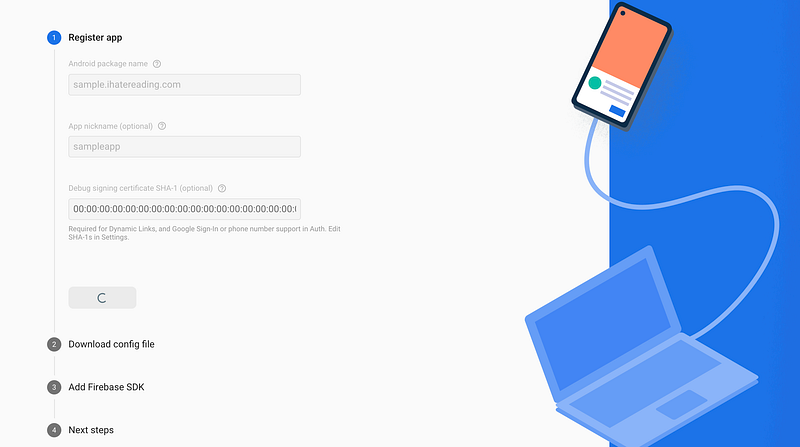
- Choose the project you are working on. Scroll down the settings page and click on the Add app button.
- Once Add app is clicked new form will open, fill in the details such as company name and application name and click continue. Make sure the application name is the same as the project name with “com” as the prefix.
- After clicking continue you will find the new page saying Add Firebase to your Android Project, which you can download your google-services.json file.
Adding images for better understanding.
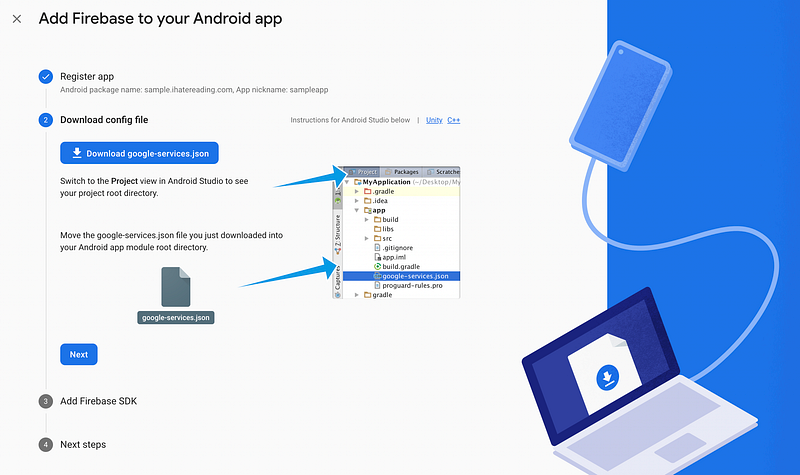
Put the downloaded google-services.json file inside the android/app directory of your react-native project.
Adding configuration
The last part is to configure project root gradle to use firebase services once during the gradle building process. In project root build.gradle file check whether the following code is added or not, if anything is missing make sure you add it manually.
The last step is to add the following line in android/app/build.gradle.
apply plugin: 'com.google.gms.google-services'You are all set to use Firebase now.
Decoupling the react-native-firebase packages
In the new version at the time of writing, firebase decoupled the packages from a single firebase npm package. For example, if you want to use the firebase database then you have to download the database package using the below command.
yarn add @react-native-firebase/database;Summary
- Install react-native start project in the repository
- Add firebase npm package
- Add a google-services.json file from the firebase console in the project directory
- Add configurations in android gradle files and project gradle file
Conclusion
I will be covering more stories on React Native and Firebase so stay tuned. Until, next time. Have a good day, people.
For more reach our website 💻 iHateReading