
The Best Free ChatGPT Plugin for Your Browser
Get more out of whatever ChatGPT you use — including Bing
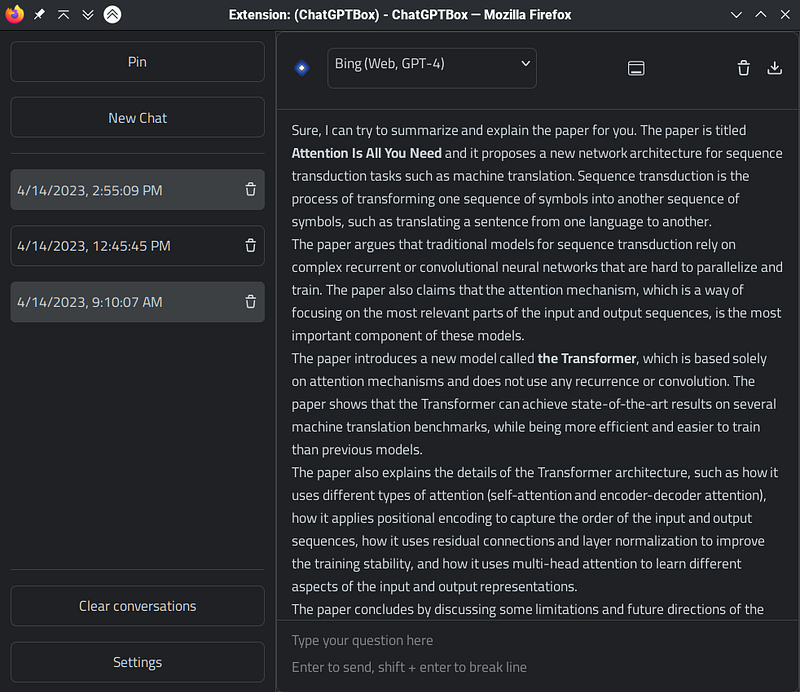
It is true that AI has the power to change your work and personal life. But it is a good bet that most of your time is spent in one application: the browser. Sure, it might be Chrome, or Edge, Firefox, or something else, but you still spend most of your day in the browser. Sure, Chat GPT and its ilk live in a browser page, but they aren’t well integrated with your browser. There are no shortage of plugins/extensions that aim to solve this problem, but I wanted to tell you about one that works very well and is free called ChatGPTBox by JosStorer.
You might wonder: Why do I need an extension? It all works fine just like it is. Well, there are two reasons. First, the plugin takes a large number of options. So if you pay for an API key from OpenAI, it will use it. If you don’t want to do that, it will use the web-based versions. It can even access GPT4 via Bing without forcing you to use the Edge browser.
My Browser?
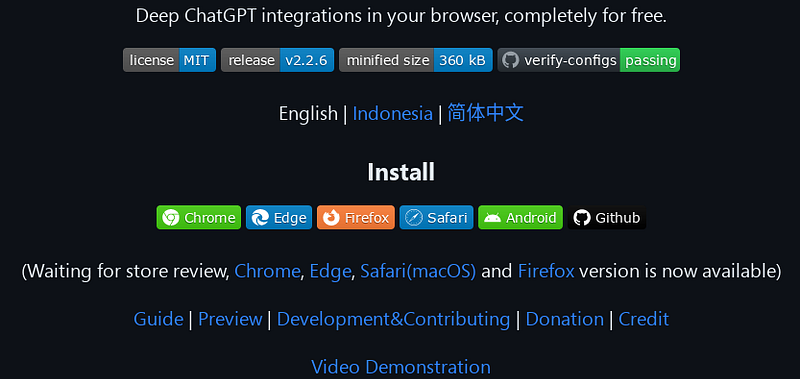
The extension has versions for Chrome, Firefox, Safari, and Edge. The page says that it takes awhile to get into the “stores” so unless you use Firefox, you’ll need to load the extension manually. However, if you click the badges, you’ll find it actually is there, or — at least — some version of it is there.
Once you install it, you can select what engine you want to use. You can start with the Web-based ChatGPT which is free and works well. However, if you prefer GPT4, you can switch to using Bing. If you have a plus membership, you can ask to use OpenAI GPT4, also. Finally, if you have an API key you can use that. There are also options for connecting to a local setup, so this will work with things other than GPT or use the GPT instances on Azure.
What Do You Get?
If you use Bing, this offers one thing you can’t live without: It will remember chat sessions! What did you ask Bing two weeks ago? Oh, there it is.
Open AI, of course, does this already. However, it can be tricky to export conversations. But this plugin knows how to export in a variety of formats no matter what engine you use.
There are several ways to get to the plugin. You can click on its icon, of course. If you select text, a little pop up will offer you some options. You can also right click on a page.
The Right Click
When you right click, you get several options for interacting with your Chat engine of choice.
- New Chat — Opens a minimal floating window to chat in
- Summarize Page — Generates a summary for this page
- Conversation Page — Opens a full window to chat in with history
- Conversation Window — Opens a medium floating window to chat in with the same features as the Conversation Page
- Translate Selection — Translate language
- Summarize Selection — Generate a summary
- Polish Selection — Wordsmith the selection
- Explain Code Selection — Explain source code
- Sentiment Analyze Selection — Analyze the sentiment of the text
- Divide Selection into Paragraphs — Split text into paragraphs
- Ask Selection — Feed selection in as a question
Not all of these show up if there is no selection. In addition, you can turn off any that you don’t want in the settings.
That’s Not All
In addition, if you are searching for things on any major search engine, YouTube, GitHub, Reddit, Quora, StackOverflow, and other places, the plugin will do one of three things (your choice):
- It can show chat results along side the results. This might eat through your paid or free subscription or your daily limits on a free site, so while this is cool, you probably don’t want this option.
- It can do the same trick, but only when the query text ends in a question mark. Go to Google and search for “dog tricks” and it will be like normal, but search for “How do I teach my dog tricks?” and you’ll see results from Google and the AI.
- It can also put a button in the page that you can click to force an AI search on the search text.
Try It!
Free software, works with your browser, what do you have to lose? You can turn off the parts you don’t like. It has a way to build a custom integration with search engines it doesn’t support, but — honestly — I found it hard to set up using the example on the GitHub wiki. But I expect the tool will get better over time and for things other than customization, it is already very useful.
If you want a short video demo from the author before you install, you can watch that below:


