
The Beginner’s Guide to your Computer Speed
Understand the components that affect your computer speed and how to get your computer to run faster
The rise of COVID has sparked a global movement to move work away from the workplace and into our homes. Government regulations have also been activated here and there, keeping us indoors more. All of this equates to more time spent on the computer, be it for work or entertainment.
Here at The Beginner’s Guide, we have touched on how you can improve your internet speed which would certainly help you get online tasks done faster. However, that is just one part of the story. The other equally if not more important part lies with your computer.
Your computer, be it a laptop, desktop or even a tablet, is a technological marvel born from decades of experimentation. It contains multiple interconnected components that work seamlessly together to bring you the processing power you need to get stuff done — be it finishing the last-minute task your boss has given you or completing that final boss level in your video game without lag.
In this guide, we will focus on explaining the core components of your computer that may affect its speed while providing useful advice you can use to speed up your computer.
Software
You may have realized that your computer gets slower every year, which is weird since nothing has changed in your computer…right? While a possible cause is the degradation of your hardware components, a more likely explanation is the growing number of startup processes you have as well as the ever-increasing processing requirements of updates and new programs.
Startup Programs. Startup programs are processes that run whenever you switch on your computer. With a new computer, the startup processes are only those vital to keeping your computer running. With each new program that you install over the years, your startup processes start to pile up with programs that you do not use often but are still initiating and running in the background. This not only slows your computer’s loading time upon startup but also slows down its processing speed. This is because these startup programs may be running in the background even if you do not want them to. To speed up your computer without having to buy new components, a quick and easy way is thus to look through the processes that start up automatically to remove the programs that you do not want to initiate whenever the computer is switched on.
Processing Requirements of Operating System & Software. Besides the programs that sap your computer’s processing power whenever it starts up, the number and type of programs you run matters too. For those of you with old computers, they may run slow not because of the programs you have installed, but because of the regular updates to your operating system be it Windows, Android or macOS. As operating systems go through updates, your computer may have to work harder to keep running. This may cause an impact on your general computer performance, slowing down your other programs. The slowdown in speed is often negligible in newer computers. That being said, if you have a computer that is above 10 years old, the newer operating systems may cause a noticeable slowdown in speed. In cases like this, it may be time for you to look at either purchasing a new computer or upgrading specific parts of your computer. Let us now explore the different hardware components of your computer and how they affect the speed of your overall computer system.
Central Processing Unit (CPU)
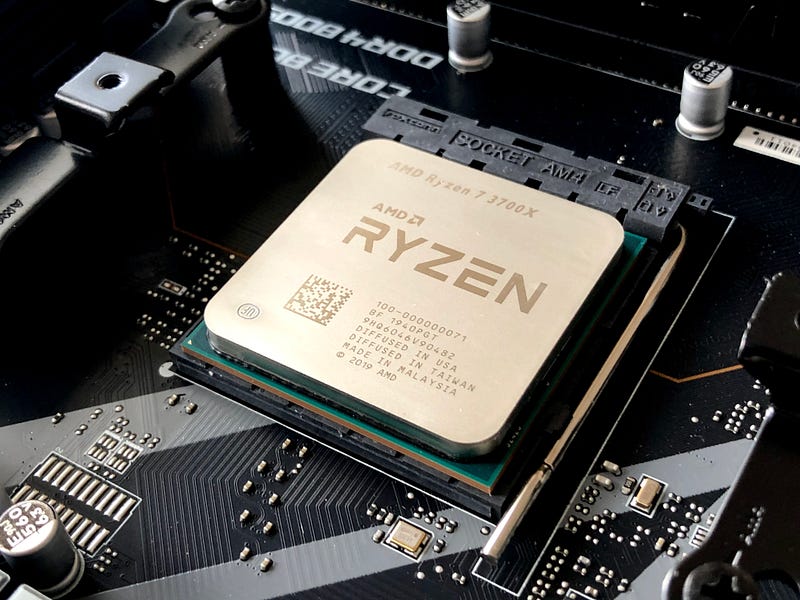
The CPU can be thought of as the ‘brains’ of the computer. As the name suggests, this component within your computer is responsible for processing the code that runs your programs. This task alone makes the CPU one of the most important components when it comes to your overall computer speed. Whenever you are shopping for a computer and CPU specifications are displayed, two terms usually come up: Processor Cores and Clock Speeds. Let’s look at each one to understand what they are.
Processor Cores (no. of Cores). When buying a CPU, one key specification you should look at is the number of cores. In the past, the CPU often consisted of just one ‘brain’ or processor core that takes in one set of instructions (also known as a thread) and then processes it and outputs the result. With the massive improvement in technology, most computers now feature multi-cores which can be two (dual-core) and can go up to 32 cores or even more. A multi-core CPU contains within it multiple ‘brains’ that all work together to deliver faster results. If your programs have 10 sets of instructions, a single-core CPU that takes one second to process one set of instructions (single-thread) may take 10 seconds to finish processing. A CPU with 2 cores may process 5 sets each, taking 5 seconds to finish processing (multi-threading), and a CPU with 10 cores may process one set each taking one second to finish. You can then see how powerful multi-core processor cores are when compared to single-core CPUs. That being said, this scenario assumes that all cores are working at the same speed and that the programs you are running can make use of all your cores at once, which is not always true. We now look at Clock Speeds, which represents the processing power behind each core.
Clock Speeds (GHz). At its most basic form, the CPU processes instructions (threads) by switching between 0 and 1s, also known as binary. All the programs you know from Microsoft Word to the latest Call of Duty games at its core are essentially a bunch of 0s and 1s that the CPU processes. In this context, clock speed represents the speed at which a CPU can switch back and forth between 0 and 1. The faster a CPU can switch between 0 and 1, the faster it can process any threads that come its way. The measurement unit for clock speed is in GHz. A clock speed of about 3.5GHz is often good enough for higher-intensity programs like video games.
Processor Cores vs Clock Speeds. Given a set budget and you had to choose between having a quad-core processor with lower clock speeds versus a dual-core processor with higher clock speeds, how do you choose? This then all boils down to your computer needs. Simply put, if you plan to use the computer to multi-task through multiple low-intensity programs at once such as browsing the internet, opening Microsoft Word and chatting on WhatsApp, then the quad-core processor with lower clock speeds may be more suitable for you as the multiple cores can be utilized efficiently each processing a different program. If you plan to use the computer to open just one or two high-intensity programs such as video games at a go, a dual-core with higher clock speeds may be more applicable for you as each core can then focus on running your high-intensity programs at a faster speed.
Random Access Memory (RAM)
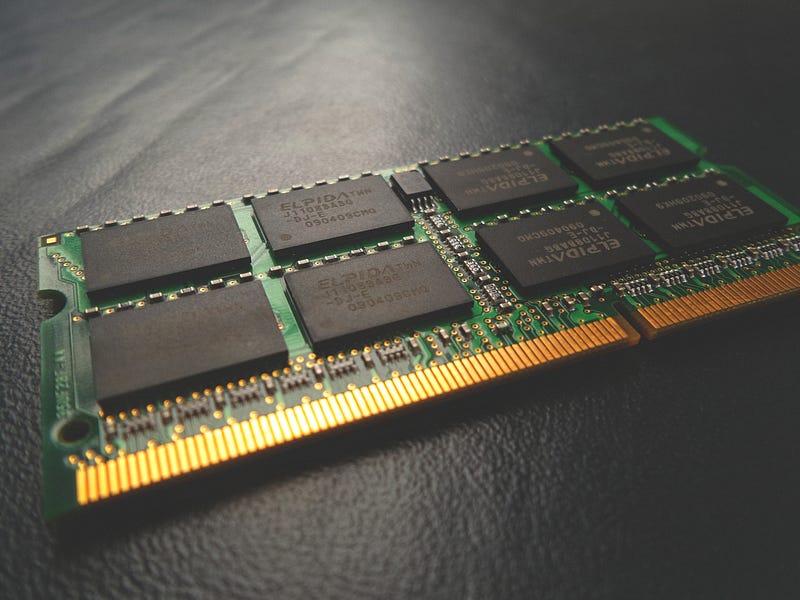
As humans, we have short-term memory and long-term memory. Short-term memory allows us to quickly remember and process information that we are absorbing live. We then put information that we want to remember for a longer time in our long-term memory from our short-term memory. Our computer works the same way. We have RAM as the shorter-term memory of your computer and storage drives as the longer-term memory of your computer.
As each core in your CPU is processing information from your programs, it needs a ‘workspace’ to store and retrieve data quickly to keep the program running. Just like how it is much easier for you to remember and process things that you experienced 5 seconds ago compared to an event 5 years ago, your computer needs this short-term memory as a ‘workspace’ to quickly retrieve data on the programs it is currently running. RAM represents this ‘workspace’. RAM is judged based on two characteristics: capacity and speed.
RAM Capacity (GB). Think of RAM Capacity as the number of ‘workspaces’ your CPU has to work with. The more capacity your RAM has, the more programs your CPU cores can work on at once. As you can tell from this statement, your CPU and RAM have to work closely together. If you have a multi-core CPU but a low RAM capacity (<2GB), chances are your multi-core CPU may be able to process multiple programs at once but have not enough ‘workspaces’ to store and retrieve those data. This will end up slowing down your computer’s processing speed as a queue will form to take turns using the limited ‘workspaces’ you have available. Generally, most light users can get by with around 8GB of RAM Capacity while hardcore games or video-rendering professionals may need 32 GB of RAM or even more depending on the intensity and number of programs they need to run in parallel.
RAM Speed (MHz). RAM Speed measures the speed at which data can be written or read by your CPU. In our analogy of a ‘workspace’, RAM speed represents the speed at which the items on the ‘workspace’ are being put there and then retrieved by the CPU. Ranging from 1333MHz to 2133 MHz, having RAM with a decent speed should be comparable to your CPU’s clock speed so that they can work in conjunction. It is easy to end up creating a bottleneck if you have a fast CPU, but when it needs to store or retrieve data from your RAM, the speed is too slow and the CPU ends up waiting for your RAM to process the data storage or retrieval.
Having a powerful CPU and RAM are thus vital to having good computer speed and performance. However, they are not the only components affecting your computer’s speed. Let’s take a look at the other components of your computer that may impact its speed.
Storage Drives
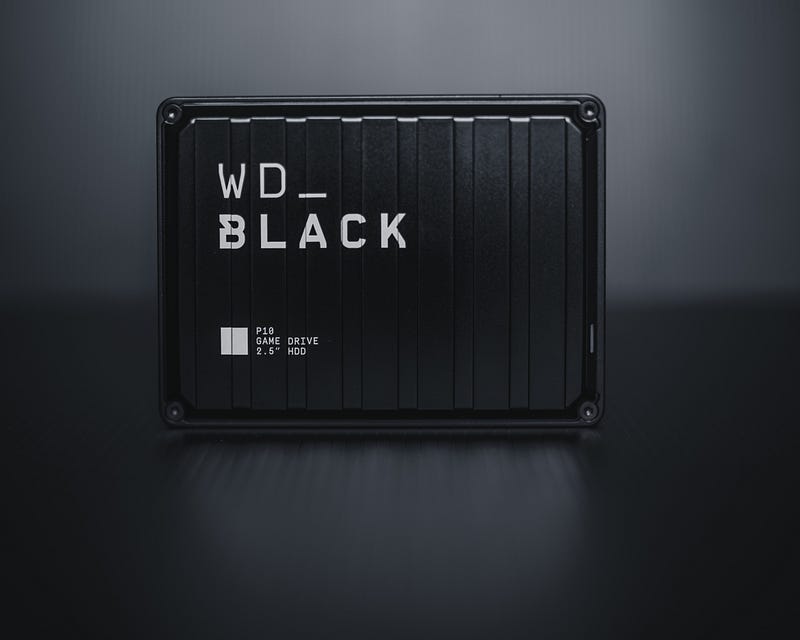
If RAM is the short-term memory of your computer, storage drives represent the long-term memory of your computer. This means that, unlike RAM, the information you store in your storage drive does not disappear when you switch off your computer. It is where you store your files, photos, documents, video games and so on. While there may be different types of storage drives available in the market today, this Guide will look at two of the most common ones: Hard Disk Drive (HDD) and Solid State Drive (SSD). Even though these storage drives are secondary components when it comes to the speed of your computer, they are important nonetheless and can easily become a bottleneck if you do not get sufficient storage within your computer.
Hard Disk Drive (GB/TB). In its most basic form, an HDD is a metal disk with a magnetic coating that stores your information. When it is activated, the metal disk spins. A metal arm above the spinning disk has a head that then touches the metal disk to store or retrieve the data that it needs. With storage drives, the two key characteristics are its capacity and read/write speed. A hard disk drive can go up to several TBs depending on the number of documents and programs you need to store within the computer. HDD’s read/write speed is normally around the range of 150 MB/second, indicating its ability to store and retrieve data at around 150 megabytes per second.
Solid State Drive (GB/TB). SSD is a later invention that has triumphed over the HDD as a storage drive with much faster read/write speeds. With SSDs, you can potentially be looking at speeds in the range of 550MB/second, which is more than three times the speed of a traditional HDD. An SSD is also much smaller in physical size as compared to your traditional HDDs. This means that files, programs and documents can be inserted and retrieved from your computer’s ‘long-term memory’ at a much faster rate compared to HDD while taking up less physical space in your computer. Unlike HDD which uses a spinning metal disk to read and write data, an SSD has no moving parts. This means that an SSD tends to be more durable and quieter as compared to HDD as well. With all these benefits, however, SSD often comes at a much higher price point as well.
HDD vs SSD. To hit a compromise, most computers now thus employ a mix of both HDD and SSDs as part of their system. As a user, it is thus important for you to understand which drives (e.g, C drive, D drive, E drive) are HDD and SSDs. You should install programs that you need to run fast within your SSDs, while programs that are lighter or that you don’t mind running a little slower should go into your HDD. This will ensure that you get the necessary speed when you need it for the programs you need to run at optimal speed.
Graphics Card: Graphics Processing Unit (GPU)
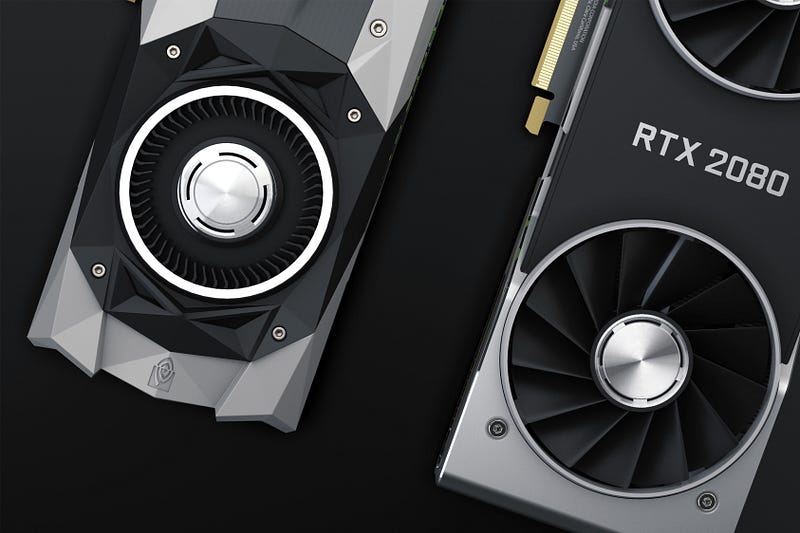
While a CPU is in charge of the general processing that goes on in your computer, the GPU within your computer’s graphics card handles a very specific type of processing. As the name suggests, a GPU focuses on processing merely the graphical components of the computer. In the past, computers only had CPUs that processed everything within the computer. With the rise of more process-intensive graphical user interfaces and especially 3D video games, CPUs were having a really difficult time trying to process all of this on top of their general processing tasks. The GPU was thus created to manage specifically graphics processing to free up the CPU to process all other non-graphics related threads such as physics modelling within video games. Having a GPU for tasks such as hardcore gaming or 3D rendering will go an extremely long way in helping to speed up the overall computer through offloading the graphics work from the CPU. Unfortunately, most laptops do not allow easy access to the GPU for an upgrade, so you must take into consideration the GPU if you’re buying a new laptop.
When choosing or upgrading your GPU, there is a myriad of different characteristics to be aware of. Instead of diving deep into each one and getting too technical, let us look at a few core specifications that affect the speed of your computer’s graphics processing capabilities.
Processor Cores (No. of cores). Just like the CPU, GPU also works by processing information that comes in through its cores. There are two big GPU Brands: Nvidia and AMD. AMD calls it the Stream Processor while Nvidia calls it CUDA cores. For all intents and purposes of this Guide, they generally refer to the number of processor cores that are within the specific GPU. As mentioned, the number of cores is a good indication of how much concurrent processing can happen in parallel. When it comes to intense graphical-based programs such as video games, having a large number of cores can go a long way in processing the huge amount of graphics that need to be rendered.
Core Clock Speed (MHz). It is also important to look at not just the number of cores but also the clock speed of the GPU. Just like the CPU, the clock speed within the GPU represents its computational speed every second. For GPUs, there is normally the base speed which represents the speed it can generally work at and also the boost speed which represents the speed it can push itself to under heavy processing load.
Memory Size (GB). Just like how your CPU needs a ‘workspace’ to store and retrieve data quickly in the form of RAM, your GPU requires the same thing as well known as VRAM. More VRAM within your GPU means that there is more ‘workspace’ to store and retrieve graphical information. Unlike a CPU however, RAM is not a separate component that you can isolate and upgrade. It is built within the GPU and cannot be taken apart and upgraded specifically without upgrading the whole GPU. Generally, the more powerful a GPU, the more VRAM it has so that it can reach its optimal processing speed
Ray-Tracing (Yes/No). Recent advents in graphical processing have produced a new feature known as ray-tracing. When processing graphics, one of the biggest hurdles is in the ability to simulate lights and shadows in a scene. With ray-tracing, your GPU calculates and simulates every single ray of light and its effects on the surrounding graphics, creating a life-like recreation of how a certain model would look like depending on the light source. As you can probably guess, this takes up a significant amount of processing power. If you are an enthusiast who demands light/shadow perfection in your rendering or video games, then it is important to consider a graphics card that supports ray-tracing to ensure that there is enough processing power to not slow down the rest of your video game/3D renders.
Ways to increase your Computer Speed without buying anything new

Now that you understand the different components that go into controlling your computer’s speed, let’s discuss some actionable methods you can take to improve your computer’s speed.
Reduce Startup Programs. Looking through the list of startup programs to remove those that you no longer use or need to immediately run whenever your computer is switched on is a quick and easy way to immediately improve the speed of your computer. There are various ways you can do this. It differs depending on whether you are using a Windows PC, a Macbook or a tablet, so we will not go into the specific details in this Guide. However, here are some links that you can use to get started: Windows PC, Macbook, Android Tablet.
Additional Monitors. This is an easy thing to overlook, especially if you are used to multitasking on multiple monitors. Hooking up your laptop to an external monitor and using both your laptop monitor and your external monitor counts as well. With more than one monitor, your computer has to process the programs running across both screens simultaneously, which leads to a slowdown in your computer speed. This is especially true if both your monitors are running at different resolutions (such as laptop and external monitors) as your computer is now trying to process parallel programs for different resolutions at once, which requires even more processing power. Besides changing to just using one monitor at a go, another way to increase your computer speed across multiple monitors is to set them to the same resolution so that your computer is not trying to figure out different resolutions at once.
Defragmenting your drives. When your computer is storing information, it often stores it in a way that is not efficient. This means that trying to retrieve that information or data may take a longer time than if your information is stored properly, such as storing related information or data together. That is where defragmentation comes in. Defragmentation reorganizes the data on your drive so that the related pieces of information are stored near each other, shortening the processing time it needs to pull out those data when you need it. You can find out how to defragment your Windows PC here. For Apple Macbooks, it is often not required to defragment your system due to the technical architecture that has been set up.
Overclocking. The clock speeds that your CPU and GPU is running at can be increased beyond their maximum. This is done through a task known as overclocking. When you overclock your system, what you are doing is essentially forcing the CPU or GPU to run even faster than it is supposed to. As the CPU or GPU runs above its standard maximum, it stands to reason that your processing speed will increase significantly. However, this also increases the heat output of your CPU or GPU greatly, not to mention potentially voiding your warranty with the manufacturer of the CPU or GPU. As such, overclocking is recommended only if you ensure that you have a superior cooling system in place and know what you are doing. If you wish to find out more to get started on overclocking, you can consider reading this Avast article on overclocking.
Are you tired of scrolling through endless clickbait articles and ads on other platforms? With a Medium membership, you’ll have access to high-quality, ad-free content from top writers and publications. Indulge in the pleasure of reading while supporting the creative work of writers, and take your reading experience to the next level. Sign up now to join the community of readers and writers on Medium.
About The Beginner’s Guide: The Beginner’s Guide series provides you with a quick understanding of everyday items that you come in contact with. This includes articles on how something works, where something originated from, or how to make something better. All to provide you with tidbits of information that you can use to show off at your next dinner party.
Author’s Endnote: I hope that this article will help you understand more about key components of your computer and gain an enhanced appreciation of how they may affect your computer performance. Hopefully, this article is useful for you whether you are looking to upgrade your whole computer, specific computer components or just looking for ways to improve your computer speed without buying anything new.
As per my previous Guides, if any of the information is inaccurate or if there is a certain topic you wish to find out more about, please feel free to drop a comment on this article! See you next Guide!


