avatarHenner Townlove

Free AI web copilot to create summaries, insights and extended knowledge, download it at here

5844

Abstract

id="29fe"><img src="https://cdn-images-1.readmedium.com/v2/resize:fit:800/1*4KiPPkqfZpo69aeXyM7B3w.png"><figcaption>Screen capture of my own Battery Report</figcaption></figure><p id="66f4">You see, my full charge capacity is still around 50k mWh, while my cycle count is very low, since I only emptied my battery around 24 times in those three years. This is because I relied mostly on AC power. Full charge capacities decrease significantly over time even after a single year.</p><figure id="9c0a"><img src="https://cdn-images-1.readmedium.com/v2/resize:fit:800/1*i2yfLKCbGheCxXg6wt0dKA.png"><figcaption>Time left and percentage power remaining</figcaption></figure><p id="9b27"><b>The three-year-old battery on full charge gave me 4 hrs and 49 minutes of power</b>, which is pretty close to how it was when I bought it. This is only with background applications running, full brightness, and no active windows. It will get lesser and lesser the more applications you open. Does this mean that those internet claims are wrong? I’m not sure, but my<b> results speak for themselves; </b>nothing’s gonna go wrong if you try it anyway.</p><p id="d372">I own a ASUS ROG laptop, and it has an easily removable battery stick. So if you are planning a new laptop, get a powerful laptop that has a removable battery and upgradeable components. One other reason that my battery lasted this long is because the batteries are placed to the side — away from my laptop — which is a source of heat, it also helps that I live in Canada where it’s mostly cold.</p><h1 id="86fd">3. Use a Mouse</h1><p id="9ed5">Your Trackpad or Touchpad coating wears off with use over time , this is also aggravated by a lack of moisture in the air that makes the coating drier and oxidizes more often. When your trackpad is exposed, it could lead to phantom cursor movements and it just won’t look very appealing.</p><figure id="2a1d"><img src="https://cdn-images-1.readmedium.com/v2/resize:fit:800/0*thwn9mGl3zhtdefI"><figcaption>Photo by <a href="https://unsplash.com/@bear61?utm_source=medium&amp;utm_medium=referral">Giuseppe Martini</a> on <a href="https://unsplash.com?utm_source=medium&amp;utm_medium=referral">Unsplash</a></figcaption></figure><p id="2b79">The solution is to buy a mouse, it doesn’t have to be wireless. The mouse gives you full control on your cursor as well as other capabilities in an instant. Some gaming mouses can have extra programmable buttons that may help if you’re a power user. It is also more comfortable for your posture to spread your arms more. In addition, trackpads are often positioned next to SSDs, Hard Drives, and memory card slots. Relieving pressure on these components can decrease the chances of damaging them.</p><h1 id="f53c">4. Install at Least One Antivirus</h1><p id="f138">There are plenty of malicious programs around the web that can affect your computer. Frequent updates and having antivirus protection certainly helps. <b>Installing an antivirus is like having Vaccines, they detect intruders and malicious attacks on your system and promptly take action.</b> These apps can be spyware or worms that may steal data and personal info, or slow down your computer.</p><figure id="d3ac"><img src="https://cdn-images-1.readmedium.com/v2/resize:fit:800/0*_EUAnZfFjeMyN3Rm"><figcaption>Photo by <a href="https://unsplash.com/@enginakyurt?utm_source=medium&amp;utm_medium=referral">engin akyurt</a> on <a href="https://unsplash.com?utm_source=medium&amp;utm_medium=referral">Unsplash</a></figcaption></figure><p id="5728">You can purchase a subscription plan that gives you more protection, otherwise some providers offer free basic protection. Try to look up Avast, they have a free version of their antivirus. It’s not a lot, but If you know your ways around the internet, aka not click on some random stuff that can give your laptop “Computer AIDS” then, you’ll be fine.</p><p id="7ec4">Having protection is better than having no protection at all.</p><h1 id="a491">5. Use Cooling Pads</h1><p id="6a8b">If you ever tried to use your laptop on your bed over a blanket, you would’ve noticed it started warming up. This is because most laptops have their air intake at the bottom, and your blanket and all the skin cells in it are blocking up the ventilation. It is the same with your desk, the closer it is to the surface, the less air will go in. This won’t be a problem once you elevate the laptop with a cooling pad.</p><figure id="8887"><img src="https://cdn-images-1.readmedium.com/v2/resize:fit:800/1*xuTref6dsHSWDRr-iODWDQ.jpeg"><figcaption>Photo by <a href="https://www.pexels.com/@olly?utm_content=attributionCopyText&amp;utm_medium=referral&amp;utm_source=pexels">Andrea Piacquadio</a> from <a href="https://www.pexels.com/photo/woman-in-gray-tank-top-sitting-on-bed-using-macbook-3807769/?utm_content=attributionCopyText&amp;utm_medium=referral&amp;utm_source=pexels">Pexels</a></figcaption></figure><p id="6094">Cooling pads have been proven to drastically decrease your laptop’s temperature. It does so by elevating your laptop and allowing more airflow to the bottom of your device with its small-but-effective fan(s). It’s one of the more cost-effective ways to improve performance without needing to open up your laptop and potentially voiding the warranty.</p><h1 id="2778">6. Open It up and Do a Deep Clean at Least Once Every Year</h1><p id="68f9">I recommend refraining from doing this if you are still under warranty, but it’s the same principle as number 1. It’s easy, take a screwdriver and open the bottom part. You will see the motherboard as well as the back cover.<b> Use concentrated alcohol</b> and try wiping the dusty parts off with a soft brush or a cotton swab. The cooling fan and the heat sink might need more attention. Alcohol is good because it vaporizes quickly. The plastic coverin

Options

g can be wiped with a cloth. If you wanna go hardcore, you can replace the <a href="https://en.wikipedia.org/wiki/Thermal_paste">thermal paste </a>under the heatsink with a newer one cause these things tend to degrade over time.</p><figure id="5832"><img src="https://cdn-images-1.readmedium.com/v2/resize:fit:800/0*5vmz8_uYK3jCN_h-"><figcaption>Photo by <a href="https://unsplash.com/@slavudin?utm_source=medium&amp;utm_medium=referral">Slejven Djurakovic</a> on <a href="https://unsplash.com?utm_source=medium&amp;utm_medium=referral">Unsplash</a></figcaption></figure><p id="3291">If opening up your laptop isn’t an option. Try cleaning the outsides near the air vents/holes.</p><h1 id="02a8">7. Upgrade the Components When You Feel the Need</h1><p id="6d64">Maintaining your laptop is an uphill battle, your laptop will have to store more files and get slower as time passes. Newer applications and websites will have bigger system requirements in the future, and your computer will have to keep up. This is why we need to eventually update the actual internal components of our laptops. The upgrades are also getting better and better each year with <a href="https://www.investopedia.com/terms/m/mooreslaw.asp#:~:text=Moore's%20Law%20refers%20to%20Moore's,will%20pay%20less%20for%20them.">Moore’s Law</a> working to our advantage.</p><figure id="fc09"><img src="https://cdn-images-1.readmedium.com/v2/resize:fit:800/0*BtBM_Kvzj6r-8eg0"><figcaption>Photo by <a href="https://unsplash.com/@fennings?utm_source=medium&amp;utm_medium=referral">Marc PEZIN</a> on <a href="https://unsplash.com?utm_source=medium&amp;utm_medium=referral">Unsplash</a></figcaption></figure><p id="69ee">Here are some easy DIY upgrades for your laptop:</p><ul><li><b>Memory</b> : Memory refers to a device that is used to store information for immediate use in a computer or related computer. This is usually in a form of RAM, which is your computer’s own working space. None of the applications on your computer will work without RAM, so have plenty of it. Some basic applications, like Google Chrome uses a lot of RAM. <b>Upgrade your RAM</b> if you feel like your computer is experiencing poor performance for some tasks, or it starts feeling really slow.</li><li><b>Storage</b> : There are a finite amount of files you can store in your laptop, upgrading its storage by purchasing a new HDD or SSD is the solution. <b>HDDs or Hard Disk Drives or Hard Drives </b>are an electro-mechanical data storage device that uses magnetic storage to store and retrieve digital data using disks. Hard drives usually last up to <a href="https://www.prosofteng.com/blog/how-long-do-hard-drives-last">3–4 years</a>. These are not as powerful as SSDs though. <b>SSDs</b> replace traditional mechanical hard disks by using flash-based memory, which is significantly faster. If you put files in an SSD, including your Operating System, <b>your device will instantly launch those files and your computer will boot up faster. </b>These lasts up to <a href="https://www.solarwindsmsp.com/blog/ssd-lifespan#:~:text=Current%20estimates%20put%20the%20age,over%20a%20multi%2Dyear%20period.">10 years</a>.</li><li><b>Battery</b> : If ever step 2 doesn’t work anymore cause your battery has reached the end of its lifespan, just buy a new one, or one with better capacity.</li></ul><p id="6682">If your laptop allows upgrades to its CPU and GPU, feel free to do so as well.</p><figure id="0a89"><img src="https://cdn-images-1.readmedium.com/v2/resize:fit:800/0*i2vkqSe_OLd-KhhV"><figcaption>Photo by <a href="https://unsplash.com/@moob?utm_source=medium&amp;utm_medium=referral">Ayla Verschueren</a> on <a href="https://unsplash.com?utm_source=medium&amp;utm_medium=referral">Unsplash</a></figcaption></figure><p id="1cec" type="7">So that’s that. You’re all set.</p><h1 id="3639">Extra short: Internet Cafes</h1><figure id="4388"><img src="https://cdn-images-1.readmedium.com/v2/resize:fit:800/0*y6Tl4aXqw_5BuHtR"><figcaption>Photo by <a href="https://unsplash.com/@kiyun911?utm_source=medium&amp;utm_medium=referral">Kiyun Lee</a> on <a href="https://unsplash.com?utm_source=medium&amp;utm_medium=referral">Unsplash</a></figcaption></figure><p id="a01f">My family used to own an <b>Internet Cafe</b>, those were really big back in the day. If you guys don’t know what I’m talking about, it’s one of those “social” establishments in the 90s to late 2000s that had computers all over the place and you pay to be there. They also have snacks and drinks. People go there to hang out and play games, watch movies or exclusive-to-the-web series, communicate with people from all over the globe, send pictures, do homework, research things, you know — just about everything we can do with our phones right now. Still don’t get it? Okay, imagine a <b>Starbucks</b> or a <b>Timmy’s</b>(sorry, I’m Canadian), but instead of bringing your own laptop, you use one of the cafe’s many computers. Laptops weren’t pretty common back in the day, as well as internet and Wi-Fi, so these establishments were sort of the pioneers to the modern coffee place hangouts of today. Internet Cafes still exist around the globe but, they’re technically no longer Cafes at heart, they’re just big spaces filled with a ton of computers that are lined up, often with young males playing games.</p><p id="1edf">Why am I telling you this? Well, I used to do a lot of maintenance on all of our computers. I took them apart, cleaned them, replaced parts, disinfected the high-touch areas, kept them updated, and made sure they were still running in tip-top shape after all the abuse they take on the daily basis. I’ve also had my laptop for 6 years now and it’s still as good as new. Honestly I’m just waiting for it to die. So, yeah, if it’s about computers, I sorta know my stuff. Thanks for reading.</p></article></body>

The 7 Simple Tricks You Can Do to Make Your Laptop Last Longer

Step one: you need to clean your room first

Photo by Mateus Campos Felipe on Unsplash

Buying a new laptop is often very expensive and takes a lot of work, but it doesn’t have to be. Your current laptop can be made to last longer if you practice a few simple tricks that I found to be very helpful in preventing your device from breaking down earlier than it is intended to, ‘cause face it, planned obsolescence is a real thing. It also goes without saying that laptops are to be handled with love and care. Any stress, percussive maintenance or sudden impacts may cause damage to its internal and external components, eventually shortening its lifespan.

1. Clean Your Room

It’s a pretty indirect approach, but yes, clean your room first. The average home in the United States collects 40 pounds of dust(18 kg) each year. At least 50% of those dust particles are from human skin, the rest are from fabric, dust mites, and outside sources.

Humans on average shed half a billion skin cells every day, which is roughly the weight of a penny. Now imagine carrying up to 365 pennies — that’s the amount a single person sheds per year.

Most of these dust particles are situated near your bed and on your desk. These dust particles can get into your laptop’s cooling system, making it less efficient and increases the device’s temperature.

Laptops have been designed to work within a safe temperature range, normally 50 to 95 degrees F (10–35 degrees C).The optimal temperature for the CPU(which is the laptop’s brain) should not exceed 176°F (80°C). Overheating damages your laptop components. Having a clean surrounding with less particulates in the air really helps in keeping your laptop from overheating.
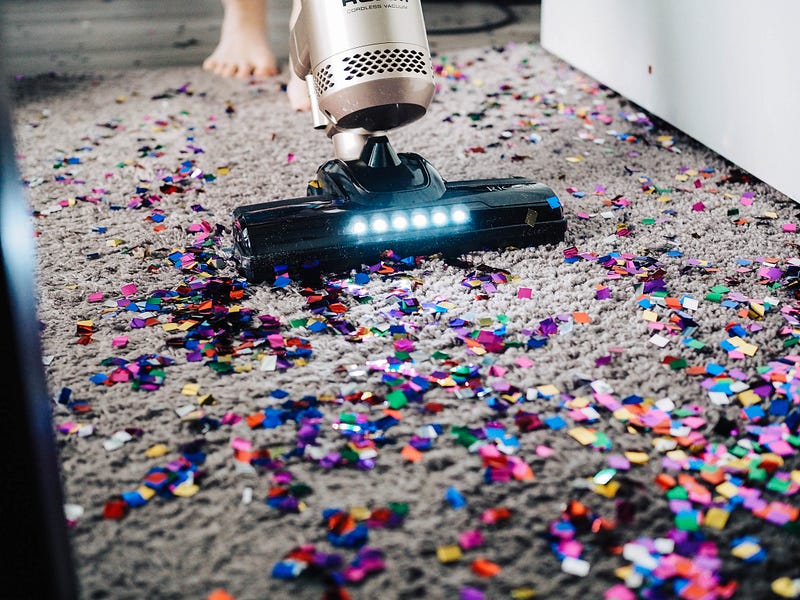
Photo by The Creative Exchange on Unsplash

Smoking tobacco or Cannabis also increases the amount of dust particles in the air. I was once tasked with cleaning up a patron’s computer. The cooling system absolutely reeked of tobacco, and tar has accumulated in the heatsink, as well as the fan, which briefly painted me a picture of that person’s lungs.

2. Remove the Battery When It’s Fully Charged or Plugged-In

According to ASUS, “due to the chemical properties of Lithium ions, battery capacity decreases gradually with use over time.” It is also important to note that the battery will — in fact — expire even without use, the trick is to lessen its use by solely relying on AC power. Shelved rechargeable lithium batteries that are charged occasionally are said to last up to four years.

This part is only possible if you have a readily removable battery.

I understand that these days, more and more laptop batteries are sealed within their devices — which I think is really impractical incase you want to do your own repairs. The alternative tip for some Mac users is to stick a tape into the middle signal pin on your charger. If it’s possible, try to install software that disables charging, all together.

Otherwise, newer laptop Models have batteries that can automatically disable charging when it reaches 100%, so you don’t have to worry about a thing. The only problem with this is that the heat from your laptop will affect the batteries.

If you do have removable batteries, then good for you. The laptop still functions if you remove it, so long as it’s still plugged-in to a power source. The whole point is to not use the battery.

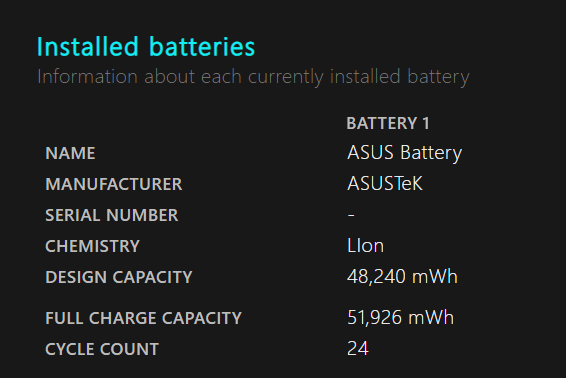
Now, there are reputable claims in the internet saying that removing the battery from your laptop is useless and doesn’t work. Personally, I think those were just recycled claims that bounced around the internet and were never really tested. I have a battery that I’ve been using since 2017, that’s a total of three years counting to 2020; and I have consistently been just shelving the battery whenever I’m using my computer at home. There’s actually a computer command to check your battery status. For windows, you open command prompt and type in “powercfg/batteryreport”, this will generate an HTML file at the designated folder and show you how much Full charge capacity your battery has. I will show you what my shelved battery says after I put it into a full charge and unplug the power.
Screen capture of my own Battery Report

You see, my full charge capacity is still around 50k mWh, while my cycle count is very low, since I only emptied my battery around 24 times in those three years. This is because I relied mostly on AC power. Full charge capacities decrease significantly over time even after a single year.
Time left and percentage power remaining

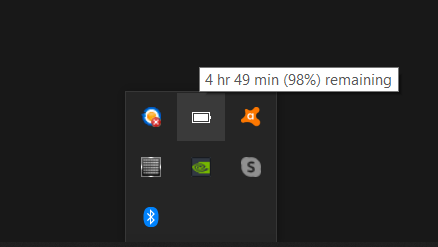
The three-year-old battery on full charge gave me 4 hrs and 49 minutes of power, which is pretty close to how it was when I bought it. This is only with background applications running, full brightness, and no active windows. It will get lesser and lesser the more applications you open. Does this mean that those internet claims are wrong? I’m not sure, but my results speak for themselves; nothing’s gonna go wrong if you try it anyway.

I own a ASUS ROG laptop, and it has an easily removable battery stick. So if you are planning a new laptop, get a powerful laptop that has a removable battery and upgradeable components. One other reason that my battery lasted this long is because the batteries are placed to the side — away from my laptop — which is a source of heat, it also helps that I live in Canada where it’s mostly cold.

3. Use a Mouse

Your Trackpad or Touchpad coating wears off with use over time , this is also aggravated by a lack of moisture in the air that makes the coating drier and oxidizes more often. When your trackpad is exposed, it could lead to phantom cursor movements and it just won’t look very appealing.

Photo by Giuseppe Martini on Unsplash

The solution is to buy a mouse, it doesn’t have to be wireless. The mouse gives you full control on your cursor as well as other capabilities in an instant. Some gaming mouses can have extra programmable buttons that may help if you’re a power user. It is also more comfortable for your posture to spread your arms more. In addition, trackpads are often positioned next to SSDs, Hard Drives, and memory card slots. Relieving pressure on these components can decrease the chances of damaging them.

4. Install at Least One Antivirus

There are plenty of malicious programs around the web that can affect your computer. Frequent updates and having antivirus protection certainly helps. Installing an antivirus is like having Vaccines, they detect intruders and malicious attacks on your system and promptly take action. These apps can be spyware or worms that may steal data and personal info, or slow down your computer.

Photo by engin akyurt on Unsplash

You can purchase a subscription plan that gives you more protection, otherwise some providers offer free basic protection. Try to look up Avast, they have a free version of their antivirus. It’s not a lot, but If you know your ways around the internet, aka not click on some random stuff that can give your laptop “Computer AIDS” then, you’ll be fine.

Having protection is better than having no protection at all.

5. Use Cooling Pads

If you ever tried to use your laptop on your bed over a blanket, you would’ve noticed it started warming up. This is because most laptops have their air intake at the bottom, and your blanket and all the skin cells in it are blocking up the ventilation. It is the same with your desk, the closer it is to the surface, the less air will go in. This won’t be a problem once you elevate the laptop with a cooling pad.

Photo by Andrea Piacquadio from Pexels

Cooling pads have been proven to drastically decrease your laptop’s temperature. It does so by elevating your laptop and allowing more airflow to the bottom of your device with its small-but-effective fan(s). It’s one of the more cost-effective ways to improve performance without needing to open up your laptop and potentially voiding the warranty.

6. Open It up and Do a Deep Clean at Least Once Every Year

I recommend refraining from doing this if you are still under warranty, but it’s the same principle as number 1. It’s easy, take a screwdriver and open the bottom part. You will see the motherboard as well as the back cover. Use concentrated alcohol and try wiping the dusty parts off with a soft brush or a cotton swab. The cooling fan and the heat sink might need more attention. Alcohol is good because it vaporizes quickly. The plastic covering can be wiped with a cloth. If you wanna go hardcore, you can replace the thermal paste under the heatsink with a newer one cause these things tend to degrade over time.
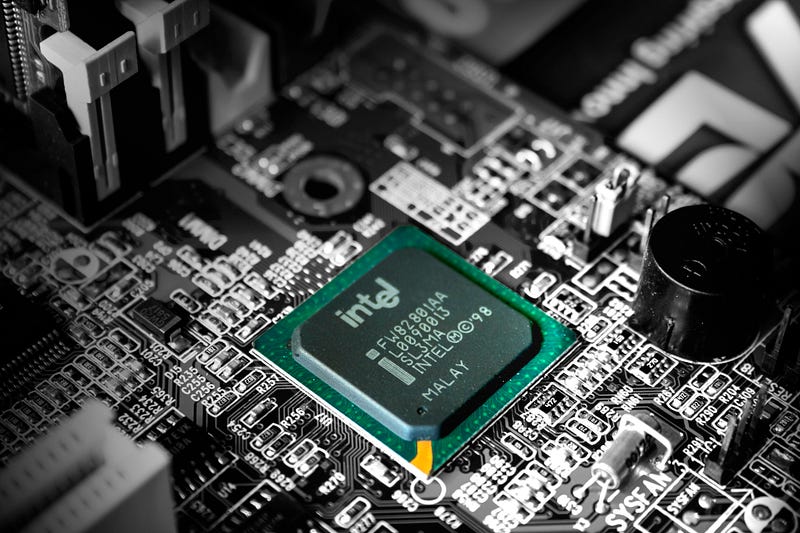
Photo by Slejven Djurakovic on Unsplash

If opening up your laptop isn’t an option. Try cleaning the outsides near the air vents/holes.

7. Upgrade the Components When You Feel the Need

Maintaining your laptop is an uphill battle, your laptop will have to store more files and get slower as time passes. Newer applications and websites will have bigger system requirements in the future, and your computer will have to keep up. This is why we need to eventually update the actual internal components of our laptops. The upgrades are also getting better and better each year with Moore’s Law working to our advantage.
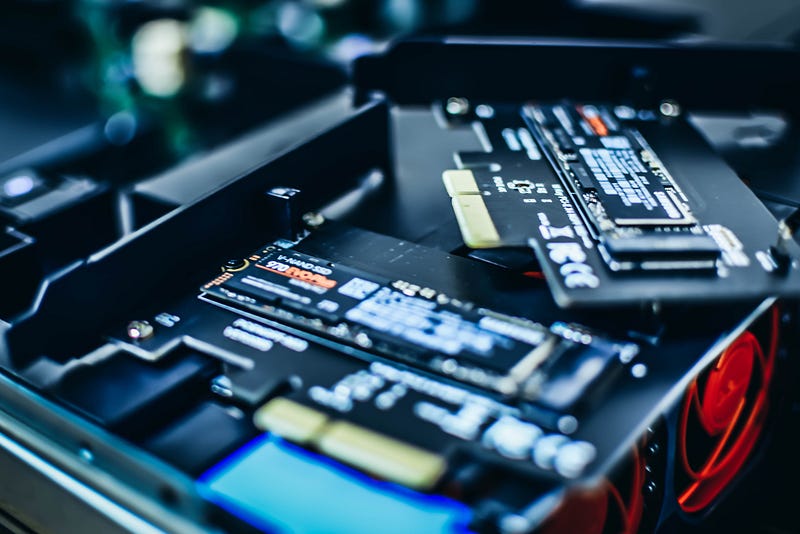
Photo by Marc PEZIN on Unsplash

Here are some easy DIY upgrades for your laptop:

  • Memory : Memory refers to a device that is used to store information for immediate use in a computer or related computer. This is usually in a form of RAM, which is your computer’s own working space. None of the applications on your computer will work without RAM, so have plenty of it. Some basic applications, like Google Chrome uses a lot of RAM. Upgrade your RAM if you feel like your computer is experiencing poor performance for some tasks, or it starts feeling really slow.
  • Storage : There are a finite amount of files you can store in your laptop, upgrading its storage by purchasing a new HDD or SSD is the solution. HDDs or Hard Disk Drives or Hard Drives are an electro-mechanical data storage device that uses magnetic storage to store and retrieve digital data using disks. Hard drives usually last up to 3–4 years. These are not as powerful as SSDs though. SSDs replace traditional mechanical hard disks by using flash-based memory, which is significantly faster. If you put files in an SSD, including your Operating System, your device will instantly launch those files and your computer will boot up faster. These lasts up to 10 years.
  • Battery : If ever step 2 doesn’t work anymore cause your battery has reached the end of its lifespan, just buy a new one, or one with better capacity.

If your laptop allows upgrades to its CPU and GPU, feel free to do so as well.

Photo by Ayla Verschueren on Unsplash

So that’s that. You’re all set.

Extra short: Internet Cafes

Photo by Kiyun Lee on Unsplash

My family used to own an Internet Cafe, those were really big back in the day. If you guys don’t know what I’m talking about, it’s one of those “social” establishments in the 90s to late 2000s that had computers all over the place and you pay to be there. They also have snacks and drinks. People go there to hang out and play games, watch movies or exclusive-to-the-web series, communicate with people from all over the globe, send pictures, do homework, research things, you know — just about everything we can do with our phones right now. Still don’t get it? Okay, imagine a Starbucks or a Timmy’s(sorry, I’m Canadian), but instead of bringing your own laptop, you use one of the cafe’s many computers. Laptops weren’t pretty common back in the day, as well as internet and Wi-Fi, so these establishments were sort of the pioneers to the modern coffee place hangouts of today. Internet Cafes still exist around the globe but, they’re technically no longer Cafes at heart, they’re just big spaces filled with a ton of computers that are lined up, often with young males playing games.

Why am I telling you this? Well, I used to do a lot of maintenance on all of our computers. I took them apart, cleaned them, replaced parts, disinfected the high-touch areas, kept them updated, and made sure they were still running in tip-top shape after all the abuse they take on the daily basis. I’ve also had my laptop for 6 years now and it’s still as good as new. Honestly I’m just waiting for it to die. So, yeah, if it’s about computers, I sorta know my stuff. Thanks for reading.

Home
Technology
Life Hacking
DIY
Cleaning
Recommended from ReadMedium