
Terminals are Colorful and Beautiful with Powerlevel10k
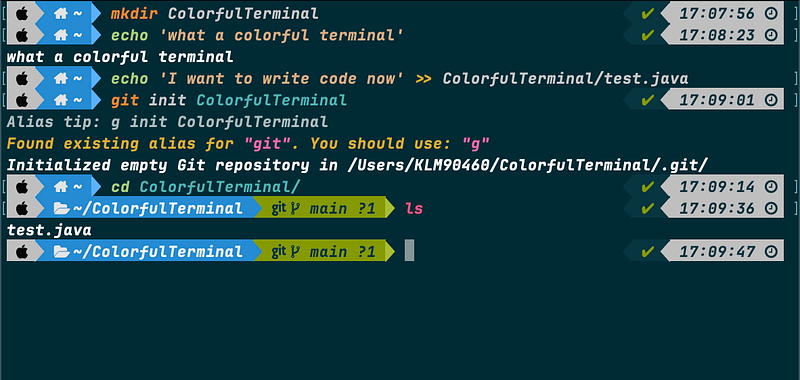
Are you tired of the boring, monochrome terminal on your Mac? Do you want to add some flair and personality to your command-line interface? Look no further than Powerlevel10k, a powerful and highly customizable Zsh theme that can transform your terminal into a visual masterpiece.
In this article, we’ll walk you through the step-by-step process of installing and configuring Powerlevel10k on your macOS system, so you can enjoy a beautiful and functional terminal experience.
Prerequisites
Before we begin, make sure you have the following installed:
- Homebrew (a package manager for macOS)
- Git (a version control system)
- Oh My Zsh
Step 1: Install Homebrew (if not already installed)
Homebrew is a package manager for macOS that makes it easy to install software packages.
Open your terminal and paste the following command to install Homebrew:
/bin/bash -c "$(curl -fsSL https://raw.githubusercontent.com/Homebrew/install/HEAD/install.sh)"Step 2: Install Zsh (if not already installed)
Zsh (Z shell) is a feature-rich shell that provides an array of improvements and additional functionalities over the default Bash shell. It offers advanced tab completion, customizable prompts, powerful scripting capabilities, and much more.
Every new Mac uses the Z shell (Zsh) by default. Hence Zsh can be already installed on your system. You can check zsh version by using this command zsh --version .
Output of this command should be something like this zsh 5.8.1 (x86_64-apple-darwin22.0) If you cannot get this output, zsh need to be installed.
To install Zsh, you can use a package manager like Homebrew or follow the installation instructions from the official Zsh website.
Install Zsh using Homebrew with below command:
brew install zsh
Step 3(Optional): Install iTerm2
iTerm2 is widely favored by developers for its extensive capabilities and flexibility. You can easily download and install iTerm2 by visiting its official website.
iTerm2 offers a rich set of features, such as split panes, hotkey navigation, and advanced customization, making it a top choice for those seeking a powerful terminal emulator.
Step 4(Optional): Set Zsh as Your Default Shell
If Zsh is not installed in your system, you are probably using another shell as a default. You need to update it to continue. Run the following command to use Zsh as your default shell
chsh -s /bin/zsh
Step 5: Install Oh My Zsh
Oh My Zsh is a community-driven framework for managing Zsh configurations. It comes with many plugins and themes, including Powerlevel10k.
You can run below command to check whether it exists or not.
omz version
If it is not installed you can install Oh My Zsh by running this command:
sh -c "$(curl -fsSL https://raw.githubusercontent.com/ohmyzsh/ohmyzsh/master/tools/install.sh)"Step 6: Install a Nerd Font
Powerlevel10k uses special characters and symbols in its prompt. you need to install a special font to see these characters correctly. Recommended font is called the Meslo Nerd Font, and you can find it on GitHub.
Powerlevel10k uses Nerd Fonts to render the prompt symbols and icons. You can explore other Nerd Fonts from https://www.nerdfonts.com/font-downloads. If you want you can use one of them.
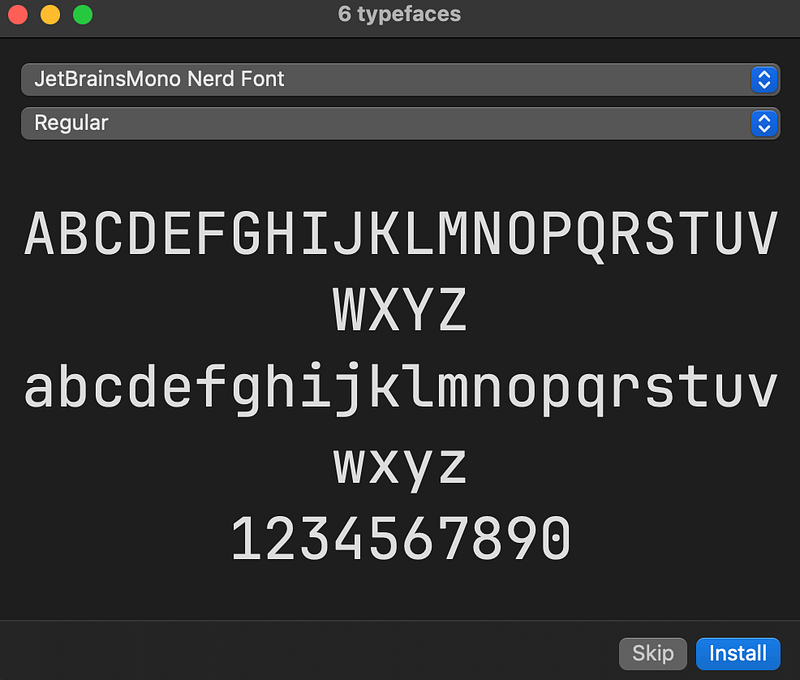
Download all four of the font files. Then, double-click on each file to install the fonts on your Mac. After installing the first font, you may see options to replace or keep both. Choose keep both so that you don’t lose any previously installed fonts.
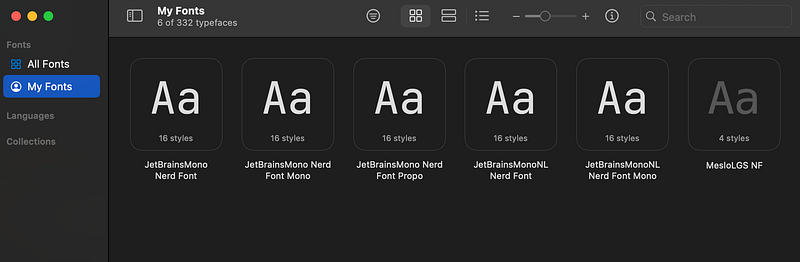
I installed Meslo and JetBrains fonts. You can see all installed fonts in Font Book application. Click My Fonts and it will list the fonts that you installed.
Step 7: Install Powerlevel10k Theme
Now you’ll install the Powerlevel10k theme for Oh My Zsh. This theme provides a highly customizable and colorful prompt.
Clone the Powerlevel10k repository:
git clone --depth=1 https://github.com/romkatv/powerlevel10k.git
$ZSH_CUSTOM/themes/powerlevel10k
Step 8: Configure Zsh
Edit your ~/.zshrc file to set the theme to Powerlevel10k.
Open ~/.zshrc in a text editor. You can use nano, vim, or any text editor of your choice:
nano ~/.zshrc
Find the line that starts with ZSH_THEME and change it to:
ZSH_THEME="powerlevel10k/powerlevel10k"After updating .zshrc source your dotfile. Run below command.
source .zshrcStep 9: Update Terminal Font
After finishing the configuration, you need to set the font in the terminal that you use. You need to set the new font in your terminal application to be able to properly configure powerlevel10k. Your font should be already installed. Hence you need to complete step 5 already.
Most terminals have an option to change the font in the settings or preferences under the “profile” section. Setting the Meslo Nerd Font in your terminal will ensure that Powerlevel10k’s prompt looks correct with all the special characters and symbols.
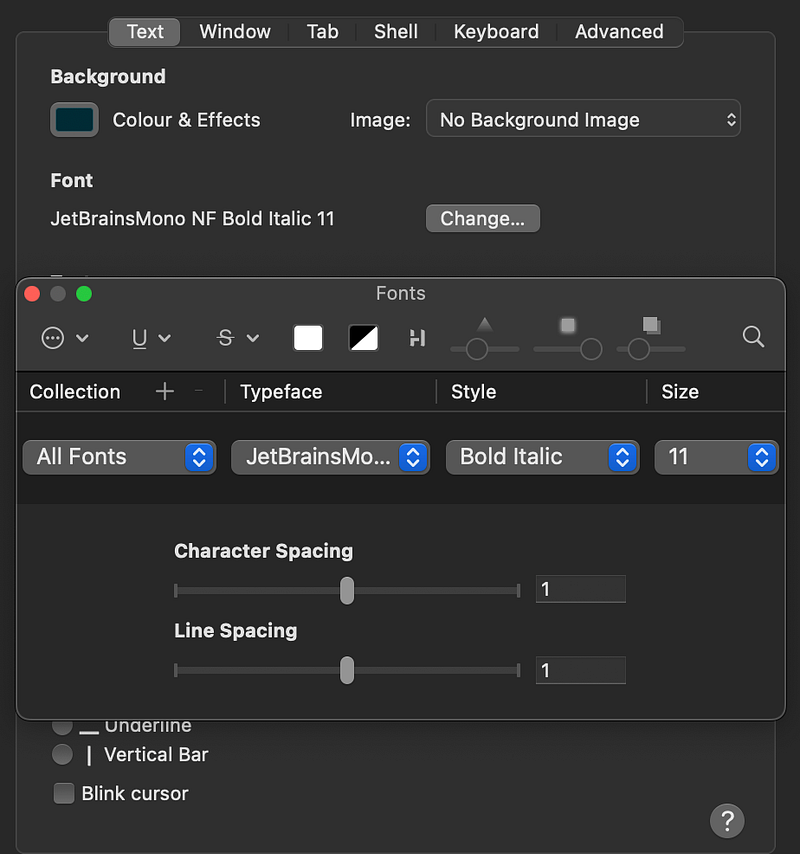
MacOS Terminal:
To update the font of terminal application, go to Terminal > Settings > Profile > Text .
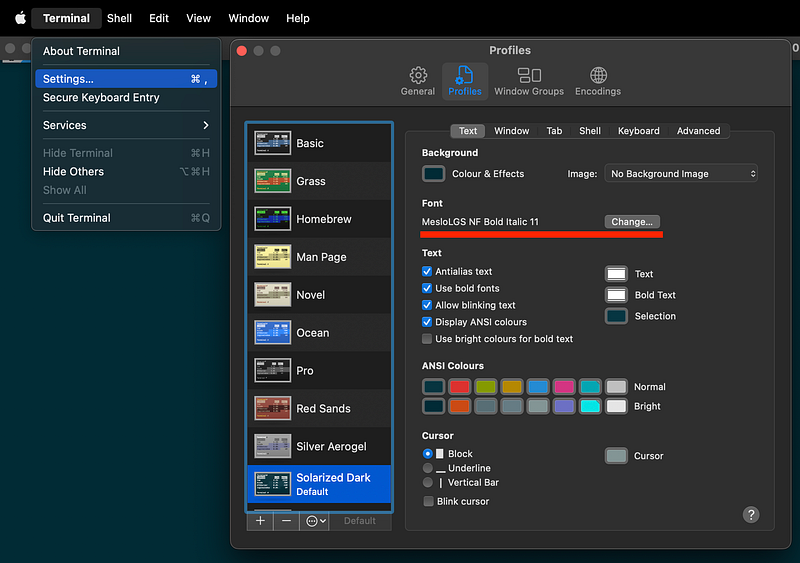
Then click the change button and select installed Nerd Font.
iTerm2:
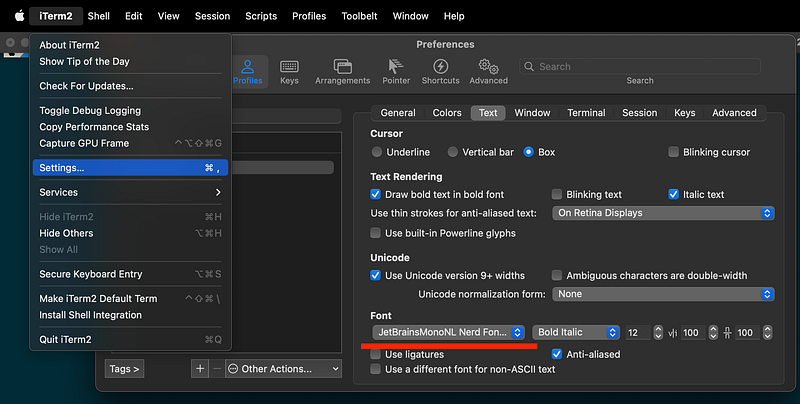
To update font for iTerm2, go to iTerm2 > Settings > Profiles > Text
VSCode:
VSCode configuration for fonts is a bit hidden. You can find it in the terminal settings. To open it, click the arrow button next to plus button in VSCode terminal. Then click Configure Terminal Settings button.
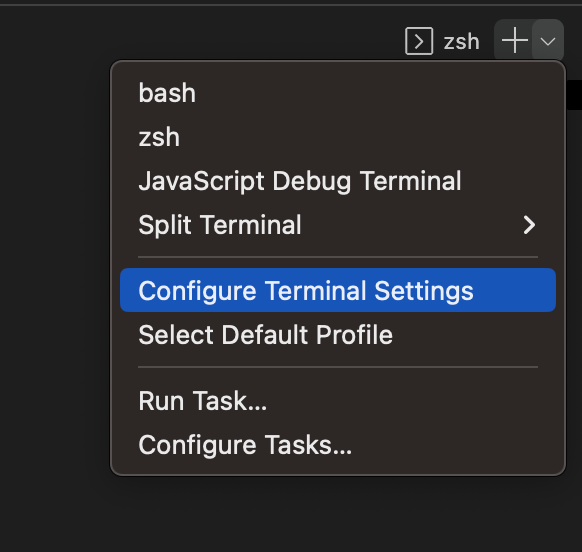
Then in the opened popup search for font. Finally add your installed for to list. You can double-check the name of the font from Font Book application.

Step 10: Set up Powerlevel10k
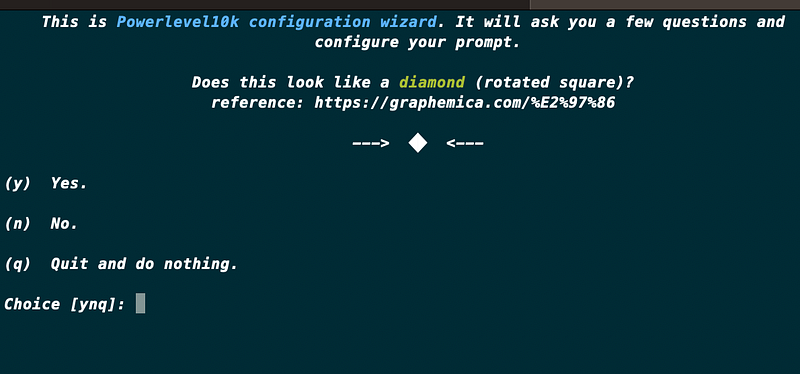
After installing Powerlevel10k and setting Nerd Font for your terminal, Run the following command to set up Powerlevel10k. This wizard helps you customize the theme according to your preferences. When you run the command, Powerlevel10k will take you to multiple step configuration process.
p10k configure
If you don’t see the theme change in the terminal and you get below output, restart the terminal. zsh: command not found: p10k
You can customize various aspects of the prompt, such as colors, icons, and segments, to create a personalized and visually appealing terminal prompt. Follow the prompts to choose your preferred options for prompt style, icons, colors, and more.
Step 11: Change Theme
If you want to change the theme of your terminal, you can explore different options from websites like iTerm2 Color Schemes, which offers a wide range of themes for iTerm2 and you can check how to install them in different terminals.
One highly recommended theme is Solarized Dark, which provides a sleek and modern look to your terminal. Solarized Dark is my personal preference, and all of the screenshots were taken from a terminal that uses the Solarized Dark theme.
Step 12: Enjoy Your Colorful Terminal!
Congratulations! Your terminal should now have a sleek and colorful Powerlevel10k prompt. You can further customize Powerlevel10k configuration by editing the ~/.p10k.zsh file, which is created after running the configuration wizard.
With Powerlevel10k, you can unleash your creativity and make your terminal truly your own. Experiment with different color schemes, icons, and segments to create a personalized and visually stunning command-line experience.
I hope this step-by-step guide helps you and encourages you to share this medium post. Happy terminal tinkering and productivity boosting!
👏 Thank You for Reading!
👨💼 I appreciate your time and hope you found this story insightful. If you enjoyed it, don’t forget to show your appreciation by clapping 👏 for the hard work!
📰 Keep the Knowledge Flowing by Sharing the Article!
✍ Feel free to share your feedback or opinions about the story. Your input helps me improve and create more valuable content for you.
✌ Stay Connected! 🚀 For more engaging articles, make sure to follow me on social media:
🔍 Explore More! 📖 Dive into a treasure trove of knowledge at Codimis. There’s always more to learn, and we’re here to help you on your journey of discovery.


